AirDroid Parental Control
24/7 Kids' Guardian via App & Web
- 👀Live surroundings and location tracking
- 🔞Content Monitoring and App/Web Blocking
- ⚠Instant alerts for online risks and geofences
- ⌛Screen time control and monitor
What is Parental Controls on Apple Music?
They say music is the soul of everything, and they are absolutely right. Although for kids, some music can be intense, some themes may be too mature, and when you are a parent, you will always worry about it. Here today, you will know everything about how to create a safer, smarter music experience for your kids.
Part 1: What Are Apple Music Parental Controls?
Apple Music parental controls are a set of features that give parents the advantage to parents to manage what their kids should listen to. There is no on and off switch; it is instead much more that gives you control over explicit lyrics, content ratings, media types, and much more.
It doesn't matter what Apple device you are using; it works on all Apple devices (iPhone, iPad, Mac, and Apple TV).
Here’s what you can do:
You can block songs with explicit content so they won’t even appear in search results.
You can also set a maturity level for music, such as allowing only songs that are marked as “clean.”
It will also give you access to whether you give permission to music videos, radio stations, and any other content or not.
You can manage purchases as well, before your child buys or downloads anything.
These settings sync across devices. So if you block explicit content on your child’s iPad, it stays blocked when they switch to their iPhone or Mac.
Part 2: How to Set Up Apple Music Parental Controls
1. Use Apple Music’s Built-In Parental Controls
The best thing about Apple is that they don’t hide these tools; they are right there in Screen Time.
- Step 1. Open Screen Time
- Step 2. Set Content & Privacy Restrictions
- Step 3. Block Explicit Music
- Step 4. Limit Media Types
- Disable Music Videos
- Turn off Music Profiles
- Restrict Web Content if you’re concerned about explicit content
You need to open your child’s iPhone or iPad, then go to the settings, and go to Screen Time. If it is your first time, then turn on screen time, and then this is my child’s device.
Tap Content & Privacy Restrictions, then enter your Screen Time passcode (or create one). Turn it on then.
Scroll down to Apps Store, Media, Web, & Games. Under Music, Podcasts, Fitness, choose Clean to hide explicit tracks.
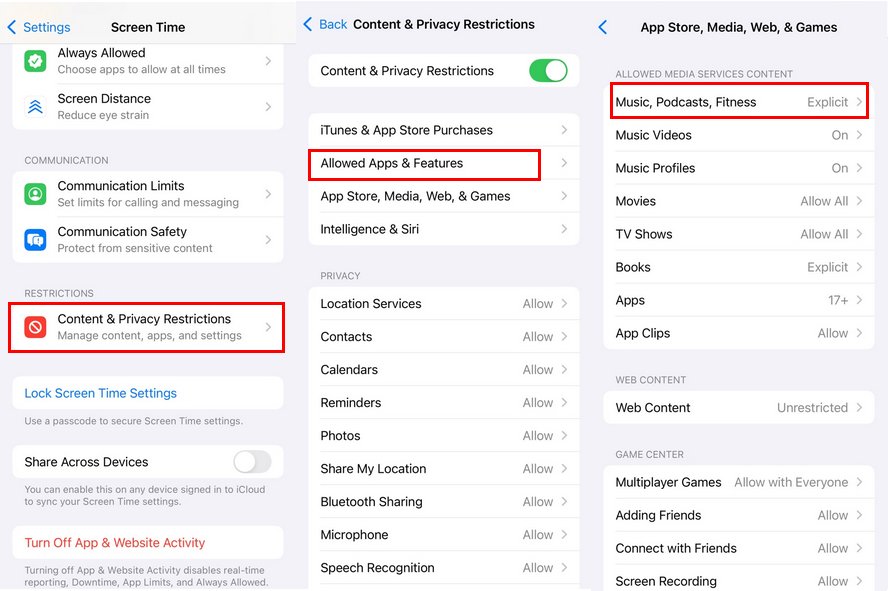
Still in Content Restrictions, you can also:
2. Use AirDroid Parental Control (Especially for Android)
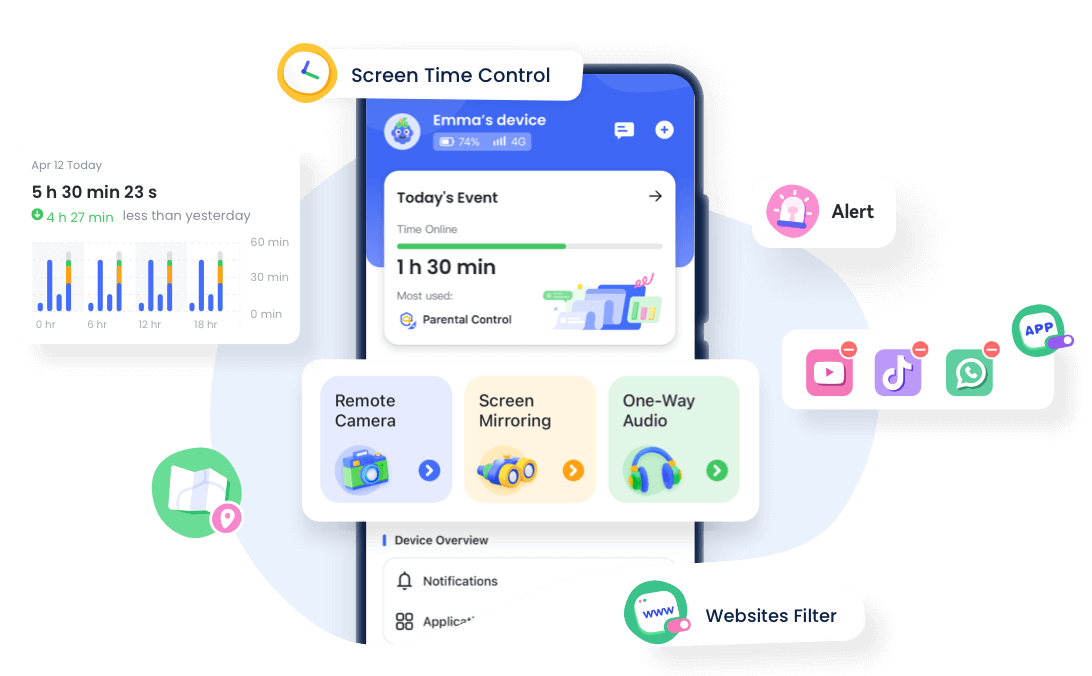
Another way is if your family uses Apple Music on Android devices, which actually works on Android. Apple parental control doesn’t work on Android. All you need is to download it from the Google Store. That’s where you need AirDroid Parental Control. With AirDroid, you can:
- Mirror your child’s screen in real time to see what they’re listening to.
- Set daily time limits for Apple Music usage (e.g., no streaming after 9 p.m.).
- Review activity reports that show how long they’ve used the app and when.
Plus, it works alongside other apps—so you’re not just managing music but overall screen habits.




Part 3: Tips for Managing Apple Music for Your Family
1. Setting Up Family Sharing
Family sharing on Apple is another great thing for parents. It allows you to share one Apple Music family plan and add up to six people, keeping the control in one place.
Here’s how to set it up:
- Step 1. On your iPhone or Mac, go to Settings > [Your Name] > Family.
- Step 2. Tap Add Member and invite your child using their Apple ID (or create one for kids under 13).
- Step 3. During setup, enable Parental Controls and Ask to Buy.
- Step 4. Once added, go to Screen Time on your device, tap your child’s name, and customize their content restrictions.
This way each family member will get their own library recommendations and everything else, but the parental control will still be there. So even if your teens try to search for something explicit, it will not appear.
2. Set Purchase & Download Restrictions
Furthermore, you can set purchase and download restrictions, including those for free songs that come with a lot of explicit versions or in-app prompts.
- Keep Ask to Buy turned on in Family Sharing. This means every download or purchase—no matter how small—requires your approval.
- In Screen Time > Content & Privacy Restrictions > iTunes & App Store Purchases, set Installing Apps and In-app Purchases to Don’t Allow if you want total control.
This way, your child can still enjoy music, but nothing gets added to their library without your green light.
3. Monitor Listening Activity
Apple will not give you every detailed log of your kid’s song history, but you can still stay informed.
- Check their Recently Played section occasionally (if you have access to their device).
- Use Family Sharing purchase history to see what they’ve downloaded.
- For Android users, AirDroid’s activity reports fill this gap by showing usage duration and app engagement over time.
Conclusion
Apple Music parental controls are not just a simple switch. They offer real tools to help protect your child’s digital world while still letting them enjoy the music they love. On Apple devices, these controls work smoothly because they are built into the system. On Android, you’ll need extra help from other apps, and one of the best options is AirDroid, which has powerful and easy-to-use features.
Music can affect a child’s mood, identity, and development. By helping them choose safe and age-appropriate music, you create a healthier and more positive environment for them to grow.
FAQs











Leave a Reply.