AirDroid Parental Control
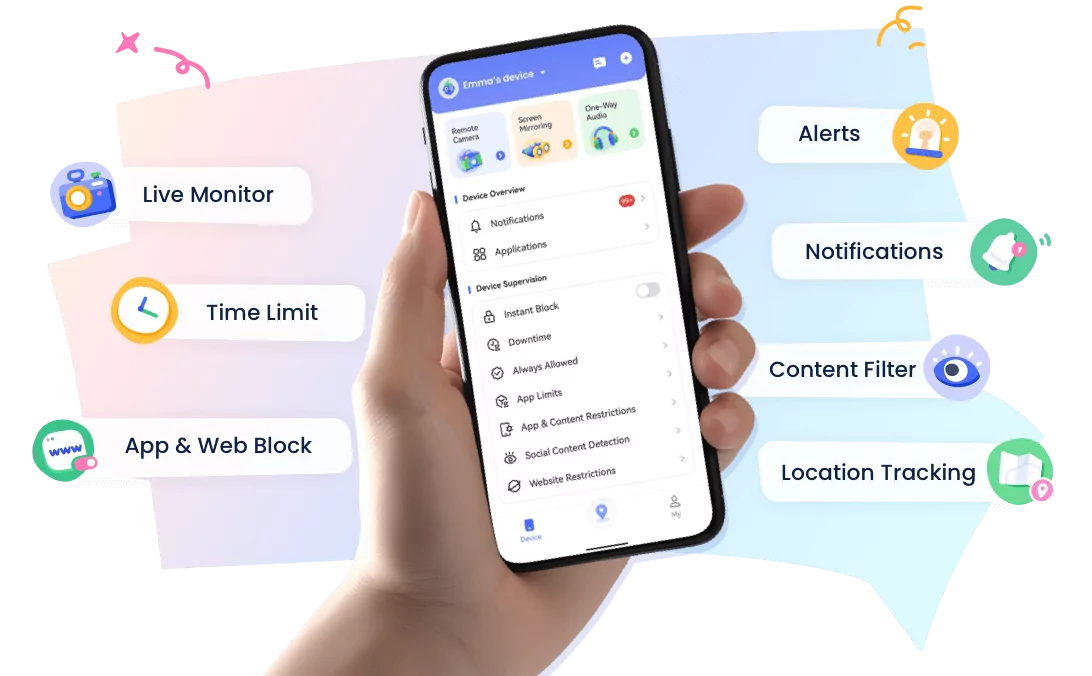
24/7 Kids' Guardian via App & Web
- 👀Live surroundings and location tracking
- 🔞Content Monitoring and App/Web Blocking
- ⚠Instant alerts for online risks and geofences
- ⌛Screen time control and monitor
How to Forward Text Messages from Android: Manual & Auto Methods
We've all needed to forward a text message at different times for different reasons — whether for preserving a conversation, sharing important info from a work phone, or just to keep an eye on our children’s digital interactions for safety.
Whatever the case may be, Android has various ways of forwarding messages. However, those methods don't provide remote access and basically require physical access to the phone. So, users find them limited.
For a safer solution that offers you real peace of mind, tools like AirDroid Parental Control should be considered. Here is what you should know about forwarding messages effectively.
Part 1. Why Forwarding Text Messages from Android?
Let’s explore the everyday reasons why understanding this message forwarding feature on Android is so powerful.
- Easier Viewing Across Devices: No need to swap phones constantly or be stuck to a device.
- Avoid Missing Important Information: Can see sent and received messages on multiple devices.
- Multi-User Collaboration Needs: Keep the family or team on the same schedule and plans.
- Backup and Recording Purposes: Forwarding helps you preserve essential memories and legal records safely in your email or a secondary device.
- Cross-Platform Ecosystem Support: Bridging the gap between Android and Apple, forwarding allows your Android messages to appear easily on iPads/Macs.
Part 2. Quick Overview (Comparison of SMS Forwarding Methods)
| Evaluation Criteria | Manual Forwarding | Screenshot | AirDroid Parental Control | SMS Forwarder |
|---|---|---|---|---|
| Time-Consumed | High | Moderate | Low (Auto) | Low (Auto) |
| Safety | Avg. | Low | High | Variable/Risky |
| Real-Time | No | No | Yes | Yes |
| Technical Configure | Low | Low | Simple | Moderate/Complex |
| Risk of Abuse | Low | Avg. | Low | High |
| Permission Required | None | None | Avg. | High |
| Best Scenario | One-Off Messages | Visual Proof | Parental Monitoring | Tech-savvy users |
Part 3. How to Forward a Text Message on Android Manually
In case your aim is a one-time share, the built-in manual forwarding for Android can help move a message to another device. Check out the breakdown of the methods and steps required.
1 Manual Forwarding via App Default Feature
The App default feature is a built-in messaging function that has no complex setup. We will explore the options in this category and the steps required.
Android Default Messages App
- Step 1. Open the messaging app.
- Step 2. Long-press the target message to bring up the menu.
- Step 3. Select “Forward”, then tap send.
Pros:
- Simple to use; no third-party tools or complex setup
- Works well for occasional forwarding via SMS(no internet required)
Cons:
- Manual operation for every message(not automatic)
Google Messages
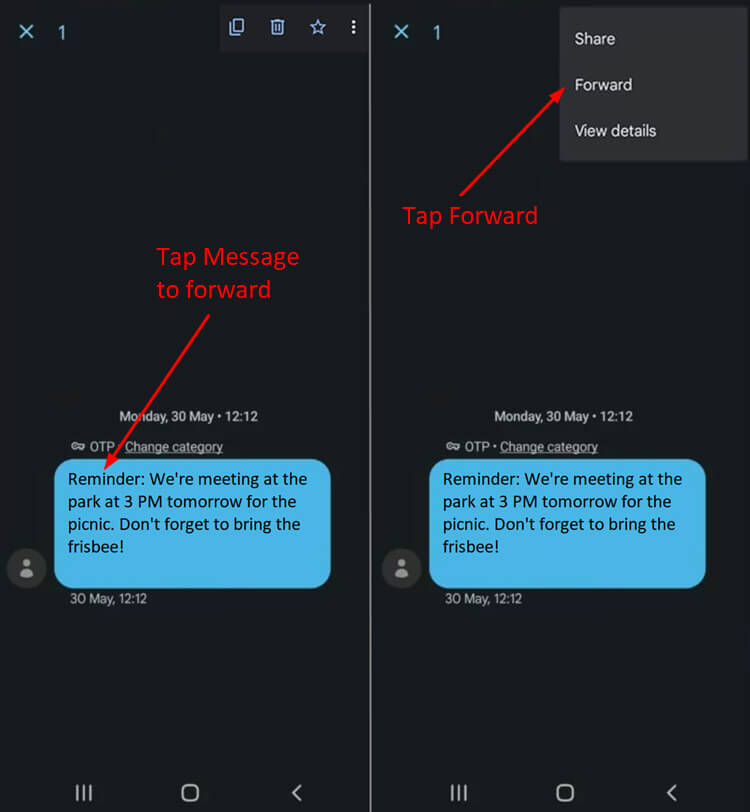
- Step 1. Open the Google Messages app.
- Step 2. Long-press to select the target message.
- Step 3. Tap the three dots (More) in the top right corner and select “Forward.”
- Step 4. Choose recipient → tap send.
Pros:
- User-friendly interface
- Supports group forwarding & RCS for high-quality media sharing
Cons:
- Manual selection
- Easy to miss messages when busy or handling large volumes
Samsung Messages
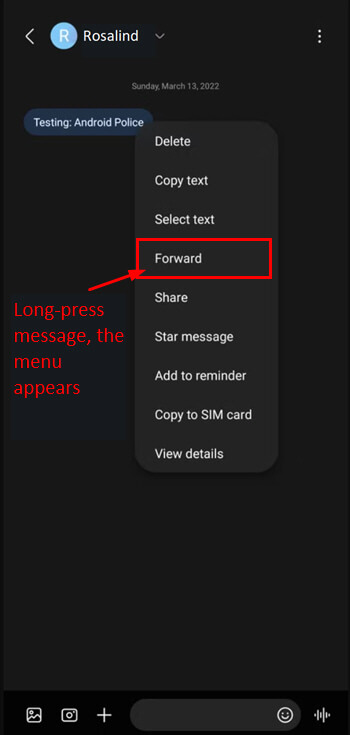
- Step 1. Open the Samsung Messages app on the Galaxy device.
- Step 2. Long-press the message bubble to open the context menu.
- Step 3. Select “Forward”→enter recipient info → tap send.
Pros:
- Fast and responsive on Galaxy phones(custom-designed for Samsung)
- Familiar layout for Samsung users
Cons:
- Forwarded images/texts may be transferred to MMS (incurring extra costs)
- May cause timestamp loss or content truncation
2 Manual Forwarding via Screenshots
You can also carry out manual forwarding by capturing a visual screenshot of your screen to share conversation history exactly as it appears to the recipient.
Steps to Follow
- Step 1. Open the messaging app and select the target conversation.
- Step 2. Screenshot desired message segments (usually via volume + power buttons; key combo varies by device model/brand).
- Step 3. Open the Photos app, select screenshots, and tap "Share".
- Step 4. Choose a sharing channel (messaging, email, or other installed apps).
Pros:
- Delivers visual conversation proof
- Almost compatible with all messaging apps
Cons:
- Requires separate screenshots for each text screen
- Non-real-time/non-automated; sharing only possible post-manual capture
- Consumes more device storage than plain text
Part 4. How to Set Up Auto-Forwarding for SMS on Android
With many messages, you may need a tool to automate forwarding messages, ensuring that you don't miss any crucial updates across your devices. Here are the methods and steps required.
1 Using AirDroid Parental Control
To ensure kids’ safety, AirDroid Parental Control is a real-time solution for parents to identify suspicious texts, gambling, or bullying through auto-forwarding.
Steps to Follow
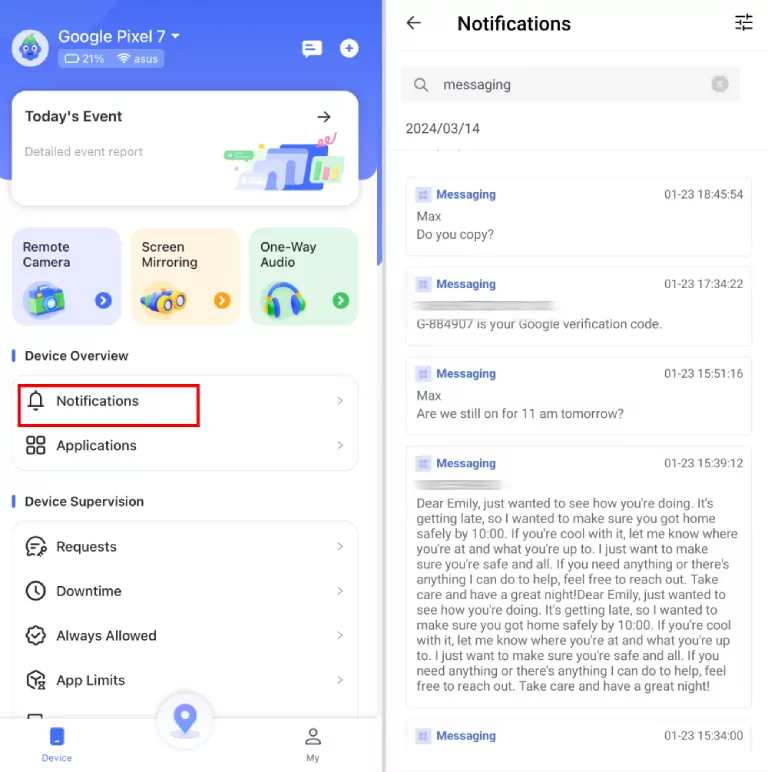
- Step 1. Download AirDroid Parental Control on your and your kid’s device, Pair both devices.


- Step 2. Press Calls & SMS Monitoring > SMS Detection Records.
- Step 3. Then you will get texts in the Notifications button.
Pros:
- Automatically syncs notifications and messages to your phone
- Parents can get a real-time alert when risky content is detected
Cons:
- Need installation and setup
AirDroid Parental Control Key Benefits for Parents
- See incoming text messages instantly.
- Get alerts for risky contacts or suspicious content.
- Protect kids from scams, cyberbullying, and strangers.
- Manage screen time and apps on the same platform.
2 Using Third-Party SMS Forwarding Apps
SMS Forwarder is a specialized third-party tool designed to automatically redirect messages based on specific triggers, keywords, or sender numbers.
Steps to Follow
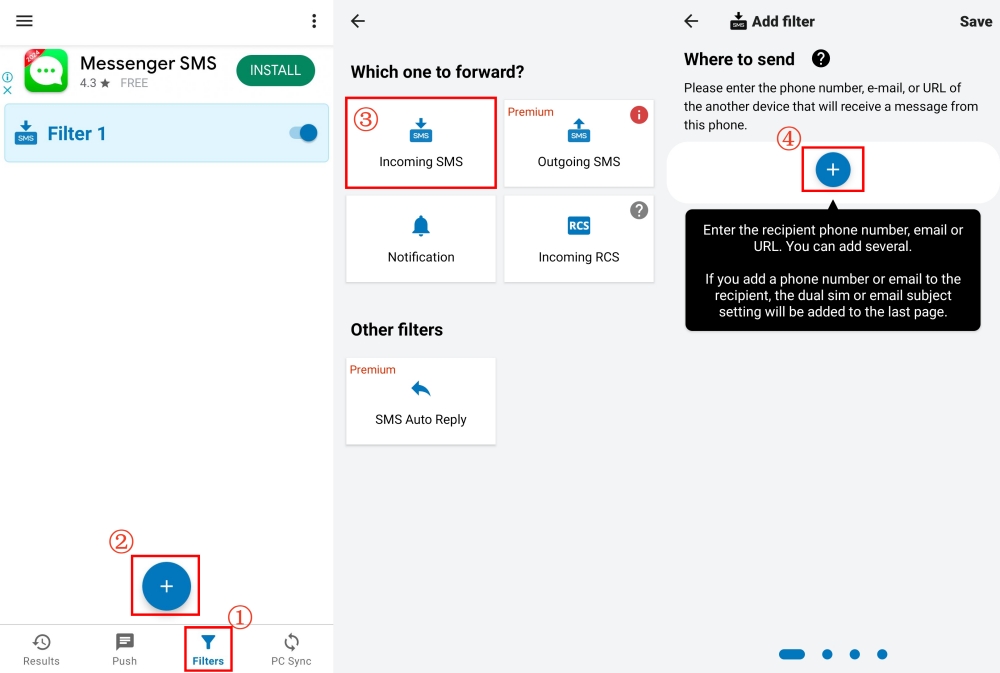
- Step 1. Download SMS Forwarder from the Google Play Store.
- Step 2. Go to the Filters tab and press the "+" button.
- Step 3. Then, choose "Incoming SMS."
- Step 4. Press "+" to enter the recipient's phone number or email.
- Step 5. Hit "Save", ensuring that the filter remains active. Now you can instruct the system to automatically forward messages to your phone.
Pros:
- Incoming messages can be forwarded automatically
- Easy to forward SMS to email, Telegram, or other cloud-based platforms
Cons:
- Misconfiguration or fake apps may lead to exploitation of verification codes, bank SMS, and private data
- Background service operation drains the device battery
Final Remarks
As explored already, Android has several ways of forwarding SMS. However, these methods are largely non-automatic and have peculiar limitations. Therefore, if you’re looking for an SMS real-time solution to protect your kids from cyberbullying and stranger harassment, AirDroid Parental Control is an ideal choice.
Still, here is the endpoint. Depending on the goals that you want to achieve, whether it is for a one-time share or automated monitoring, examine the given methods carefully and go for the one that most astutely fits your specific needs and purposes.











Leave a Reply.