AirDroid Parental Control
All-in-One Safety Solution for Kids
- ⌛Up to 30 days location history
- 🔞14 + popular social media content monitoring
- 👀Live surroundings and screen mirroring
- ⚠Instant alerts for online risks and geofences
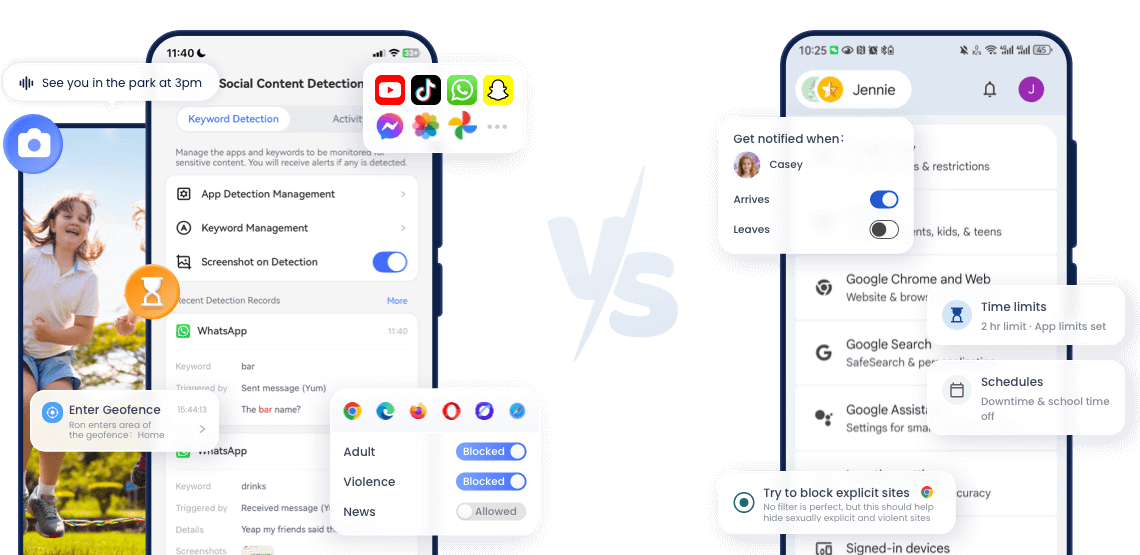
Google Family Link Review: What It Can and Can’t Do
Google Family Link is a great and free option for Android and Chromebook, but its limited features can’t meet the needs of parents who want more practical parental control tools.
We use Google Pixel to conduct a series of hands-on tests on Google Family Link’s features, aiming to provide conclusions that are as honest and objective as possible.
Quick Verdict for Parents
Google Family Link is quite easy to use, especially for younger kids under 13. With a simple dashboard, parents can get used to it very quickly.
It is a suitable option for parents who are less familiar with software and have younger children with basic monitoring needs, especially families already using the Google ecosystem.
However, when children whose accounts are managed with Family Link turn 13 (or the applicable age in their country), they can decide to keep parental supervision for children over 13 or manage their own Google account.
Pros:
- 100% free
- Web and YouTube supervision
- Can supervise Play Store content
- Lock the device with 1 click
Cons:
- No location history
- iOS devices are not supported for child users
- Lacks parental controls for social media
- Youth aged 13 and above may remove supervision
Google Family Link Features Overview:
| Features | Score | Explanation |
|---|---|---|
| Screen Management | ★★★★☆ | Smooth, but slight delay |
| Block apps/web | ★★★★☆ | Effective |
| Web Filtering | ★★★☆☆ | Unable to filter all explicit content |
| Location | ★★★☆☆ | No location history |
| Google Play management | ★★★★★ | Full control |
| Social media monitor | ★☆☆☆☆ | Only YouTube |
What Google Family Link Can Actually Do?
1. Time limits
You can set the time limits that your kids can spend on the devices daily. It allows users to set time precisely customized down to every minute. Family Link also lets you create Weekly schedules, where you can edit different time limits for each day of the week. For example, you can set less screen time for kids during school days but more on weekends.
Alongside Weekly schedules, Google Family Link offers a dedicated Schedules feature, focusing on Downtime and School time. Though only two modes exist, it is sufficient for most everyday parental control needs. If it doesn’t, Family Link also offers a button to lock the device instantly.
The modes can be applied during late night or school times and also set differently for every day of the week. For instance, Downtime prevents the kids from being up late in the night watching videos or talking to their friends while School Time reduces the distractions and hence, kids can concentrate on their studies rather than using the internet excessively.
In our actual test, we have found that its time limits and schedule features are extremely smooth. We set Downtime from 9 PM to 7 AM, and the kid’s device will be locked almost in the next second once time is up.
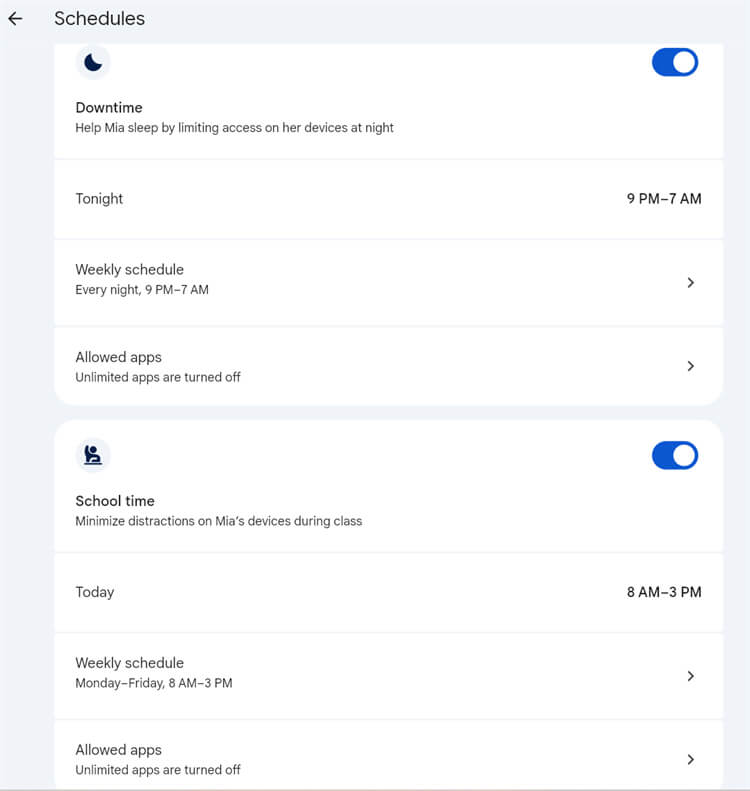
Restricted applications will appear grayed out on the child’s device, and when you press it will trigger that “App isn’t available”. Kids can check back after the time limits. It should be highlighted that important functionalities like the phone, messaging, clock, and contacts are left unrestricted for child communication when needed.
The experience isn’t entirely seamless in every section. There is a slight delay on children's devices when we remove the time limit or give bonus time. Some users have also complained about this in their Google Play reviews.
Users’ feedback from Google Play:
“Sometimes it takes a few minutes for bonus time to show up on my child's tablet. I do appreciate the control it has given us over the device, it gives some peace of mind. I wish it were possible to give extra time in an app for just the day, not change it forever.”
Meanwhile, compared with the time management features offered by other popular parental control apps, this is an area where Google Family Link falls short. For example, you can only set one screen time limit per day, and can’t add more. In contrast, AirDroid Parental Control offers multiple daily time limits, which are more flexible and convenient.
2. Block or limit apps
Google Family Link’s app supervision is a fantastic function that can provide parents with very detailed controls. It shows all the apps present on the child's device and gives parents the choice to stop or set time limit for each particular app. There’s even an option to mark certain apps as “unlimited time”, so the time spent on that app won’t be considered part of their daily screen time limit.
It's worth mentioning that some apps cannot be disabled, such as Google. This is a double-edged sword; the advantage is that children can use Google to search for information at any time, but the disadvantage is that children may use it to browse inappropriate content.
Parents can block apps by filter name, most used, and recently installed. Also, parents can see app details, including age rating, downloads, description, developer, in-app purchases and ads.
We try to block and limit the time on specific apps, and it works very well.
Users’ feedback from Google Play:
“I have had family link for around 4 years now. My eldest was the guinea pig, lol. it does take a few minutes for initial setup and every time you get a new device but once everything is going its a very nice app to have. I can monitor apps and games my kids download, they need permission from me for certain apps, websites, how long they are on certain apps/games etc. Can block apps, websites etc.”
“Kids have endless ways of circumventing the set limits. Google Search has a built-in game that even works in offline mode. Google Chrome limits don't work at all if started via an intent from e.g. Google Search or other apps.”
3. Web Filtering and blocking
Google Family Link web filters include SafeSearch, which is turned on by default. It can help kids manage explicit content in search results, and only parents can change the SafeSearch setting. It contains three modes; you can see details below.
- Filter: help filter out explicit images, text, and links.
- Blur: help blur explicit images, but explicit text and links may appear.
- Off: show all relevant results, including explicit content.
We have evaluated this feature on Google and Microsoft Bing. It performs well, basically can filter most explicit content, but it can’t always execute excellently.
When kids search adult content, there will show a message appears that “SafeSearch is locked to filter by a parent”. Under the Filter mode, children cannot find well-known adult content websites and images, but by changing their search terms, they can see some explicit video covers and images.
We believe filter mode is working, but search results are complicated; for example, even Apple Music video covers in search results sometimes are not suitable for kids.
Google Family Link offers fine-grained web page filtering. Parents can set a customized whitelist and blacklist. If you want stricter control, we recommend you to use a whitelist, and your kids will not be able to access sites you don’t want them to visit.
Unfortunately, parents can only view kids’ web history on the kids’ devices. Go to “myactivity.google.com” on kids’ devices, and you will see all the detailed visited links and searched keywords even deleted. There is no need to worry about Incognito Mode, since Google Family Link automatically turns it off on kids' devices.
4. Location
Google Family Link include location feature, indicating children’ position on Google Maps, and it’s quite accurate. It also offers geofencing, allowing parents to create areas ranging from 650 to 1,300 feet and receive notifications when their child arrives or leaves these areas.
However, Google Family Link does not provide location history, which can be a limitation for parents who want to review past movements.
By comparison, parental control apps such as AirDroid Parental Control offer a more comprehensive location option, including real-time tracking, geofencing, location history, and additional safety features like remote camera access and one-way audio, which can help parents check a child’s surroundings when unable to contact the child for a long time and fearing for the child's safety.
Users’ feedback from Google Play:
“Generally, this is a good app to track your child's whereabouts. Features in the app fulfilled my needs and user-friendly. ”
5. Activity report
Google Family Link offers a clean and straightforward page to view app usage and how much time children spend on each app. It’s enough for most parents with basic needs. The app usage times in the report are very accurate, with almost no delay. When I used Google on my child's device for 8 minutes, the report also accurately displayed this data.
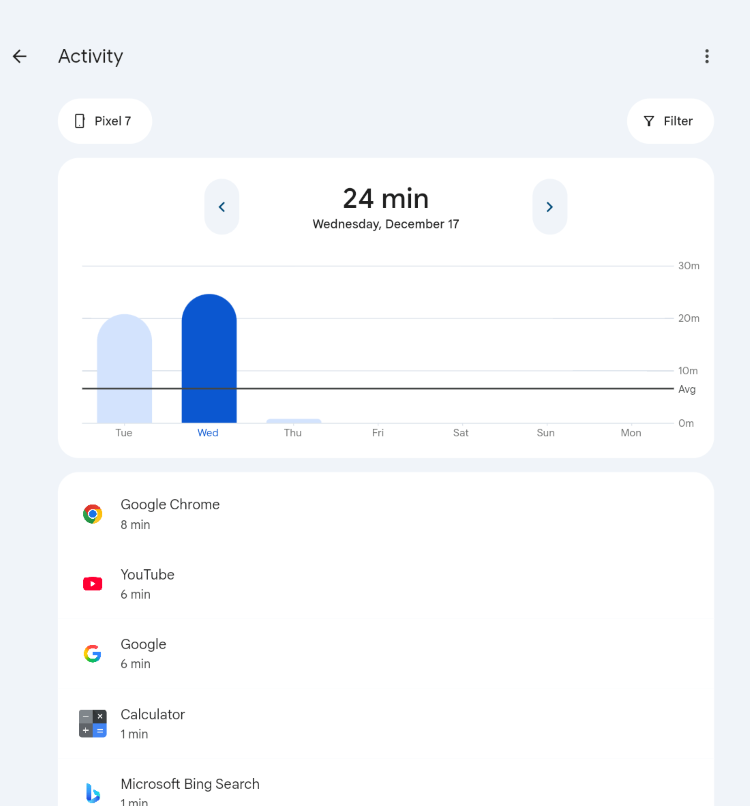
This may feel limited when parents want to understand why a child’s phone usage suddenly increases or identify potential distractions during school hours. In these situations, AirDroid Parental Control provides more detailed activity reports, including the number of notifications a child receives and their cellular data usage, helping parents better understand usage patterns and intervene when necessary.
6. Google Play management
This is my favorite feature on Google Family Link. Because of the integration of the Google ecosystem, Google Play works extremely well-performing. It allows you to manage purchases and downloads, content restrictions for the right age, and can restrict sexually explicit books.
It’s so good that children can only download apps that you have set for their age. If they want to download additional apps, they can ask for your approval by message or ask in person. No stress on kids can download from other sources, since parents can set that kids can only install from Google Play.
We use Google Family Link to restrict children to downloading apps rated for ages 7. When we attempted to download Tinder on a child’s device, the download failed.
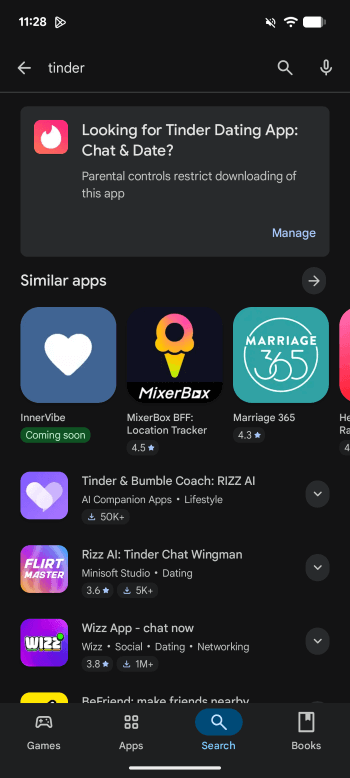
Parental control apps in the market can’t let you filter content on Google Play, and they can only restrict apps that are already downloaded on the kid’s device. And of course, they can’t control Google Play purchases. We would like to suggest that parents can utilize Google Family Link and other parental control options at the same time, so that they can achieve the best result.
7. Social media monitor
Until now, Family Link can only monitor YouTube, and its functionality is integrated very smoothly because of the Google ecosystem. In the initial setup, Family Link will show you a parent feature tour on YouTube.
Parents can set up YouTube and YouTube Music by choosing the options below:
- Explore: content rating for viewers 9+
- Explore More: content rating for viewers 13+
- Most of YouTube: Almost all content on YouTube
It is disappointing that we used the age-rated 9+ explore viewer mode, but kids' devices can still see some adult content. Generally speaking, YouTube won’t recommend kids’ devices adult content, but kids can search for that. And it's hard to filter all inappropriate content.
If you want to view YouTube history, you have to use a kid’s device to search “myactivity.google.com”. And you can see what your kid searched for and what he/she have viewed on YouTube.
There is a drawback that Family Link can’t monitor activity on third-party social media, such as TikTok or Snapchat. As a result, parents may be unaware of potential risks, such as online harassment from strangers, explicit text, and sexual images. Don’t worry, parents can choose AirDroid Parental Control to spot potential issues earlier.
AirDroid Parental Control can set YouTube/TikTok parental control to view history on parents device. And it offers Social Content Detection on over 14+ trending social media platforms. You can set customized keywords on specific apps. Thus, parents will get alerts and take immediate action when they detect bullying/gambling/sexual/scam keywords on kids’ devices.
What’s more, in some extreme situations, like your kids already tricked out of the house by a stranger, parents can utilize Screen Mirroring and Sync app notification to see the details and take action.
8. Installation & Setup
The whole installation process is quite smooth and time-saving if you already have a child’s Google account. Once your child's Google account added you as their guardian, you don't even need to match two devices like with regular parental control software.
Just follow the steps to grant certain permissions and make simple settings on your child's device, and you'll find that you've connected your child's device when you log in to Google Family Link.
9. Ease of Use
In one word, Google Family Link is a solid option for families using Android and Chromebooks with children aged under 13. Most of the features are straightforward and easy to use for managing screen time, along with several helpful extras. For example, “Play sound” can ring a kid’s device if you find it hard to locate your kids nearby. And the Parent access code allows another trusted adult to use it to help control your kid’s phone if necessary.
Nevertheless, there are also several limitations parents should pay attention to, including no support for iOS, limited social media monitoring, the fact that kids over 13 can disable the app, the absence of location history, and a lack of real-time alerts for potential cyberbullying or harassment by strangers.
10. Difficulty of Bypass
Unfortunately, methods for bypassing Google Family Link are widely discussed online, and you can easily search for them on Quora and Reddit.
One common approach is create secure folders: on Samsung gadgets, kids are able to use a secure folder feature that is not limited by Google Family Link. A secure folder allows kids to add and access files or apps that are not under the control of their parents. Children can still use similar features as Safe Folders on non-Samsung devices to conceal screenshots or pictures from their moms and dads.
Another simple trick for account removal and factory reset: Family Link’s supervision depends on the child’s Google account remaining linked. In case the child goes to the length of removing the account or performing a factory reset of the phone, supervision is lost. There are some kids who erase their accounts and then restore them almost immediately. This is a Google recovery window that is built-in and it effectively allows them to come back without any limitations.
These methods require minimal technical knowledge, making Family Link’s restrictions far from impenetrable. And it is so frustrating if you locked your kid’s device because of tomorrow's exam, but he stayed all night watching videos and missed the exam!
Is Family Link the Right Choice for You?
1. When Google Family Link Is Enough
Google Family works well for families when:
- Children using Android or Chromebooks
- Children use little or no social media on their devices
- Parents mainly need to control kids' screen time, apps/web blocking, and Google Play management
- The family is already a part of the Google ecosystem and prefers a simple, free solution
In these situations, Google Family Link can basically cover parents’ needs without worrying too much.
2. When Google Family Link Isn’t Enough
Google Family can’t meet parents' needs when:
- Families with older kids who actively use social apps
- Parents would find that the basic controls are no longer enough
Unlike Google Family Link, AirDroid Parental Control not only focuses on screen time management, but also on online behavior monitoring and real-world safety.
Google Family Link Alternative - AirDroid Parental Control
Why AirDroid Parental Control Stands Out?
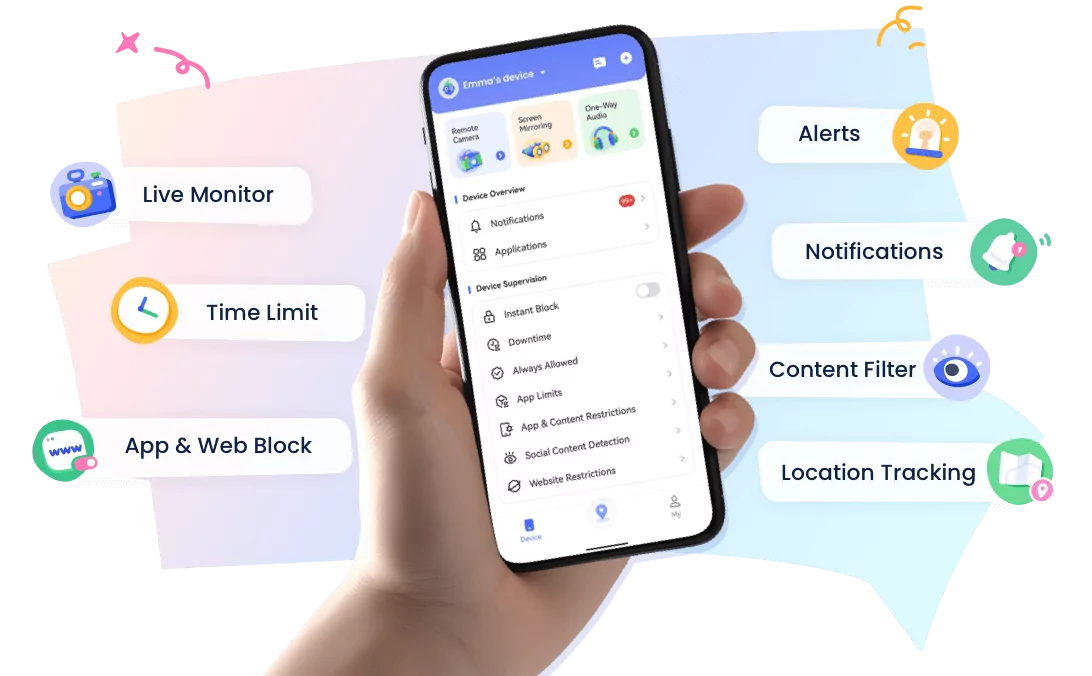
- Robust social media monitoring: Tracks 14+ top platforms and sends real-time alerts to parents upon detecting risky keywords.
- Remote offline safety checks: Remote camera, one-way audio to scan kids’ surroundings when fearing kid’s safety
- Reliable GPS tracking: Geofencing function and stores up to 30 days of location history for activity insights.
- Hard to bypass: Strong protective measures make it hard for teens to bypass or disable.




1. Google Family Link vs AirDroid Parental Control Table
| Features | Google Family Link | AirDroid Parental Control |
|---|---|---|
| App Limits & Web Filtering |  | |
| Social Media Monitoring | Only YouTube | 14+ top social media |
| Location | | (30 days location history) |
| Sync apps notification |  | |
| Screen mirroring | | |
| Remote Camera | | |
| Sound around Child | | |
| Google Play Management | | |
| Price | Free | $9.99/month |
| Limited Device | 5 | 10 |
| Device compatibility | Kids: Android, Chromebooks Parents: iOS, Android, web browsers | iOS, Android, Web |
Conclusion
To sum up, Google Family Link is a good choice for families using Android and Chromebooks. It’s free and has strong control ability on managing screen time, approving apps on Google Play, and setting basic usage rules—especially for younger children and families already in the Google ecosystem.
AirDroid Parental Control focuses on online behavior monitoring and offline safety protection. Besides screen time management, it helps parents prevent kids from online scam/cyberbulling/gambling/incorporate content, offering deeper insights into potential risks.
There is no perfect solution. Parents should choose a parental control tool based on their own needs. We recommend parents review parental control apps' features, and decide which fit option for your family.











Leave a Reply.