AirDroid Parental Control
24/7 Kids' Guardian via App & Web
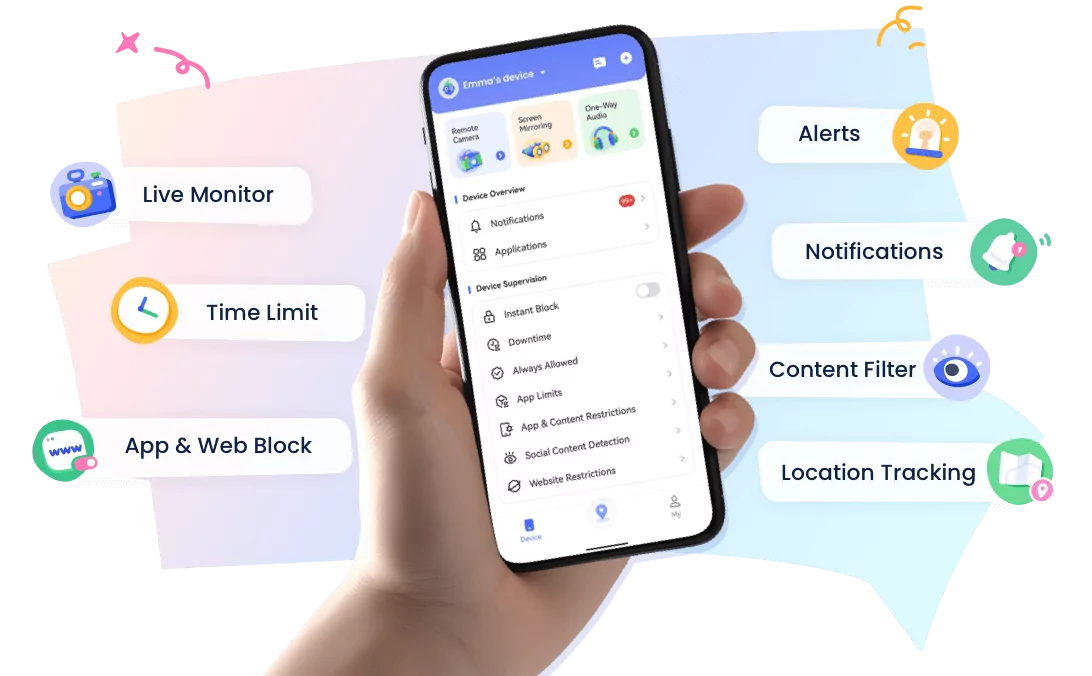
- 👀Live surroundings and location tracking
- 🔞Content Monitoring and App/Web Blocking
- ⚠Instant alerts for online risks and geofences
- ⌛Screen time control and monitor
Family Link Daily Limit Not Working? Causes and Fixes!
Parents often turn to Google Family Link to manage their children's digital habits, especially the daily screen time limit. In theory, this feature should help establish healthy routines and prevent excessive screen time.
However, many families find that the Family Link daily limit doesn't always work as expected.
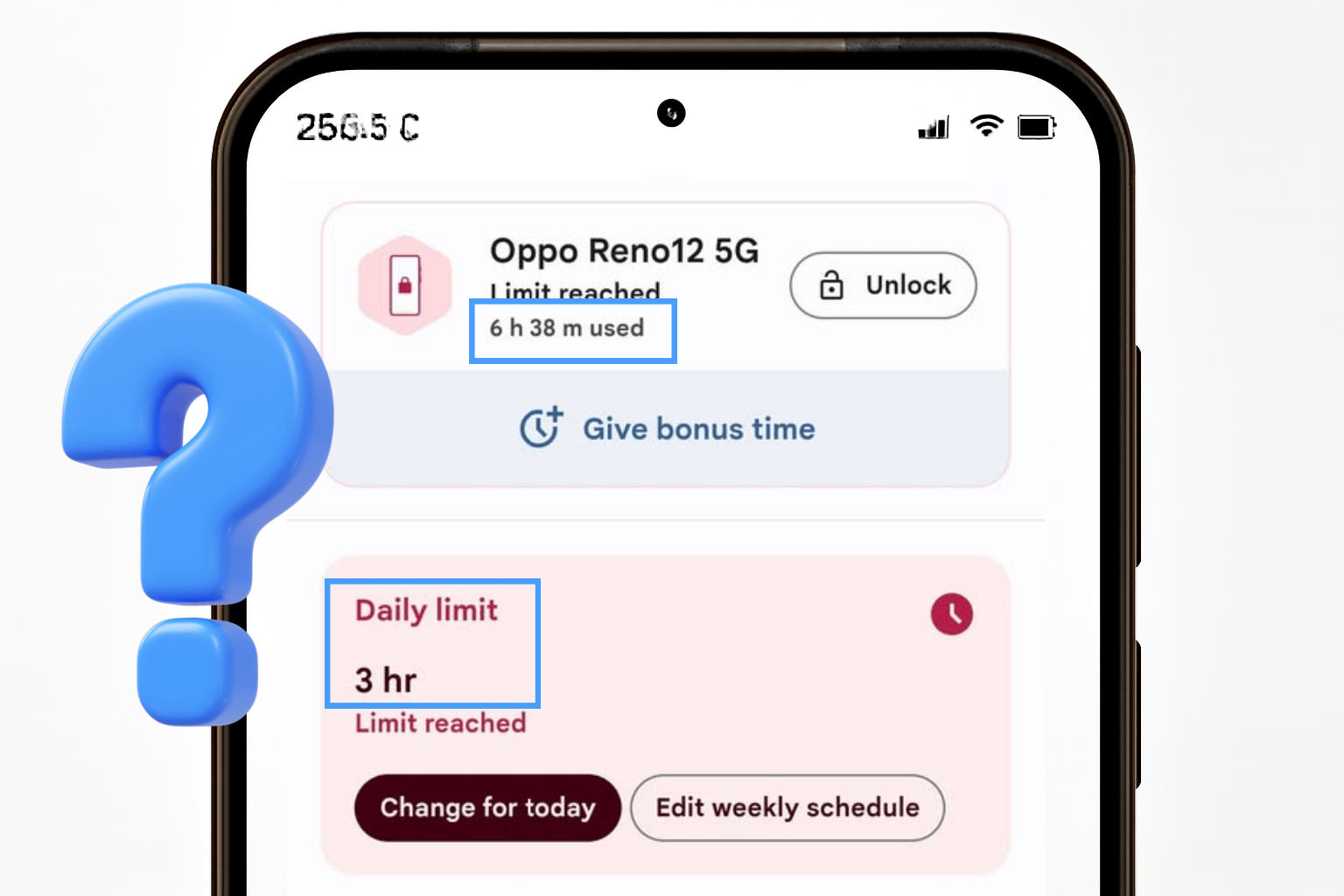
This time, we'll explain the most common issues with the Family Link daily limit, why they happen, and, most importantly, what you can do to fix them. Plus, we'll provide a more reliable alternative for managing your child's digital habits.
Common Daily Limit Issues of Family Link
Instead of encouraging healthy digital habits, many parents find that Family Link sometimes miscalculates screen time usage or fails to function, allowing children to spend far more time on devices than parents intended.
Based on real user experiences, here are the most common issues parents face when using the daily limit feature:
1Dashboard Shows "0 Min" Despite Active Use
One of the most common bugs is when Family Link shows "0 minutes" of screen time usage, even though the child has clearly been using the device for hours. This can make it difficult for parents to track actual usage and set limits based on their routines.
2The Daily Limit Never Activates
Sometimes, the daily limit simply doesn't trigger, meaning the child can continue using the device without restriction. For parents relying on these controls, this can be frustrating.
3Downtime Doesn't Work
Another common problem is when Family Link's downtime can't be activated correctly. A Reddit user shared that his son's phone remained accessible even during the scheduled downtime hours.
4Multiple Devices = Double Screen Time
The biggest limitation is how Family Link tracks usage across multiple devices. This means if your child has both a smartphone and a tablet, they can easily exceed the limit. For example:
- If you set the daily limit as 2 hours.
- Your child can use 2 hours on the smartphone and 2 hours on the tablet.
- Result: 4 hours total, even though the parent thought the limit was 2 hours.
This flaw often goes unnoticed until parents realize their child is spending twice as much time online.
Why the Daily Limit Isn't Working
1Technical Issues and App Design Flaws
While Family Link is a powerful tool for parental control, it's not without its bugs and limitations. Several technical issues and design flaws explain why the daily limit doesn't always function as expected:
Background Tracking Issues
Family Link mainly tracks screen time when apps are active in the foreground. If an app is running in the background, the system may fail to properly record this usage. This creates a gap between the actual device usage and Family Link's activity reports.
Synching Problems
For Family Link's restrictions to apply, the child's device must be:
- Turned on
- Recently used
- And most importantly, connected to the internet
If the internet connection is unstable or lost, Family Link's daily limits and other restrictions cannot apply to the child's device in real-time.
Operating System Compatibility
Family Link requires Android 7.0 or higher (or Chrome OS 71). If your child's device runs on an older version, the app may behave unpredictably, often failing to apply daily limits or causing major malfunctions.
Incorrect Settings
Sometimes, a simple setup mistake can cancel everything out. For example, if an app is mistakenly marked as "Always Allowed," it completely bypasses the daily limit. Parents might not even realize this exception is active until their child spends hours on that app without restriction.
2Kids Use Clever Hacks to Bypass Family Link
While some issues are due to technical flaws, others are the result of tech-savvy kids. Many have found creative (and sometimes surprisingly simple) ways to bypass Family Link's daily limit. Here are the most common strategies:
Accessibility Menu
On Android devices, enabling the Accessibility menu allows kids to access recently used apps, even when the device is supposed to be locked for the day.
Samsung Secure Folder
Samsung devices have a secure folder feature that Family Link can't fully monitor. Apps placed in this folder become invisible to parental controls, allowing for unlimited, hidden usage.
Samsung DeX Mode
The Samsung DeX desktop mode is another weak point. Since Family Link doesn't block it, kids can switch to this mode and use the device freely without restrictions.
Clearing Google Play Store Data
By clearing the Google Play Store app's data, a child can reset parental controls. This loophole allows them to uninstall Family Link or temporarily disable monitoring without needing the parents' PIN code.
Changing Date and Time Settings
While parents can typically restrict this function, some kids manage to manipulate the device's clock. By moving the time forward or back, they can fool Family Link and reset the daily limit.
Switching or Adding a Google Account
Since Family Link works with a Google account, simply logging in with a different account bypasses all restrictions. This is especially common if the child has access to an old Gmail account.
Installing Apps Outside the Play Store
Finally, apps downloaded via APK files or third-party app stores often escape Family Link's monitoring system. Kids who know how to download apps can enjoy unlimited screen time without it being recorded.
How to Fix Family Link Daily Limit Issue
If Family Link's daily limit isn't working correctly, don't worry — you're not alone. There are several steps you can take to regain control and make screen time management more reliable. Here are some of the most effective solutions:
1Check Date and Time Settings
Make sure the date and time are correct on both the parent and child devices. Any discrepancies can cause calculation errors or prevent Family Link from applying restrictions properly.
2Verify All Limits and Settings
Ensure the daily limits are enabled and correctly configured. Sometimes, an app may be accidentally marked as "Always Allowed," which lets kids bypass restrictions.
3Keep Apps and System Updated
Outdated apps or operating systems often cause glitches. Update the Family Link app and your child's device system software to the latest version to reduce errors.
4Use Manual Locking
If the automatic daily limit isn't working, you can still take control by manually locking or unlocking your child's device directly from your Family Link app. This ensures screen time doesn't get out of hand.
5Restart the Device
A simple restart of the phone can sometimes fix synchronization issues or temporary bugs that prevent limits from being applied.
6Disable and Re-enable the App
Disabling and re-enabling Family Link can reset its functions and fix issues caused by temporary software bugs.
7Try a Family Link Alternative
If you've tried all of the above and still don't trust Family Link, it may be time to consider a more advanced solution. AirDroid Parental Control is a solid alternative that offers several advantages over Family Link, such as:
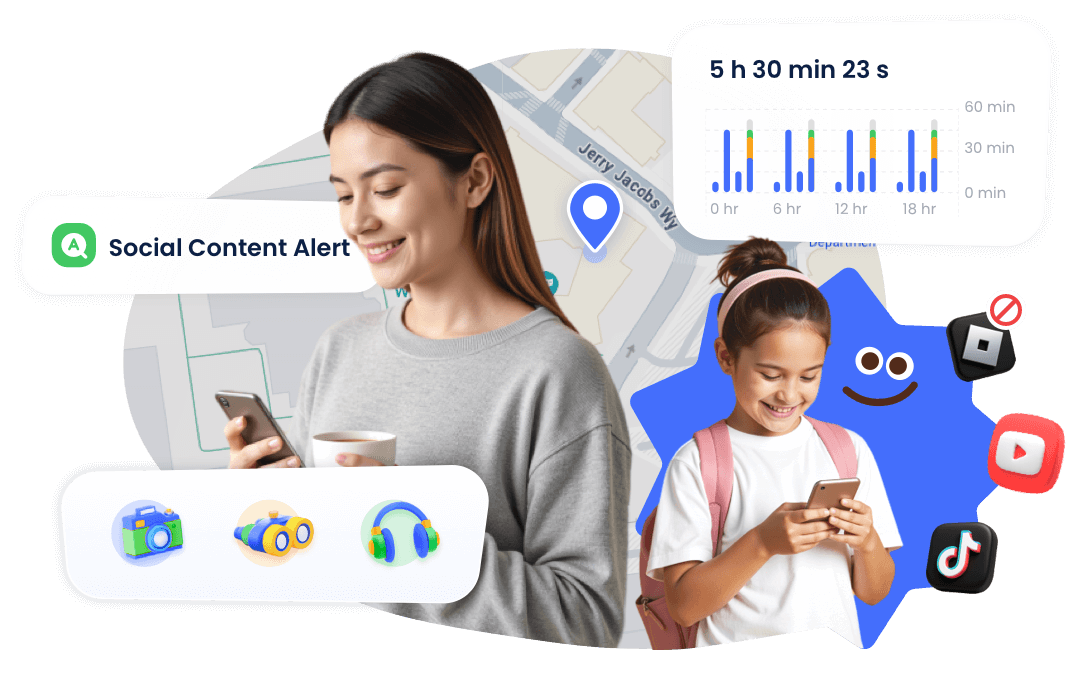
- Multi-platform Support: Manage all your child's Android or iOS devices from a single dashboard.
- Accurate Screen Time Limits: Time is tracked both by device and account, reducing loopholes.
- Notifications Syncing: Receive instant alerts about app usage and screen time.
- Social Content Monitoring: Alert parents if an inappropriate word appears on your child's social apps.
How to Manage Your Child's Screen Time with AirDroid?
- Step 1: Download the AirDroid Parental Control app on your device and the AirDroid Kids app on your child's device.
- Step 2: Open the app on your device and link both devices.
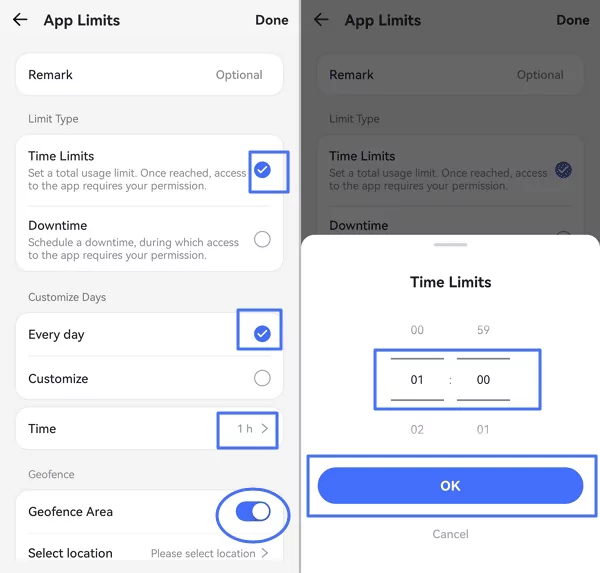
- Step 3 In AirDroid Parental Control, click "Downtime" to schedule when your child cannot use the device or "App Limits" to set a total screen time usage.


Conclusion
Family Link can be a helpful tool for managing screen time. However, as many parents have found, the daily limit feature isn't always reliable. Between technical flaws in the app and clever hacks used by kids to bypass restrictions, it's clear that relying solely on Family Link may not be enough.
The good news is that there are practical steps you can take to reduce issues, such as checking settings, updating software, using manual controls, or trying an alternative solutions like AirDroid Parental Control. Ultimately, the goal is not just to limit screen time but also to develop healthier digital habits for the entire family.
FAQs about Family Link
Can Family Link Be Used on iPhone?

Yes, but with some limitations. Parents can use the Family Link app on both Android and iOS. For managing a child's iPhone, Family Link's settings only work on apps or services that are logged into your child's Google account.
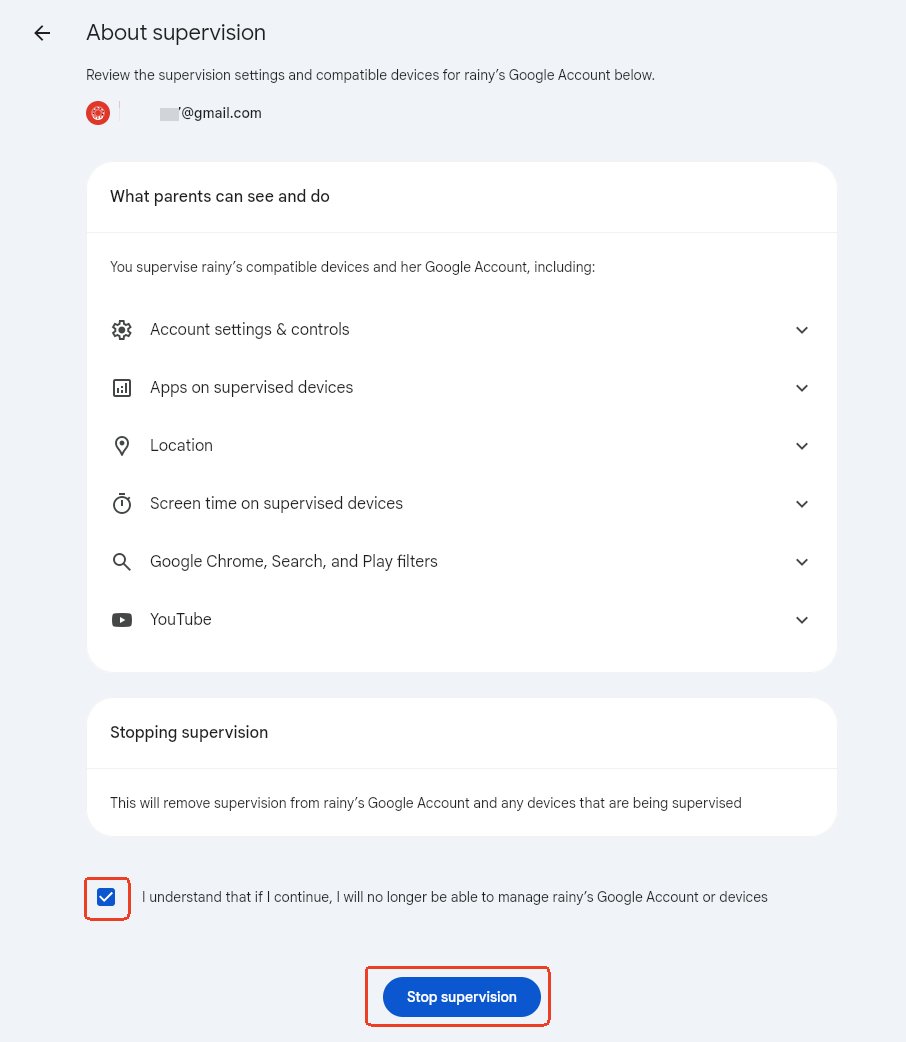
How to Stop Supervision on Family Link?
On Family Link, select your child’s account. Tap on "Account Settings > About Supervision." Then, you can "Stop supervision."
Can Family Link See Your Screen?
No, Family Link does not have the ability to see or monitor child's screen in real-time. If you are looking for a parental control app that can monitor your child's phone screen for safety, we recommend AirDroid Parental Control.












Real-time Protection
4.6

Leave a Reply.