The easiest way to block adult websites on your Android phone is to enable Google SafeSearch. Alternatively, the ways I mentioned above also work to block the adult website category on your Android.
AirDroid Website Blocker
Easy to filter and block access to particular websites with inappropriate or harmful content.
How to Block Websites on Android (Dec. 2025 Updated)
Whether you want to keep yourself away from certain web content or need to maintain control over your child's internet usage, blocking websites on mobile is a good practice. Before, we've discussed tips to stop unwanted websites on iPhone; today, we'll dive into how to block websites on Android. If you're ready, we'll go!
All Methods At a Glance
| Methods | Ease of Setup | Blocking Level | Bypass Difficulty |
|---|---|---|---|
| SafeSearch | ⭐⭐⭐⭐⭐ | Search results | Very easy |
| Extensions | ⭐⭐⭐ | Browser level | Very easy |
| Change DNS | ⭐⭐⭐⭐ | Device level | Easy |
| Website Blocker | ⭐⭐⭐ | Device level | Hard |
| Parental Control App | ⭐⭐⭐ | Device level | Hard |
| Router Settings | ⭐⭐ | Network level | Medium |
Method 1: Enable Built-in SafeSearch
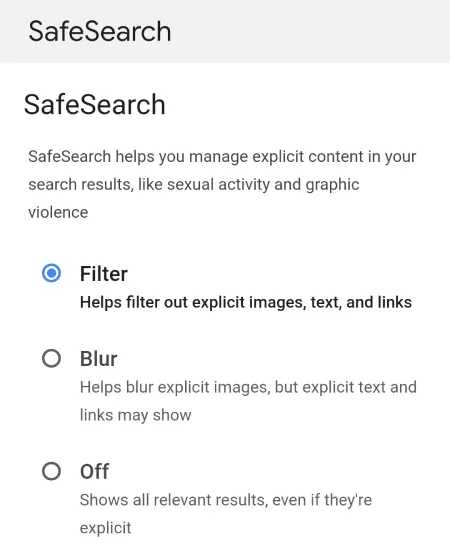
Without using third-party apps, your search engine comes with a setting, SafeSearch, that can hide explicit search results. While it cannot block inappropriate websites via URL, it's a simple, fast, and effective way to reduce related results on Android devices.
To enable SafeSearch on an Android browser (taking Google Chrome as an example), go to www.google.com/safesearch and then select "Filter."
When This Method Works Best:
- For filtering explicit images, videos, and search results
- For parents who want a quick solution for younger kids
Limitations:
- Does not block specific websites
- Only works inside the search engine you're using
Method 2: Add an Extension to Your Browser
If you prefer using Firefox on your Android, then you cannot miss out the LeechBlock NG add-on. It is designed to block distracting websites that can help you focus during work or study hours.
Unlike system-wide blocking methods, it operates entirely within your Android Firefox browser, giving you granular control over what to block and when. Here's how to block websites on Android using this extension:
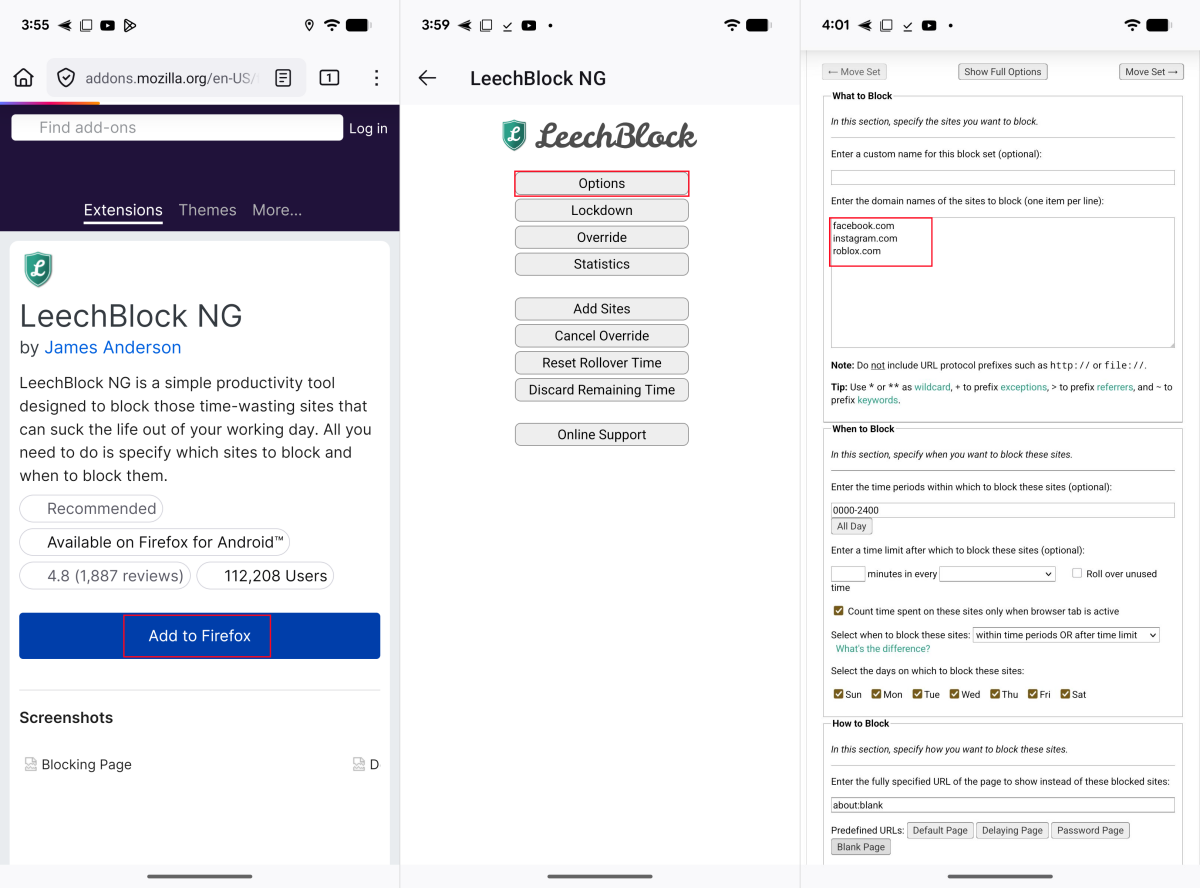
- Step 1.Access LeechBlock NG from the Firefox browser.
- Step 2.Select "Add to Firefox" to install it.
- Step 3.Hit on the three vertical dots in the top-right corner to go to "Extensions" to find "LeechBlock."
- Step 4.Tap "Options" from LeechBlock’s main menu.
- Step 5.Next, type the URL you wish to block on Android. You can also decide when to block these pages and how.
When This Method Works Best:
- You mainly browse the web using Firefox on Android.
- You want highly customizable blocking rules—specific sites, time schedules, etc.
Limitations:
- Only works inside Firefox
- No uninstalling protection
Method 3: Change DNS Settings
Blocking websites on Android can also be done by changing DNS settings. This process involves configuring your network to use DNS servers with web filters.
For myself, I prefer to opt for reliable DNS services like CleanBrowsing. It offers 3 free and public DNS filters that can meet different website-blocking needs, such as:
| Filters | What It Blocks |
|---|---|
| Family Filter | Adult content, Mixed-content sites (eg, Reddit), proxies/VPNs, malicious and phishing domains |
| Adult Filter | Adult content, malicious domains |
| Security Filter | Phishing, spam, malware, and malicious domains |
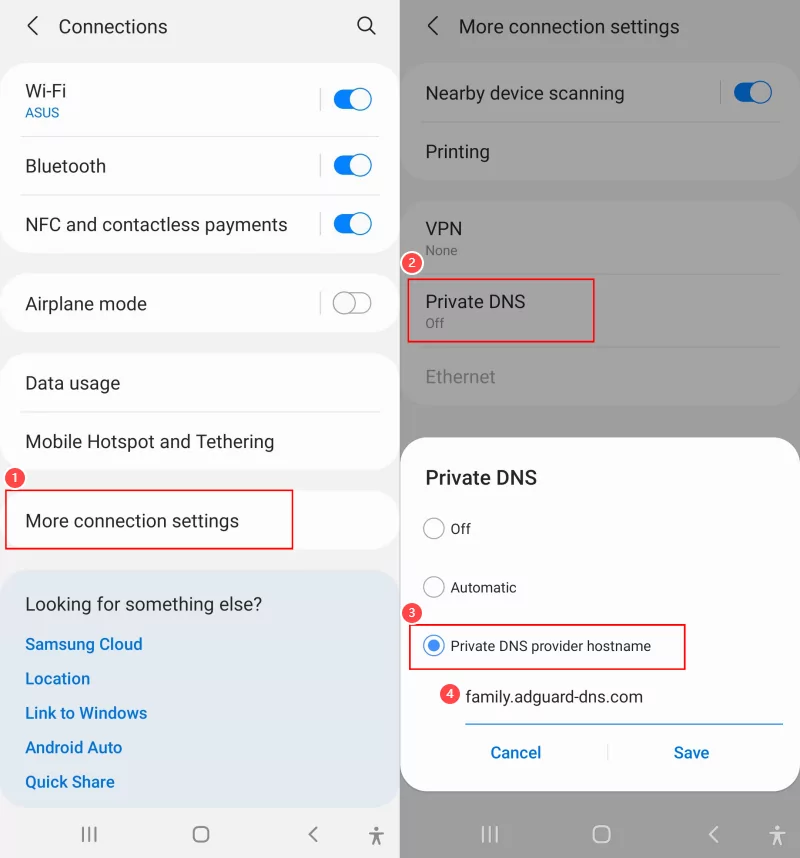
- Step 1.Open "Settings" > "Connections."
- Step 2.Tap on "More Connection Settings" and then "Private DNS."
- Step 3.Select "Private DNS provider hostname."
- Step 4.Enter the hostname of the CleanBrowsing filter based on your needs:
- Family Filter -- family-filter-dns.cleanbrowsing.org
- Adult Filter -- adult-filter-dns.cleanbrowsing.org
- Security Filter -- security-filter-dns.cleanbrowsing.org
When This Method Works Best:
- For blocking various websites, eg., adult content, mixed-content sites, or malicious domains
- When you prefer free, reliable web filtering without installing apps
Limitations:
- Cannot block individual URLs
- Can be removed or bypassed easily
Method 4: Download a Website Blocker
Android web blockers are specifically designed to control access to specific websites or website categories on your Android device. You can find such apps in the Google Play Store.
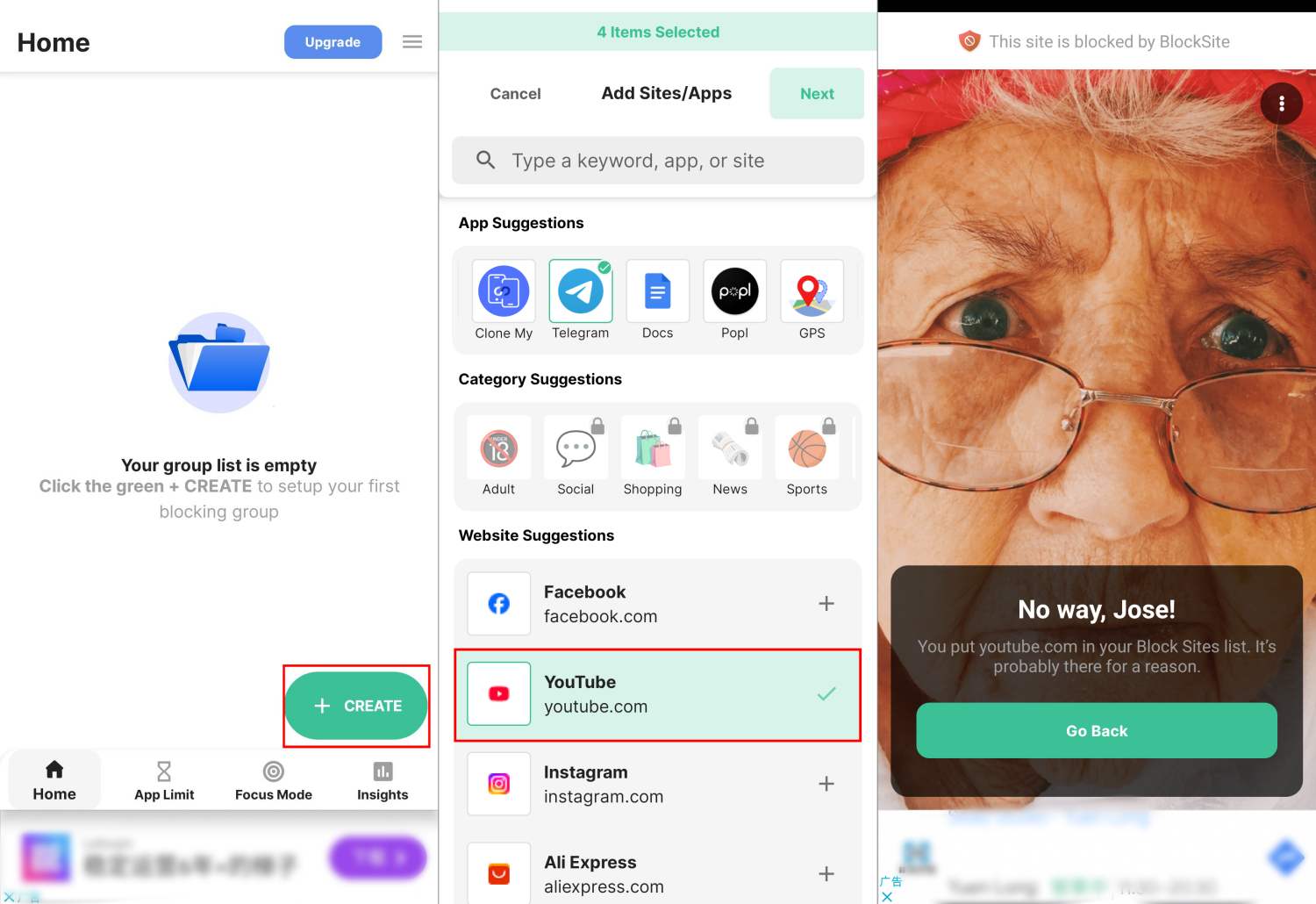
As an efficient website blocker for Android, BlockSite not only lets you block websites and apps but also allows you schedule when certain sites or apps are blocked, which helps you focus during work or study hours. Now, follow the steps to block a website on Android using BlockSite.
- Step 1.Download and launch the BlockSite app on your Android. Follow the on-screen prompts to grant the permissions required to function.
- Step 2.Tap "Create" in the lower right corner, then add the websites or website categories you would like to block.
- Step 3.Then, set schedules for when the block should be active as required.
- Step 4.Once done, the websites will be restricted immediately on Android.
You can block 5 items only in the free version.
When This Method Works Best:
- You need websites blocked only during certain times
- You want focus or improve productivity
Limitations:
- Free version comes with ads and limited customization
Method 5: Try Parental Control App
Parental control apps are an effective way for parents to remotely prevent kids from accessing inappropriate websites or set Internet usage hours.
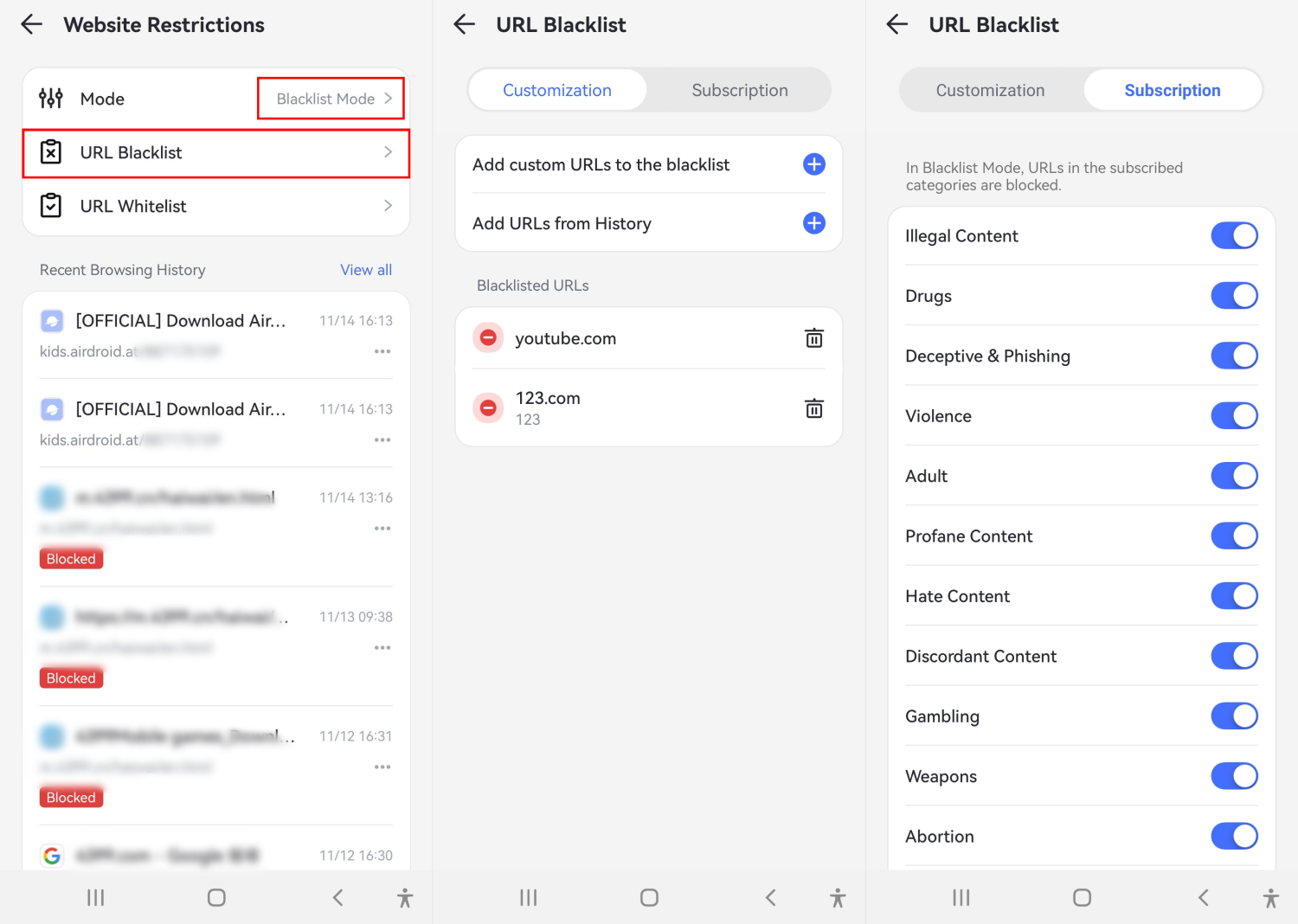
Among them, AirDroid Parental Control stands out. With it, parents can curate a website's whitelist and blacklist. Most surprisingly, it supports blocking websites by category, such as adult or gambling content, with one tap. Also, they can monitor their children's searches and visits, whether they are using Chrome, Samsung Internet, or Firefox.
- Step 1.Open AirDroid Parental Control after installation.
- Step 2.Follow the instructions to connect your kid's Android device.
- Step 3.In AirDroid, select "Website Restrictions" from the dashboard.
- Step 4.Then, tap on "URL Blacklist" to block websites on Android by specific URLs or categories.
When This Method Works Best:
- Remotely block websites for tech-savvy kids
- If you do not want to enter URLs one by one for blocking
Limitations:
- Require installation on both parent & child devices
- Not free, but comes with a 3-day free trial
Method 6: Set up Web Filters with Router
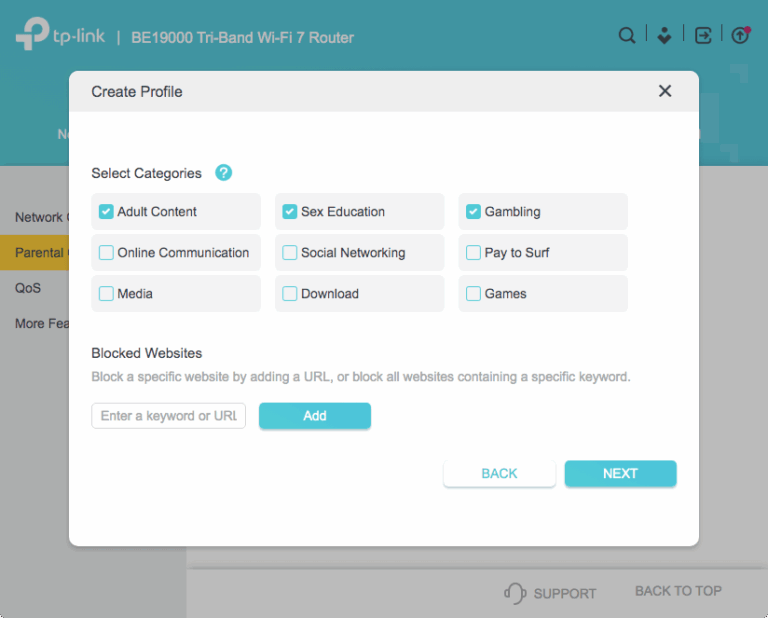
Setting up web filters on your router allows you to control which websites can be accessed by every device connected to your network. This method is highly effective in the home or office without configuring each device individually. Here's a guide on how to block a website on a phone:
- Step 1.Open a web browser and enter the router's IP address, which can be found on a label on the router.
- Step 2.Log in using the admin username and password.
- Step 3.Locate and tap sections named "Content Filtering," "Parental Controls," "Access Restrictions," or "Firewall," where you have options to block specific URLs, keywords, or entire categories of websites.
- Step 4.After entering the sites to block, save the router settings.
When This Method Works Best:
- If you need to block websites for all devices in your home or office
- When you prefer free, reliable web filtering without installing apps
Limitations:
- Only works on WiFi
- Require admin’s access to the network
FAQs about Blocking Websites on Android
How to block adult websites on my phone permanently?
Is there a free way to block websites?
Yes, there are several free ways to block websites on Android for free. Examples include using Google's SafeSearch settings, CleanBrowsing DNS, or router settings. Plus, some Android website blocker apps also provide free options for filtering websites.
How to block notifications from a website on Android?
Blocking notifications from a website is easy; here, I take my Samsung Galaxy as an example to show you the steps:
- Step 1.Open the "Notifications" panel on your Android.
- Step 2.Slide the browser or website notification to the right for more options.
- Step 3.Tap on the "Settings" icon and switch the toggle next to the site to stop receiving notifications from it.
How to block website in Android Chrome?
Either use Google SafeSearch to block adult content in Chrome or try website blockers and parental controls to restrict any websites you don't want in Chrome.
Final Remark
The internet is full of harmful, malicious, and inappropriate content. Therefore, there is a need to curb the exposure of internet users to such content.
In this article, we have discussed many of the details associated with blocking websites on Android without or with apps. We also provided recommendations so you can make your choice without dilemma. Now, time to enjoy your browsing journey!











Leave a Reply.