
- Start with one team using your actual Android devices and work apps.
- Test centralized setup, app deployment, and kiosk restrictions.
- Evaluate device monitoring and remote troubleshooting during real shifts.
- Validate device-management controls alongside your identity and app handoff processes.
Shared Device Management for Frontline Staff: A Hands-On Guide
The evening shift starts, and a warehouse picker collects a handheld used by the morning team. The picking app opens immediately, but the previous worker is still signed in. An unfinished task remains on screen, and nobody knows whether its latest scans reached the server.
Shared devices can make good use of company hardware, but each handoff introduces questions about access, data, and readiness. Workers need to start quickly. IT needs consistent configurations. Supervisors need to know which devices are available and who should resolve exceptions.
Shared device management connects these requirements into a repeatable process. This guide focuses on company-owned Android devices: how to decide whether sharing fits your team, prepare a device pool, manage shift changes, and support daily operations with MDM.
1What Is Shared Device Management?
Shared device management is the practice of configuring, securing, handing over, and maintaining devices that multiple employees use at different times. Examples include warehouse scanners, retail tablets, and handhelds collected by field crews before a job.
The management process covers both the device and what happens when its user changes. A correctly configured tablet can still expose information if the previous employee's app session remains active.
Three terms help clarify the setup:
- Shared devices rotate between employees, shifts, or tasks.
- Assigned devices remain with one employee for an extended period.
- Dedicated devices serve a specific business purpose. On Android, this describes their intended use and management model; they can also be shared between workers.
Kiosk mode can restrict access to selected apps, but it does not establish a complete user handoff process. Likewise, sharing hardware does not require sharing credentials. Where work involves personal permissions or accountability, plan individual authentication.
For the broader deployment context, see our frontline device management guide. Here, the focus is what changes when the same device passes from one worker to another.
2Shared vs. Assigned Devices: Which Fits Your Team?
Start with the job and its working pattern. Shared devices for frontline workers work best when employees need similar tools during defined periods and can return the hardware through an established process.
Decision factor | Shared devices may fit when… | Assigned devices may fit when… |
|---|---|---|
| Working hours | Access is needed during a shift or task | Access must continue between shifts |
| Work location | Devices return to a store, depot, or charging point | Workers travel independently for extended periods |
| Apps and settings | Most employees need a consistent environment | Individual configuration is extensive |
| Identity and data | Apps support reliable user changes and cleanup | Sessions or local data are difficult to separate |
| Operational support | Someone owns pickup, return, and exceptions | Regular handoffs would be difficult to coordinate |
A warehouse with successive picking shifts may suit a shared pool. A technician who keeps customer assignments, receives urgent calls, and travels directly between sites may benefit from an assigned device. Different roles within one business can use different models.
Calculate capacity around simultaneous demand. Include devices charging, awaiting repair, or reserved for peak periods. Employee headcount alone does not tell you how many devices to buy.
Also compare the full operating cost. Hardware savings need to cover identity licensing where required, application changes, charging infrastructure, spare units, and time spent managing returns. A smaller fleet offers little benefit if employees queue for working equipment at every shift change.
Before committing, confirm that the business applications can support the intended handoff. An app that retains the previous user's access may require changes before it can safely join a shared deployment.
3How to Set Up Shared Android Devices for Frontline Workers
Successful shared Android device management starts with a workflow that employees and supervisors can follow under normal operating pressure.
Define the Workflow Before Configuring Devices
Map one representative shift from pickup to return. Record the worker's role, required applications, authentication steps, network availability, and connected equipment such as scanners or printers.
Then decide which settings belong to the device and which belong to the person. A warehouse Wi-Fi connection can remain consistent across shifts. Approval permissions should follow the authorized employee.
For example, pickers may need inventory lookup and barcode scanning, while supervisors also need exception approval. Separate role requirements before creating configuration groups. If one device will serve both roles, confirm how the applications enforce each user's permissions.
Check practical constraints with workers. Gloves, damaged badges, poor connectivity, and scanner pairing can turn an apparently simple login process into a daily bottleneck. Test the intended authentication method on actual hardware.
Build a Consistent Device Baseline
1. Choose the Right Enrollment Method
Choose an enrollment method that matches your Android versions, hardware, Google services availability, and required management permissions. Document any factory reset or on-site preparation needed before rollout.
2. Define a Baseline for Each Device Group
Create a baseline for each device group. It should specify work apps, network settings, permissions, screen-lock behavior, update rules, and access to system settings. Give configurations clear owners so local workarounds do not gradually become undocumented standards.
3. Configure App Access and Device Restrictions
Select the app environment around the task. A single scanning application may justify single-app kiosk mode. A store associate using inventory, messaging, and training tools may need a controlled multi-app environment.
Restrictions must leave necessary work possible. Blocking settings could prevent employees from reconnecting a scanner; unrestricted settings could let them disable required connectivity. Decide which adjustments workers can make and which need supervisor or IT support.
4. Establish Security and Account Access Rules
Apply essential security controls before issuing devices. Define lock behavior, permitted data-sharing paths, administrator access, and the response to loss or theft. Confirm the supported controls on each device model and enrollment method.
For temporary or seasonal workers, prepare account access before their first shift and define when that access ends. Returning the hardware and removing a person's business access are separate responsibilities. Record who owns each action so an employee's departure does not leave an active account on equipment that continues circulating.
5. Test the Baseline Before Rollout
Test the baseline on a small group. Confirm application access, scanning, printing, notifications, and recovery after a restart. A deployment is ready when the whole workflow works, including its peripherals.
Organize Device Pickup, Return, and Replacement
Give every device a visible identifier linked to its inventory record. Establish a pickup and return method that records custody without slowing the shift. A supervisor-managed register may suit a small site; larger operations may need a separate checkout system.
Keep custody records distinct from application audit trails. Knowing who collected a handheld does not prove who approved an order inside an app. Use individual application identities where that distinction matters.
Assign responsibility for charging, damage checks, accessories, and missing units. Returned equipment should have a clear status: available, charging, or awaiting attention. A device with unresolved data or hardware issues should remain outside the available pool.
Provide a replacement route that does not encourage credential sharing. Workers need to know where to get a spare and how to resume work safely. Rehearse the process with a real shift change before expanding deployment.
Simplify Shared Device Setup for Your Frontline Team
Prepare shared Android devices for daily work with AirDroid Business. Centralize device setup, distribute work apps, and keep access focused on the tools your team needs.
4Manage Sign-In, Sign-Out, and Data Between Shifts
The most important handoff question is whether the next worker can access anything belonging to the previous one. Answer it for every business application and data location used during the shift.
Choose an Identity Model That Matches the Work
Some tasks need no personal identity, such as viewing approved instructions. Others require individual access because workers handle customer records, receive assignments, or authorize transactions.
For individually authenticated work, there are two common approaches. Employees can sign in and out of each application, or a compatible identity solution can coordinate access across supported apps. The right choice depends on the application set and the importance of reducing repeated login steps.
The term shared device mode can refer to a specific implementation. For example, Microsoft Entra shared device mode supports coordinated sign-in and sign-out across compatible applications. It requires an appropriate deployment and application support. Microsoft's documentation also makes clear that applications must handle their own data cleanup; removing an account and cached tokens does not itself erase all application data.
Build an application inventory with named owners. For each app, record its authentication method, logout behavior, local storage, and compatibility with your intended identity solution. This exposes gaps before employees depend on the device pool.
Define What Happens to Data When a Shift Ends
Treat sign-out and data removal as related but separate tasks. Closing an app, returning to its home screen, or locking the device does not demonstrate that the previous user's session has ended.
Data or state | What to verify at handoff |
|---|---|
| Accounts and session tokens | Previous access cannot resume without authentication |
| App screens and local records | Messages, orders, and customer details are no longer accessible |
| Browser state | Cookies, active sessions, and stored form information are handled appropriately |
| Downloads and shared files | Sensitive files outside the app are removed or protected |
| Pending work | Required transactions have synchronized or entered a documented recovery process |
| Device configuration | Approved apps, network settings, and required configuration remain usable |
Define the cleanup method, timing, and responsible system for each item. An application might remove its local records during logout, while downloaded files require another process. Browser cache clearing alone is insufficient evidence of session termination.
Avoid deleting everything by default. Clearing application data can remove login details, preferences, and unsynchronized work. Agree with application owners on what must be preserved, then test the next worker's experience after cleanup.
A useful verification exercise involves two test accounts. Worker A completes representative tasks and signs out. Worker B then tries reopening apps, using the Back button, viewing recent screens, and accessing downloads. Check notifications and behavior after a restart as well. Record the outcome against the agreed data-handling requirements.
Repeat this exercise after changes to authentication, app versions, or browser configuration. Include a device that was locked or asleep during logout. A handoff that works while every app is open may behave differently when an application resumes later.
Handle Handoff Failures
If a worker forgets to sign out, keep the device unavailable until an authorized person follows the recovery process. Where supported, inactivity controls can help, but their timing must accommodate legitimate pauses. Automatic screen locking and application sign-out have different effects.
If connectivity is unavailable, determine whether logout and cleanup complete locally and whether pending work remains recoverable. Do not assume a remote command has executed while the device is offline. If a safe handoff cannot be confirmed, issue a spare and hold the affected device for resolution.
If an app crashes or work has not synchronized, preserve the task reference and involve the designated supervisor or application support contact before clearing data. Define who checks for duplicate or incomplete transactions after recovery.
A normal handoff should follow a short sequence: finish and synchronize work, sign out, perform required cleanup, check readiness, and return the device. Display these steps where devices are collected, with a clear exception route when any step fails.
5How MDM Helps Manage Shared Devices with AirDroid Business
MDM gives IT a central way to configure shared equipment, control its working environment, and maintain it across locations. Identity and session handling still need an agreed design with application and identity providers. Within that operating model, AirDroid Business can support the deployment and daily management of shared Android devices.
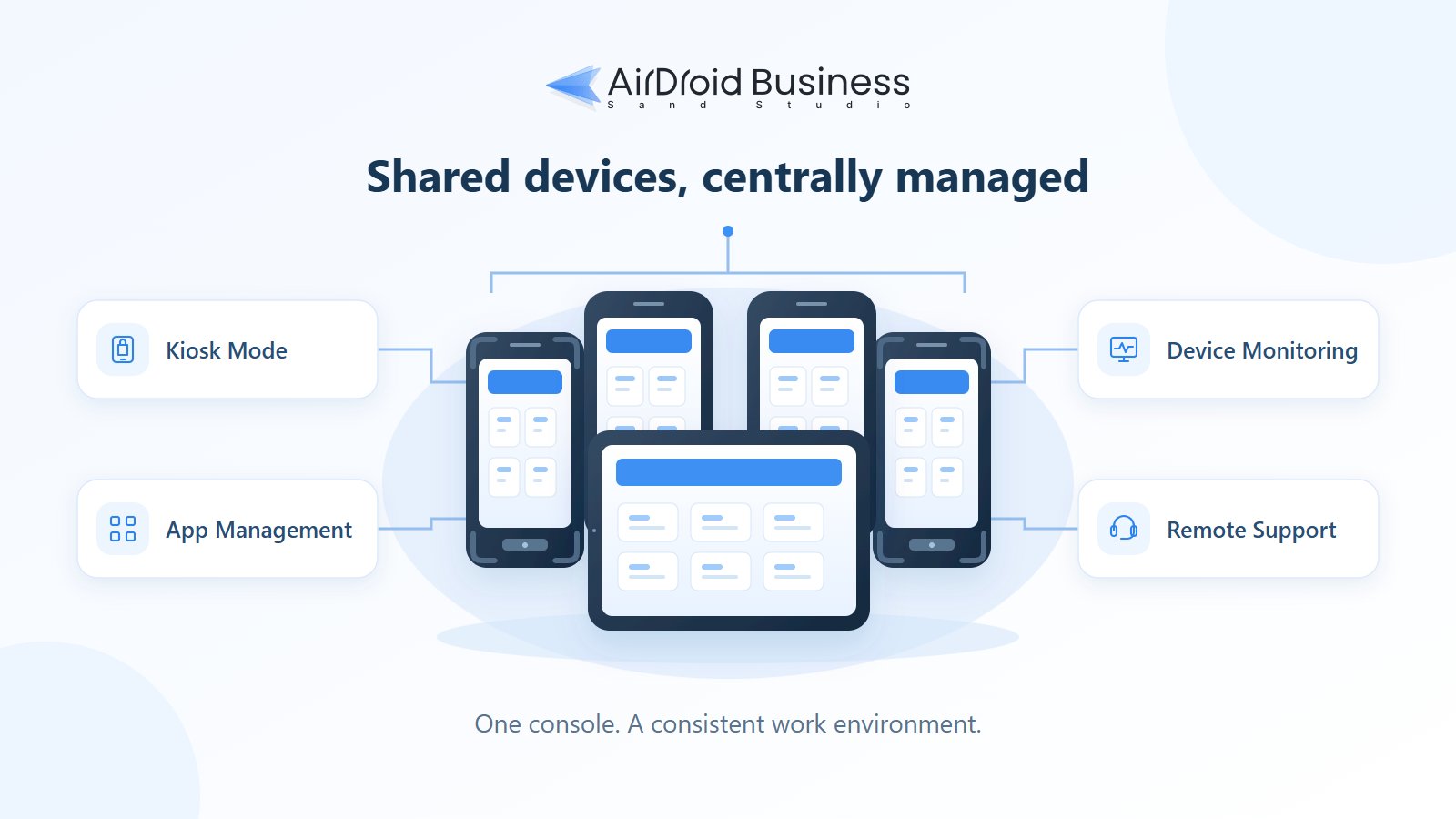
Manage Your Shared Android Fleet from One Console
Put shared device management into practice with AirDroid Business. Manage app updates, apply kiosk restrictions, monitor device health, and troubleshoot supported Android devices remotely.
Standardize Devices Across Roles and Locations
AirDroid Business provides enrollment options including Device Owner and Android Enterprise enrollment, with zero-touch and Samsung Knox Mobile Enrollment available for eligible deployments.
Use device groups and configuration files to organize equipment around sites or job requirements. For example, prepare a warehouse configuration with the approved picking tools and a separate environment for store devices. A replacement can then be prepared against the appropriate baseline.
Android Enterprise enrollment also enables Managed Google Play capabilities. Choose the enrollment path before building app distribution around features that depend on it.
Keep Work Apps and Device Access Under Control
AirDroid Business kiosk controls support single-app and multi-app environments, along with website access restrictions. Use these to present the tools a role needs and limit unnecessary access. Application permissions should still follow the authenticated worker where personal authorization is required.
Its Application Management Services support app distribution, staged rollouts, scheduled releases, and deployment progress monitoring. Test a picking-app update on a limited device group before expanding it. Schedule wider deployment around operating hours and confirm success before the next shift needs the equipment.
These controls help maintain a consistent work environment; they do not independently establish cross-app sign-out or personal data separation.
Maintain Devices and Address Data Residue
Use device monitoring to identify offline units, low battery levels, or storage problems. Supported remote access and control lets IT investigate faults without waiting for equipment to return to a central office. Pair technical alerts with an owner who can arrange recovery or replacement.
Agree on a support procedure with site supervisors. Before a remote intervention, check whether the device is completing a transaction and tell the worker what to expect. After recovery, confirm the business task can resume; a device appearing online does not establish that its scanner or work application is functioning.
For approved maintenance tasks, administrators can clear app data and cache through App List. AirDroid Browser and Kiosk Browser also provide incognito and periodic cache-clearing settings. Confirm availability for your device models, Android versions, enrollment method, and subscription. Test the full handoff before treating any cleanup feature as part of routine shift operations.
6Final Words
Pilot shared device management with one team using real applications and devices. Measure pickup delays, login failures, unresolved handoffs, and device availability. Use those results to refine configuration and responsibilities. Explore AirDroid Business to test the device-management side alongside your identity and application workflows.
FAQs
Do shared frontline devices require separate Android user profiles?

Not always. Employees may use individual business-app accounts within one managed device environment. Other deployments use supported operating-system user separation or an identity platform's shared-device features. Choose based on data isolation, app compatibility, and hardware support. Confirm the chosen approach on your actual devices.
Can shared devices work without an internet connection?
Some applications support offline tasks, but authentication, synchronization, remote administration, and cleanup can behave differently. Test each separately. Establish when an offline device may be reassigned and when it must wait for connectivity or IT review.
How many spare devices should a shared pool include?
There is no universal percentage. Start with peak simultaneous usage, charging time, repair turnaround, and replacement delivery time. Track shortages during the pilot and adjust spare capacity by location and role. Sites far from support may need more local reserves.


Try MDM Solution
Manage devices from a unified console

Leave a Reply.