MDM Alert Automation: A Complete Guide to Automated Device Response
- Introduction: Alerts Should Trigger the Next Operational Step
- Why MDM Alerts Alone Are Not Enough
- What Is MDM Alert Automation?
- From Alert to Workflow to Action
- Examples of Lightweight Device Operations After an Alert
- Why Workflow-Based Actions Are Better Than Manual Response
- Where AI-Assisted MDM Adds Value
- How AirDroid Business Supports Alert-Triggered Workflows
- Best Practices for Safe MDM Alert Automation
- Conclusion: Alerts Should Start the Response, Not End It
- FAQs
Mobile device management alerts help IT teams detect device issues, but detection is only the beginning of the response process.
After an alert appears, an administrator may still need to identify the affected device, review its status, determine the appropriate action, notify the responsible team, and document the result. When hundreds or thousands of Android devices are distributed across stores, warehouses, vehicles, offices, and unattended locations, handling every alert manually becomes slow and inconsistent.
MDM alert automation connects device alerts with predefined workflows. Depending on the issue and workflow design, an alert can initiate data collection, generate a report, notify the right people, organize affected devices, or prepare a controlled device operation.
The objective is not to let AI or automation make every device management decision. It is to reduce repetitive work, standardize common response processes, and keep higher-impact actions permission-based and auditable.
In this guide, you will learn:
● What MDM alert automation is
● Why device alerts alone are not enough
● How an alert-triggered workflow operates
● Common MDM alert automation use cases
● Where AI can assist device administrators
● How to automate device responses safely
● How AirDroid Business supports alert-triggered workflows
Why MDM Alerts Alone Are Not Enough
An alert tells IT that something requires attention. But it does not automatically determine the next step, assign responsibility, document the issue, or perform a recovery action.
Traditional MDM alerts can notify administrators when:
- A device goes offline
- Battery power falls below a defined threshold
- Available storage becomes insufficient
- A device leaves or enters a geofenced area
- A business application stops running
- Kiosk Mode is interrupted
- Network data usage becomes abnormal
- Device permissions or management status change
These signals provide visibility, but visibility does not resolve the underlying issue.
An alert alone may not:
- Collect the device context needed for investigation
- Assign the incident to the appropriate person
- Trigger a standardized follow-up process
- A device leaves or enters a geofenced area
- Trigger a standardized follow-up process
- Perform or prepare a controlled device action
- Confirm whether the device has recovered
- Record the outcome for future review
For a small fleet, administrators may be able to investigate alerts individually. Across a large or distributed fleet, however, manual handling can create delayed responses, inconsistent decisions, and incomplete operational records.
This is particularly important for business-critical endpoints such as POS terminals, logistics tablets, digital signage players, kiosks, and frontline shared devices. A delayed response to an offline device or failed business application can affect customer service and daily operations.
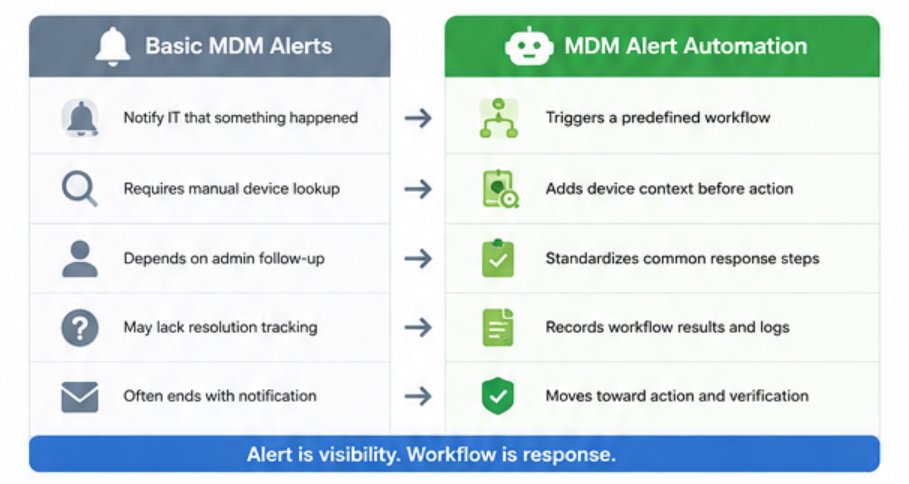
- Basic MDM AlertsMDM Alert Automation
- Notify IT that something happenedTriggers a predefined workflow
- Requires manual device lookupAdds device context before action
- Depends on admin follow-upStandardizes common response steps
- Often end with a notificationConnect notifications with reports or actions
- May lack resolution trackingRecords workflow results and logs
- Provide visibilitySupports response and verification
An alert provides the signal. A workflow turns that signal into an operational process.
What Is MDM Alert Automation?
MDM alert automation is the process of connecting mobile device alerts with predefined workflows and controlled device operations, so IT teams can respond to common issues faster and more consistently.
Instead of relying entirely on an administrator to notice and interpret every alert, a predefined workflow can begin when a specific device condition is detected.
MDM alert automation can include:
- Sending notifications to the responsible team
- Collecting additional device information
- Generating a device report
- Exporting a list of affected devices
- Organizing devices for troubleshooting
- Preparing or initiating a controlled remote operation
- Escalating an issue for manual review
- Recording workflow results and timestamps
MDM alert automation is part of the broader concept of MDM workflow automation. The difference is that an alert-triggered workflow begins with a detected device condition, while other MDM workflows may begin on a schedule, through an administrator request, or in response to a compliance rule.
It is also important to distinguish MDM alert automation from fully autonomous or self-healing device management.
Automation does not mean that every device issue should be fixed without human involvement. Low-risk steps, such as generating a report or notifying an administrator, may be suitable for automatic execution. Actions that can interrupt users or change device data should follow appropriate permission, confirmation, scope, and audit requirements.
The goal is controlled and repeatable response—not unrestricted automation.
AirDroid Business - Automate Device Alert Responses with AirDroid Business
AirDroid Business helps IT teams monitor device conditions, configure alerts, and create workflow-based responses. From device reports and notifications to remote operations, teams can handle common issues more efficiently across distributed devices.
How MDM Alert Automation Works
A practical MDM alert automation model can be organized into four steps:
Detect → Evaluate → Act → Verify
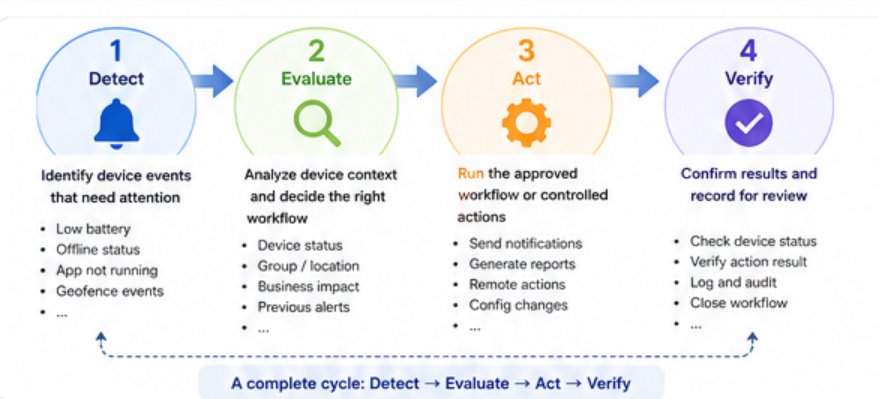
This model reflects how enterprise IT teams respond to device issues: identify the signal, understand the device context, take an appropriate action, and confirm the result.
1Detect: Identify Device Events That Need Attention
The process begins when an MDM platform detects a condition that matches a predefined alert rule.
Common MDM alert triggers include:
- Low battery.
- Insufficient storage
- Offline status.
- Storage shortage.
- Abnormal data usage.
- App running status.
- Kiosk status.
- Geofence events.
- Device management agent or permission status.
- ● Permission or policy status.
An alert should be designed around a meaningful operational threshold. If the threshold is too broad or the checking frequency is too aggressive, administrators may receive excessive notifications. If it is too restrictive, IT may not have enough time to respond before the issue affects operations.
The alert is the starting point—not the entire response.
2Evaluate: Add Device Context Before Taking Action
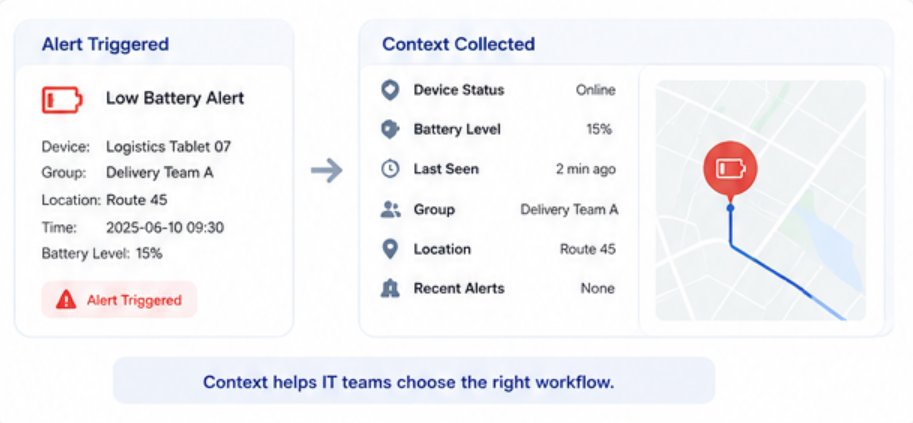
The same alert may require a different response depending on the device, its role, and its current status.
For example, a low-battery warning on a delivery tablet may require immediate attention before the driver starts a route. The same warning on a test device may not be urgent.
Before taking action, a workflow may collect or organize information such as:
- Device name and group.
- Online or offline status.
- Last online time.
- Battery level.
- Storage or network status.
- App status.
- Policy or Kiosk status.
- Recent operation history.
This context helps prevent blind automation. It allows IT teams—or an AI-assisted system—to understand which devices are affected and whether a predefined action is appropriate.
3Act: Trigger Controlled Follow-Up Actions
Once the alert and context are understood, the workflow can trigger a follow-up action.
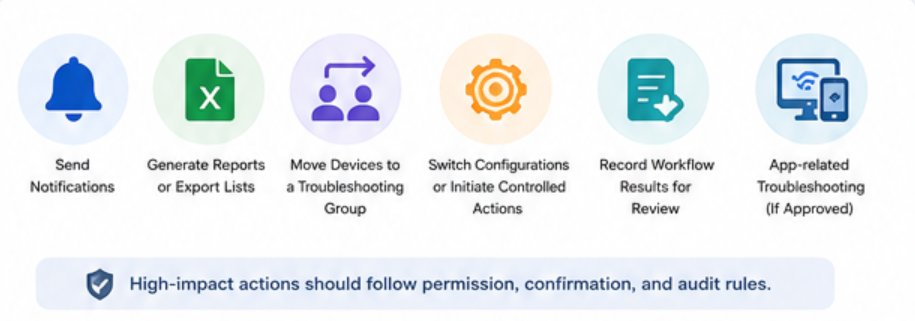
Depending on the device, issue type, and workflow rules, actions may include:
- Notifying the right team.
- Generating a report or exporting affected devices.
- Moving devices to a troubleshooting group.
- Switching a configuration profile.
- Initiating a controlled remote action.
- Escalating to manual review when needed.
For app or configuration issues, workflows may also include predefined troubleshooting steps, depending on device scope and approval rules.
Some actions are safe to run automatically when scoped correctly, such as generating a report or sending a notification. Other actions can interrupt users or business operations.
A remote reboot, for example, should be part of a predefined workflow and follow the organization’s permission and confirmation rules. Clearing app data or cache should be handled carefully because it may affect login sessions, local files, or app configurations.
4Verify: Confirm the Result and Keep an Audit Trail
Alert automation should not end when an action is triggered. IT teams also need to know whether the action worked, which devices were affected, and what should happen next.
A workflow should help return or record results such as:
- Success, failure, or skipped status.
- Devices affected.
- Execution time.
- Report link or operation log.
- Failure reason.
- Device status after the action.
- Manual review or next step.
For example, if a workflow initiates a controlled reboot, IT should be able to verify whether the device comes back online. If a workflow opens a required business app to the foreground, the team should be able to confirm whether the app is active again.
Verification turns automation from a simple trigger into an operational process.
Common MDM Alert Automation Use Cases
MDM alert automation is most useful when it addresses a clearly defined operational problem. The following examples show how alert-triggered workflows can support device administrators without assuming that every issue can be resolved autonomously.
1 Investigate an Offline Device
An offline device may be powered off, disconnected from the network, missing required permissions, or experiencing a management agent issue.
A workflow might:
- 1. Detect that the device has remained offline for a defined period.
- 2. Collect the device name, group, and last online time.
- 3. Check whether other devices in the same location are also offline.
- 4. Notify the responsible support team.
- 5. Generate a list of affected devices.
- 6. Escalate devices that remain unreachable.
This allows IT teams to distinguish an isolated device issue from a site-wide connectivity problem.
2Respond to an Unresponsive Device
If a managed Android device repeatedly stops reporting status, the workflow can collect device information and prepare a controlled recovery process.
A possible workflow is:
- 1. Detect repeated status reporting failures.
- 2. Check whether the device is currently online.
- 3. Notify or prompt an authorized administrator.
- 4. Initiate an approved remote operation, if appropriate.
- 5. Verify whether the device reconnects.
- 6. Record the result.
A reboot should not be treated as a universal fix. It should only be used when the workflow is properly scoped and the action will not create unacceptable business disruption.
3Organize Devices for Troubleshooting
Not every alert requires an immediate device-side action. In some cases, the safest next step is to organize affected devices so the support team can review them separately.
For example, a workflow could help identify devices that repeatedly trigger application, Kiosk, or policy alerts. Depending on the available workflow capabilities, the devices may then be included in a troubleshooting report or managed through a defined troubleshooting process.
- Manual ResponseWorkflow-Based Response
- Admin searches affected devices manuallyWorkflow identifies devices based on alert conditions
- Devices remain mixed with normal devicesDevices are moved to a troubleshooting group
- Follow-up depends on individual admin memoryFollow-up follows a predefined process
- Results are difficult to trackResults can be logged and reviewed
This makes recurring issues easier to investigate without immediately performing a disruptive operation.
4Start a Business Application Recovery Workflow
For POS systems, kiosks, digital signage, and other dedicated devices, the business application is often essential to the device’s purpose.
If an application closes, freezes, or stops running in the foreground, an alert-triggered workflow may help IT:
- Check the application running status
- Collect relevant device information
- Notify the support team
- Prepare an approved recovery action
- Confirm whether the application is running again
- Record the result for later review
Some application operations can affect login sessions, locally stored information, or application settings. Clearing application data or cache should therefore follow appropriate confirmation and permission rules.
5Investigate and Report Low-Storage Devices
When an Android device falls below a defined storage threshold, immediately clearing data may not be the safest response. Different devices can run low on storage for different reasons.
An alert-triggered workflow can instead:
- 1. Identify the affected device.
- 2. Collect storage and device resource information.
- 3. Notify the responsible team.
- 4. Generate a report for investigation.
- 5. Allow IT to determine the appropriate action.
The resulting workflow is:
Low-storage alert → device data collection → IT notification → report generation → administrator decision
This approach is useful for POS terminals, kiosks, digital signage players, logistics tablets, and shared frontline devices.
Follow the step-by-step tutorial to build an Android low-storage alert workflow with AirDroid Business.
6Respond to Battery or Device Health Alerts
A battery warning may have different operational significance depending on the device’s role.
For example:
- A low-battery logistics tablet may interrupt a delivery route.
- A customer-facing kiosk may need on-site power inspection.
- A test device may require no immediate action.
An automated workflow can summarize affected devices by group, notify the appropriate team, and generate a device health report without automatically performing a disruptive action.
MDM Alert Automation vs. Manual Response
Manual device management often depends on individual administrators noticing alerts, remembering procedures, and documenting results consistently.
Workflow-based response creates a repeatable process by connecting device events with predefined follow-up actions. Instead of relying on every administrator to handle the same issue differently, teams can standardize how common alerts are reviewed and processed.
The goal is not to automate every decision. It is to make common response steps faster, safer, and easier to review.
1Faster Initial Response
An alert can initiate the next predefined step immediately instead of waiting for an administrator to manually review a shared dashboard, inbox, or device list.
2More Consistent Handling
Similar device conditions can follow the same standard operating procedure across different locations, shifts, and support teams.
3Lower Repetitive Workload
Reusable workflows can reduce repetitive tasks such as searching device information, filtering records, exporting reports, sending notifications, and collecting troubleshooting details.
4Better Traceability
Workflow results, timestamps, operation histories, report links, and failure details make it easier for IT teams to understand what happened and review previous actions.
5Safer Device Operations
Higher-impact actions can be restricted through device scope, administrator permissions, confirmation requirements, and audit policies.
Good automation is not uncontrolled automation. It is a structured response with clearly defined guardrails.
Where AI-Assisted MDM Adds Value
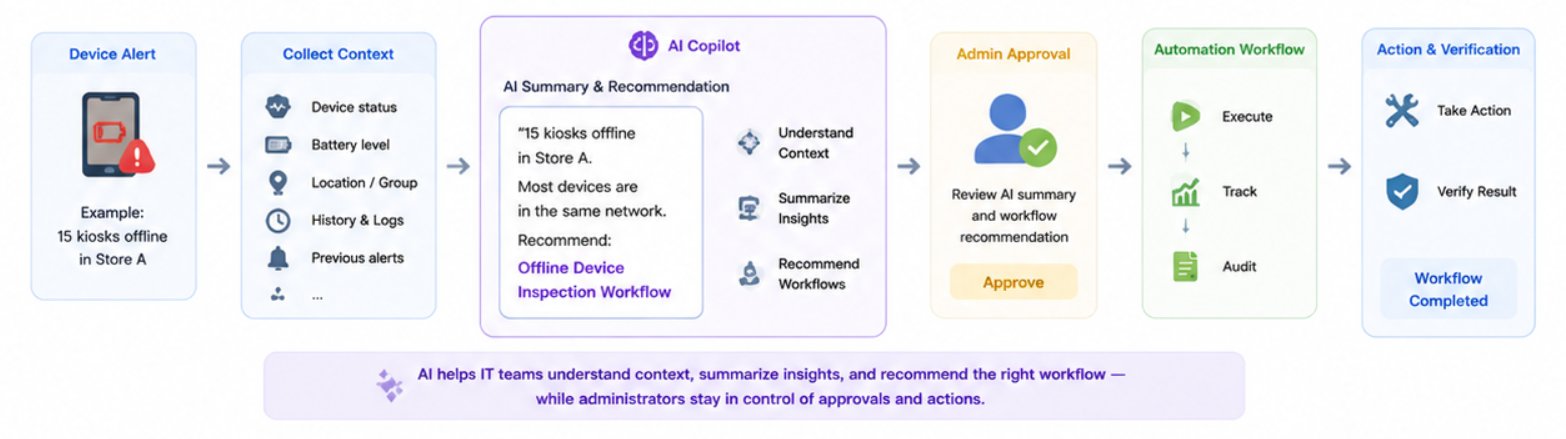
AI-assisted MDM is most valuable when it helps IT teams interpret device information and determine the appropriate next step.
The purpose of AI assistance is not to replace administrators. Instead, it helps reduce repetitive analysis and makes device context easier to understand before choosing an action.
In an alert management process:
The alert detects the issue. AI helps interpret the context. The workflow executes the predefined process. IT controls higher-impact actions.
AI-assisted MDM may help administrators:
- Summarize alert information.
- Identify affected devices.
- Group devices by location, role, or status.
- Explain relevant device context.
- Highlight recurring conditions.
- Suggest an appropriate workflow.
- Generate inspection summaries and reusable workflow templates.
For example, an administrator might ask which devices have been offline for more than 24 hours, which logistics tablets have low battery, which POS devices are running low on storage, or whether multiple Kiosk devices at the same location are experiencing similar issues.
AI can help organize and explain available information, reducing the time spent manually searching through device records.
Workflow automation remains the execution structure. AI assistance should not bypass permissions, confirmation rules, or audit controls for high-risk operations.
AirDroid Business- Simplify Device Management with Smarter Workflows
AirDroid Business combines device monitoring, automation workflows, and AI-assisted capabilities to help IT teams understand device status, find relevant information faster, and manage recurring operational tasks with greater efficiency.
This is where AI-assisted device management becomes practical. It is not about adding broad AI claims to MDM. It is about reducing repetitive analysis, making device context easier to understand, and helping administrators choose the right alert-triggered workflow.
How AirDroid Business Supports Alert-Triggered Workflows
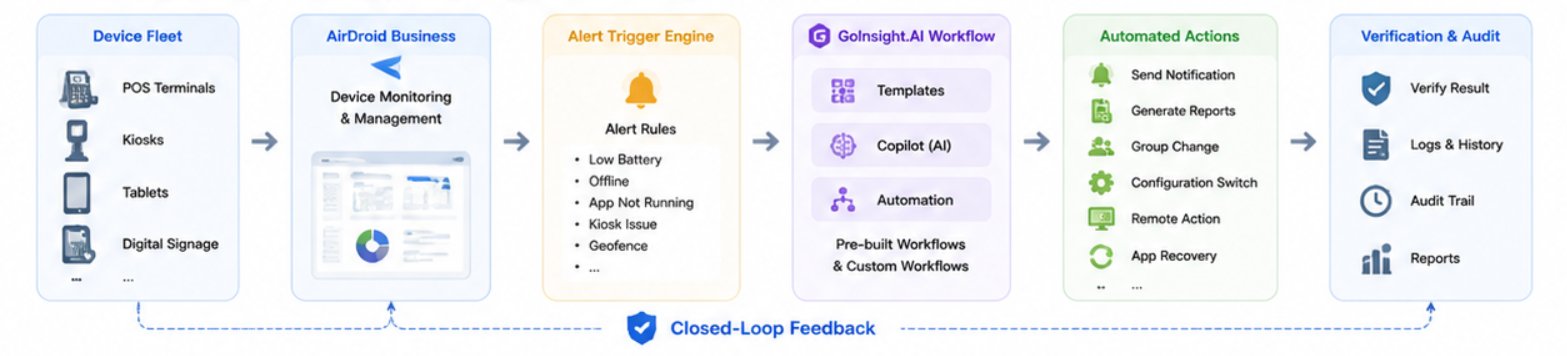
AirDroid Business helps organizations monitor and manage distributed Android device fleets. Together with workflow automation and AI-assisted capabilities, it helps IT teams move from device visibility to structured follow-up processes.
1Detect Device Conditions
Administrators can configure alerts based on supported device conditions, including:
- Online and offline status.
- Battery level.
- Available storage.
- Application running status.
- Kiosk status.
- Network data usage.
- Geofence events.
- Other device and management conditions.
The exact alert options available may depend on device type, configuration, and AirDroid Business plan.
2Collect and Review Device Context
After an issue is detected, administrators may need additional details before deciding what action should be taken.
Relevant information may include:
- Device status.
- Device group.
- Resource usage.
- Operation history.
Collecting context first helps reduce inappropriate or overly broad responses.
3Connect Alerts with Workflows
With AirDroid Business workflow capabilities and GoInsight.AI integration, supported alert events can be connected with follow-up processes.
Depending on workflow configuration, these processes may include:
- Notify responsible team members.
- Query device information.
- Generate device reports.
- Export device lists.
- Organize information for troubleshooting.
- Prepare controlled operations.
- Start predefined follow-up workflows.
4Use AI to Reduce Analysis Work
AirDroid Business Copilot and reusable workflow templates can help administrators query device status, summarize information, and reuse common processes across recurring device management scenarios.
AI assistance is particularly useful when IT teams need to review large numbers of devices or translate a broad request into specific device information.
5Review Workflow Results
A managed workflow should provide administrators with enough information to determine:
- Whether the process ran successfully.
- Which devices were included.
- What information or output was generated.
- Whether an operation failed or was skipped.
- Whether additional manual action is required.
This connects monitoring, analysis, workflow execution, and review into one device management process.
AirDroid Business- Manage Distributed Devices with Centralized Monitoring and Automation
AirDroid Business enables organizations to monitor Android devices, set alert rules, manage device groups, and support operational workflows for POS terminals, kiosks, digital signage, and frontline devices.
Explore how AirDroid Business helps IT teams monitor Android devices, configure alerts, and connect device events with workflow-based follow-up actions.
Best Practices for Safe MDM Alert Automation
Alert automation should be designed around scope, risk, accountability, and operational impact.
A successful automation strategy does not start with the most powerful actions. It starts with practical workflows, clear boundaries, and gradual expansion.
1Start with Low-Risk Workflows
Begin with workflows that do not directly change device behavior, such as:
- Email or team notifications.
- Device health reports.
- Offline device exports.
- Battery status reports.
- Low-storage investigation reports.
- Kiosk status checks.
- Device inventory snapshots.
These workflows reduce repetitive work while allowing organizations to build operational experience before introducing more advanced device actions.
2Define the Trigger Carefully
Every workflow should have a clearly defined trigger to ensure it runs only when needed.
Consider:
- Threshold value.
- Check frequency.
- Duration of the condition.
- Device group.
- Business location.
- Device role.
- Production or test status.
- Whether repeated alerts should be suppressed.
Poorly designed triggers can create alert fatigue or cause workflows to run unnecessarily.
3Add Device Context Before Taking Action
Avoid applying the same operation to every device that produces a specific alert.
Evaluate:
- Device purpose.
- Current connectivity.
- Location.
- User impact.
- Business hours.
- Recent device history.
- Whether the condition is recurring.
- Whether the device supports a critical operation.
Context is particularly important before rebooting devices, clearing application data, or switching configurations.
4Require Confirmation for High-Impact Actions
Actions that may affect business operations should follow defined approval controls.
Higher-impact actions may include:
- Rebooting a device.
- Clearing application data or cache.
- Locking or powering off a device.
- Switching a critical configuration.
- Factory resetting or unenrolling a device.
A workflow can collect information, identify affected devices, summarize the reason, and request authorization before execution.
5Limit Workflows by Scope and Permission
Not every device should follow the same automation policy.
Scope workflows using factors such as:
- Device group.
- Device type.
- Business function.
- Location.
- Risk level.
- Production or test environment.
- Administrator role.
Permissions should follow the principle of least privilege. Users and integrations should only receive the access needed for the workflow.
6Test Before Broad Deployment
Test new workflows on a small group of non-critical devices before applying them to a production fleet.
Verify:
- The alert triggers under the intended conditions.
- The correct devices enter the workflow.
- Notifications reach the intended recipients.
- Reports contain expected information.
- Approval controls work correctly.
- Failures are recorded.
7Review Results Regularly
IT teams should periodically review:
- Trigger frequency.
- Successful and failed executions.
- Skipped actions.
- Recurring devices.
- False positives.
- Manual review cases.
- Notification volume.
- Operation history.
- Workflow permissions.
Alert automation should evolve as the device fleet, business processes, and risk requirements change.
Explore MDM Alert Automation by Goal
Use the following resources to continue based on your objective.
| If you want to... | Recommended resource |
|---|---|
| Understand the alert automation process | Review the Detect–Evaluate–Act–Verify model in this guide |
| Build a low-storage alert and reporting workflow | Read the Android low-storage alert workflow tutorial |
| Compare automation with manual response | Review MDM Alert Automation vs. Manual Response |
| Understand how AI assists administrators | Review Where AI-Assisted MDM Adds Value |
| Evaluate permissions and approval controls | Review Best Practices for Safe MDM Alert Automation |
As additional AirDroid Business workflow templates become available, this section can also include implementation guides for:
- Offline device investigation.
- Application failure recovery.
- Battery and device health reporting.
- Kiosk status response.
- Alert-triggered IT ticket creation.
- Device compliance checks.
Conclusion: Alerts Should Start the Response, Not End It
The future of MDM alerts is not more notifications. It is turning alerts into controlled workflows that help IT teams act faster.
For enterprise IT teams, the most practical form of automation is a workflow-based approach that connects alerts with context, action, verification, and auditability.
Alerts help teams see what is wrong. MDM alert automation helps teams decide what should happen next.
FAQs








Leave a Reply.