AirDroid Parental Control
Cross-Platform Screen Time and Online Safety
- 🚫Comprehensive websites & apps blocking
- ⌛Hide apps once time limit is reached
- 💬Chat and call with family safely and easily
- 📍Live location tracking and geo-fence alerts
How to Completely Remove Private Browsing on iPad [For Parents]
"How do I turn off private browsing mode to protect my teens?" -- from Apple Community
When private browsing is enabled, any web and search history won't be saved. As such, kids may take advantage of this "private" mode to access inappropriate and unsafe content online that they shouldn't.
So, the only way to prevent that from happening is to completely remove private browsing on their device. In this guide, we'll show you exactly how to do it.

How to Remove Private Browsing on iPad
Removing private browsing on your kids' iPad is quite simple. All you have to do is set up the web restrictions features together with a screen time passcode.
After that, every time your child tries to open a private browsing tab, Safari will say "Private Browsing Unavailable."
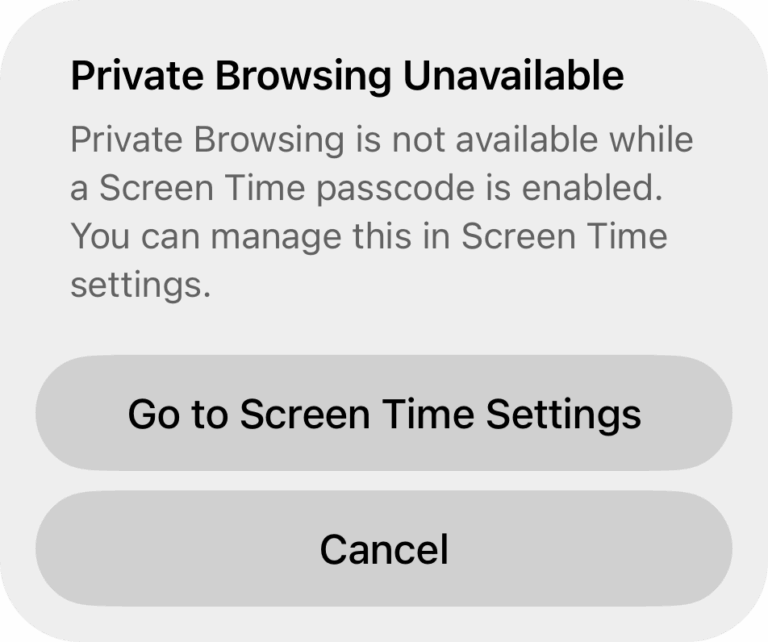
This approach will not only limit unwanted websites but also turn off private browsing and prevent your children from deleting their browsing history.
Now, follow the steps below to remove private browsing on your child's iPad.
- Step 1.Open the "Settings" app and go to "Screen Time."
- Step 2.Select "Content & Privacy Restrictions."
- Step 3.Then, tap on "App Store, Media, Web, & Games."
- Step 4.Under "Web Content," select "Limit Adult Website."
- Step 5.Once done, back to the "Screen Time" settings menu.
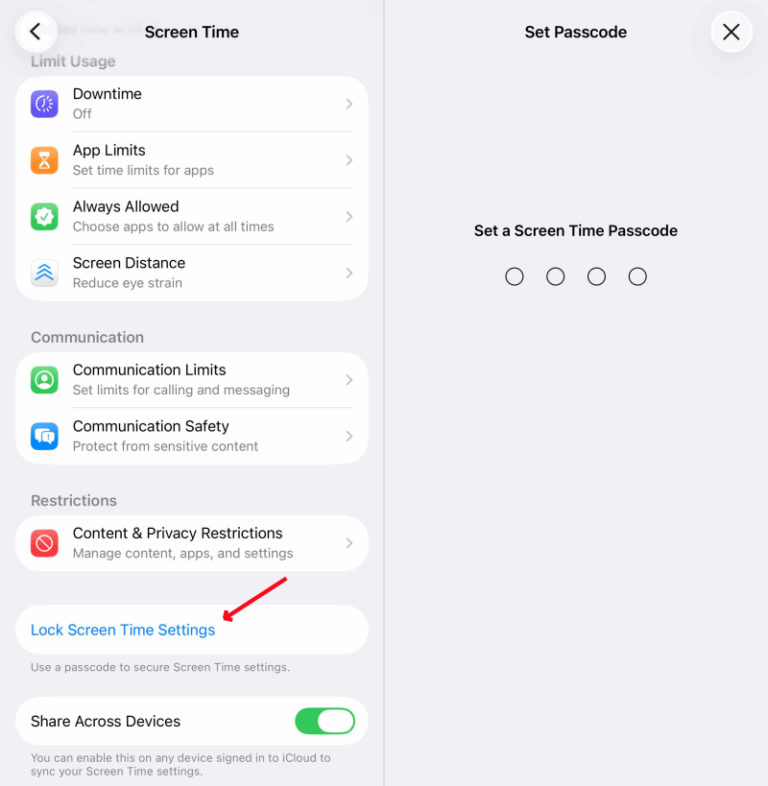
- Step 6.Tap on "Lock Screen Time Settings" to set up a passcode.

Prevent Kids From Bypassing via Other Browsers
While removing private browsing through Screen Time works well, it also has its own pitfalls.
For example, when you disable private browsing this way, it only affects Safari. That said, your child can still hide their browsing activity using Chrome's Incognito mode or any other browser installed on their iPad.
To fully prevent your kids from using private browsing mode on other browsers, you'd better employ any of the following methods.
Disable app installation
The truth is, without a third-party browser on your kids' iPad, they can't use private browsing after you've turned it off on Safari. That's where this method comes in.
By disabling app installation on their iPad, they cannot bypass the private browsing restrictions through other browsers. It is pretty straightforward. All you need to do is:
- Step 1.Go "Settings" on your kid's iPad.
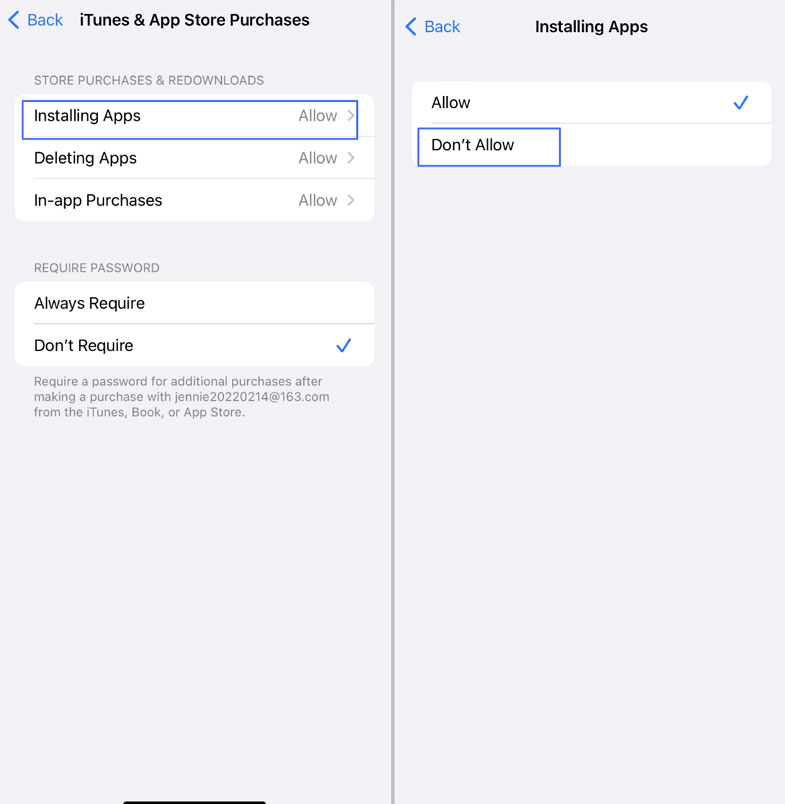
- Step 2.Select "Screen Time > Content & Privacy Restriction > iTunes & App Store Purchases."
- Step 3.Click on "Installing Apps" and select "Don't Allow."
Block other browsers
Well, what if your kids have already downloaded a third-party browser? In that case, it's a good idea to block those browsers on their iPad. Since Apple doesn't come with an app-blocking feature, tools like AirDroid Parental Control may help this time.
With AirDroid, you can easily block any apps, browsers, or websites on your child's iPad. Additionally, it tracks the sites your children visited or searched, even in private browsing mode — helping you spot potential risks early and guide them toward safer online habits.
To block browsers as well as their private browsing mode with AirDroid:
- Step 1.Install AirDroid Parental Control on your device.
- Step 2.Follow the on-screen instructions to connect your child's iPad.
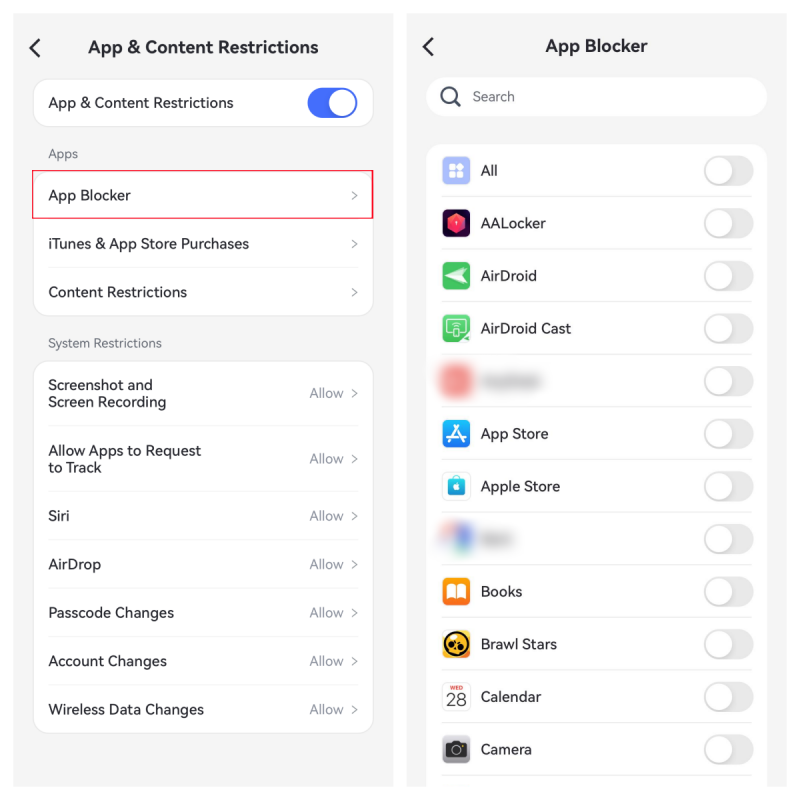
- Step 3.On the control panel, tap on "App & Content Restrictions."
- Step 4.Select "App Blocker" to limit browser access.


Prevent account changes
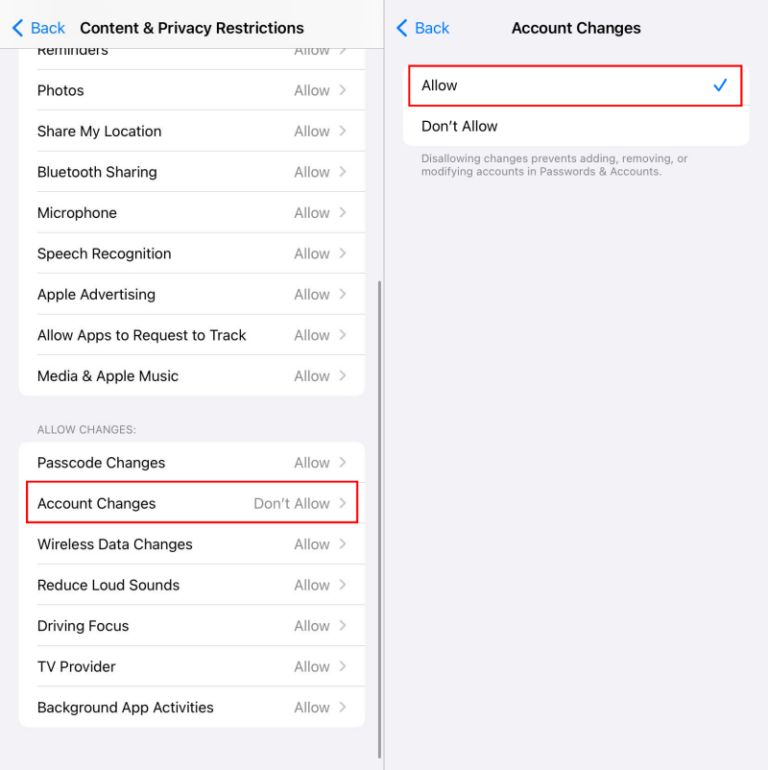
Sometimes, kids may try to log out of their Apple ID to reset the screen time settings and bypass the web restriction. To prevent that, you have to prevent them from changing their Apple account on their iPad:
- Step 1.Go to "Screen Time" in settings.
- Step 2.Tap on "Content & Privacy Restrictions."
- Step 3.Scroll down to the bottom and select "Account Changes."
- Step 4.Choose "Don't Allow."
- Step 5.Then, your child won't be able to log out of their Apple account.
Alternatives to Disabling Private Browsing on iPad
Not every parent wants to completely remove Private Browsing—and that's totally okay. In this case, there are other alternatives you can explore to protect young users online without fully locking down Safari, and they are:
1 Limit Adult Websites for Kid's iPad
As we stated above, Screen Time's web restrictions can block visits to adult websites on your kid's iPad. To do this, follow the steps below:
- Step 1.Open the "Settings" app on your child's iPad.
- Step 2.Select "Screen Time."
- Step 3.Scroll down and click on "Content & Privacy Restrictions."
- Step 4.Then, find "Web Content" and choose "Limit Adult Websites."
2 Use a Kid Safe Browser Instead
You can also encourage your kids to start using a kid-safe browser. Unlike the regular browsers, kids' safe browsers lack private browsing mode and show only age-appropriate websites with SafeSearch enforced.
Here are 3 kid-safe browsers that I tested on the market:
A browser designed for children, by the same team behind AirDroid Parental Control.
- Enforce age-appropriate content.
- Block specific websites by category or custom URL blacklists.
- Records full browsing history.
- Integration with a full parental-control suite.
A child-friendly web browser by Kiddoware that lets parents create a safe, controlled online environment with customizable filters.
- Prevent deleting browsing history.
- Customizable website whitelist or blacklist.
- Can block URLs by keywords.
A standalone browser with built‑in filtering for schools, families, and individuals, even available as a Chrome or Firefox extension.
- Automatically block sites in pornography, nudity, unsafe search engines, file‑sharing / P2P, VPN/proxy sites, etc.
- Allow to report websites.
- Enforce SafeSearch.
Bonus: Steps to Exit Private Browsing on iPad
If you're just trying to exit private browsing and switch to normal mode, follow the steps below to exit it once and for all.
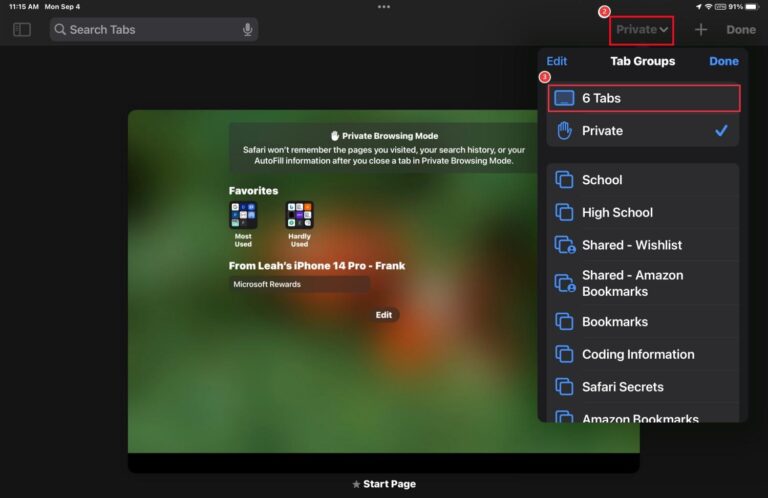
- Step 1. Open "Safari" on the iPad.
- Step 2. Tap the "Tabs" icon at the top of the screen.
- Step 3. Then, click on "Private."
- Step 4. Switch to "Tabs" to exit private browsing mode.

Conclusion
You can disable private browsing on an iPad by using the built-in Screen Time feature. This is the primary method for restricting web access, making it an ideal tool for parental controls or for managing a shared device. When web content is restricted and a screen time passcode is set, the Private Browsing option in Safari is automatically turned off.














Leave a Reply.