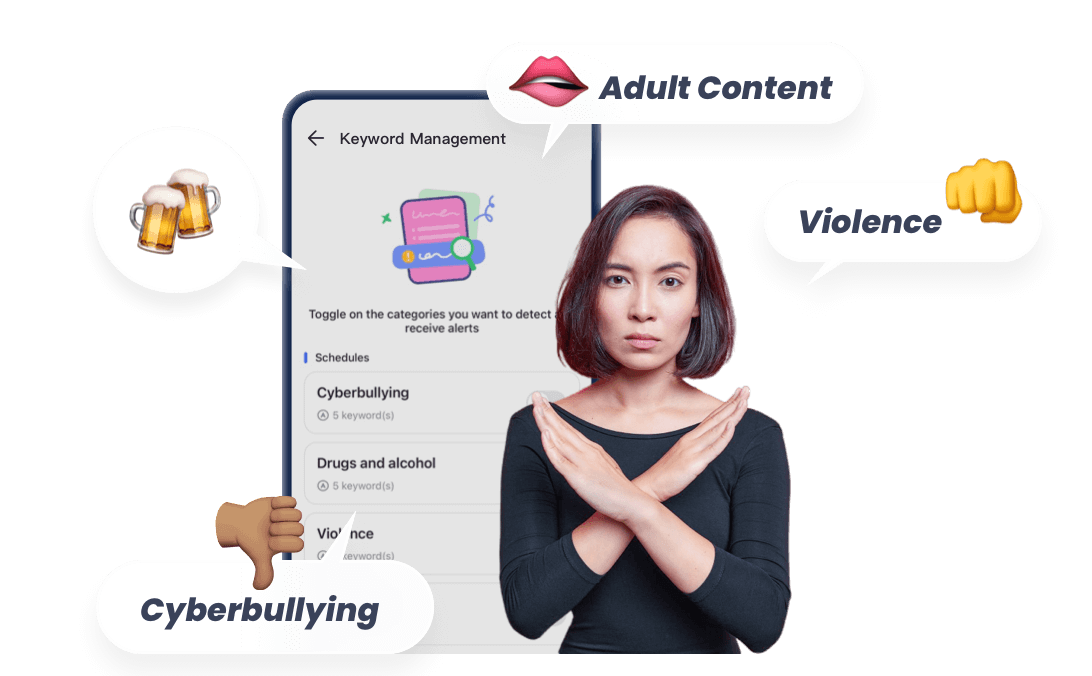
How to Block Porn on Chrome?
Let's be honest — Chrome makes it way too easy to stumble into things we don't want to see, such as adult content, popups, or anything else.
That's why we're here to help you filter what shows up—whether you're trying to stay focused yourself or make the browser safer for your kids. You can block adult content in Chrome through the following methods:
| Methods | Compatibility | Blocking Strength | Bypass Risk |
|---|---|---|---|
| SafeSearch | Chrome for PC and Mobile | ★☆☆☆☆ | High |
| Extensions | Chrome for PC | ★★★★★ | High |
| Parental Controls | Chrome for PC or Mobile | ★★★★★ | Low |
| DNS Filter | Chrome for PC and Mobile | ★★★★★ | High |
| Router Filter | Chrome for PC and Mobile | ★★★★★ | Medium |
| Hosts File | Chrome for PC | ★★☆☆☆ | High |
Choose the best method for your situation >>>
Option 1: Turn On SafeSearch in Chrome
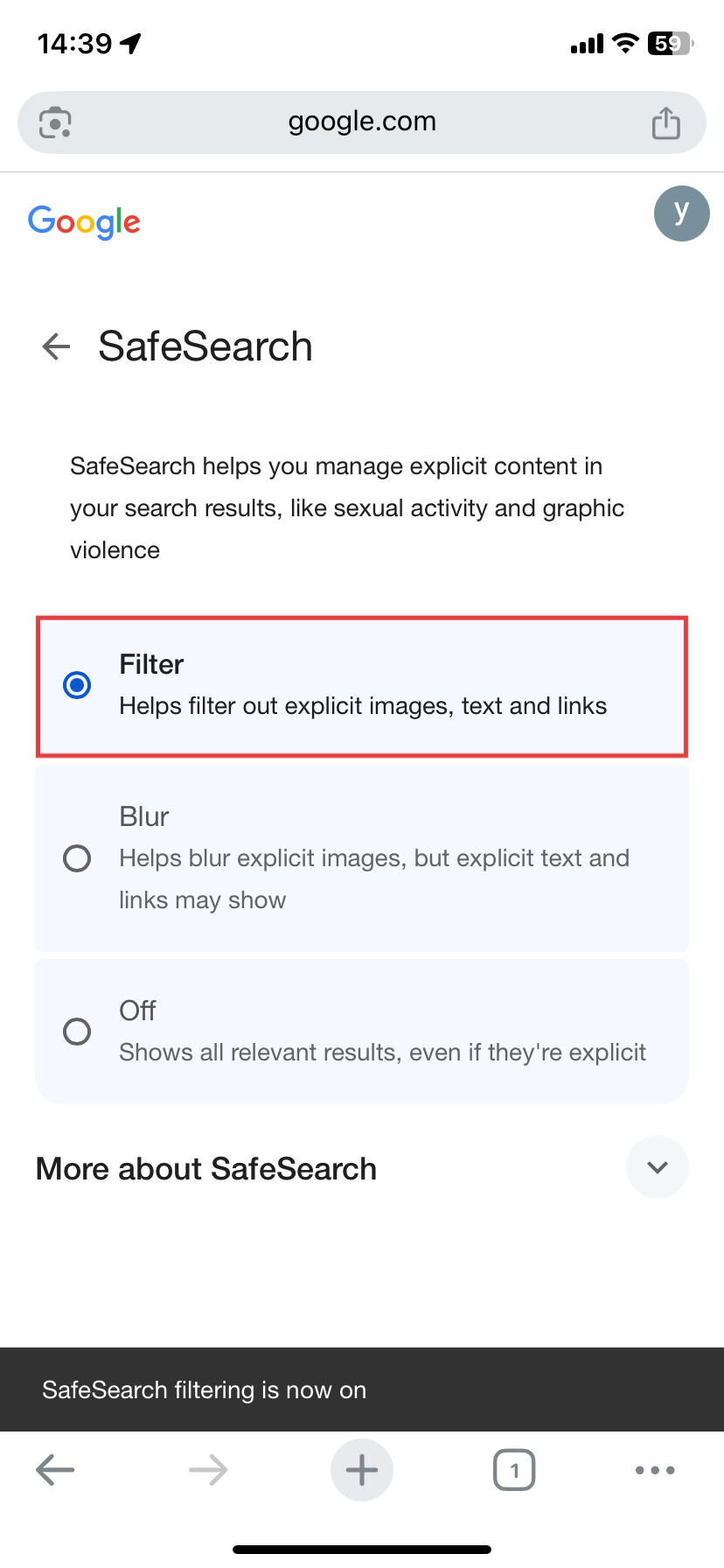
SafeSearch is a built-in feature that helps filter out all adult content from your Chrome search results. To activate Google SafeSearch, follow these simple steps:
- Step 1.Visit your SafeSearch settings from Chrome.
- Step 2.Choose "Filter" to filter out explicit images, text, and links.
Option 2: Use Chrome Extensions to Block Porn
If you prefer using Chrome on your desktop, then porn blocker extensions can help block adult sites on Chrome with great ease.
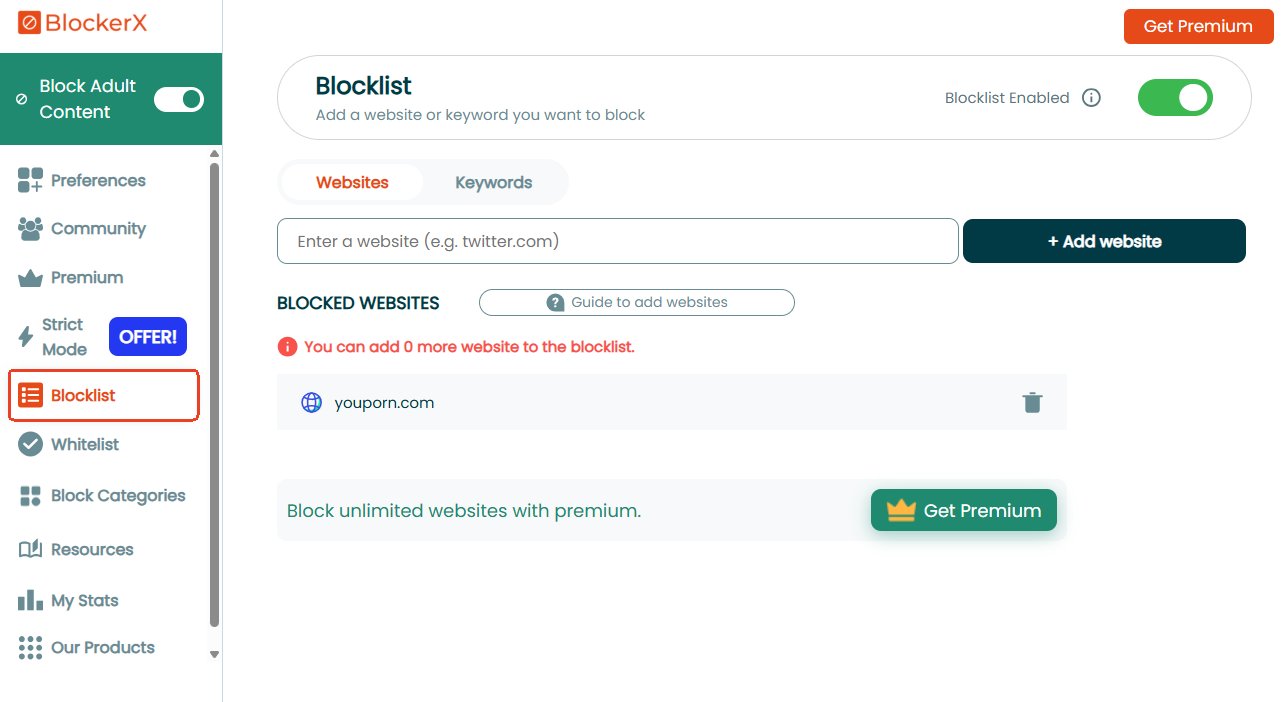
One such extension is "BlockerX." With SafeSearch enforced, it automatically blocks porn sites. Also, you can set up your own custom website blacklist, add a PIN to prevent uninstalling (premium feature), block Incognito Mode, etc.
Now, follow these steps to stop adult content in Chrome on desktop:
- Step 1.Navigate to the BlockerX extension.
- Step 2.Click "Add to Chrome" to install the extension and sign in.
- Step 3.By default, the "Block Adult Content" setting is enabled.
- Step 4.For blocking specific websites, go to "Blocklist" to add URLs one by one.
Option 3: Install a Parental Control App
As you can see, the above methods are easy to bypass, which are more suitable for self-disciplined individuals. So, if you need to block porn on Chrome for your kids, consider using a parental control tool.
Below, we will recommend some popular options.
- AirDroid Blocker — Best for families who need stronger filtering and content monitoring.
- Family Link — Best for parents who want filters synced on all their children's Chrome devices.
- Screen Time — Best for Apple-only households.
1 AirDroid Porn Blocker
AirDroid Porn Blocker is a parental control tool that filters adult content on Chrome for both Android and iPhone. Beyond blocking adult websites and apps, it even detects inappropriate images in Photos and explicit keywords that appear in SMS and social media content.
Moreover, this tool provides real-time alerts when your child tries to open the blocked porn sites.
- Step 1.Download AirDroid Parental Control and sign in.
- Step 2.Connect your child's iPhone or Android device.
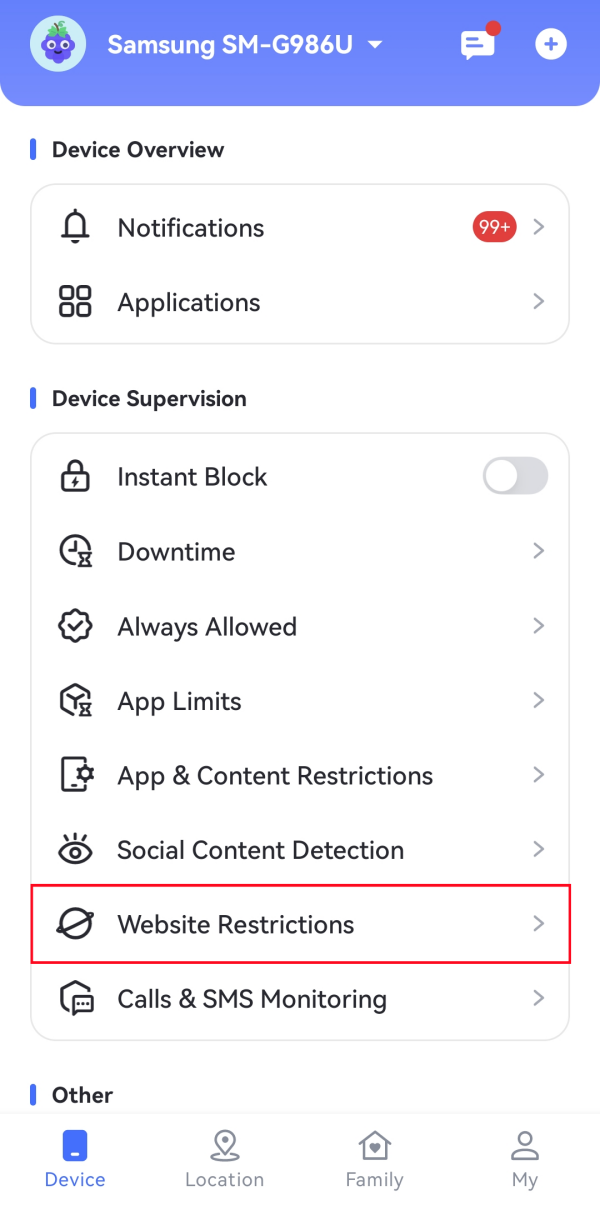
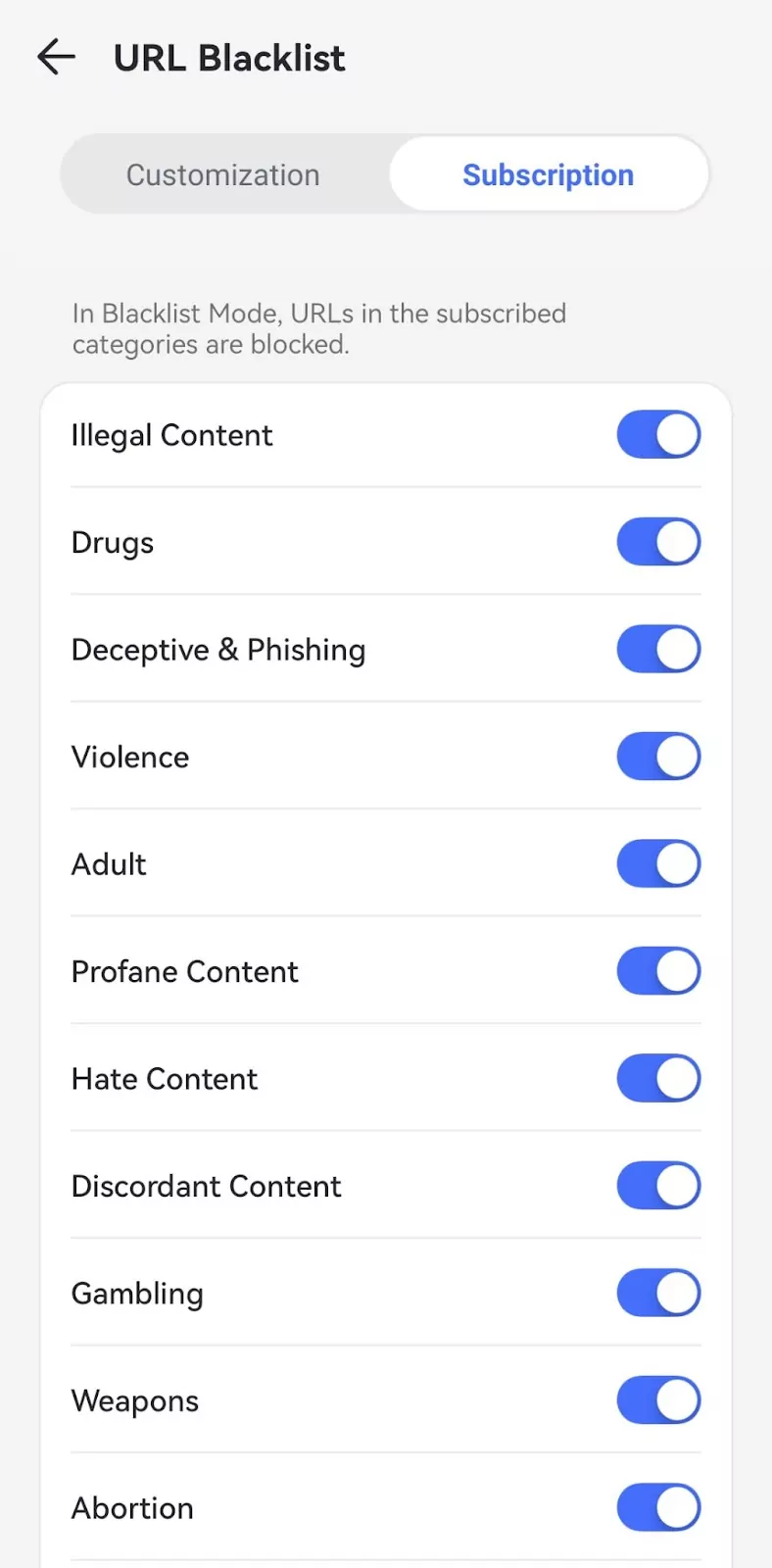
- Step 3.On your parental dashboard, tap on "Website Restrictions > URL Blacklist."
- Step 4.Then, create a custom website blacklist by manually entering URLs or by enabling specific website categories.
 |  |
2 Google Family Link
Launched by Google, Family Link works well with Google services, such as Chrome, Google Play, and more. With it, parents can enforce SafeSearch and block explicit sites for kids across devices (desktop, Android, or iPhone) as long as they've logged into Chrome with the managed account.
- Step 1.Install the Family Link app and link your child's Google account.
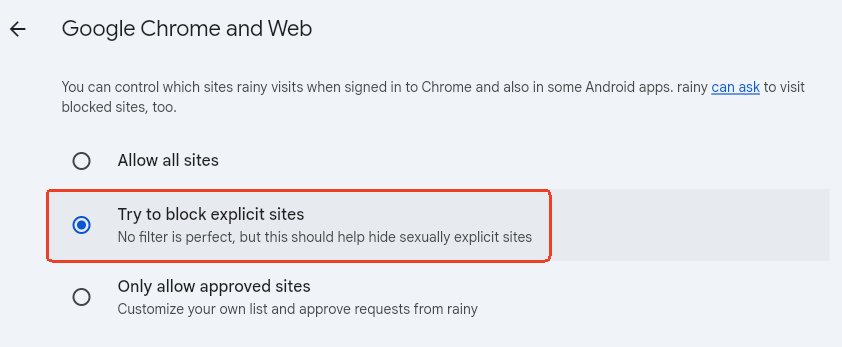
- Step 2.Tap on "Google Chrome and Web" in the "Controls" tab.
- Step 3.Toggle on "Try to block explicit sites."
- Step 4.To enforce SafeSearch, go to "Controls > Google Search > Filter."
3 Apple Screen Time
Apple comes with a built-in setting called "Screen Time" that can block access to adult websites on Chrome, Safari, and other browsers. To use it to block adult content on Chrome for iPhone and Mac, please follow:
- Step 1.Open the "Settings" app and go to "Screen Time."
- Step 2.Tap "Content & Privacy Restrictions" to turn this setting on.
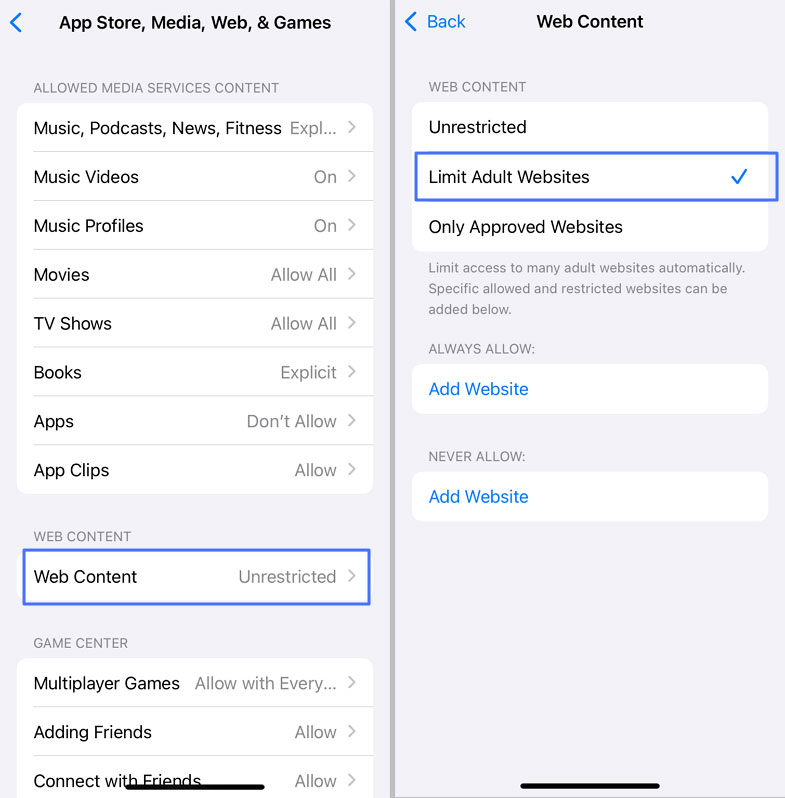
- Step 3.Select "App Store, Media, Web, & Games," and then "Web Content."
- Step 4.Choose "Limit Adult Websites."
Tip: To prevent your child from bypassing these web restrictions, please be sure to set up a screen time passcode.
Option 4: Set up a DNS Filter
For a more thorough blocking of adult content in Chrome, configuring your DNS settings is a powerful solution.
DNS filtering blocks adult sites before Chrome can load them. When you type a URL, the DNS server checks the domain; if it's flagged as adult content, it simply won't return the site's address and load the page.
To use this method, we recommend 2 free and safe family-friendly DNS providers: CleanBrowsing and AdGuard.
For detailed device-specific setup instructions to block xxx in Chrome, refer to the official guides here: CleanBrowsing and AdGuard.
Option 5: Block Porn at the WiFi Router Level
Currently, WiFi routers offer features to block porn and other mature content at the network level.
These routers allow you to manage internet usage, set website filters, and monitor activity on all devices connected through WiFi. Therefore, look for router brands that offer these features when making your purchase.
After that, follow these steps to block porn on Chrome across devices connected to your WiFi:
- Step 1.Open a browser and type your router's IP address (typically located at the back of the router).
- Step 2.Log in with the admin account.
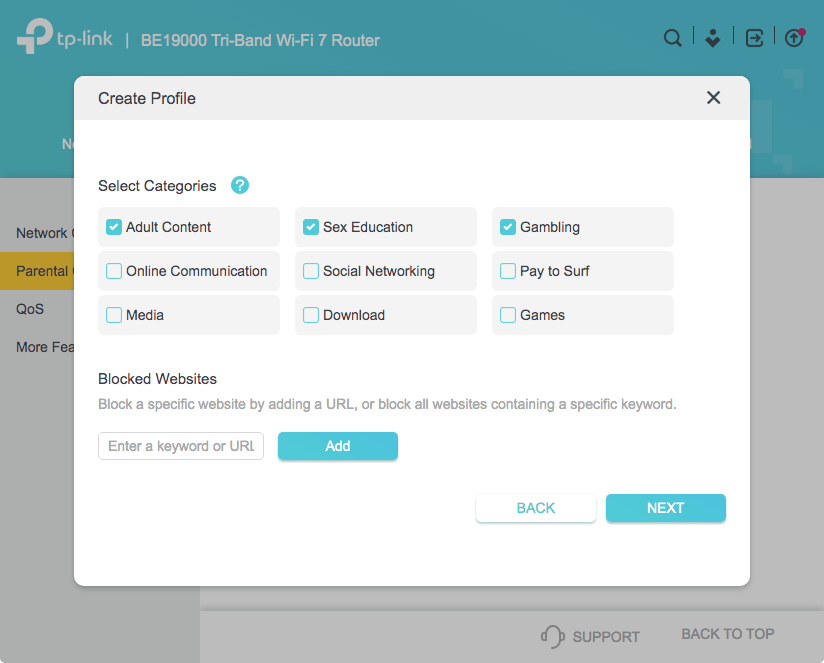
- Step 3.In the settings control panel, look for settings like "Parental Control" or "Access Control."
- Step 4.After that, choose to block the entire mature website category or enter URLs for blocking (the setting may vary by router).
- Step 5.Test by trying to access a blocked site to confirm it's working.
Option 6: Edit the Hosts File
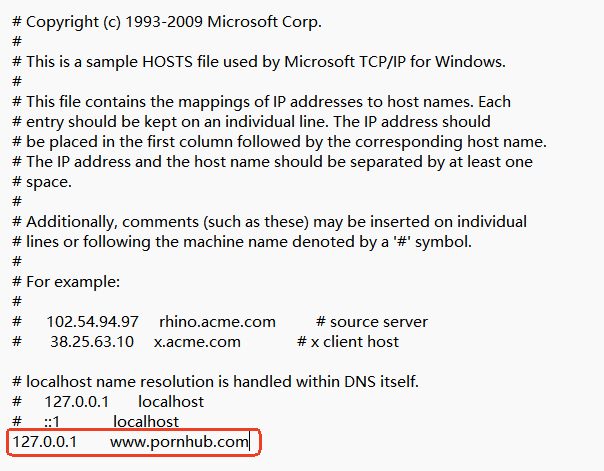
Another way to block websites on your computer's Chrome is by editing the hosts file. This method works by redirecting the website's URL to your computer's local address (127.0.0.1), effectively preventing the browser from accessing the site. It's a built-in solution that works across all browsers.
Now follow the steps to continue:
- Step 1.Locate the "Notepad" app and open it as an administrator.
- Step 2.Click "File > Open… > C:\Windows\System\drivers\etc."
- Step 3.Then, select the "hosts" file to edit.
- Step 4.Add a new line at the bottom of the file for each website you want to block. For example: 127.0.0.1 pornhub.com
- Step 5.Lastly, save the file.
- Step 6.Try visiting the blocked porn site in your Chrome — it should no longer load.
Final Verdict: Best Method for Your Situation
- For quick and temporary blocking → SafeSearch
- Adults securing their personal device → Extensions + edit hosts file + DNS filter
- Parents keeping their child's Chrome safe → Parental control apps + router settings + SafeSearch
- For schools or educational settings → Router settings + SafeSearch











Leave a Reply.