- Step 1. Open Google Play Store's "Settings."
- Step 2. Go to "Family > Parental controls." Turn the parental controls on.
- Step 3. Tap "Apps & games"
- Step 4. Pick an age rating (e.g., 7+, 10+) to block downloads of games above that level.
AirDroid Game Blocker
- One-click to block gaming apps & websites
- See what games your child is playing
- Set time limits on specific games
How to Block All Game Websites
Whether you can't stop sneaking onto Roblox or your kids turn "just five more minutes" into hours of gaming, it's no secret that online games are getting more addictive than ever. So, that's why you are here to look for ways to block websites.
Fortunately, in this guide, we'll walk you through how to block game sites on phones, computers, and even your entire Wi-Fi network. Let's have a look!
Self-Check: Should You FULLY Block Game Sites?(Select all that apply)
If you checked 3+ boxes, yeah… it might be time for stronger controls. Try blocking game sites using the 5 methods below.
- Hard to stop once you start gaming?( votes)
- Think about gaming strategies even when you're not playing?( votes)
- Feel irritated when you can't play?( votes)
- Gaming makes you delay tasks or sleep?( votes)
- Family or friends said you game too much?( votes)
Vote
Overview of All Methods for Game Blocking
| Methods | Block Game Sites On | Best For |
|---|---|---|
| Screen Time | iPhone, Mac | Apple users who need quick game site blocking |
| Router-level Filtering | All Devices | Blocking game sites on all devices at home, school, or office |
| Microsoft Family Safety | Windows PC | Parents managing a child’s Windows PC |
| Hosts File | Windows PC, Mac | Tech-savvy users blocking game sites on computer |
AirDroid Game Blocker  | iPhone, Android | One-click & automatic game-site blocking |
Built-in Tools to Block Game Sites
Indeed, your device already comes with simple tools to block distracting game websites. These settings are quick to set up — no extra apps required. Let's walk through the easiest options.
1Screen Time
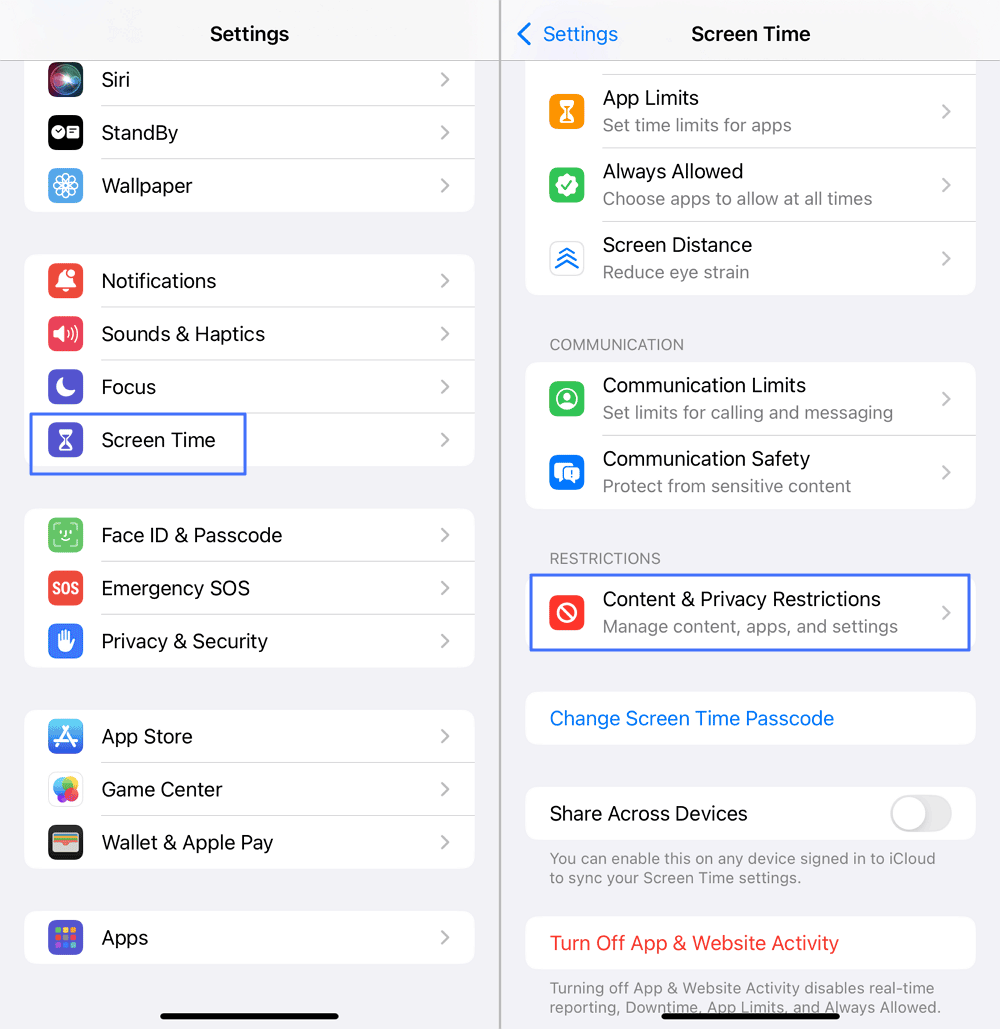
If you find yourself or your child spending too much time on games, Apple Screen Time is here to regain control. It cannot only help you limit game apps' usage but also block game websites on iOS and MacOS devices. To set it up and stop playing games online:
- Step 1. Head to the "Settings" app and then "Screen Time."
- Step 2. Tap on "Content & Privacy Restrictions."
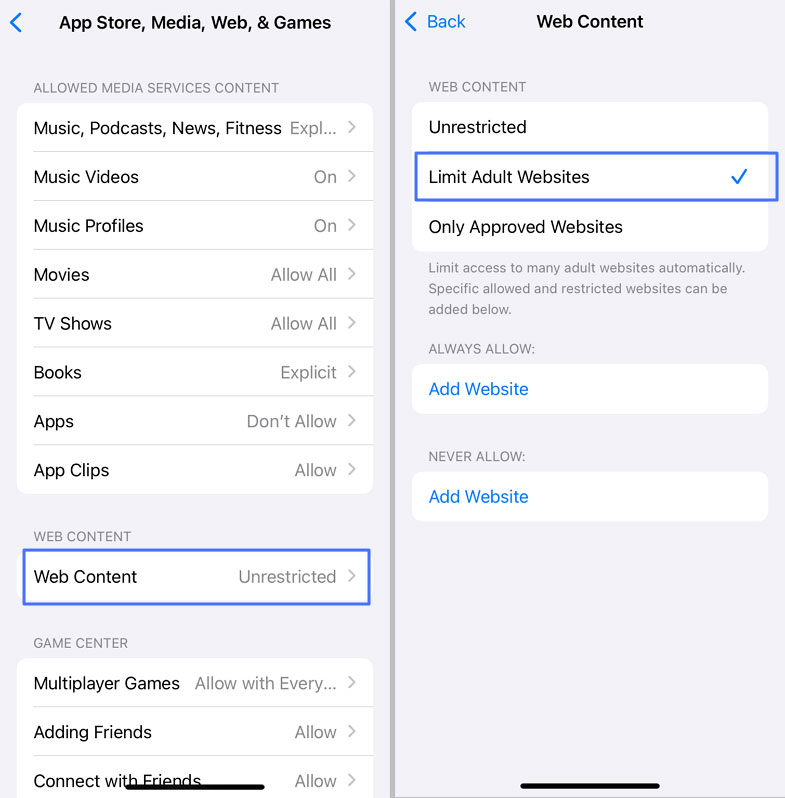
- Step 3. Choose "App Store, Media, Web & Games."
- Step 4. Find "Web Content" to select "Limit Adult Websites."
- Step 5. Under "NEVER ALLOW," add the gaming websites you wish to block.
2Router-level Filtering
Switching between devices, such as phone, tablet, laptop, and even the smart TV, to access games is common at home. Then, blocking game sites on just one device won't cut it.
That's where router-level filtering comes in. Some routers allow you to customize the URL blacklist at the WiFi source, so every device connected to your network follows the same rules to block unwanted websites.
Here's how to set up web filtering rules on your router to block all gaming sites:
Note: Steps may vary slightly by router brand, but they are usually similar.
- Step 1. After connecting to the WiFi, enter the router IP in a browser.
- Step 2. Sign in with your admin username and password.
- Step 3. Find the "Parental Controls," "Security" or similar section.
- Step 4. Enable the filtering function and enter gaming sites to block.
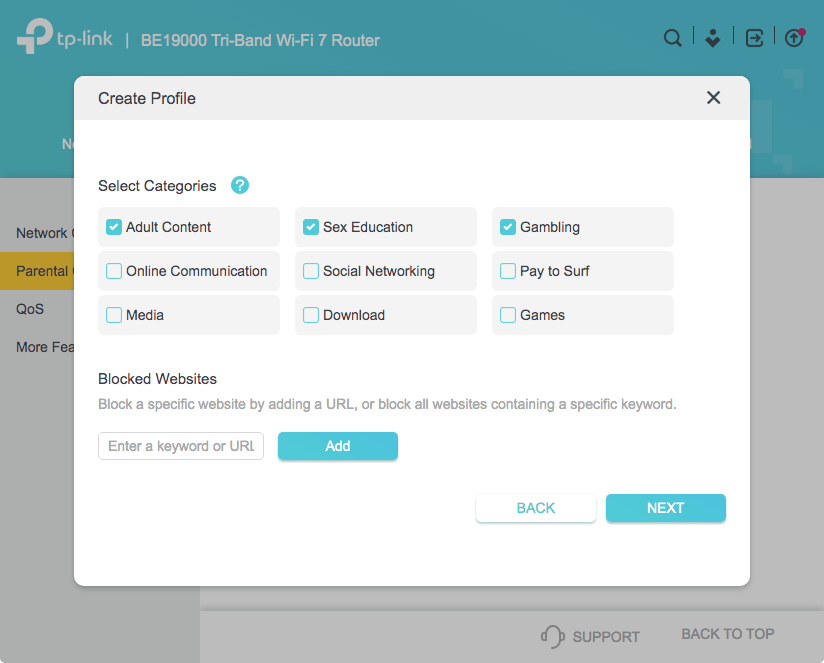
Some routers even offer category-based blocking. If yours supports it, simply turn on the "Games" category to block ALL gaming sites at once.
3Microsoft Family Safety
If your kid loves hopping onto PC games right after school, Family Safety (a parental control tool developed by Microsoft) gives you a built-in way to block game sites in the Edge browser.
You can even check how much time your child spends on specific game apps and websites. Now, follow the steps to use this tool:
- Step 1. Visit the Family Safety dashboard and sign in.
- Step 2. You'll see all linked family members. Add and click the child's profile.
- Step 3. Switch to the "Edge" tab, type gaming websites under the "Blocked sites" section. 💡You can also select all related domains for blocking.
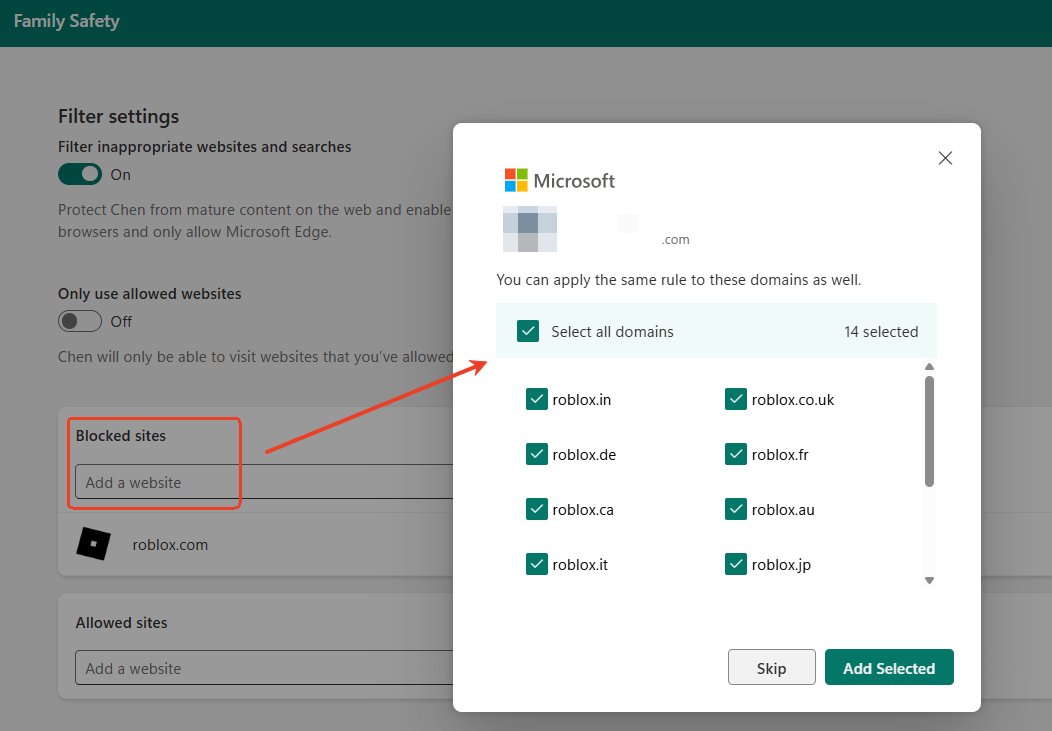
Note: Though Family Safety can also be used to manage a child's mobile devices, it lacks the web blocking feature.
4Hosts File
A Computer's hosts file also lets you block websites. When you edit the hosts file and redirect a game website to a non-existent address (like 127.0.0.1), your computer simply can't load it.
Though this method doesn't require extra software, it is a little bit complex to set up.
On Windows:
- Step 1. Open the "Notepad" program as an administrator.
- Step 2. Click on "File > Open…" from the top menu bar.
- Step 3. In the "C:\Windows\System32\drivers\etc" folder, select and open the "hosts" file.
- Step 4. At the bottom, add a new entry for each game site you want to block, such as: 127.0.0.1 www.roblox.com.
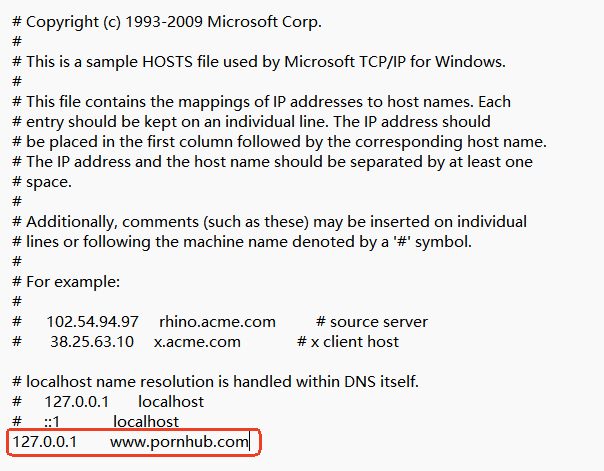
On Mac:
- Step 1. Open "Finder > Go > Utilities > Terminal."
- Step 2. Type "sudo nano /etc/hosts" and enter the password to open the hosts file.
- Step 3. Type 127.0.0.1 and the website address you want to block.
Third-party Apps to Block Game Sites [One Click]
Well, now, you may find that most built-in tools like Screen Time have a critical flaw: they only block what you manually type. With countless gaming domains and new sites launching daily, every missed new URL is a backdoor.
Thankfully, third-party game blocker apps, like AirDroid Parental Control, make the difference. With one-click, gaming sites can be automatically restricted on Chrome, Safari, Edge, and Firefox — no tedious list-building!
It blocks game websites by category, using a built-in database of URLs sorted into different types. The database auto-updates, catching new gaming and other inappropriate sites before your kids do.
Beyond websites, you can also block gaming apps, set time limits on game sessions, and know if your kids played games at school.
- Step 1. Click the following button to access the AirDroid's web dashboard.
- Step 2. Sign in and connect your child's Android or iOS device.
- Step 3. Go to "Website Restrictions > URL Blacklists."
- Step 4. Switch to "Subscription" and activate the "Video Games" or "Board Games" toggle.
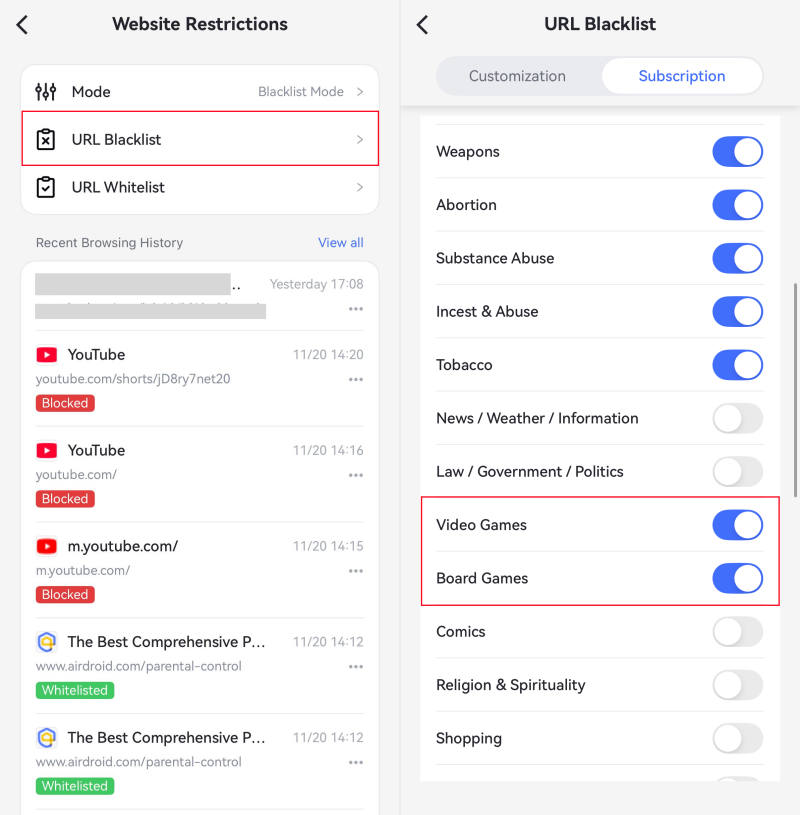
FAQs about Blocking Games
How to Block a Game in Play Store?

How to Block Online Games in Mobile?
To block online games on mobile, consider AirDroid Parental Control. It works on both Android and iOS devices, allowing you to restrict certain game apps & websites with one-click.
You can also set time limits or restrict games during specific hours, like school time.
How to Block Games on Roblox?
Roblox itself let parents block specific experience for their kids with its built-in parental control tool. Here's how:
- Step 1. Open "Roblox > Settings > Parental Controls."
- Step 2. Select your child's Roblox account.
- Step 3. Under "Content restrictions," tap on "Blocked experiences."
- Step 4. Tap the "+ icon and enter the experience name you want to block.
After this, your child will not be able to click on the experience and play it.










Leave a Reply.