5 Remote Device Troubleshooting SOPs for Managed Android Fleets
- What Is a Remote Troubleshooting SOP?
- Why Remote Access Alone Is Not a Troubleshooting Process
- When Does a Workflow Template Qualify as an SOP?
- SOP 1: Offline Device Response and Recovery
- SOP 2: Critical App Failure Response and Recovery
- SOP 3: Kiosk Issue Response and Recovery
- SOP 4: Application Deployment Failure Analysis and Retry
- SOP 5: Device Health Exception Investigation and Escalation
- What Should Be Automated—and What Requires Human Review?
- What Information Should Be Collected Before Escalation?
- How AirDroid Business Supports Remote Troubleshooting SOPs
- Start With One Repeated Troubleshooting Problem
- Frequently asked questions
A retail kiosk is no longer displaying its assigned business app. A group of warehouse devices has failed to install the latest application release. Other terminals remain online but show signs of degraded performance alongside high memory or storage usage.
These problems are common across enterprise mobile environments. The 2026 State of Enterprise Mobility Report surveyed 671 companies across six countries, representing more than 1.2 million enterprise mobile devices. Among the frontline workers surveyed:
- 82% reported WLAN or mobile network connectivity problems;
- 74% experienced app stability issues;
- 60% reported battery-life problems.
The figures cover enterprise mobile technology rather than Android devices exclusively. The survey was conducted in November 2025 by an independent research firm commissioned by B2M Solutions.
The frequency of these issues makes detection only the beginning. Each incident still needs a consistent path from identification to recovery.
Remote access can help an administrator investigate a device, but it does not determine which devices need attention, which actions are appropriate, or whether the problem has been resolved. Those decisions belong to the wider troubleshooting process.
In short: A remote troubleshooting SOP defines how an IT team detects a device issue, collects relevant context, selects an automated or human-led response, verifies recovery, and records or escalates the result.
What Is a Remote Troubleshooting SOP?
A remote troubleshooting standard operating procedure, or SOP, is a repeatable process for detecting, assessing, resolving, verifying, and documenting issues across managed devices, including unattended Android endpoints.
A practical remote troubleshooting SOP usually contains six stages:
| Stage | Operational question |
|---|---|
| Detect | What observable device condition occurred? |
| Collect context | Which devices are affected, and what is their current status? |
| Assess | How serious is the issue, and which response path should it follow? |
| Respond | Can a predefined action be used, or is administrator intervention required? |
| Verify | Did the device return to its expected operating state? |
| Record or escalate | Can the incident be closed, or does it require further investigation? |
The process can be summarized as:
Detect
↓
Collect Device Context
↓
Assess and Classify
↓
Automated Action or Remote Support
↓
Verify Recovery
↓
Close, Notify, or Escalate
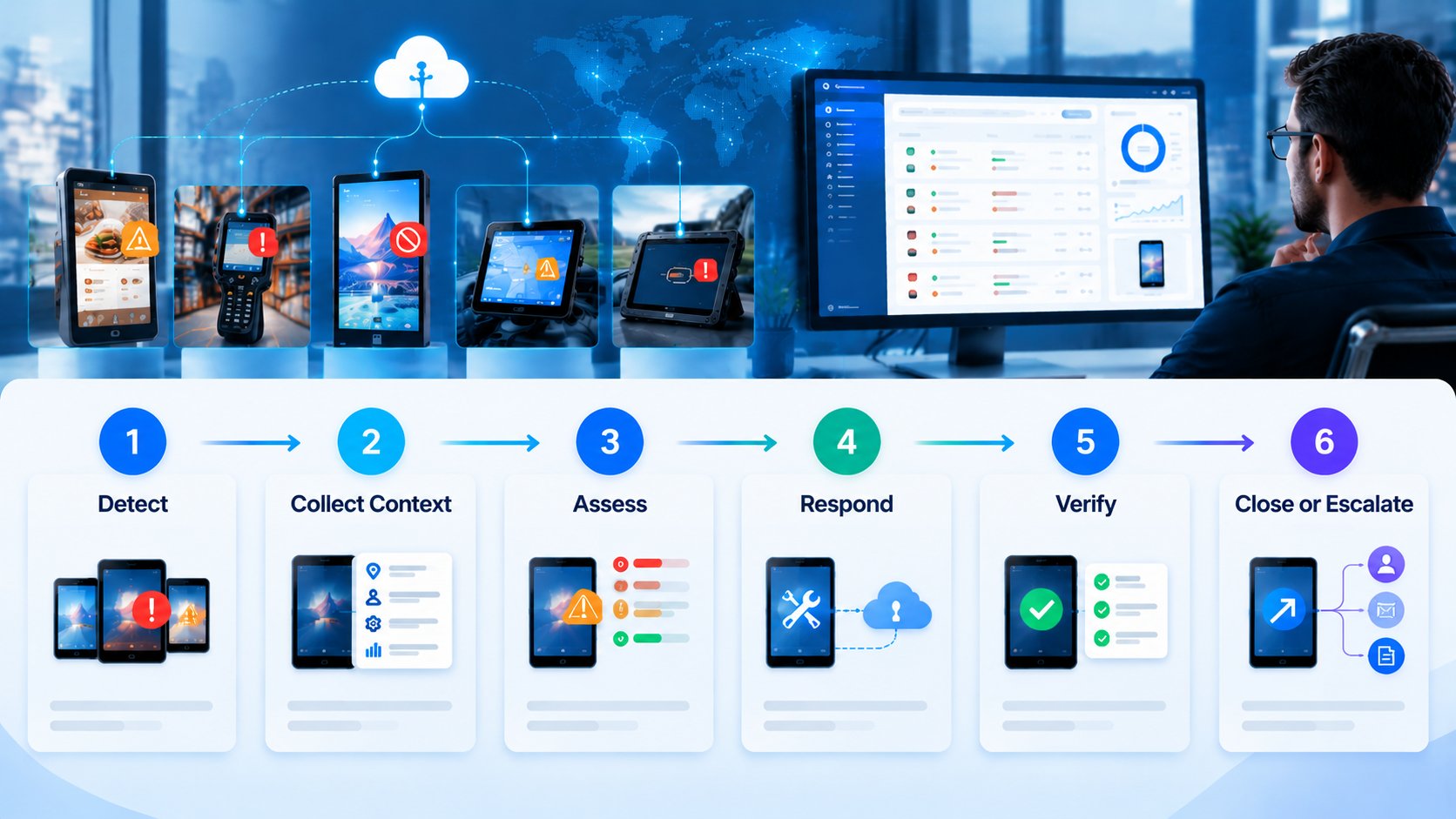
Some SOPs aim to restore a device or application to its expected state. Others focus on investigation, controlled retry, reporting, or escalation. The response depends on what the management platform can verify and which actions are safe to perform.
To understand why these additional stages matter, consider what happens when remote access is treated as the entire troubleshooting process.
Why Remote Access Alone Is Not a Troubleshooting Process
Remote access lets an administrator view or control a device from another location. It is valuable when IT needs to inspect a screen, review an application error, collect logs, change a setting, or perform another action that requires direct interaction.
However, remote access usually begins after someone already knows that a problem exists.
In a reactive support model, a store employee, driver, warehouse operator, or local technician notices the issue and reports it to IT. The administrator then searches for the device, checks whether it is online, collects information, opens a remote session, and decides what to do.
As the fleet grows, this approach creates several gaps:
- Problems may not be reported promptly.
- Alerts may arrive without enough diagnostic context.
- Administrators may handle similar incidents differently.
- Low-risk and high-risk devices may enter the same support queue.
- Completed actions may not be followed by a recovery check.
- Repeated failures may not be linked to earlier incidents.
Device monitoring, alerts, workflows, remote access, and reporting address different parts of this process:
- Monitoring provides visibility into device and application status.
- Alerts indicate that a defined condition has occurred.
- Workflow templates standardize repeatable checks and responses.
- Remote access supports work that requires human judgment.
- Verification and records show whether the device recovered and whether follow-up is required.
For more on how monitoring and remote access work together, read Remote Access Device Monitoring: How Alerts and Workflows Help Reduce Device Downtime.
For issues involving enrollment, Policy delivery, or communication between a device and its MDM service, see MDM Deployment Troubleshooting: Fix Connection and Policy Failures.
Once these capabilities are mapped to a consistent response process, the next question is how to make that process reusable. This is where workflow templates become relevant.
When Does a Workflow Template Qualify as an SOP?
A workflow template can function as an SOP when it standardizes more than a single action.
A complete single-template SOP should define:
- What starts the process;
- What device or event information is required;
- Which rules determine the response;
- What action or output is expected;
- How success is verified;
- What happens when the expected result is not achieved;
- Who owns the next step.
For example:
| Component | Offline-device example |
|---|---|
| Trigger | A managed device changes to offline |
| Context | Device group, last online time, and offline duration |
| Decision | Observe a short interruption or escalate a prolonged outage |
| Action | Apply a tag, generate a list, or notify an owner |
| Verification | Check whether the device reconnects |
| Exception path | Move an unresolved device to onsite or manual follow-up |
| Owner | IT administrator, regional operator, or support team |
A template that only adds a tag or sends a notification may support an SOP without constituting the entire procedure. Several lightweight templates can also support different stages of a broader process.
For example:
Device health report
→ Alerted-device tagging
→ Affected-device summary
→ Remote investigation
→ Recovery check
→ Repeated-failure review
The templates do not need to run as a single automated chain. They may support different steps within the same operating procedure.
AirDroid Business provides workflow templates for common device-management tasks. Template availability and configuration options may vary. Contact our Sales or Customer Success team to discuss the workflows that fit your device environment and operational requirements.
The following five SOPs show how workflow templates and device-management capabilities can support common issues across managed Android fleets.
SOP 1: Offline Device Response and Recovery
An offline Android device cannot normally receive real-time remote-control commands until its network connection returns. The immediate task is to classify the outage, determine who should respond, and track whether the device reconnects.
Offline-response process
- Detect that the device has gone offline.
- Check its device group and last connection time.
- Determine how long it has remained offline.
- Consider the importance of the device and the number of affected devices.
- Continue observing short interruptions.
- Notify an administrator or local operator when the outage exceeds the defined threshold.
- Check whether the device later reconnects.
- Record the recovery time or escalate the unresolved case.
A short interruption on a test device may require observation only. A prolonged outage affecting multiple production devices may require immediate notification and onsite follow-up.
Relevant workflow templates
- Offline Device Tiered Response and Recovery Tracking
- Network Connection Exception Daily Report
- Alerted Device Tagging
- Abnormal Device Summary by Group
- Alert and Workflow Result Notification to Microsoft Teams
AirDroid Business Alerts & Workflows can connect supported device conditions with notifications and predefined actions.
The workflow cannot restore a network connection that no longer exists. Its value in this scenario is consistent classification, notification, follow-up, and recovery tracking.
Connectivity determines whether remote support can begin at all. The next scenario is different: the device remains reachable, but the application that supports the business process is no longer working as expected.
AirDroid Business - Turn Repeated Device Issues Into Consistent Troubleshooting Workflows
Go beyond traditional MDM with early access to intelligent automation that helps streamline routine tasks and keep device operations running smoothly. Share your goals, and our team will review your request and follow up with next steps.
SOP 2: Critical App Failure Response and Recovery
A device can remain online while being unable to perform its assigned business function.
A point-of-sale tablet without its transaction app, a warehouse handheld without its scanning app, or a digital-signage player without its content app may all appear connected in the console while being operationally unavailable.
A critical-app SOP should determine what is known before selecting a response.
Decide what happens next
| Check | Response path |
|---|---|
| Is the device online? | If not, use the offline-device SOP |
| Is the critical app installed? | If not, review deployment and installation status |
| Is the expected app version present? | If not, investigate the release or update process |
| Is the app installed but not running? | Use an approved app-start action where supported |
| Are required management permissions missing? | Provide remediation instructions or route the device for review |
| Has the app returned to its expected state? | Record recovery or escalate to remote support |
These checks create three main paths:
- Eligible online devices can receive an approved recovery action.
- Unresolved online devices can be routed to remote investigation.
- Unreachable devices can enter the offline-response process.
Relevant workflow templates
- Critical App Failure Response and Recovery
- Failed App Launch Recheck and Retry
- Alerted Device Tagging
- Biz Daemon Permission Exception Handling
When a predefined response does not restore the app, an administrator can use AirDroid Business Remote Access to inspect the device screen and perform actions that require direct judgment.
The workflow should organize observable information. It should not present a suspected cause as a confirmed diagnosis.
A critical-app failure affects one part of the device experience. When the app also defines the device’s entire controlled interface, the problem becomes a kiosk-state issue.
SOP 3: Kiosk Issue Response and Recovery
Kiosk devices are expected to remain in a controlled configuration and display an approved app or interface.
After a reboot, maintenance session, application problem, permission change, or configuration issue, a device may no longer be in its intended kiosk state.
Kiosk recovery flow
Detect an unexpected kiosk state
→ Check whether the device is online
→ Query the current configuration and target app
→ Review the required management version and permissions
→ Apply an approved configuration or app recovery action
→ Check the kiosk state again
→ Record recovery or assign the device for manual investigation
A submitted configuration task is not proof that the kiosk has recovered. The final check should confirm that the expected kiosk state is active on the device.
Relevant workflow templates
- Kiosk Runtime Exception Response
- Policy and Kiosk Status Query and Export
- Device Policy and Kiosk Effective Status Query API
- Biz Daemon Version and Permission Compliance Inspection
Android Enterprise uses the term dedicated device for a corporate-owned device configured for a specific purpose and often restricted to a single app or a limited set of apps. Dedicated devices are one common environment in which kiosk-style controls are used, but the terms are not interchangeable. See Google’s Android Management documentation for its definition and provisioning guidance.
AirDroid Business Kiosk Mode supports controlled device experiences, including application allowlists and restricted kiosk environments.
When a device remains online but does not return to its intended state, the workflow can assign it to a manual troubleshooting list for remote inspection.
Kiosk recovery focuses on restoring the operating state of affected devices. Application deployment introduces a different challenge: tracking and verifying results across an entire rollout.
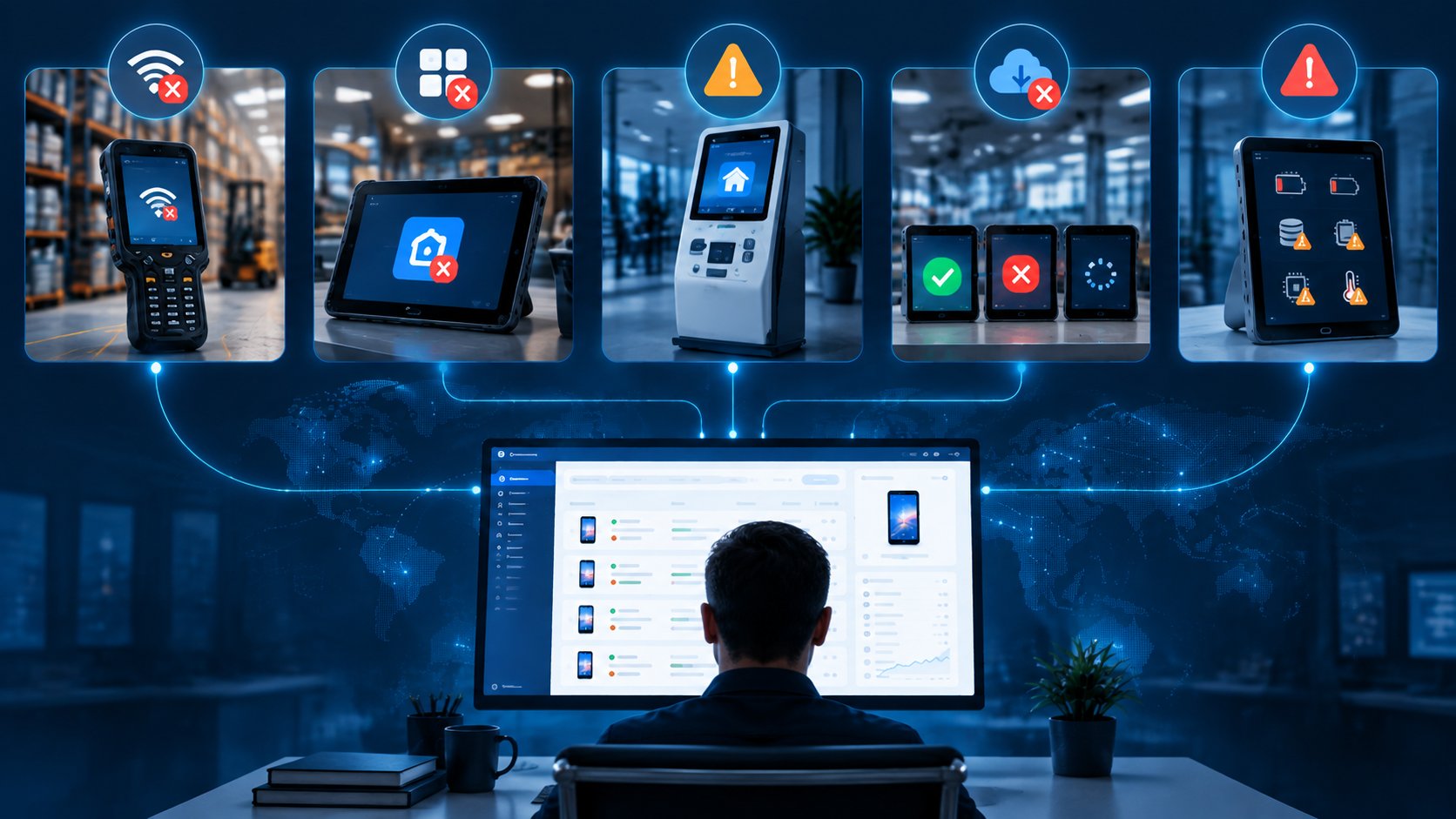
SOP 4: Application Deployment Failure Analysis and Retry
Publishing an application does not guarantee that it has been installed on every target device.
A large release may include successful installations, failed installations, pending devices, and devices that do not currently meet the conditions for a retry. These states must be separated before the IT team determines what to do next.
Understand the deployment state
| Status | Meaning | Recommended handling |
|---|---|---|
| Successful | The device returned a successful installation result | Include it in the completed result |
| Failed | The device returned a failed installation result | Collect context and evaluate retry eligibility |
| Pending | A final result has not yet been returned | Continue monitoring; do not automatically count it as failed |
| Retry eligible | The device meets the configured retry rules | Retry within the defined attempt limit |
| Manual review | The device remains unresolved or lacks a required condition | Stop retrying and escalate |
A controlled deployment response may then:
- Compare the failed-device count or rate with a defined threshold.
- Identify the affected devices and device groups.
- Check the available device and deployment context.
- Retry only eligible devices.
- Stop after the configured attempt limit.
- Check the device-level installation result again.
- Export the final status.
- Notify the release owner.
The release owner can use the affected scope, rollout progress, and retry results to decide whether to continue or pause a later batch. That business decision should not be presented as an automatic system action unless the workflow has been explicitly configured and approved to perform it.
Relevant workflow templates
- Application Deployment Failure Risk Monitoring and Final Notification
- Application Publishing Record and Installation Status Export
- Application Version Distribution Report
A failed app launch is not the same as a failed installation. The Failed App Launch Recheck and Retry template belongs to the post-installation application recovery process and should not be used as the main retry template for installation failures.
For deployments that rely on Managed Google Play, Google identifies factors such as network access, app availability, geographic availability, licensing, and permission changes as possible investigation areas. These conditions should not be treated as confirmed causes without supporting evidence. See Google’s Managed Google Play troubleshooting guidance.
These external conditions provide useful diagnostic references. The deployment result available in the management platform should remain the source of truth for each device.
AirDroid Business Application Management Service supports business-app releases to selected devices or groups, including staged rollout scenarios.
Deployment tasks produce defined result states. Device-health exceptions are less conclusive, so the next SOP focuses on investigation and prioritization rather than automatic recovery.
AirDroid Business - Resolve App, Kiosk, and Deployment Issues From One Console
Go beyond traditional MDM with early access to intelligent automation that helps streamline routine tasks and keep device operations running smoothly. Share your goals, and our team will review your request and follow up with next steps.
SOP 5: Device Health Exception Investigation and Escalation
A device does not have to go offline to cause an operational problem.
Low storage, high memory usage, battery or charging issues, abnormal temperature, data-usage exceptions, and unstable network conditions may all require investigation while the device remains connected.
These measurements can help IT teams prioritize devices, but they do not necessarily reveal the root cause.
Investigation checklist
- Run a scheduled check of the available device-health information.
- Identify devices that meet the configured exception conditions.
- Group the results by device, location, or operational role.
- Add current connectivity data and other relevant device context.
- Retrieve the latest device screenshot where supported and necessary.
- Prioritize devices for administrator review.
- Start a remote session when direct investigation is needed.
- Check the relevant measurements again in a later cycle.
- Close recovered cases and escalate persistent exceptions.
A high resource measurement should be treated as a signal for investigation, not proof of a specific software or hardware problem.
Relevant workflow templates
- Device Resource Usage Query and Email Notification
- Abnormal Device Summary by Group
- Device Screen Snapshot Query API
- Battery and Charging Exception Response
- Data Usage Exception Alert and Analysis
- Network Connection Exception Daily Report
A suitable product statement is:
The workflow collects available device context and helps administrators prioritize devices for further investigation.
It should not claim that AI automatically identifies why a device is slow unless the cause has been confirmed using available evidence.
Across all five scenarios, the recurring principle is the same: automate observable checks and repeatable actions, then involve an administrator when the evidence is incomplete or the response carries operational risk.
What Should Be Automated—and What Requires Human Review?
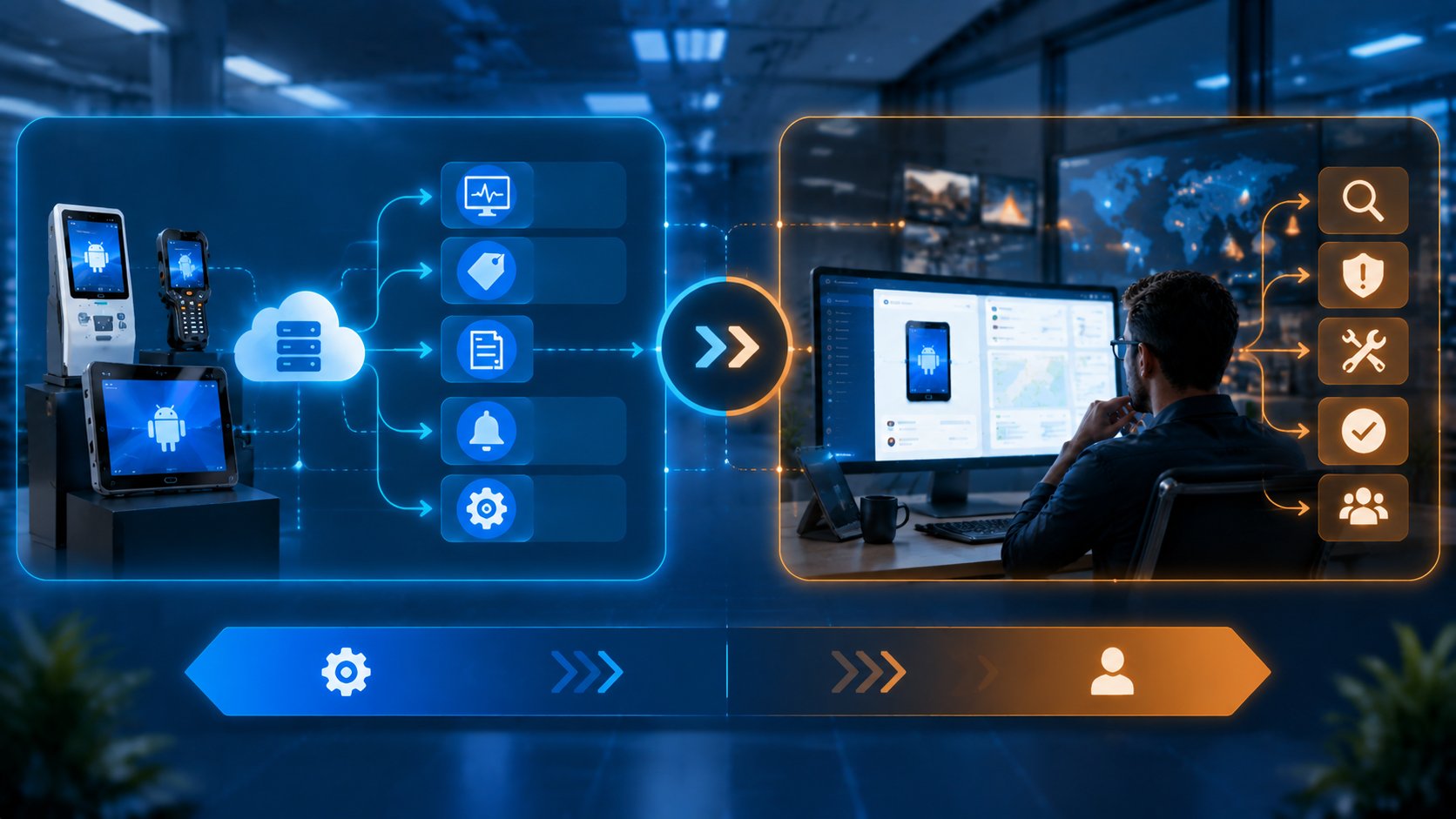
A troubleshooting SOP should automate repeatable work without removing administrator review from decisions involving uncertainty, business interruption, or data risk.
| Troubleshooting activity | Workflow role | Human role |
|---|---|---|
| Detect a defined condition | Monitor supported states and thresholds | Define meaningful conditions |
| Collect context | Query available device, app, kiosk, task, and resource information | Supply missing information and interpret conflicting data |
| Classify devices | Apply configured rules based on status, duration, group, or count | Assess unusual or high-impact incidents |
| Perform a response | Send notifications, apply tags, generate reports, or initiate approved actions | Review actions that may interrupt operations |
| Troubleshoot remotely | Prepare the device context and route the case | Inspect and control the device |
| Verify recovery | Recheck observable device or application status | Decide whether partial recovery is acceptable |
| Close or escalate | Record results and notify the appropriate owner | Determine the next step for unresolved or repeated failures |
Higher-impact actions require additional care.
Rebooting a device may interrupt an active session. Clearing app data can remove login state or locally stored information. Powering off an unattended device may leave it unavailable until someone can restart it physically. Large-scale actions increase the impact of an incorrect target or rule.
These actions should be governed by appropriate permissions, confirmation requirements, target scope, audit records, and operating policies.
When a workflow reaches the human-review boundary, the quality of the handoff depends on the context collected before escalation.
What Information Should Be Collected Before Escalation?
Google recommends providing information such as the following when escalating an Android Enterprise issue:
- Steps to reproduce the problem;
- Observed behavior;
- Expected behavior;
- Frequency of occurrence;
- Device manufacturer and model;
- Date and time of the issue;
- An applicable bug report or enhanced log.
See Google Android Enterprise support guidance.
Not all this information can necessarily be collected automatically. A device-management platform may provide device status, device details, app information, task results, screenshots, alerts, or other supported context. Administrators may still need to document reproduction steps, expected behavior, or observations from a remote session.
The SOP should distinguish information retrieved from the platform from information supplied by a user, administrator, or support engineer.
Once the trigger, context, decision rules, and escalation requirements are defined, IT teams can evaluate which platform capabilities support each step.
AirDroid Business - Troubleshoot Unattended Android Devices Without an Onsite Visit
Go beyond traditional MDM with early access to intelligent automation that helps streamline routine tasks and keep device operations running smoothly. Share your goals, and our team will review your request and follow up with next steps.
How AirDroid Business Supports Remote Troubleshooting SOPs
AirDroid Business can support different stages of a troubleshooting process through device management, monitoring, alerts, workflow templates, remote access, application management, Kiosk Mode, reports, and supported integrations.
| SOP stage | AirDroid Business capability | Role |
|---|---|---|
| Detect | Device Monitoring and Alerts | Surfaces supported device, app, kiosk, network, and resource conditions |
| Collect context | Device information, reports, APIs, and snapshots | Provides available information about affected devices |
| Assess | Workflow templates and configured rules | Organizes devices and applies defined response logic |
| Respond | Workflow actions and Remote Access | Supports approved actions and administrator-led troubleshooting |
| Verify | Status queries, task results, and recurring checks | Checks whether the expected state has been restored |
| Record or escalate | Tags, logs, reports, email, and Teams notifications | Documents results and routes unresolved cases for follow-up |
For additional information:
- Review supported configuration concepts in the AirDroid Business Workflow introduction.
- Explore administrator tools in AirDroid Business Remote Access.
Start With One Repeated Troubleshooting Problem
Organizations do not need to automate an entire device-operations process at once.
A practical starting point is one frequent and clearly defined problem: devices remaining offline beyond an acceptable period, critical apps stopping, kiosk configurations leaving their expected state, application installations failing, or device-health exceptions requiring investigation.
For that problem, define:
- The trigger;
- The required context;
- The decision rules;
- The permitted actions;
- The verification step;
- The exception path;
- The responsible owner.
Once the first SOP works consistently, related workflow templates and device-management capabilities can support a broader troubleshooting process.
AirDroid Business workflow templates can help standardize recurring device-management and troubleshooting tasks. Contact our Sales or Customer Success team to discuss the device conditions, response rules, verification steps, and notification requirements relevant to your operations.
Frequently Asked Questions








Leave a Reply.