MDM Automated Remediation: How to Build a Reusable Workflow Library for Device Operations
- Part 1: What belongs in an automated remediation library?
- Part 2: Define the template before building the workflow
- Part 3: Worked example: build an offline-device follow-up workflow
- Part 4: Adapt the pattern to other device issues
- Part 5: Add controls before the library grows
- Part 6: Use AirDroid Business templates as building blocks
- Part 7: How to choose and launch the first workflow
- Frequently asked questions
Detecting a device issue is often easier than resolving it. An MDM platform can provide signals about check-in activity, battery and storage levels, app status, and policy state. Depending on the platform and its configuration, some of those conditions may also trigger alerts. But an alert does not decide what the team should do next.
An administrator still has to check whether the information is current, determine whether the device can receive a command, judge the effect of taking action, contact the right owner, and confirm that the issue has been resolved. Across a large fleet of Android devices, POS terminals, logistics tablets, digital signage screens, or unattended kiosks, the same decisions come up again and again.
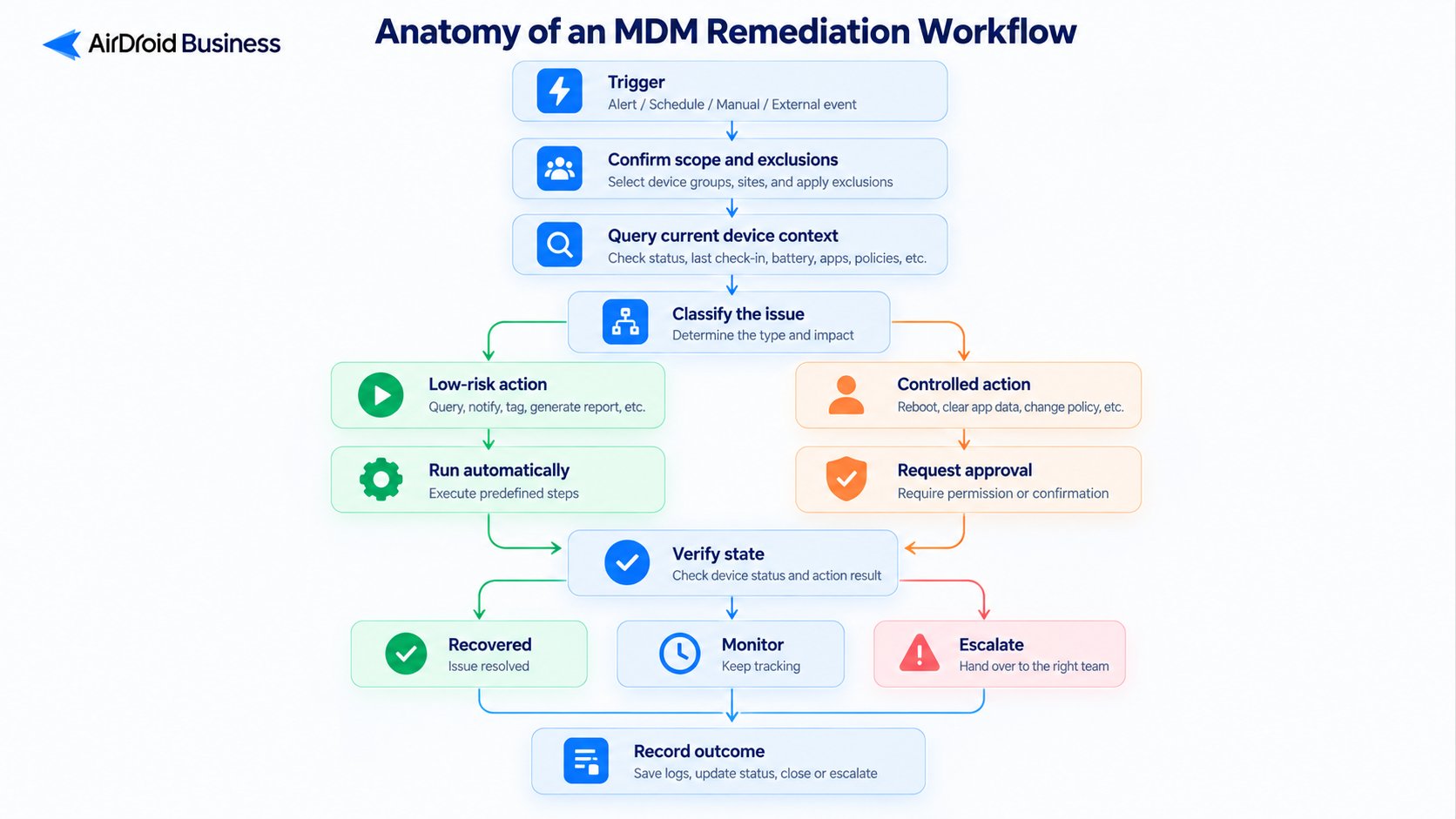
A remediation library turns those recurring decisions into reusable workflow templates. Each template defines the condition to watch, the context required before acting, the steps that may run automatically, the points that require approval, and the evidence needed to close or escalate the issue.
This guide explains how to design that library, using an offline-device workflow as a complete example. It also covers the controls needed to keep automation predictable as the library grows.
Part 1: What belongs in an automated remediation library?
An automated remediation library is a maintained collection of workflows for recurring device issues. It is not simply a list of alerts or remote commands.
An alert identifies a condition. A command attempts an action. A remediation workflow connects the work around them. It gathers current device information, applies decision rules, carries out permitted steps, checks the result, and hands the issue to a person when it cannot continue safely.
That distinction matters because remediation does not always change a device. The right response may be to produce a report, group affected devices by site, notify an owner, retry a failed operation, request approval, or open a support case. If the device is offline, for example, a new remote command may not reach it. Organizing the follow-up is then more useful than pretending the device has been repaired.
AirDroid Business provides workflow templates for device queries, scheduled reports, external integrations, routine administrative work, and supported device operations. These templates can serve as starting points for a remediation library. Teams can adapt the device scope, thresholds, permissions, recipients, and escalation rules to their own environment instead of rebuilding the same process for every incident.
Part 2: Define the template before building the workflow
A reusable template should describe the decision process clearly enough that another administrator can understand what it will do before running it. At minimum, document the following fields.
| Template field | What to define | Example for an offline-device workflow |
|---|---|---|
| Purpose | The operational problem the workflow handles | Identify business devices that have stopped checking in and route them for follow-up |
| Trigger | The event, schedule, or manual request that starts it | Run a scheduled check every morning |
| Scope | Device groups, sites, platforms, or owners included | Production devices in selected warehouse groups |
| Condition | The measurable rule that selects a device | Last check-in was more than 24 hours ago |
| Exclusions | Devices that should not enter the workflow | Retired, maintenance, test, or intentionally offline devices |
| Required context | Information needed for the next decision | Last check-in, group, site, owner, device status, and maintenance state |
| Automatic steps | Low-risk actions that can proceed without approval | Query, classify, export, notify, create a follow-up task, and recheck |
| Controlled actions | Steps that need approval or stronger permissions | Reapply a configuration, reboot, clear app data, lock, or remove a device |
| Verification | Evidence that the condition has cleared | The device reports a newer check-in time |
| Retry and timeout | When to retry and when to stop waiting | Recheck after a defined interval, then stop after the escalation threshold |
| Escalation | Who takes over and what information they receive | Site owner receives the device list, timestamps, and actions already taken |
| Audit output | What the workflow records | Run ID, affected devices, decisions, action results, and final status |
The values in the last column are examples, not universal defaults. A 24-hour offline threshold may be reasonable for one fleet and useless for another. A warehouse scanner used every few minutes needs a different rule from a digital signage screen that reports on a slower schedule.
Start with a measurable trigger
"Check warehouse devices" is too vague for a workflow. "Find production devices in the warehouse group that have not checked in for more than 24 hours" defines a scope, a condition, and a time threshold.
The workflow may begin with an MDM alert, a scheduled inspection, a manual request, or an event from another system. The starting point determines what information is already available and what the workflow still needs to query. If an external monitoring system reports an app problem, for example, the workflow should retain the external event identifier and then retrieve the device state needed to validate the report.
Query only the context needed for the decision
More device data does not automatically produce a better decision. Each query should answer a specific question: Is the device reachable? Is the reading recent? Is it part of a production group? Is it already under maintenance? Does the expected app or Policy apply to it?
The same signal can lead to different actions. A device with a low battery that is charging may only need another check later. The same reading on an unplugged device assigned to an active shift may need immediate follow-up. A storage warning on a test tablet does not carry the same operational risk as one on a production POS terminal.
Separate automatic work from controlled actions
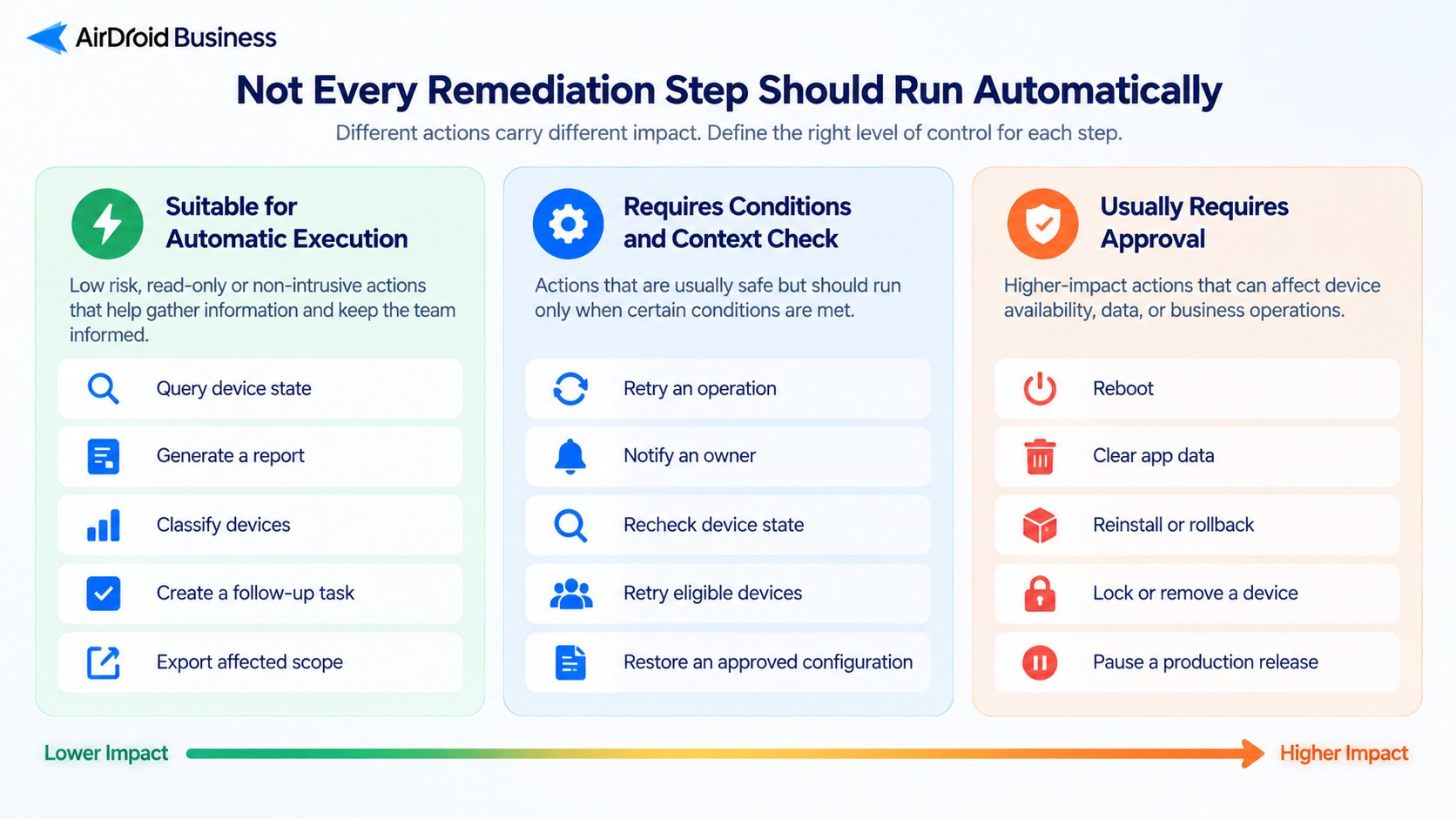
Queries, reports, notifications, labels, and follow-up assignments usually do not alter the device. They are practical first candidates for automation.
Commands require closer review. Rebooting a device can interrupt a transaction. Clearing app data may remove local information. Reapplying a production configuration can affect the device's current task. Locking or removing a device changes access. The template should name these effects and state whether the step requires approval, elevated permission, or a maintenance window.
Define resolution in terms of device state
A command accepted by the platform is not proof that the incident is resolved. The device may be offline, the operation may remain pending, or the original condition may return.
Verification should query the relevant state again. The evidence could be a new check-in time, an updated battery or storage reading, the expected app version, a restored Kiosk state, or a completed operation result. The workflow should distinguish devices that recovered, failed, remained pending, were excluded, or were handed to an administrator.
Part 3: Worked example: build an offline-device follow-up workflow
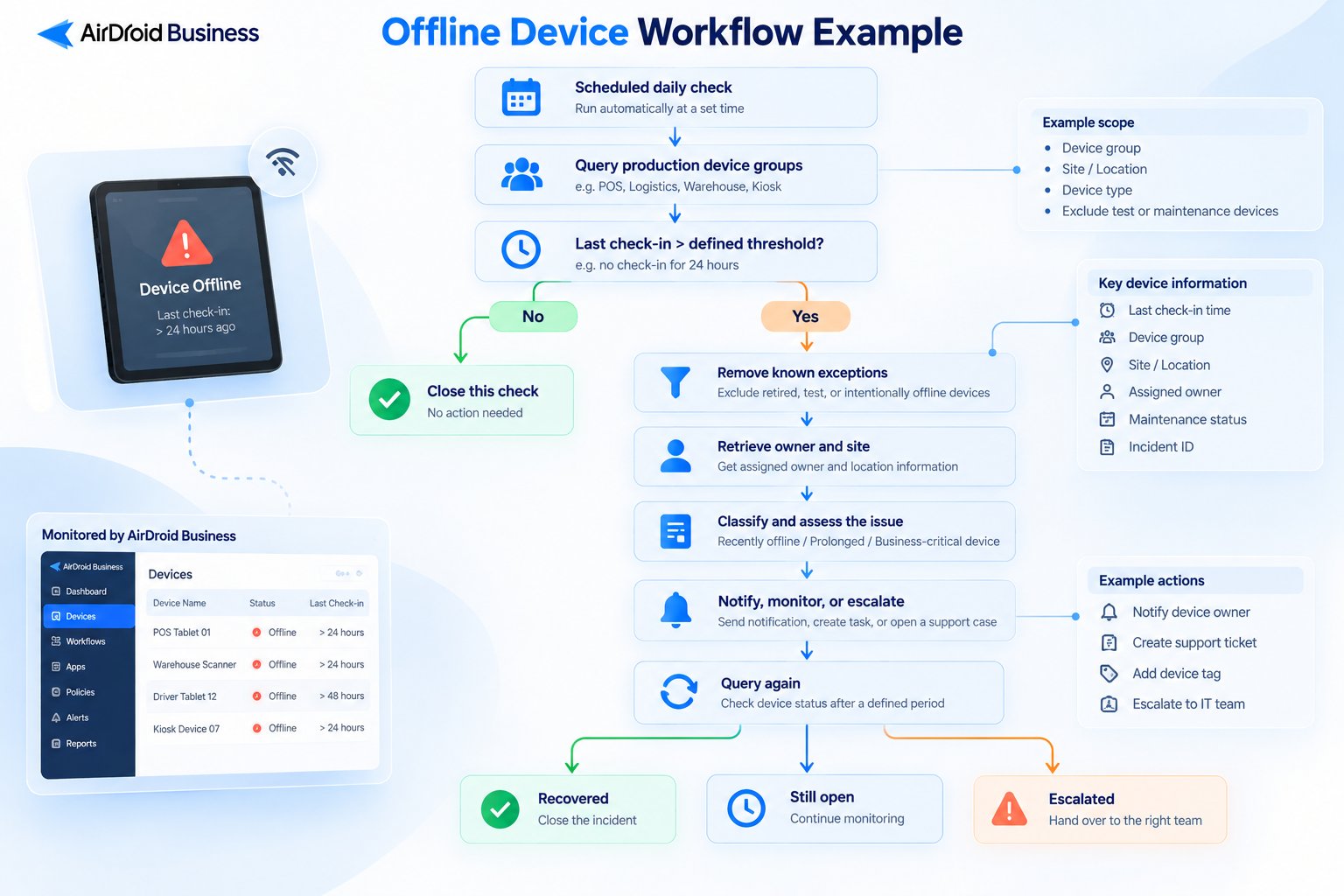
Offline-device handling is a useful first workflow because it is common, easy to measure, and safe to automate if the workflow focuses on classification and follow-up. It also exposes an important limit: an offline device normally cannot receive a new remote command.
The example below uses illustrative thresholds. Replace them with values that match the reporting frequency and business role of your devices.
1. Set the scope and schedule
Suppose the team manages scanners across several warehouses. The workflow runs each morning and checks production device groups. Test devices, retired devices, and devices marked for maintenance are outside its scope.
The schedule should reflect how quickly the team needs to respond. Running the workflow more often is not automatically better. If a device reports only once every several hours, an aggressive schedule may create repeated noise without improving recovery.
2. Find devices that meet the condition
The workflow queries the selected groups and compares each device's last check-in time with the chosen threshold. It keeps the raw timestamp in the result so an administrator can see how long each device has been offline rather than receiving a simple yes-or-no flag.
Before continuing, it removes known exceptions. This prevents a device under planned maintenance from generating the same task every time the workflow runs. Exclusions should have a reason and, where appropriate, an expiry date. Otherwise a temporary exception can quietly become permanent.
3. Enrich and classify the result
For each remaining device, retrieve only the fields needed to route the issue. These may include its device name or identifier, group, site, assigned owner, last check-in time, and current management status.
The workflow can then classify the result by business impact and duration. For example:
| Classification | Illustrative rule | Response |
|---|---|---|
| Recently offline | Offline for 24 to 48 hours | Add to the site follow-up list and recheck later |
| Prolonged outage | Offline for more than 48 hours | Notify the responsible site or service owner |
| Business-critical device | In a designated critical group and beyond its approved threshold | Escalate according to the team's incident process |
| Known exception | In maintenance, retired, or intentionally offline | Record as excluded and take no further action |
The classification should be based on fields the workflow can actually retrieve. It should not infer a network failure, power loss, or hardware fault from the absence of a check-in. Those are possible causes, not facts established by the MDM record.
4. Create one follow-up record, not repeated noise
A scheduled workflow may encounter the same offline device on several consecutive runs. Without a duplicate check, it could send a new email or create a new ticket each time.
Give each open issue a stable correlation key, such as the device identifier plus the incident type. Before creating a task, check whether an unresolved offline-device record already exists. If it does, update the duration and latest check time instead of opening another one. When the device reconnects, close that record. If it goes offline again later, the new outage can start a new incident.
This small design choice makes the workflow usable at fleet scale. It keeps administrators focused on affected devices rather than on duplicate notifications.
5. Notify the person who can act
The message should give the recipient enough context to begin troubleshooting without repeating the workflow's work. Include the device identifier, site or group, last check-in, duration, classification, and the time of the next automated check. For a prolonged outage, state what the onsite or service owner should inspect, such as power and network availability, without claiming either is the cause.
Notification rules should follow ownership. A central administrator may need a fleet summary, while a site owner needs only the devices assigned to that location. If no owner can be resolved, send the issue to a defined fallback queue instead of silently dropping it.
6. Recheck and close the loop
At the next interval, query the device again. If it has a newer check-in time, mark the issue as recovered and record when it returned. If it remains offline but has not reached the next threshold, keep the existing record open. If it passes the escalation threshold, add the latest status to the same record and transfer it to the appropriate administrator or site team.
The workflow is complete only when every device has a final state for that run: recovered, still being monitored, escalated, or excluded. "Notification sent" is an action result, not an incident outcome.
7. Preserve an audit trail
Each run should record the workflow version, run time, device scope, devices selected, exclusions applied, notifications or tasks created, verification results, errors, and final status. If an administrator approves an action, record who approved it and when.
This history helps the team answer practical questions. Did the workflow select the right devices? Did a threshold produce too many short-lived incidents? Are particular sites responsible for most prolonged outages? Did an updated template change the result? An audit trail is also essential when the workflow performs more consequential actions than reporting and notification.
Part 4: Adapt the pattern to other device issues
The same basic design can support battery, storage, app, Kiosk, and deployment workflows, but the signal and safe response differ in each case.
| Workflow | Context to check | Useful automatic work | Action that needs tighter control | Resolution evidence |
|---|---|---|---|---|
| Battery or charging issue | Battery reading, charging state, timestamp, device role, and shift | Identify at-risk devices, group by site, notify the owner, and recheck | Any action that interrupts active work | A newer reading above the threshold or a confirmed charging state |
| Low storage | Available capacity, reading time, device group, and affected business apps | Prioritize devices and prepare a cleanup review list | Clearing cache or app data | A newer storage reading above the defined threshold |
| Critical app issue | Installation, version, online state, available running-state signals, and recent operations | Validate scope, group affected devices, and retry a permitted operation | Reboot, reinstall, rollback, or app-data removal | Expected app state or a completed operation followed by a successful check |
| Kiosk exception | Online state, expected Policy or Kiosk configuration, foreground app, and recent changes | Compare expected and observed state, then route exceptions | Reapplying a production configuration or interrupting a customer-facing device | Restored Kiosk or Policy state after rechecking |
| Deployment failure | Intended scope, successful, failed, pending, and offline devices, plus operation history | Calculate the affected scope, separate failure types, and retry eligible devices | Pausing a release, rollback, or production configuration change | Target version or configuration confirmed on the intended devices |
Be precise about app signals
"App failure" can describe several different conditions. The app may be missing, outdated, stopped, absent from the foreground, or associated with a failed deployment operation. A true crash signal may require app telemetry, device logs, or an external monitoring system. An MDM workflow should name the signal it uses rather than treating every unexpected app state as a detected crash.
After the signal is validated, the workflow can check whether the device is online, whether the expected app version is installed, and whether management permissions allow the proposed response. A low-risk first step may be to retry an operation where supported. Reboot, reinstall, rollback, cache clearing, or app-data removal needs a separate decision because the effect on active work and local information can be greater.
Treat Kiosk exceptions as a comparison, not a diagnosis
A Kiosk workflow compares the observed state with the configuration that should apply to the device. Recent configuration changes, foreground-app information, and available management permissions can guide the next step. They may not explain the root cause.
Where the product capabilities and operating conditions permit, the workflow may reapply an existing configuration or restore the target app and then query the Kiosk state again. A customer-facing device that does not recover should move to administrator review with the observed state and attempted actions attached.
Measure deployments across the intended scope
A deployment workflow operates across a rollout rather than a single device. It should compare the intended device list with successful, failed, pending, and offline results. A failed percentage without the intended scope can be misleading, especially when offline devices have not yet received the operation.
A controlled retry may be reasonable when its prerequisites are met. Pausing a release, rolling back an app, or changing a production configuration needs an explicit decision and clear verification afterward.
Part 5: Add controls before the library grows
A workflow that works once is not yet a reusable template. The team also needs to know how it behaves when information is missing, an operation takes too long, or the workflow runs twice.
Prevent duplicate and conflicting actions
Use an incident or run identifier so repeated checks update the same case. Before sending a command, check whether the same operation is already pending. If different workflows could act on the same device, define which one takes priority or stop and request review. A storage workflow and an app-recovery workflow, for example, should not independently perform disruptive actions at the same time.
Put limits on retries
Retries should have a reason, a delay, and a maximum count. Repeating the same failed command immediately may add load without changing the conditions that caused the failure. The workflow should distinguish a temporary communication problem from a response that requires a person, while avoiding a diagnosis the available data cannot support.
When the retry limit or timeout is reached, stop the automatic path. Include the last known state, the operations attempted, and their results in the escalation record.
Keep permissions narrow
A reporting workflow does not need the same rights as a workflow that can lock, reboot, or remove a device. Give each workflow only the permissions required for its documented steps. Keep approval gates close to consequential actions rather than relying on a general approval granted at the beginning of a long process.
Version templates and test changes
Store a version number and change history with each template. Record changes to conditions, thresholds, device scope, actions, and recipients. A small threshold change can affect many devices, so test a new version on a limited group before applying it across the fleet.
Keep the previous stable version available until the new one has produced the expected results. If the workflow's device queries or integrations depend on external fields, test how it handles missing, delayed, or malformed values.
Review outcomes, not just execution rates
A high workflow completion rate can hide a poor operational result. A workflow may run successfully while selecting too many devices, generating repeated tickets, or closing incidents before the device state has recovered.
Review metrics that reveal whether the process helps: number of unique incidents, duplicate tasks prevented, devices recovered, cases escalated, time to verification, and workflows stopped by missing data or permissions. Use those results to adjust thresholds and routing rules. Do not treat a lower escalation count as a success if the workflow is simply failing to surface unresolved devices.
Part 6: Use AirDroid Business templates as building blocks
The AirDroid Business template catalog includes workflows that can provide device data, scheduled reports, and entry points for a broader remediation process. Examples from the supplied catalog include:
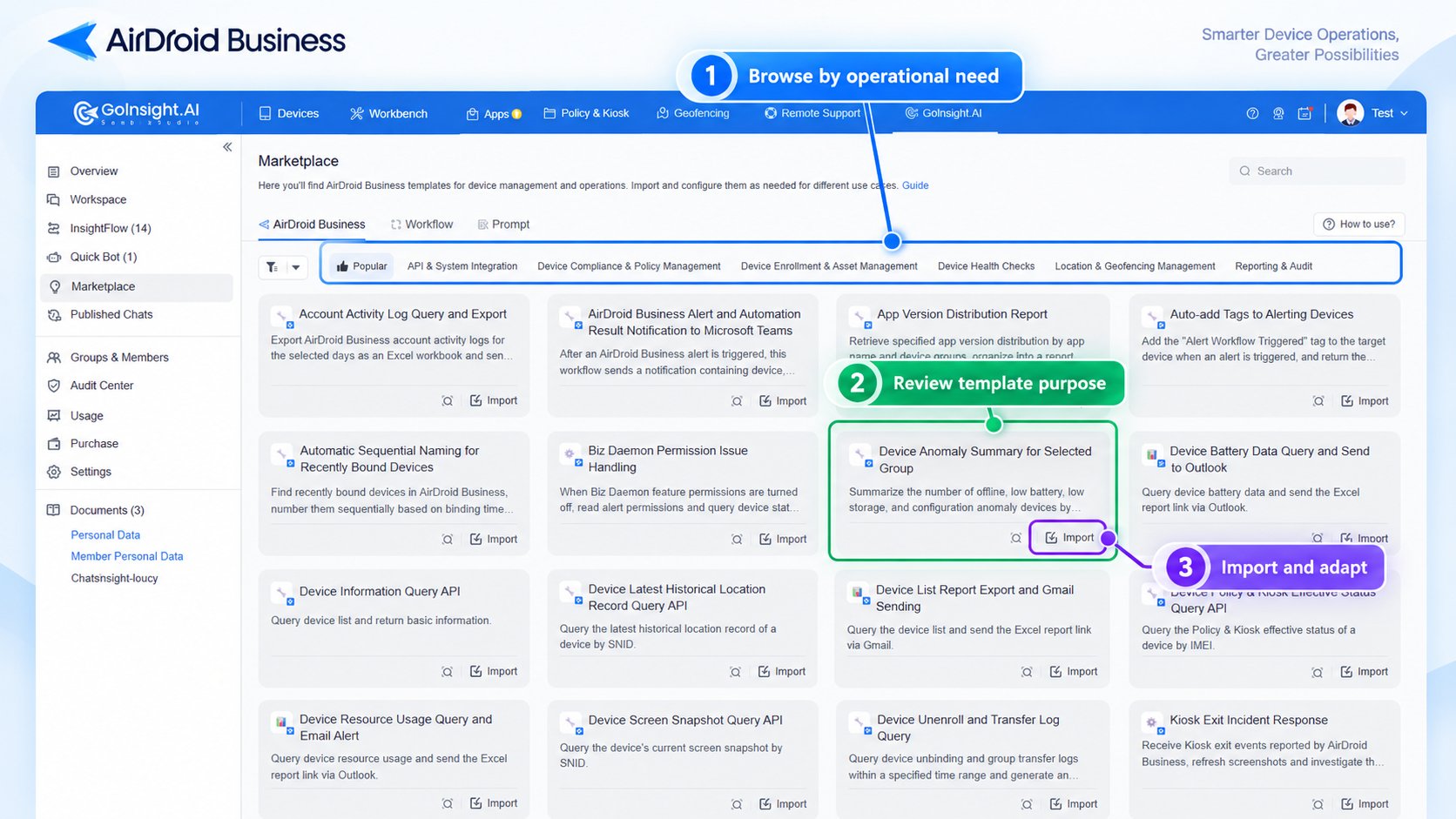
| AirDroid Business template example | What it does |
|---|---|
| Offline Device Query and Export | Filters devices by a specified number of offline days and writes device details to a Microsoft Excel workbook |
| Device Battery Data Query and Send to Outlook | Exports battery snapshots for an available device scope and sends the workbook link through Outlook |
| Policy & Kiosk Status Query and Export | Queries current Policy and Kiosk status and exports the snapshot to a Microsoft Excel workbook in OneDrive |
| API for Querying Device Screen Snapshot | Retrieves a screen snapshot and related information for a device identified by SNID |
| API for Querying the Latest Device Location | Returns the latest reported historical location record for a device identified by SNID |
| Device Inventory Report Export and Send to Gmail | Exports a device inventory and sends the report link through Gmail |
These templates reduce the manual work involved in collecting and distributing device information. A query or export template is not a repair by itself, but it can supply the trigger data, context, or follow-up report used by a remediation workflow.
AirDroid Business can add templates as new operational needs emerge. A dedicated template page is the right place to maintain the growing catalog and provide setup details for each workflow. This article can explain how to choose and adapt a template, while the catalog page stays current as more templates become available.
AirDroid Business provides the managed device information and controls available to these workflows, subject to device platform, enrollment method, permissions, and supported product features. GoInsight.AI can organize supported queries, integrations, reports, and device operations into repeatable workflows. The boundary should remain visible: creating a task is different from completing it on every device, and requesting a command is different from verifying the device state afterward.
Part 7: How to choose and launch the first workflow
Start with one recurring issue that has a measurable condition and can produce value through low-risk follow-up. Offline-device reporting, battery readiness checks, and deployment monitoring are practical candidates because the first version can improve visibility without making disruptive device changes.
Write down how administrators handle the issue today. Identify the devices in scope, the information they inspect, the decisions they make, the person who owns the next step, and the evidence they use to close the case. Turn that process into a template, then test it with a limited device group.
During the pilot, compare the workflow's output with the administrator's judgment. Look for false positives, missing owners, repeated notifications, stale data, and unclear escalation records. Adjust the template before expanding its scope or adding commands.
MSPs can reuse the workflow logic while changing customer groups, contacts, business apps, and approval rules. Internal IT teams can adapt it across stores, warehouses, clinics, or business units. Reuse comes from preserving a sound decision process while making its operational values configurable.
Frequently asked questions
A useful remediation library grows from processes the team already understands. Build one workflow, make its limits visible, verify the result on the device or in the relevant system, and preserve what happened. Once that pattern is reliable, it can be adapted to the next recurring issue without turning every incident into a new design project.
Turn Routine Checks into Automated Workflows
Go beyond traditional MDM with early access to intelligent automation that helps streamline routine tasks and keep device operations running smoothly. Share your goals, and our team will review your request and follow up with next steps.









Leave a Reply.