
Screen share from iPhone to LG TV allows you to enjoy the content of your iPhone on a bigger screen. To play your favorite music, show your family a humorous meme, improve the quality of your holiday images, or even spend hours watching TikTok on the LG TV screen.
This article will show you how to screen mirroring iPhone to LG TV with several different methods, such as use AirPlay, Chromecast, HDMI cable, and the third-party app like AirDroid Cast.
1. Mirror iPhone to LG TV using Built-in AirPlay
To screen mirror you iPhone to an LG TV, you can use the built-in AirPlay feature. AirPlay 2 is Apple’s proprietary streaming and screen mirroring technology, designed to offer a seamless, integrated experience across Apple devices.
LG TVs from 2018 onwards, especially those running WebOS 4.0 or higher, typically support AirPlay 2. Older models (released before 2017) may not support this feature due to hardware limitations. You can check if their LG TV supports AirPlay 2 by looking at the model and year information on the back of the TV or in the settings menu.
Additionally, an iPhone must be running iOS 12.4 or later to use AirPlay.
Below is a list of LG TVs compatible with AirPlay 2 (from the Apple website).
- LG OLED (2018, 2019, 2020)
- LG SuperUHD SK 9, 8 series (2018)
- LG UHD UK 62 series or above, UK 7 series (2018)
- LG NanoCell NANO 9, 8 series (2020)
- LG UHD UN 8 series (2020)
- LG UHD UN 71 series or above (2020)
- LG NanoCell SM 9, 8 series (2019)
- LG UHD UM 7, 6 series (2019)
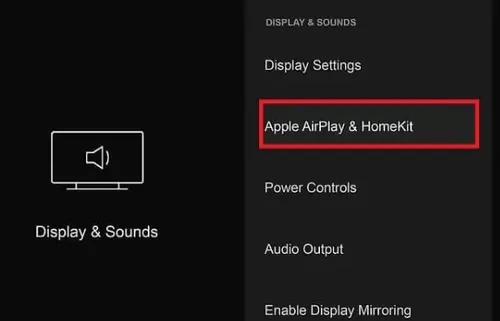
Also, you should turn on AirPlay on your LG TV first, just navigate to the Home Dashboard, select AirPlay, and then enable it within the AirPlay & HomeKit settings. Ensure your TV and Apple devices are on the same Wi-Fi network for successful connection.
Steps to use AirPlay to mirror from iPhone to LG TV
To mirror your iPhone screen to an LG TV using AirPlay, follow these steps:
- Step 1.Ensure your iPhone and LG TV are connected to the same Wi-Fi network. This is a crucial prerequisite for a successful connection.
- Step 2.Open the "Control Center" on your iPhone:
- For iPhone X or later, or iPads running iPadOS 13 or later, swipe down from the top-right corner of the screen.
- For iPhone 8 or earlier, or devices running iOS 11 or earlier, swipe up from the bottom edge of the screen.
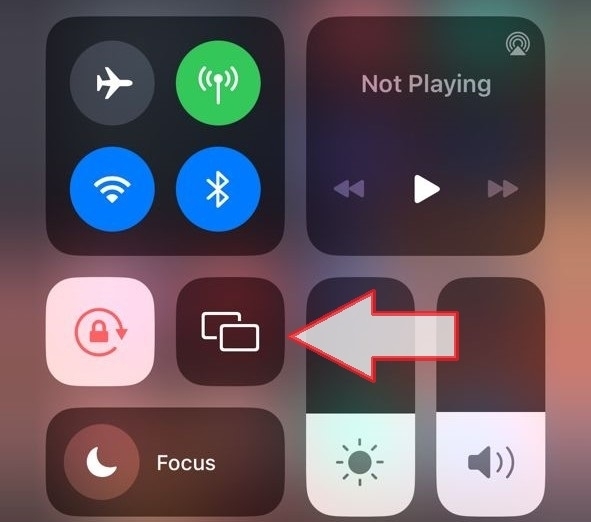
- Step 3.Tap the "Screen Mirroring" button.
- Step 4.Select your LG TV from the list.
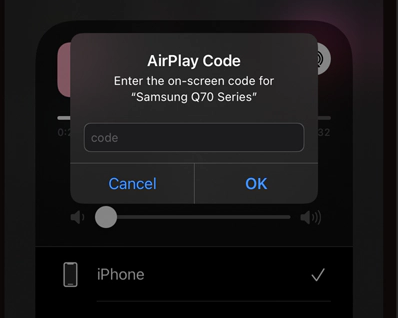
- Step 5.If an AirPlay password appears on the TV screen, enter the password on your iPhone.
- Step 6.For streaming specific content (like videos or photos), tap the AirPlay icon within the app (e.g., the Photos app) and select your TV.
2. Screen Mirror iPhone to LG TV using HDMI Cable
A wired connection is a direct and often more stable method of screen mirroring. To set up a wired connection, users will need an Apple Lightning Digital AV Adapter (model: MD826AM/A or MW2P3AM/A). Additionally, an HDMI cable (typically sold separately) is required to connect the adapter to the LG TV. This adapter is compatible with all iPhone, iPad, or iPod devices that have a Lightning connector.
Using the Apple adapter and an additional HDMI cable, you may mirror the iPhone screen to an LG TV.
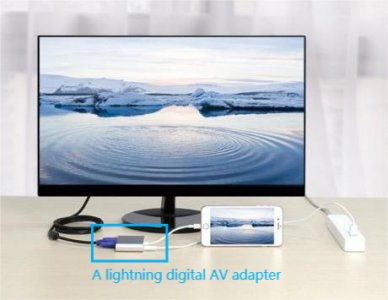
- Step 1.Insert the Lightning Digital AV Adapter into the Lightning port of your iPhone.
- Step 2.Connect one end of the HDMI cable to the adapter and the other end to an available HDMI port on the LG TV.
- Step 3.On the LG TV, use the remote control to select the corresponding HDMI input source, such as "HDMI 1" or "HDMI 2".
- Step 4.Some users recommend setting the iPhone's auto-lock feature to "Never" before watching content to avoid interruptions during playback.
- Step 5.Connect the Apple adapter to your iPhone, followed by the HDMI cable to the adapter's other port. The opposite end of the HDMI cable must now be connected to the LG smart TV's HDMI port.
3. Screen Mirror from iPhone to LG TV with AirDroid Cast
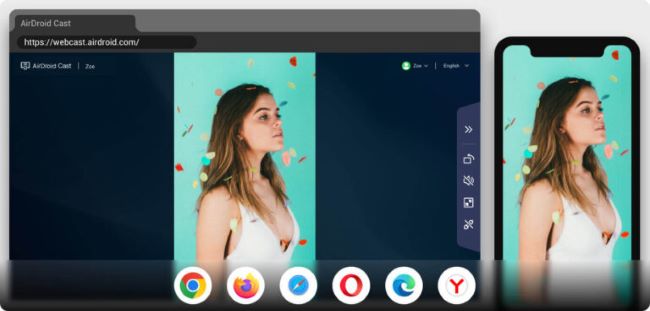
AirDroid Cast is a cross-platform app and allows screen casting across multiple devices. Users can cast screens on any TV that can open the browser. It eliminates any issues that might arise when mirroring a screen. It means you can mirror iPhone to LG TV with AirDroid Cast.
Follow these steps to mirror your iPhone/iPad screen to LG TV.
- Step 1.Connect your devices to the internet
- Step 2.Free Download and Install AirDroid Cast
- Step 3.Open AirDroid Cast Web on TV
- Step 4.Connect iPhone to LG TV
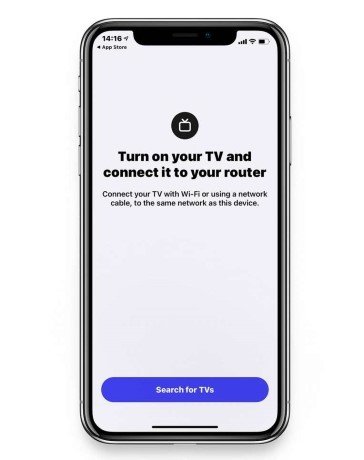
Connect your LG TV and iPhone to the same internet.
Download and install the AirDroid Cast from the official website on your iOS. Launch it and sign in. Even though you don’t sign in you can use this app.
Press the "Home" or "Menu" button on your remote control. Select "Apps or Applications" and open "Internet Browser". Enter "webcast.airdroid.com" into the search bar of your LG TV browser and it will redirect to the web page.
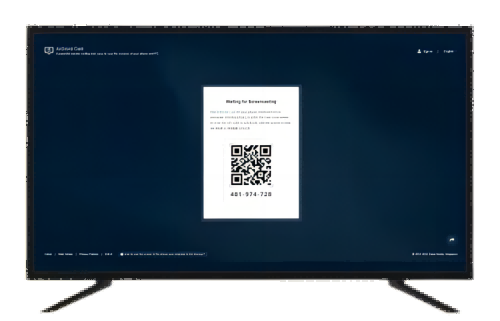
Enter the cast code shown on the TV onto the AirDroid Cast Desktop on your iPhone. Alternatively, you can scan the QR code to start the connection. Once connected, all contents on your iPhone will display on the TV. Enjoy screen mirroring now!
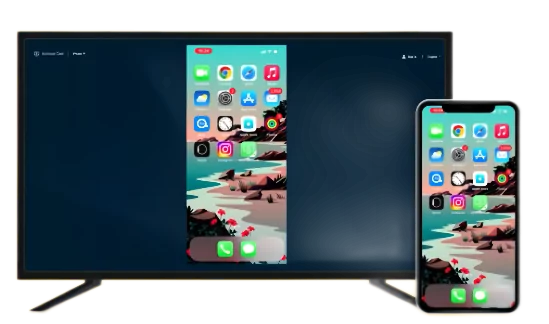
Notable Features of AirDroid Cast:
- Compatible with multiple devices and systems
- The wireless connection ensures phone access
- Cast Online via Web Browser within Seconds
- This web-based app requires no sign-in
- You can cast remotely even if your two devices are on different networks.
4. Apple TV Set-Top Box
The Apple TV set-top box offers an integrated and high-performance solution for screen mirroring and streaming.
Apple TV 4K is a dedicated streaming device that connects to any TV via HDMI. It runs Apple's tvOS operating system and serves as a hub for various streaming services, apps, and Apple ecosystem features.
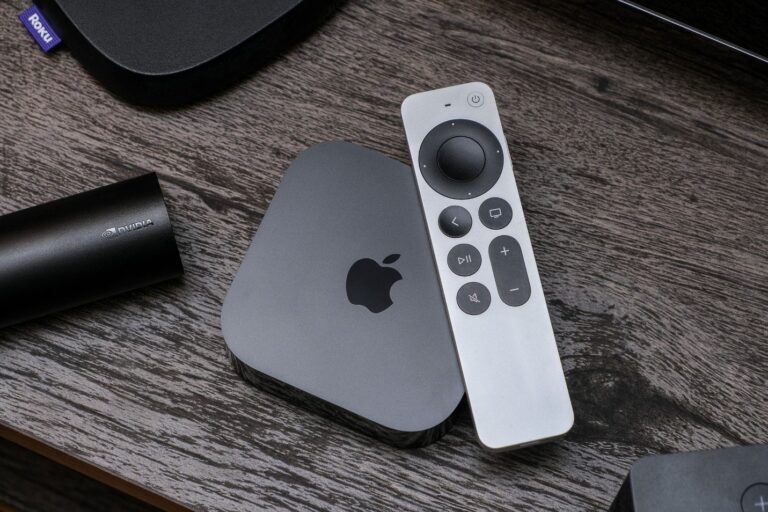
Its key function as a mirroring solution is that it acts as an AirPlay receiver, enabling seamless screen mirroring and content streaming from iPhones and iPads. The Apple TV 4K provides high-quality video output (supporting 4K Ultra HD, HDR10+, Dolby Vision) and audio output (supporting Dolby Atmos).
It also offers a clean, intuitive user interface, regular software updates, and convenient Siri voice control. Additionally, Apple TV 4K can serve as the central hub for HomeKit smart home devices, further enhancing its integration within the Apple ecosystem.
Most importantly, Apple TV 4K supports running various third-party streaming apps directly (such as Netflix, Disney+, Prime Video, etc.), which often helps bypass DRM copyright protection issues encountered during direct screen mirroring.
Best for: Apple TV 4K is ideal for users who are deeply invested in the Apple ecosystem and seek the most integrated, high-performance solution for screen mirroring and general streaming, with a sufficient budget.
Cost: It requires an upfront investment in the Apple TV 4K box, which is significantly more expensive than purchasing adapters or using free/subscription-based third-party apps.
Compatibility: Apple TV 4K is compatible with any LG TV that has an HDMI port, regardless of the TV's "smart" features or model year.
Comparison Table of 4 ways to Cast iPhone to LG TV
| Mirroring Solution | Advantages | Disadvantages | Best Use Case |
|---|---|---|---|
| Apple AirPlay | Native integration, seamless experience; high-quality audio and video; wireless convenience; high security. | Compatibility is limited (LG TVs after 2018); some DRM content is blocked; performance depends on Wi-Fi. | For newer LG smart TVs, mainly for mirroring personal photos, videos, or non-DRM content. |
| Third-party Apps | Broad compatibility (LG TVs after 2012); completely wireless, no extra hardware needed; high usability. | 1-3 second delay (not suitable for gaming); some DRM content is blocked; full features require a paid version; performance depends on Wi-Fi. | For older LG smart TVs that don't support AirPlay, not minding slight delay, mainly for video watching or presentations. |
| Wired Connection (Lightning to HDMI) | Stable connection; very low latency (ideal for interaction); strong DRM handling; compatible with all HDMI TVs. | Requires purchasing an adapter and HDMI cable (additional cost); physical cables are inconvenient; actual resolution may not be native 1080p. | For those seeking ultimate stability and low latency, not minding cables, or mainly mirroring DRM-protected content. |
| Apple TV Set-Top Box | Excellent performance and picture quality (4K HDR); deep Apple ecosystem integration; solves DRM issues with native apps; multifunctional smart TV platform. | Highest initial cost; requires additional hardware. | Deep Apple users, seeking the highest quality, most comprehensive features, and have the budget for a full entertainment center. |
FAQs about LG Screen Mirroring
Conclusion
Screen mirroring from your iPhone to LG TV offers a versatile way to enjoy your iPhone content on a big screen. You can follow the above mentioned solutions to share your photos, watch videos, or display apps, using AirPlay, Chromecast, HDMI, and third-party apps like AirDroid Cast.
As the detailed instructions provided, you can choose the one that best fits your needs and advice. It is eaily set up screen mirroring and enhance your viewing experience on your LG TV.







Leave a Reply.