
- Anyview Cast App and Reviews
- Which Devices Are Compatible with Anyview Cast App?
- Requirements for Using Anyview Cast on Hisense TVs
- How to Connect to Hisense from Android with Anyview Cast?
- How to Use Anyview Cast with iPhone?
- Bonus: Better Alternative to Anyview Cast App for Screen Mirroring
- Which Apps Are Available on Hisense Smart TV?
- Popular Questions about Anyview Cast
With technology always changing, it can be hard to keep up with the latest trends. Even more frustrating is when you buy a new piece of technology and don't know how to use it. Don't fret. Anyview Cast app is a simple and easy-to-use application designed to help users connect their devices to their smart TV in just a few steps.
Today's technology has maxed out the full potential of what televisions can do. Not just for entertainment, it also became a tool for productivity and education. You can now use your Hisense TV as a display for your laptop, tablet, or even your smartphone. Apart from the Anyview Cast app, in this article we also introduce a better alternative App for you: AirDroid Cast to connect your devices wirelessly to your Hisense TV
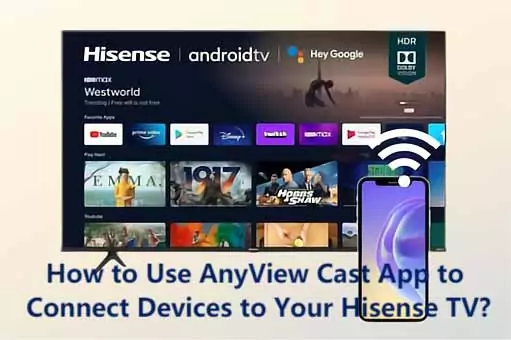
This article will mainly show you how to use the Anyview Cast app to connect your devices to your Hisense TV.
Anyview Cast App and Reviews
Anyview Cast is an app developed by Hisense specifically designed to connect your iPhone or Android device to your Hisense TV. It uses your WiFi connection to wirelessly mirror the content from your mobile device to your Hisense TV, meaning you can watch anything from your phone on a much bigger screen.
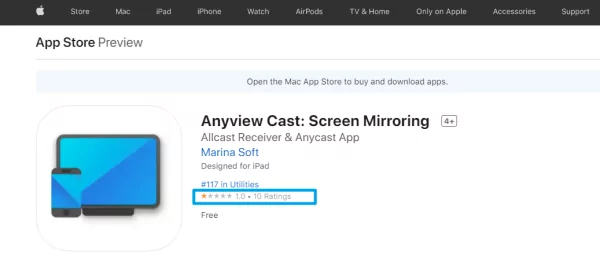
The app is available both on the App Store and Google Play Store. As of the moment, the app has a 4.4-star rating on the Google Play Store with over 10,000 ratings. On the contrary, Anyview Cast App is not very popular with iOS users, with a 1.0-star rating on the App Store.
The reviews for the app are mostly positive, with Android users praising its ease of use and reliability. The only downside of Anyview Cast is that it may be particularly difficult for apple and iPhone users. Some have complained that the app doesn't work even though they've been allowed permission to access their phone's screen.
Thankfully, there are possible workarounds that you can try if you're having problems using Anyview Cast with your iPhone. AirDroid Cast is a better alternative app that you can use if you're having trouble with Anyview Cast or if you want to connect your iPhone to your TV.
However, Anyview Cast is still a great app with these pros and cons.
Pros
- Free for anyone to use.
- Available for Chromecast TVs as well.
- Very easy to use, user friendly.
- Enjoy 1080p display resolution for crisp, clear pictures.
- Some TVs already have it pre-installed, making it easy for you to stream and cast.
- You can use the software for any applicable Smart TV, mobile device, or tablet.
Cons
- Not available for all TVs.
- Need a Wi-Fi signal to use.
- You may see ads throughout the app while you use the service.
- May experience lagging issues periodically.
- Have to provide access to all of your photos on your iPhone.
- Certain operating systems will experience more lagging or crashing than others.
Which Devices Are Compatible with AnyViewCast App?
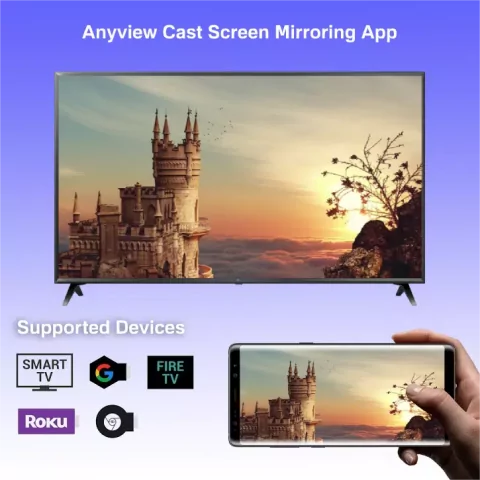
Technically, you can cast any iOS or Android device to your screen through AnyViewCast; it doesn't have to just be a cell phone. As long as your streaming device has screen mirroring capabilities, you can use their built-in service to cast directly to your Hisense TV. Some older Apple and Android products won't have this feature, so you may need to connect to your TV with a screen mirroring app.
Furthermore, Anyview Cast is not just limited to Hisense TVs. You can use the app with any smart TV with Miracast or AllShare Cast support, including brands like Samsung, LG, Sony, and more.
However, we recommend you double-check with your TV manufacturer to ensure that it's compatible with the Anyview Cast app.
Requirements for using AnyView Cast on Hisense TVs
In order for you to be able to use AnyView Cast you must make sure your Hisense TV is compatible to use the casting service. New Hisense Tvs are compatible. You also want to make sure your phone, tablet, or computer is able to cast. Most devices come equipped with casting abilities, but some older models may not.
There are other ways to work around this, but if you want to use the Anyview feature, those are your only requirements If so, then you're able to access screen mirroring on Hisense TV!
How do I find AnyView Cast on Hisense TV and Connect to Device?
- Select Input on your remote.
- Select AnyView Cast
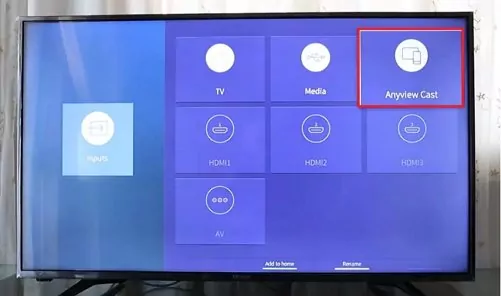
- Open your iPhone, Android, or Computer and open the screen mirroring display.
- Once the display is open, search for your TV name on the list of available devices.
- Select your TV, and both devices are now connected.
How to Connect Hisense from Android with Anyview Cast?
Connecting your Android device to your Hisense TV is pretty straightforward. All you need to do is follow these steps:
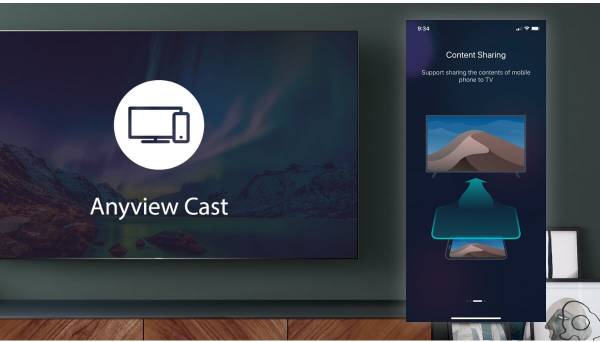
- Make sure your Android device and Hisense TV are connected to the same Wi-Fi network. Otherwise, the application wouldn't be able to detect your TV.
- Download and install the Anyview Cast app on your Android device from the Google Play Store.
- Launch the app and tap on the "Search" button. The app will now search for Hisense TVs connected to the same Wi-Fi network.
- Once the app has found your Hisense TV, tap on it to connect. You may be prompted to enter a PIN code. If so, enter the PIN code displayed on your TV screen.
- That's it! Once you're connected, you should be able to see your phone's screen on your TV. You can start using Anyview Cast to stream content from your phone to your TV.
How to Use AnyViewCast with iPhone?
If you have an iPhone or iPad, turn the Airplay feature on, which is available in the newer model of Hisense TVs such as the R-series. Access the control center of your iPhone and tap the "Screen Mirroring" button. Select your Hisense TV from the list of devices and enter the passcode prompted on the TV. Your iPhone's screen should now be mirrored on your Hisense TV.
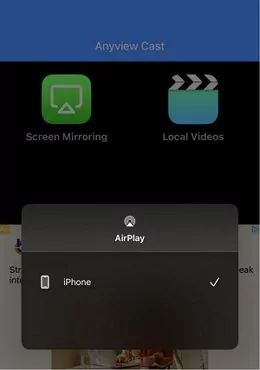
If you have an older Hisense TV model, AirDroid Cast Web can still enable you to screen mirror from your iPhone to your TV. You can use it to screen mirroring. You only need to install the app on your iPhone, and then input the "webcast.airdroid.com" on your TV. Next, scan the QR or enter the cast code by your device, Now your screen will be displayed on your TV screen.
Better Alternative to Anyview Cast App for Screen Mirroring
If you're seeking other better ways to mirror your Android and iPhone screen to your TV, then AirDroid Cast is the app for you and using a HMDI cable is also a great option.
AirDroid Cast
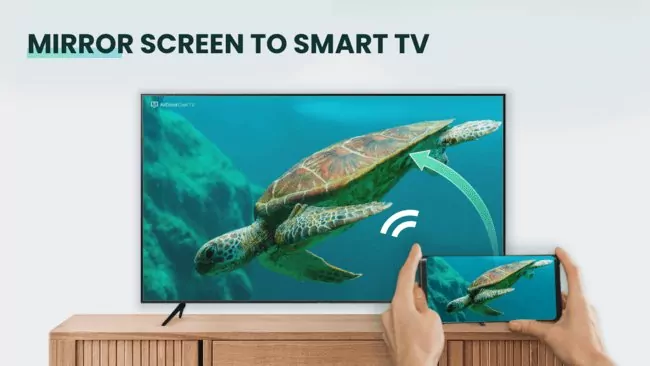
AirDroid Cast is a cross-platform app and allows screen casting across multiple devices. Users can cast Android and iPhone on any TV that can open the browser. It eliminates any issues that might arise when mirroring a screen.
In addition, AirDroid Cast TV has been released for Android smart TVs, so that you can directly mirror your iPhone, iPad, Android, Windows, or Mac device to your Android smart TV wirelessly, no matter the devices connect to the same or different Wi-Fi networks.
How to Use AirDroid Cast to Connect Devices to Your Hisense TV?
To use AirDroid Cast, follow these steps:
- Download and install AirDroid Cast TV on your smart Android TV from the application store, and also install AirDroid Cast on your Android or iOS device.
- Now launch AirDroid Cast TV app on your Android TV, and you will see a QR code and a Cast Code under the Wireless section.
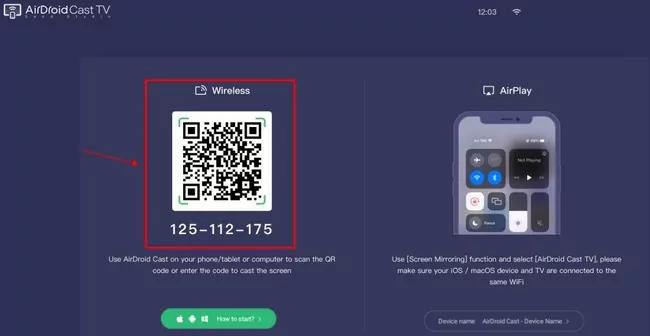
- Launch AirDroid Cast on your Android or iOS device, and Scan the QR code using the app, or enter the Cast Code to start connecting.
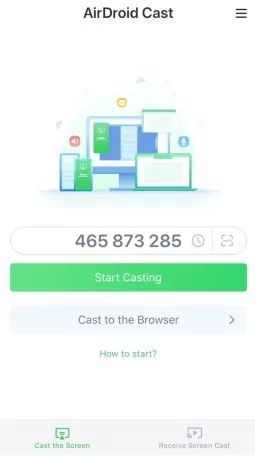
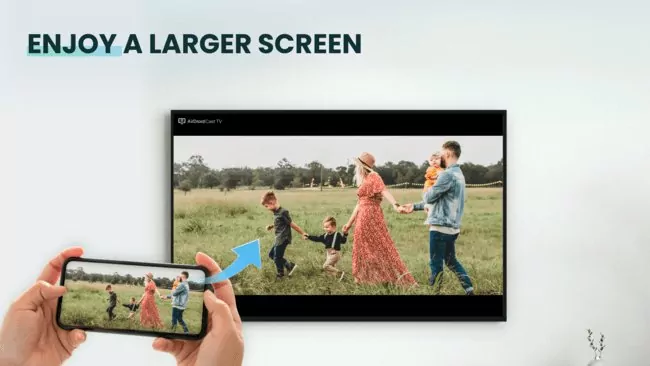
- Accept the request if prompted. Then your device screen will be shared to your TV.

Benefits of Using AirDroid Cast
Aside from its simplicity and convenience, AirDroid Cast also has a lot of other benefits.
First, it doesn't require you to root your device. Second, it supports multi-platforms. And third, AirDroid Cast doesn't only allow screen mirroring; it has multiple features, including the ability to enjoy playing video games on a wide high-definition screen, or online streaming with your friends.
AirDroid Cast also supports up to 5 devices on one screen so that you can do many things simultaneously. Lastly, the app has two-way audio that lets you talk to people on your phone while you're casting your screen.
Overall, we think that AirDroid Cast is an excellent alternative to the Anyview Cast app. It has many features that make it very convenient and easy to use. Give it a try and see for yourself!
Using a HDMI cable
Did you know you can use a cable to cast a device directly to your TV? These devices have to have an HDMI port, and a cord that sends audio and video information to your TV. Luckily, new TVs also have HDMI ports. In fact, they usually have multiple, so you can easily cast your laptop, computer, gaming console, or a device of your choosing to your TV.
- Connect the HDMI port to your streaming device.
- Connect the other port to your TV.
- Make a note of the port number that you plug the HDMI into on your TV. This makes it easier for you to find the right Input.
- Turn on your TV.
- Select Input on your remote.
- Select the HDMI port on your TV that your streaming device is on.
- Now, use your streaming device; everything you select and do will be displayed directly on your TV!
Which Apps Are Available on Hisense Smart TV?
There are many apps available through Hisense Smart TV. For example, HBO Max, Disney+, Netflix, Prime, and Hulu are all wonderful streaming apps for you to enjoy. Do you have an app that's not on this list? Don't worry. If you can't find the app you're looking for on your Hisense Smart TV, as long as you can download it on your iPhone, Android, or other device, you can use it on those devices and cast it directly to your TV. Not sure how to start casting on your Hisense? Check the the part aboved to find out.
Final Words
Anyview Cast is a good app for screen mirroring but has limitations. If you're looking for an alternative that is more versatile and user-friendly, we recommend AirDroid Cast. It's an all-in-one solution for connecting your Android device to your TV, and it has everything you need in a screen mirroring app and more.
We hope that this article helped you screen mirror your phone to your Hisense TV. Have you used Anyview Cast or AirDroid Cast? What do you think of them? Let us know in the comments below!
Popular Questions about AnyViewCast

Use the built-in "Screen Mirroring" function on your Windows 10 laptop or the AirDroid Cast app to screen mirror your laptop to your Hisense TV.
If you want to use the screen mirroring function on Windows 10, go to "Settings" and click on "Devices." Under the "Bluetooth & other devices" section, click "Add Bluetooth or other devices." Select the "Wireless display or dock" option and select your Hisense TV from the list of available devices.
To use AirDroid Cast, download and install the app on your Windows 10 laptop. Launch the app and connect your Hisense TV to your laptop's Wi-Fi network. Click on the "Cast to" button and enter the cast code shown on your TV. Then, the screen of your laptop should now be mirrored on your Hisense TV.




Leave a Reply.