AirDroid Parental Control
24/7 Kids' Guardian via App & Web
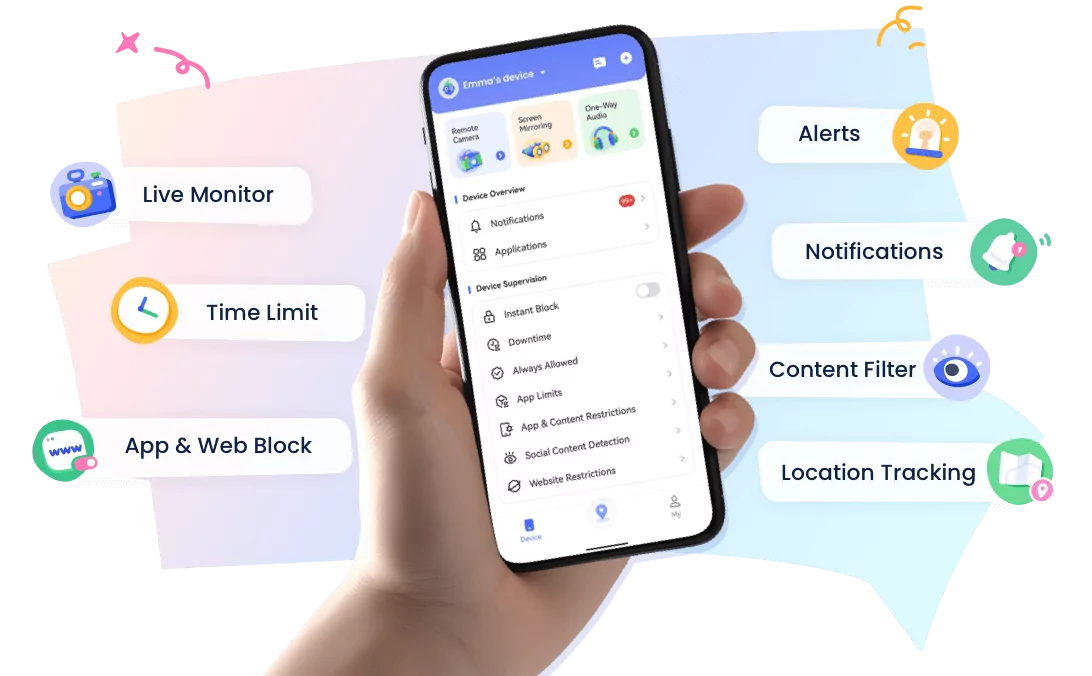
- 👀Live surroundings and location tracking
- 🔞Content Monitoring and App/Web Blocking
- ⚠Instant alerts for online risks and geofences
- ⌛Screen time control and monitor
WhatsApp Not Sending Code? How to Fix and Log in Without It
Imagine this - you're going to sign up or log into WhatsApp. But, when it is time for you to fill out an SMS verification code to finalize the whole process, you're greeted with a pop-up saying "We couldn't send an SMS to your number." Then, you begin to wonder, what does this message mean?
Well, I've been there...Honestly, the "WhatsApp not sending code" issue is common among WhatsApp users. After a bit of trial and error (and Googling), I figured out what was going wrong and how to fix it. Care to know what those solutions are? I've compiled them in this blog.

Alternatives to Use WhatsApp without the SMS Code
Since the solutions may not work for everyone and you may have tried a lot, it is essential to find an alternative to log into WhatsApp without an SMS code, especially if you need access to it urgently.
Below are alternatives to use WhatsApp even if you cannot receive the SMS code:
1Utilize Linked Devices
If you attempt to log in to WhatsApp on a new device but can't receive the verification code, this is the best alternative way.
The built-in Linked Devices feature lets you log into WhatsApp on up to 4 devices without relying on SMS verification code.
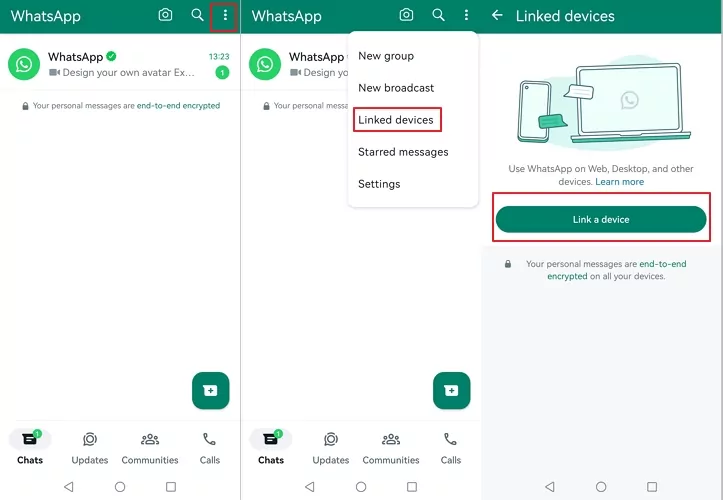
So, if the WhatsApp on a new device isn't receiving the verification code, but you already have WhatsApp logged in on your primary phone, you can try to link the device. Most importantly, the chats can be synced automatically. To do so:
- Step 1.Open WhatsApp on your primary device.
- Step 2.On Android, tap the three-dot menu; on iPhone, go to the "Settings" tab.
- Step 3.Tap on "Linked devices" and then "Link a device."
- Step 4.On another device that can't receive the SMS code, hit the three dots and then "Link as a companion device."
- Step 5.Use your primary phone to scan the QR code displayed on the second device.
- Step 6.Once scanned, you can use WhatsApp to start messaging.
2Try WhatsApp Business
Though WhatsApp Business also asks for an SMS code for login, you're less likely to experience any hitch when receiving the SMS code. And many users verified that they can receive the code from WhatsApp after using WhatsApp Business.
The good thing about WhatsApp Business is that you can easily migrate your WhatsApp data and chats to it as long as they were backed up before.
Once these requirements are met, all you need to do is:
- Step 1.Download and install WhatsApp Business.
- Step 2.Then, log in with your phone number that you used for WhatsApp Messenger.
- Step 3.After that, WhatsApp will prompt you to restore your chat history from the backup you've created earlier.
- Step 4.Select the backup file and follow the instructions to restore your personal chats and data into WhatsApp Business.
3Log in WhatsApp through Facebook or Instagram
WhatsApp now offers an automatic phone verification feature.
If you have saved your WhatsApp phone number and verification details when it asks you to do so, a unique code was created and stored on your mobile phone that can be used for future logins via Facebook or Instagram.
So, each time you try to log in to WhatsApp on the same device and phone number, you can log in to WhatsApp faster without manually entering a code.
But remember, this feature is available only in some specific countries.
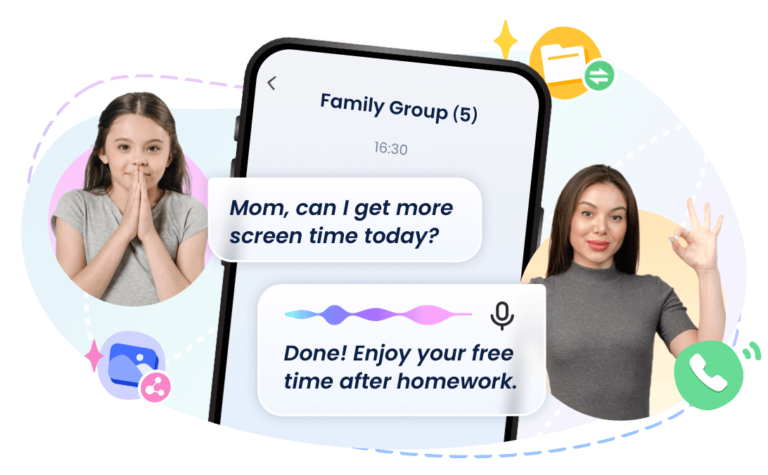
💡When WhatsApp fails to send a verification code, staying connected is especially important for parents who need to keep in touch with their children. Fortunatly, with a parental control app like AirDroid, you can easily message or call your kids, and locate your child's location for safety.
Why WhatsApp Can't Send SMS Code?
Well, now, I guess you've successfully logged into WhatsApp with the above alternatives? Let's dive into the reasons why WhatsApp couldn't send SMS to your number while setting up or re-login to WhatsApp.
The Code Was Sent to Another Device
When you're trying to log in to WhatsApp on a new device, it may send the SMS code to your primary device that you've logged into your WhatsApp account.
Soltions: Check the code from your primary device; Try linked devices
Network Errors
If your internet connection or phone signal is poor, WhatsApp may find it difficult to connect with your mobile carrier's network, thereby resulting in the "WhatsApp code not sending" error.
Soltions: Switch to another WiFi; Use cellular data; Change network selection; Turn on data roaming
Regional Restrictions
If you're in a region where WhatsApp is restricted while travelling or on a business trip, you are not allowed to use WhatsApp. The country's internet firewall may even block WhatsApp's services, making it hard to complete the verification process.
Soltions: Connect or disconnect to VPN; Change your device language
It's a VOIP Number
WhatsApp doesn't support virtual numbers officially. So, if you're using a virtual number to sign up or log in, there is a high chance that you cannot receive the OTP WhatsApp sends.
Soltions: Use your active number
Activated Message Filter
Have you ever activated the message filter to avoid spam? If so, it could block or hide the WhatsApp SMS verification code from your main message box.
Soltions: Turn off iMessage/RCS; Disable message filtering or blockers
App Glitches
App glitches induced by bugs or corrupt cache data could prevent WhatsApp from connecting properly with the server. This, of course, can stop the verification code from being sent.
Soltions: Reinstall WhatsApp; Reboot your phone; Try again in a few days.
How to Fix WhatsApp Not Sending Code?
If you're not receiving WhatsApp verification code, first try any of the simple and quick fixes below:
- Request a call to receive the code (may fail in most cases)
- Switch to another WiFi
- Reinstall the WhatsApp app
- Contact WhatsApp support
- Switch to Android if you're using an iPhone
- Try again in a few days
However, if you tried any of the quick fixes above and none of them work for you, then try any of the following tested solutions:
Solution 1: Use Cellular Data Instead
Many Reddit users shared that using the mobile data worked for the "WhatsApp not sending code" issue. And I proved that it worked!
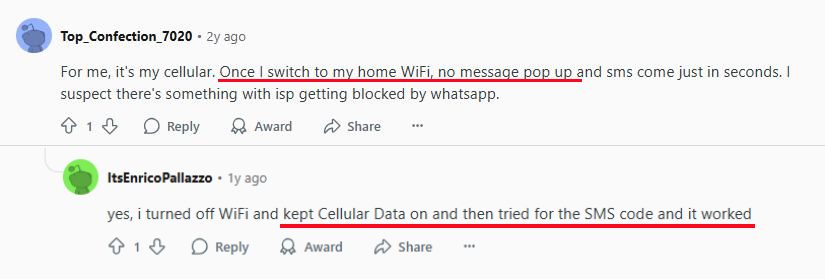
Some Wi-Fi networks often come with firewalls that may prevent WhatsApp from connecting efficiently to its servers, affecting messaging and calls.
Therefore, it is best to always request a WhatsApp verification code over cellular data. Doing so generally provides an unrestricted connection to your mobile carrier's network without being affected by Wi-Fi restrictions.
Solution 2: Change Network Selection to Manual
This is also one of the top solutions found from Reddit.
Changing network selection from automatic to manual can also help you resolve this issue. This is because it lets your device stick to the network with the best signal in your area. And once the signal on your device is strong, it will be easier for the WhatsApp verification code to deliver.
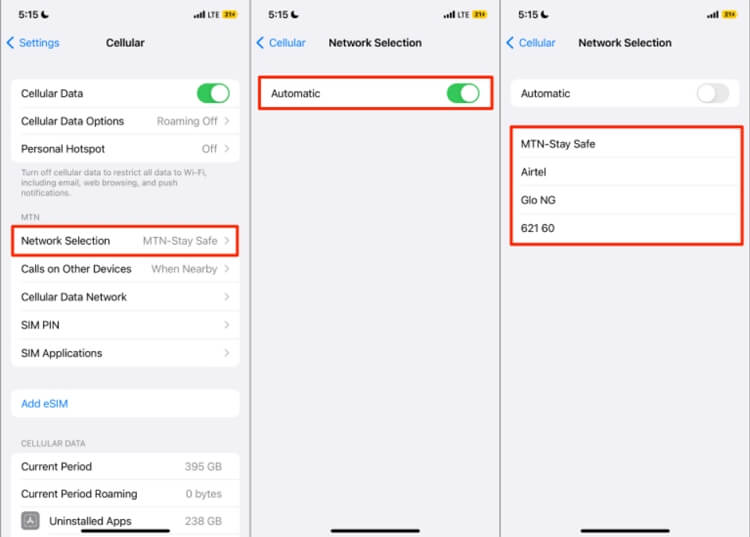
- Step 1.Open "Setting > Cellular > Network Selection."
- Step 2.Disable the "Automatic" option.
- Step 3.Once you've done that, a list of carriers will appear on your screen. Then, select the carrier with the highest network speed.
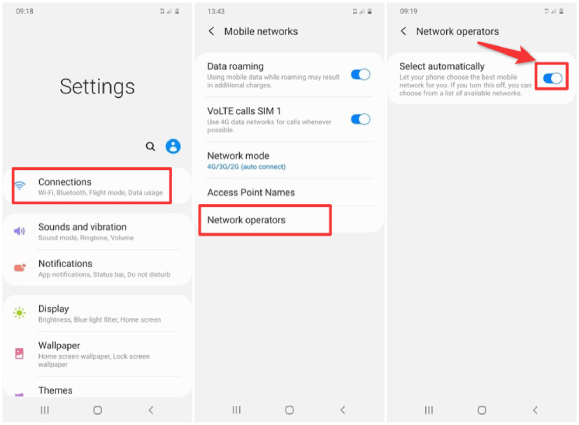
- Step 1.Go to "Setting > Connections."
- Step 2.Select "Mobile Network" and then "Network Operator."
- Step 3.Just disable the automatic option.
- Step 4.After that, select the carrier with the highest network speed.
Solution 3: Turn on Data Roaming
As we stated, a poor or weak signal is one of the reasons why WhatsApp doesn't send code. Thankfully, this issue can be resolved by turning on data roaming.
By enabling data roaming, your phone will be able to connect to a network with a stronger signal, ensuring you're still connected even if local WiFi is unavailable or unreliable. All you need to do is:
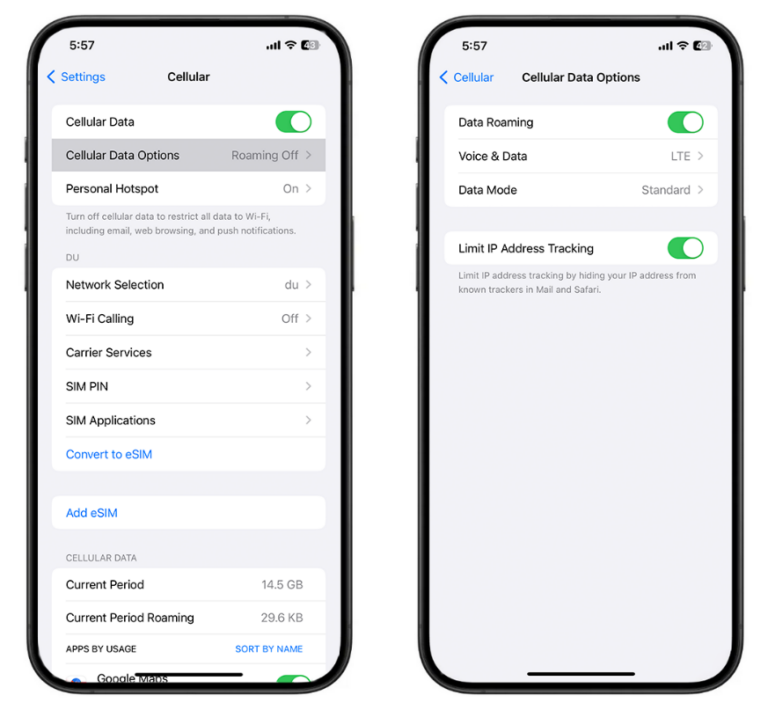
- Step 1.Make sure your cellular data is turned on.
- Step 2.Open the "Settings" app and click on "Cellular > Cellular Data Options."
- Step 3.Toggle on the "Data Roaming" button.
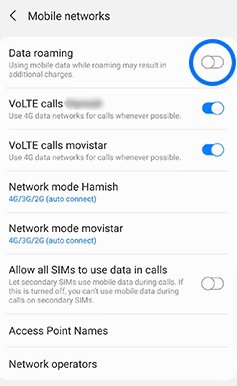
- Step 1.Go to "Setting > Connections > Mobile Network."
- Step 2.Enable "Data Roaming."
Solution 4: Turn off iMessage/RCS
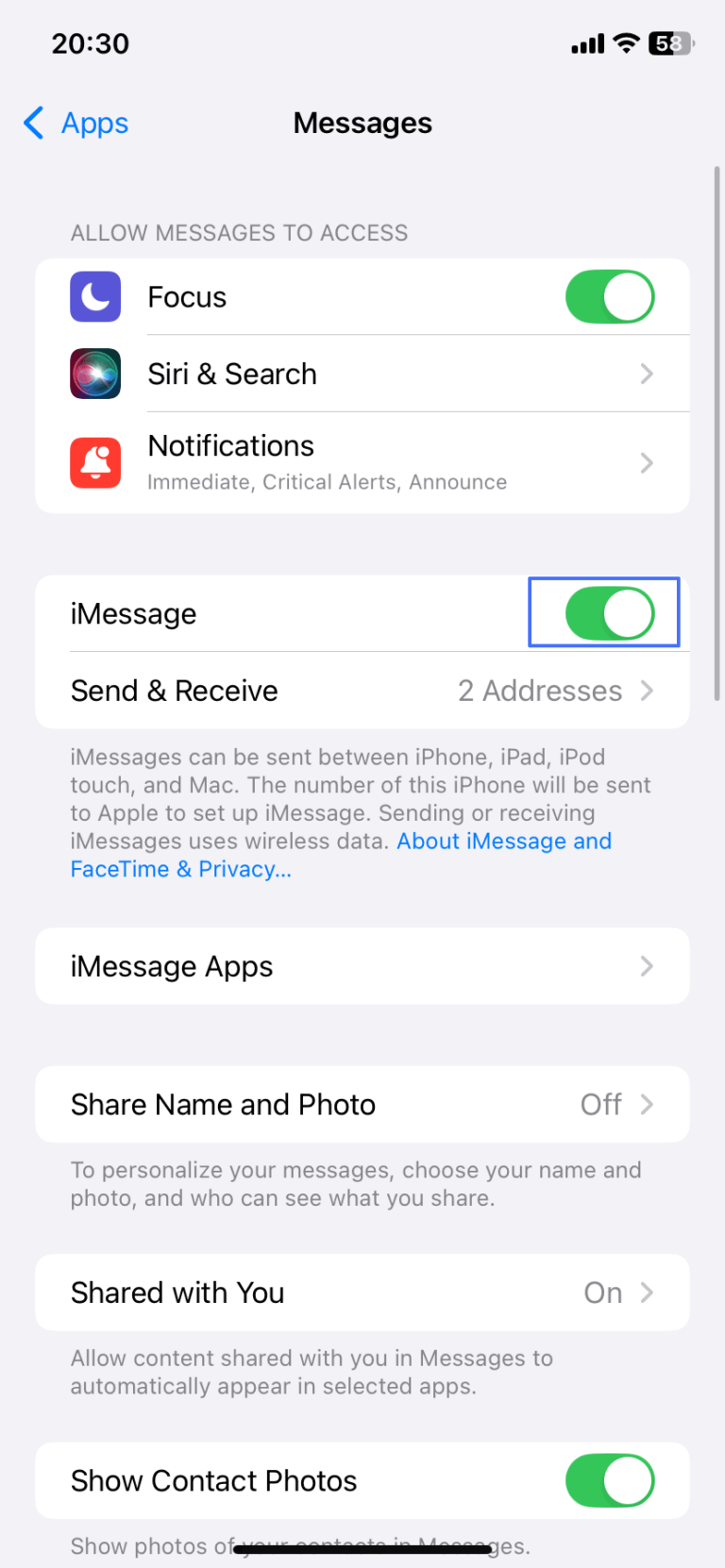
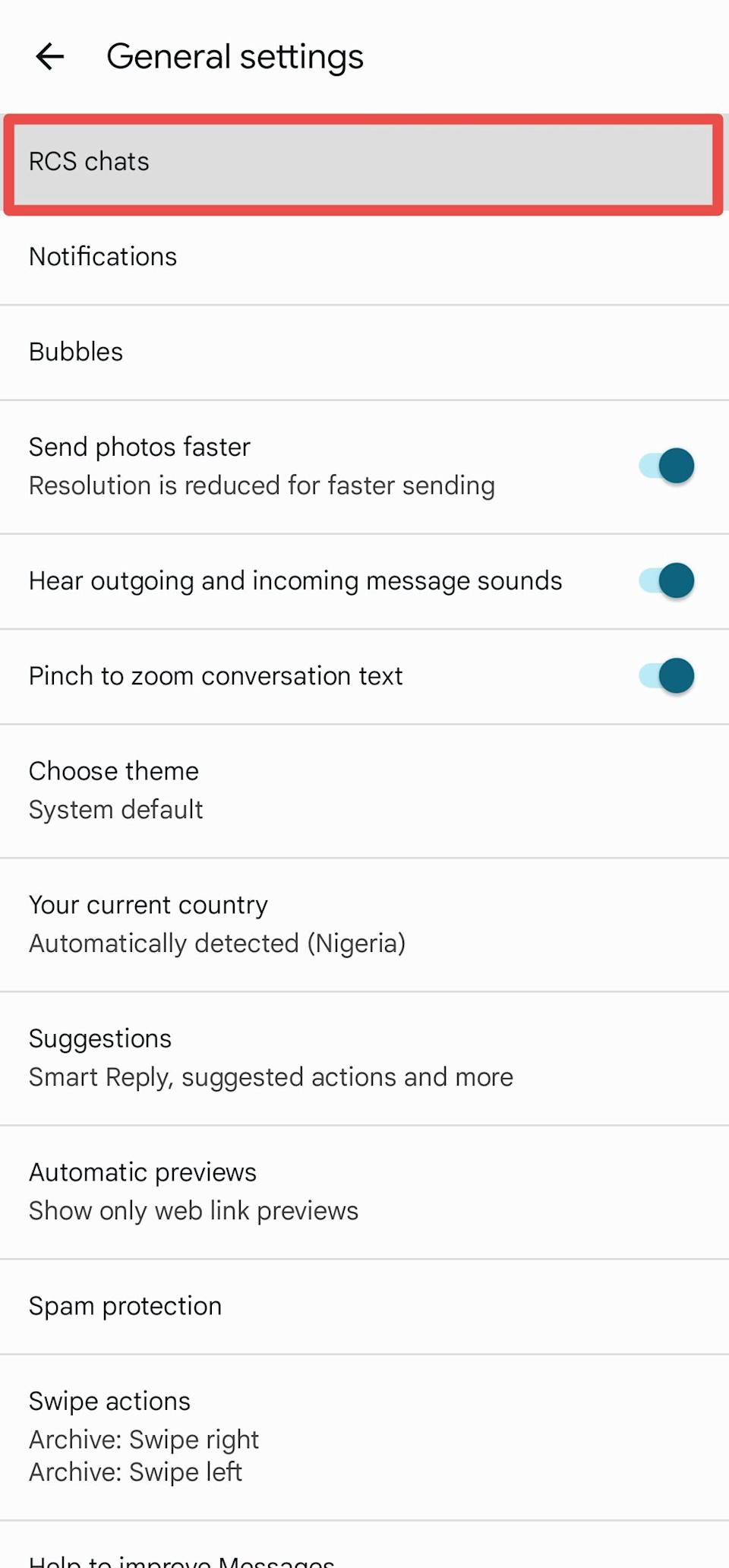
At times, your phone may deliver all messages as iMessages or RCS. However, some messaging apps (WhatsApp included) typically send the authentication code via SMS.
Hence, to make the sign-in or sign-up process smooth, you'd better turn off iMessages or RCS, which forces all incoming texts to use the normal SMS channel from your carrier.
- Step 1.Access the "Settings" and locate the "Messages" app info.
- Step 2.Then, locate iMessage and turn it off.
- Step 1.Open the "Google Messages" app first.
- Step 2.Tap the three dots menu or your profile to go to "Settings."
- Step 3.Tap on "RCS chats" and disable it.
Solution 5: Disable Message Filtering or Blockers
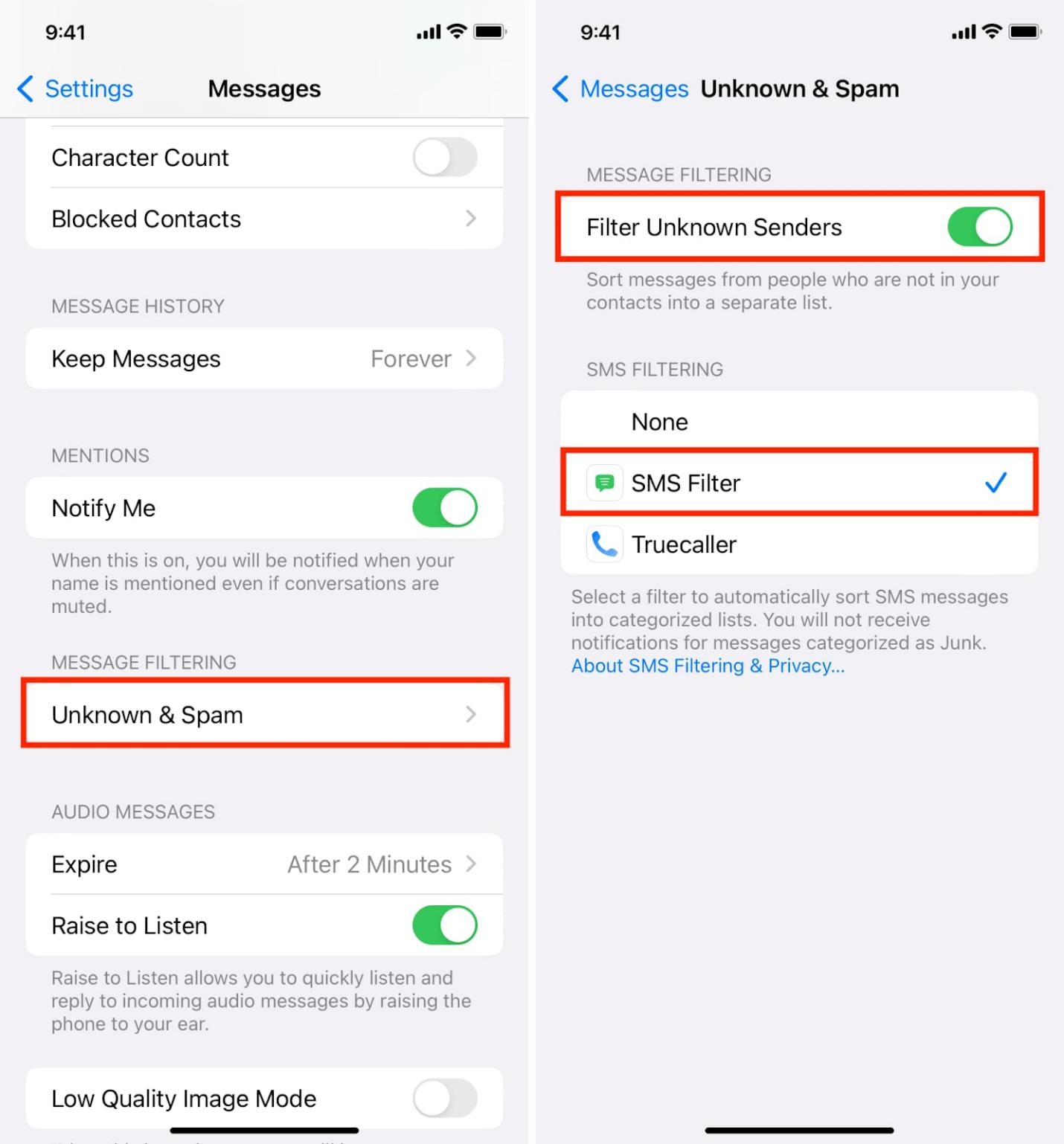
If the message filtering or blocker feature is enabled, it will prevent spam-related or unknown messages, including WhatsApp code, from delivering.
To prevent such an issue, you must disable the message filter feature on your phone and uninstall any caller ID app or blocker app. To do that, follow the prompt below:
- Step 1.Open "Settings > Apps > Messages."
- Step 2.Under "Message Filtering," toggle off the "Filter Unknown Sender" settings.
- Step 3.Or, you can tap on "Junk" to see if your WhatsApp code is there.
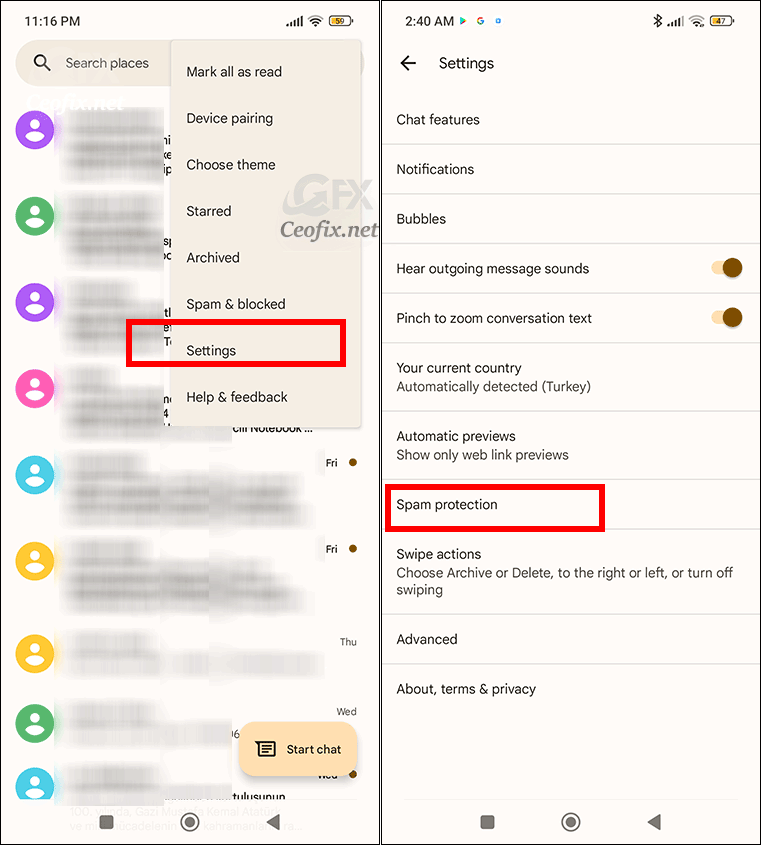
- Step 1.Open the "Messages" app and go to "Settings."
- Step 2.Find and select "Spam Protection."
- Step 3.Disable the "Spam Protection" button.
Solution 6: Connect or Disconnect the VPN
If you're in a region where WhatsApp is restricted, connecting to a VPN can help you resolve the issue by routing your connection through a country where WhatsApp works.
However, this solution may not be 100% foolproof. It didn't work for me.
And there is another opposite case: some users reported that they faced "WhatsApp not sending code" when the VPN is on. After they disconnected the VPN, the issue was resolved.
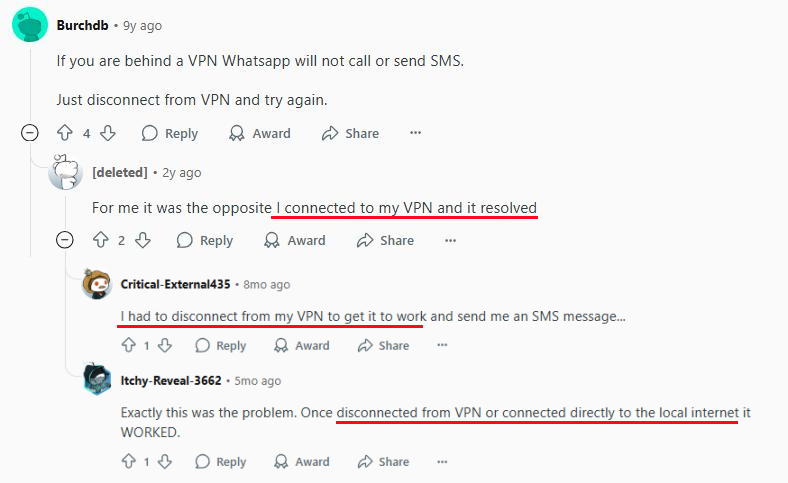
Therefore, using or stopping a VPN depends on the specific situation.
Solution 7: Change Your Phone Language
I know you may be wondering how changing one's phone language truly fixes this issue. Although there's no official explanation from WhatsApp on why this works, more than one user has shared that switching their device language to match their regional language has greatly helped in resolving this issue.
To change your device language, follow the steps below:
- Step 1.Head to "Setting > General > Language & Region."
- Step 2.Then, select the local language.
- Step 1.Open the "Settings" app and select "General management."
- Step 2.Tap "Language" and select the language where you are.
Conclusion
To fix WhatsApp not sending issues, it is either you use cellular data instead of Wi-Fi, switch to manual network selection, connect or disconnect your VPN, enable data roaming, turn off iMessage or RCS, change your phone language, or disable message filtering.
But if none of these work, you can try to download WhatsApp Business, use a linked device, or try to log in via Facebook or Instagram. This approach will allow you to use WhatsApp without entering any SMS verification code.











Leave a Reply.