AirDroid Parental Control
24/7 Kids' Guardian via App & Web
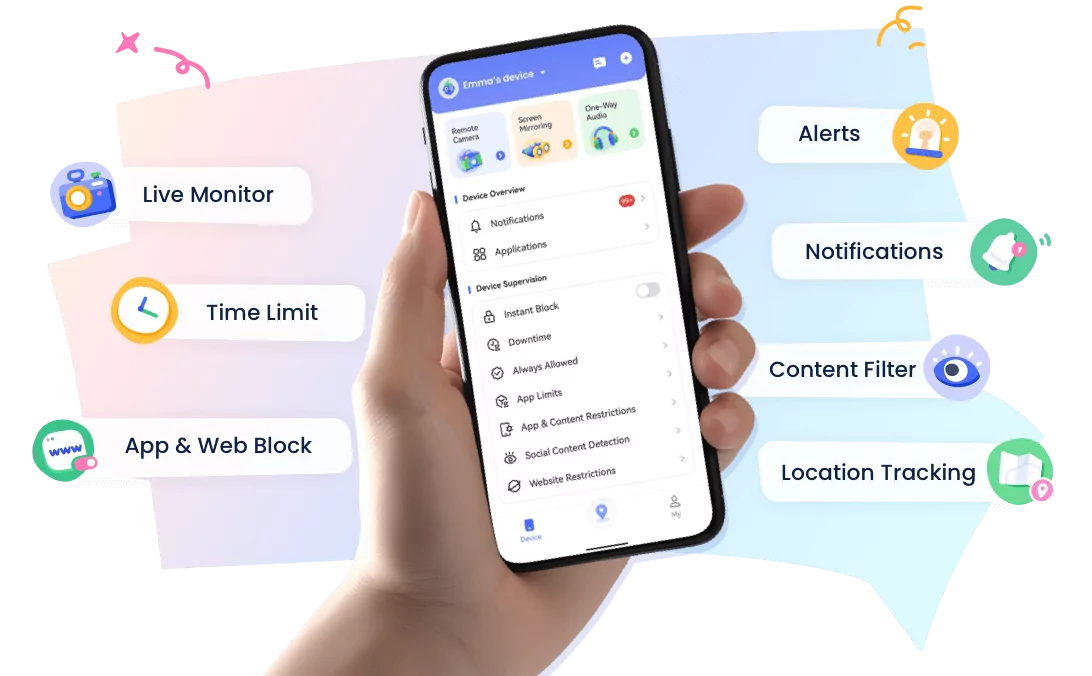
- 👀Live surroundings and location tracking
- 🔞Content Monitoring and App/Web Blocking
- ⚠Instant alerts for online risks and geofences
- ⌛Screen time control and monitor
How to Monitor Children's Snapchat — Safe, Legal, Effective
For parents, Snapchat is tricky; its disappearing messages make it difficult to track what kids share or see.
This prompts parents to take a more proactive approach to handle the platform, to curb inappropriate behavior, and keep children safe from strangers, predators, and bullies. But to do so “properly” can be a tough task, ensuring safety while being legal.
Today, we’re highlighting methods to help monitor your children’s Snapchat activity using the built-in tools & parental control apps.
Quick Summary (TL;DR)
Snapchat offers official tools for parents Family Center: View your child’s friends and recent contacts (not chat content), request location check-ins and get basic arrival/departure alerts. However, Snapchat doesn’t let parents see disappearing chats or risky content alerts.
Third-party parental control apps can help with alerts and content scanning capabilities. However, these capabilities are limited by the app & OS, with Android allowing broader access.
Ultimately, combine tech tools with clear rules and honest discussions about safe app use for the best results.
1. Start With Snapchat’s Official Tools
The best place to start is Snapchat’s Family Center which helps parents supervise safely. It acts as a hub for parental controls to learn more about what their child is doing on the platform:
- View Friends List: Allows parents to keep an eye on their child’s friends list and ensures they’re only adding people they know.
- Check Who They’re Chatting With: Provides a list of people your child has communicated with on Snapchat in the last 7 days. However, it only provides names/group chats, and not the chat contents.
- Restrict Sensitive Content: Blocks/limits sensitive content that can appear in Snapchat Stories/Spotlight.
- Disable AI Features: Parents can also block Snapchat’s built-in AI chatbot, My AI, from responding/interacting with your child.
- Reporting Capability: Family Center allows parents to report accounts in case of any violations.
- Location Tracking: Request to share live location for safety checks; see who your child shares location with; get notifications when they arrive or leave key spots like school, home, or tuition centers.
To use Snapchat Family Center, there are a few requirements. Firstly, parents need to download Snapchat on their device and sign up for an account. Then follow these steps:
- Step 1.Add your child on Snapchat.
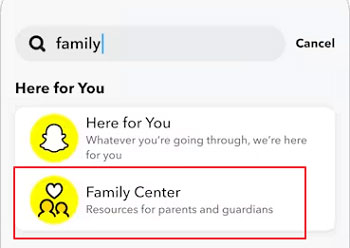
- Step 2.Use the search bar and type in “family”, “safety”, or “parent” to find Family Center. Tap on the Family Center option.

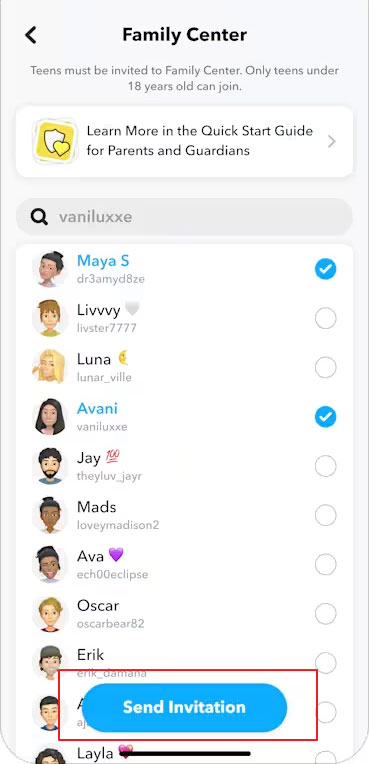
- Step 3.In the Family Center, tick your child and tap “Send Invitation” to invite your child to join.

- Step 4.Ask your child to accept the invitation. They will need to accept the invitation card for you to access Family Center features.
- Step 5.Once accepted, you will receive a notification and can now use Family Center.
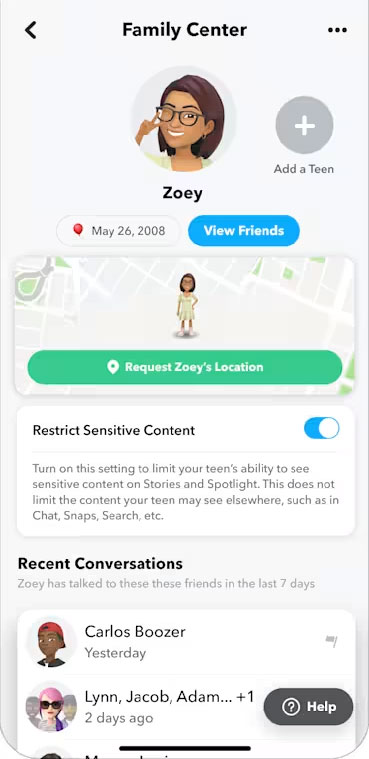

Limitations of Snapchat’s Family Center
These are the main features that Snapchat’s Family Center allows for parental controls. But there are some clear limitations. For example, Snapchat doesn’t allow:
- Alerts for ‘risky’ content.
- Notification syncing.
- Block child’s Snapchat at bedtime, etc
- No tracking of disappearing messages, images, and videos.
- Limited location tracking feature if not approved by the child.
- Check Snapchat live screen for special cases
- …and more.
If you feel you need a more comprehensive solution, a third-party parental control app may be worth checking out.
2. Consider Reputable Parental-Control Apps
Third-party parental control apps like AirDroid Parental Control provide a lot more functionality than Snapchat’s built-in solution. We’ll break down each of its features on both Android & iOS to give you a better idea of what it can do:
How to Monitor Children's Snapchat on Android
It allows fine control and monitoring of your child’s Android smartphone. Once set up, parents can employ these features on Snapchat and other platforms:
1. Get Alerts for Risky Content on Snapchat
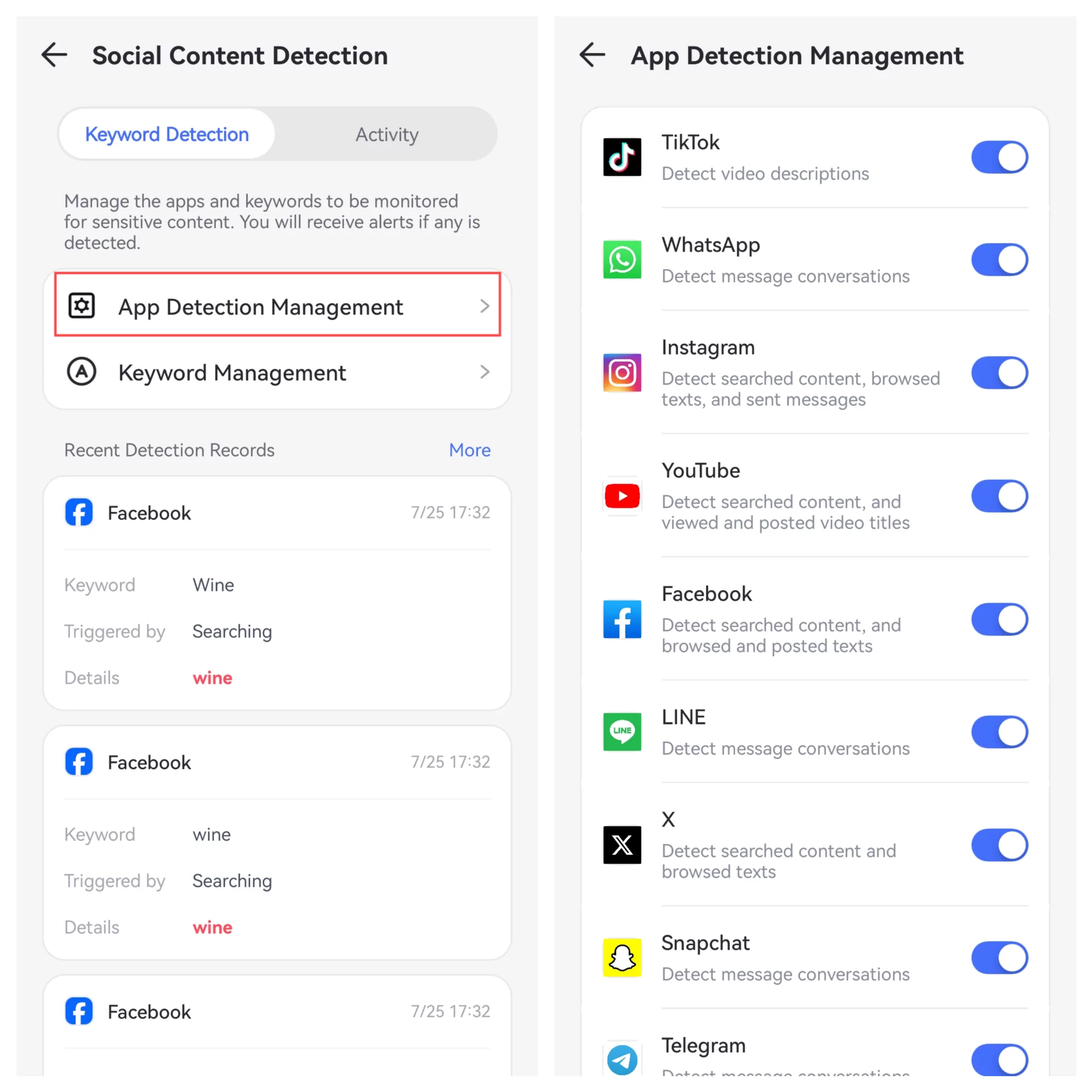
AirDroid Parental Control allows parents to set up alerts for “risky” content. You can set keyword filters to instantly receive alerts when the keyword is sent/received on the child’s device. This applies across multiple social media apps, and messengers.
- Step 1.Select the “Social Content Detection” tab in the Android Parental Control app.
- Step 2.Select “App Detection Management” and select the apps you want to monitor i.e. Snapchat.

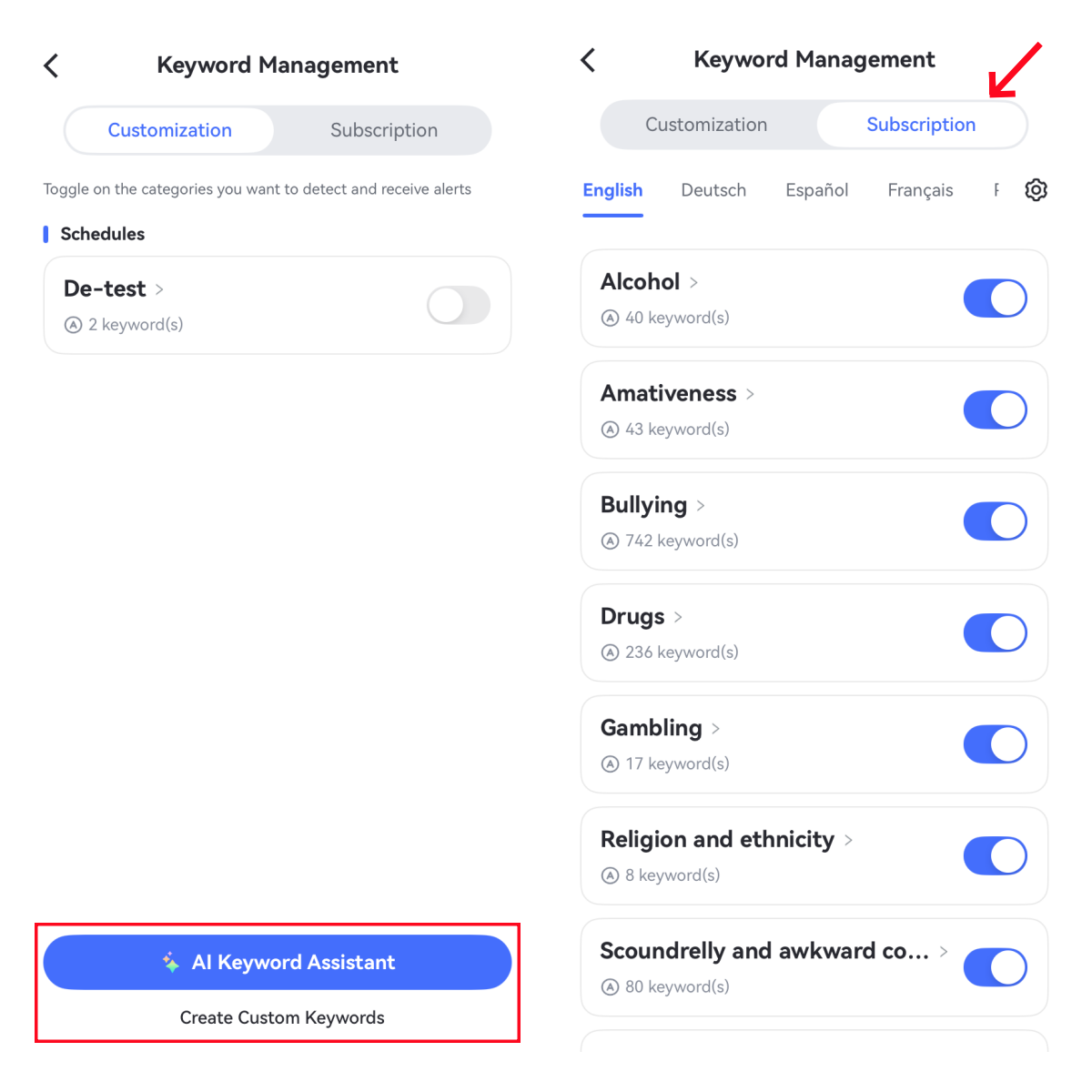
- Step 3.Select “Keyword Management” and tap on the “Subscriptions” button. Ensure the categories you want to monitor are enabled. You can also create new categories with the assistance of AI or by yourself.
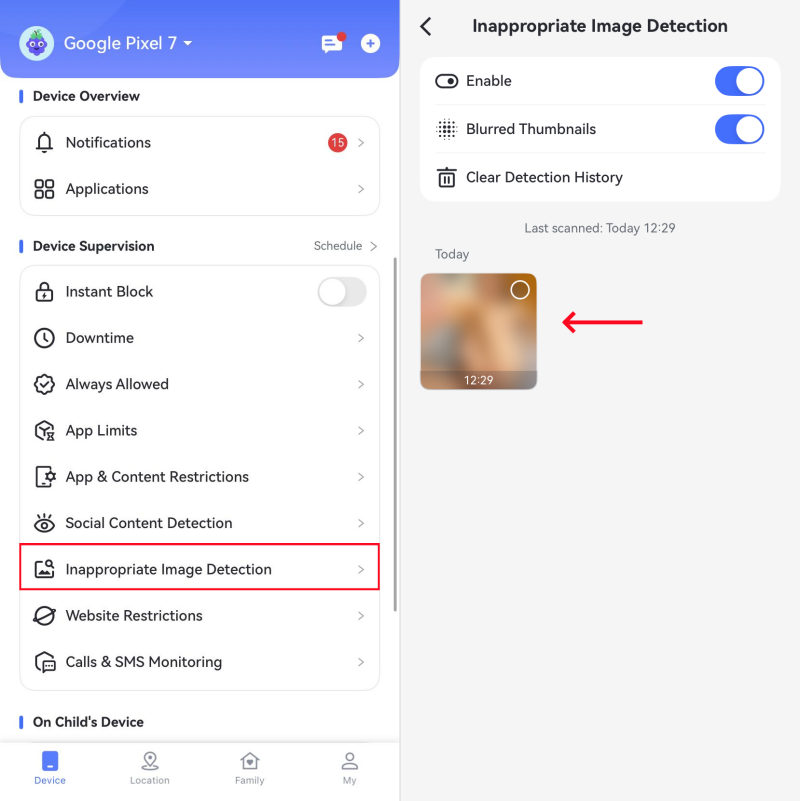
Additionally, you can also set up inappropriate image detection to receive alerts if nude photos or pornography are saved in their Photos app, which is useful to curb inappropriate sexting or pornography addictions:
- Step 1.Open the AirDroid Parental Control app and select “Inappropriate Image Detection”.
- Step 2.Enable the feature.
- Step 3.Once enabled, if there is an inappropriate image on your child’s Photos app, you can view it on your dashboard and receive alerts.
2. Monitor Snapchat Notifications
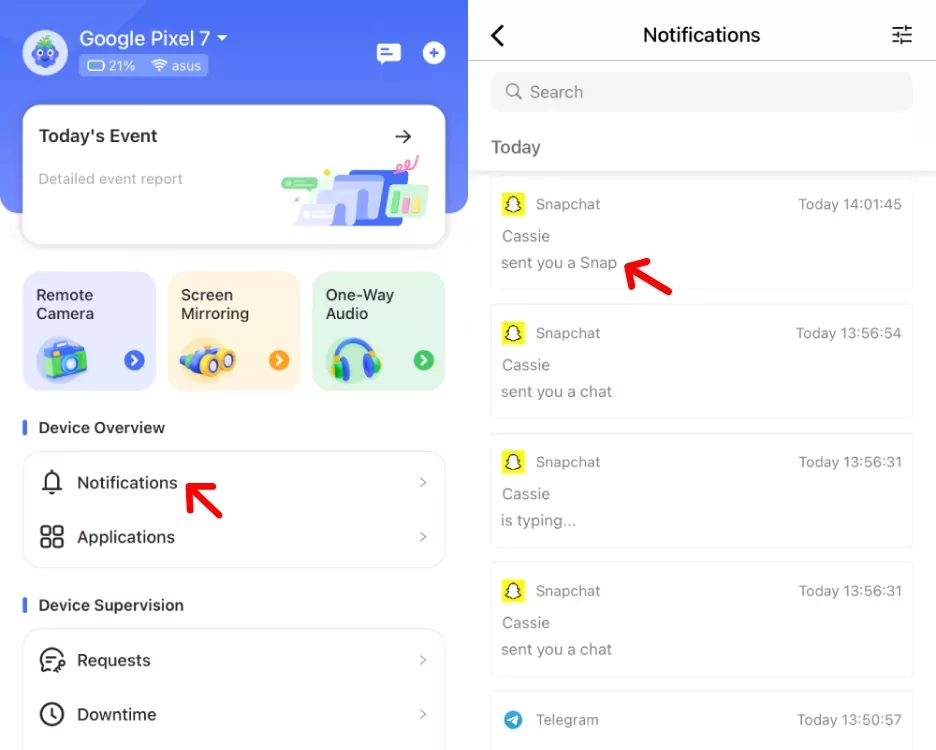
AirDroid Parental Control also supports notification sync, which allows you to receive real-time notifications for any messages, calls, and app notifications on your child’s device. This can be useful for proactive monitoring. You can get more insights about whether your child receives inappropriate or harmful content.
- Step 1.Go to the “Notifications” tab on the dashboard of the parenting app.
- Step 2.Here you’ll see all the notifications received on the child’s device.
- Step 3.You can also filter by keywords such Snapchat. You will get insights of who is snapping with your child, what notifications are disturbing your child, etc.
3. Monitor Snapchat Usage and Set Time Limits
You can monitor Snapchat usage to track when and how long your child is using the app. It helps you assess if they may be developing an addiction.
- Step 1.On the AirDroid Parental Control dashboard.
- Step 2.Select “Applications,” look for Snapchat and then tap on it.
- Step 3.Then you will see your child’s Snapchat usage report.
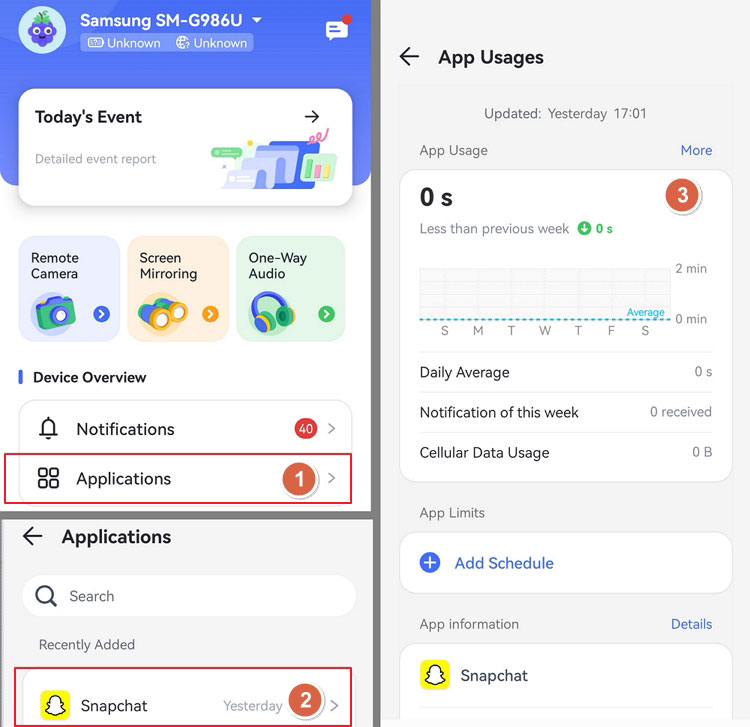

The app offers features like “App Limits” to set how many time they can use it, and “Downtime” to schedule when the app can be used per day/week.
Alternatively, you can block Snapchat entirely, which is useful if your child has broken set rules. Access this feature via “App & Content Restrictions” > “App Blocker.” To block Snapchat completely, go to 'Website Restriction' > 'URL Blacklist' and tap 'Add custom URLs to the Blacklist' to include the Snapchat domain.
4. Track Location & Get Geofencing
Lastly, AirDroid Parental Control has comprehensive location tracking and geofencing features to be aware of your child’s location at all times. This gives you an accurate view of their current live location at any time.
Here’s how to use the feature:
- Step 1.Click the “Location” button in the menu bar.
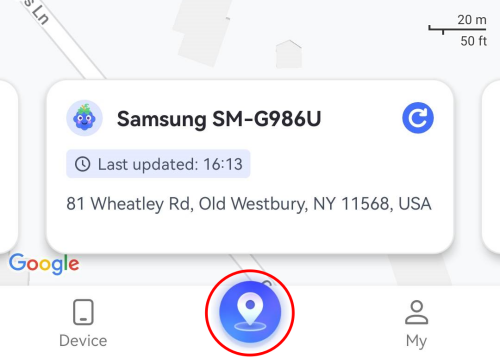

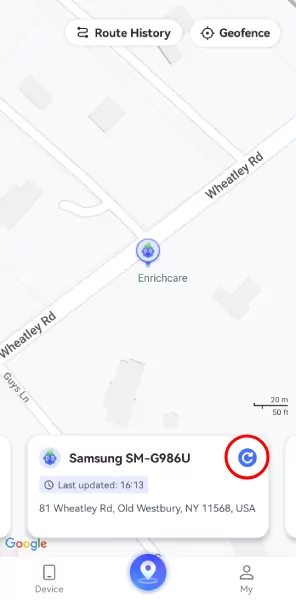
- Step 2.The child’s device’s live location will then be displayed.

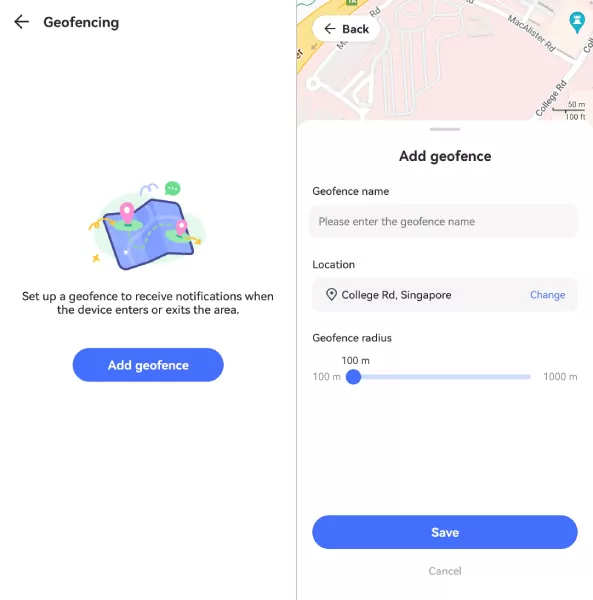
You can also set up “geofencing” features to ensure your child moves around frequently visited locations, such as schools, parks, libraries, and home, to receive notifications when they leave or enter the specified areas:
- Step 1.Tap the “Location” button in the menu bar.
- Step 2.Select the “Geofence” button.
- Step 3.Tap “Add Geofence”.
- Step 4.Enter the location details, including the name, address, and radius, and tap “Save”.
How to Monitor Children's Snapchat on iPhone
On iOS devices like iPhones, features are much more limited compared to Android devices. This is due to Apple’s policy on privacy, which limits what apps can access and view from another device.
This applies to all parental control apps, so if you want full monitoring of your child’s device, we’d recommend buying your child an Android device.
However, iPhones still allow core features important to Snapchat monitoring, such as:
1. Monitor Snapchat Usage and Set Time Limits
AirDroid Parental Control still allows usage reports, app time limits and blocking on iPhones. This works identically to the Android version, so it’s still a helpful tool to limit access to Snapchat or to block apps entirely.
2. Location & Geofencing
iPhones also allow AirDroid Parental Control to use comprehensive location tracking and geofencing features. You can still view your child’s location live, set geofencing locations to receive alerts, as well as a route history feature to view where your child has been over the last 30 days.
The setup process for these features is identical to the Android version above, so you can follow the same steps to enable app blocking/time limits and location tracking on your child’s iPhone.
3. Beyond Monitoring: More Important Steps for Parents
Aside from monitoring through third-party apps and Snapchat Family Center, there are a few things to keep in mind that are arguably more important:
- Consent & Trust: While monitoring is important for younger children, for teens, it can be too overbearing. Rather, pair tools with conversations about monitoring and digital safety to build trust, promoting independence and digital resilience.
- If you choose to employ monitoring tools, have an open conversation and don’t do it secretly; this erodes trust, and can instead push teens to hide risky, potentially harmful behavior.
- Age & Jurisdiction: Laws about monitoring children vary depending on state/country. Generally, monitoring younger children have broader rights, but for older teens, school/employer policies can affect what is deemed “lawful”. Consult legal counsel or online resources if you’re not sure.
- To Protect, Not Punish: The most important thing to know is that monitoring tools are meant to protect, not punish children. Kids and teens are by nature curious, which is why tools should protect children from predator risks, self-harm, and bullying, not be used to snoop on their private conversations at a whim.
4. Warning Signs to Monitor
Here are a few telling signs that something is wrong with your child. If you notice any of these, it may be time to gently check in and start a conversation:
Secretive behavior/account deletion
If your child becomes unusually private about their phone or refuses to share what they’re doing online, take note. This could indicate they’re hiding something, such as being bullied, interacting with strangers, or breaking agreed-upon rules.
Similarly, if they suddenly delete their social media or messaging app accounts, it might be a response to stress or a negative experience online, and worth speaking about.
Rapidly changing friend lists/many unknown accounts
A sudden influx of unfamiliar names or constant friend list changes can suggest that your child is connecting with people they don’t actually know. This could expose them to inappropriate influences, scams, or online predators.
Messages about meeting up with strangers, or signs of bullying/abuse
If you notice conversations about meeting people they’ve only met online, or messages that hint at harassment, threats, or emotional distress, intervene promptly. Make sure your child feels supported and safe to talk about what’s happening, instead of getting mad at them.
If you observe any of these signs, talk with them first. Understand what is happening and take necessary steps. If you suspect immediate danger with something like predators or explicit threats, involve local authorities or the school immediately.
Final Thoughts
That said, keeping your child safe on Snapchat requires more than just one tool or rule; it’s about balance.
Start with Snapchat’s built-in Family Center, then use a reliable Snapchat parental control app like AirDroid Parental Control to monitor Snapchat activity more effectively.
Still, the most powerful safeguard isn’t technology alone; it’s open communication. Regular check-ins, trust, and honest conversations will always play the biggest role in keeping your child safe online.











Leave a Reply.