AirDroid Parental Control
24/7 Kids' Guardian via App & Web
- 👀Live surroundings and location tracking
- 🔞Content Monitoring and App/Web Blocking
- ⚠Instant alerts for online risks and geofences
- ⌛Screen time control and monitor
Is CapCut Safe for Kids? What Parents Need to Know in 2026
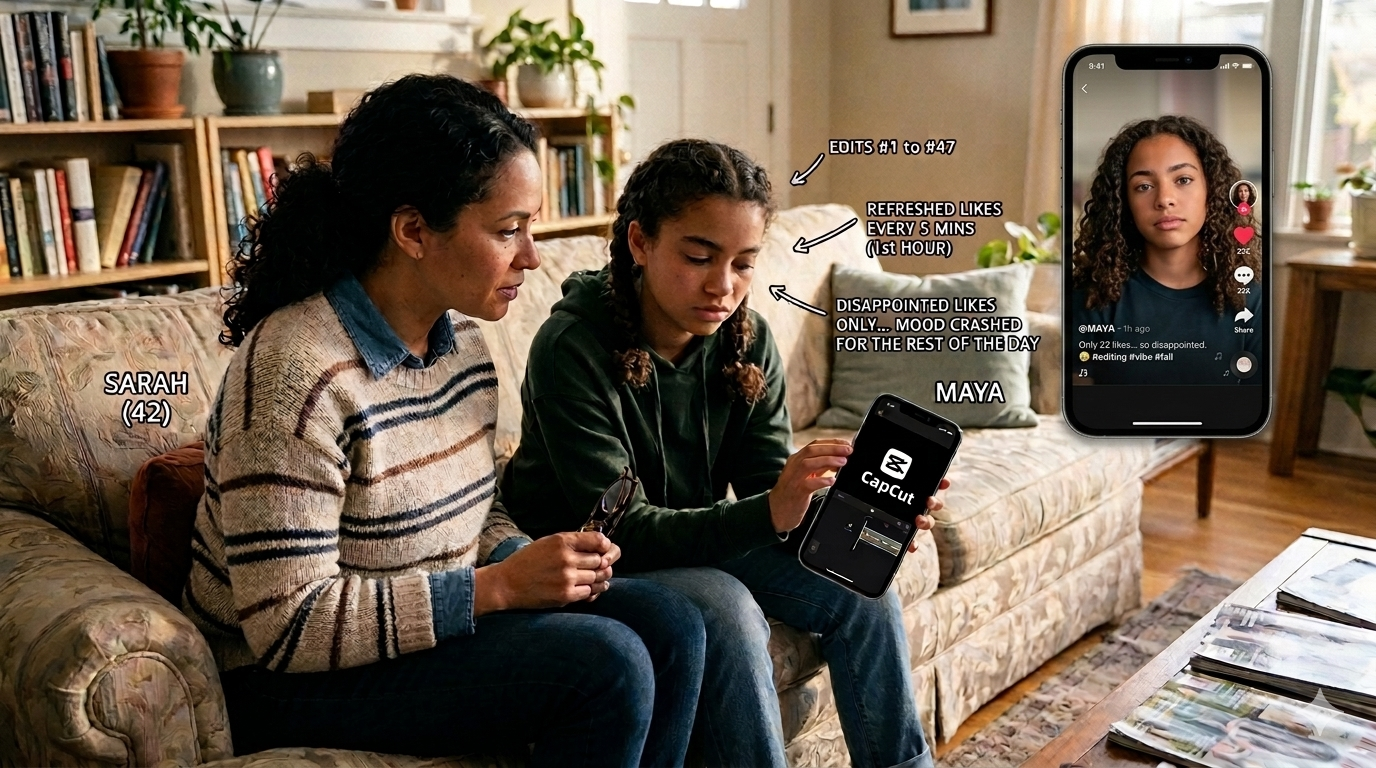
Last week, Sarah noticed her daughter had been on CapCut for three hours. When she asked what she was doing, her daughter showed her a 15-second video she'd just finished editing.
But here's what Sarah didn't know: her daughter had edited that same video 47 times. She'd frequently checked the like count after posting it. And when the video only got likes, which is not what she expected, her mood crashed.
If this sounds familiar, you're not alone. Many parents think CapCut is simply a harmless video editing app, but that's not the case.
Key Takeaways:
- CapCut is rated 12+ in Google Play and 13+ in App Store.
- CapCut is no longer a simple editing tool. Now, its algorithmic recommendations, community features, and the like system give it a social-media-like feel.
- Due to these, kids may encounter risks, including exposure to inappropriate content through templates or comments, privacy concerns, stranger interactions, and pressure from likes.
- Parents can guide teens to use CapCut safely or consider safer CapCut alternatives for kids.
What Is CapCut
At its core, CapCut is a video editing tool. It is designed for creators who want to quickly and easily edit videos on their phones, tablets, or computers.
But around 2021-2022, ByteDance (which owns TikTok) transformed it by adding community features, likes, comments, and an algorithmic feed. In other words, CapCut is more like a lightweight social platform currently.
Why It Is Popular among Gen Z and Alpha:
- Endless Ready-Made Templates: CapCut boasts a large number of templates that offer a low barrier for users who have no editing skills.
- Seamless Connection to Social Media: Owned by ByteDance, CapCut integrates seamlessly with TikTok trends, music, and drafts. And users can publish videos created in CapCut to TikTok, Instagram, and Facebook with one click.
- Smart AI and Editing Tools: In addition to filters, transition effects, stickers, and music, CapCut provides practical AI tools, such as auto captions and background removal.
- Most Features Are Free: Most of the basic features offered by CapCut are free.
Major Risks of Using CapCut for Children
Now that you understand that CapCut is not a simple video editing tool. Because it includes user-generated templates, trending content recommendations, and engagement features, kids may be exposed to more risks than with a pure video editor, such as:
1Inappropriate Content in Templates
CapCut has a "Templates" feed that displays templates based on trends and users' likes, much like social media's "For You" page.
Because this is algorithm-driven and built on user-generated content, the template recommendations children see may not always be age-appropriate and may even be extreme.
According to a report by Netmums, child safety professional Jessica Chalmers shared a case in which a mother found CapCut suggested self-harm content after her daughter used it.
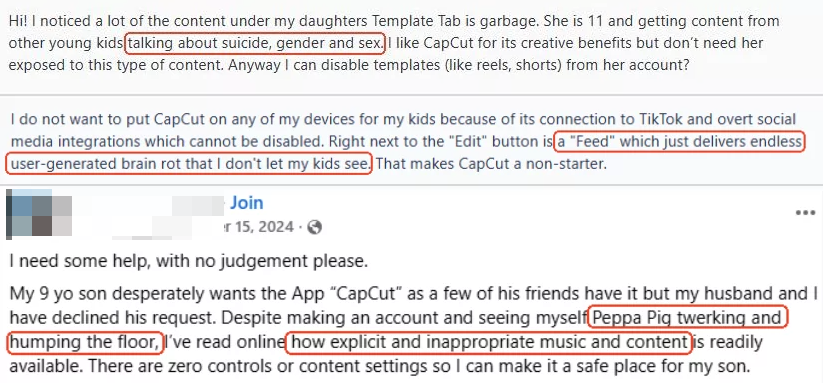
Additionally, several parent also shared experiences that reflect this issue on Reddit and Facebook. Here are the related screenshots:
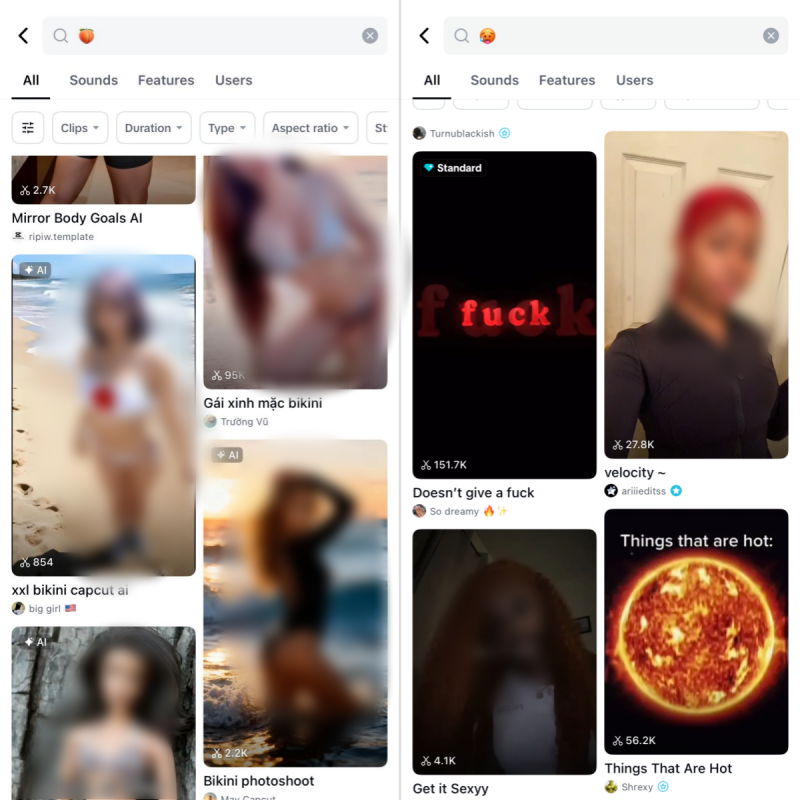
In our own testing, searching suggestive emojis (like 🍑, 🥵) in CapCut's template section, there are quite a few template results with mature visuals and music.
2Psychological Impact
With a few taps, kids can slim their waist, enlarge their eyes, or smooth the skin in CapCut.
However, constant use of these retouching tools can shape unrealistic expectations about their appearances and potentially distort their perception of reality.
They may even compare their real selves to their edited versions. And when body dissatisfaction arises, psychological distress and unhealthy eating behaviors follow (according to the Mental Health Foundation).
Not only that, but if a video doesn't "perform" well in likes, teens may interpret it as a failure of their appearance or body, leading to feelings of inadequacy or anxiety.
3Public Exposure to Strangers
The CapCut app heavily encourages users to sign in with their TikTok accounts. Once linked, it becomes incredibly easy for others to find your child's TikTok account directly from CapCut.
Moreover, users can comment and follow others from public templates, which opens a door for interactions with strangers.
4Privacy & Data Concerns
As a video editing app, CapCut often asks for many permissions, including access to the microphone, photos, and storage. Because these permission accesses are necessary for editing videos, it is not easy to disable them.
For children, their personal information (appearance, faces, voices, locations, etc.) may be shared unintentionally when they create a template and upload it publicly. And this may lead to privacy leaks or safety issues.
5No Parental Controls
Unlike its sister app TikTok, which allows parents to link accounts and set content restrictions, CapCut does not include built-in parental controls.
Moreover, CapCut has no age-verification process during the first setup, although its terms of service state that users should be 13 or older.
How to Let Kids Use CapCut Safely
While CapCut is not without its risks, with some steps, you can help ensure your child has a safer experience while using the app. Here are some of them:
Step 1. Have the Right Conversation and Guide
Don't just tell them some filters, templates, or music are "bad." Instead, be specific about what they might see on CapCut and guide them on how to cope with it. For example, you can ask them:
- "How do you feel when your video doesn't get as many likes as you expected?"
- "Do you find yourself re-editing videos? What's that about?"
- "When templates show things that are a bit too mature or have bad language, what's your plan?"
Step 2. Understand How They Use CapCut
After knowing the potential risks of CapCut, your first instinct might be to block CapCut. Don't. Instead, start by understanding:
- Why does your child use CapCut (for creative expression, social validation, or just boredom)?
- How much time do they actually spend on it?
- What content they're creating and sharing.
- Who's interacting with their videos or templates?
Step 3. Set Boundaries and Rules
When it comes to boundaries, you often only think of screen time. However, because CapCut can connect to TikTok, Instagram, and other social apps, setting boundaries requires a 360-degree approach, such as the following:
- Time Limits: 1-2 hours per day is reasonable for editing. And prevent them from using CapCut after 9 PM.
- Privacy Settings: Require videos to be "friends only." And most importantly, disconnect their TikTok account from CapCut.
- The "Nature First" Rule: To combat body image issues, limit use of "body/face retouch" tools. Surely, allow that your child can use filters for fun.
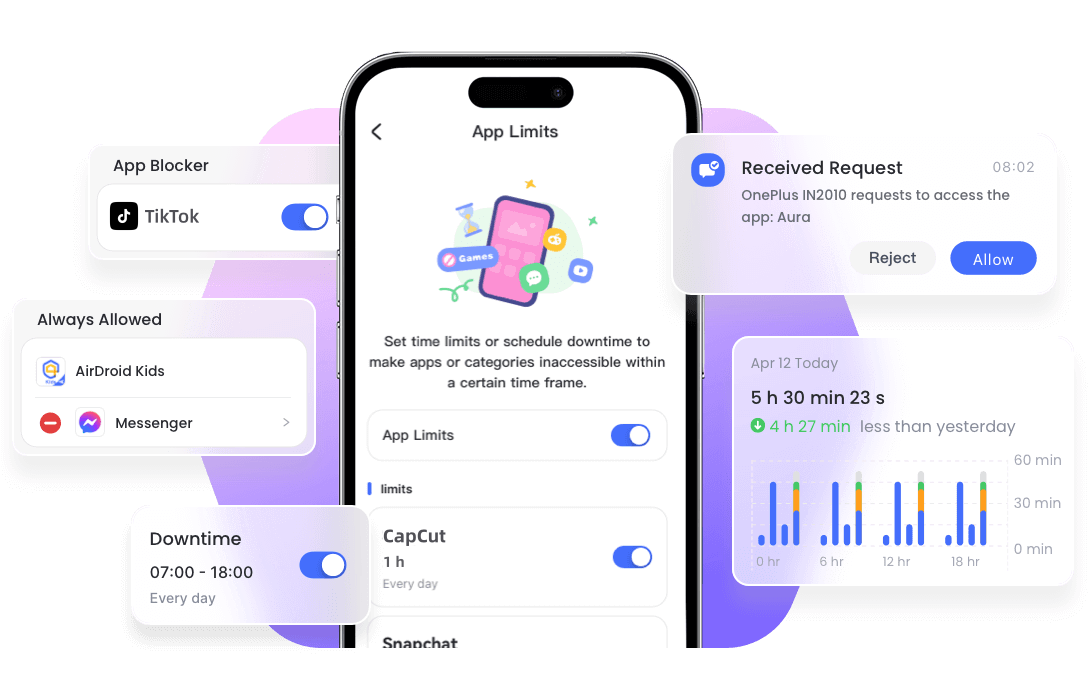
💡To limit CapCut usage and prevent editing during late-night hours, you can use tools like AirDroid Parental Control.
CapCut Alternatives for Kids
If your child loves the creative tools of CapCut, consider picking alternatives that come with fewer social components:
iMovie
Available on iPhone and iPad. It only offers simple drag-and-drop editing, limited music, and transitions without a social feed, making it a safer choice for younger users.
KineMaster
Designed for younger users aged 3+. It provides many AI editing tools and templates similar to CapCut.
Canva
While mainly known for graphic design, Canva also includes simple video editing tools and templates. Since many schools use it for creative projects, it has become a familiar option for kids.
InShot
Focuses on trimming, adding music, filters, and text. Unlike CapCut, it does not heavily recommend templates, which reduces exposure to problematic content.














Leave a Reply.