How to Avoid Others Getting into Your Snapchat Account
Snapchat is a popular app for sharing photos, videos and messages that disappear after viewing. While it offers fun and engaging features, it also attracts hackers and scammers.
Weak passwords, phishing, malware, unauthorized third-party apps, and exposed recovery information can compromise your account. Snapchat's Privacy Through Security guidance recommends using a unique password, verifying your email and phone number, turning on two-factor authentication, checking active sessions, and avoiding suspicious messages or unauthorized apps. Knowing these risks helps protect your account. So, we’ll break down the most common ways someone can get into your Snapchat and what you can do to prevent it.
Suspect Someone Logged into Your Snapchat?
If you suspect that someone has logged into your Snapchat account, take actions immediately. Snapchat's compromised account guidance says signs such as messages you did not send, login problems, or account information changes may indicate unauthorized access, so quick action matters.
1Change Your Password
If you can log into your account, changing your password can help cut off unauthorized access, especially when combined with checking active sessions and removing unfamiliar devices. Snapchat also recommends using a strong, unique password that you do not use for other accounts.
- Within the Snapchat app, you should select the profile icon located in the top-left corner.
- Tap the ⚙️ gear icon to access Settings.
- Scroll down and select 'Password.'
- Enter your present password and tap on Continue.
- Enter the new password twice and apply the changes.
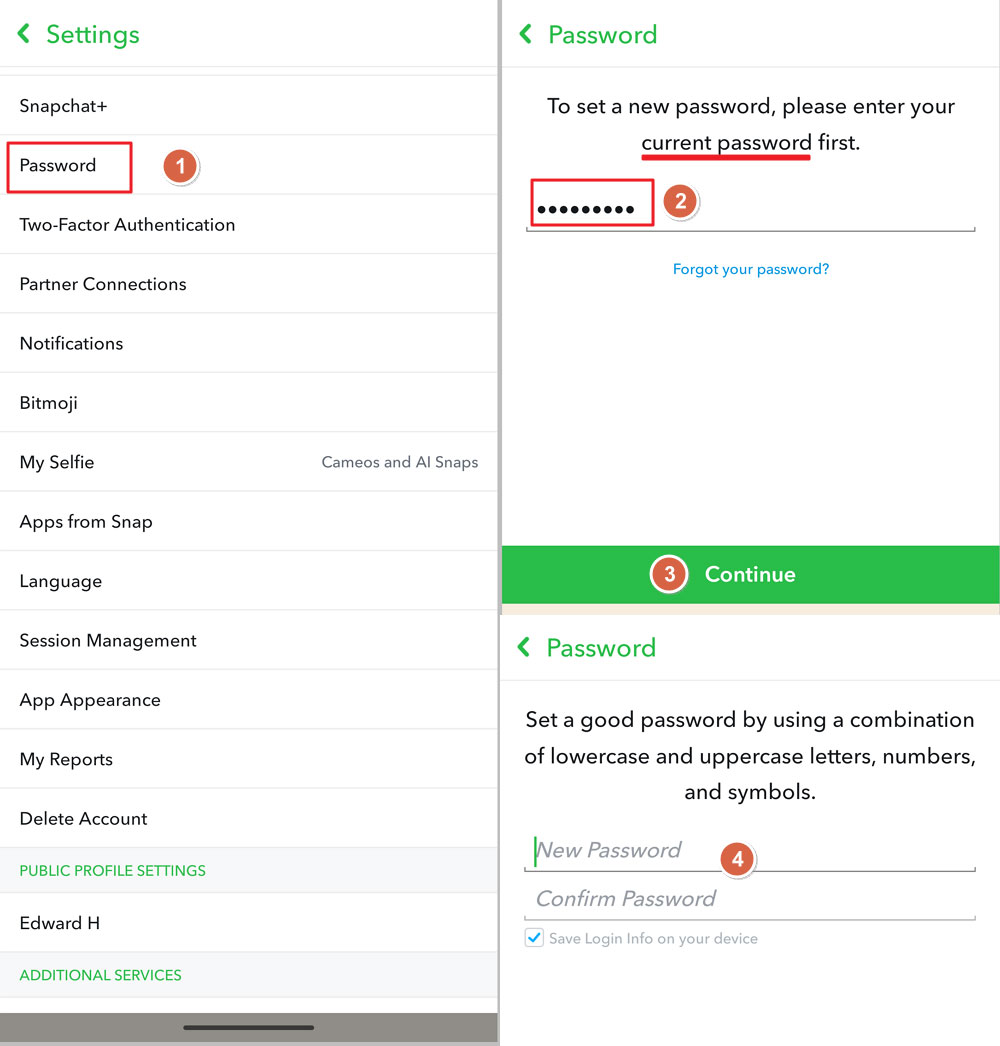
Note: Choose a strong, unique password that you haven't used elsewhere. If you reused your Snapchat password on another site, change it there too.
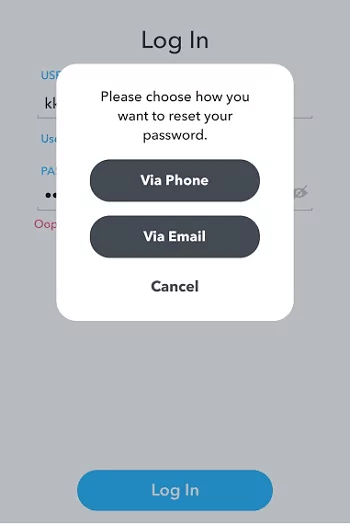
If you cannot access your account, attempt to reset your password first. Snapchat's compromised account guidance recommends using official recovery options when you cannot log in or suspect that someone else changed your account details.
- Go to the Snapchat Password Reset Page.
- Use your username or email address to reset your password using the prompts provided.
2Contact Snapchat Support
If you’re unable to regain access, submit a support request to Snapchat. This is especially important if your email, phone number, or password was changed without your permission, because Snapchat's official account recovery process is the safest route for compromised accounts.
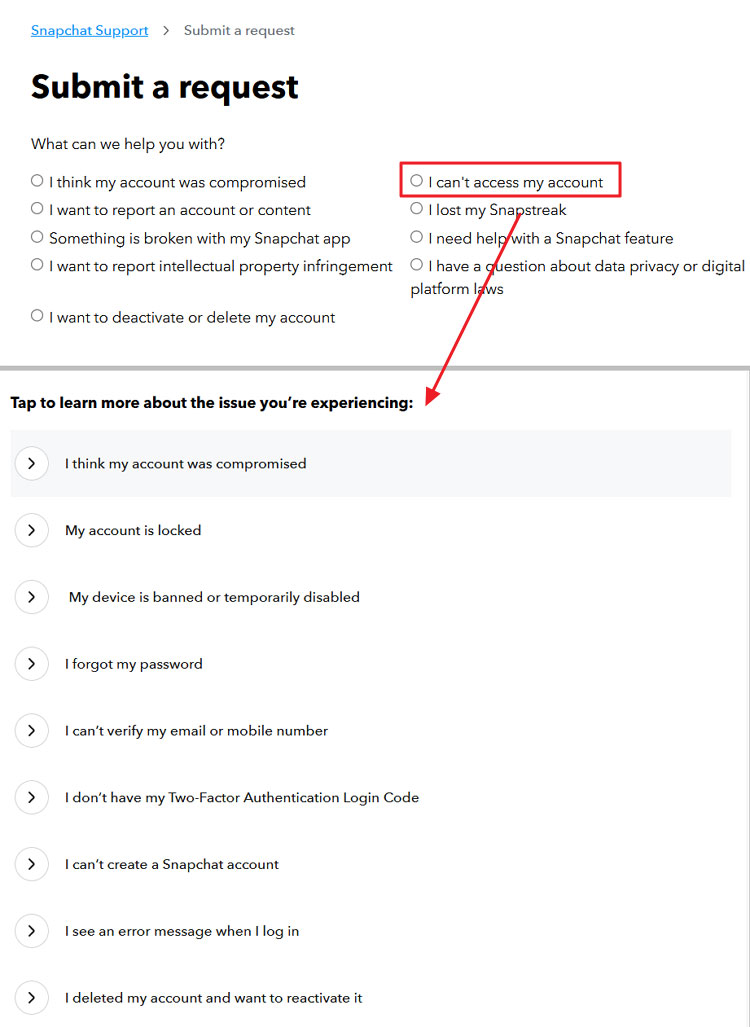
- Visit the Snapchat Support Page.
- Select 'I can't access my account' and follow the instructions to submit a support request.
3Scan for Malware
Malware on your device can capture sensitive information, including login credentials. Phishing links and fake login pages can also trick users into giving away passwords or verification codes; the FTC's phishing guidance explains that scammers often use deceptive messages, links, and websites to steal personal information.
- Use trusted antivirus or anti-malware software to run a full system scan on your device.
- Follow the software's recommendations to remove any detected threats.
Note: Regularly updating and scanning your device helps prevent future security breaches. Also avoid entering your Snapchat password on pages opened from suspicious links.
4Alert Friends and Contacts
You should notify your contacts and friends about the potential compromise of your account. This prevents them from falling victim to any malicious messages sent from your account. Snapchat's compromised account guidance lists messages you did not send as one possible warning sign, so telling friends not to click suspicious links from your account can reduce further harm.
- Use an alternative communication method (e.g., text message, email) to inform them of the situation.
- Advise them not to engage with any suspicious messages or links that may have been sent from your Snapchat account.
Signs Your Snapchat Account May Be Compromised
This part will list some signs that your Snapchat account may have been compromised or hacked. Snapchat's official compromised account page points to warning signs such as account activity you do not recognize, login issues, and changes to account information.
Unexpected Login Notifications
Snapchat monitors login attempts and can alert you if someone accesses your account from an unfamiliar device or location. If you get a sign-in alert without logging in, someone else might be trying to access your account. Snapchat's security guidance recommends paying attention to suspicious login activity and managing active sessions to keep control of your account.
Unusual Account Activity
Unauthorized users may use your account to send spam or phishing messages. They may also add unknown contacts. If you notice messages you didn't send or new friends added, your account may be compromised. This aligns with Snapchat's compromised account guidance, which treats activity you do not recognize as a warning sign that someone else may have accessed your account.
Authentication Issues
If you have to repeatedly re-log into the app, even when you haven't logged out, it could indicate that someone else is accessing your account.
This can happen when account access, sessions, or device trust changes unexpectedly. Persistent login prompts are a sign to check your account's security, especially your password, two-factor authentication, active sessions, and linked devices.
Associated Information Changes
Your email and phone number are vital for account recovery and security. Snapchat's security guidance recommends keeping your email address and phone number verified, because they help prove account ownership and recover access if something goes wrong. If you notice that these have been changed without your consent, it's a serious indication that someone else may have taken control of your account.
Unauthorized changes to this information can lock you out and make recovery challenging. Regularly reviewing and confirming your account details can help spot and promptly address unauthorized changes.
How to Avoid Others Getting into Your Snapchat Account
We can take steps to secure our Snapchat account proactively. Snapchat's Privacy Through Security guidance recommends a layered approach: use a unique password, verify your email and phone number, enable two-factor authentication, manage active sessions, and avoid suspicious messages or unauthorized apps.
1Enable Two-Factor Authentication (2FA)
Two-factor authentication strengthens security by adding an extra verification step during login. Snapchat's 2FA setup guide explains that an authentication app generates a temporary, single-use login code, so a password alone is not enough for a new login. After turning on 2FA, Snapchat also recommends creating a Recovery Code and storing it safely in case you lose access to your phone or authentication app.
- Open Snapchat and tap the profile icon in the top left corner.
- Tap the ⚙️ gear icon to access Settings.
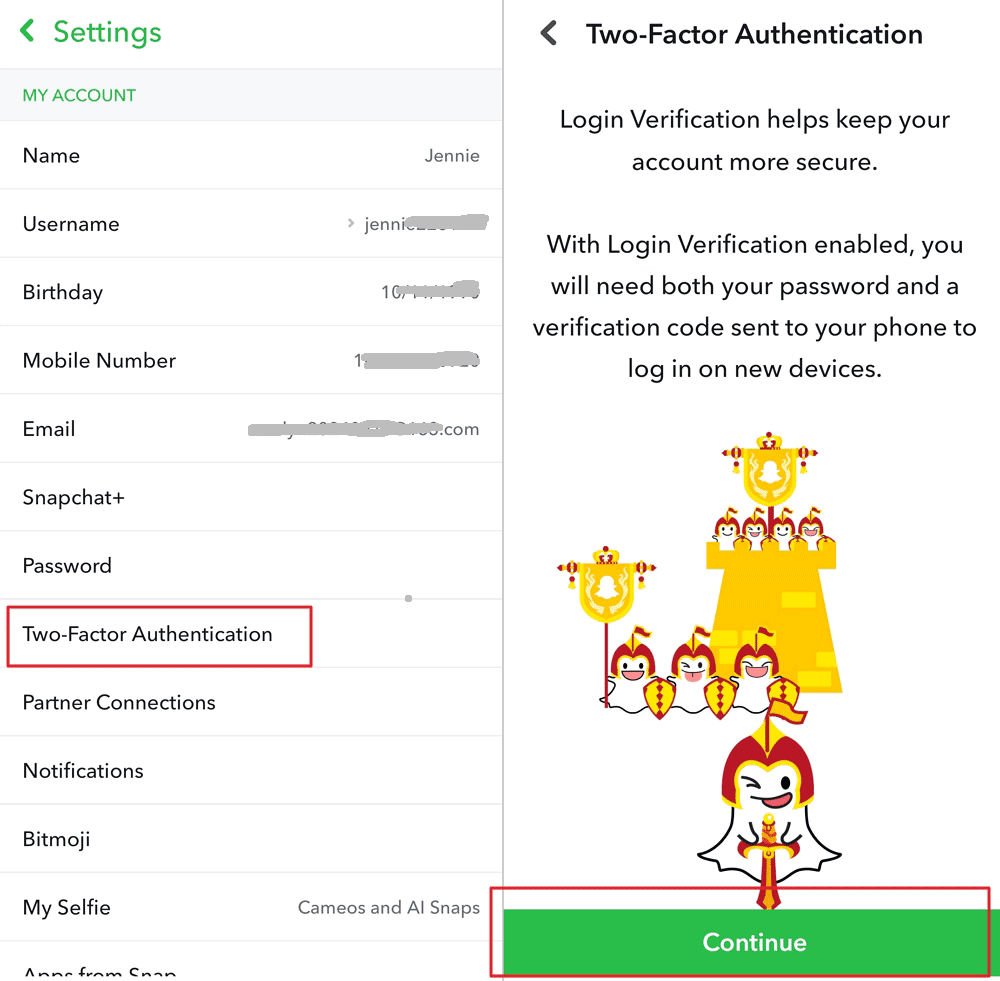
- Scroll down and select 'Two-Factor Authentication.'
- Tap 'Continue' and choose your preferred verification method: SMS or an authentication app.
- Follow the instructions to finish the setup.
2Check Active Sessions Regularly
Regularly reviewing devices logged into your account helps detect unauthorised access. Snapchat's session management guide explains that you can view devices and browsers currently signed into your account and log out of sessions you do not recognize.
- In Snapchat, tap your profile icon and then the ⚙️ gear icon for Settings.
- Scroll to 'Session Management' to view active devices.
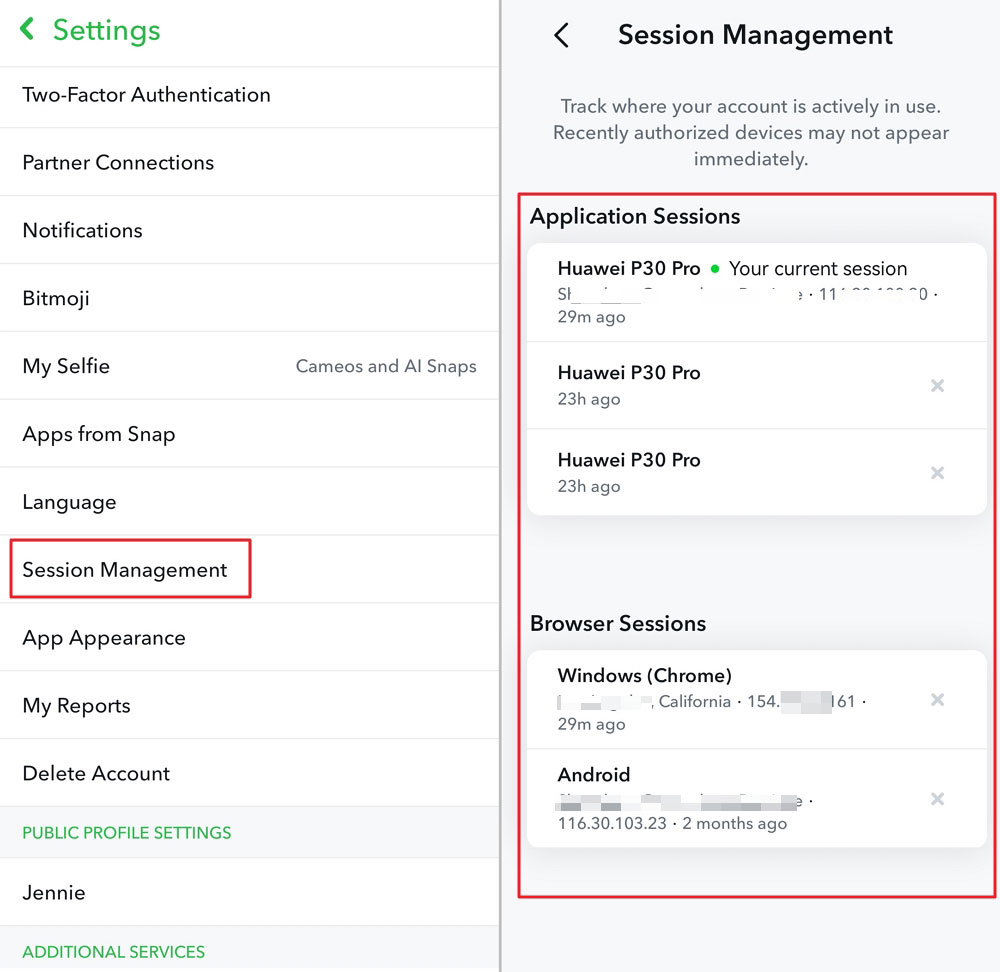

- If you notice unfamiliar devices, tap on them, then choose 'Log Out' to end the session.
3Verify Contact Information
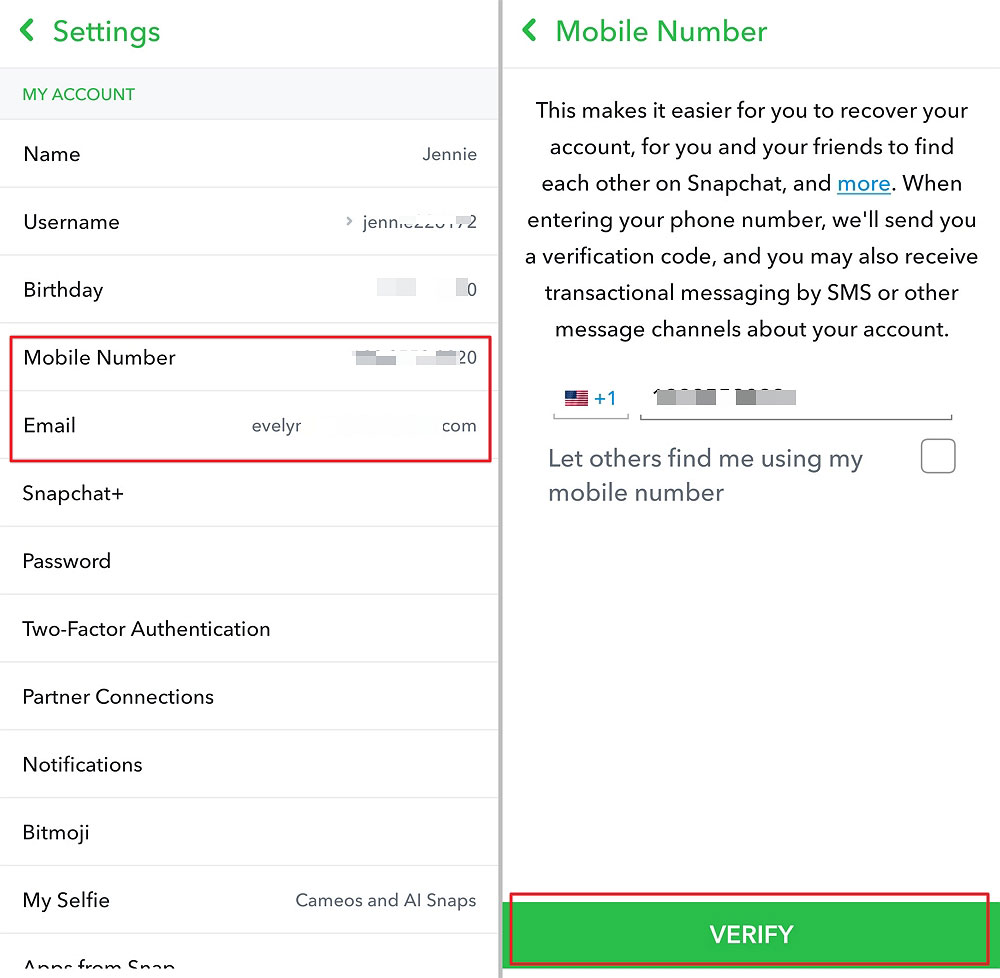
Ensuring your email and phone number are current is vital for account recovery. Snapchat's security guidance recommends verifying your email address and mobile number because they help secure and recover your account if you lose access or suspect compromise.
- Access Settings by tapping the ⚙️ gear icon.
- Under 'My Account,' select 'Email' and 'Mobile Number' to verify or update them.
- Follow the prompts to complete verification.
4Monitor Linked Devices
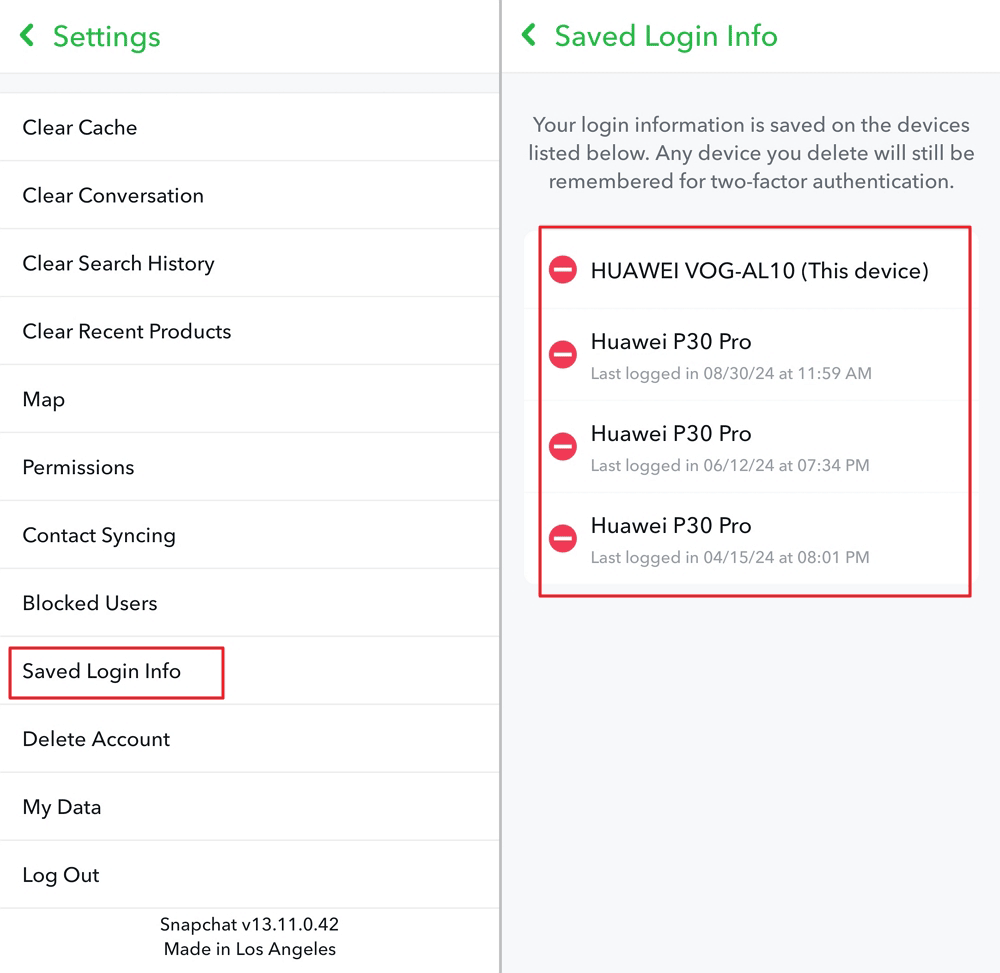
Keeping track of devices linked to your Snapchat account ensures only authorised access. If a device is lost, stolen, or no longer yours, Snapchat's linked device guidance recommends forgetting that device so it can no longer be used as a trusted device for your account.
- Navigate to 'Saved Login Info' in Settings.
- Review the list of devices and remove any unfamiliar by tapping the red icon.
5Adjust Privacy Settings
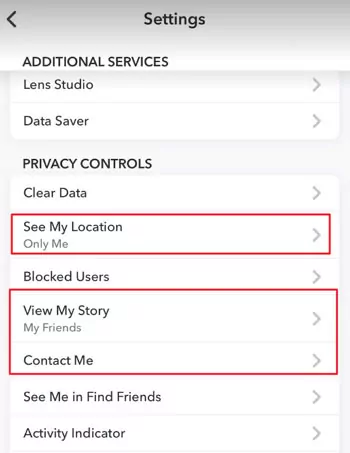
Customising privacy settings controls who can interact with you and view your content. This does not replace password security, but it reduces unwanted contact and social engineering risk. Snapchat's security guidance recommends reviewing privacy settings such as who can contact you, who can view your Story, and who can see your location.
- In Settings, scroll to the 'Privacy Controls' section.
- Configure options like 'Who Can Contact Me,' 'Who Can View My Story,' and 'See My Location.'

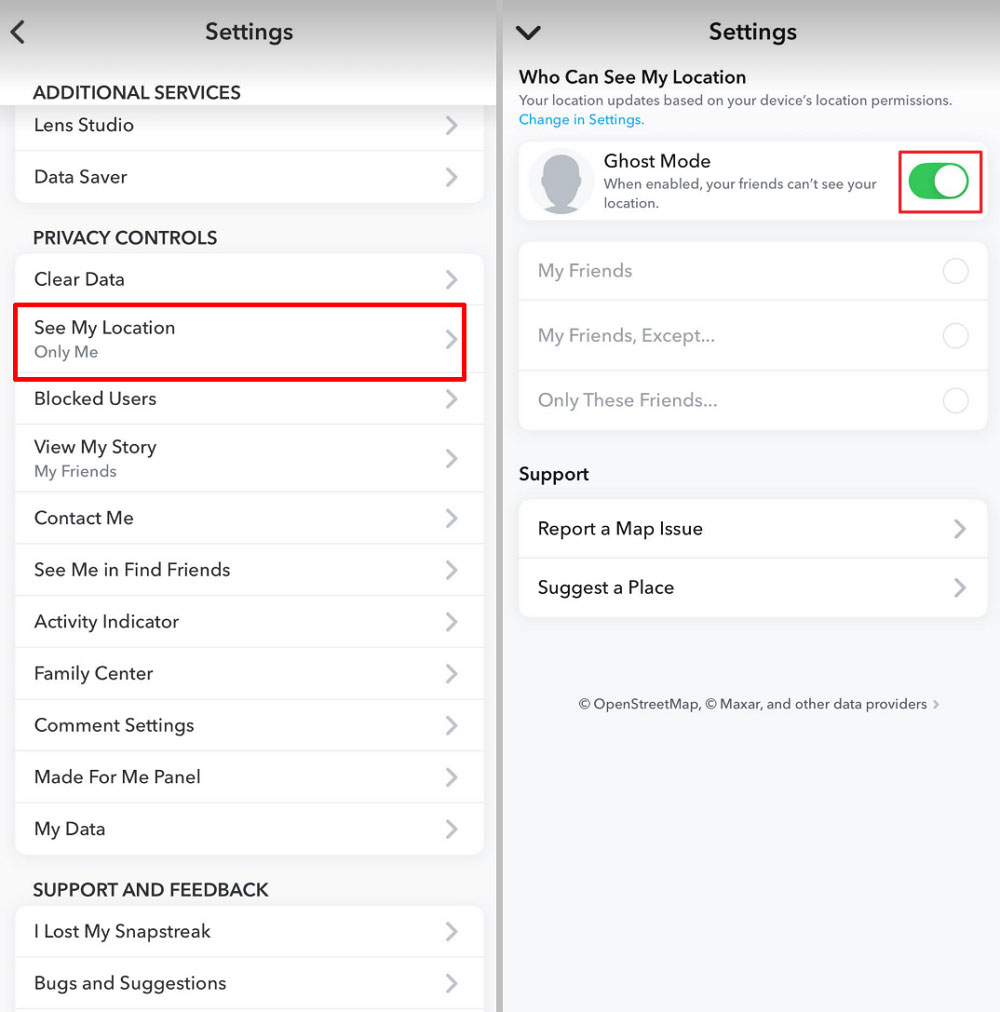
- Enable Ghost Mode to hide your location:
- Tap 'See My Location.'
- Toggle 'Ghost Mode' to on.
6Update the App Regularly
Keep Snapchat updated to have the latest security patches and features. App updates can include security fixes, login improvements, privacy controls, and protections against known vulnerabilities.
- For iOS:
- Open the App Store.
- Click your profile icon and scroll to available updates.
- Find Snapchat and tap 'Update' if available.
- For Android:
- Open the Google Play Store.
- Tap the menu icon and choose 'My apps & games.'
- Locate Snapchat and tap 'Update' if available.
7Report Suspicious Activity
If you encounter inappropriate content or behavior, report it to Snapchat. Reporting suspicious activity is especially important if someone sends phishing links, impersonates Snapchat Support, asks for login codes, or uses your account to contact other people. Snapchat's security guidance warns users to avoid suspicious messages and only use official Snapchat channels for account support.
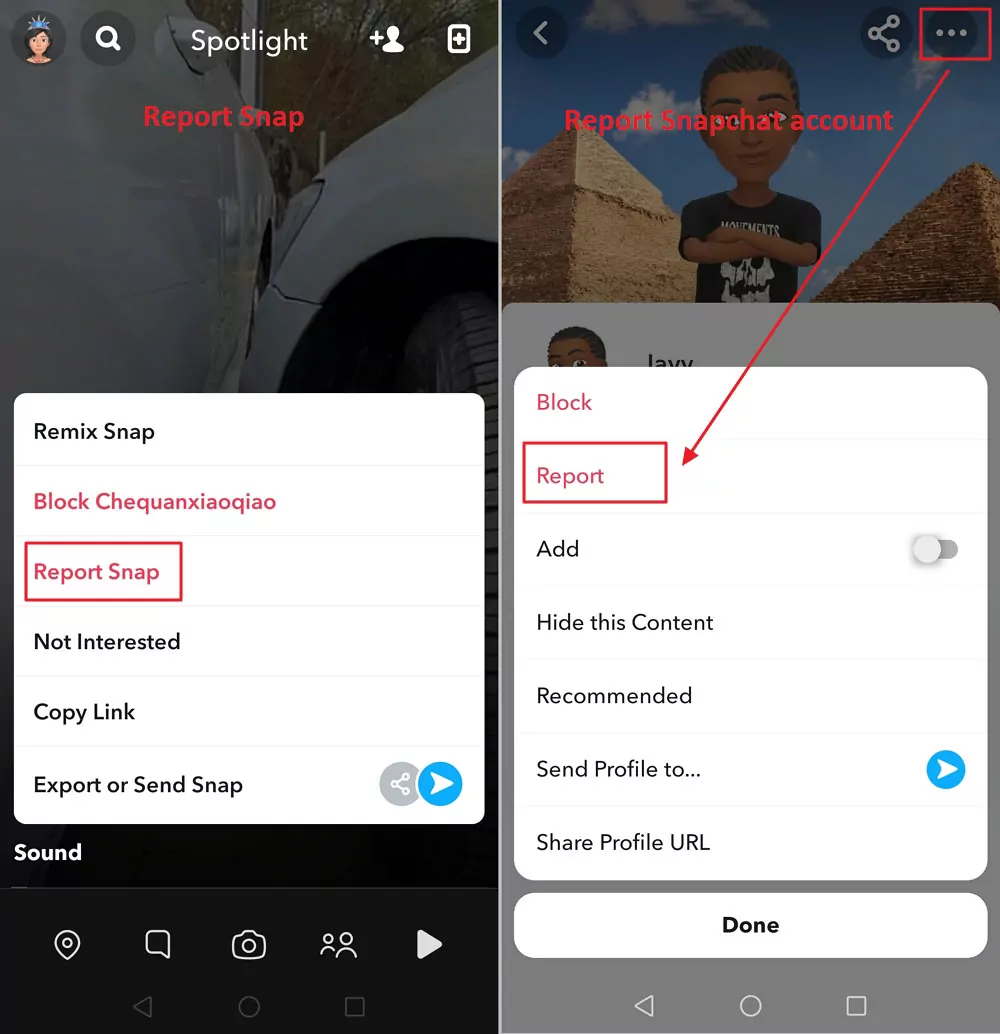
- Tap the three dot icon with the Snap, or account you wish to report.
- Tap 'Report' and follow the prompts to specify the issue.
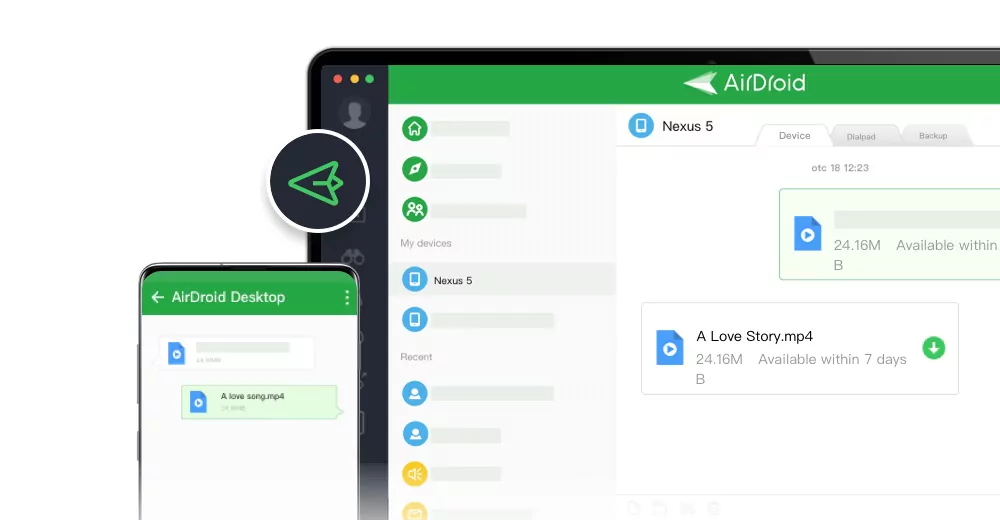
Worried your kid's account might get targeted? Try AirDroid Parental Control to monitor children's Snapchat activity —catch unknown contacts or weird messages as soon as they pop up.
Wrapping Up
Unauthorized access often starts with weak passwords, phishing messages, exposed login codes, saved sessions, or unreliable third-party apps. Snapchat's third-party app guidance warns that unauthorized apps and plugins can put your account and your friends' accounts at risk. We can protect our Snapchat account by setting strong, unique passwords, turning on two-factor authentication, checking sessions and linked devices, and avoiding suspicious messages and unreliable apps.
Regularly check your account for suspicious activity to ensure safety and enjoyment.
FAQ
List of Sources
- Snapchat Account Security Basics
- Snapchat Privacy – Privacy Through Security (https://values.snap.com/privacy/privacy-through-security)
- Snapchat Support – What Steps Can I Take to Help Protect My Security and Safety on Snapchat? (https://help.snapchat.com/hc/en-us/articles/7012304746644-What-steps-can-I-take-to-help-protect-my-security-and-safety-on-Snapchat)
- Two-Factor Authentication, Recovery Codes, and Devices
- Snapchat Support – How Do I Set Up Two-Factor Authentication (2FA) on Snapchat with an Authentication App? (https://help.snapchat.com/hc/en-us/articles/7012345351700-How-do-I-set-up-Two-Factor-Authentication-2FA-on-Snapchat-with-an-authentication-app)
- Snapchat Support – How Do I Use a Recovery Code for Snapchat? (https://help.snapchat.com/hc/en-us/articles/7012350903188-How-do-I-use-a-Recovery-Code-for-Snapchat)
- Snapchat Support – How Do I Manage the Devices Where I’m Currently Signed Into My Snapchat Account? (https://help.snapchat.com/hc/en-us/articles/23515601788948-How-do-I-manage-the-devices-where-I-m-currently-signed-into-my-Snapchat-account)
- Snapchat Support – How Do I Forget a Linked Device on Snapchat? (https://help.snapchat.com/hc/en-us/articles/7012350395412-How-do-I-forget-a-linked-device-on-Snapchat)
- Compromised Accounts, Phishing, and Risky Access
- Snapchat Support – My Account Is Compromised (https://help.snapchat.com/hc/en-us/articles/7012305621908-My-account-is-compromised)
- Snapchat Support – Can I Use Third-Party Apps or Plugins with Snapchat? (https://help.snapchat.com/hc/en-us/articles/7012343686932-Can-I-use-third-party-apps-or-plugins-with-Snapchat)
- FTC Consumer Advice – How to Recognize and Avoid Phishing Scams (https://consumer.ftc.gov/articles/how-recognize-and-avoid-phishing-scams)









Leave a Reply.