AirDroid Parental Control
24/7 Kids' Guardian via App & Web
- 👀Live surroundings and location tracking
- 🔞Content Monitoring and App/Web Blocking
- ⚠Instant alerts for online risks and geofences
- ⌛Screen time control and monitor
How to Check if WhatsApp Web Is Active?
In a recent US report, 63% of users believe WhatsApp is immune to breaches, including Web session risks. Thus, most people use WhatsApp Web without taking caution to check back for active devices.
Unfortunately, not logging out on a shared device is a major way strangers access private chats. And you might not see the consequences coming.
Here is how to check if WhatsApp Web is active or not, and stop unauthorized access, whether you forgot or it’s done behind your back.
3 Core Steps: Check WhatsApp Web Activity in 60 Seconds
As mentioned already, here are three simple steps to confirm your WhatsApp Web activity in just 60 seconds.
1. Open WhatsApp on Your Main Phone & Find "Linked Devices."
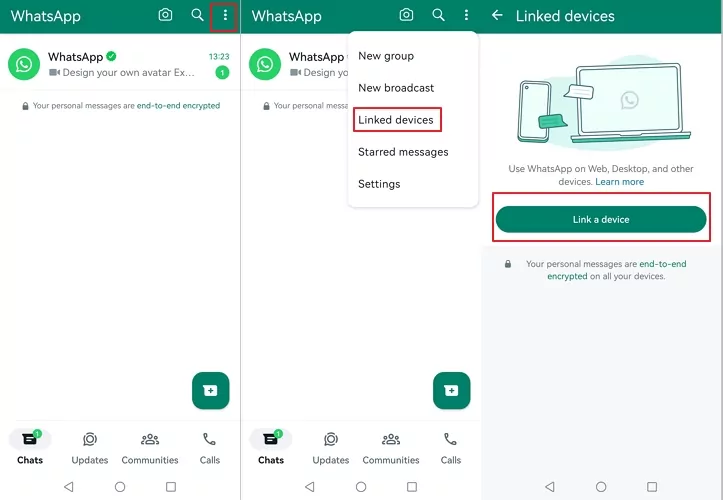
- For Android: Tap the three-dot menu in the top-right corner, select Linked Devices.
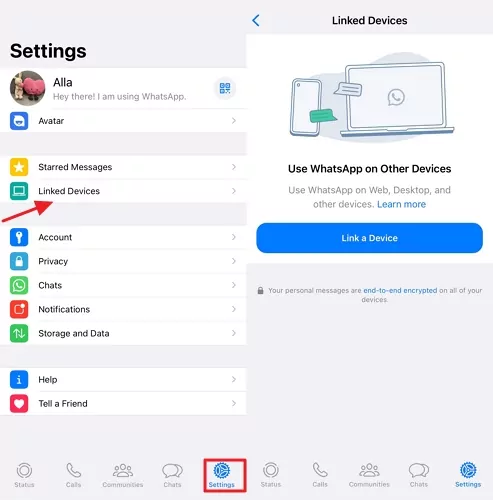
- For iPhone: Go to the Settings tab in the bottom right. Tap Linked Devices.
If the menu feels slow, just close and reopen WhatsApp—it loads faster the second time.
2. Interpret the Device List to Spot Activity
- You will see the devices' names and last active time when the Linked Devices list appears.
- Scan for any active device you cannot recognize or haven’t used recently
- Don’t overlook anything strange.
3. Log Out Unauthorized Devices Instantly
- Just tap the suspicious device → “Log out”.
- Or you can tap “Log out of all devices” at the top to kick everyone out instantly and start afresh.
Quick Fixes for Common Issues
There are common issues related to WhatsApp Web sessions that people encounter. Here are the quick fixes you can employ.
1. Can’t Find "Linked Devices."
One common issue faced when checking WhatsApp Web activity is not finding "Linked Devices" when the three-dot menu is clicked. Well, don’t panic.
Quick Fix
- Exit WhatsApp and reopen it.
- Make sure you’re in the main WhatsApp screen (not inside a chat).
- If still missing, then you may need to update. Go to your phone's app store (Google Play or the App Store), search for WhatsApp, and update.
- Once updated, the feature should come up.
2. No Device List, But You Suspect Activity
The "Linked Devices" list can be completely empty. Yet, you have a gut feeling or noticed unusual activity (messages being marked as read when you didn't open them). Really, the compromise might be deeper than a simple web login. Someone might be using a cloned session.
Quick Fix
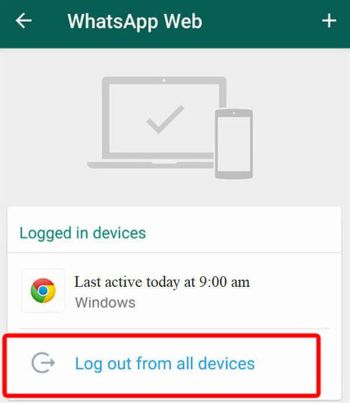
- In the "Linked Devices" menu, tap the option that says "Log out from all devices."
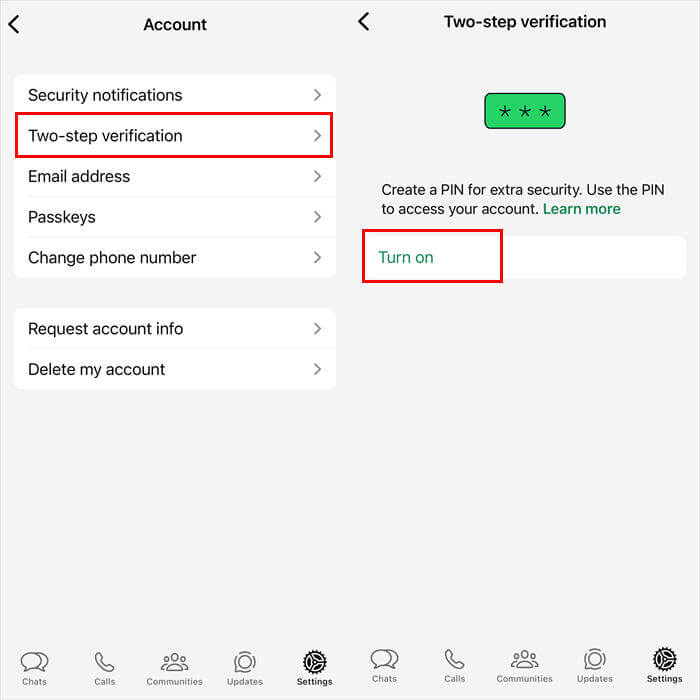
- Enable Two-Step Verification (Settings > Privacy> Two-Step Verification).
- Review your phone for any unauthorized apps that might be running silently in the background and uninstall them.
3. Still Showing Active After Logging Out
While forcing a complete log out from all devices, you may discover that the devices’ names pop back up again, or the timestamp doesn't change after a few minutes. It could be a connection issue. Someone close (classmate, sibling, etc) may be re-scanning the QR code fast.
Quick Fix
- Turn on airplane mode for 45 seconds or restart your phone.
- If the device is still listed, go back and log out all linked devices one by one.
- Enable two-step verification (Settings > Privacy> Two-Step Verification> Set a PIN). No PIN = no new logins.
4. Can’t Link a New Device (Error: "Unable to Connect")
One challenge people encounter while scanning the QR code to set up WhatsApp Web is the "Unable to Connect" error. This usually means there's a problem with the network or the phone's ability to sync data.
Quick Fix
- Make sure the phone has a strong internet connection
- Close WhatsApp completely and reopen.
- Check that the time and date settings on your phone are correct
- Refresh the QR code (click the refresh icon on the web page).
Pro Tips to Prevent Unauthorized WhatsApp Web Activity
Now that you have resolved the issues you may be facing, here are some general tips that will ensure you never face unauthorized access again and keep your chats private.
- Enable Two-Step Verification
2SV is your strongest defense against unauthorized access or complete account takeover. This feature requires a unique, six-digit PIN.- Go to Settings > Privacy> Two-Step Verification > Enable.
- Set a 6-digit PIN.
- Add an email for recovery.
- Regularly Check & Log Out Unused Devices
Make it a habit to periodically visit "Linked Devices" in your WhatsApp settings. Open Linked Devices > kick out anything you don’t recognize or haven’t used in weeks. Takes 10 seconds. - Use Browser Privacy Mode
When using WhatsApp Web on a shared device, always open an Incognito/Private window (Chrome: Ctrl+Shift+N). This prevents the device from saving your login information. - Avoid Public Wi-Fi for Sensitive Chats
Public Wi-Fi (mall, café, school) can be porous. It lets hackers spy on or fake QR codes. So, for private talks, photos, or voice notes, switch to mobile data or wait till you’re on trusted Wi-Fi. - Enable Auto-Lock on WhatsApp Web
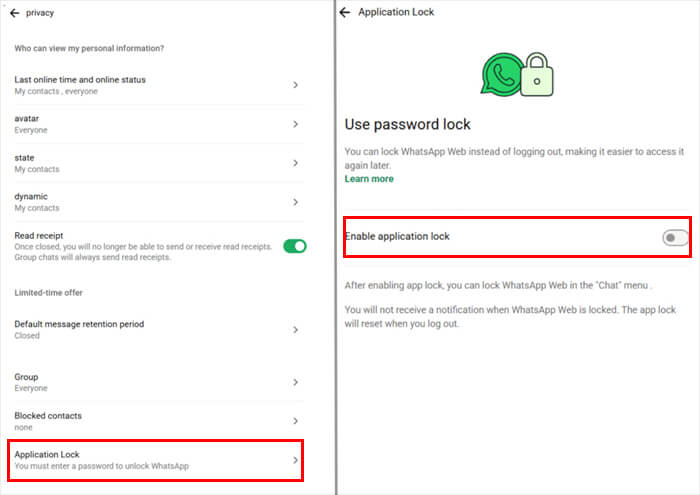
With the Auto-Lock feature, your open WhatsApp Web session will automatically be locked if you step away, preventing anyone nearby from accessing your private conversations. Go to WhatsApp Web, click Settings (bottom-left) < Privacy < Application Lock. Check the box to enable, set a strong 6-digit PIN, and pick auto-lock time.
How Parents Can Monitor WhatsApp Use and Keep Kids Safe
Let’s keep this in perspective. As a parent, utilizing AirDroid Parental Control for WhatsApp isn't about spying. It is about guiding your child through a world where 37% of kids face cyberbullying, and strangers lurk in group chats.
WhatsApp basically relies on your smarts, settings, and tools. Here's how to stay one step ahead while building trust.
1. Chat Frequently: Chat frequently about online risks and red flags, including strangers, cyberbullying, and inappropriate content. Explain that your goal is their safety, not to invade their privacy. This makes them more likely to come to you with problems.
2. Explore the “Linked Devices” Feature Together: Make "Linked Devices" reviews a part of your weekly chat. This builds bonding and allows you both to spot and remove any suspicious logins together.
3. Use Monitoring Tools: Consider using a reputable third-party Parental Control App (like AirDroid Parental Control). AirDroid scans encrypted chats for red flags—bullying, self-harm, or predators— and alerts parents to specific, concerning keywords and explicit content.




4. Set Privacy Barriers: Leverage the built-in privacy settings to prevent unwanted contacts from adding your child to inappropriate group chats.
- Hide Personal Details: Go to WhatsApp Settings > Account > Privacy. Here, you can restrict who can see their "Last Seen," "Profile Photo," and "Status."
- Restrict Group Invites: Go to WhatsApp Settings > Privacy > Groups and change the setting from "Everyone" to "My Contacts" or "My Contacts Except..."
- Silence Strangers: Go to WhatsApp Settings > Privacy > Calls to prevent unsolicited calls from numbers not saved in their contacts.
Final Remark
Evidently, staying safe on WhatsApp isn't about some complex tech skills—it’s about simple, consistent habits. By regularly checking your "Linked Devices," using two-step verification, and logging out on shared computers, you build a powerful digital shield.
For parents, combining these technical checks with open conversations and AirDroid is the ultimate defense. Without doubt, your privacy and your family's is worth that small investment. Take the bold step to start today if you haven't. Stay vigilant and keep your chats truly private.











Leave a Reply.