AirDroid Parental Control
24/7 Kids' Guardian via App & Web
- 👀Live surroundings and location tracking
- 🔞Content Monitoring and App/Web Blocking
- ⚠Instant alerts for online risks and geofences
- ⌛Screen time control and monitor
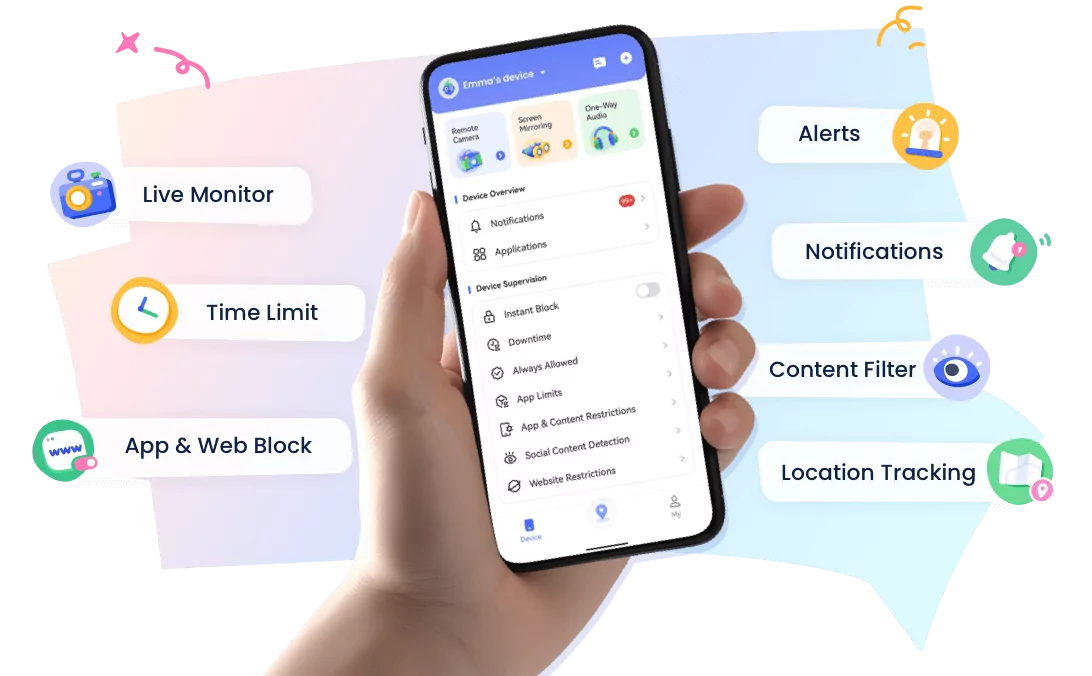
Bark vs Family Link: Which Is Better for Your Family?
I tested both Bark and Google Family Link to see which one actually works better for parents. The short answer is:
- Bark is best for families with teens, or parents specifically worried about online risks, such as cyberbullying, depression, etc.
- Family Link is a free option for families with younger children (under 13) using Android devices.
In the following parts, I'll break down how they compare in real-world use and what each one does well based on my hands-on test.
Features Comparison: Which Is the Winner?
| Features | Winner | Why |
|---|---|---|
| Content Monitoring | Bark | Family Link doesn’t offer this feature. |
| App Blocking & Limits | Family Link | Built-into Android OS, it offers stronger limits. |
| Screen Time Controls | Tie | Both have similar features. |
| Location Tracking | Bark | Bark adds driving + check-ins. |
| Web Filtering | Bark | Bark works across browsers with more flexibility. |
| Communication Controls | Family Link | The Bark app doesn’t offer this feature. |
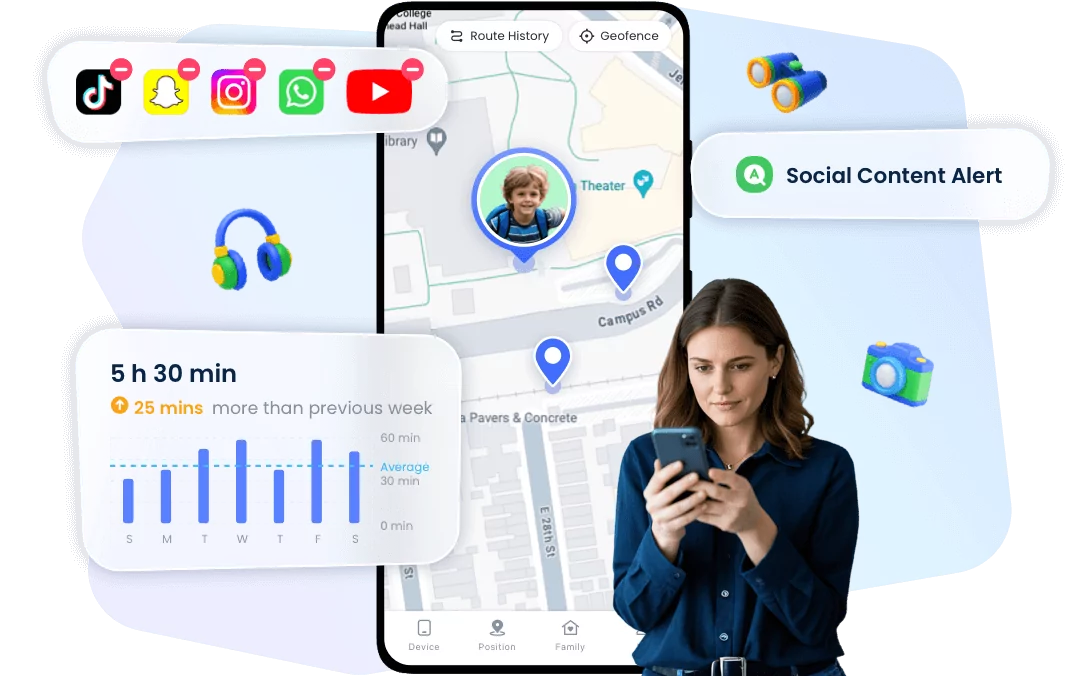
1 Content Monitoring
This is the Bark's "Superpower," making it the clear winner.
Bark:
Automatically scans the text content of SMS and 30+ social apps for bullying, depression, inappropriate or other harmful content. Once a risky behaviour is detected, it sends alerts to parents and provides related context for reviewing.
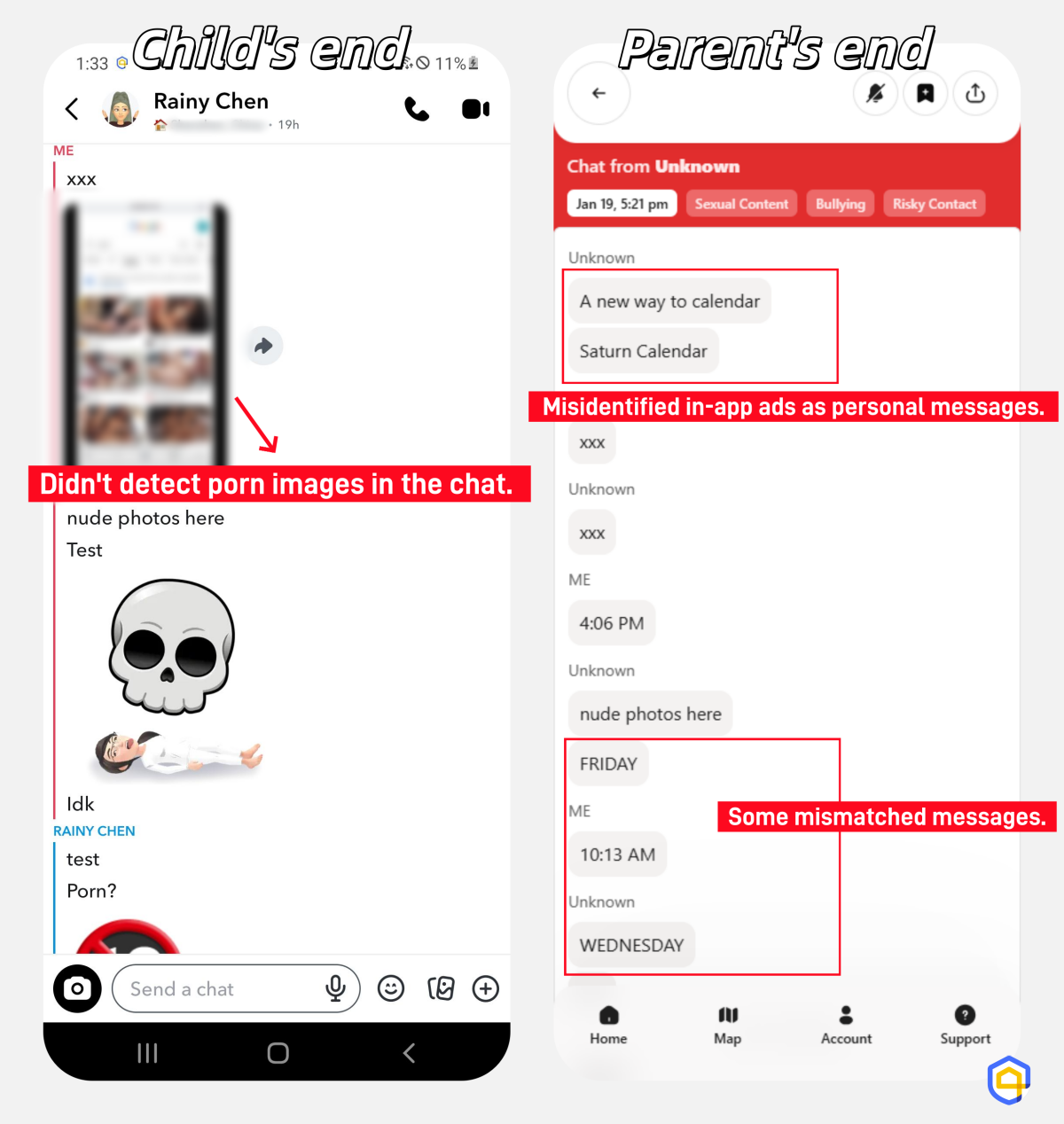
My tests showed that Bark's social content monitoring works well to catch risky behaviours from my child's Snapchat. However, it struggled to scan images in social chats and sometimes captured the wrong messages.
Also, it can monitor emails across Gmail and iCloud as well as files (documents, images) stored in Dropbox, Google Drive, and OneDrive through accounts.
Google Family Link:
Compared to Bark, it cannot monitor the content of SMS, WhatsApp, or emails. It only knows when these apps were used and offers "blocking" controls.
2 App Blocking & Limits
Being developed by Google, Family Link is natively integrated into the Google Ecosystem, so it offers better app controls than Bark. Additionally, Family Link allows setting app time limits, which Bark lacks.
Google Family Link:
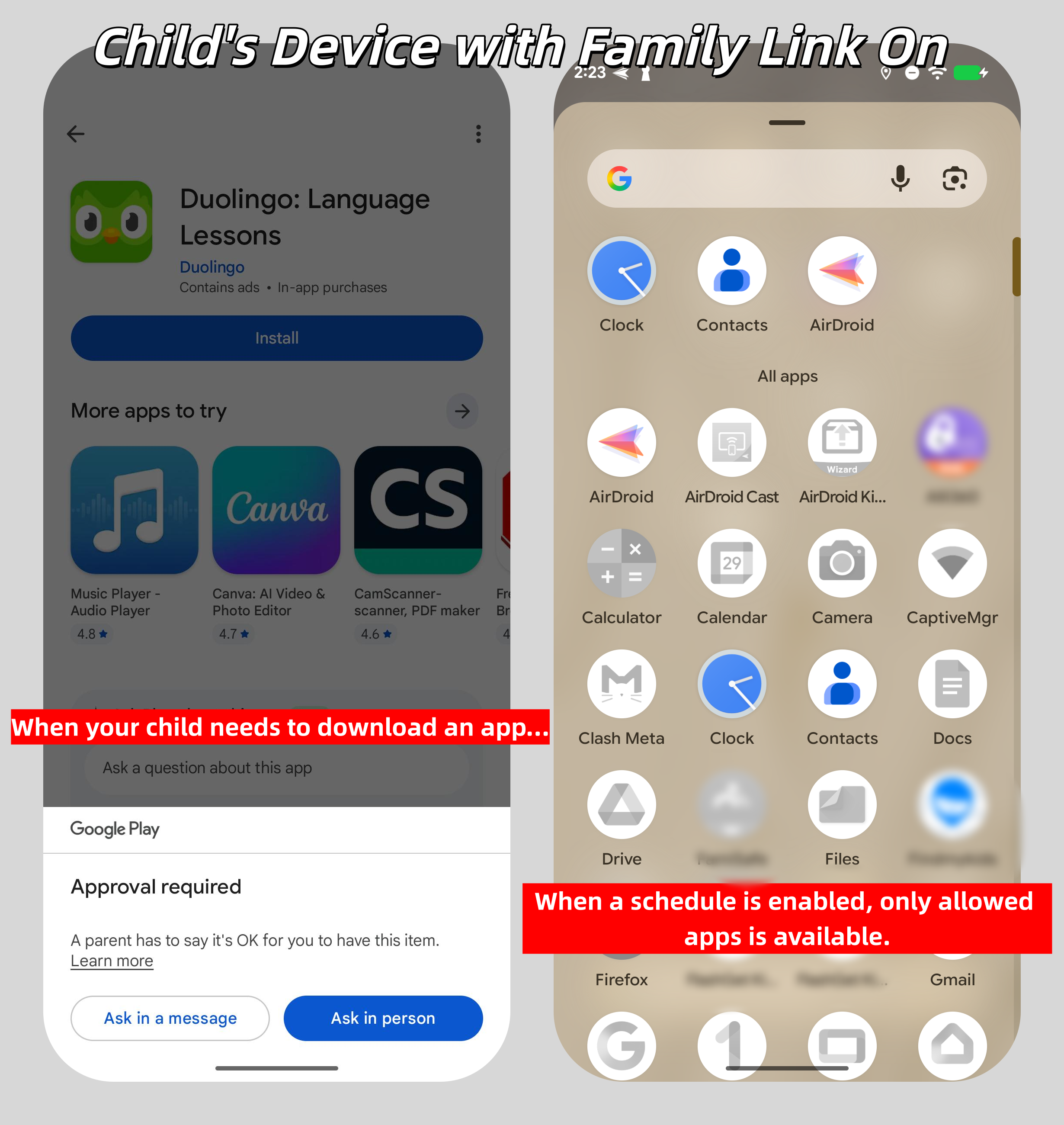
First, Family Link controls app downloads. Every time your child tries to download an app from the Play Store, they require your approval. This is great for preventing risky apps before they reach your child's phone.
Secondly, it supports blocking an app with one click or setting time limits. When the app is blocked or time runs out, the app icon immediately disappears from your child's phone.
Lastly, it comes with "Bedtime" and "School Time" schedules, during which only allowed apps are available.
Bark:
Bark is designed to block apps once they are installed. You can block apps by a category or a individual one. Besides, Bark allows you to set schedules for when certain apps are blocked, such as social apps, which are not allowed during school or bedtime.
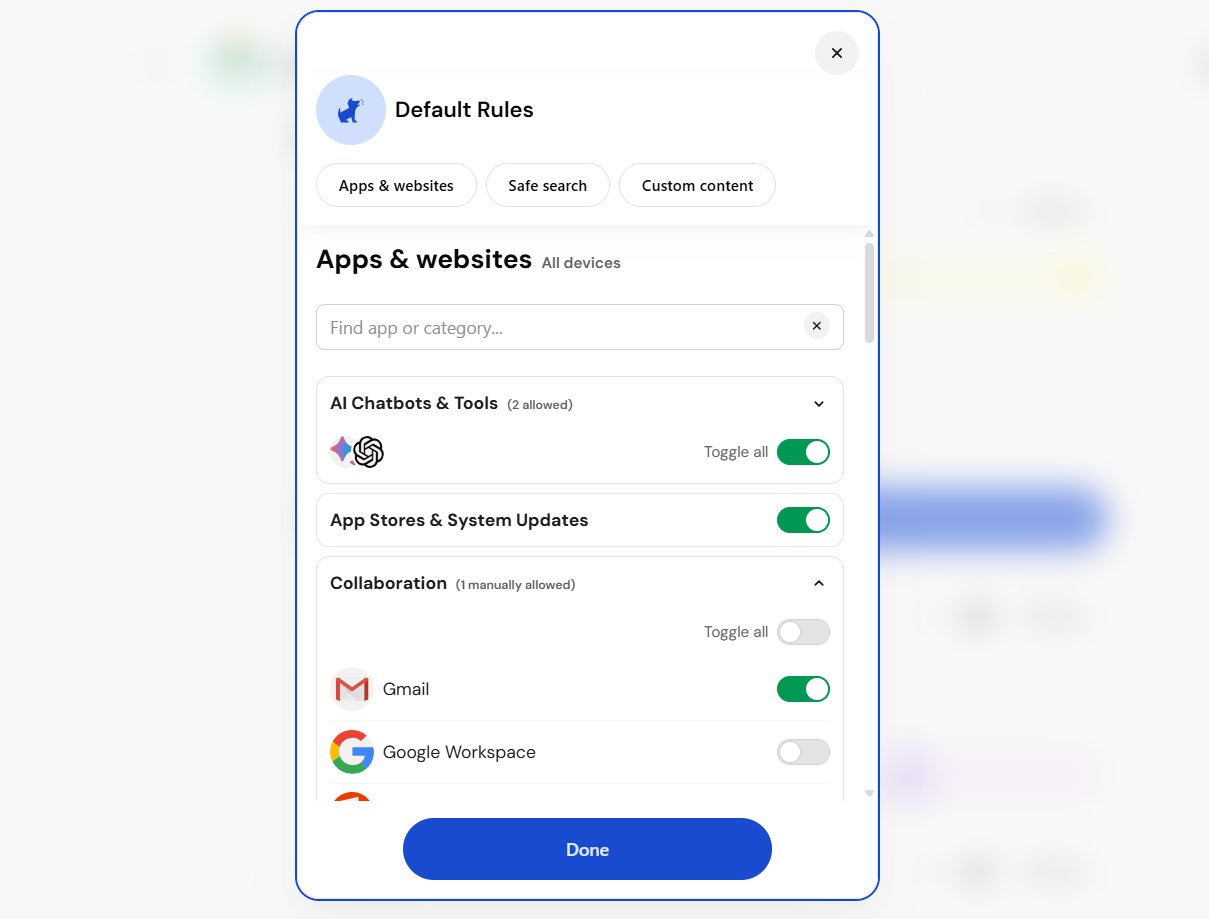
Though apps can be blocked, there is a severe delay during my testing.
3 Total Screen Time Controls
Both Family Link and Bark allow forcing SafeSearch and YouTube restricted mode. Also, they offer a button to lock the device (Family Link) or pause the Internet access (Bark).
Google Family Link
Since it is built directly into the Android OS, it is incredibly powerful. You can set "Daily Limits" (e.g., 3 hours by default). Once the time is reached, your child's device becomes a brick except for emergency calls.
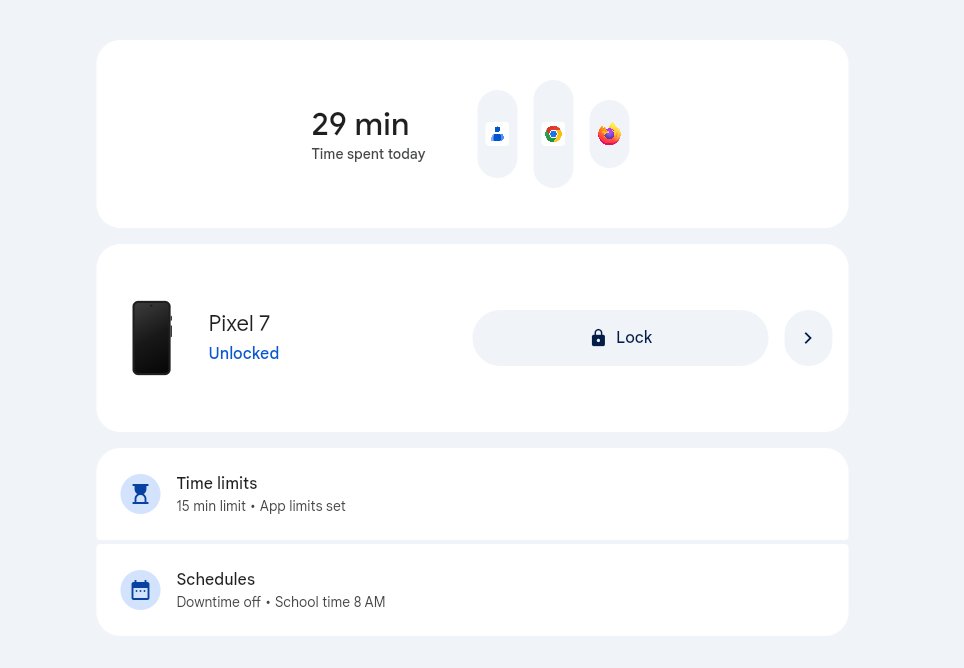
Bark:
Though Bark doesn't support setting a total daily screen time usage, it has 3 routines to let you control which apps or websites are allowed or blocked during bedtime, school time, or free time.
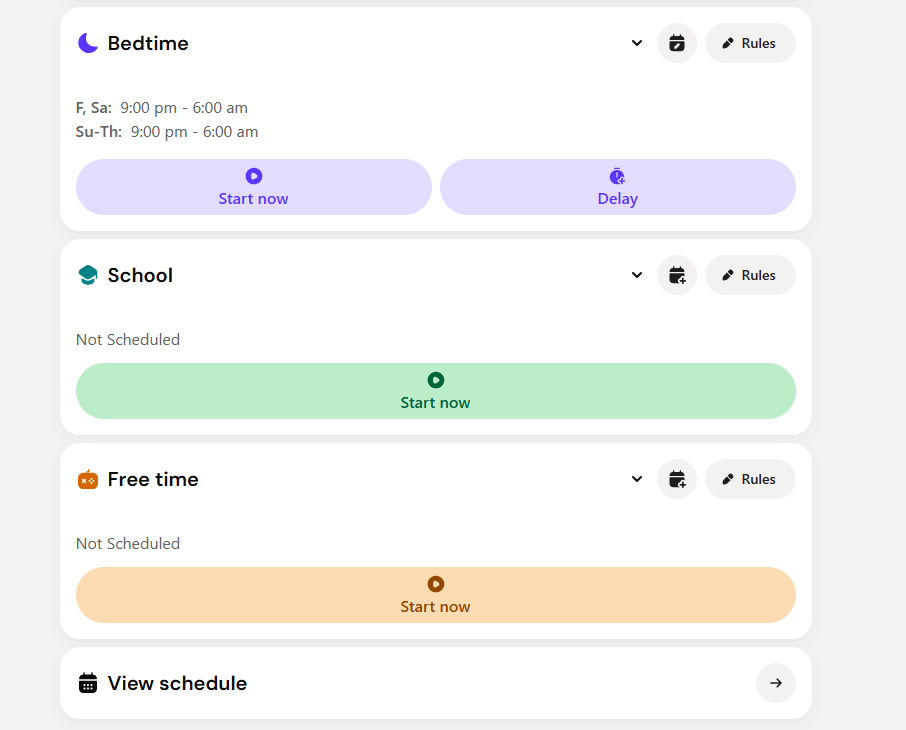
4 Location Tracking
Both apps offer real-time GPS tracking and geofencing. That is, you can see your child's live location on a map and even get alerts when your child arrives at a designated place.
They offer very similar location-based features, so it's hard to pick a clear winner in this round. But, Bark still wins for its extra "driving reports" and "check-in" features:
- For parents of teens who are starting to drive, Bark provides a game-changing report, which tracks the top speed reached during a trip and the total distance travelled.
- And its "Check-In" feature allows kids to quickly share their current location with parents. This makes them more proactive.
5 Web Filtering
Google Family Link:
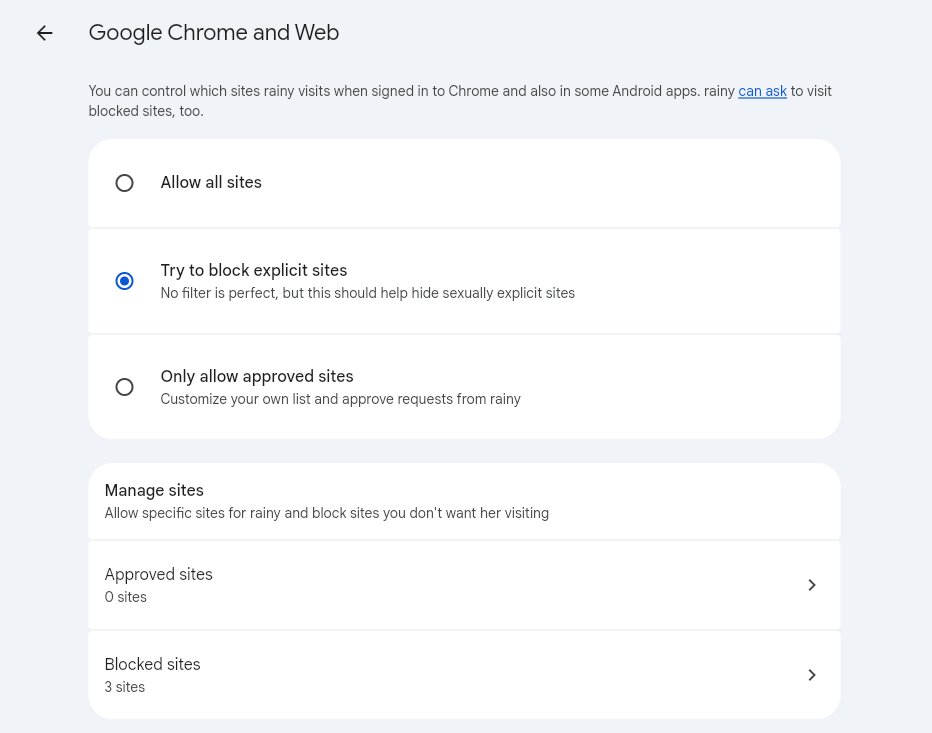
Its web filtering works exclusively within the Google Chrome browser. That said, when I searched for "porn" on my child's Firefox or other third-party browsers, the inappropriate content went through.
With Family Link, you have three settings: "Allow all," "Try to block mature sites," or "Only approved sites," which is less customizable or flexible than Bark.
In other words, if you want to block all gaming sites, Family Link struggles to do so unless you manually type in URLs to block.
Bark:
It offers 19 specific app and website categories you can block for your kids, such as "Streaming Services," "Online Gaming," or "Social Media."
This is far more granular. Additionally, you can choose specific times for blocking websites, ensuring they are unavailable across all browsers, which Family Link cannot do.
6 Communication Controls
This is where Google Family Link wins!
Google Family Link:
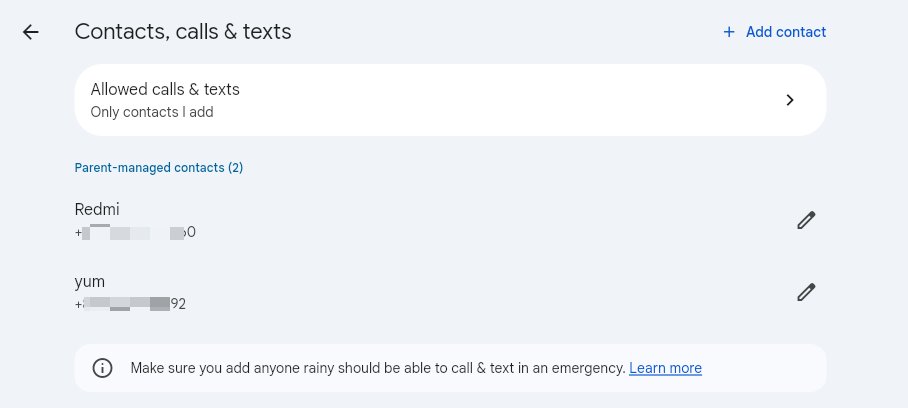
For children under 13, Family Link allows you to manage their contact list directly. This means you can add a new friend or trusted person to their contacts. Also, you can limit who can call or text your child. This greatly prevents strangers or predators from contacting your child.
Bark:
In contrast, the Bark app itself cannot block calls or texts unless your child is using the Bark Phone.
Setup Experience & Ease of Use
In this round, I compared how long the two apps take from "Download" to "Protected," and whether you need a guide to get everything working.
Google Family Link:
Since Family Link is built into the Android OS, the setup is often part of the phone's initial setup process.
But before that, you need to create a Google account for your child and link it to your Google account. Then, log in to their Google account, and the supervision can be fully.
- Time Required: 2-10 minutes, depending on whether your child's Google account was linked to yours.
- Complexity: Low. It feels like logging into email.
Bark:
Bark is much more complex. You have to download the Bark and Bark Kids app on your and your child's device at first. Then, connect both devices through a binding code.
Because it monitors content and several apps, you have to allow the Android device to download apps from unknown sources and grant it permissions. Additionally, for monitoring emails, you also need to connect your child's account via its credentials.
- Time Required: 8–20 minutes
- Complexity: High.
Anti-bypass Protection: Can Kids Get Around It?
Google Family Link
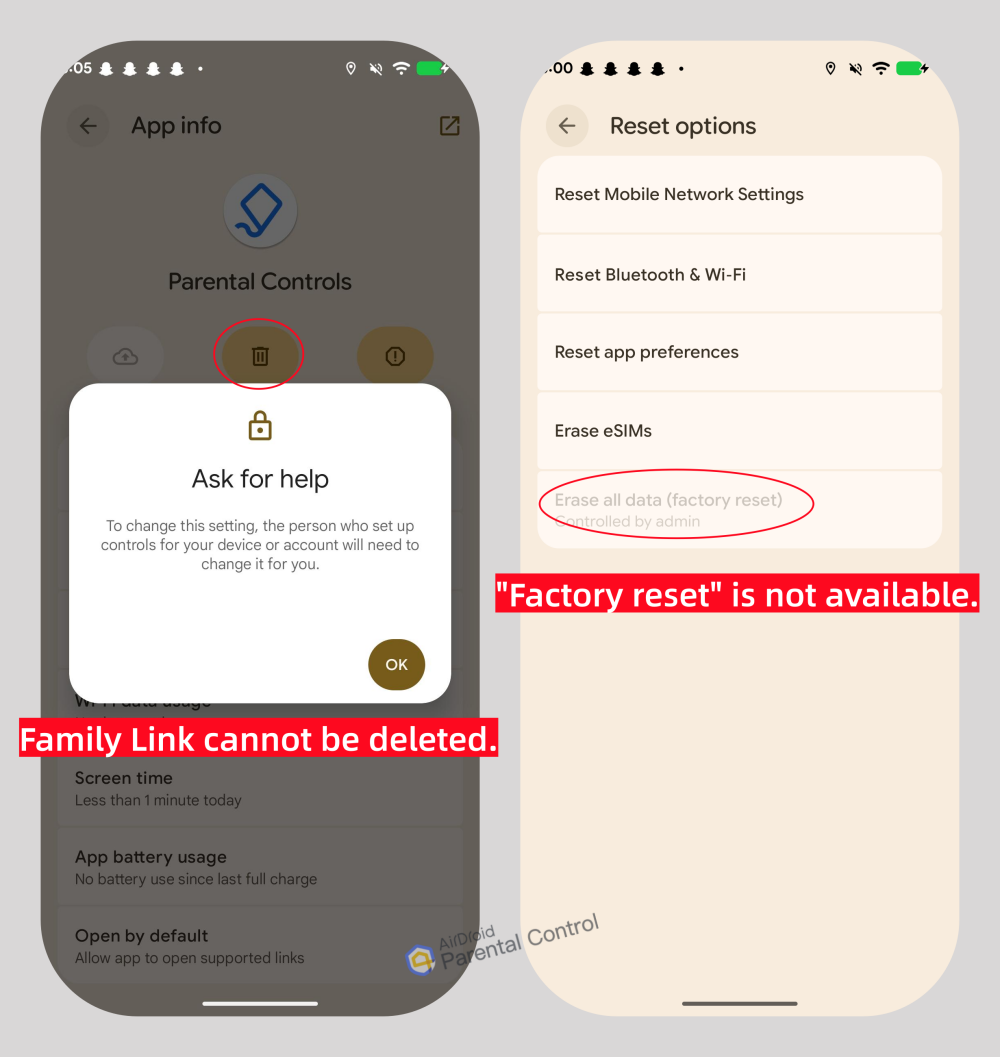
Because Family Link is built into the Android OS, it is nearly impossible to remove without a parent's approval.
Our Tests (with Screenshots):
- Uninstallation: 👍Failed. The child cannot delete or uninstall the app.
- Reset: 👍Failed. The factory reset button is greyed out on the child's device.
Bark
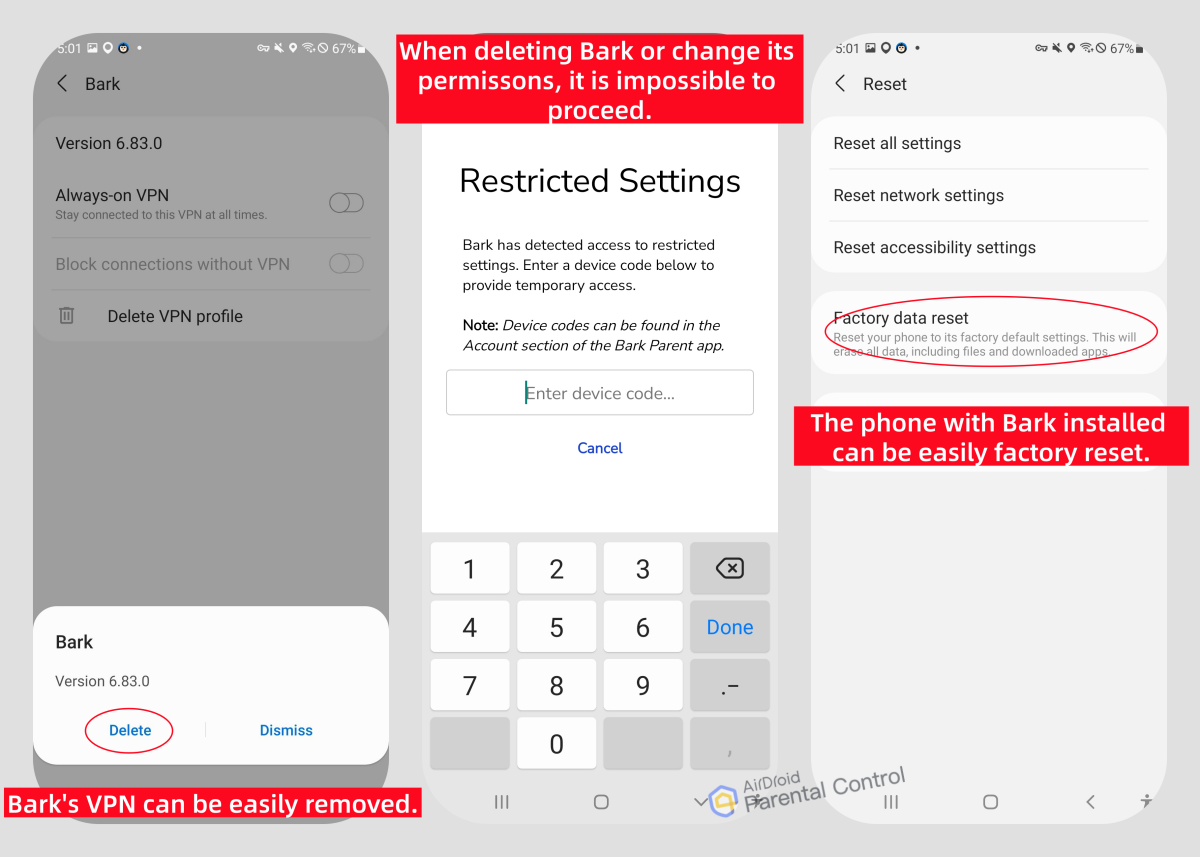
As a third-party app, Bark relies on permissions (Accessibility, VPN) to manage the child's device.
Our Tests (with Screenshots):
- The "VPN Toggle": 🚨Bypassed. In testing, I could simply turn off Bark VPN or remove it. As such, the protection stopped.
- Uninstallation & Revoking Permissions: 👍Failed. When I tried to remove the Bark app and disable Bark's permissions, it required entering the device code from the parent's dashboard.
- Reset: 🚨Bypassed. A tech-savvy child can factory reset the entire phone to get rid of it.
Privacy Considerations
Google Family Link:
It acts like a child's device manager, respecting the wall between parent and child. It only tracks a child's phone activities, like how long they used YouTube, where they are, or else, without reading your child's messages, emails, or photos.
Additionally, when a child turns 13, Family Link's supervision will be stopped automatically. So, it can be an ethical choice.
Bark:
It accesses almost everything: texts, social messages, emails, and files. Though Bark claims to "only alert parents when danger is found," the reality is it also provides related context. For many teens, this feels like being "monitored" or "spied."
Pros and Cons Overview
1Google Family Link
Best for: Parents who want free control over when and how long the phone is used.
Pros
- Great for basic screen time & app controls.
- 100% Free
- App download approval.
- Seamless setup to Android OS.
- Impossible to be bypassed.
Cons
- Lack of content monitoring features.
- Only for kids under 13.
- Limited web blocking.
- Useless if your child uses an iPhone.
2Bark
Best for: Parents who are worried about their child accessing harmful content and are willing to pay for the subscription.
Pros
- AI content monitoring over 30+ social media apps.
- Categorize apps and sites for blocking.
- No "Age 13" opt-out rule.
Cons
- Expensive ($14/month).
- Complex to set up, especially if your child uses an iPhone.
- Location tracking often fails.











Leave a Reply.