"Does anyone know a way or why I can't get it to work to add an adult to my child's kids messenger? I've tried 10 times and still can not get them connected." Says a Facebook user.
Are you also having a hard time adding adults to your kid's Messenger account? If yes, you're not alone. Though Messenger Kids is great for chatting safely, adding adult contacts can be confusing.
Whether you're trying to connect your child with a grandparent, older sibling, or friend, this guide will walk you through the correct steps and help you fix things when Messenger Kids just won't connect.
While creating your kid's Messenger Kids account, you'll be prompted to add some of your contacts as friends for your kid.
However, what if you skip the process or there is a new friend your child wishes to add later? Here's how to do it.
Option 1. Through the Parental Dashboard in Facebook
Facebook allows parents to manage their children's Messenger accounts directly from their own account. As a parent, you can add or even remove any friends from your child's Messenger Kids.
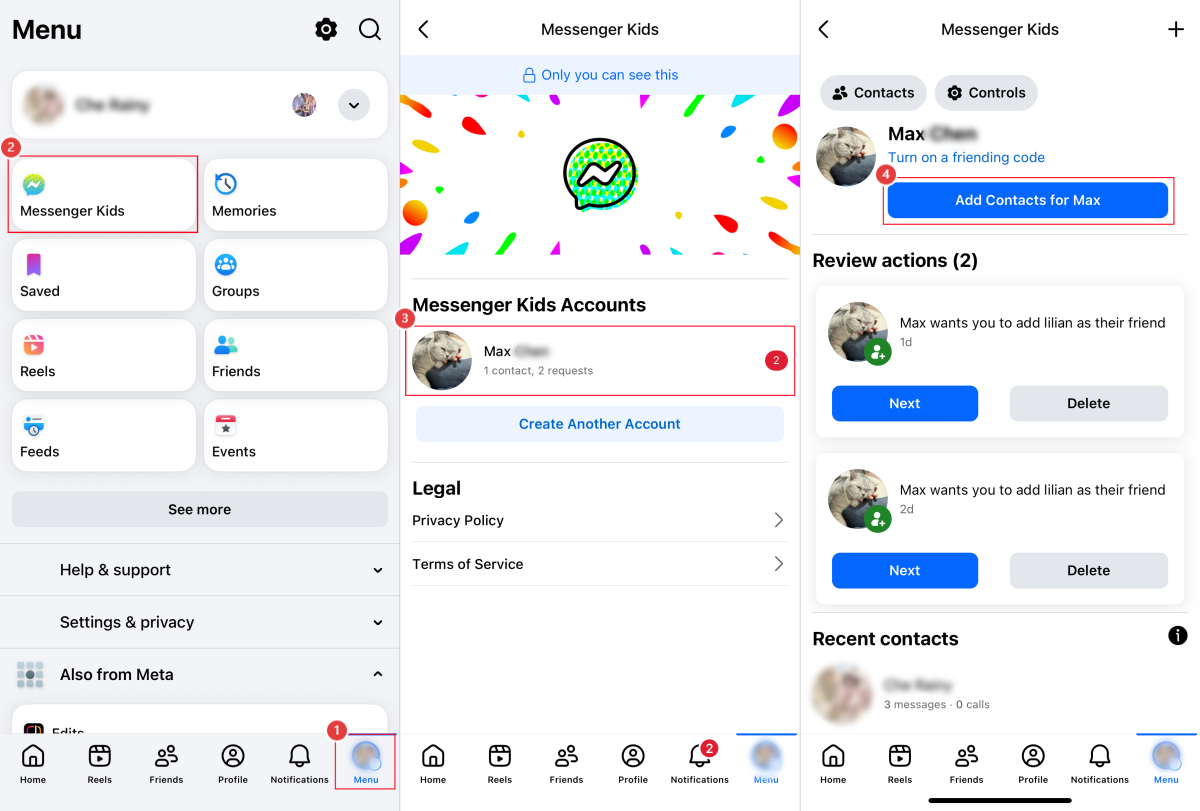
Here's how to add an adult to Messenger Kids:
Step 1.Open your Facebook app or go to facebook.com.
Step 2.Navigate to the "Menu" tab.
Step 3.Tap on "Messenger Kids."
If you don't see Messenger Kids in your Facebook menu, that means you haven't set up Messenger Kids with your account (as a parent).
Step 4.Click on your child's account.
Step 5.Tap the button saying "Add Contacts for [Your Child]."
Step 6.Then, you can add someone from your contact list. 💡If the friend isn't showing up, tap "Invite" or "Send a Link" to add.
Option 2. From Messenger Kids
Kids themselves can add adult friends directly from the Messenger Kids app, though this will still require the approval of their parents. And Messenger Kids offers different ways for children to add friends:
Look Them Up: This lets children to add another kid or adult friend via the username.
Use a Friend's Code & Help Them Join: These two work for adding another kid with a unique code.
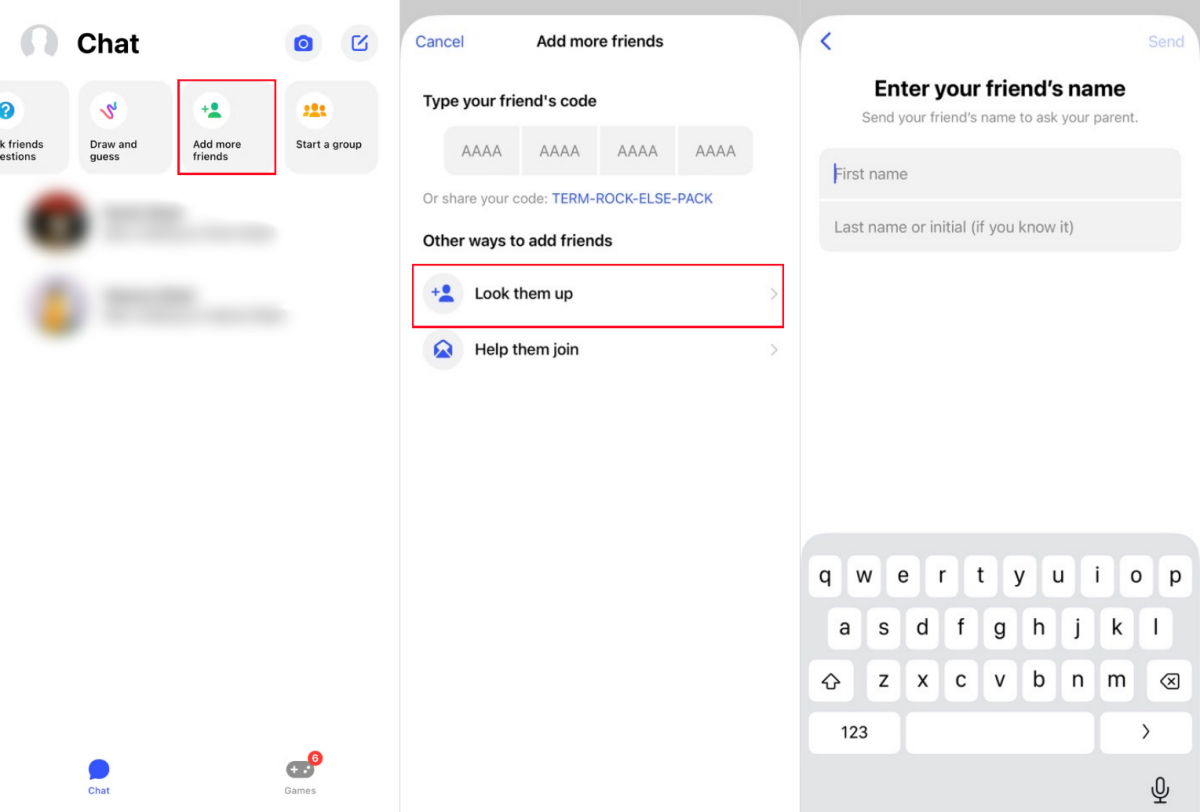
Now follow the steps below to add an adult friend from your child's end:
Step 1.Open the Messenger Kid app.
Step 2.Tap on "Add more friends" from the top menu.
Step 3.Select "Look them up."
Step 4.Input the first and the last name of your child's friend.
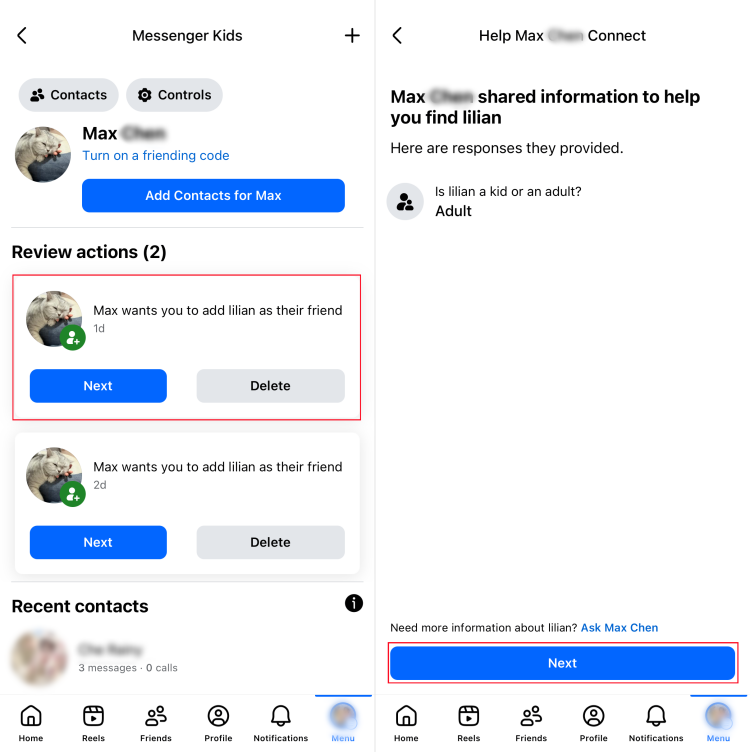
Step 5.Once you've done that, a request will be sent to your parent dashboard.
Step 6.On Facebook, open "Messenger Kids" to review and approve their request for adding friends.
What to Do If You Can't Add Adults to Messenger Kids
If you're encountering issues when adding an adult to your kid's Messenger, then it could be due to app bugs, account or permission issues — like the adult not being on Facebook, not being on your friend list, or having restrictive privacy settings.
Below, we'll show you exactly how to fix it.
1 Make sure the adult has a Facebook account
If the adult you're trying to add is not on Facebook, you won't be able to add them to your kid's account on Messenger. So, ensure the contact you're trying to add is on Facebook and double-check if you enter the correct username.
2 Add the adult as your friend first
Even if the contact is on Facebook, but they're not part of your own friends as a parent, it will be impossible to add them to Messenger Kids. This approach is designed by Facebook to keep your kids away from random strangers who could take advantage of them.
So, to add someone to your child's Messenger account more smoothly, add the adult to your own Facebook friends list first.
3 Add the adult as a guardian to Messenger Kids
If the issue persists, you can make them a guardian. When you add an adult as a guardian, Facebook automatically adds him or her as one of your child's friends.
Surely, they can also help you approve contacts, see who your child chats with and modify their contact list. Therefore, be sure to add adults you fully trust as a guardian, such as a co-parent or close family member.
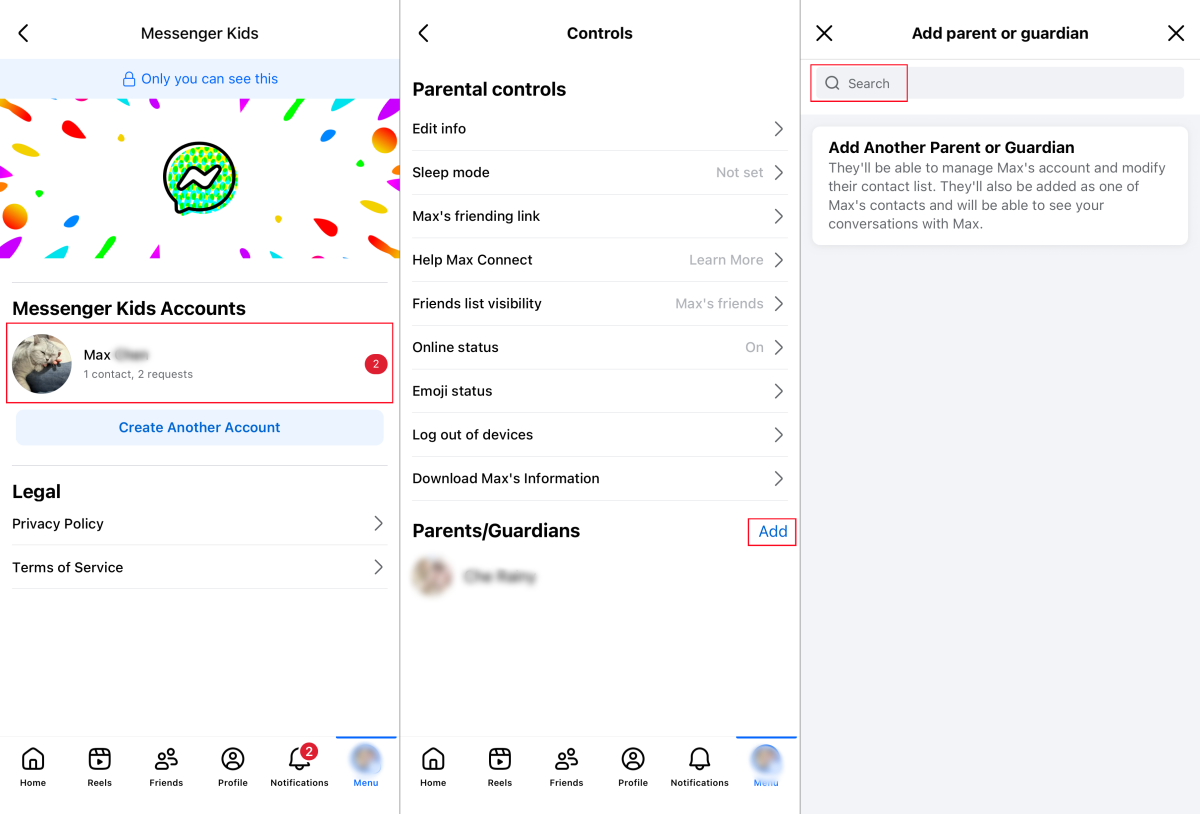
Now, follow the steps below to add an adult as a guardian.
Step 1.Open your Facebook app.
Step 2.Select "Messenger Kids" from the "Menu" page.
Step 3.Click on your child's account and tap "Controls."
Step 4.Besides "Parents/Guardians," tap "Add."
Step 5.Search the name of the contact you cannot add to Messenger Kids.
4 Ask the adult to change the privacy settings
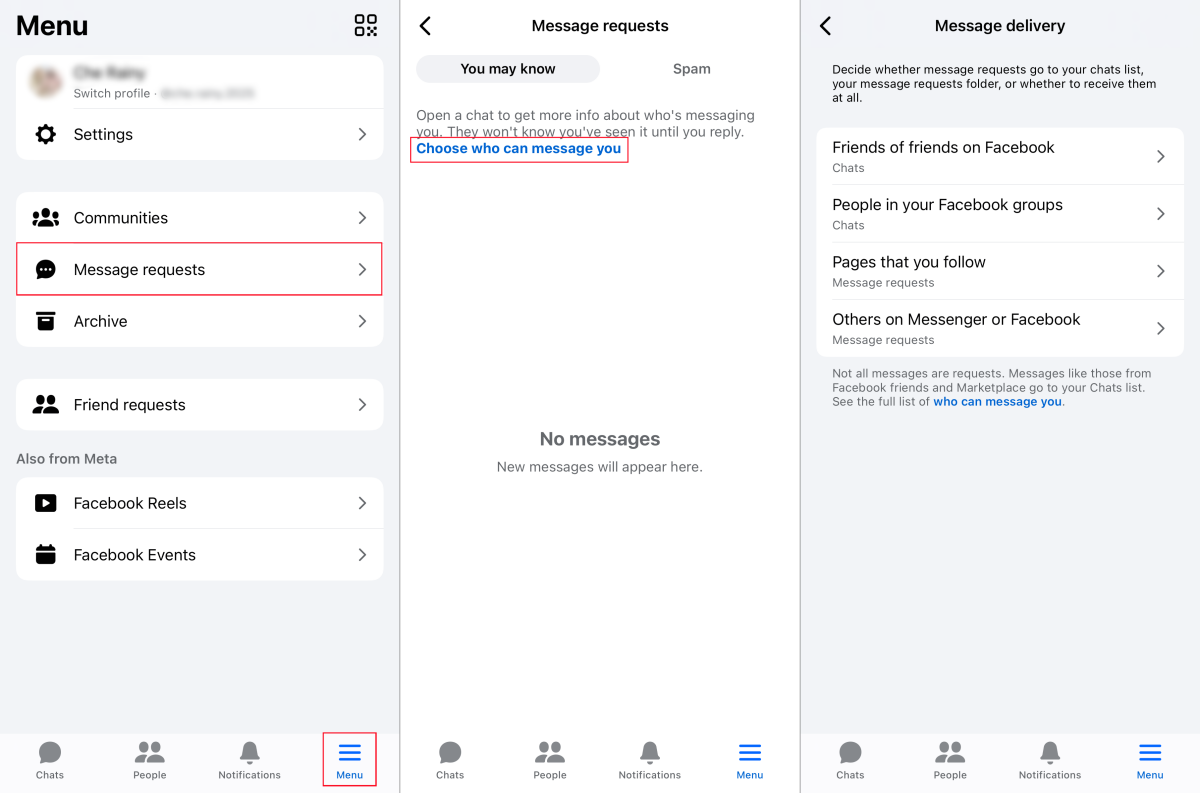
Some privacy settings could affect how people add themselves on Messenger. For example, if the person you're trying to add has blocked you, their name will no longer appear on Messenger Kids.
In this case, go to contact the friend and ask them to check and change the settings by: Messenger > Menu > Message requests > Choose who can message you.
5 Contacts Messenger support
If none of the fixes above work, the issue may not be on your side at all, but app bugs instead. For instance, many parents on Facebook forums reported this issue in July 2025.
This time, the best next step is to reach out to Messenger Support. They can know what exactly is causing the problem and how you can fix it.
Bonus: Protect Your Child Beyond Messenger Kids
While adding trusted adults on Messenger Kids helps keep your child's conversations safe, the app only covers messaging. Kids can still spend hours on YouTube, play games late at night, or access websites you don't expect.
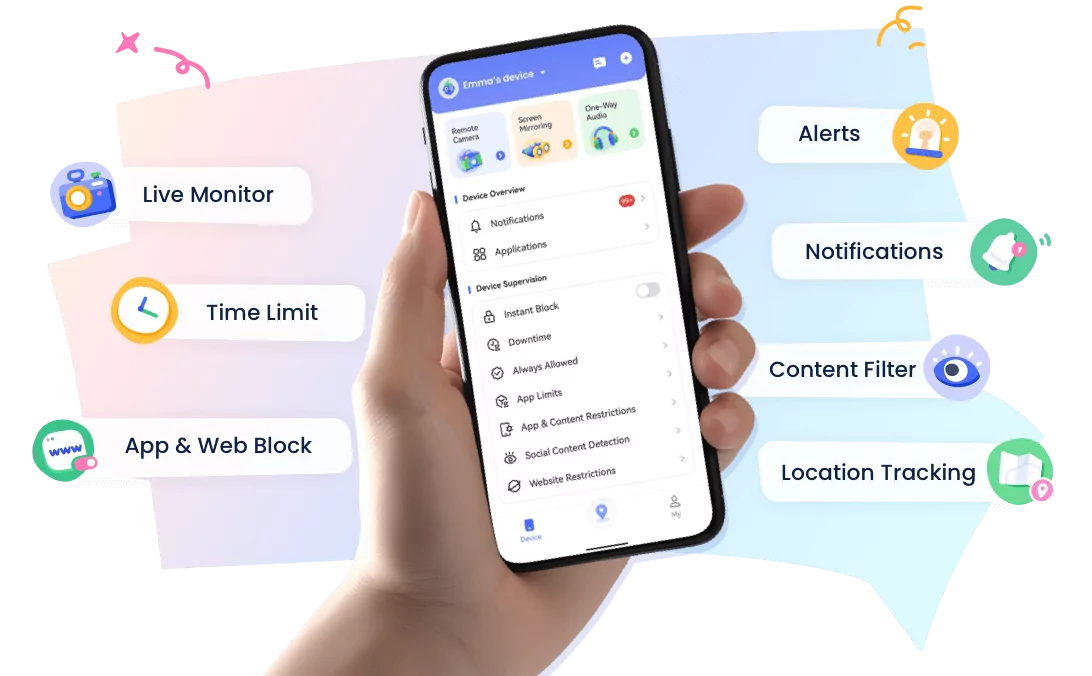
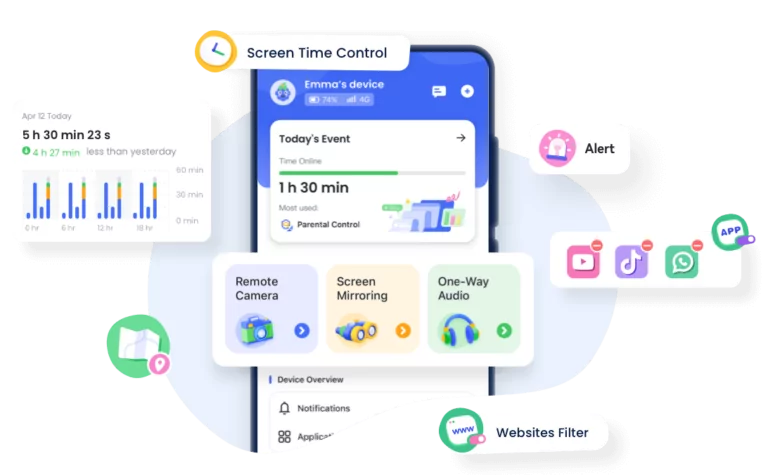
If you want broader protection across the entire device, a dedicated parental control app like AirDroid can fill in the gaps. It gives you full controls to manage your child's overall screen habits—not just their chats, such as:
Create time limits for or block access to addictive apps like YouTube, TikTok, or games.
Get daily & weekly reports of your child's screen usage.
See if your child received inappropriate app notifications or messages.
......
What's more? Try AirDroid for free and explore the rest!
What's the difference between adding a contact vs a guardian?
There is a huge difference between the two:
When you add a contact, you're adding an ordinary friend to connect with your children.
Adding a guardian, on the other hand, grants someone supervisory control, giving them the ability to see who your child chats with, approve or delete contacts, and manage account settings.
Is Messenger Kids available on iPhone?
Yes. Messenger kids is available on both iPhone and Android.
Can kids add adults by themselves?
Yes, kids can add adult friends by themselves. However, their parents will still need to approve their request to add the adult.
How to access Messenger Kids' parent dashboard?
You can manage all your child's settings, contacts, and activity through the Parent Dashboard, which is located inside your main Facebook app, not the Messenger Kids app itself. To access it:
Step 1.Open your Facebook app
Step 2.Go to "Menu" and select the "Messenger Kids" shortcut. If you don't see it, you may need to tap on "See more" to expand the list.
Elsa has worked on a number of iOS & Android solutions, she can always find her way around almost any application. She is an accomplished, skilled and versatile writer with more than 7 years of technical article writing experience.











Leave a Reply.