A Practical Guide to Android Dedicated Device Management
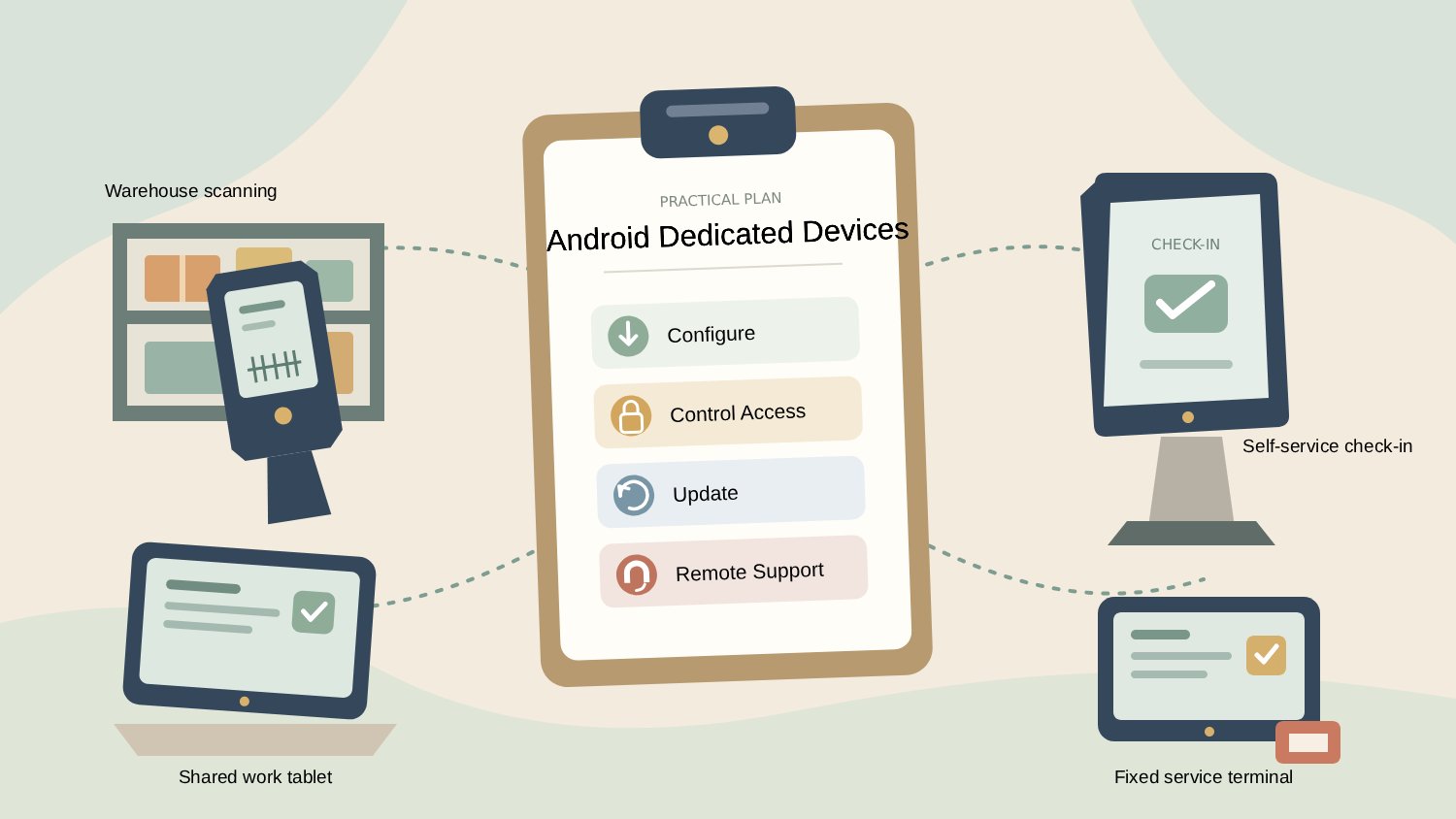
Businesses rely on dedicated Android devices to support everyday work and customer services, from warehouse scanning to self-service check-in. As these devices spread across locations, keeping them properly configured and working reliably becomes harder for IT teams, especially where on-site support is limited.
Android dedicated device management gives IT a central way to manage that work. Teams can configure devices for their intended use, control access to apps and settings, and handle updates or troubleshooting remotely. This helps employees and customers use the services they need while reducing the need for hands-on maintenance at every location.
This guide explains the main management approaches, what to look for in an MDM platform, and how to prepare and maintain dedicated Android devices for daily use.
1What Is Android Dedicated Device Management?
Android dedicated device management means setting up, securing, and maintaining company-owned Android devices for a specific business purpose. It covers what people can do on a device and how IT keeps it working.
Google defines dedicated devices as fully managed devices that serve a specific purpose. You may also see the older term corporate-owned single-use, or COSU. A dedicated device can serve employees or customers, and its job may require several approved apps.
For IT and users, this means:
- Fully managed: IT manages the entire device, rather than just a work profile.
- Kiosk mode: IT can limit which apps and device functions users can access, keeping the device focused on its assigned task.
Dedicated vs. General-Purpose Android Devices
An Android device can serve general work or be assigned to one job, such as scanning stock. IT can fully manage either, but management alone does not make a device dedicated. A dedicated device is set up around its job, with access limited to the apps and settings that job needs.
Aspect | General-purpose work devices | Dedicated devices |
|---|---|---|
| Purpose | Support a broad range of employee activities, such as email, meetings, and collaboration. | Serve a defined task or workflow, such as inventory scanning or customer check-in. |
| Apps and interface | Give employees access to a range of business apps under company policies. | Restrict access to the apps and functions needed for the assigned task or workflow. |
| Typical management priorities | Keep business apps and data secure and accessible as employees' needs change. | Keep the assigned service working, including after updates or restarts. |
In short, both types need security policies, software updates, and reliable support. For dedicated devices, IT must also ensure that restrictions do not prevent users from completing the end-to-end workflow.
Ways to Manage Dedicated Android Devices
Organizations can use a ready-made management platform or build their own solution. Google's dedicated device guidance describes three paths:
Approach | Who provides the management software? | Who enforces policies on the device? | Suitable for |
|---|---|---|---|
| Existing MDM / Enterprise Mobility Management (EMM) | The provider supplies the console and backend. | The provider's DPC or Google's Android Device Policy, depending on the platform. | IT teams that want ready-made tools without developing management software. |
| Android Management API | Your team builds the console and backend using Google's API. | Google's Android Device Policy app. | Eligible EMM developers with resources to build and maintain the solution. |
| Custom DPC (device policy controller) | Your team builds the DPC, plus a home app or backend as needed. | Your DPC, using Android's management APIs. | Integrators with Android development expertise and resources for ongoing maintenance. |
For teams that don't have the resources to build and maintain their own management software, a ready-made MDM platform is the more practical route. But a platform only delivers value when it fits how your devices are actually used. The next section looks at what dedicated Android devices do in day-to-day operations.
2How Are Dedicated Android Devices Used in Practice?
In practice, dedicated Android devices come in several forms, including handheld scanners, work tablets, self-service kiosks, and digital signage players. These single-purpose devices support tasks such as scanning inventory, recording field-service work, handling customer check-in, or displaying information.
Device | How it is used | Example use pattern |
|---|---|---|
| Handheld scanner | Warehouse employees scan items and update inventory during receiving, picking, or stock checks. | Employee-facing; assigned to one worker or shared across shifts. |
| Work tablet | Field workers check job details and submit records. Other teams may share tablets for tasks at a fixed site. | Assigned or shared; may run several approved apps. |
| Self-service kiosk | Customers use a terminal to check in, place an order, or collect a parcel. | Customer-facing; often runs one service app and may operate unattended. |
| Digital signage player | The device runs an app that displays information or promotions on a connected screen. | Often unattended, with no user interaction required during normal operation. |
These differences determine the functions that the MDM platform needs to handle. Shared scanners have to be reassigned between shifts without manual setup. Work tablets should only run approved apps. Unattended kiosks and signage players need remote maintenance because no one is standing at the screen to report a fault.
Two AirDroid Business customers show how this plays out:
- WINN Solutions uses Android kiosks to let customers collect parcels from smart lockers in public locations. With AirDroid Business, its IT team can restrict access to other apps and settings and maintain the kiosks remotely without on-site assistance.
- VisionFund Kenya equips employees with Samsung tablets for client visits. Its IT team uses AirDroid Business to distribute business apps, keep device use focused on work, and help employees resolve issues remotely.
The two customer examples point to the same conclusion: the right mobile device management (MDM) depends on your devices' capabilities and who uses them. A platform that suits shared work tablets may not be suitable for unattended kiosks. The next section outlines what to evaluate when choosing an MDM for dedicated Android devices.
3How to Choose an MDM for Dedicated Android Devices
What to Look for in an MDM
Build your requirements around five areas:
1. Hardware and rollout. Android versions, manufacturers, GMS availability, and connected scanners or printers can affect what works. Check your actual models and how required apps and settings will be applied across the fleet.
2. Apps and shared use. Employees need access to every app required for their work. Shared devices also need a handover arrangement that addresses sign-out, downloaded files, and cached data, including anything the business apps must handle.
3. Monitoring and remote access. Decide which conditions IT needs to know about, such as disconnections or low batteries. For unattended locations, also establish what technicians must be able to fix without local help.
4. Updates. Assess how app releases are tested, distributed, and recovered when something goes wrong. Check Android system-update controls separately, since app distribution does not establish firmware-management capabilities.
5. Security. Confirm who can change policies, start remote sessions, or lock and wipe lost devices. Action logs should let administrators review how those permissions were used.
Test Shortlisted Platforms on Your Devices
An MDM may offer the features you need, but those features may work differently with your devices and business apps. The UK's National Cyber Security Centre also recommends piloting MDM services to check that required features work on the intended devices and assess how reliably and quickly the service responds.
Before committing, test each shortlisted platform on a small group of the devices you plan to deploy. Use the questions below to guide your tests and check if the results meet your requirements.
Pilot Test | Pass If... |
|---|---|
| Does it support your hardware? Enroll each representative model, connect peripherals, and apply the required policies. | Required controls and peripherals work. Any additional permissions or manufacturer integrations are identified. |
| Do restrictions work during a normal task? Complete the task, try navigation buttons and links, then restart the device. | Users can finish their work without accessing restricted apps or settings. The approved interface returns after restart. |
| Can you recover from a failed app update? Test a small release and its recovery procedure. | IT can identify affected devices and restore a working app through a verified procedure. |
| Can technicians resolve a fault remotely? Test using their normal accounts and networks. | Technicians can investigate with appropriate permissions. Unattended kiosks require no local session approval. |
Before signing, price the plan that includes the features you tested, using both current and expected device counts. Check minimum quantities and how resets or replacements affect licensing.
💡 If you're looking for a platform to manage company-owned Android devices, AirDroid Business is one option to assess against these requirements.
How AirDroid Business Helps Manage Dedicated Android Devices
AirDroid Business brings kiosk controls, app distribution, and remote access into one console for company-owned Android devices. IT can give each device access to the apps it needs, roll out updates to selected groups, and investigate supported issues remotely.
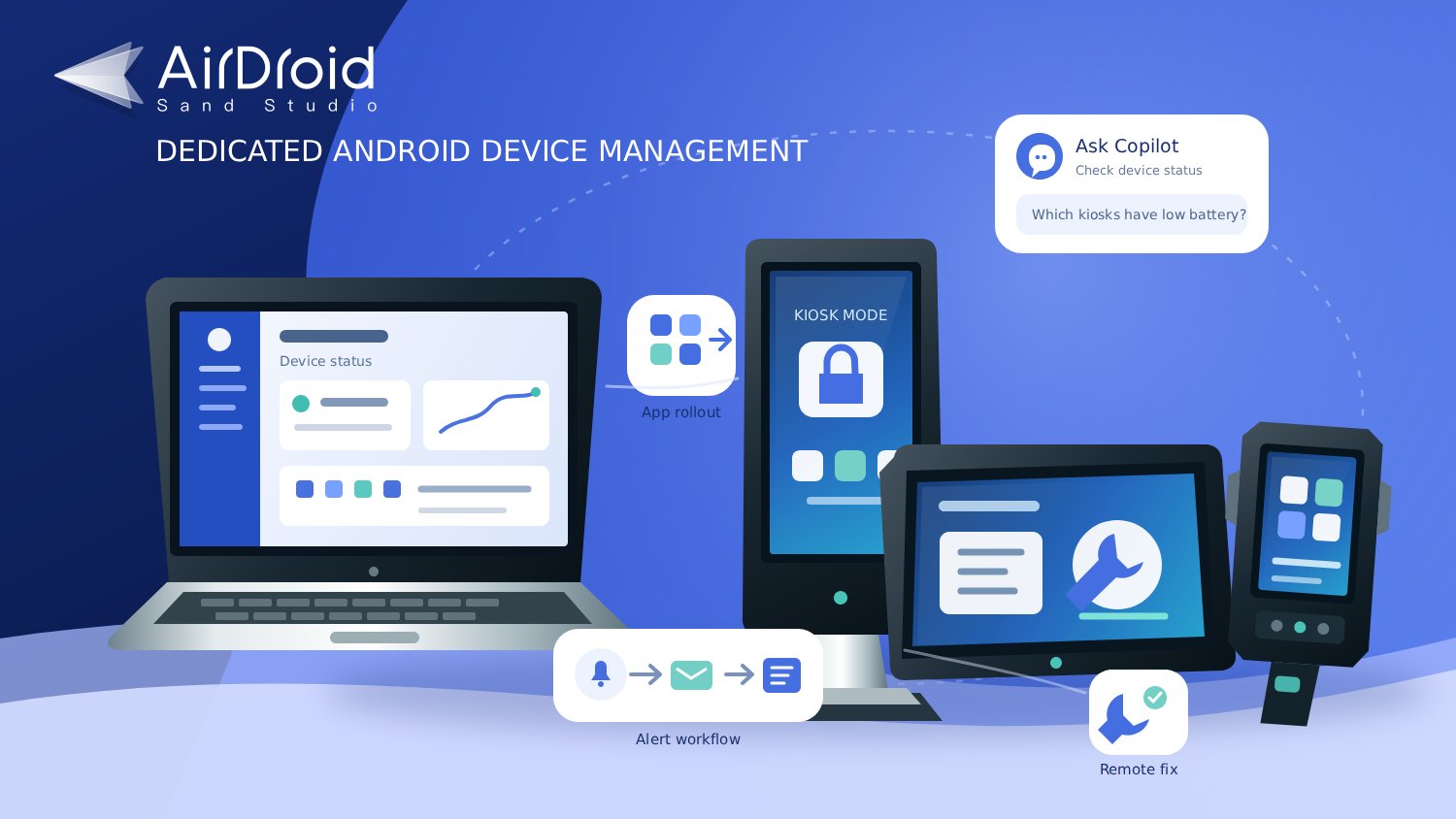
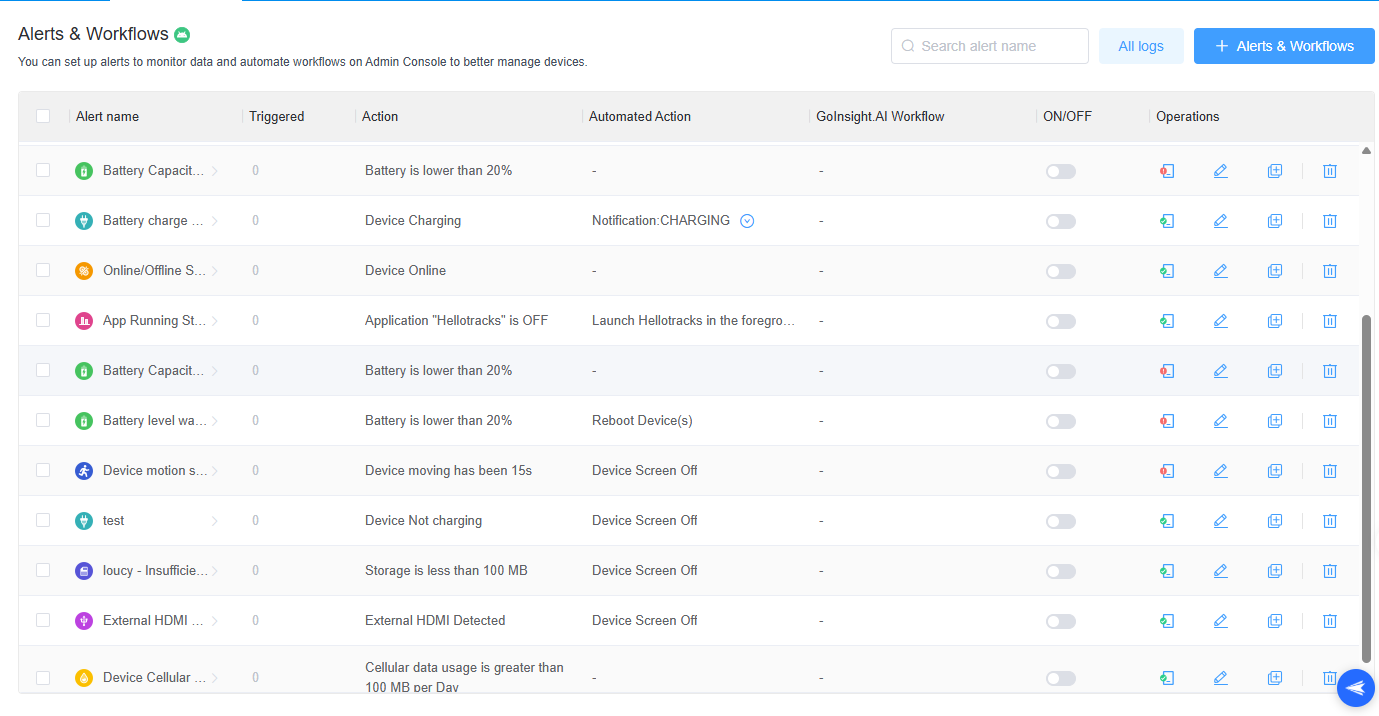
For fleets spread across locations, AI-assisted queries and automation can reduce routine device checks. Technicians can use Copilot to find devices with a particular status, such as kiosks with low battery. Alerts & Workflows can notify staff or run a configured action when a supported condition is met.
See how these capabilities apply to common device-management tasks:
When You Need to... | How AirDroid Business Helps |
|---|---|
| Prepare devices for the same job | Provisioning Templates prepare group assignments, apps, and Wi-Fi settings for supported enrollment methods, reducing repeated setup work. |
| Keep access focused on the task | Kiosk app allowlists and policy settings keep required tools accessible while restricting unrelated apps and functions. |
| Roll out app updates with greater control | Test Release shows installation results on selected devices. Formal Release provides staged and scheduled rollout options after testing. |
| Find devices that need attention | Copilot answers plain-language questions about current device information, helping technicians decide which devices to check. |
| Respond to recurring alerts | Alerts & Workflows can notify staff or run a configured action when supported conditions occur. IT can review the alert logs afterward. |
| Maintain devices across locations | Device Wall shows screens and status, while supported remote-access tools let technicians inspect and control individual devices without visiting each site. |
Our customer Interactive Solutions used Device Wall, staged app updates, and remote maintenance to manage more than 1,500 deployed signage devices across locations.
Whichever platform you choose, the setup and maintenance habits stay much the same. The next section starts with preparing and enrolling devices.
Manage and Secure Your Dedicated Android Devices
From shared scanners to unattended kiosks, AirDroid Business keeps your dedicated devices focused on the task. Lock down apps, push updates, and troubleshoot remotely—all from one centralized console.
4How to Set Up Android Dedicated Devices
Once you've chosen a platform, prepare a configuration for each device role. Start with what users need to accomplish, then set the app access and restrictions around that work.
1Prepare and enroll the device
Step 1: List the apps, websites, and connections the task requires, including anything used for sign-in or peripherals.
For example, a scanning app may still need a browser to complete authentication. Blocking that browser could leave a device locked down but unusable.
Step 2: Choose an enrollment method that grants the management permissions you need.
IT can use QR provisioning when preparing devices directly; zero-touch can help with distribution when the hardware and reseller arrangements support it; Existing devices may need a reset, accounts removed, or other preparation, so back up business data before resetting it.
2Configure apps, access, and device settings
After enrollment, the device still needs rules for what people can access.
A public kiosk may need one service app, while a shared work device may need several approved apps. Set single-app or multi-app kiosk mode to match that work, restrict unrelated apps and settings, and keep the sign-in and peripheral access the task requires.
3Check the device before putting it into use
A device appearing in the console means that it is enrolled. Before handing it over, make sure the configuration works for the person using it:
- Confirm the correct group, policies, and app versions are applied.
- Complete a full task, including sign-in and any scanning, printing, or payment steps that apply.
- Check that navigation buttons and external links don't expose unauthorized apps or settings.
- Restart the device and confirm that the work screen returns and management reconnects.
- Disconnect and restore the network. Check what happens to unsent business data.
- Ask support staff to diagnose a test fault using their normal accounts and permissions.
Keep the configuration that passes these checks so IT can use it when preparing a replacement device.
5Tips to Manage Dedicated Android Devices in Daily Operations
After deployment, devices need updates and support during continuous user use. Plan that work around operating hours, especially where a device is the only way to complete a task or access a service.
1Update apps without interrupting work
An app can install successfully and still fail when a worker scans an item or submits a record. Before updating the wider fleet, test each new version on the hardware your team uses, and check sign-in and connected peripherals such as scanners and printers.
In AirDroid Business, Test Release shows whether an update installed on selected devices. Installation alone does not prove the app works, so run a typical task to confirm. Once it passes, use Formal Release to roll out in stages or schedule it for off-peak hours.
2Spot problems and help devices recover
Monitor situations where the support team can take action, such as repeated disconnections, low storage, or an unexpected screen. Assign someone to investigate alerts and decide when an incident needs help on site.
While a device is online, remote viewing helps a technician tell whether the problem comes from the app or the device settings. After a remote fix, check if the original task works again.
3Protect data during handovers and retirement
Kiosk restrictions control access to apps, but they don't tell you whether an app clears the previous user's data. Therefore, shared devices need a sign-out process that keeps the previous user's data out of the next user's session. Check whether downloaded files and cached records remain accessible after sign-out.
Deleting a device from the MDM console alone doesn't prove its data has been erased. When a device is reassigned or retired, preserve required records and revoke its access. Then erase the stored data with a method that matches its sensitivity, as NIST SP 800-88 Rev. 2 recommends.
6Final Words
Good Android dedicated device management keeps devices ready for the jobs they're meant to do. Users should be able to complete their tasks without working around restrictions, and IT should be able to maintain the fleet without setting up every device by hand. Choose the controls and support tools that make that possible on your actual hardware.
FAQs


Leave a Reply.