MDM AI Workflow Make App Distribution Failures Trackable, Reviewable, and Actionable
Traditional MDM platforms can detect an app distribution failure and send an MDM Alert, but alert management does not end with notification. IT teams still need to assess impact, select the right response, verify recovery, and preserve a complete incident record.
Imagine an IT team distributing a new business app release to 100 managed devices: 85 devices install it successfully, 12 report a failure, and three remain in progress long after the expected deployment window. A dashboard can show those numbers, but it cannot by itself explain whether the three devices are temporarily offline, whether the failed devices share an OS or network issue, which devices are safe to retry, or when the incident should be escalated.
This is where AI-assisted AirDroid Business delivers additional value beyond traditional MDM. In this post, we'll use an app distribution failure scenario to demonstrate how to combine Application Management, InsightFlow, Copilot, and your existing enterprise systems to build a closed-loop incident response workflow. From detecting deployment failures and triggering alerts to automated retries, AI-assisted incident classification, manual troubleshooting, recovery verification, and post-incident analysis, every stage is connected into a traceable operational workflow that helps IT teams resolve app deployment issues more efficiently.
- Part 1 : Overview of App Distribution Failure Workflow
- Part 2 : Prepare the Workflow
- Part 3 : Build the App Distribution Failure Handling Workflow
- Two Ways to Trigger the Workflow
- Step 1 : Confirm the ReleaseId and Query Distribution Results
- Step 2 : Check App Distribution Status
- Step 3 : Retry App Distribution for Automated Recovery
- Step 4 : Add Rules and Business Context for Incident Analysis and Escalation
- Step 5 : Verify Status Again and Complete the Loop
- Part 4 : Recording, Post-Incident Review, and Continuous Improvement
- Conclusion
Part 1 : Overview of App Distribution Failure Workflow
Before diving into the concrete implementation details, let's look at the overall architecture of the app distribution failure handling process.
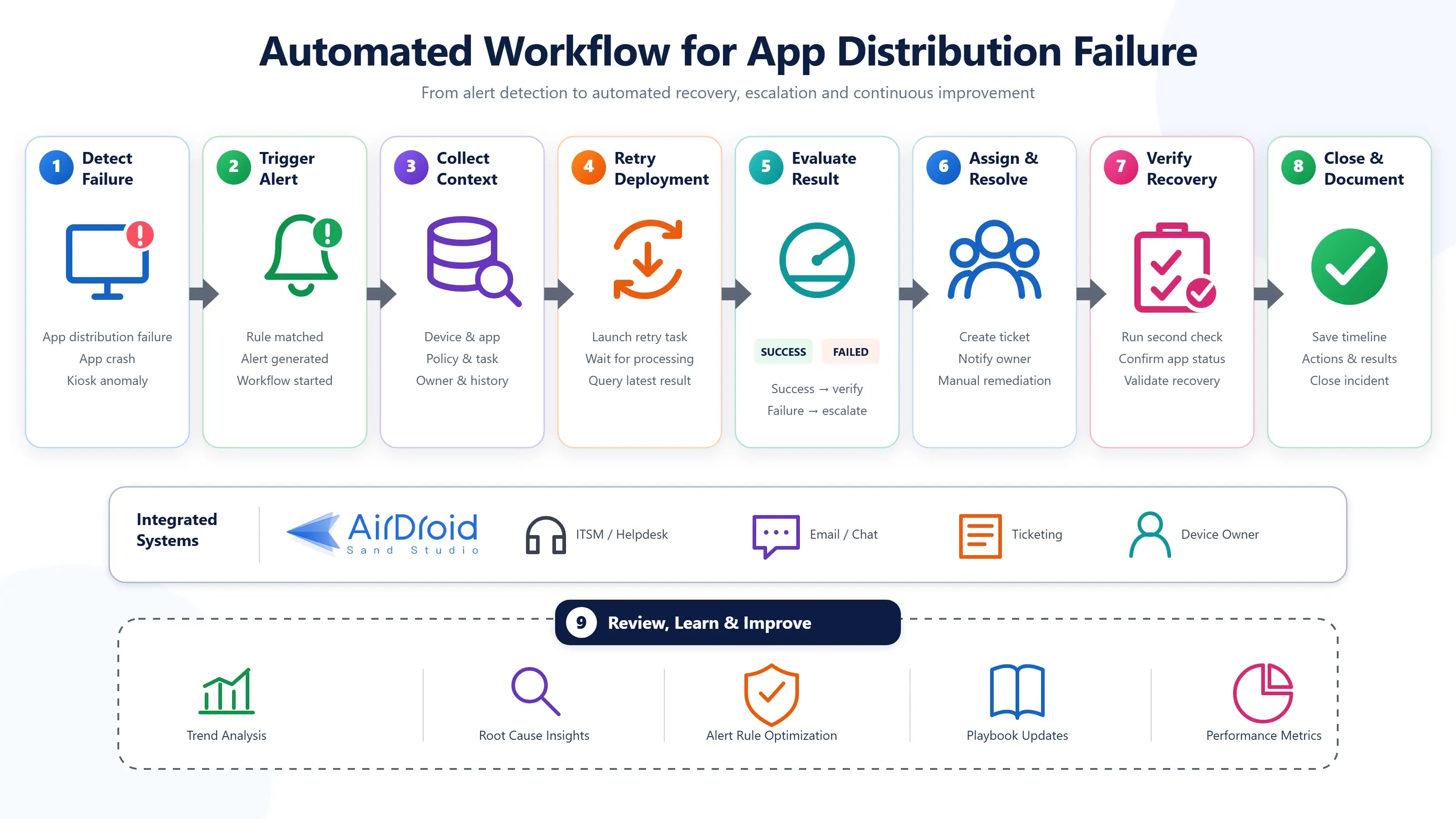
The solution brings together four key operational components:
- AirDroid Business provides device management capabilities and application distribution status data.
- InsightFlow orchestrates status queries, decision logic, automated retries, system integrations, approvals, and recovery verification.
- Copilot serves as the AI interface, enabling IT teams to query incident status, analyze root causes, and receive context-aware troubleshooting recommendations.
- ITSM and communication systems provide business context, ownership, escalation, and a system of record.
By combining these components, an app deployment failure is no longer just another deployment status displayed in the MDM console. Instead, it becomes a structured operational incident that can be tracked, analyzed, remediated, verified, and continuously improved. The incident response lifecycle guides IT teams from initial detection through recovery validation and ongoing operational optimization.
Part 2 : Prepare the Workflow
A reliable automation workflow for device monitoring starts with clear event definitions, complete context, and explicit automation boundaries.
Before building the App distribution failure flow, decide which apps and devices are in scope, what constitutes a failure, how to determine handling priorities, which actions may run automatically, and how the process connects to existing service management.
1Define the Monitoring Scope and Alert Trigger Conditions
The first step is to determine which apps or devices should be monitored based on specific business requirements. Administrators should define the monitoring scope and document the corresponding rules, including the target application, release version, platform, device groups, deployment states to monitor, timeout thresholds, and notification methods.
Common trigger conditions include:
- One or more target devices return a confirmed installation failure.
- A release remains Pending or Processing beyond the expected deployment window.
- A distribution result changes to an abnormal state that requires further investigation.
- The same ReleaseId repeatedly fails to reach the required completion threshold.
Not all applications require the same monitoring strategy. Business-critical applications often demand lower failure thresholds and faster response times than a noncritical utility.
Clearly defined trigger conditions prevent noisy MDM Alerts from creating Alert Fatigue while keeping high-impact failures visible.
2Define Rules, Priorities, and Approvals with Copilot
Once an alert triggers the incident response workflow, clear rules are essential to determine the incident priority and decide what actions should be taken next.
To reduce alert fatigue, IT teams should define incident severity classification, response paths, and escalation rules in advance. For example:
- Individual device installation failure
- Multiple device failures
- High failure rate during deployment
- Deployment failure trends
- Application version mismatch
- Installation timeout
Define rules to detect App distribution failures, including:
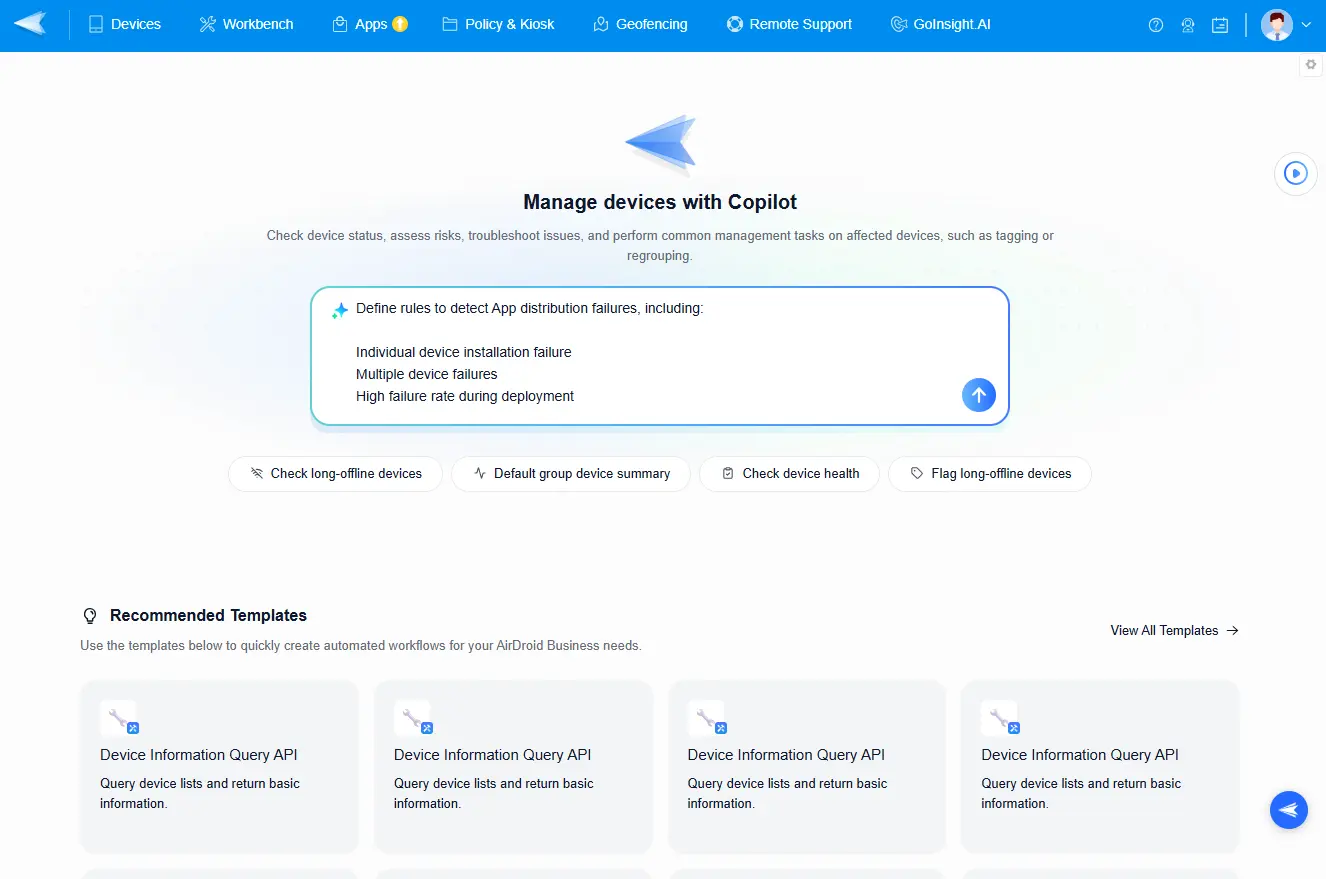
Copilot can turn a natural-language description into a structured policy draft, accelerating workflow design.
Before these rules are put into production, administrators should review and validate the AI-generated output, confirming the target device scope, incident severity, exception conditions, access permissions, and potential business impact. Once approved, the finalized rules can be stored in Workspace Document as the knowledge base for subsequent workflow execution.
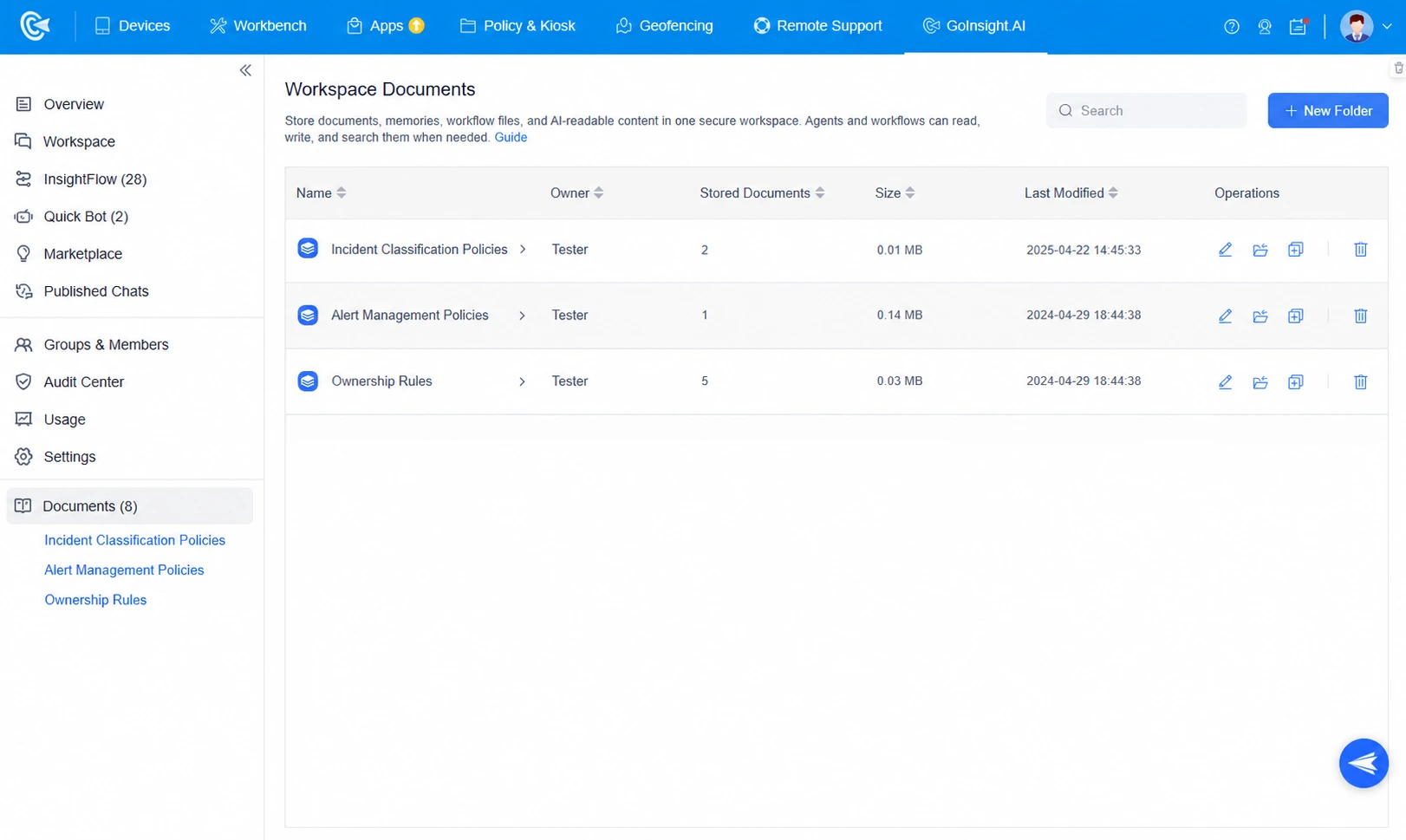
Keep deterministic controls separate from AI output. Enterprise rules establish hard safety boundaries and minimum severity. AI may summarize evidence, classify likely patterns, and recommend an escalation path; it should not independently approve a production action or lower a rules-based priority.
Instead of inserting the business rules in the LLM prompts, this approach allows administrators to update only the rules document instead of redesigning the entire workflow once the requirements changed.
3Import and Configure the Workflow Templates
Once the App deployment failure handling rules have been defined, you can accelerate the implementation by importing preconfigured workflow templates.
The AirDroid Business Marketplace provides a library of reusable Workflow templates, including List AMS Application Distribution Status for querying deployment status and Retry Application Distribution for automatically redistributing an application.
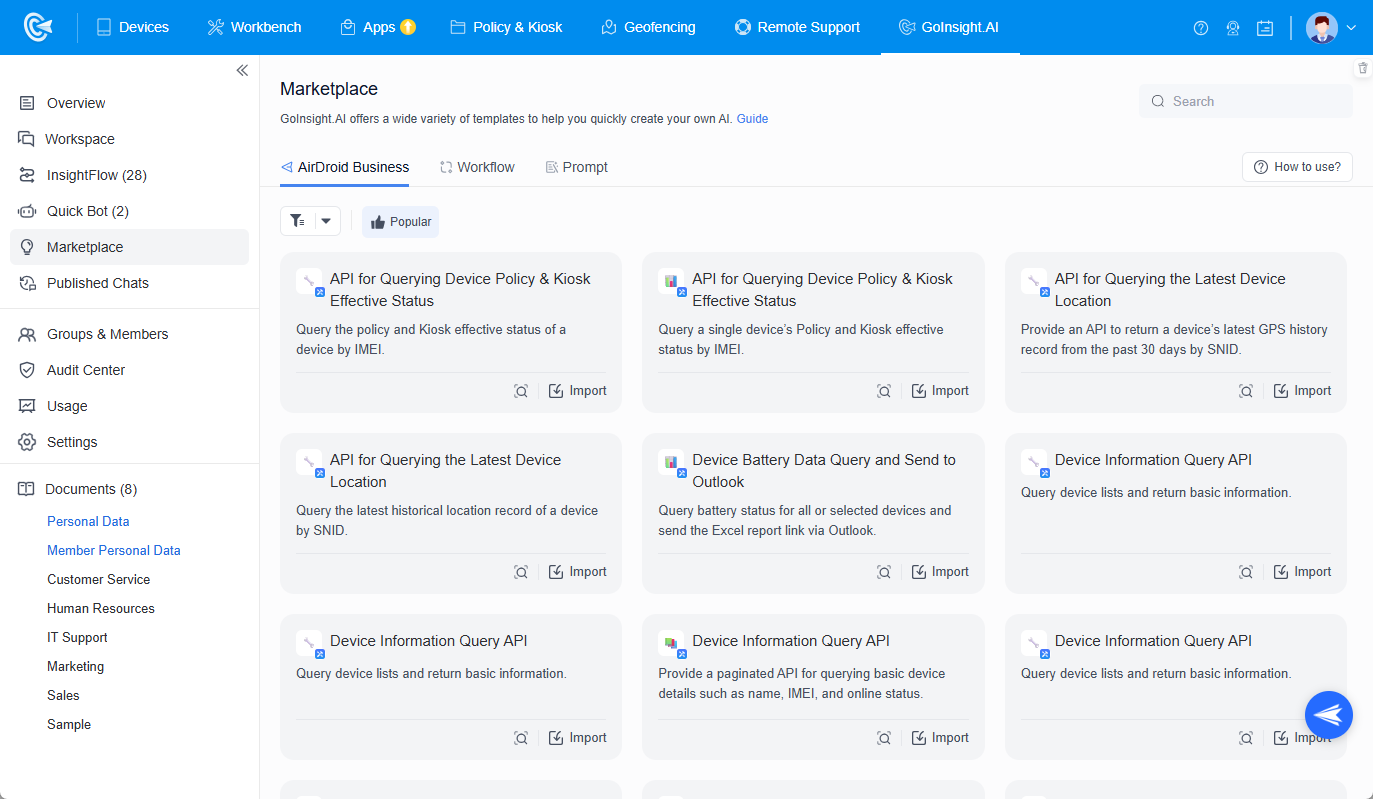
After importing the required templates, review and customize them to match your business scenario. In particular, verify that:
- Required input parameters, such as ReleaseId, are correctly configured.
- The target application and device scope match the intended deployment.
- Deployment statuses are mapped to the appropriate workflow branches, such as Success, Failed, Processing, and Timeout.
- The polling interval and maximum waiting time align with your deployment policy.
- The required deployment data is captured and written to the incident record for later analysis and auditing.
Workflow templates significantly reduce implementation effort, but the incident handling logic should still be configured according to your organization's operational requirements and risk tolerance.
4Connect the Enterprise Business Systems
While an MDM platform can detect device and application issues, a complete incident response process typically requires integration with the organization's existing operational systems.
Traditional MDM solutions can send alert notifications, but tasks such as creating tickets, assigning ownership, assessing business impact, and coordinating follow-up actions often require administrators to manually transfer information between multiple systems.
InsightFlow bridges this gap by integrating AirDroid Business with enterprise internal systems. Using App nodes, Webhooks, or HTTP connectors, workflow builders can connect the App management capabilities to ITSM platforms, ticketing systems, collaboration tools, or other internal applications, turning device and application statuses from MDM into trackable business events.
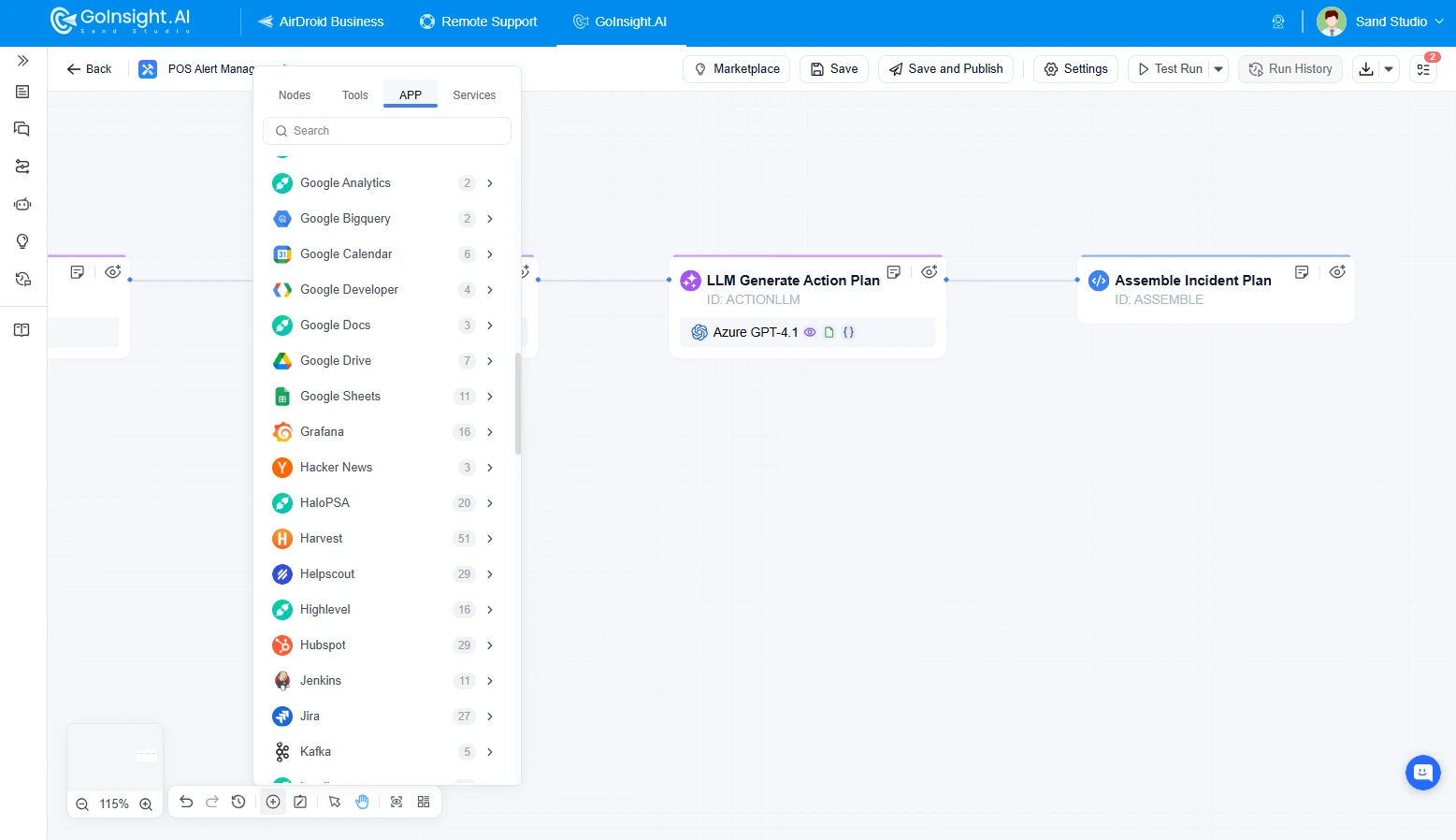
Before deploying the workflow, define how it will interact with your business systems. For example, configure workflow nodes to:
- Check whether a related incident or ticket already exists.
- Create a new incident or ticket when required.
- Retrieve the device owner or responsible support team.
- Determine the business priority of the incident.
- Notify the appropriate stakeholders and support personnel.
To ensure consistent data exchange across systems, map key fields such as:
- EventId
- ReleaseId
- Application name
- Application version
- Number of affected devices
- Device list or deployment report
- Current incident status
- Actions already performed
- Incident priority
- Assignee
These records not only support the current incident lifecycle but also provide the foundation for AI-powered analysis, post-incident reviews, and continuous workflow optimization.
5Establish Automation Guardrails
Before enabling automatic retries or other remediation actions, establish clear guardrails to ensure the workflow behaves predictably under all conditions.
Typical safeguards include defining:
- The maximum number of retry attempts allowed for each EventId and ReleaseId.
- The minimum interval between consecutive retry operations.
- The maximum time to wait for a deployment status update before timing out.
- Which deployment states are eligible for automatic retry.
- Which device groups or business-critical services require manual approval before any remediation action is executed.
- How duplicate incidents, tickets, or retry operations should be prevented.
These safeguards prevent workflows from repeatedly processing self-healing actions that require human intervention.
With the monitoring rules, business logic, system integrations, and automation guardrails in place, your workflow is ready to detect deployment failures, execute the appropriate response, and maintain the right balance between operational efficiency and governance.
Analyze alert patterns and remediation results with InsightFlow and Copilot to reduce alert fatigue and improve thresholds, retry policies, and escalation paths.
Part 3 : Build the App Distribution Failure Handling Workflow
After completing the preparation of monitoring rules, incident policies, and system connections, the next step is to connect these configurations into an operational handling process.
Two Ways to Trigger the Workflow
In real-world IT operations, an app distribution issue may arise in two different scenarios: the system proactively detects a problem and triggers the handling process, or an IT operator wants to check the status of a specific release task. Therefore, the App Distribution Failure Workflow can be designed with a dual-entry model:
- Entry 1: Automatically trigger the Workflow when app distribution fails. This entry proactively detects an issue and starts the incident handling process.
- Entry 2: Use Copilot to query Workflow data. This entry supports operator-initiated queries and analysis, such as quickly determining why an app failed to distribute or how many devices have not yet completed an upgrade.
- If the alert already contains the ReleaseId, the Workflow can use it directly to query the distribution status of the corresponding release task.
- If the incident does not contain a ReleaseId, a manual confirmation step is required. For example, a Form node can ask an IT operator to confirm the correct release task and provide the corresponding ReleaseId.
- All successful:
- Still pending or processing:
- All devices complete successfully;
- A confirmed failure occurs; or
- The maximum waiting time is reached.
- Failure or timeout:
- Whether the current Release allows redistribution;
- Whether the retry limit has already been reached;
- Whether the current time is within an approved maintenance window;
- Whether the affected devices belong to a business-critical scope; and
- Whether manual approval is required before continuing.
- If all devices succeed, record the recovery result and close the incident;
- If the status remains Pending or Processing, continue waiting and monitoring; or
- If the task fails again or times out, stop automated retries and move to escalation analysis.
- App Release information, such as the app name, version, ReleaseId, and target device scope;
- Distribution status changes, such as Successful, Pending, Processing, Failed, and Timed out;
- Workflow actions, such as status queries, automated retries, and their results;
- AI analysis results, incident classification criteria, and escalation paths;
- Ticket status, owner, manual approvals, and remote troubleshooting records; and
- The final recovery result and verification status.
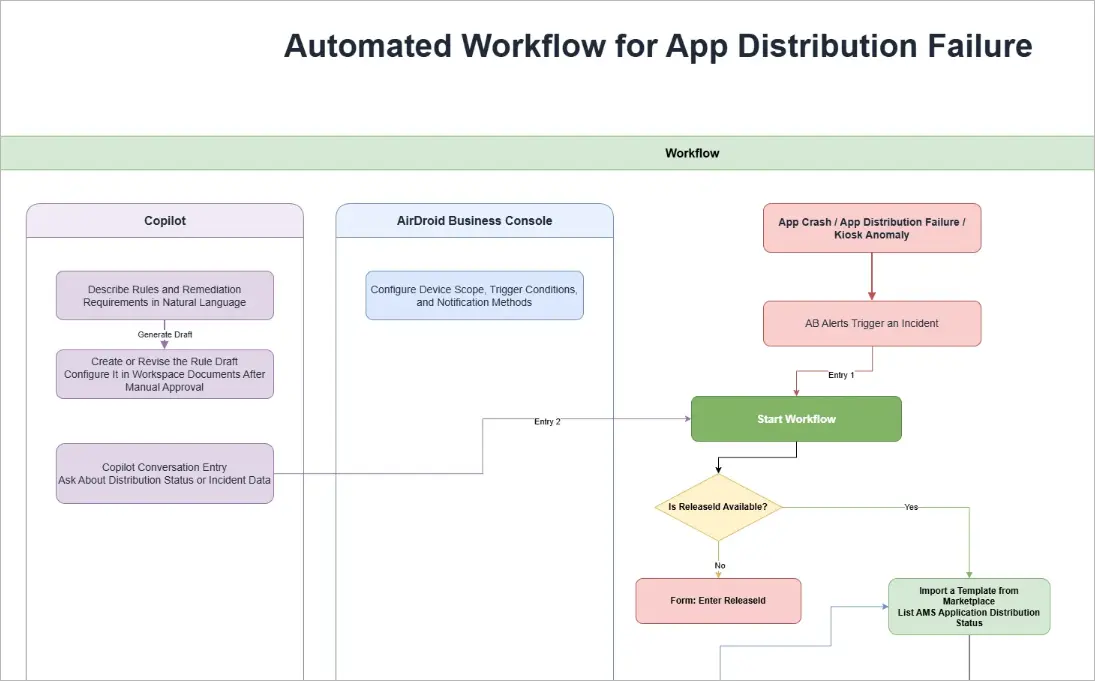
It is important to note that a Copilot query is a request-response interaction. It does not mean that the Workflow will proactively push incidents to Copilot.
Regardless of which entry point starts the process, the first step is to establish complete incident context, including EventId, ReleaseId, app name, platform, version, device group, trigger time, and trigger rule. The Workflow can call device information query templates from the Marketplace to add more device-side data. This context is carried through subsequent status queries, retries, ticket association, recovery verification, and audit records.
Step 1: Confirm the ReleaseId and Query Distribution Results
When designing an App Distribution Failure handling process, the first question is how to accurately identify which app release task encountered the problem when an incident occurs.
In an enterprise environment, the same app may have multiple versions, multiple test environments, or several staged rollout tasks running at the same time. If the process cannot accurately identify the target Release, subsequent status queries, automated retries, ticket association, and recovery verification may be performed against the wrong release task.
Therefore, ReleaseId should serve as the core correlation field throughout the entire incident handling process. From initial detection to final recovery, all queries, actions, and records should be associated with the same Release. When designing alerts and the Workflow, it is recommended to save the ReleaseId as part of the incident context from the beginning.
This design prevents the Workflow from making assumptions based on incomplete information such as an app name or version name. It is particularly important when an app has multiple releases, because it helps prevent incorrect status queries or retries against the wrong release.
Step 2: Check App Distribution Status
After confirming the ReleaseId, the next step is to determine the current stage of app distribution and route the process according to the returned status.
After calling List AMS Application Distribution Status, AirDroid Business returns the current distribution status of the release task. Based on that status, the Workflow must decide whether to continue waiting, perform a recovery action, or move to manual handling.
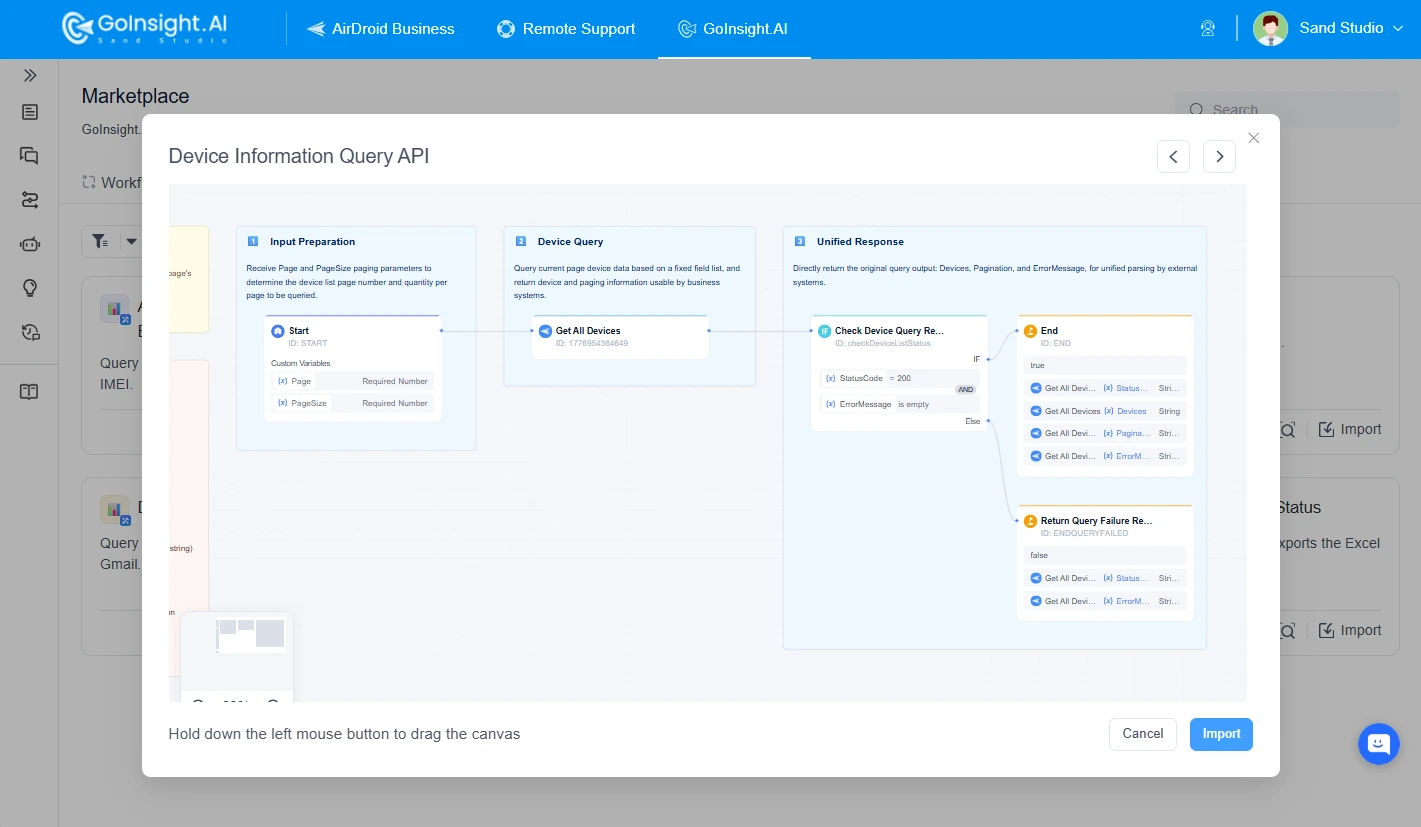
App distribution statuses can generally be handled in the following three categories:
If all target devices have completed the installation, record the verification result and close the process. This record confirms that the Release reached its expected deployment target and provides evidence for future audits.
If some devices are still in the distribution process, the task should not immediately be classified as failed.
Set a predefined waiting interval and continue querying the same ReleaseId until:
Each status change should update the same incident record to prevent polling from generating multiple duplicate incidents.
Move to the next stage of exception handling, such as checking whether the conditions for an automated retry are met or preparing the incident for manual analysis.
By routing the process according to distribution status, the Workflow can automatically distinguish a normal deployment process from a genuine exception, reducing unnecessary alerts and manual investigation.
Step 3: Retry App Distribution for Automated Recovery
When the distribution status shows a failure or timeout, the next step is not to retry the distribution immediately. The Workflow should first use business rules to determine whether automated recovery is permitted.
An automated retry is suitable for some temporary issues, such as a device being briefly offline, network instability, or an interrupted installation process. However, if the problem is caused by the app package, system compatibility, or permission restrictions, repeatedly performing the same action will usually not resolve it.
Therefore, the automated retry process should define safety conditions in advance, including:
Once these conditions are met, the Workflow can call Retry Application Distribution to redistribute the app to the confirmed Release and target scope.
After the retry is complete, query the status of the same ReleaseId again and continue according to the status logic defined in Step 2:
Limiting the number of retries and defining execution conditions prevents the Workflow from entering an endless loop. It also avoids delaying issues that require human intervention.
Step 4: Add Rules and Business Context for Incident Analysis and Escalation
If an automated retry still does not resolve the problem, the issue may be more than a temporary failure. Further analysis is required to understand both the technical cause and the business impact.
This is where AI-assisted MDM provides value. By combining existing operational rules and business standards, it helps IT teams quickly organize information, classify the incident, make escalation decisions, and identify the next troubleshooting direction. In AirDroid Business, data query nodes, LLM nodes, and business system connection nodes can be added to consolidate technical status, business impact, and handling recommendations within the same incident process.
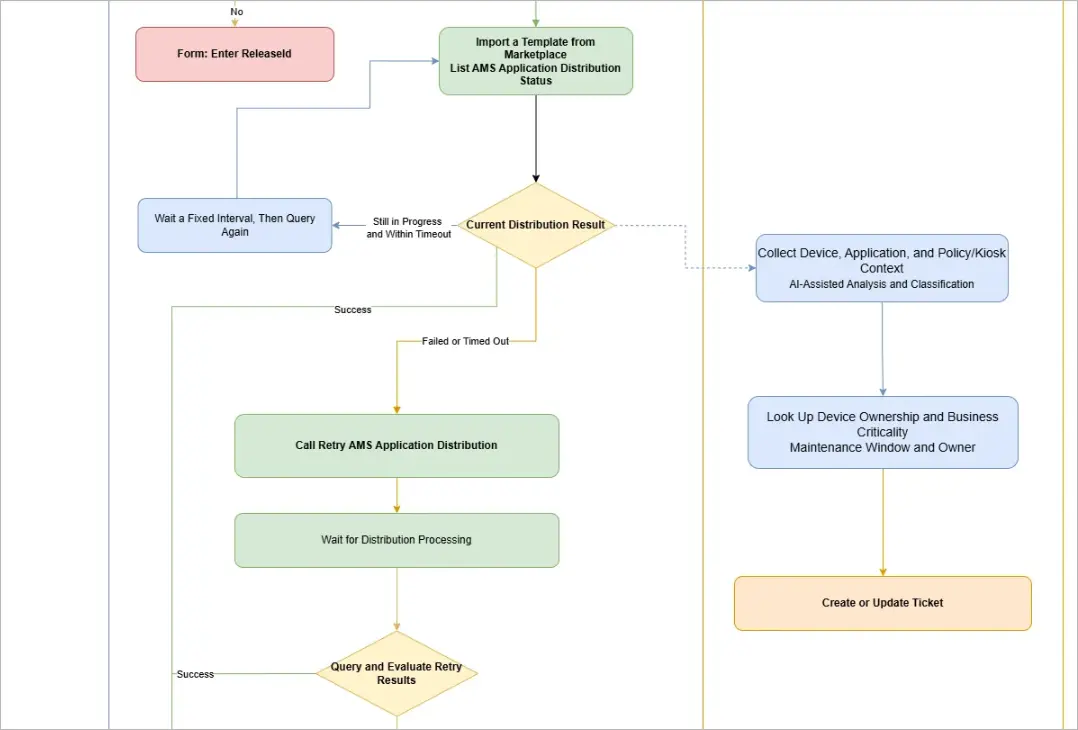
1. Add a device information query node to supplement technical context
Device information query templates can retrieve the online status, OS version, network condition, available storage, installation permissions, current app version, and any Policy or Kiosk restrictions that may affect installation. This information can be used to group failed devices by shared attributes or error patterns, helping determine whether the issue is more likely related to the mass deployment environment, specific devices, or a particular OS version.
2. Connect enterprise business systems to supplement business context
Technical status alone cannot determine incident priority, so device information must be associated with enterprise business data.
App nodes, Webhook nodes, or HTTP nodes can connect internal systems such as ITSM, CMDB, or asset management platforms. These systems can provide the business service associated with a device, device criticality, the current maintenance window, the support team, and the escalation owner.
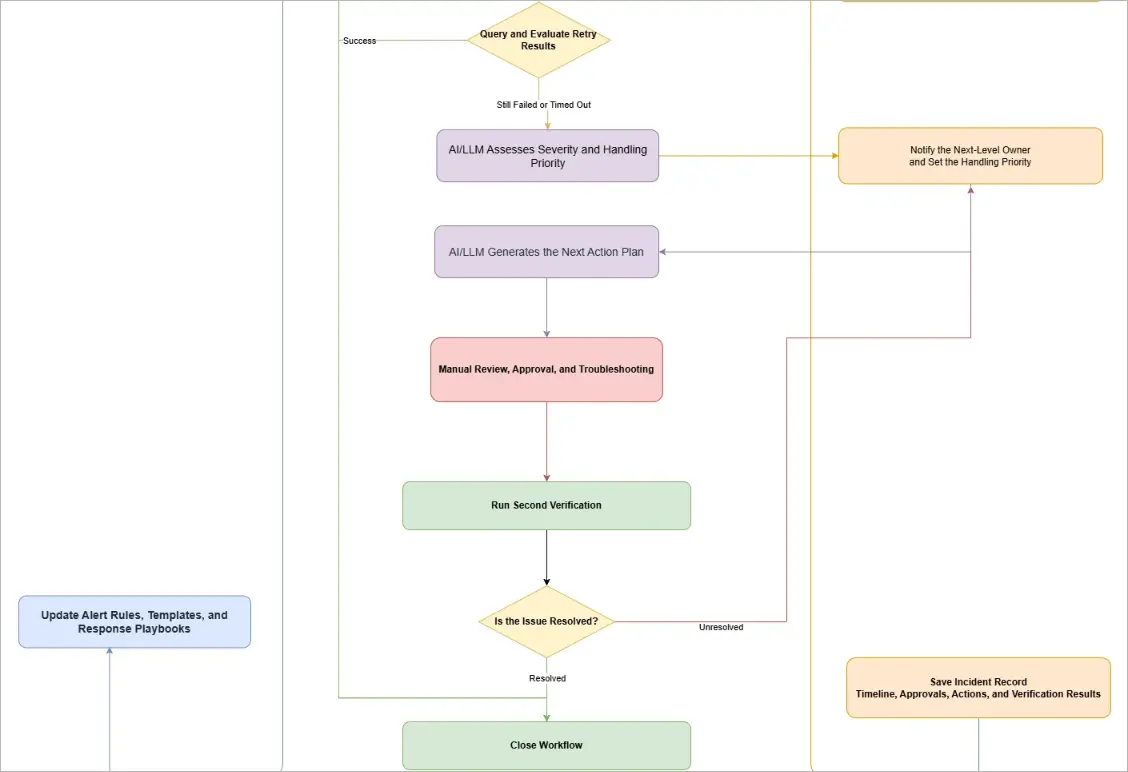
3. Retrieve the knowledge base and classify the incident according to rules and context
During the preparation stage, IT operators should already have maintained the required rule documents in the Workspace Document. A Knowledge Retrieval node can now be added to complete data collection and rule retrieval.
Next, call an LLM or Agent node to comprehensively determine the incident priority, match the appropriate escalation path, confirm whether human intervention is required, and select the corresponding handling process.
4. Generate handling recommendations based on the incident level
After the incident level and escalation path have been determined, use AI to generate targeted handling recommendations.
Based on the complete context, AI can provide an analysis of possible causes, a recommended troubleshooting order, and suggested remediation actions.
5. Connect the notification system, create a ticket, and notify the responsible team
After determining the escalation path, use the Workflow to connect ITSM, email, Teams, Slack, or an internal communication system to automate notifications and escalation. The notification should clearly state which app and Release failed, which devices or business services are affected, which actions the Workflow has already performed, and which approval or action is currently required.
When creating a ticket, use EventId and ReleaseId as the correlation keys. The ticket can also include the technical context, business context, initial result, retry result, affected scope, timestamps, and recommended next action.
6. Human review and remote troubleshooting
For incidents that require human intervention, the responsible owner should confirm the handling method according to the incident level and review the AI-generated analysis and recommendations. In scenarios involving critical devices, important business services, or high-risk operations, a person should confirm the action before the process continues, preventing the automated Workflow from making unapproved changes.
After entering the manual handling stage, technicians can use AirDroid Business Remote Control to investigate the device further. For example, they can confirm whether the device is online, inspect the app installation environment, verify network and permission settings, or perform an approved remediation action.
Step 5: Verify Status Again and Complete the Loop
After an automated redistribution or a manual repair, call List AMS Application Distribution Status again to query the app distribution status and confirm whether the target devices have actually reached the expected version.
If app distribution succeeds, update the final incident status, record the recovery time, final number of successful devices, and manual actions, and synchronize the update with the ITSM ticket. Mark the incident as resolved and end the Workflow.
If some devices still fail, keep the ticket open and transfer it to the next-level support team or a specialist according to the enterprise escalation rules. Record a clear owner, the next diagnostic action, and the next review time, preventing devices from remaining in an “under investigation” state without actual progress.
Part 4 : Recording, Post-Incident Review, and Continuous Improvement
After an App Distribution Failure incident is resolved, the IT operations team will usually conduct a post-incident review to analyze the cause, evaluate the effectiveness of the response, optimize future release strategies, and improve the success rate of subsequent app distributions.
In a traditional MDM environment, post-incident reviews often require teams to manually collect information from multiple systems. This process is time-consuming and can result in inconsistent data definitions, making it difficult to accurately determine the cause of the problem and evaluate the effectiveness of the response.
By using InsightFlow to connect the MDM platform with enterprise business systems, an App Distribution Failure incident can automatically preserve complete incident context as the Workflow runs, providing a consistent data foundation for future analysis and optimization.
Transform MDM alerts into traceable incidents that combine AI-assisted analysis, safe automation, human intervention, recovery verification, and continuous improvement.
1Automatically Preserve Complete Incident Context
While the Workflow is running, relevant incident information can be continuously written to the same incident record and associated with an ITSM ticket when required. This means that the IT operations team does not need to reconstruct information from multiple sources after the incident is resolved.
The incident context can include:
2Analyze Incident History with Copilot
After incident data has been preserved, IT operators can use Copilot to query the current app distribution status or analyze historical App Distribution Failure incidents.
For example:
“Analyze the App Distribution Failure incidents for app version 5.4. What were the main causes? Which device groups had the highest failure rate? Was the automated retry effective?”
Based on the existing incident context, Copilot can help the team summarize the distribution results for a Release, analyze whether failures are concentrated on specific devices, OS versions, network environments, or device groups, and provide recommendations for optimization before the next release.
3Apply Findings to Future Workflows
The ultimate purpose of a post-incident review is not simply to generate a report, but to use the findings to improve the next app distribution process.
Based on historical incidents and Copilot analysis results, the IT operations team can continuously optimize incident classification rules, alert thresholds, escalation paths, and other configurations. This ultimately creates an App Distribution Management loop that is traceable, reviewable, and continuously optimizable.
Conclusion
An App Distribution Failure is not simply an installation failure status. It is an operational incident that requires continuous assessment, handling, and verification. For an enterprise IT team, the real challenge is not merely identifying which devices have not completed an upgrade, but quickly determining the cause of the failure, identifying the business impact, and ensuring that the problem is effectively resolved.
With AI-assisted AirDroid Business, device and application status data from MDM can be further connected to existing enterprise operational processes, creating a continuous improvement loop:
Issue detection → Context collection → Intelligent analysis → Automated handling → Recovery verification → Knowledge capture → Process optimization
This approach not only improves the success rate of app releases, but also reduces repetitive manual investigation. It helps IT teams move from reactively handling device issues to a more proactive, intelligent, and scalable device operations model.
Explore the AirDroid Business AI-assisted MDM solution today and build an App Distribution Failure handling loop that fits your organization.
Connect app distribution alerts with monitoring rules, automated retries, approval controls, and ITSM systems to start the right response as soon as a failure is detected.








Leave a Reply.