How to Automate Low-Storage Alerts on Android Devices with AirDroid Business
When an Android device runs low on storage, an alert alone may not give IT enough information to decide what to do next.
A low-storage alert can tell your team that a device has crossed a storage threshold. But before taking action, administrators usually need more context: which device is affected, which group it belongs to, how much storage remains, whether the device is online, and whether the issue may affect a POS app, Kiosk app, digital signage player, or shared frontline device.
This tutorial shows how to build an end-to-end low-storage alert workflow with AirDroid Business and GoInsight.AI.
The workflow is designed to:
- Detect Android devices that fall below a defined storage threshold.
- Notify the right IT or operations team.
- Collect device resource data automatically.
- Generate a structured report for review.
- Help administrators decide the next step without automatically clearing data or interrupting device operations.
This workflow does not automatically delete files, clear app data, reboot devices, or resolve storage issues without review. It automates the investigation and reporting process so IT teams can make a safer decision.
New to alert-triggered device workflows? Read our complete guide to MDM alert automation first.
What This Low-Storage Workflow Does
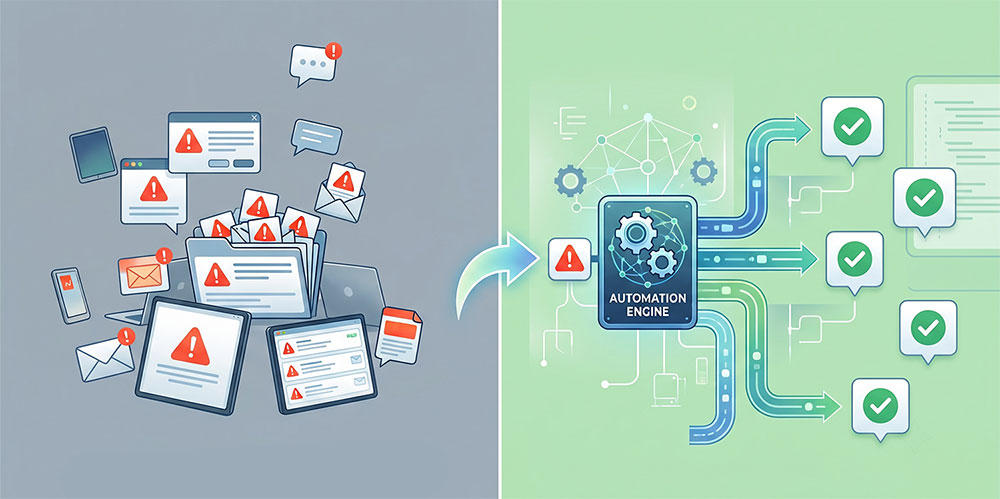
This workflow connects an AirDroid Business storage alert with a GoInsight.AI workflow. The goal is to turn a storage warning into a structured investigation process.
| Workflow Element | What It Does |
|---|---|
| Trigger | An Android device falls below the configured storage threshold. |
| Device scope | The alert can apply to all devices, selected groups, selected devices, or filtered device models. |
| Notification | AirDroid Business sends an alert notification to selected administrators or stakeholders. |
| Data collection | GoInsight.AI collects device resource data through the connected workflow. |
| Report output | The workflow generates a device resource usage report for review. |
| Human decision point | IT reviews the report and decides whether to clear cache, uninstall unused apps, replace the device, or take another action. |
The automation here removes repetitive manual steps. It does not replace administrator judgment.
Workflow at a Glance
Low-Storage Alert
Notify IT
Trigger GoInsight.AI Workflow
Collect Device Resource Data
Generate Report
Review and Decide the Next Step
Why Automate Low-Storage Alert Investigation?
Low storage is a good example of an alert that should not immediately trigger the same device-side action for every device.
A storage warning may be caused by different issues:
- A Kiosk app caching large media files.
- A POS app storing transaction logs.
- A digital signage player downloading large content packages.
- A field service tablet accumulating photos, forms, or offline records.
- A shared device with unused applications or temporary files.
The right response depends on the device role and business context.
For example:
- A retail kiosk may need media cache reviewed.
- A field service tablet may need unused apps removed.
- A logistics handheld may need local records checked before any cleanup.
- A POS terminal may require extra caution to avoid deleting transaction-related data.
That is why this workflow focuses on detection, notification, data collection, and reporting rather than immediate remediation.
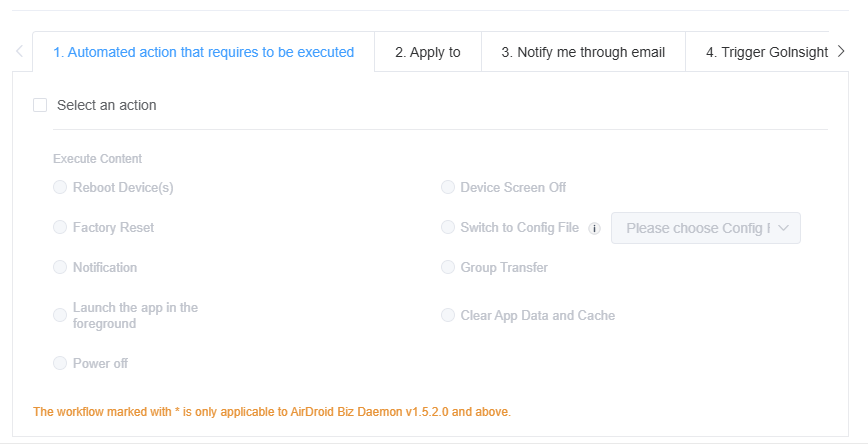
An automated low-storage investigation workflow helps IT teams:
- Avoid blind cleanup actions.
- Reduce manual device lookups.
- Standardize how storage alerts are investigated.
- Give the right team a report they can act on.
- Keep a record of alert handling and report delivery.
Prerequisites
Before you start, make sure you have the following:
- Access to the AirDroid Business Admin Console.
- Permission to create and edit Alerts & Workflows.
- Managed Android devices enrolled in AirDroid Business.
- A target device group, device list, or device model scope.
- Access to GoInsight.AI.
- The required workflow template in GoInsight.AI.
- API or OAuth connections required by the workflow.
- Recipient email addresses for report delivery.
In this tutorial, the example uses the GoInsight.AI template:
Device Resource Usage Query and Send to Outlook
Template availability, connector names, and configuration options may vary depending on your GoInsight.AI workspace setup.
Turn MDM Alerts Into Automated Action
Stop letting alerts sit in a queue. Automate detection, notification, and response with AirDroid Business.
Build the Low-Storage Alert Workflow
Step 1: Create an Insufficient Storage Alert in AirDroid Business
AirDroid Business handles the alert detection. Start by creating a storage alert.
- Go to Workbench in the AirDroid Business Admin Console.
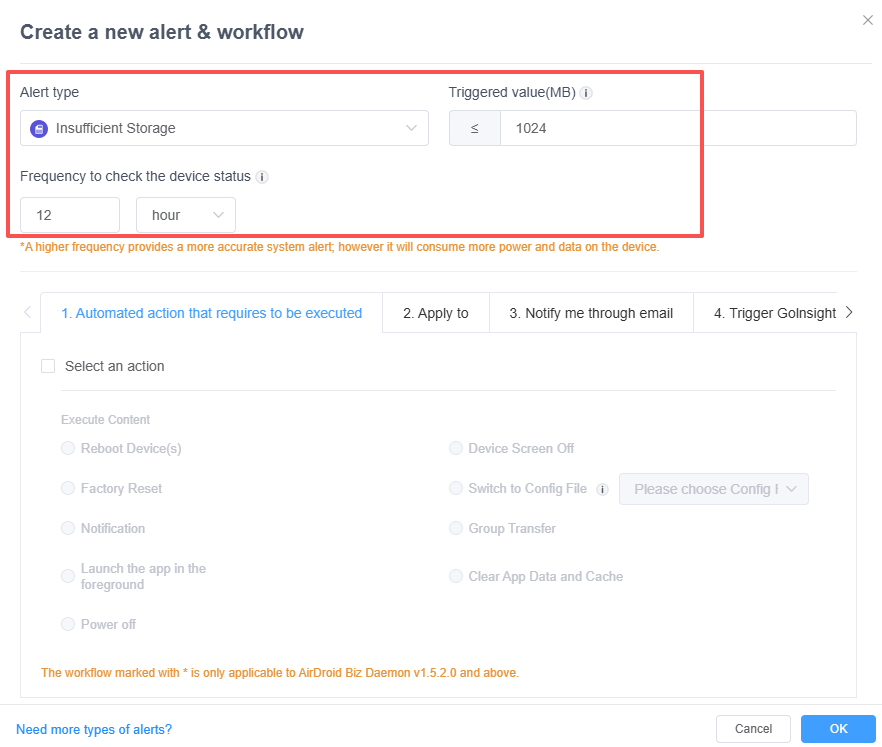
- Click + Alerts & Workflows to create a new alert.
- Set the alert type to Insufficient Storage.
- Enter a Triggered value in MB.
- Set the alert check frequency.
- Choose the device scope.
Choosing a Storage Threshold
A threshold of 1024 MB or 500 MB may work for many environments, but the right value depends on your device role and business needs.
For example:
- POS terminals and kiosks may need more available space to avoid app instability.
- Digital signage devices may require extra storage for media content.
- Field devices may need enough space for offline files, photos, forms, or logs.
Choose a threshold that gives your team enough time to investigate before the device runs out of usable storage.
Choosing a Check Frequency
Storage usually decreases gradually, so checking every few hours is often enough for many environments.
If your devices download large files or media packages, you may need a shorter interval. If storage changes slowly, a longer interval may reduce unnecessary alerts.
Step 2: Configure Alert Notifications
Next, define who should be notified when the storage alert is triggered.
- Under Apply to, select the target device scope.
- Choose whether the alert applies to all devices or groups, specific device groups, specific devices, or filtered device models where available.
- Under Notify me through email, choose the notification frequency.
- Select the recipients.
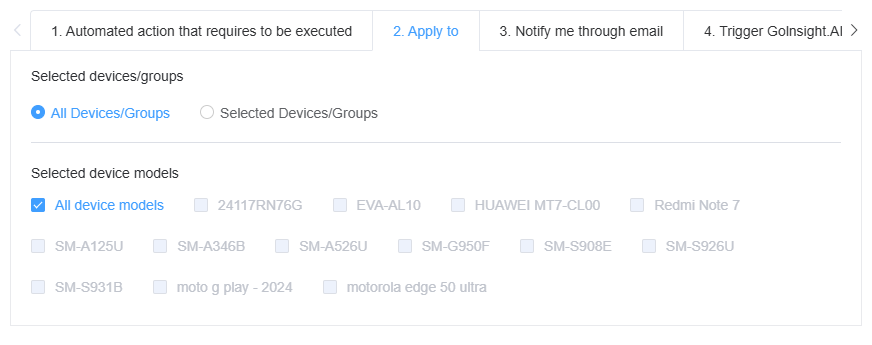
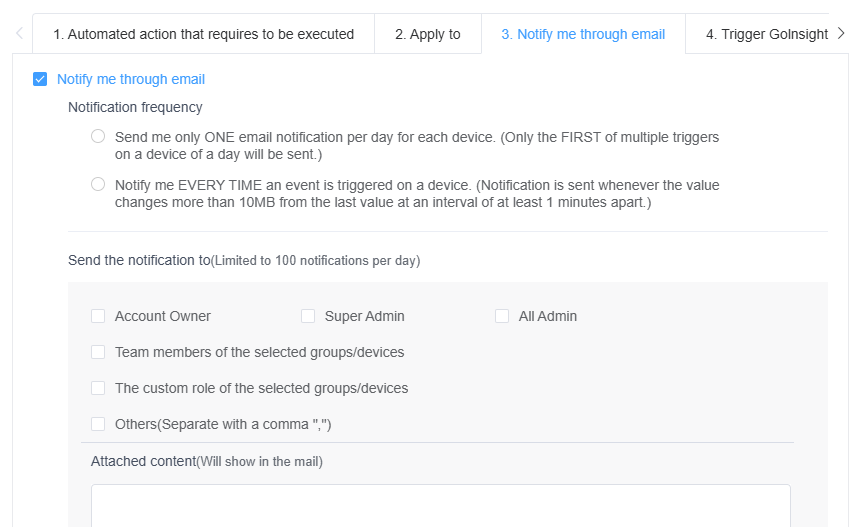
For storage monitoring, you may want to notify the team every time the alert is triggered on a device, especially if low storage can affect business operations.
Recommended recipients may include:
- Super Admin.
- IT administrators.
- Device operations owners.
- Regional support teams.
- External stakeholders who need report access.
Use recipient selection carefully. Sending every alert to the entire admin team may create noise. For large device fleets, route alerts to the team responsible for the device group or business location.
Step 3: Import the Device Resource Usage Workflow in GoInsight.AI
The AirDroid Business alert detects the storage issue. The GoInsight.AI workflow collects additional device resource information and delivers the report.
In GoInsight.AI:
- Go to the Marketplace.
- Import the template Device Resource Usage Query and Send to Outlook.
- Open the imported workflow.
- Review the workflow structure and checklist.
- Confirm that the workflow is designed to query device resource data and send the report to the configured recipients.
This template is used for the investigation and reporting stage. It does not automatically clear device storage.
Step 4: Configure Connections and Input Variables
After importing the workflow, configure the required API connections and input variables.
Configure API Connections
Open the workflow checklist and complete the required connections.
Depending on your workspace and template version, required connections may include:
- AirDroid Business OAuth2 API: Allows GoInsight.AI to query device information from your AirDroid Business account.
- Microsoft Excel OAuth2 API: Allows GoInsight.AI to create and store the generated Excel report.
- Outlook or email connector: Allows the workflow to send the report link to selected recipients, if required by the template.
Connector names and authorization steps may vary by workspace configuration. Follow the checklist in GoInsight.AI to complete the required setup.
Configure Input Variables
The workflow may require input variables such as device scope and recipient emails.
| Variable | Required | Example | Purpose |
|---|---|---|---|
QueryAllDevices | Yes | True | Queries all managed devices visible to the connected AirDroid Business account. |
DeviceNames | Conditional | ["POS-001","POS-002"] | Limits the query to specific device names when QueryAllDevices is False. |
GroupNames | Conditional | ["Shanghai Stores"] | Limits the query to specific device groups when QueryAllDevices is False. |
RecipientEmails | Yes | ["it@example.com"] | Defines who receives the generated report link. |
If QueryAllDevices is set to False, provide either DeviceNames or GroupNames in the required format.
Example: query a device group
{
  "QueryAllDevices": false,
  "GroupNames": ["Shanghai Stores"],
  "RecipientEmails": ["it@example.com"]
}
Example: query specific devices
{
  "QueryAllDevices": false,
  "DeviceNames": ["POS-001", "POS-002"],
  "RecipientEmails": ["it@example.com"]
}
Example: query all devices in scope
{
  "QueryAllDevices": true,
  "RecipientEmails": ["it@example.com"]
}
Use exact device names and group names as configured in AirDroid Business. If the workflow returns no device data, check whether the names match the AirDroid Business device list or group structure.
Step 5: Connect the Alert to GoInsight.AI
After the workflow is configured, connect it back to the AirDroid Business alert.
In GoInsight.AI:
- Open the workflow editor.
- Open the Start node.
- Enable the
$ABEventswitch. - Save the workflow.
- Click Publish.
The $ABEvent setting allows the workflow to receive alert events from AirDroid Business. Without this setting enabled, the workflow may only run manually.
In AirDroid Business:
- Return to the storage alert configuration.
- Find the Trigger GoInsight.AI option.
- Select the published workflow from the list.
- Click OK or save the alert configuration.
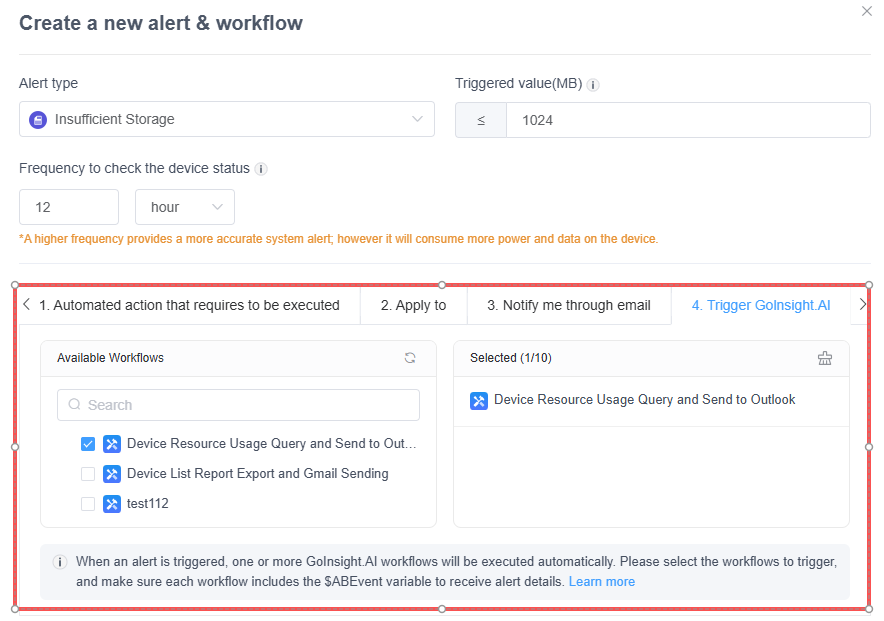
Once connected, AirDroid Business provides the alert event and device management context. GoInsight.AI runs the connected workflow and handles the report generation process.
Step 6: Test the Workflow
Before using the workflow in production, test it with a controlled device or test group.
Test Checklist
Use this checklist to confirm the setup:
- The test device is below the configured storage threshold.
- AirDroid Business generates an insufficient storage alert.
- The selected administrators receive the alert notification.
- GoInsight.AI receives the AirDroid Business event.
- The workflow execution status is successful.
- The Excel report is created.
- The report includes the expected device resource data.
- The selected recipients receive the report link.
- The AirDroid Business operation history or workflow logs retain a record for review.
Do not rely only on a “successful” connection status. Confirm that the actual alert, workflow trigger, report generation, and email delivery all work as expected.
Expected Workflow Output
When the workflow runs successfully, the responsible team should receive a report link.
The device resource usage report may include fields such as:
- Time.
- Last Online Time.
- Online Status.
- Device Name.
- Group.
- Model.
- CPU Usage.
- Used Memory.
- Remaining Internal Storage.
- Total Internal Storage.
The exact output depends on the workflow template and workspace configuration.
Example Report Format
Below is an illustrative example of how a report may help IT teams review affected devices.
| Device Name | Group | Online Status | Last Online Time | Remaining Internal Storage | Total Internal Storage | CPU Usage |
|---|---|---|---|---|---|---|
| POS-Store-01 | Shanghai POS | Online | 2026-08-18 09:20 | 420 MB | 32 GB | 36% |
| Kiosk-021 | Airport Kiosks | Online | 2026-08-18 09:18 | 860 MB | 64 GB | 42% |
| Tablet-108 | Field Service | Offline | 2026-08-18 07:45 | 730 MB | 32 GB | N/A |
This report gives administrators the context they need before deciding whether to:
- Clear app cache after review.
- Remove unused apps.
- Check downloaded media files.
- Contact the local device owner.
- Replace or upgrade the device.
- Move the device to a troubleshooting process.
Troubleshooting and Exception Handling
If the workflow does not run as expected, use the table below to check common issues.
| Problem | Likely Cause | What to Check |
|---|---|---|
| Workflow does not appear in AirDroid Business | Workflow is not published or $ABEvent is disabled | Check the Start node and publishing status in GoInsight.AI. |
| Alert fires but workflow does not run | Trigger configuration or connection failed | Check AirDroid Business operation history and GoInsight.AI workflow logs. |
| Report contains no devices | Device scope or query variables do not match | Check QueryAllDevices, DeviceNames, and GroupNames. |
| Recipient receives no email | Invalid email, connector authorization issue, or mail filtering | Test the Outlook or email connection and check spam filters. |
| OAuth connection fails | Authorization expired or missing permission | Reauthorize the required connector in GoInsight.AI. |
| Duplicate reports are generated | Alert frequency is too aggressive | Adjust alert frequency and device scope. |
| Report data looks outdated | Device is offline or has not recently reported resource data | Check last online time and device reporting status. |
For production use, review workflow results regularly. If the same device repeatedly triggers low-storage alerts, it may need a separate maintenance process rather than repeated reporting.
Safety Considerations
This workflow is intentionally designed to collect information before taking action.
Low storage does not always mean that the safest next step is to clear app data or reboot the device. In many business environments, device-side actions can interrupt operations or remove data that teams still need.
Why This Workflow Does Not Clear Data Automatically
Clearing app data or cache may affect:
- Login sessions.
- Offline records.
- Local files.
- App settings.
- Transaction or form data.
- Kiosk or business app behavior.
For POS terminals, healthcare devices, logistics tablets, and unattended kiosks, these risks can directly affect frontline operations.
A safer first step is to generate a report and let an administrator review the affected devices.
When Approval Is Needed
High-impact actions should follow permission, confirmation, and audit rules. These may include:
- Clearing app data or cache.
- Rebooting a device.
- Powering off a device.
- Factory reset.
- Unenrollment.
- Switching critical configurations.
If your team wants to extend this workflow into device-side actions, define the scope carefully and require administrator confirmation where appropriate.
Next Steps After Receiving the Report
After the report is delivered, IT teams can review each device and choose the most appropriate follow-up action.
Possible next steps include:
- Contacting the device owner or local operator.
- Reviewing large apps or downloaded content.
- Clearing selected app cache after confirmation.
- Removing unused applications.
- Moving the device into a troubleshooting group.
- Scheduling maintenance outside business hours.
- Replacing devices with insufficient storage capacity.
- Adjusting storage thresholds for specific device groups.
The storage workflow described here is one example of an alert-triggered investigation process. The same model can be adapted to other scenarios, such as low-battery reports, offline device exports, Kiosk status checks, or device inventory snapshots.
To understand the broader concepts, use cases, and safety controls behind alert-triggered workflows, read the complete guide to MDM alert automation.
Final Words
Automating low-storage alerts is not about automatically deleting data or forcing a one-size-fits-all fix. It is about reducing the manual work between “this device is running low on storage” and “the right team has the information needed to decide what to do.”
With AirDroid Business and GoInsight.AI, IT teams can connect storage alerts with workflow-based investigation and reporting. The result is a more consistent response process: alerts are detected, responsible teams are notified, device data is collected, and reports are delivered for review.
For teams managing Android devices across stores, warehouses, vehicles, clinics, kiosks, or unattended locations, this creates a safer and more repeatable way to handle storage-related device issues.








Leave a Reply.