
- Manage Android and Windows Kiosks from one unified dashboard.
- Deploy Single-App, Multi-App, or Browser-only environments instantly.
- Disable physical buttons and USB ports to prevent tampering.
- Customize interfaces and layouts to maintain your brand’s look.
- Push Kiosk settings to thousands of devices without being on-site.
Business Guide to Kiosk Mode: What to Know Before You Start
Picture this: You're running a busy restaurant with self-service kiosks. Everything's smooth until a system update notification pops up mid-lunch rush. Or a customer exits your ordering app and starts browsing random websites. How much revenue does that cost you? How many frustrated customers walk away?
If you deploy tablets and terminals in public spaces, these devices aren't just tools—they're your brand touchpoints and revenue generators. When they malfunction or get tampered with, you lose money fast (and probably some peace of mind too).
Kiosk Mode is a business-level solution that transforms any general-purpose device into a locked-down, single-function machine. It's software that keeps your Android tablet, iPad, or Windows terminal running only your business application. Nothing else.
- We built this guide for business owners, IT administrators, and operations managers who need to understand how software lockdown protects company assets. We'll break down the different levels of device restriction, compare how major browsers handle kiosk configurations, and show you how to remotely manage thousands of terminals without touching a single device.
- We've helped hundreds of companies across more than 20 countries deploy kiosk solutions (yes, really—from Taiwan to Toronto). Here's everything we've learned.
1What Is Kiosk Mode?(Beyond the Basic Definition)
Kiosk Mode is a lockdown state that restricts Windows, iOS/iPadOS, macOS, or Android devices to a single app or webpage. It hides all unnecessary menus, address bars, and system settings. The device runs in full-screen mode and prevents users from exiting the current interface.
Think of it this way: The device can still do everything technically, but you've intentionally disabled 99% of its functions to serve one specific purpose. That's the entire point.
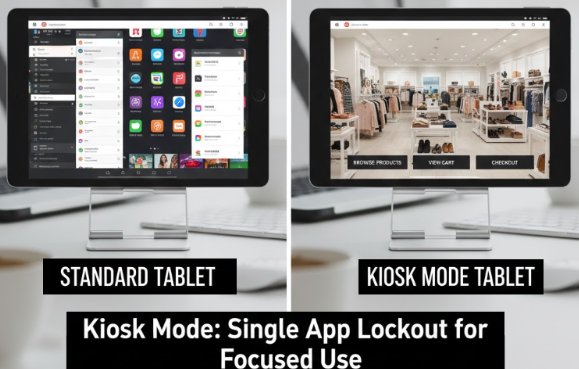
Depending on your business needs, Kiosk Mode can appear as:
- Single App Mode: Only one program runs. Perfect for digital signage or simple ordering systems.
- Multi-App Mode: Users can switch between 2-5 pre-approved applications. Useful for environments like hospitals where staff need access to multiple tools.
- Web-Based Kiosk (Browser Kiosk): Locked to specific websites. Common in libraries and educational settings.
Two Categories: Soft Lock vs. Hard Lock
Based on control depth and enforcement strength, we split Kiosk Mode into two types. Understanding this difference saves you from choosing the wrong solution.
Soft Lock (Personal Use)
Focuses on visual experience and temporary control. You see this with browser plugins, iOS Guided Access, and Android's "Pin App" feature.
The main limitation? Users hold the unlock key. They can exit if they know the passcode. Soft locks work fine for controlled environments like home use, but they're not built for public-facing business deployments.
Hard Lock (Enterprise Use)
Focuses on complete authority and unbreakable restrictions. You deploy this through Mobile Device Management (MDM) software. Hard locks strip exit permissions at the system level, boot directly into lockdown mode, and can't be bypassed through physical buttons or gestures.
Here's how we explain it to clients: Soft locks are like putting a "Do Not Disturb" sign on your door. Hard locks are like removing the door handle entirely.
Want a deeper technical breakdown? Read our detailed overview: What is Kiosk Mode? A Detailed Overview
2Why Does Your Business Need Kiosk Mode?
Do you really need Kiosk Mode if you've already bought kiosk hardware? Yes, you do.
Many companies assume that purchasing a kiosk machine is enough. But without software-level Kiosk Mode protection, your expensive hardware is just a regular computer sitting in public. Anyone can mess with it (and they will).
How Businesses Benefit from Kiosk Mode
- 1. Stop Malicious Tampering: Users can't randomly install software, change system configurations, or access unauthorized content. We've seen cases where customers at retail kiosks tried downloading games or accessing social media. Kiosk Mode stops that immediately. You set the rules, and the device enforces them—no exceptions.
- 2. Cut Maintenance Costs: Lockdown means fewer mistakes. Your IT team won't need to constantly travel to fix messed-up interfaces or reinstall corrupted apps. One of our clients reported a 40% reduction in on-site support tickets after deploying Kiosk Mode across 200+ devices. That's real money saved.
- 3. Strengthen Brand Consistency: Your device always displays your brand content or business workflow. No random pop-ups. No distracting notifications. Just your app, your logo, your experience. This matters more than you think—customers judge your professionalism based on these small details.
- 4. Protect Data Security: Kiosk Mode automatically clears the previous user's browsing history and input information. This isn't optional for healthcare kiosks (HIPAA compliance) and financial services (PCI-DSS requirements). It's the law.
3Which Browsers Support Kiosk Mode?
If your business runs on web-based applications, regular "full-screen mode" won't cut it. You need a browser that can be transformed into a dedicated app through deep customization.
MDM software doesn't support every browser on the market. They focus on browsers with management APIs for business use. Let's break down your options.
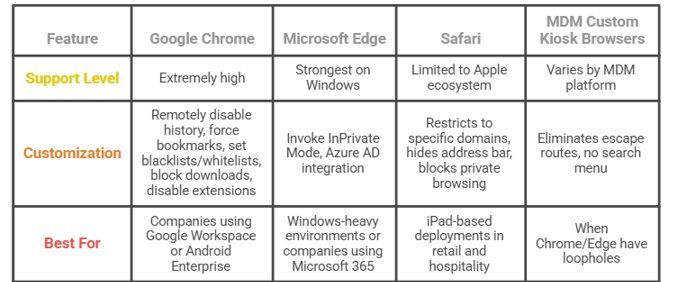
1Google Chrome (Android & Windows)
Support Level: Extremely high. Nearly all major MDM platforms support Chrome's "Managed Configurations."
What You Can Customize:
- Remotely disable browsing history
- Force bookmarks
- Set website blacklists/whitelists
- Block downloads
- Disable extensions
Best For: Companies already using Google Workspace or Android Enterprise. Chrome integrates seamlessly with these ecosystems, making deployment faster.
2Microsoft Edge (Windows & Android/iOS)
Support Level: Strongest on Windows devices.
What You Can Customize:
- MDM can invoke Edge's exclusive "InPrivate Mode" to automatically clear session data—essential for finance and healthcare industries where regulatory compliance isn't negotiable
- Supports Azure AD integration for authentication
Best For: Windows-heavy environments or companies using Microsoft 365. If your team lives in Outlook and Teams, Edge makes sense.
3Safari (iOS/iPadOS)
Support Level: Limited to Apple ecosystem only.
What You Can Customize:
- MDM uses Apple's XML configuration profiles
- Restricts Safari to specific domains
- Hides address bar and toolbar
- Blocks private browsing
Limitation: Less flexible than Chrome or Edge. Apple's walled garden approach means fewer customization options. You work within Apple's constraints.
Best For: iPad-based deployments in retail and hospitality where brand consistency matters more than deep customization.
4MDM-Provided Custom Kiosk Browsers (Primarily Android)
Some MDM platforms offer a built-in kiosk browser based on Android's WebView engine. Why do they do this? Because Chrome and Edge are general-purpose browsers. Even with heavy restrictions, they sometimes have loopholes.
For example, long-pressing text might trigger a search menu that leads users away from your app. Custom MDM browsers eliminate these escape routes entirely.
Example: AirDroid Business provides a custom-built kiosk browser.
What You Can Customize (Deepest Level):
- Control cache clearing frequency down to the minute
- Customize bottom navigation bar with your brand colors
- Display custom HTML error pages when offline
- Block all right-click menus and text selection
- Inject custom JavaScript for advanced interactions
Best For: Companies needing complete control with zero escape routes. If security is paramount and you can't afford any loopholes, this is your solution.
4How Does Kiosk Mode Work Across Different Platforms?
Each operating system handles Kiosk Mode differently. Understanding these differences helps you choose the right platform for your deployment.
Android: Maximum Flexibility
Android's flexibility comes from Android Enterprise. Using a "Device Owner" mode, MDM software gains root-level control without needing to hack the device. This is completely legitimate and supported by Google.
Through Android Enterprise, MDM software can:
- Block physical buttons like home, back, and volume controls
- Disable USB ports to prevent unauthorized data transfers
- Remotely black out the screen for maintenance or repairs
- Lock down the status bar and notifications
Android offers the most detailed control. If you need to deploy thousands of tablets in unpredictable environments like construction sites or outdoor events, Android is your best bet.
Extended Reading: How to Lock Android Tablets to Kiosk Mode
iOS/iPadOS: Stability and Security
For business, Apple's standard "Guided Access" is insufficient because it's easily bypassed. Instead, businesses use Supervised Mode via Apple Business Manager (ABM). This is what you need for real enterprise deployments.
Supervised Mode Capabilities:
- Requires MDM enrollment—no shortcuts
- Locks device permanently until IT admin releases it
- Supports Single App Mode and Multi-App Mode
- Extremely difficult to bypass, even for tech-savvy users
Best For: Retail stores, healthcare facilities, and any environment where device stability is non-negotiable.
Windows: Desktop-Grade Power
Windows Kiosk Mode uses system-level engines like Assigned Access and Shell Launcher to create a hard lock. MDM software acts as the remote controller, allowing you to trigger these powerful locking mechanisms across all your PCs without manual setup.
What Windows Can Do:
- Lock to Any Software: Supports everything from simple web browsers to heavy-duty desktop applications like AutoCAD or Salesforce
- Total UI Lockdown: Hides the Start menu, taskbar, and desktop, forcing the device to boot directly into your app
- Block System Shortcuts: Disables escape routes like Ctrl+Alt+Del and Alt+F4 to prevent unauthorized access to the OS
- Hardware & Peripheral Support: Manages connected devices like receipt printers, scanners, and specialized industrial hardware
Best For: Interactive terminals, high-performance workstations, and any business workflow that requires complex PC-grade software.
5What Are the Main Use Cases for Kiosk Mode?
Let's look at real-world examples. These scenarios come from actual clients we've worked with.
Restaurant & Food Service Industry
Scenario: A fast-casual restaurant chain deploys 50 self-order tablets across 10 locations.
Challenge: Customers were exiting the ordering app, browsing the web, and even downloading games. This caused order delays, confused staff, and a flood of IT support calls.
Solution: Single-App Kiosk Mode locks tablets to the ordering app only.
Results:
- Zero unauthorized app usage
- 30% faster order processing since customers can't get distracted
- IT support calls dropped by 60%
The tablets now boot directly into the ordering interface. Customers can't access settings, can't browse the web, and can't exit the app. Problem solved.
Healthcare Industry
Scenario: A hospital deploys 100 iPads for patient check-in and wayfinding.
Challenge: Patients were accidentally accessing other patients' information by pressing the home button and reopening previous sessions. This is a HIPAA violation waiting to happen.
Solution: Multi-App Kiosk Mode with automatic session clearing.
Configuration:
- App 1: Patient check-in portal
- App 2: Hospital map and wayfinding
- Auto-logout after 2 minutes of inactivity
- All data cleared between sessions
Results:
- 100% HIPAA compliance
- Zero privacy incidents
- Reduced front-desk workload by 40% because patients self-check-in
Education Industry
Scenario: A university library provides 30 Android tablets for catalog searches and e-book browsing.
Challenge: Students were using tablets for social media, gaming, and streaming videos. This drained batteries and made devices unavailable for legitimate users.
Solution: Web-Based Kiosk Mode with domain whitelisting.
Configuration:
- Only library catalog website and university e-book platform allowed
- All other websites blocked
- USB charging ports disabled to prevent file transfers
- Tablets automatically reboot every night at 2 AM
Results:
- Device availability increased from 60% to 95%
- Battery life extended by 50% since no background apps are running
- Student complaints about unavailable tablets dropped to zero
Retail & Shopping Mall Industry
Scenario: A luxury shopping mall installs 20 interactive directories across three floors.
Challenge: Shoppers were tampering with directory kiosks, changing settings, and even attempting to install apps.
Solution: Single-App Kiosk Mode with physical button lockdown.
Configuration:
- Kiosks locked to mall directory app
- All physical buttons disabled including power, volume, and home
- Screen automatically returns to home screen after 30 seconds of inactivity
- Remote monitoring via MDM dashboard
Results:
- Zero tampering incidents in 12 months
- Maintenance costs reduced by 70% since no more on-site repairs
- Enhanced brand image because kiosks always look professional
One mall manager told us: "Before Kiosk Mode, we had technicians visiting kiosks weekly. Now we only need them once a quarter. The ROI is ridiculous."
6Kiosk Mode Is More Than Lockdown—It's a Business Efficiency Tool
Kiosk Mode protects your investment, improves customer experience, and reduces operational headaches. Whether you're running a restaurant, hospital, school, or retail store, lockdown software keeps your devices doing exactly what they're supposed to do.
If you're tired of dealing with tampered devices, frustrated customers, and endless IT support tickets, it's time to lock things down. Your devices should work for you, not against you.
Next Steps: See Kiosk Mode in Action
Want to see how Kiosk Mode works on your devices? Apply for a free trial of AirDroid Business today. Our team will help you configure the perfect lockdown solution for your business.
FAQs
Can users bypass Kiosk Mode?

Not if you use an MDM platform. Unlike simple soft locks like App Pinning that can be bypassed with a passcode, MDM-based hard locks operate at the system level. They disable physical buttons and factory resets, making it nearly impossible to exit without admin credentials, even if the device is stolen.
Can I manage multiple kiosks remotely?
Yes. MDM platforms like AirDroid Business allow you to manage thousands of devices from one dashboard. You can push app updates, monitor device health, and reboot hardware remotely, saving you the cost and time of sending technicians to physical locations.
Is Kiosk Mode secure?
Yes, it's highly secure. It prevents malware by blocking unauthorized apps, restricting web access to safe domains, and clearing user data after every session. Businesses using MDM-managed Kiosk Mode see 73% fewer security infections compared to unmanaged devices.


Leave a Reply.