AirDroid Parental Control
AI-powered Content & Web Filter
- 🔞Inappropriate apps, websites and call blocking
- ⚠ Instant Alerts for potential online risks
- 👀Social Apps & Messages content monitor

How to Block Porn on Windows or Mac
Whether you're trying to stay focused, stop porn addiction, or make sure your kid's laptop stays safe, blocking adult content can make a huge difference.
The good news? We've compiled several ways you can use to block porn on your computer — both Windows and Mac.
At a Glance: Find the Right Solution for You
Here's a quick breakdown to help you pick the porn-blocking method that fits your situation.
- For Anyone Who Seeks the Quickest Way:
- Enable SafeSearch.
- For Parents:
- For a built-in and free way to block porn: Screen Time, Family Safety.
- For a stronger and more advanced solution: Qustodio or other parental control tools.
- To cover your entire home network: Set up your router or DNS settings.
- For Individuals:
- For self-motivated users: Edit the hosts file or use BlockSite.
- For a hard-to-bypass solution: Use accountability software, like Covenant Eyes.
Option 1. Use Built-In Controls (No Extra App Needed)
Honestly, your computer and browser have built-in controls that automatically filter or block porn sites when activated. As such, the following methods in this section are free and require no extra app.
SafeSearch
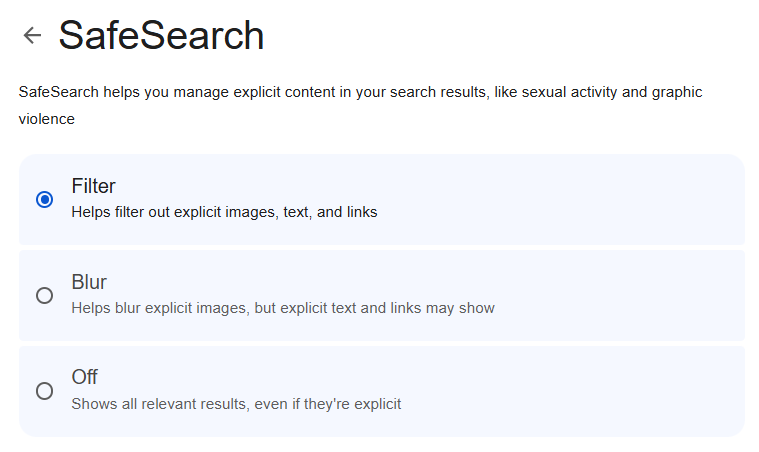
SafeSearch is the quickest way to filter out adult content, whether on your computer or on your smartphone.
It's built right into Google, Bing, Yahoo, and DuckDuckGo. Once turned on, it automatically hides explicit images, videos, and search results.
- 1)Open your preferred browser on your Mac or Windows. (Here, I use Chrome as an example.)
- 2)Then, visit the SafeSearch settings.
- 3)Choose "Filter" to remove porn sites from your search results.
Apple Screen Time
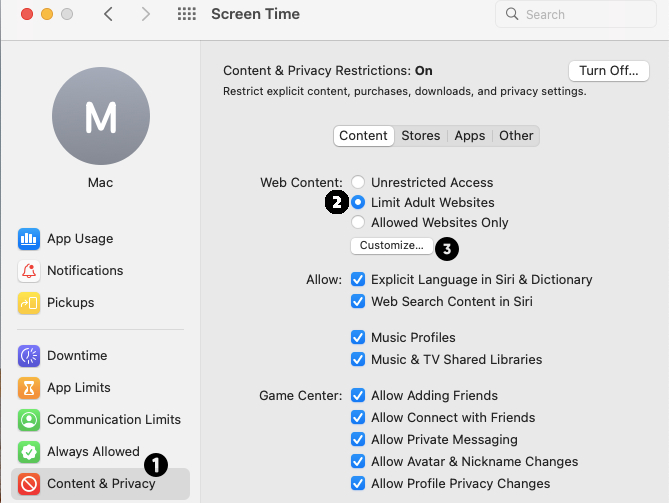
For those using Mac, you can easily block porn for free on Safari and other browsers, thanks to the Apple Screen Time feature.
It lets you block all adult sites with just a single tap or by blocking them one after the other. Wondering how to do this? It is pretty simple. Just follow the steps below:
- 1)Go to "System Preferences" on any macOS device.
- 2)Scroll down and select "Screen Time."
- 3)Then, select "Content and Privacy."
- 4)Tap on "Content Restrictions."
- 5)Under the "Content" tab, select "Limit Adult Website."
Microsoft Family Safety
Microsoft, like Apple, also has a built-in tool, Family Safety, that is designed for parents to manage screen time and block porn sites on their children's Windows PC.
However, Microsoft Family Safety only limits adult sites on the Edge browser. That said, its blocking capacity doesn't extend to other browsers.
So, if you or your child prefers using Edge, proceed with these steps to block porn on Windows:
- 1)Visit Microsoft Family Safety page and sign in with your Microsoft account.
- 2)Click on your child's profile (or add one if you haven't yet).
- 3)Switch to the "Edge" tab from the top menu.
- 4)Then, turn on the "filter inappropriate websites and search" toggle.
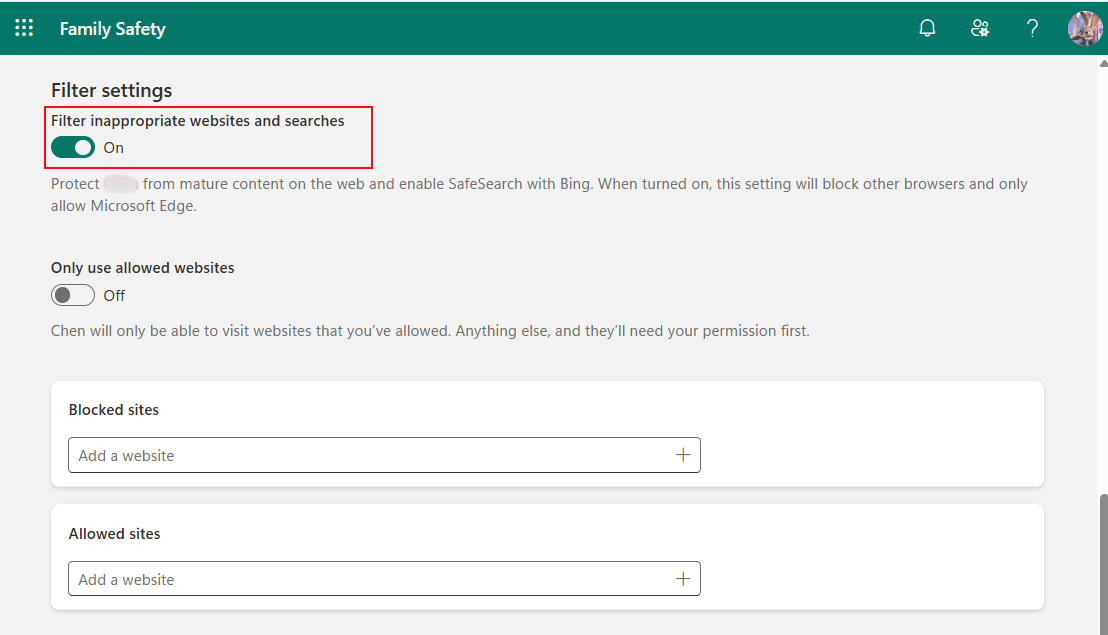
Once you've done that, all porn sites will be blocked on Windows' Edge.
Edit the Hosts File
Compared to the above methods, editing the hosts file is a more technical way to block porn websites on your computer.
As a local system file, it maps hostnames to their respective IP address. By editing it (adding the domains you want to block and pointing them to a blank address), your computer will redirect those requests instead of loading the actual site.
Wondering how to block porn sites using hosts files on both Windows and Mac? Here's it:
- 1)Open File Explorer and go to "C:\Windows\System32\drivers\etc."
- 2)Locate the file named "hosts."
- 3)Open it using "Notepad" as an administrator.
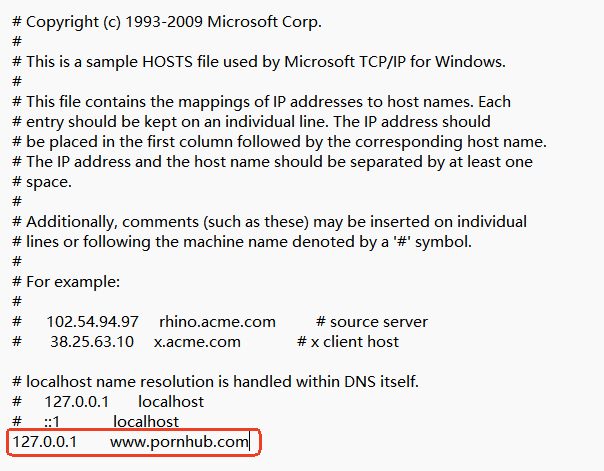
- 4)At the bottom of the page, create an IP address such as 127.0.0.1.
- 5)Then, enter the URL of the porn site you want to block beside the IP address.
- 6)After that, save the new "hosts" file.
- 1)Open the "Terminal" app.
- 2)In the app, type these commands: "sudo nano /etc/hosts."
- 3)Then, press "Enter" and input your Mac password
- 4)At the bottom of the file, add the website you want to block with the fake IP address you create (eg, 127.0.0.1 pornhub.com)
Option 2. Leverage Network-Level Filtering (Blocks Porn on All Devices)
If the built-in control on your device is not enough, you can utilize the network-level filtering. For network restriction, you can either use a WiFi router or DNS filtering.
Router Filtering Settings
Router filtering is a popular network restriction. Once you set it up, the blocking rule applies automatically to all devices connected to the network — no need to configure each device one by one.
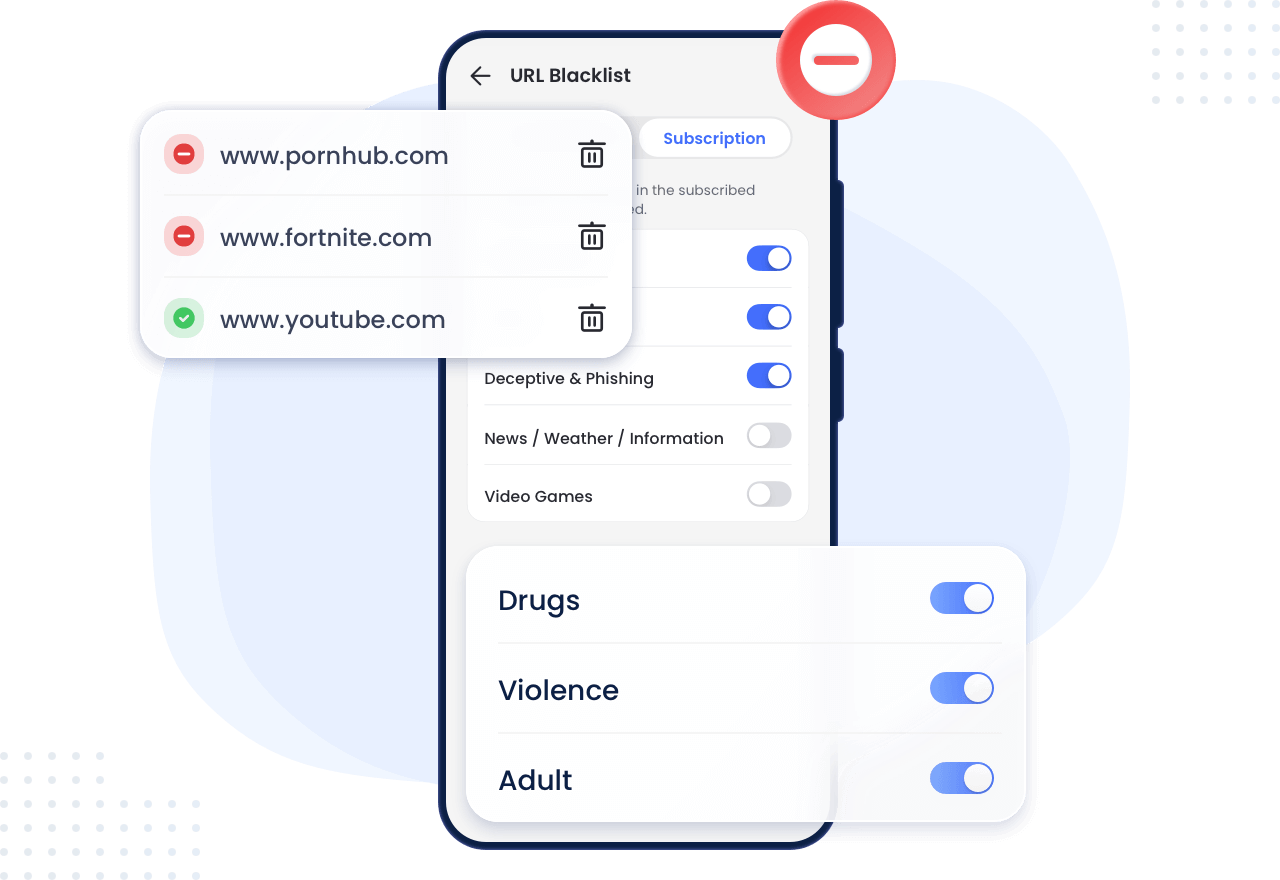
Currently, most routers allow users to customize the website blacklist. Some even offer a built-in "Adult" toggle that restricts all pornographic content without any manual input.
Here's how to block adult websites on a computer using router settings:
- 1)Connect to your Wi-Fi network.
- 2)Open the web browser on your computer and type the router's IP address.
- 3)Log in with your admin username and password.
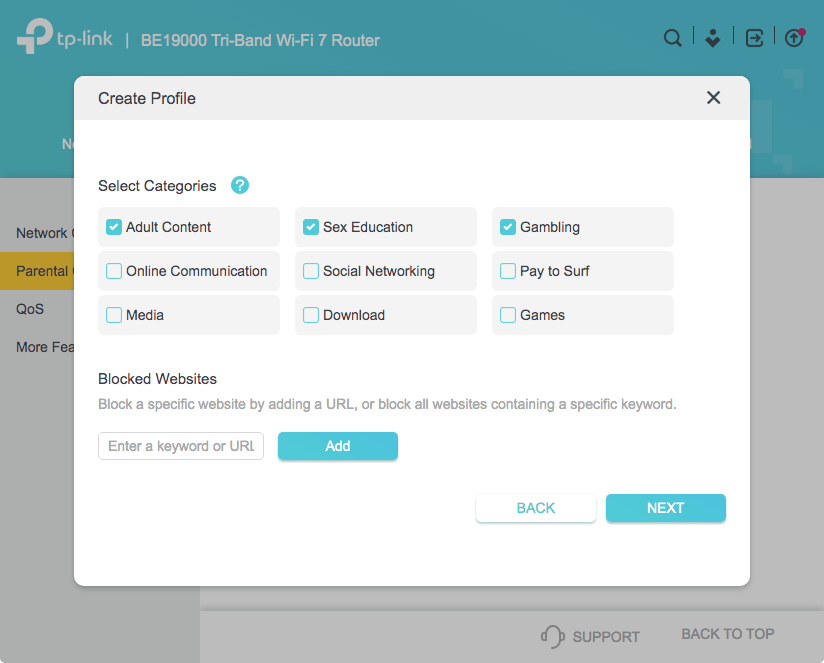
- 4)From the settings menu, select "Access Control" or "Parent Control."
- 5)Then, input the porn URLs under "Blocked Websites." If any, toggle on the "Adult Content" toggle for blocking.
Family-friendly DNS Servers
There are many DNS servers on the market that can block porn sites. Among them, CleanBrowsing stands out whether you need to block porn for yourself or for your family.
When you change your computer's DNS to CleanBrowsing DNS, it checks the domain against its filtering database whenever you try to visit a website. If the site is not allowed (e.g., porn), it won't be loaded.
CleanBrowsing offers different preset DNS filters for free, such as:
- Family filter — blocks porn + mixed content + proxies
- Adult filter — blocks only explicit content
Here's how to set it up manually on Windows and Mac:
- 1)From the "Settings" app, select "Network & Internet" from the side menu.
- 2)Then, click on WiFi and choose "Hardware properties."
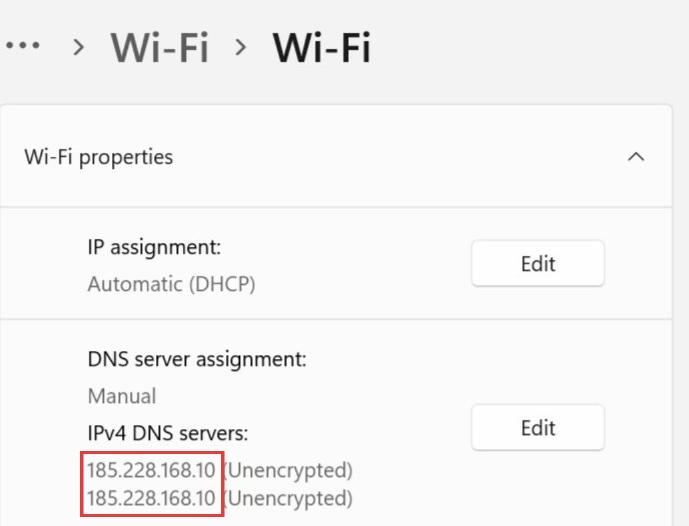
- 3)Under "DNS Server Assignment," click on "Edit."
- 4)Choose "Manual" and turn on "IPv4."
- 5)In the "Preferred DNS" box, input the CleanBrowsing adult-filter DNS addresses (185.228.168.10 and 185.228.169.11).
- 1)Download CleanBrowsing's adult-filter profile on your macOS device.
- 2)Open the "Settings" app to select "Profiles."
- 3)Install the downloaded CleanBrowsing profile.
- 4)Then, all is set.
Option 3. Install an Extension or Software (More Advanced Web Blocking)
You can also use a browser extension or dedicated software designed to block adult websites on your computer. Though these tools usually aren't free, they offer more advanced features—like blocking entire categories of sites with one click.
Below are the examples of extensions or software you can try out:
BlockSite (Browser Extension)
BlockSite is a browser extension that allows users to block any kind of websites, including adult sites, on both Windows and Mac. It offers a free tier in which you can only block three items.
Key Features:
- Directly compatible with Chrome, Firefox, Edge.
- Block websites by categories or keywords.
- Block websites on scheduled hours.
- Uninstall protection with a password. (Premium)
Here's how to use BlockSite in the Chrome browser:
- 1)Add to the BlockSite extension to your Chrome.
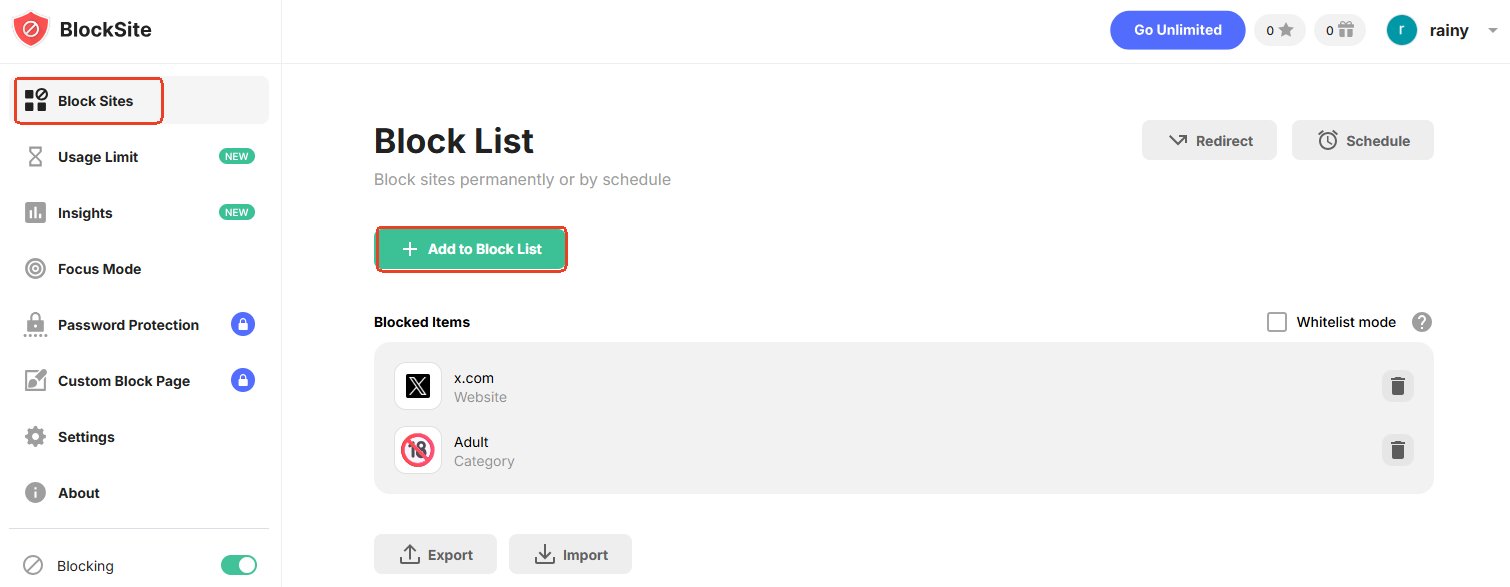
- 2)Once done, click on BlockSite in Chrome's extensions list.
- 3)From the side "Block Site" menu, add porn websites by URLs, keywords, or categories to block.
Covenant Eyes (Accountability Software)
Covenant Eyes is an AI-powered tool that doubles as an accountability app and website blocking app. It works by capturing the user's device screen periodically and sending it to a ally. Since screenshots are blurred, your privacy won't be leaked.
Key Features:
- Detect explicit content through periodical screenshots.
- One click to block porn sites by category.
- Custom website blacklist.
Setting up Covenant Eyes is also simple. You can check this link to learn how to use it based on your device.
Qustodio (Parental Control App)
Qustodio is a parental control app that can be used to manage a child's Windows and Mac computers. It allows parents to block porn on their children's devices remotely. You can check this guide to learn how to set it up.
Key Features:
- Web activity report.
- Allow parents to disable the internet.
- Block adult websites by category or URLs.
- Can block inappropriate apps.
Conclusion
Blocking porn on your computer is now easy. You can do it using a built-in control like Google SafeSearch, by setting up network-level filtering such as router filtering, or by installing browser extensions like BlockSite or accountability software such as Covenant Eyes.
If you're looking to block porn on your kid's computer or mobile device remotely, Qustodio and AirDroid can help.















Leave a Reply.