We all know how easy it is to get sucked into YouTube. But sometimes, you might need a break from the endless content, whether to stay focused, regain control, or limit excessive usage for kids (like this Reddit user).
As such, you may consider blocking YouTube. In this guide, we've compiled methods to block both the YouTube app and website on Android. Check them out!
Before We Start:
Are you looking to help your child limit YouTube usage or manage your own YouTube time?
Every Android device has a "Digital Wellbeing" feature, which allows users to manage their digital habits.
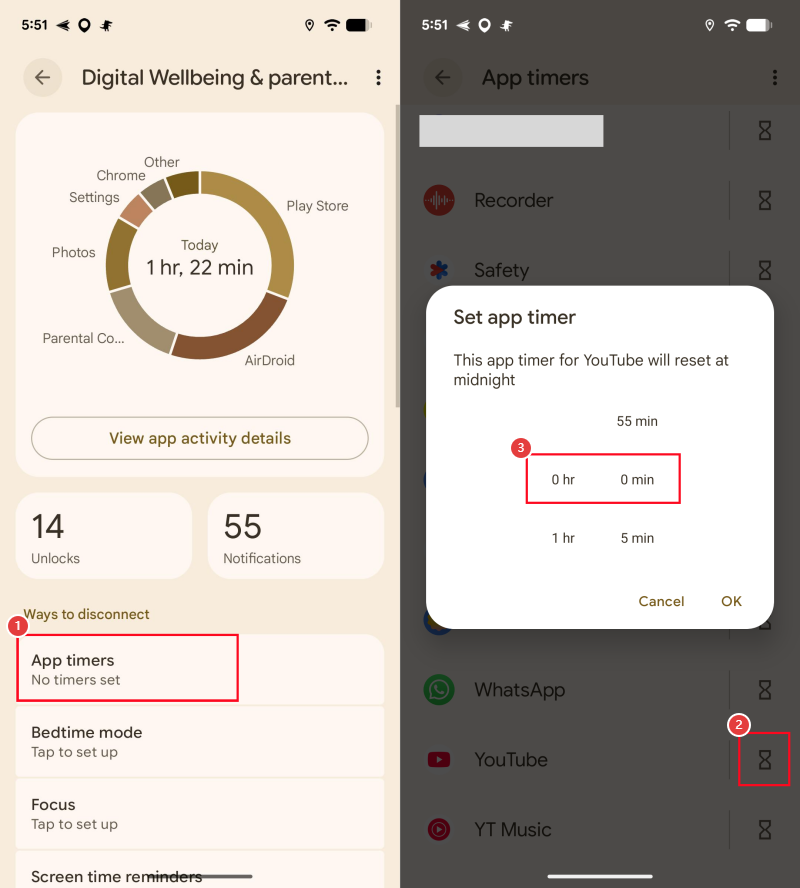
To block YouTube with it, you can set an app timer limit to 0 for YouTube. After that, the YouTube app will be greyed out and completely unavailable on your Android. To activate this feature, follow the steps below:
Step 1.On your Android device, go to "Settings."
Step 2.Scroll down and select "Digital Wellbeing & Parental Control."
Step 3.Under "App Timers," locate the "YouTube" app.
Step 4.Tap on the hourglass next to it.
Step 5.Set the time limit to 0 hours and 0 minutes.
Pros:
Completely free and safe.
Built-in tool, no app needed.
Cons:
Block apps based on time limits.
Cannot block youtube.com.
Can be easily bypassed without password protection.
Method 2: Block YouTube via Parental Control Apps
If you want to block YouTube completely on your kid's Android phone, consider using parental control apps. Some tested and trusted parental control apps you can use are:
1Google Family Link
Developed by Google, Family Link is a free and basic parental control app. Its major features include app blocking, website filtering, and YouTube supervision.
This feature makes it ideal for parents who need simple tools to manage their kids' online activities. The good thing about this app is that it can block both YouTube apps and websites.
Block YouTube App
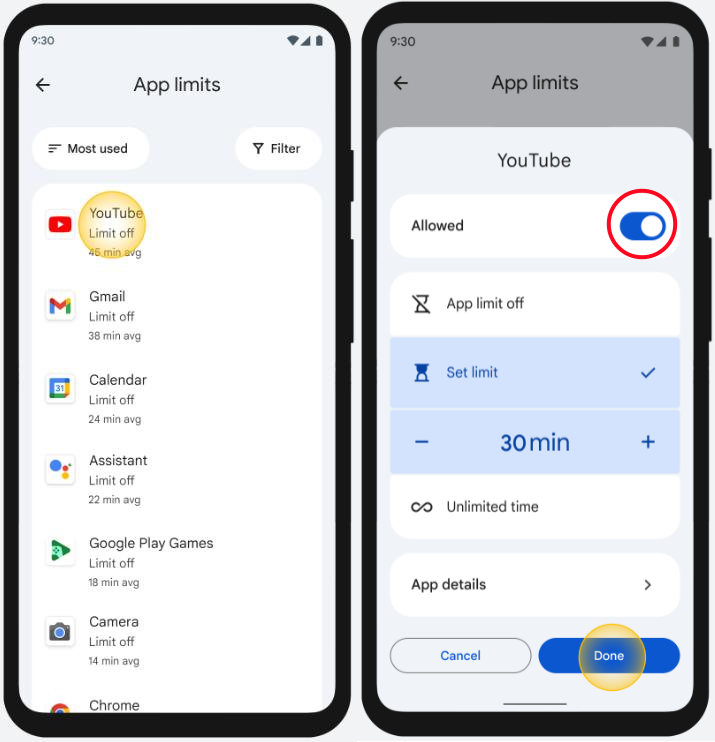
Using Family Link to block the YouTube app, the app will disappear immediately on your child's Android device. To do so:
Step 1.Make sure you've linked your child's device and account.
Step 2.Open the Google Family Link dashboard.
Step 3.Under the "Screen time" tab, tap on "Time limits > App limits."
Step 4.From the app list, find YouTube and turn off the "Allowed" switch to block it.
Block YouTube Website on Chrome
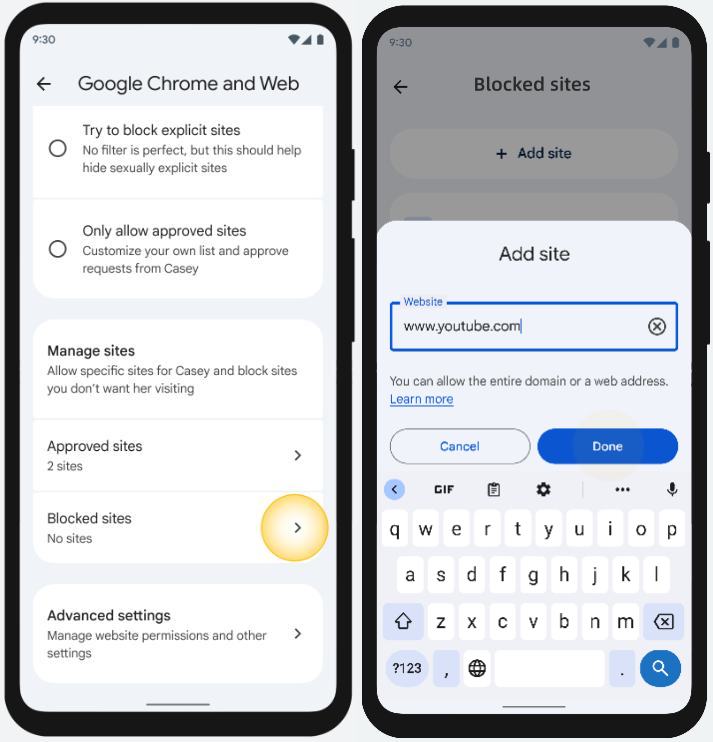
Google Family Link allows you to block youtube.com by adding it to the "blocked site." Once that's done, your kids won't be able to access YouTube on their Chrome browser. Check the prompt below to learn how to do it:
Step 1.Open the Google Family Link on your phone.
Step 2.Switch to the "Controls" tab and select "Google Chrome and Web."
Step 3.Scroll down and tap on "Blocked Site."
Step 4.Click on "Add a Website" and input youtube.com.
To be on the safe side, you'd better also add these sites that can also redirect to YouTube: m.youtube.com, youtu.be, yt.be.
Pros:
Can block YouTube on the app and on the browser.
Free to use.
Cons:
Website filtering only works on Chrome, not on other browsers.
Daily limits don't work sometimes.
2AirDroid YouTube Blocker
AirDroid is another parental control app that offers a one-click solution for blocking both the YouTube app and web on Android.
Unlike Family Link, it blocks YouTube across all browsers at once. That is, even if your child accesses YouTube video links from WhatsApp or other apps, they cannot stream them.
Block YouTube App
Step 1.Download AirDroid Parental Control or go to its web dashboard.
Step 2.Connect your child's device using the binding code.
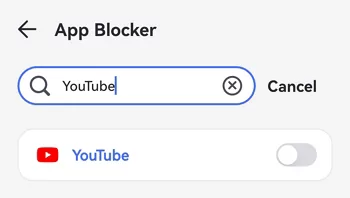
Step 3.Tap on "App & Content Restrictions > App Blocker."
Step 4.Select the "YouTube" app to block.
Block YouTube Website
Step 1.On AirDroid's control panel, tap on "Website Restrictions."
Step 2.Go to "URL Blacklist" to add youtube.com for blocking.
Step 3.Once done, your child cannot visit YouTube across browsers.
Pros:
Block the YouTube app and web across all browsers and devices.
Can track YouTube watching history.
Detect if your child watches inappropriate YouTube content by keywords.
Cons:
Not free but comes with a free trial.
Method 3: Block YouTube Using Router Settings
Another way to block YouTube on your or your child's Android device is through router filtering. If you set website filters for any websites, including YouTube, on your router, the website won't load on any devices connected to that network.
This makes it ideal for blocking YouTube on multiple devices at home or in the office.
Step 1.Open a browser and visit your router's IP address (typically printed on a sticker on the back of the router).
Step 2.You'll be prompted to log in with the router's admin credentials.
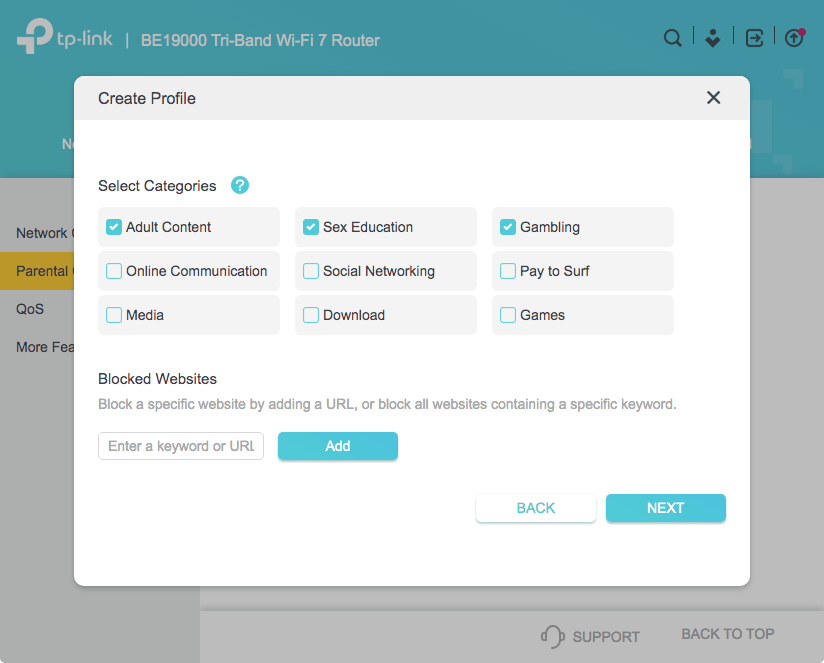
Step 3.Once logged in, look for a setting called "Parental Controls," "Access Control," or "Website Blocking."
Step 4.Then, add YouTube domains in the "Blocked Website" section.
Pros:
Can block YouTube on multiple Android devices at once.
Not easy to bypass.
Cons:
Only block the YouTube web, not the app.
Setup is a little bit complex.
Final Verdict
As you can see, all three methods we've reviewed above have their strengths and limitations when it comes to blocking YouTube:
Digital Wellbeing — Best for self-disciplined individuals who want to reduce YouTube usage.
Parental Control Apps — Best for parents needing to block YouTube for kids and prevent YouTube addiction.
Unfortunately, you can't completely uninstall YouTube on many Android devices, because it is part of the core system apps. However, you can easily disable it:
Step 1.Long-press the "YouTube" on the home screen.
Step 2.Go to its info page.
Step 3.Tap on "Disable" at the bottom.
What does YouTube sleep timer do?
Elsa
When you set a sleep timer on YouTube, it automatically pauses your video after a set period of time.
Elsa has worked on a number of iOS & Android solutions, she can always find her way around almost any application. She is an accomplished, skilled and versatile writer with more than 7 years of technical article writing experience.













Leave a Reply.