AirDroid Parental Control
AI-powered Content & Web Filter
- 🔞Inappropriate apps, websites and call blocking
- ⚠ Instant Alerts for potential online risks
- 👀Social Apps & Messages content monitor
How to Block Snapchat on Your Kid’s Android (Step-by-Step Guide)
In today’s world, Snapchat is practically a second language for teens. It’s a digital playground where they get to zip photos and videos back and forth with friends. However, for parents, it’s not as fun.
After all, the same features that make it fun for kids are major safety risks. Speaking of disappearing messages, the ability to connect with strangers, location-sharing Snap Maps, and the endless scrolling of Spotlight videos.
You may have tried to block Snapchat, only to realize that those kids today are pros and hard to succeed.If this describes you, you don't need to fret. We'll show you here every effective way to block Snapchat on Android.
Why Do Parents Need to Block Kids’ Snapchat?
Yes, Snapchat may look harmless. But then, it comes with unique features that create major worrying blind spots. Here are key reasons you should consider setting parental Control for Snapchat on your child's Android device.
- Too Much Screen-Time/Addiction: With endless Snap streaks and notifications, kids easily get lured.
- Strangers & Unsafe Chats: With the “Quick Add” feature and group chats, your child can chat with strangers, which opens the door to potential dangers.
- Using Slang and Curse Words: Wild culture on Snapchat makes kids use harsh and inappropriate language.
- Inappropriate Content on Spotlight: Many trending videos and challenge content that are not suitable for the young.
- Location Exposure via Snap Map: The Snap Maps feature reveals precise location, causing serious potential risk.
- Kids Bypass App Limits Easily: Determined teens can work their way by using the web version or reinstalling the app.
Quick Comparison: What Methods Actually Work?
Now that you know exactly why Snapchat should go, the next step is finding a method that your smart child can't easily defeat. Here is a table that gives you a quick comparison of the options. Not all restrictions are created equal.
| Features | Digital Wellbeing | Family Link | AirDroid Parental Control |
|---|---|---|---|
| Block Apps |  (easy to bypass) |  (unstable) (unstable) | (stable) |
| Block Web |  | (easy to bypass) | (stable) |
| Prevent Reinstall | | | |
| Bypass Chances | Easy to Bypass | Medium | Cannot bypass |
| Best For | Temporary | Basic Control | Most Stable |
How to Block Snapchat on Android Devices: Step-by-Step Instructions
The following are the different methods you can use to block Snapchat on your kid’s Android.
1. Block Snapchat Using Android Built-in Features
Android phones come with Application Security Settings through which you can limit or block Snapchat. The steps are provided below.
- Step 1. Open Settings > Scroll down > Find Digital Wellbeing & Parental Controls.
- Step 2. Tap on Dashboard > Snapchat > Set App Timer.
Android Built-in Features Limitations
- Cannot block Snapchat Web
- Cannot prevent reinstall
- The kids can still use APK sideload/safe mode
2. Block Snapchat Using Google Family Link
Google Family Link is a free Android tool/App that lets you control your child's phone, including blocking apps entirely.
- Step 1. Press Google Family Link > Tap on the child’s account.
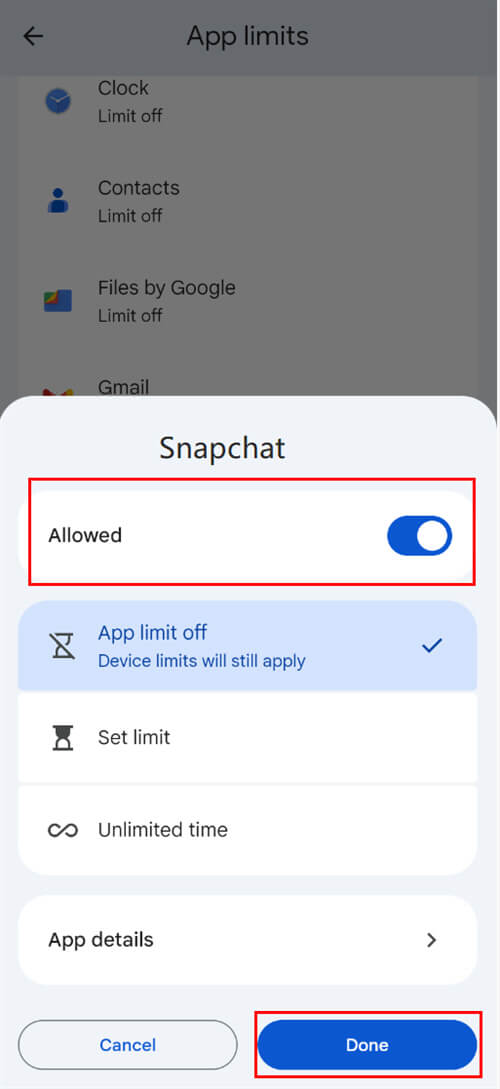
- Step 2. Tap Controls > App Limits > Snapchat > Disallowed > Done.
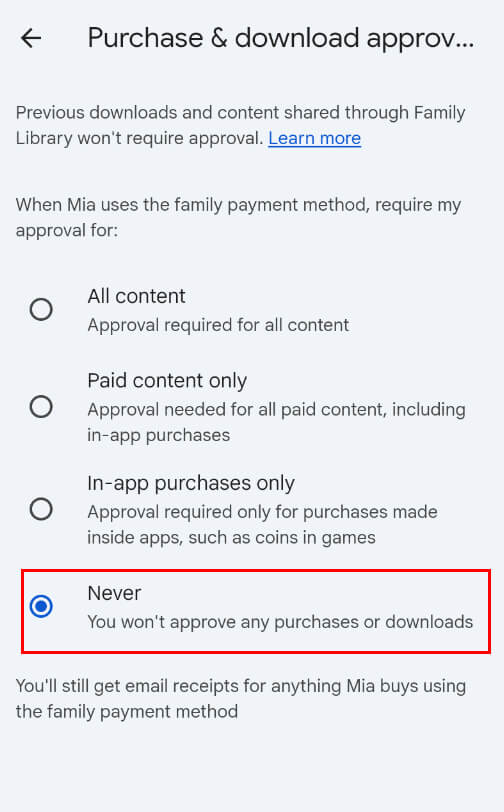
- Step 3. To prevent new installation: Tap Controls > Google Play > Purchases & download approvals, then tap "Never".
Kindly note that Snapchat has a web version. Family Link can block the website, but it's very weak. It works on Google Chrome, but can't work on Firefox. Which means even though you have blocked the Snapchat web, kids can still easily access it! So, parents may need to find another way to block the Snapchat web.
Google Family Link Limitations:
- APK downloads bypass restrictions.
- Web blocking is weak.
- Children aged 13 and above can choose to opt out of Family Link supervision on their own.
3. Block Snapchat Completely Using AirDroid Parental Control
While the first two methods are helpful, AirDroid Parental Control offers superior defense. It blocks the Snapchat app and its web version, prevents reinstallation, limits usage, and even allows you to monitor their device activity completely.
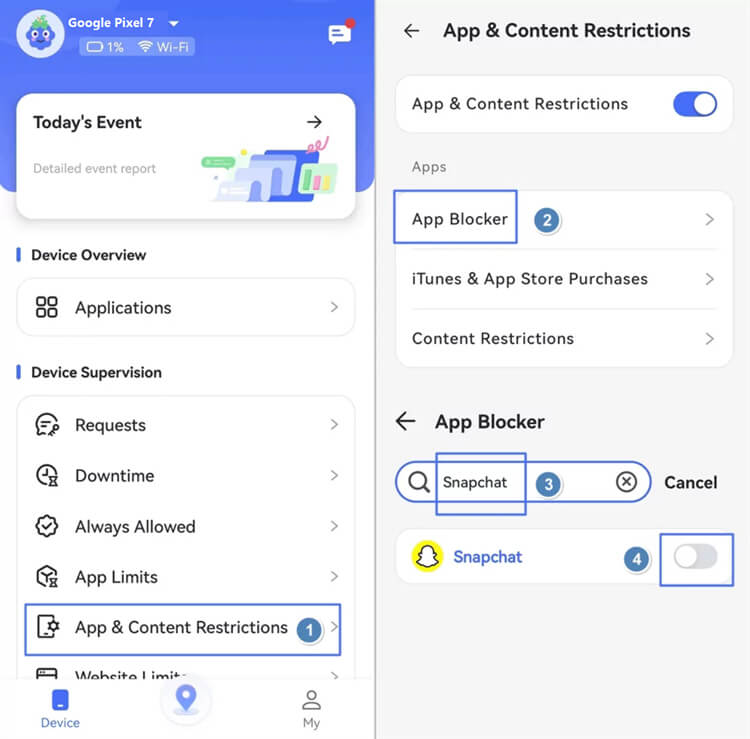
- Step 1. Go to the web webparent.airdroid.com, or download the AirDroid Parental Control app > pair the kid's device.




- Step 2. From the parent dashboard, tap "App & Content Restrictions."
- Step 3. Find the list of all installed apps. Locate Snapchat and toggle the switch to "Block."
How to Block Snapchat Web on Android Browsers?
Even if you block the App, Snapchat has a full web version that kids can access through Chrome or Firefox. This version comes with full chat features, Spotlight videos, Snap Map, and private messages. So, blocking the App is not enough.
- Step 1. From the parent’s dashboard, tap on Website Restrictions, and then you will see URL Blacklist.
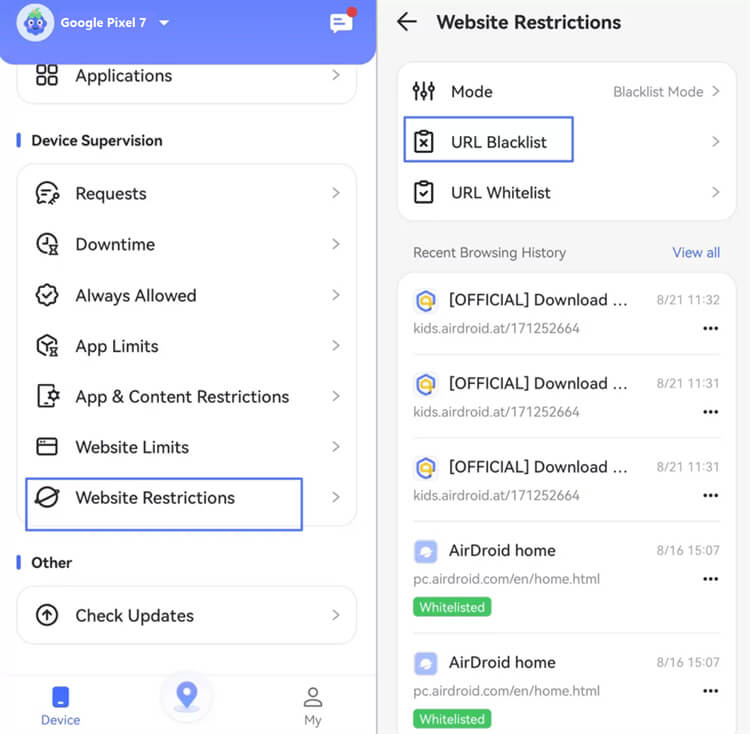
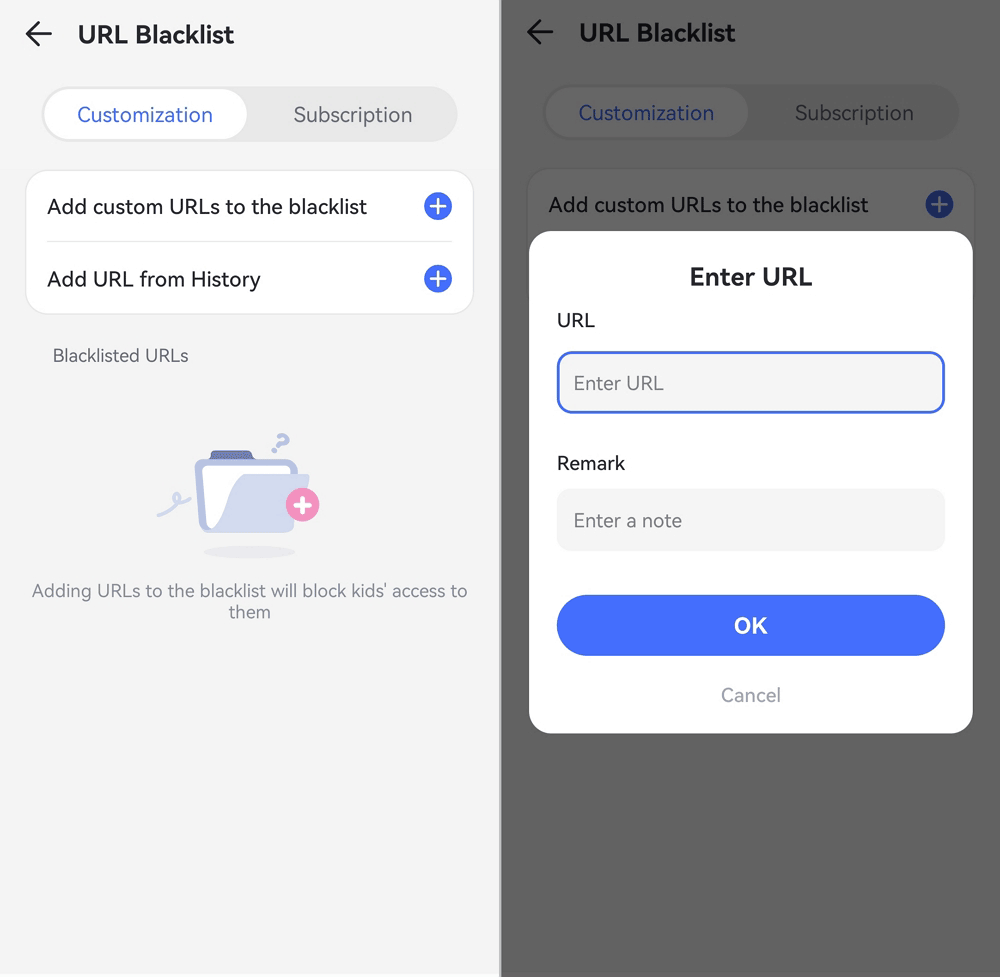
- Step 2. Click URL Blacklist > add web.snapchat.com to URL Blacklist.
How to Prevent Snapchat From Being Reinstalled?
In case your kid is considering uninstalling and reinstalling the Snapchat app since you have blocked it, AirDroid can also come to the rescue, preventing them from reinstalling it.
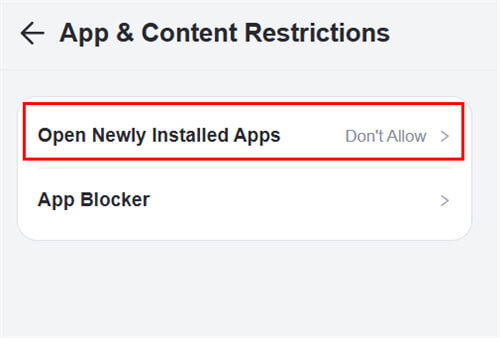
- Step 1. On the parent’s dashboard, scroll down and tap on App & Content Restrictions > Set to Don’t Allow.
Why is AirDroid Method Tamper-Proof?
The features' effectiveness relies on the core stability and deep security of the AirDroid Kids app itself. The assurance is secured by multiple layers of defense built into the AirDroid Kids application.
- Kids Cannot Uninstall Kids App: AirDroid uses Accessibility and Access permissions, preventing the child from force-closing or uninstalling the control app to disable the rules.
- Safe Mode Locked: The App often maintains control even if the child attempts to boot the Android device into Safe Mode to disable third-party security apps.
- Can’t Download Snapchat via APK: It blocks apps regardless of the source. So, your child cannot just download an APK and install Snapchat outside the Play Store.
- Device-Level Protection: The restriction is embedded deep within the Android operating system controls, meaning it‘s hard to bypass.
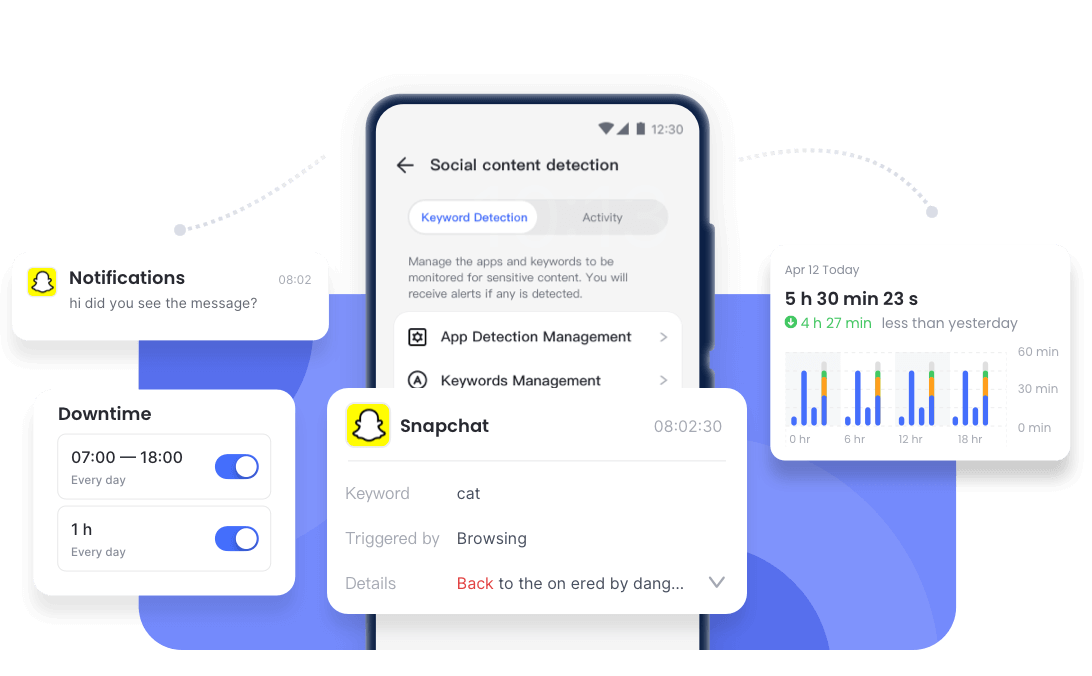
4. Video Guide: How to Block Snapchat on Your Mobile Phone
How to Limit Snapchat Without Fully Blocking It
Perhaps you prefer to limit the screen time on Snapchat without fully blocking it. Here are the steps you need to take to manage access and prevent addiction.
- Set Daily Limits: On the Parent's dashboard, tap App limits > Add Schedule > Choose App> Input Time Limits
- Block Nighttime Usage: During nighttime/downtime, the App will be completely inaccessible. Get to App Limits > Add Schedule > Downtime > Time Limits
- Enable Focus Mode: By enabling this feature on your kid’s device, all distracting apps are done away with for the set time.
Final Remarks
Evidently, blocking Snapchat can be tough because clever kids may easily bypass simple limits. However, we've shown that tools like AirDroid Parental Control can truly lock down the App, block the web version, and prevent reinstallation.
Remember, technology is a tool, not a replacement. Use these blocks to open the door for more open communication with your child about online safety and healthy habits.














Leave a Reply.