I'll be honest—Roblox is way more addictive than I expected. I once downloaded it "just to see what my niece was playing," and somehow ended up exploring various experiences and losing almost two hours. So yeah...
And when it's your child doing the same thing, it's totally normal to want a bit more control. The good news? Apple actually gives you several solid ways to block or limit Roblox on iPhone and iPad.
At a Glance: Which Method Should You Choose?
Here's a quick breakdown of all the methods we've compiled for blocking Roblox on both iPhone and iPad:
When you only want to set daily playtime caps, not fully block, opt for Roblox's built-in parental controls.
Method 1: Block Roblox Using Screen Time
Screen time is a tool built into Apple devices running iOS 12 or iPadOS 12 or later. As the name implies, it lets users review and control how much time they spend using their phones.
To block Roblox on an iPhone and iPad, Screen Time offers several choices:
You want a strict block that kids can't bypass easily.
Affects & hides all apps above the age rating.
1.1 Set Time Limits to 0
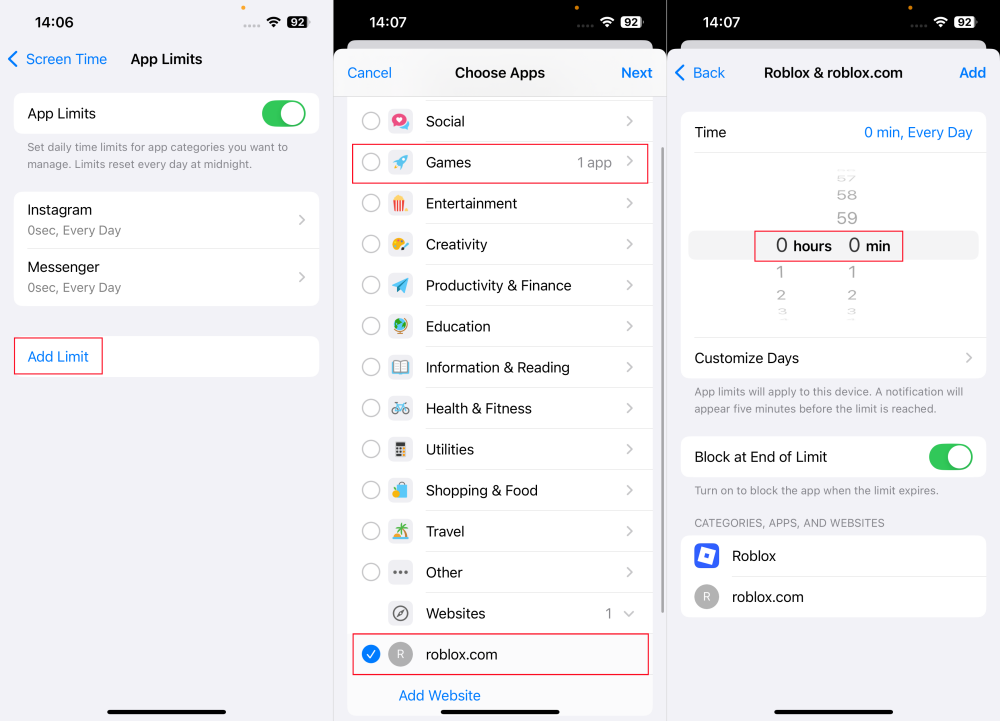
Though Screen Time's app limits is designed to reduce usage, you can use it to make Roblox unavailable by setting it to a 0-minute limit.
Once that's done, the Roblox app will be greyed out, and the website won't open for the day until you adjust the limit.
To set app limits on both iPhones and iPad, please follow:
Step 1.Open the "Settings" app.
Step 2.Select "Screen Time" and then "App Limits."
Step 3.Click and "Add Limit."
Step 4.Find and select "Roblox" under the "Games" category. Also, enter "roblox.com" under "Websites."
Step 5.Then, schedule 0 hours and 0 mins and save it.
During testing, only iOS 26 and later versions of iOS 18 (e.g., iOS 18.7) support a 0-minute limit. On older versions, the minimum of app limits is 1 minute.
1.2 Use Downtime
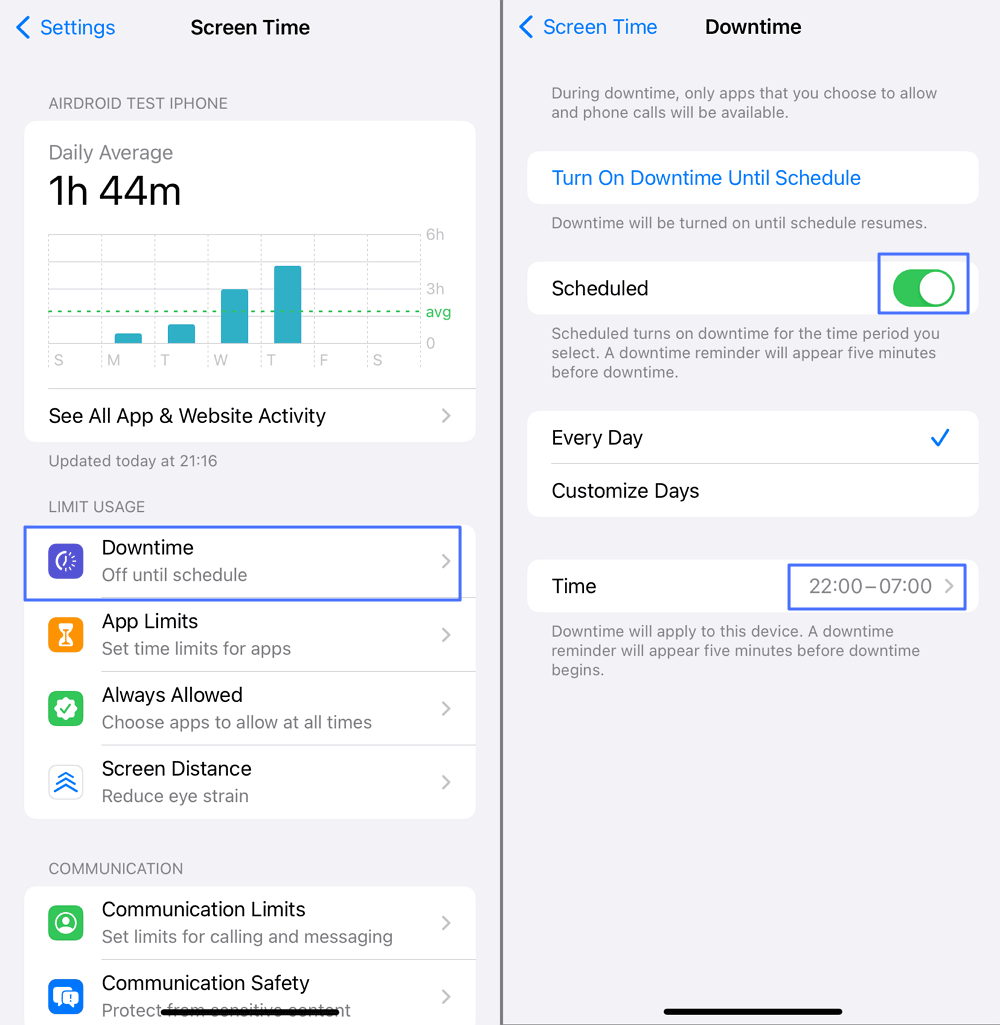
If you don't want Roblox to be accessed during certain hours—like bedtime, school hours, or work time—Downtime is the ideal way to shut all apps down, including the Roblox app.
Once the downtime starts, Roblox and other apps that are not in "Always Allowed" will disappear from your screen.
Here's how to set up downtime to block Roblox for a period of time:
Step 1.Go to "Screen Time" in the "Settings" app.
Step 2.Click on "Downtime."
Step 3.Then, choose "Turn on Downtime Until Tomorrow" or toggle on "Scheduled" to customize when you need to shut down Roblox.
Since downtime applies to almost every app, if you only need to block Roblox, please do not forget to manually add necessary apps to the "Always Allowed" list.
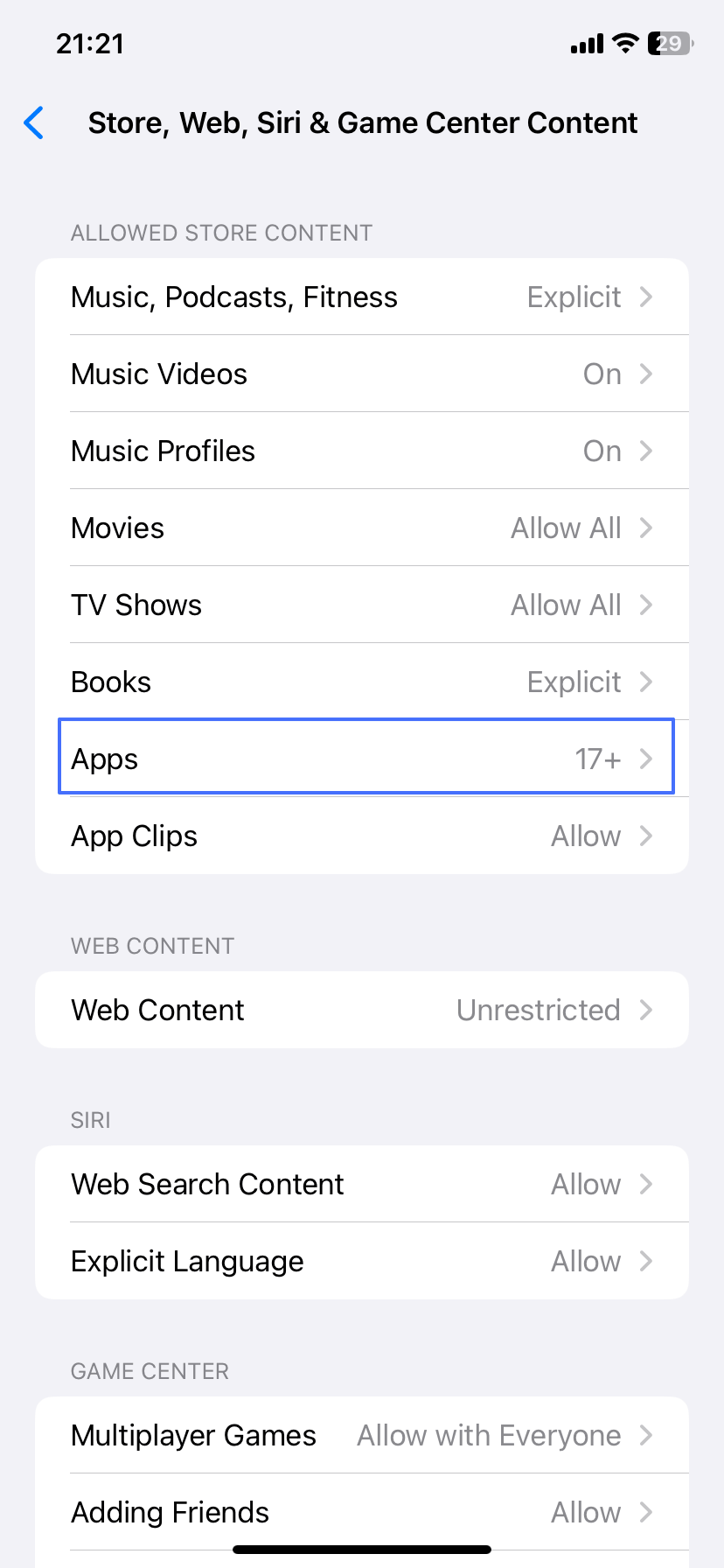
1.3 Set App Age Rating Restrictions
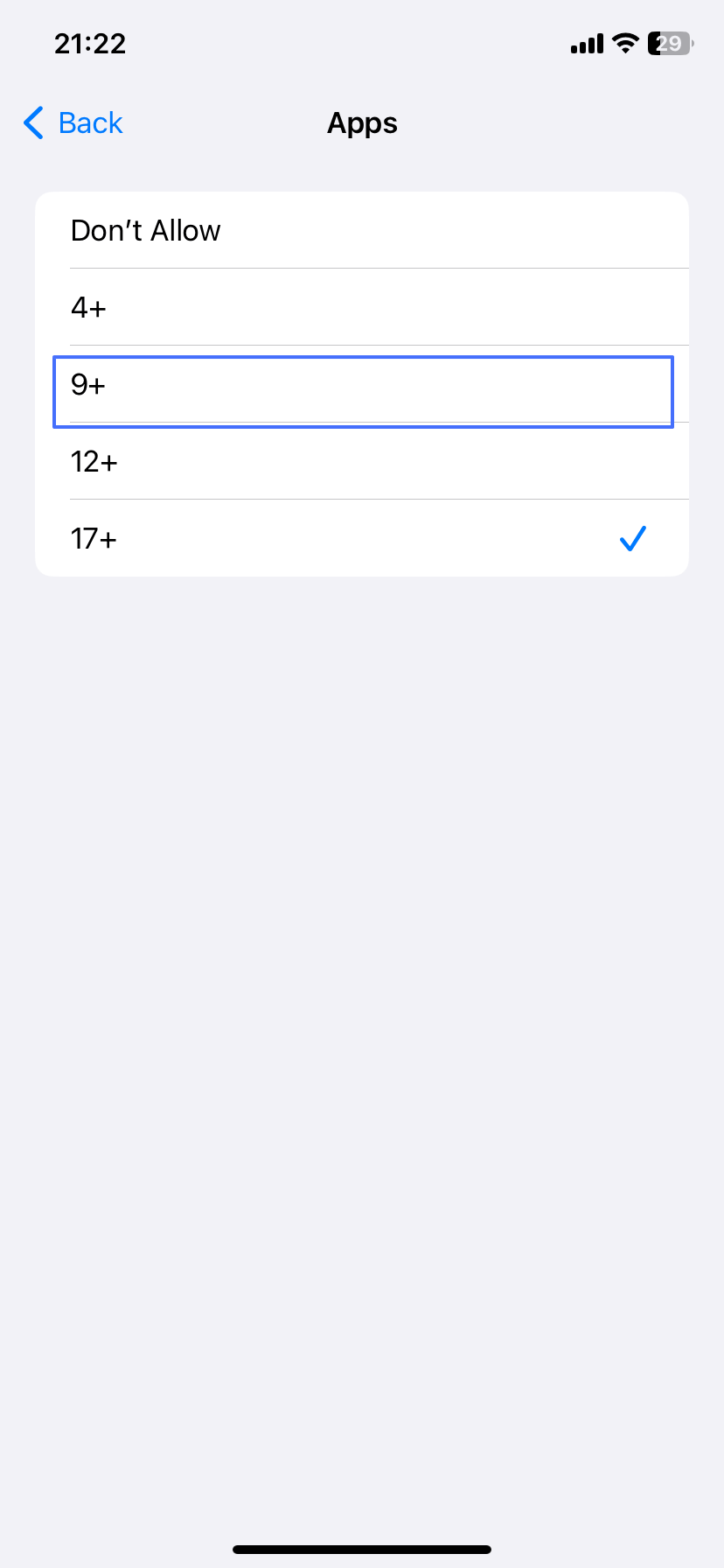
Apple also allows users to set restrictions on apps based on age. When you enable the app age restrictions settings, apps that are beyond the age ratings you picked will be removed from your iPhone.
For instance, Roblox is rated 12+ in App Store. Setting the allowed age rating as "9+" instantly hides the Roblox app and prevents it from being opened either from the Home screen or App Store.
Step 4.Since Roblox is rated 12+, select either 4+ or 9+ from the app age ratings.
Method 2: Block Roblox with Parental Control Apps
Apart from the built-in feature, you can also block Roblox on your kids' iPhone or iPad using parental control apps like AirDroid.
This is especially useful if you eventually run into gaps when using Screen Time—app limits not working, kids bypassing limits, inconsistent syncing, or else. Here's how AirDroid can help:
One click to block the Roblox app and website.
Prevent access to Roblox and other selected apps for certain times.
App or web restrictions can't be turned off without the parent's access.
Check if your child played Roblox during classes.
Set different blocking rules if you have two or more kids.
To use AirDroid Parental Control to block Roblox, download it first and then follow the guide below:
Step 1.Open AirDroid after installation and sign in.
Step 2.Connect it with your child's device. It could be an iPhone, iPad, or Android.
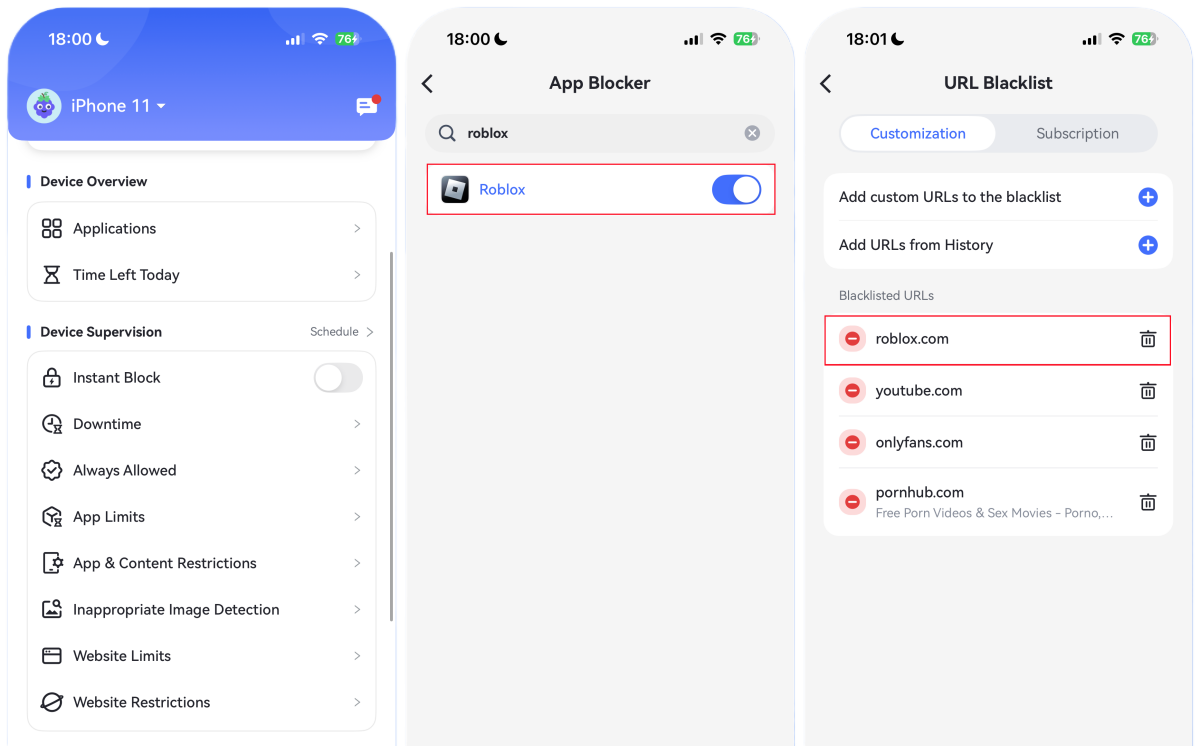
Step 3.Go to "App & Content Restrictions" and then "App Blocker." Search for "Roblox" to block.
Step 4.If you need to block the web version of Roblox, go to "Website Restrictions." Under "URL Blacklist," type "roblox.com" to complete.
Method 3: Block Roblox on WiFi Router
If you want a once-and-for-all solution, blocking Roblox directly on your WiFi router is the most effective way to stop Roblox on all devices connected to your network — iPhones, iPads, Android devices, even laptops. This method works well for someone who wants a stronger, network-level block.
Follow the steps below to use this method:
Step 1.Open your web browser and type your router's IP address.
Step 2.Log in with your admin username and password.
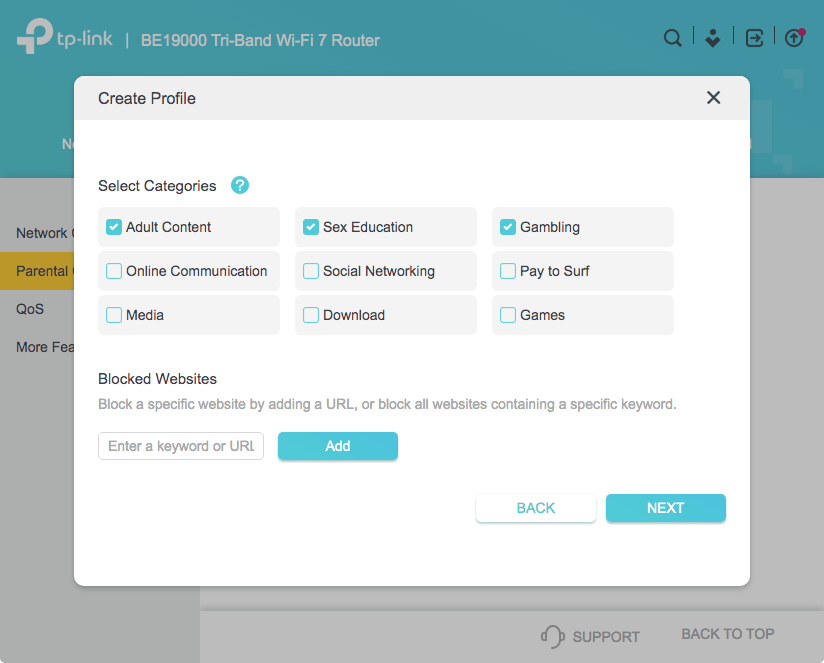
Step 3.From the menu list, select "Access Control," "Parent Control," or similar settings.
Step 4.Then, under "Blocked Website," enter "roblox.com."
Step 5.Click "Save," and after that, devices connected to this WiFi router won't be able to use Roblox on their web browser.
These steps may vary depending on the type of router you're using.
Method 4: Block Roblox by Deleting It and Preventing Reinstalling
For heavy gamers or Roblox-obsessed kids, simple time limits or blocks often aren't enough. In this case, you can delete the app on their device and prevent them from reinstalling it.
It's more straightforward and works well when you don't need limits—just a clean break. Here's how to do it:
Step 1.Locate Roblox on your child's iPhone or iPad
Step 2.Press and hold the app icon until a menu pops up.
Step 3.Then, select "Remove App > Delete App."
Step 4.Once you've done that, go to "Settings" and select "Screen Time."
Step 5.Scroll down and select "Content & Privacy Restrictions."
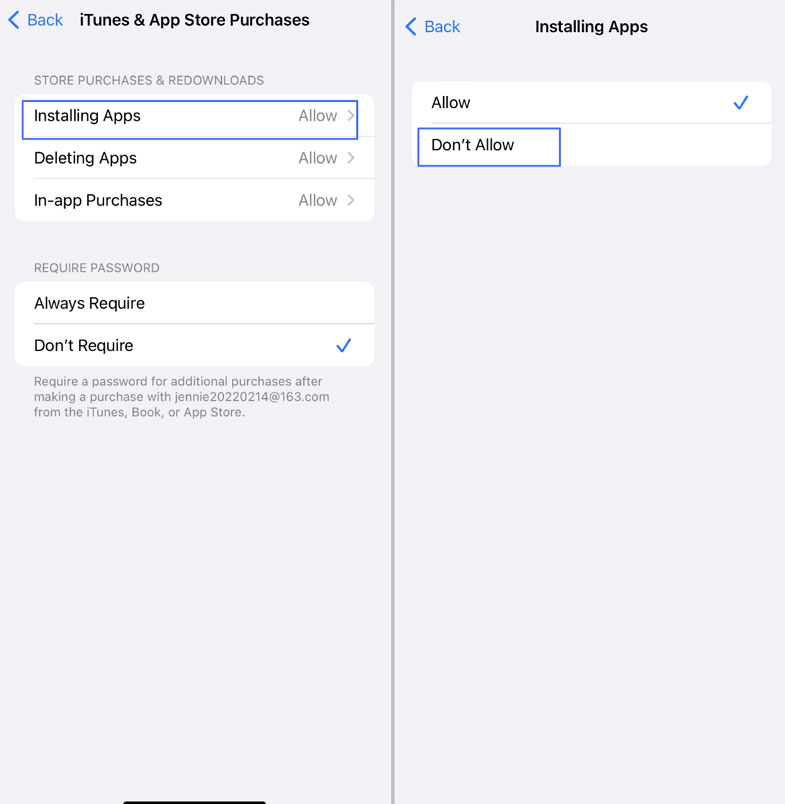
Step 6.Select "iTunes & App Store Purchases."
Step 7.Tap on "Installing Apps" and mark "Don't Allow."
After that, the App Store will be hidden on your kids' devices, and they won't be able to reinstall new apps.
Softer Alternative: Limit Roblox with Its Built-in Parental Controls
Roblox, unlike many popular gaming platforms, has a built-in parental control to enhance kids' safety on the app. The parental control has several features, including content and communication control, connection list management, and screen time control.
Video Tutorial: How to Set up Roblox Parental Controls
Below is the step-by-step guide for scheduling screen time limits on Roblox:
Step 1.Access your child's Roblox account and link it to yours by adding a parent's email.
Step 2.Then, launch your Roblox and navigate to "Settings."
Step 3.Find and select "Parental Controls."
Step 4.Then, tap on "Manage" next to "Screen time."
Step 5.From the "Daily limit" dropdown, select a time limit that is suitable for your child, from 15 minutes to 3 hours.
FAQs about Using Roblox on iPhone/iPad
How to clear Roblox cache iPhone?
To clear the Roblox cache on iOS devices, you need to delete the app instead of offloading it.
When you offload Roblox, it only removes the app. The app data and cache file will still be kept on your phone. However, when you delete Roblox, all your data, including the cache file, will be completely wiped out.
How to log out of Roblox on iPad?
To log out of Roblox on iPad, follow the prompts below:
Step 1.Open the "Roblox" app.
Step 2.In the bottom right corner, click on "More."
Step 3.Scroll down to the bottom and tap on the "Log out" button.
Elsa has worked on a number of iOS & Android solutions, she can always find her way around almost any application. She is an accomplished, skilled and versatile writer with more than 7 years of technical article writing experience.











Leave a Reply.