
AirDroid Cast
- Local & Remote Screen Casting(Your Game or Whole Screen)
- Android,iOS,Windows,Mac,TV Screen Mirroring
- Wireless & USB Connection
- Total Control Android & iOS beyond Your Finger
- Mirror Multiple Screen to PC simultaneously
A black screen on your TCL TV can feel like a major breakdown. Before you consider costly repairs or a replacement, know that many fixes are surprisingly simple. The key is to understand that not all black screens are the same.
This guide first helps you pinpoint the exact type of issue you’re facing, then provides a targeted action plan—from free resets to safe DIY fixes—to get your picture back.
Accurately describing your symptom is the crucial first step toward a solution. Not all TCL television screen failures are identical. Let’s break down the common types:
Sound But No Picture: The TV turns on, you hear audio from apps or inputs, and the indicator light responds to the remote, but the screen remains completely dark. This often points to an issue with the backlight system or its power supply—the lights behind the screen have failed.
No Power or Blinking Light: The TV doesn’t respond at all, or the power LED blinks in a repeated, unending pattern. This suggests a fundamental problem with the main power supply board or the motherboard (the TV’s main computer) itself.
Dark Screen with a Faint Glow: In a dark room, you might see the screen emit a very dim, uniform glow, but no menu or image appears. This usually indicates the main board or T-Con (timing control) board isn’t sending the correct signal to the display panel, even though the backlight is on.
App-Specific Black Screen: The home menu and other inputs work fine, but the screen goes black the moment you launch Netflix, YouTube, or another streaming app. This is typically a software, firmware, or DRM (Digital Rights Management) handshake issue, not a hardware failure.
Once you’ve identified your scenario, use the following core tools to confirm the diagnosis.
If your TCL TV won't turn on or the screen is blank, do not rely on the remote control to restart it. Modern TVs never truly turn off; they just go into "Standby," which preserves software bugs in the RAM. You need to drain the power completely to clear the logic boards.
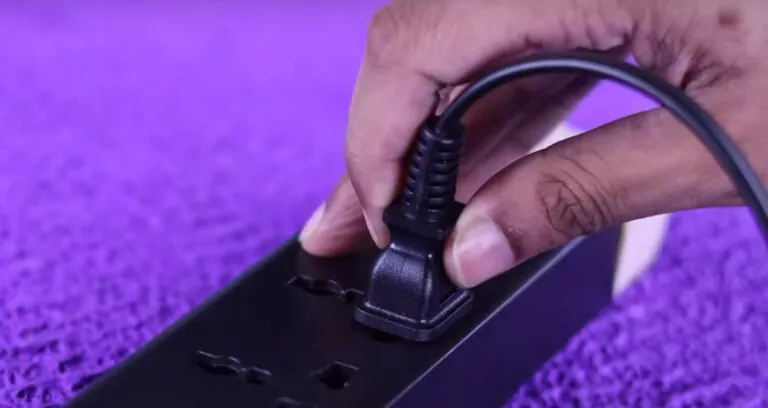
Why this works: This process, known as a "power cycle," clears residual electricity from the capacitors on the mainboard, forcing the hardware to reload the software from scratch.
If the hard reset didn't work and your status light is on, your system might be stuck in a boot loop or a kernel deadlock. There is a specific button sequence on TCL Roku remotes that forces a deep system reboot, even if the screen is black.
What happens next: The TV will likely freeze for 15-30 seconds, then the screen will turn off and on again as the system performs a hard software reboot. This is a highly effective fix for TCL TV black screen issues caused by corrupted cache.
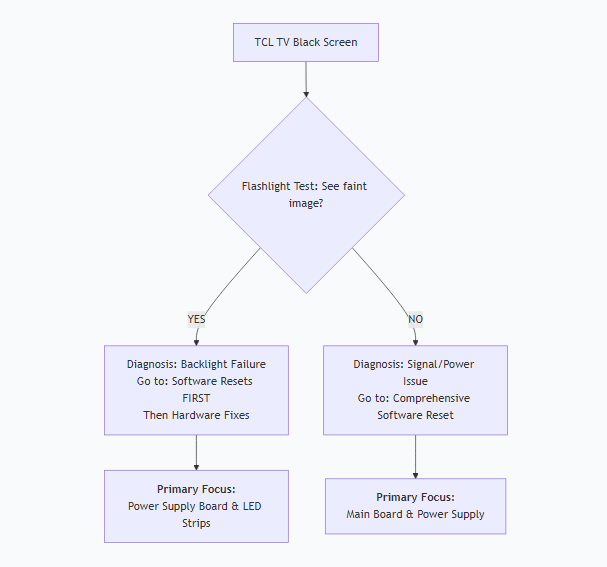
If the software fixes failed, we must determine if the hardware—specifically the backlight—is broken. This is the most common cause when the TCL TV screen is black but sound works.
Interpreting the Results:
Result A: You see a faint image. If you can barely see the menu or logo under the light, your LED backlights have failed. The TV is working, but the "lamp" behind the screen is dead.
Result B: The screen is totally black. If you see absolutely nothing under the flashlight, the issue is likely the Main Board or T-Con Board, which controls the data sent to the pixels.
Sometimes, the TV is fine, but the way it interacts with external devices causes the display to fail.
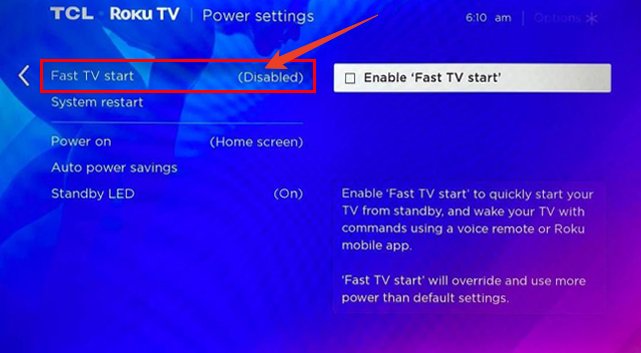
Disable "Fast TV Start": Once you get your screen back, go to Settings > System > Power. Disable "Fast TV Start." This feature prevents the TV from ever fully shutting down, which leads to memory leaks and black screens over time.
Reset HDMI Handshakes: Unplug all HDMI cables from the TV. Turn the TV on. If the home screen appears, plug your devices (PS5, Cable Box) back in one by one. Often, a cheap or old HDMI cable causes the HDCP (copy protection) to trigger a black screen.
HDMI Mode: If your screen flickers or goes black on certain inputs, go to Settings > TV Inputs and change the HDMI Mode from "Auto" to "HDMI 2.0" or "HDMI 1.4" manually.
If you have confirmed a hardware issue via the flashlight test, you have a few DIY options. Warning: Hardware repair requires opening the TV and may void your warranty.
Replacement Options:
Share your content on a big TV screen is great and enjoyable. AirDroid Cast can help you cast the screen from PC/phone to TV, and you can watch together. Take a Look!
Tackle your TCL TV black screen methodically: 1) Identify the symptom type, 2) Confirm with the flashlight test, 3) Exhaust all software resets, 4) Proceed with cautious hardware checks. This approach solves most problems and provides clarity for any necessary professional service.













Leave a Reply.