
AirDroid Cast
- Local & Remote Screen Casting(Your Game or Whole Screen)
- Android,iOS,Windows,Mac,TV Screen Mirroring
- Wireless & USB Connection
- Total Control Android & iOS beyond Your Finger
- Mirror Multiple Screen to PC simultaneously
Play Summoners War on PC is no longer a niche request. As one of Com2uS’ longest-running mobile RPGs, Summoners War: Sky Arena has attracted over 200 million players worldwide since its release in 2014.
For many players, switching to PC isn’t just about a bigger screen. It’s about better control, improved performance, multi-account efficiency, and stronger account security. With several official and third-party options now available, choosing the right way to play Summoners War on PC has become more important than ever.
This guide breaks down all the reliable methods, compares their pros and risks, and helps you find the safest and most practical setup for your play style.
There are four primary paths to run Summoners War on a Windows PC, each with its own technical foundation, advantages, and caveats.
| Solution | Security & Safety | Performance & Stability | Multi-Account Support |
|---|---|---|---|
| Steam Client | High (Official) | Good (Native) | Limited |
| Google Play Games PC | Very High (Official) | Excellent (Optimized) | Excellent (Native) |
| Android Emulators | Medium (Risk of ban with scripts) | Varies | Excellent |
| Screen Mirroring | Highest (Runs on Phone) | Poor (Depends on Phone/Network) | Poor |
Google Play Games (GPG) has emerged as the premier way to experience Com2uS titles on desktop. As a flagship partner, Summoners War is deeply optimized for this platform.
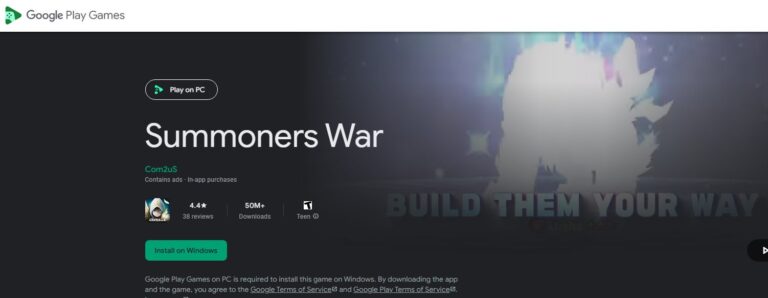
For players prioritizing security, GPG is unmatched. It utilizes a sophisticated virtual container that communicates directly with Android architecture. In 2026, Google introduced a game-changing update: native support for multi-instance gaming. This allows you to run up to four accounts simultaneously within the official environment—something previously only possible on unauthorized emulators.
Important Note: To run GPG smoothly, your PC must have 4 physical CPU cores and at least 8GB of RAM. You must also enable "Hardware Virtualization" in your BIOS (more on this later).
Released globally in 2024, the Summoners War Steam client represents Com2uS’s direct embrace of the PC market.
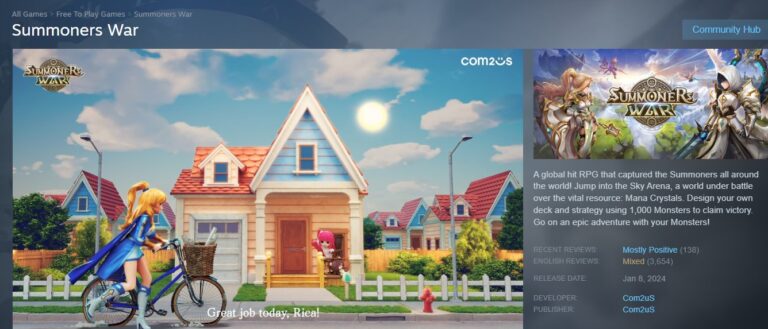
The Steam version is designed for ease of use. You download it, log in, and play. There is no need to configure Android settings. However, under the hood, it appears to be a wrapped Android environment rather than a code-rewrite, evidenced by mobile-style text input behaviors.
While official, the Steam version forces the installation of nProtect GameGuard, a kernel-level anti-cheat system.
Attention Point: If you are privacy-conscious or keep a very "clean" Windows installation, the lingering drivers from GameGuard might be a dealbreaker.
Before official clients existed, emulators were the only way to play Summoners War on PC. They remain popular for their extreme customizability.
MuMu Player (popularized by NetEase technology) and BlueStacks are the market leaders.
Only use emulators if you need specific key-mapping features that GPG doesn't offer yet. Never, ever use the "Script" or "Macro" functions.
For the ultra-cautious player, screen mirroring offers a unique solution. You aren't running the game on the PC; you are projecting your phone’s screen to the monitor.
AirDroid Cast has become a favorite for this method because it offers low-latency transmission and, crucially, remote control capabilities.
You just need to connect your phone via USB (recommended) or Wi-Fi to your PC. AirDroid Cast displays the phone screen on your monitor and allows you to use your mouse to click on the phone screen virtually.
Since the game is technically running on your physical phone, there is zero risk of being detected as an emulator user. The game client sees a standard mobile device ID.
The downside is performance. You are limited by the USB or Wi-Fi bandwidth, which introduces input lag. This makes it perfect for farming giants (GB12) but risky for high-level RTA where millisecond reactions matter. Furthermore, this method does not save your phone battery, as the phone must remain on.
Regardless of which software you choose to play Summoners War on PC, your hardware configuration plays a decisive role in performance. Ignoring these settings is the #1 cause of lag.
If your game runs at 5 FPS, this is why. Most motherboards ship with Intel VT-x or AMD-V disabled.
Summoners War loads thousands of assets: monster models, rune icons, and island data.
The Bottleneck: Mechanical Hard Drives (HDD) have low random read/write speeds.
The Solution: Install the game on a Solid State Drive (SSD). This eliminates the "stutter" you feel when opening the monster box or powering up runes.
Com2uS’s anti-cheat system looks for superhuman consistency.
Choosing how to play Summoners War on your desktop depends on your priorities. Ultimately, investing a little time in setting up the right Summoners War PC setup will pay off in enhanced comfort, efficiency, and longevity for your gaming journey. Play smart, play safe, and enjoy the vast skies of Arena on the big screen.







Leave a Reply.