

Punishing Gray Raven PC has become one of the most searched topics among action-RPG fans—and for a good reason. As a fast-paced, precision-focused ACT game, PGR demands low latency, stable frame rates, and responsive controls.
While the mobile version already delivers excellent performance, many players want a smoother, more comfortable, and more competitive experience on PC.

In this guide, you’ll learn the safest and best-performing ways to play PGR on PC, whether the official client is worth it, why many players avoid simulators now, and how cloud gaming fits into the picture. By the end, you’ll know exactly which setup suits your device and your playstyle.
Punishing Gray Raven PC Official Client — The Best and Safest Way to Play
The Punishing Gray Raven PC client released by Kuro Game is a game-changer for the community. Unlike the early days where players had to rely on workarounds, this is a native Windows application designed specifically for the platform. This isn't just a port; it is the most secure and stable way to deploy into the battlefield.
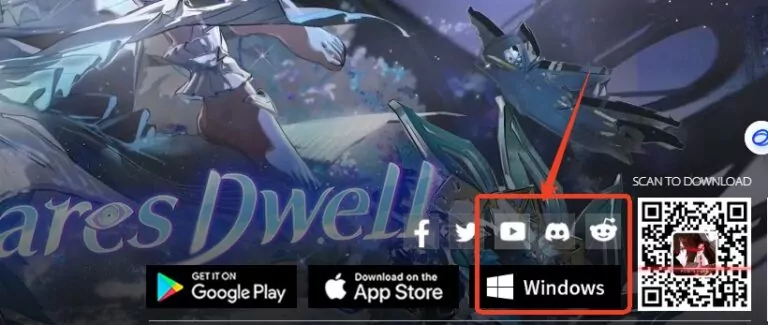
Performance advantages are immediately noticeable when using the native client. Because it is a native application, it bypasses the virtualization layer required by emulators. This means the game can directly access your computer's hardware resources. The resource call mechanism here focuses heavily on GPU resources for rendering and graphics processing.
- CPU Efficiency: By offloading graphical tasks to the graphics card, the client significantly lowers CPU and memory usage.
- Multitasking: You can easily run the game alongside streaming software, Discord, or a web browser without the system bogging down.
- Frame Rates: The native client offers a stable, high-frame-rate experience, which is critical for the fast-paced ACT combat feedback speed.
System Requirements: Can Your Rig Run It?
PGR PC system requirements are surprisingly forgiving, despite the game’s stunning visuals. Kuro Game has optimized the engine to ensure that a wide range of devices can handle the action. However, knowing the difference between "minimum" and "recommended" is key to setting your graphics expectations.
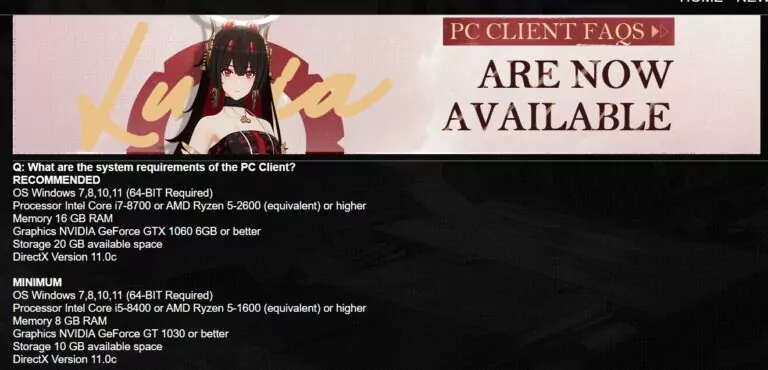
Here is a breakdown of the official specifications:
| Component | Minimum Requirements | Recommended Requirements |
|---|---|---|
| OS | Win 7/8/10/11 (64-bit) | Win 7/8/10/11 (64-bit) |
| CPU | i5-8400 / AMD R5-1600 | i7-8700 / AMD R5-2600 |
| RAM | 8 GB | 16 GB |
| GPU | NVIDIA GT 1030 | NVIDIA GTX 1060 6GB |
| Storage | 10 GB | 20 GB (30 GB Reserved) |
Hardware flexibility is a hidden strength of this client. While the recommended specs (GTX 1060) ensure maximum graphical fidelity, real-world testing suggests that much older hardware can still pull its weight. Users have reported smooth 60 FPS gameplay on hardware as old as the Intel Core i5-2500K or AMD Radeon HD 6750. As long as your system supports a 64-bit OS and DirectX 11.0c, you are likely ready to deploy.
Alternatives for PC Client
1. Third- Party Emulators
PGR emulators like BlueStacks or LDPlayer were once the only gateway for PC players, but the landscape has shifted dramatically. In the past, these tools were praised for their keymapping customization and "reroll" capabilities. However, sticking to these legacy options now comes with significant downsides compared to the native Punishing Gray Raven PC client.
Account safety is the most critical factor to consider. With the release of the official client, the use of third-party software has moved from a "grey area" to a potential violation of the Terms of Service.
- The Ban Risk: Developers often view emulators as tools that can bypass anti-cheat mechanisms or provide unfair advantages. Using them now exposes you to the risk of account warnings or permanent bans.
- Resource Hogging: Emulators must virtualize an entire Android OS. This eats up massive amounts of CPU and RAM, often causing your PC to overheat or stutter during intense fights.
2.Cloud Gaming
Cloud gaming solutions might seem tempting for users with very low-end devices, as they require no installation and minimal storage. Services like Bilibili Cloud allow you to stream the game instantly. However, for a title defined by its "Hardcore ACT" tag, this is often a trap.
Input latency is the fatal flaw of cloud gaming for Punishing: Gray Raven. Even with a great internet connection, the delay between pressing a button and seeing the action on screen can average around 100ms.
- The Math of Defeat: At 60 FPS, a 100ms delay equals a lag of about 7 frames.
- The Consequence: In a game where triggering the "Matrix" dodge requires millisecond precision, a 7-frame lag guarantees you will get hit. For serious play, cloud gaming is functionally unacceptable.
Play PGR On Big Screen With AirDroid Cast
To enjoy your PGR on big screen like TV, we recommend you a free screen mirroring app called AirDroid Cast. Whether you play it from phone or PC, you can always cast to TVs. It's easy to use and with no cost when you cast screen in a same Wifi network.
- Step 1. Download and Install AirDroid Cast on the device you want to cast from like phone.
- Step 2. Go to your TV's browser and enter airdroid.webcast.com.
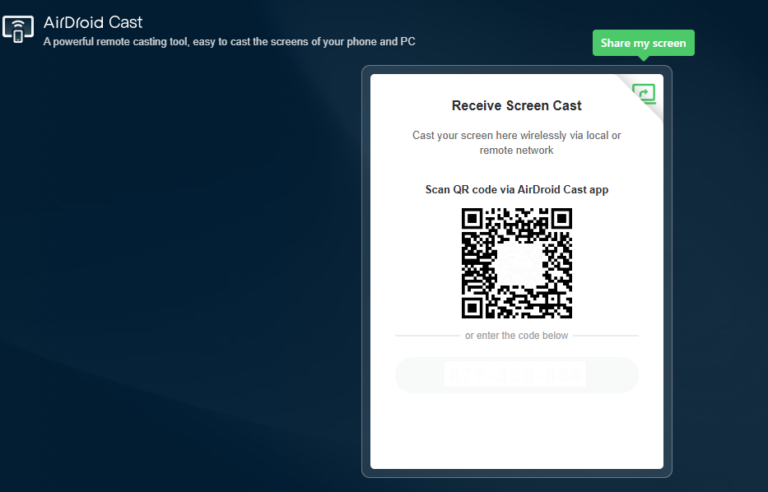
- Step 3. Enter the cast code or scan the QR code. Accept the request and you can cast.
- Step 4. Lastly, open the PGR on your Phone and it will be mirrored on TV.
Then, just share your gameplay and perfect actions with your friends & families!
FAQ: Common Questions About PGR on PC
Conclusion
Choosing the right Punishing Gray Raven PC setup is the first step toward becoming a top-tier Commandant. While emulators served us well in the past, and cloud gaming offers accessibility, neither can match the safety, stability, and performance of the official PC client. It utilizes your GPU efficiently, protects your account from ban risks, and ensures zero-latency combat that is essential for high-level play.
If you are ready to experience the fluid combat of Ascendants and Constructs as it was meant to be played, download the official client today.







Leave a Reply.