
Free Fire is a battle royale game that’s super fun and action packed, but many players prefer playing it on a bigger screen. It’s a mobile game but playing Free Fire on PC gives you an edge, better controls and better graphics.
Learn how to play Free Fire on PC with or without an emulator. Follow this step by step guide, and expert tips for the best experience!
Free Fire & Free Fire Max:
- Free Fire and Free Fire MAX are essentially the same game with two different versions—both share the same gameplay, account system, and progress. The main difference is that Free Fire is lighter and optimized for low-end devices, while Free Fire MAX delivers enhanced graphics and more detailed visual effects.
- If you're playing on a PC, Free Fire MAX is generally recommended because your computer can easily handle the higher graphics quality, giving you a clearer and more immersive experience.
- Don’t worry about picking the wrong version — your account works on both. Try MAX first, and if it feels laggy, just switch back. Your data stays safe either way.
Play Free Fire on PC without Emulators
If you don’t want to use an emulator, there are alternative ways to play Free Fire directly on your PC. These methods allow you to bypass the use of emulators and still play the game with good performance.
1Play with Google Play Games
Google Play Games Beta for PC (GPG) is currently the only official PC client provided by Google, designed to deliver the “official Google experience” to players. Its official status ensures maximum compliance, seamless cross-device data synchronization, and a PC-optimized control experience.
GPG comes with relatively strict system requirements. It requires a Windows 10 (v2004) or later operating system, a solid-state drive (SSD) with at least 10 GB of free space, and a minimum of 8 GB RAM. Additionally, to run the Android environment, hardware virtualization must be enabled, including CPU virtualization and the Windows Hypervisor Platform (WHP).
You can mainly use this way to play Free Fire Max on Windows PC.
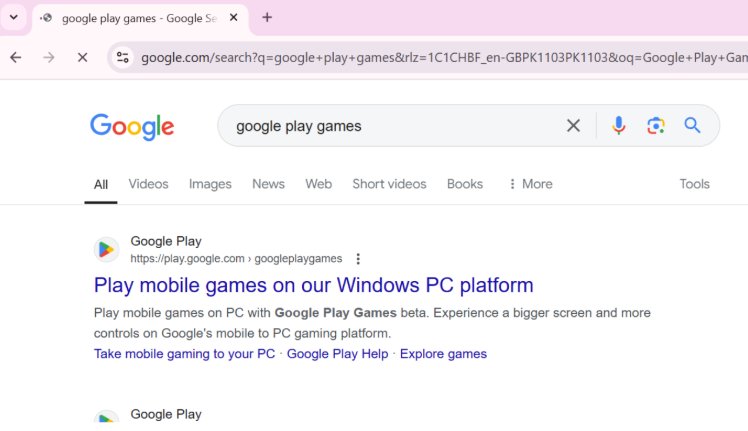
- Step 1.Open your preferred web browser and visit Google Play Games website.
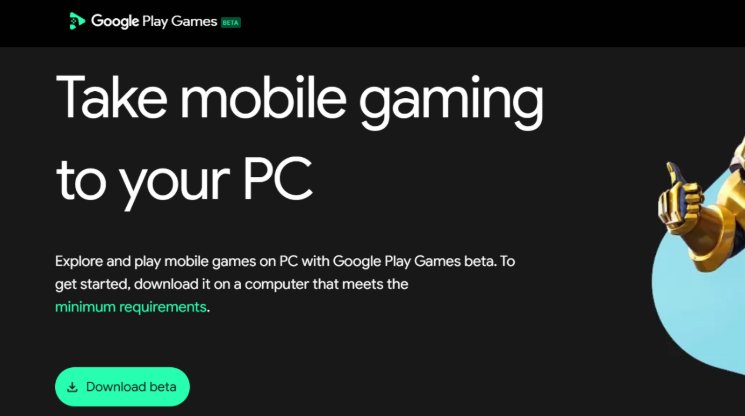
- Step 2.Click the “Download Beta” button to download the files.
- Step 3.Wait for the download to finish. It may take a few minutes depending on your internet speed.
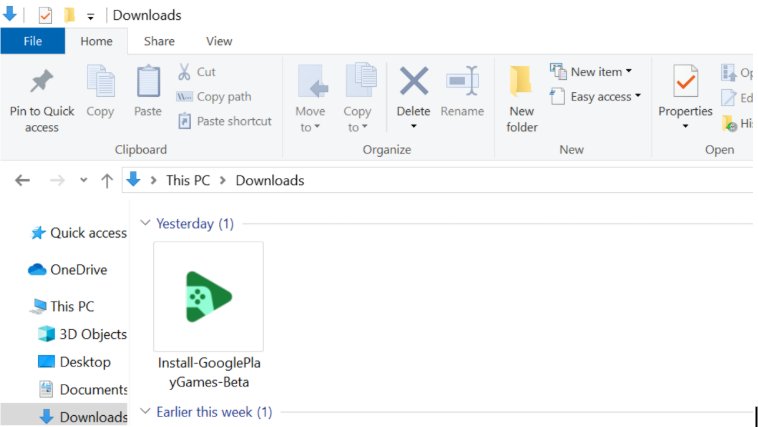
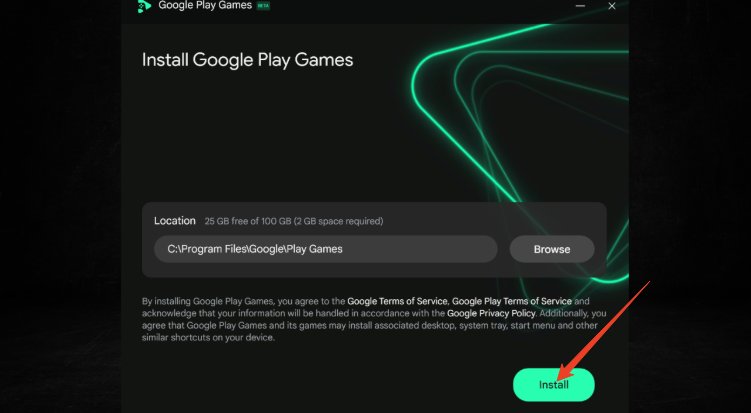
- Step 4.Find the downloaded file on your PC, right click and select “Run as administrator” to start the installation.
- Step 5.Let the installation download and install any additional files.
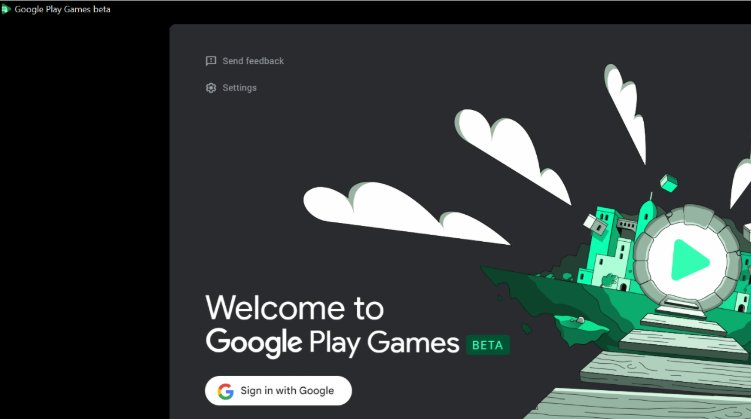
- Step 6.Open Google Play Games app and log in with your Google account after the setup.
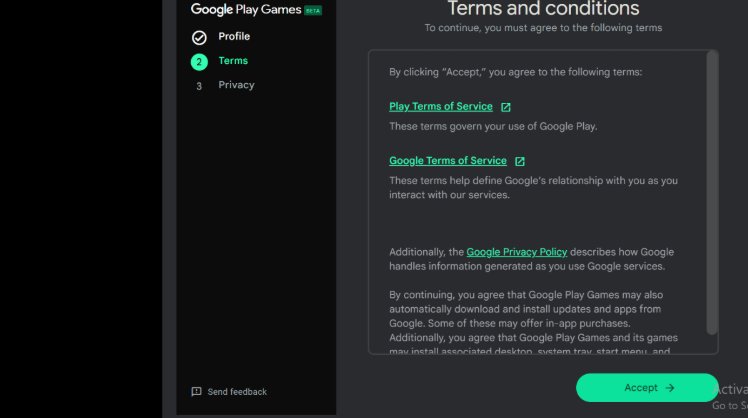
- Step 7.Fill up the required details to complete the setup.
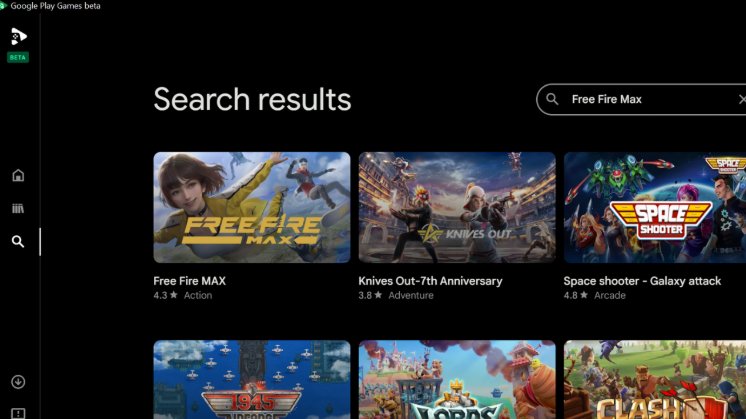
- Step 8.Search for “Free Fire Max” on the app.
- Step 9.Download Free Fire Max and wait for it to install on your PC.
2Play with AirDroid Cast
If you want to mirror your mobile device to your PC for a seamless experience, AirDroid Cast is a great option. This tool allows you to cast your phone screen to your computer and play Free Fire with full screen.
AirDroid Cast is not an emulator; it doesn't play the game. Instead, it mirrors your screen from one device to another. You can mirror your phone screen to your PC, or your PC screen to a Smart TV.
You can use to play both Free Fire & Free Fire Max. Follow these steps:
- Step 1.Go to the AirDroid website and download the application for your PC. Follow the on-screen instructions to install.
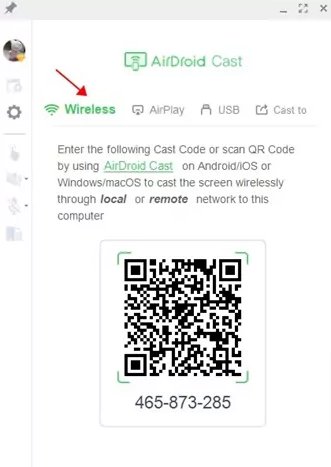
- Step 2.Open the AirDroid Cast app on both your phone and computer. Connect the devices via Wi-Fi or USB.
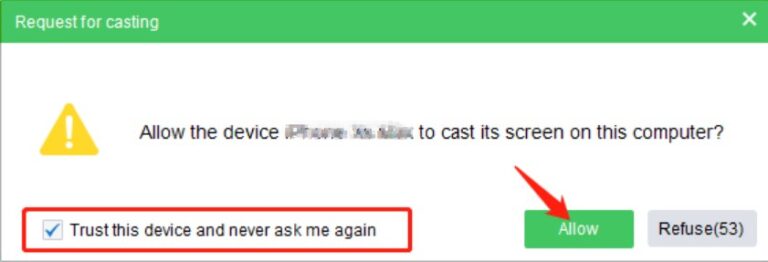
- Step 3.Once connected, select “Screen Mirroring” on the AirDroid app and allow it to cast your phone screen to your PC.
- Step 4.Open Free Fire/Free Fire Max on your phone. Your phone’s screen will be displayed on your PC screen and you can play the game on a bigger screen.
- Step 5.To get the best gaming experience, adjust the screen resolution, quality, and other settings in AirDroid Cast to your liking.
Play Free Fire on PC with Emulators
Traditional third-party Android emulators—such as BlueStacks, LDPlayer, Nox Player, and MEmu—have long been the go-to solution for playing Free Fire on PC. Their popularity comes from solid performance optimization and a rich set of features that mobile devices simply can’t offer.
Benchmark comparisons show clear performance differences among these emulators. BlueStacks 5 consistently ranks at the top with better resource efficiency (lower CPU and RAM usage compared to LDPlayer and Nox) and the fastest launch time.
However, the same advanced features that make these emulators appealing are also what place them in a high-risk category for Free Fire:
- Optimized Game Controls: Features such as Smart Controls and Shooting Mode lock the mouse cursor and react based on in-game context, delivering faster aim and response times.
- Macros and Scripts: Users can record complex action sequences and trigger them with a single key, automating in-game behavior.
- Multi-Instance Support: These emulators allow multiple game instances to run and sync simultaneously, enabling batch operations and multi-account control.
While these tools provide undeniable convenience and performance benefits, they also constitute unauthorized gameplay enhancements. This puts them in direct violation of Garena’s anti-cheat policies. In other words, their performance advantages come with significant compliance risks that you should not overlook.
Pro Tips for Playing Free Fire on PC
Customize Controls: Adjust your keyboard and mouse settings to your playstyle. Custom key mappings can make aiming and shooting faster.
Optimize Graphics: Adjust the game’s graphic settings for better performance. Lowering settings can help to avoid lag on lower end PCs.
Use Headphones: Listen to in-game sounds to locate enemies.
Practice Movement: Use mouse for aiming and keyboard for movement to get better control in intense fights.
Free Fire PC FAQs
Conclusion
Playing Free Fire on PC enhances your gaming experience with better controls, performance, and visuals. Choose the method that best suits your preferences and enjoy smoother gameplay.







Leave a Reply.