
- How to Download Odin Valhalla Rising on PC
- System Requirements for Odin Valhalla Rising PC
- Install Odin Valhalla Rising on PC via Google Play Games
- Account Syncing & Login
- Bonus: How to Cast Odin Valhalla Rising to TV from PC
- Additional Tips for a Better Odin PC Experience
- FAQ: Odin Valhalla Rising PC
- Conclusion
With its seamless open-world design, cinematic visuals, and massive 30 vs 30 Battle of Valhalla, Odin: Valhalla Rising is one of the most technically demanding MMORPGs on mobile. Many players want a smoother, more immersive experience on PC—where the enhanced performance, larger display, and stable connection make a significant difference in high-pressure battles and large-scale raids.
This guide provides everything you need to start playing Odin Valhalla Rising on PC, including official download methods, system requirements, account syncing, safety tips, and an additional section on how to cast Odin gameplay to your TV or PC using AirDroid Cast. You’ll also find helpful FAQs at the end to assist with common setup issues.
How to Download Odin Valhalla Rising on PC

The most secure and reliable way to install Odin Valhalla Rising PC is through Google Play Games on PC (GPG). This platform is directly supported by Google and provides seamless syncing with your mobile progress.
Why Use Google Play Games on PC
- Official and safe: No third-party files are needed, and it is officially supported by Odin.
- Automatic account syncing: Your Google account keeps progress across devices.
- PC-level performance: Better framerates and smoother world rendering.
- Integrated updates: No need to manually download patches.
System Requirements for Odin Valhalla Rising PC
Before installing, confirm your PC meets the minimum requirements set by Google Play Games.
- OS: Windows 10 version 2004 or higher
- Storage: 10 GB available on SSD
- Processor: Quad-core CPU
- RAM: 8 GB
- GPU: Intel UHD 630 or equivalent
- Account: Windows admin account
- Essential: Hardware virtualization (VT-x/AMD-V) enabled
Install Odin Valhalla Rising on PC via Google Play Games
Follow these steps to install the game officially and securely:
Step-by-Step Installation
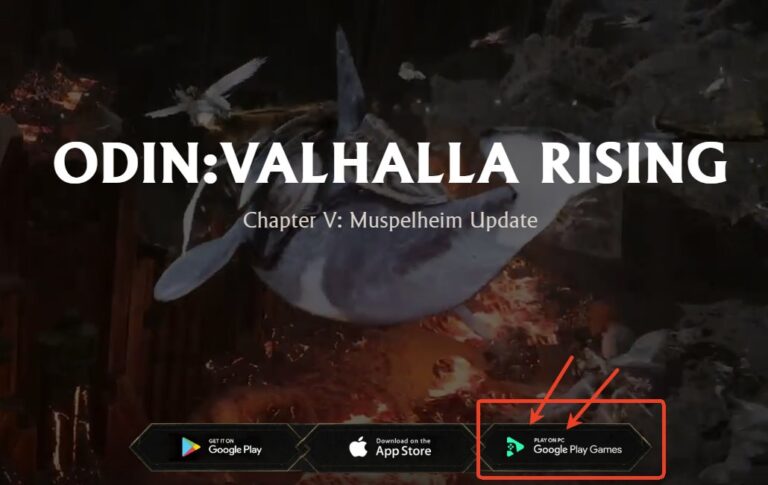
- Step 1. Open the Odin official site on your PC. Then, click on the Google Play Games button.
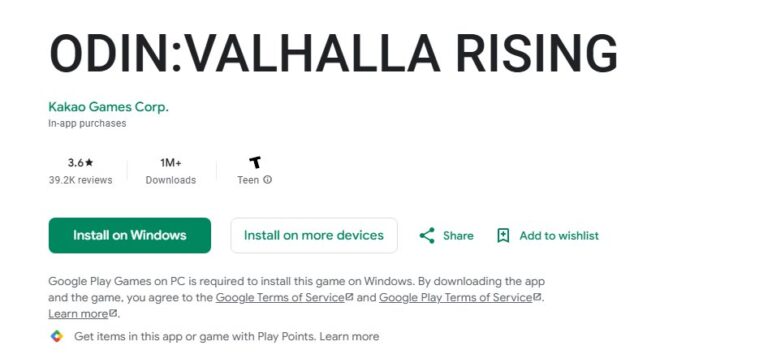
- Step 2. Click on the Install on Windows and download the exe.file.
- Step 3. After downloading, open the Google Play Games, and search for Odin Valhalla Rising.
- Step 4. Then install and you can play now!
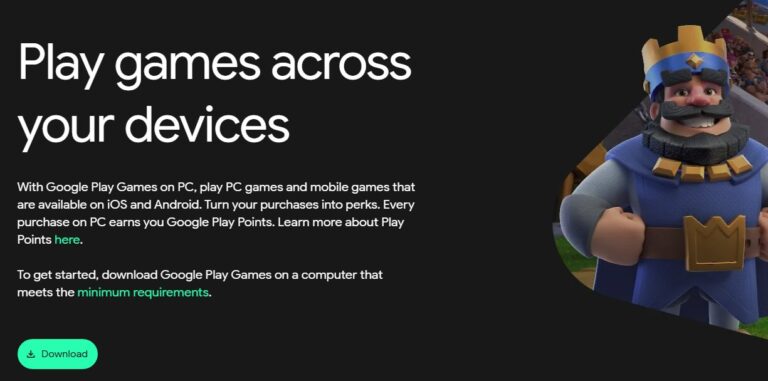
Or you can directly download Google Play Games via its official site, and then search the game and play.
Account Syncing & Login
- Odin automatically links to your Google Play Games account.
- If your character was created using a Kakao Games account, you may still log in using Google credentials (Kakao supports Google login).
- Your mobile progress transfers automatically—no extra setup needed.
Key Technical Points Many Players Overlook
1. Hardware Virtualization Must Be Enabled
GPG uses virtualization technology. If your PC does not have VT-x/AMD-V enabled in BIOS, the game will not launch.
2. SSD Storage is Required
Traditional HDDs often cause:
- Stuttering
- Slow loading
- Freezing in crowded zones
SSD ensures stable asset streaming in Odin’s large open-world.
Account Security Essentials
Even when playing via official platforms, you should enable additional protections to secure your Odin account.
1. Secondary Password (Highly Recommended)
Odin offers a 6-digit secondary password for login protection. It not only improves security but also grants a permanent in-game bonus: Defense +1.
2. Device Registration
Register your device to lock your account to trusted hardware.You'll need to re-verify if you reinstall the game or switch devices.
3. Watch Out for Phishing
Always avoid: Unofficial links, Fake customer service accounts and Requests for login information.
Only rely on official Kakao Games or Google channels.
Bonus: How to Cast Odin Valhalla Rising to TV from PC
If you want to elevate your Odin: Valhalla Rising gameplay to a cinematic level, casting the PC version to your TV is the most immersive way to enjoy the game. Whether you're showcasing your battle skills, walking your family through the breathtaking world of Midgard, or replaying epic guild raids with friends, casting Odin to a TV makes the experience more social, more impressive, and far more enjoyable.
Among many casting tools, AirDroid Cast stands out for its stable wireless connection, cross-platform compatibility, and extremely simple setup. It works on Windows, macOS, Android, iOS, and Smart TVs—making it perfect for players who want plug-and-play convenience.
- Step 1. Download and Install AirDroid Cast on the device you want to cast from like phone or PC.
- Step 2. Go to your TV's browser and enter airdroid.webcast.com.
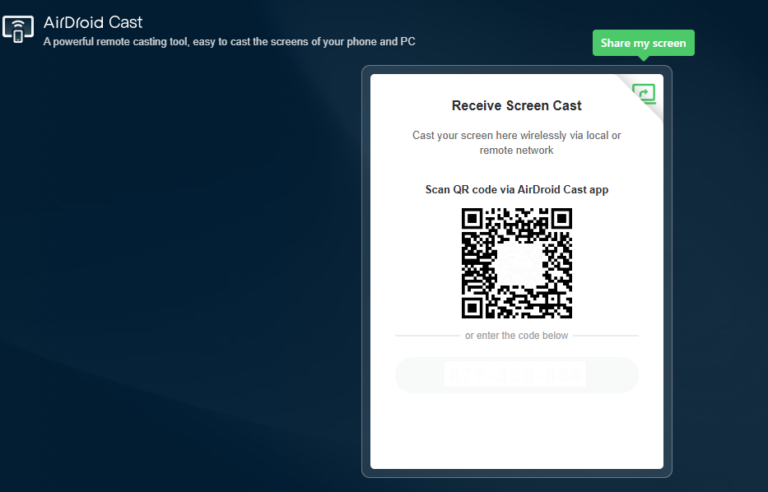
- Step 3. Enter the cast code or scan the QR code. Accept the request and you can cast.
- Step 4. Lastly, open the Odin on your Phone and it will be mirrored on big TV screen.
Then, you can share your gameplay on TV with your friends and families!
Additional Tips for a Better Odin PC Experience
To ensure the smoothest gameplay possible:
1. Close Background Apps
Odin requires heavy CPU/GPU resources. Closing Chrome tabs, download clients, or overlays can improve FPS.
2. Enable High-Performance Mode in Windows
Set your power mode to High Performance to prevent throttling.
3. Use Ethernet Instead of Wi-Fi
For smoother PvP and raids:
- Reduce packet loss
- Lower latency
- Improve stability
4. Keep Graphics Adjusted Based on Your PC
- If using integrated graphics → start with low settings
- If using a decent GPU → turn on high textures and effects
FAQ: Odin Valhalla Rising PC
Conclusion
Odin: Valhalla Rising offers some of the most stunning visuals and large-scale MMORPG features available on mobile. Playing Odin Valhalla Rising on PC through Google Play Games delivers the best performance, smoother battles, and reliable cross-platform syncing.
For players who want to enjoy the game on an even bigger display, AirDroid Cast enables fast and flexible casting to TVs and PCs.
With the right setup—hardware virtualization enabled, SSD storage, and proper account security—you can enjoy a stable, immersive Odin experience across all your devices.







Leave a Reply.