

Gacha Club on PC has become more than just a mobile game; it is a global digital creativity platform. Developed by Lunime and released in 2020, it offers an extensive character customization system, a studio mode, and engaging battle logic.
Millions of users—including casual players and content creators like YouTubers and TikTokers—have embraced Gacha Club to craft unique stories and animations. As creators demand more precision, the small screens of mobile devices have shown their limitations, leading to a surge in interest for PC gameplay.
2 Official Methods to Play Gacha Club on PC
For those who prefer to stay within the official Lunime ecosystem, there are two primary ways to access the game on Windows. However, it is important to understand that they offer very different experiences.
1. The itch.io Version
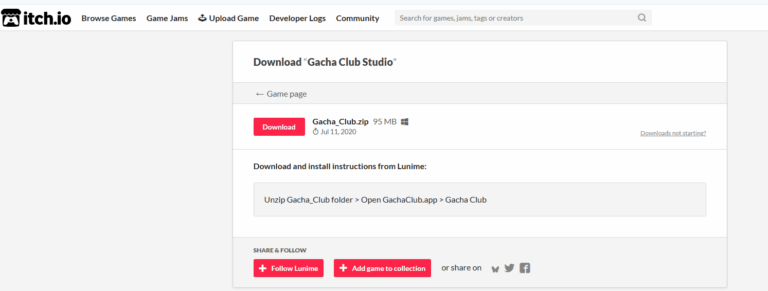
The Gacha Club PC download available on itch.io is often the first stop for players. This is officially labeled as a "Studio Demo."
What’s included: You get the full Editor, allowing access to all hair, eyes, clothes, and skin customizations. It is perfect for those who only want to design characters and take screenshots.
The Drawbacks: This version is essentially a "light" edition. It does not include the Gacha mechanics, battle modes, or mini-games. Crucially, it lacks the Import/Export function. You cannot use long codes to share your designs, making it an "isolated lab" for character creation.
2. Google Play Games for PC
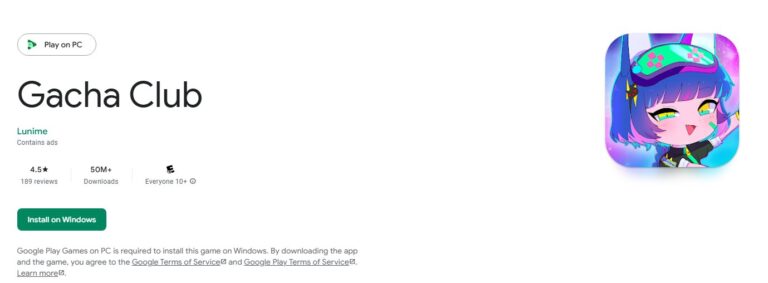
Google has recently expanded its Google Play Games (GPG) for PC service, and Gacha Club is a verified title within its library. This is the closest you can get to a "Native PC" experience.
Unlike the demo, GPG offers the full mobile experience, including the RPG battle system and real-time updates. Because it runs within Google’s own Android container, your data and Play Points stay synced. However, GPG has strict hardware requirements that might exclude users with older laptops.
Hardware Requirements for a Smooth Experience
To play Gacha Club on PC via official virtualization like Google Play Games, your system needs to meet certain benchmarks. Below is a breakdown of the necessary specs:
| Component | Minimum/Recommended Requirement | Why It Matters |
|---|---|---|
| OS | Windows 10 (v2004) or later | Required for Hyper-V virtualization support. |
| Storage | Solid State Drive (SSD) | Essential for fast asset loading and preventing "stutter." |
| Space | 10 GB Available | Needed for the app, cache, and virtual disk files. |
| GPU | Intel UHD Graphics 630 or equivalent | Required for hardware-accelerated graphics. |
| CPU | 4 Physical Cores | Ensures the PC can handle the game and background tasks. |
| RAM | 8 GB | The "red line" for preventing system crashes during multi-layer editing. |
| Special | Hardware Virtualization (VT-x/AMD-V) | Must be enabled in BIOS to run any Android environment. |
Using Android Emulators

When the official versions don't cut it—perhaps you need the import/export feature or you have a lower-spec PC—Android emulators are the most popular solution. Platforms like BlueStacks, LDPlayer, and MuMu Player offer features that even the official app lacks.
Top Emulator Recommendations
BlueStacks 5: The gold standard for stability. The "Multi-Instance Sync" is perfect for managing multiple Gacha characters simultaneously.
LDPlayer: Optimized for high-performance rendering. If you enjoy the battle mode and want the highest FPS possible, LDPlayer is a lightweight and fast alternative.
MuMu Player: Developed by NetEase, this emulator is famous for its crisp image quality and low CPU usage, making it ideal for low-end laptops.
Advanced Emulator Features
Eco Mode: If you are running Gacha Club in the background while editing a video, Eco Mode reduces the emulator's resource consumption.
Real-time Translation: For international players, some emulators can translate on-screen text instantly, helping you navigate different community-made mods or stories.
Screen Recording: Most emulators have built-in high-quality recorders, which is a massive help for Gacha-tubers who don't want to deal with third-party capture software.
Pro Tips for Using Emulators
Enable Virtualization: This is the single most important performance setting. You must enable Intel VT-x or AMD-V in your computer’s BIOS. Without it, the emulator will run extremely poorly.
Allocate Resources Wisely: In the emulator settings, assign at least 2-4 cores and 4GB of RAM for optimal Gacha Club performance. Don’t allocate all your system resources.
Stay Secure: Only download emulators from their official websites. Be cautious of bundled software during installation.
Keep Everything Updated: Regularly update both the emulator and the Gacha Club app inside it for the best performance and latest features.
Using AirDroid Cast to Play Gacha Club on PC
Using AirDroid Cast to play Gacha Club on PC is a fantastic hybrid solution. Unlike emulators that run a separate version of the game, AirDroid Cast mirrors your phone's screen directly to your PC, allowing you to use your existing mobile save data with the precision of a mouse.
AirDroid Cast is a versatile, user-friendly app that lets you mirror almost any device to your PC. Here’s how to use it:
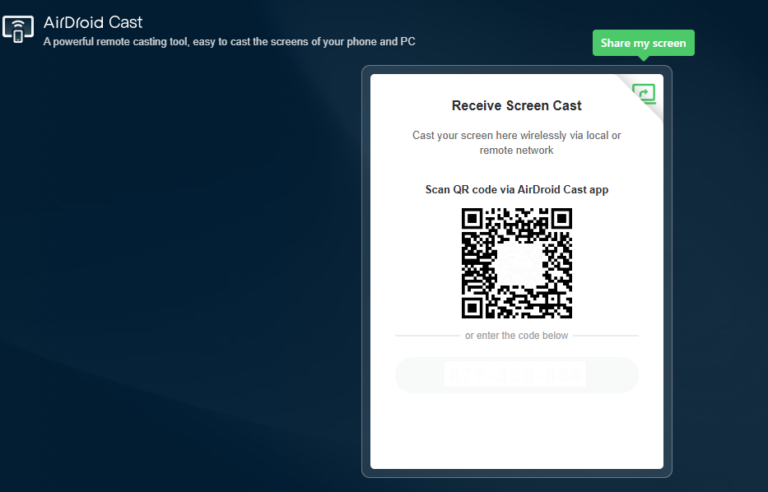
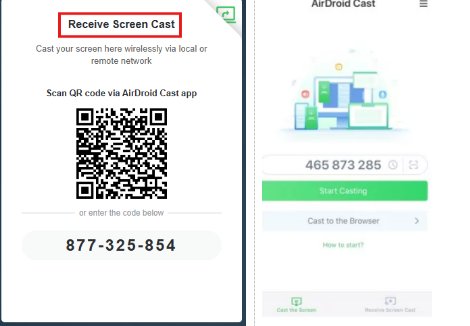
- Step 1.Turn on your PC/TV and its web browser. Navigate to webcast.airdroid.com.
- Step 2.Download and install the AirDroid Cast app on your phone.
- Step 3.Open the AirDroid Cast app and scan the unique 9-digit cast code displayed on your PC/TV screen (or enter it manually). After successful connection, your Android screen will instantly appear on your PC/TV.
- Step 4.Click the "Control from PC" option on the AirDroid Cast app to enable mouse control. You can now launch Gacha Club on your phone and play it using your PC's peripherals.
Limitations of Using AirDroid Cast
- Not an Emulator: Since AirDroid Cast only mirrors your mobile device, it doesn’t offer the full control and features of a PC-native emulator. Some advanced features, like multiple instances or macros, won't be available.
- Requires Active Mobile Device: Your phone needs to stay active and connected throughout the gameplay, so this method is not entirely PC-based and relies on your mobile device’s functionality.
Frequently Asked Questions
Conclusion
Deciding to play Gacha Club on PC is the best move a creator can make. While the itch.io version offers a simple playground for designers, Google Play Games and emulators like BlueStacks provide the full-featured experience that allows your creativity to flourish. By leveraging the precision of a mouse and the power of desktop hardware, you can take your Gacha storytelling to a professional level.







Leave a Reply.