

Play Dragon Ball Z Dokkan Battle for PC has become a common search among long-time players and newcomers alike. As mobile games continue evolving toward higher performance requirements, larger content packages, and longer play sessions, many players are looking for ways to enjoy Dokkan Battle on a bigger screen with better controls — without overheating their phones or draining battery life.

In this guide, you’ll learn all practical ways to play Dokkan Battle on PC, including emulators, screen mirroring, Chromebook support, and Samsung DeX—along with critical risks, safety tips, and best practices most guides fail to mention.
Method 1: The Power of Android Emulators (Windows & Mac)
For the vast majority of players, using an Android emulator for Dokkan Battle is the go-to solution. Emulators create a virtual Android environment on your desktop, allowing you to run mobile apps seamlessly.
Choosing the Right Emulator
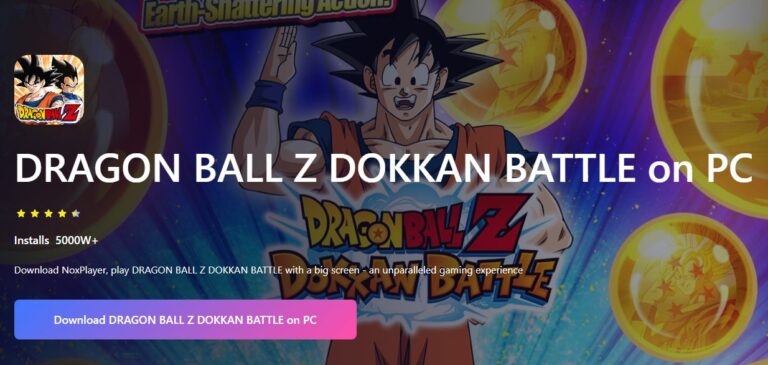
Not all emulators are created equal. Depending on your PC specs, you might prefer one over the other:
- BlueStacks: The most popular choice, known for its robust feature set and "Instance Manager," which is perfect if you want to reroll multiple accounts simultaneously.
- MuMu Player: Frequently recommended by the Dokkan community for its superior performance on low-end PCs and its ability to maintain high frame rates.
- GameLoop: The official emulator from Tencent, which offers great optimization and pre-configured environment patches to reduce crashes.
PC Requirements for a Smooth Experience
To ensure your Dokkan Battle PC gameplay is lag-free, your system should meet these specifications:
| Component | Minimum Requirement | Recommended Requirement |
|---|---|---|
| OS | Windows 7 / macOS | Windows 10/11 (64-bit) |
| RAM | 4 GB | 8 GB or more |
| Storage | 5 GB (Emulator only) | 30 GB (For full game data) |
| Processor | Dual-Core CPU | Quad-Core with VT-x support |
| Graphics | DirectX 9.0c Compatible | GTX 1050 or higher |
How to Set It Up
- Step 1. Download and Install: Visit the official website of your chosen emulator (e.g., BlueStacks or MuMu) and install the client.
- Step 2. Enable VT (Virtualization Technology): This is crucial. Enter your BIOS settings and ensure VT-x or AMD-V is enabled to prevent extreme lag.
- Step 3. Install the Game:
- Global Version: Log into the Google Play Store within the emulator and search for "Dragon Ball Z Dokkan Battle."
- JP Version: Use a third-party tool like QooApp to download the Japanese APK.
- Step 4. Configure Keymapping: Map specific keys to screen locations to speed up your orb-collecting process.
Pros
- ✅ Large screen experience
- ✅ Keyboard and mouse control
- ✅ Multi-account farming
Cons
- ❌ High hardware demand
- ❌ JP version blocks most emulators
- ❌ Increased detection risk in competitive modes
Method 2: The Security-First Approach (Screen Mirroring)
If you are worried about your account's safety—especially for the JP version of Dokkan Battle which has strict environment checks—screen mirroring is the best option. This method runs the game on your physical phone but displays and controls it through your PC.
The Professional Choice: scrcpy
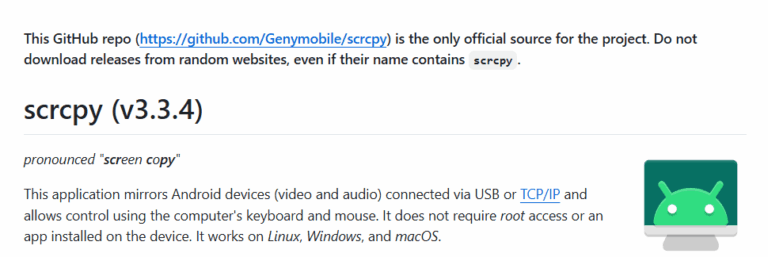
Scrcpy is an open-source, high-performance tool that offers extremely low latency (35ms to 70ms). Since the game is technically running on your actual phone, it bypasses all "Emulator Detected" security checks.
How to use scrcpy:
- Step 1. Enable USB Debugging on your Android phone (Settings > About Phone > Tap 'Build Number' 7 times).
- Step 2. Download the scrcpy package on your PC.
- Step 3. Connect your phone via USB and run
scrcpy.exe. - Step 4. Your phone screen will pop up on your desktop instantly!
Pro Tip: Use the command line scrcpy --max-size=1024 to balance high-resolution visuals with zero-lag performance.
Pros
- ✅ Zero ban risk
- ✅ Works with JP & Global versions
- ✅ No emulator detection
Cons
- ❌ Phone must remain connected
- ❌ Still uses phone hardware
While scrcpy is an excellent choice for advanced users who are comfortable with developer settings and command-line tools, it may feel too technical for casual players. In this case, AirDroid Cast offers a more user-friendly screen mirroring solution for playing Dragon Ball Z Dokkan Battle on PC.
AirDroid Cast allows you to mirror your phone screen to a Windows or Mac PC(even TV) with just a few clicks, making it ideal for users who prefer a simple setup and visual interface.
Why Choose AirDroid Cast?
- No command line required – everything is done through a graphical interface
- Supports both USB and wireless mirroring, offering more flexibility
- Beginner-friendly – suitable for non-technical users
- Like scrcpy, the game still runs on your physical phone, so account safety and integrity checks remain intact
Although AirDroid Cast may not achieve the same ultra-low latency as scrcpy, it strikes a strong balance between safety, usability, and comfort, making it a practical alternative for long Dokkan Battle sessions on PC.
Method 3: Playing Dokkan Battle on Chromebook

If you own a newer Chromebook (post-2017), you likely have native support for Android apps, making the process of playing Dokkan Battle on ChromeOS incredibly simple.
- Step 1. Open the Google Play Store on your Chromebook.
- Step 2. Search for the game and click install.
- Step 3. Launch it directly from your app drawer.
Note: While this is a "native" solution, some users report connectivity issues or crashes on certain ChromeOS versions. If you encounter these, switching to the screen mirroring method mentioned above is highly recommended.
Pros
- ✅ No emulator required
- ✅ Official Android environment
- ✅ Lower ban risk
Cons
- ❌ Some Chromebooks experience crashes or login issues
- ❌ Performance varies by hardware and ChromeOS version
Method 4: The Samsung DeX Integration
For Samsung flagship owners (S8 and later), Samsung DeX provides a desktop-like experience for your mobile apps. By connecting your phone to your PC via USB or Wi-Fi, you can launch Dokkan Battle in a resizable window, allowing for true multitasking while utilizing your PC's keyboard and mouse.
Pros
- ✅ Official solution
- ✅ Excellent multitasking
- ✅ Keyboard support
Cons
- ❌ Limited to select Samsung flagship models
Enhanced Security: Protecting Your Account
The developers have recently ramped up their use of SafetyNet and Play Integrity checks. To keep your account safe while playing on PC, follow these golden rules:
- Google/Apple ID
- Bandai Namco ID (The most secure method)
Frequently Asked Questions (FAQ)







Leave a Reply.