

You’re all set to stream an epic gaming moment or share a hilarious video with your friends on Discord. You start the screen share, the visuals are perfect, but then you get the dreaded message: "We can't hear anything."
The frustrating issue of Discord screen share no audio has struck again. It’s a common problem that can ruin a great session, but don’t worry—it’s almost always fixable.
This comprehensive guide will walk you through every possible solution, from the simplest 5-minute checks to the more advanced technical tweaks. We’ll explore why your Discord stream has no sound and provide a step-by-step process to get your audio back, loud and clear.
The Root Causes of Discord Audio Issues
Fixing the Discord no audio on screen share problem begins with understanding why it happens. It's rarely a single issue but often a combination of conflicting settings, permissions, or software glitches. Let's break down the main culprits.
Mismatched Application and System Settings
One of the most frequent reasons for audio problems is a simple conflict between how Discord is configured and how your operating system manages sound.
Incorrect Audio Devices in Discord: Within Discord’s "Voice & Video" settings, you can manually select an Input Device and Output Device. If your system is outputting sound to your speakers, but Discord is set to capture audio from an old, disconnected headset, the audio stream will never be captured correctly.
The Sneaky Culprit: Administrator Permissions: This is a classic system-level issue that looks like an audio problem but is actually about security. If you are trying to share a game or application that is running with administrator privileges, but your Discord client is not, your operating system may block Discord from accessing that program's audio stream for security reasons. This often results in a screen share with no sound or even a black screen, especially with modern games that require elevated permissions.
Hardware, Driver, and Software Compatibility Conflicts
Sometimes, the issue lies deeper within the interaction between your computer's hardware and the software running on it.
Outdated Audio Drivers: Your audio driver is the critical piece of software that allows your hardware (like your sound card or headset) to communicate with your operating system. If this driver is outdated, corrupted, or has a bug, it may fail to pass the audio data to Discord's capture system. Drivers from manufacturers like Realtek or Nvidia HD Audio are common sources of this issue if not kept up-to-date.
Hardware Acceleration: A Double-Edged Sword: Hardware Acceleration is a feature designed to improve performance by offloading tasks like video rendering from your CPU to your GPU (graphics card). While usually beneficial, this can cause problems on certain system configurations or with older graphics drivers. If the GPU or its driver doesn't fully support the specific audio/video task Discord is trying to offload, it can lead to a broken data stream, resulting in stuttering or a complete loss of sound.
Interference from Other Software:
Security Software: Overly aggressive antivirus software or firewalls can sometimes misidentify Discord’s audio data stream as a potential threat and block it.
Virtual Audio Devices: Advanced users who use virtual cable software like VoiceMeeter or VB-Cable for complex audio routing introduce another layer of complexity. If the audio sample rates don't match across Discord, the virtual device, and your system sound settings, the audio can become corrupted or lost entirely.
How to Fix Discord Screen Share No Audio: A Step-by-Step Guide
Now that you know the potential causes, let's work through the solutions systematically. Start with the quick and easy fixes first before moving on to the more involved steps.
The 5-Minute Basic Checks
Before diving into complex settings, troubleshooting your Discord screen share should start with these simple but highly effective checks.
1. Ensure "Share Sound" is Enabled
This is the most common oversight. When you first start your screen share, a preview window appears. At the bottom of this window, make sure the toggle or checkbox for "Share your computer's sound" is turned on. It's easy to miss!
2. The Classic: Restart Everything
A simple restart can clear up temporary glitches.
- Step 1. Close Discord completely (use the Task Manager on Windows or Force Quit on Mac to be sure it's not running in the background).
- Step 2. Relaunch Discord and the application you want to share.
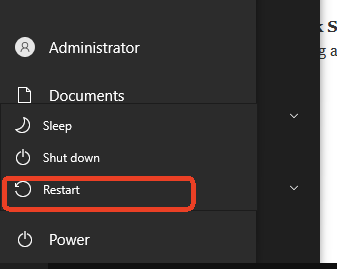
- Step 3. If the issue persists, try restarting your entire computer.
3. Verify Volume and Device Settings
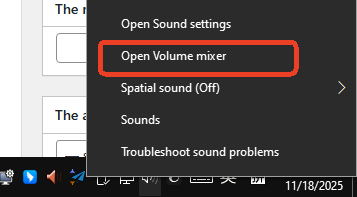
- Step 1. Check System Volume Mixer: On Windows, right-click the volume icon in the taskbar and open the Volume Mixer. Make sure that both Discord and the application you are sharing are not muted and have their volume turned up.
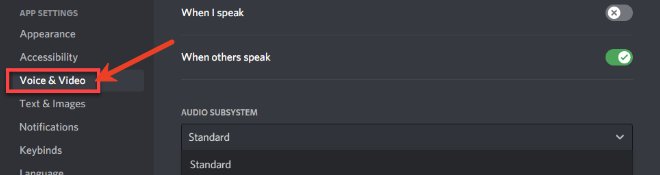
- Step 2. Check Discord's Audio Settings: Go to User Settings > Voice & Video. Double-check that your Output Device is set to the speakers or headset you are actively using.
Advanced Discord and System Tweaks
If the basics didn't solve the problem, it's time to dig a little deeper into Discord and your operating system's settings.
1. Reset Voice Settings & Use the Legacy Audio Subsystem
Sometimes, Discord’s audio settings can become corrupted.
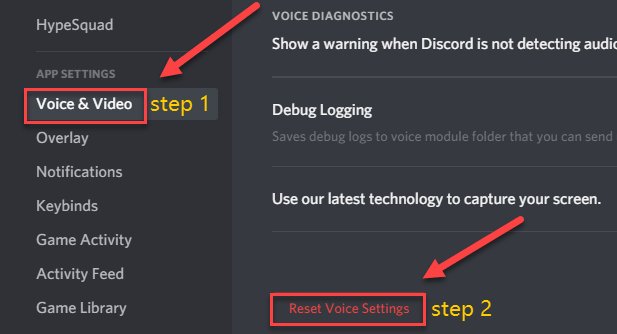
- Step 1. Navigate to User Settings > Voice & Video.
- Step 2. Scroll down and click the red "Reset Voice Settings" button.
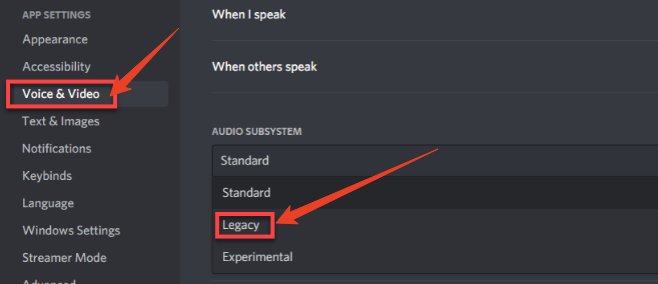
- Step 3. If that doesn't work, find the "Audio Subsystem" option on the same page and switch it from Standard to Legacy. This older system can bypass compatibility issues with certain hardware.
2. Run Both Applications as an Administrator
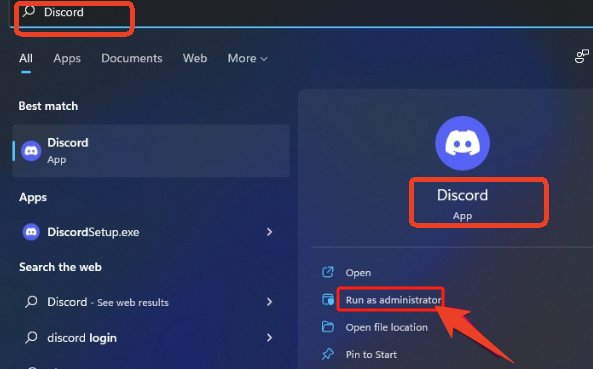
To fix permission-related conflicts, run both Discord and the program you want to share with administrator rights. Right-click the application's icon and select "Run as administrator."
3. Grant System Permissions
Your operating system might be blocking Discord from accessing your microphone or screen.
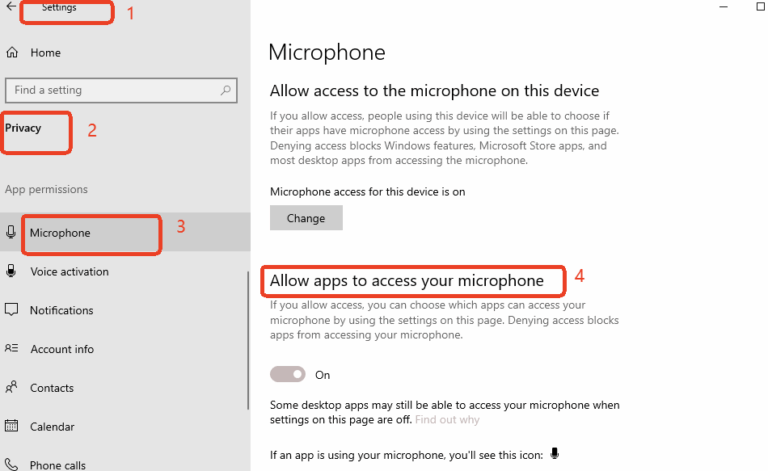
- Windows: Go to Settings > Privacy > Microphone and ensure "Allow apps to access your microphone" is on.
- macOS: Go to System Settings > Privacy & Security > Microphone / Screen Recording and make sure Discord is checked and enabled.
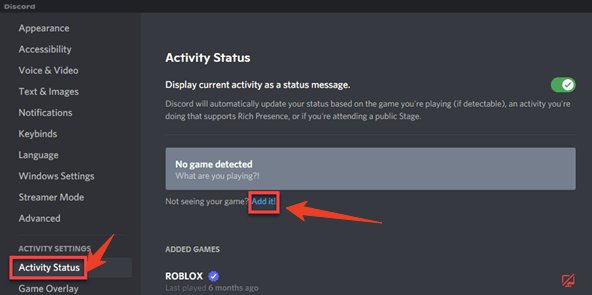
4. Manually Add Your Game or Application
If Discord isn't automatically detecting the application you're trying to share, you may need to add it manually.
- Step 1. Go to User Settings > Registered Games (or Game Activity).
- Step 2. Click the "Add it!" link and select your application from the dropdown list.
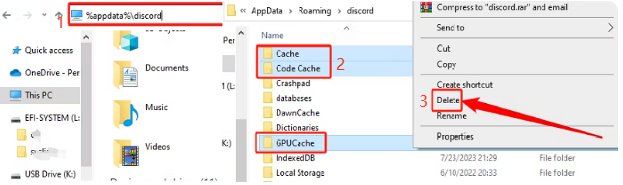
5. Clear Discord's Cache and Roaming Data
Corrupted cache files can cause all sorts of strange behavior, including audio issues.
- Windows: Close Discord completely. Type
%appdata%into the Windows search bar, hit Enter, and delete the "Discord" folder. Then, type%localappdata%and delete the "Discord" folder there as well. - macOS: In Finder, press
Command+Shift+G, type~/Library/Application Support/discord, and delete the "Cache" folder.
The Deep Fixes - Drivers and Reinstallation
If you've tried everything above and your Discord stream still has no sound, the problem likely lies at the system or driver level.
Update Audio and Graphics Drivers
This is the most fundamental solution for deep-seated compatibility issues. Go directly to the official websites for your sound card (e.g., Realtek) and graphics card (e.g., Nvidia, AMD) manufacturers to download and install the latest drivers. Do not rely solely on Windows Update.
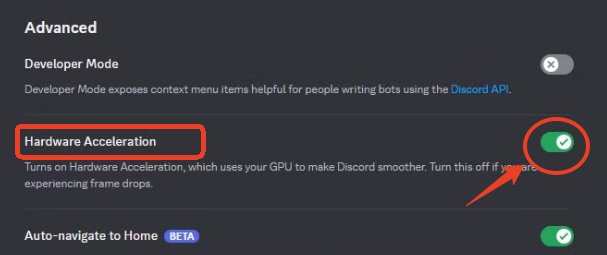
Disable Hardware Acceleration
If the no-audio issue is accompanied by lag or a black screen, hardware acceleration is a likely suspect.
- Step 1. Go to User Settings > Advanced.
- Step 2. Turn off the "Hardware Acceleration" toggle.
- Step 3. Restart Discord for the change to take effect.
The Last Resort: Reinstall Discord
When all else fails, a clean installation can resolve any corrupted or outdated files.
- Step 1. Completely uninstall Discord from your system.
- Step 2. Follow the cache-clearing steps mentioned above one more time to ensure no residual files are left.
- Step 3. Download the latest version of Discord from the official website and install it.
Alternative Solution: Use AirDroid Cast for Reliable Audio
If Discord still fails to transmit system audio after trying the fixes above, you can use a dedicated screen-casting tool as a more reliable way to share both your screen and sound.
AirDroid Cast is a practical option here because it captures system audio directly from your device rather than relying on Discord’s virtual audio routing. This avoids common issues such as missing sound, incompatible apps, or audio drivers not being recognized.
With AirDroid Cast, you can mirror your screen to another computer or even a large TV while ensuring viewers hear every sound in real time—whether you're presenting a video, demonstrating software, or sharing gameplay.
The setup is simple: install the app on both devices, connect them via Wi-Fi or USB for better stability, and enable “Cast to.” Because the tool handles audio transmission independently, you won’t run into the typical Discord limitations even when streaming apps that Discord struggles to capture.
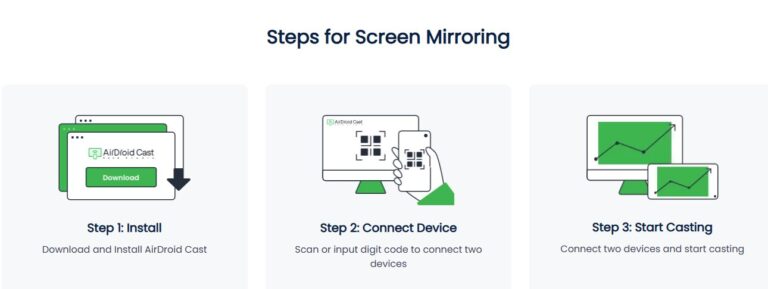
This makes AirDroid Cast a useful fallback option when you need consistent, clear system audio and want to avoid audio-related interruptions during your session.
Conclusion
Facing the Discord screen share no audio issue can be incredibly disruptive, but it’s a problem with a clear path to a solution. By following this guide, you can systematically eliminate each potential cause and restore audio to your streams.
Did these tips help solve your Discord audio woes? Do you have another trick that worked for you? Share your experience in the comments below!







Leave a Reply.