Casting photos from your iPhone to a TV has become a popular way to share memories and showcase photography work viewing on a large screen. With multiple methods available, it is essential to understand each solution’s advantages, limitations, and technical considerations to ensure a smooth and secure experience.
In this guide, we will explore the main ways to cast photos from iPhone to TV, with detailed steps, comparisons, and practical tips.
Method 1: The Wireless Standard – Using Apple AirPlay 2
Best for: iPhone users who want a cable-free, high-quality seamless experience.
AirPlay 2 is Apple’s proprietary protocol designed to stream audio, video, and photos from your iOS device to a compatible receiver. It offers the smoothest integration but relies heavily on your TV's capabilities. We will break this down into two scenarios based on your TV's hardware.
Scenario A: Your TV Natively Supports AirPlay 2
Many modern smart TVs from brands like Samsung, LG, Sony, and Vizio now come with AirPlay 2 built-in. This means you don't need any extra hardware.
Step-by-Step Guide:
- Step 1. Network Check: Ensure your iPhone and your Smart TV are connected to the exact same Wi-Fi network. (Crucial: 2.4GHz and 5GHz bands on some routers may act as separate networks).
- Step 2. Open Photos: Launch the Photos app on your iPhone and select the photo or album you want to cast.
- Step 3. Initiate Casting:
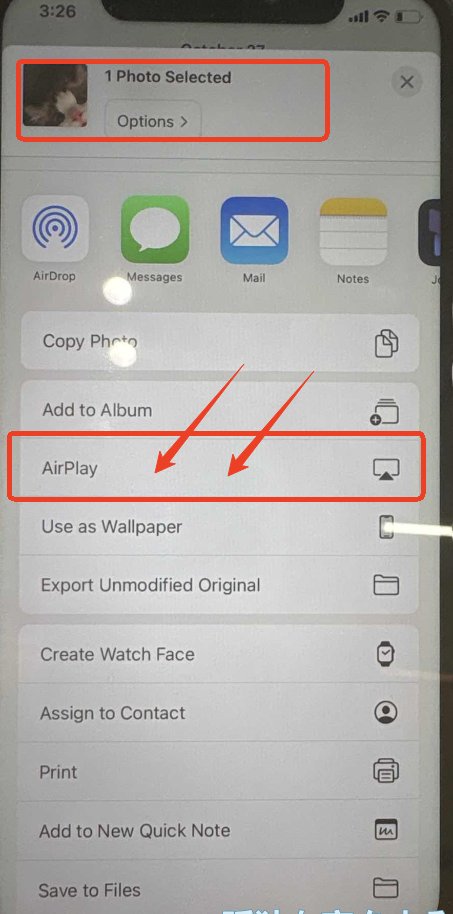
- Option 1 (Specific Photo): Tap the "Share" icon (square with an arrow up) > scroll down and tap AirPlay.
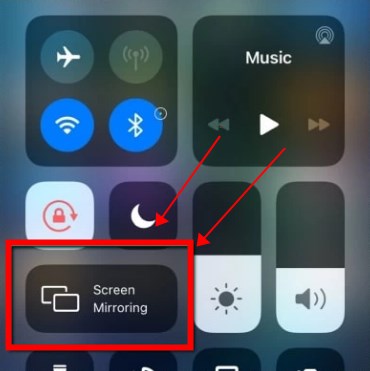
- Option 2 (Screen Mirroring): Open the Control Center (swipe down from the top-right corner) > tap the Screen Mirroring icon (two overlapping rectangles).
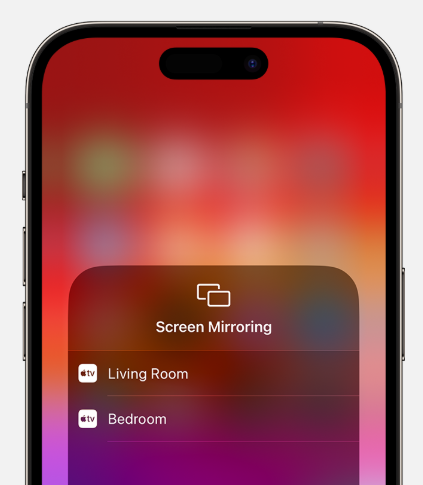
- Step 4. Select Device: Choose your TV from the list of available devices.
- Step 5. Passcode (First Time Only): Your TV may display a 4-digit code. Enter this code on your iPhone to pair the devices.
Scenario B: Your TV Does NOT Support AirPlay
If you have an older TV or a brand that doesn't support Apple's protocol, you have two sub-options: a hardware upgrade or a software workaround.
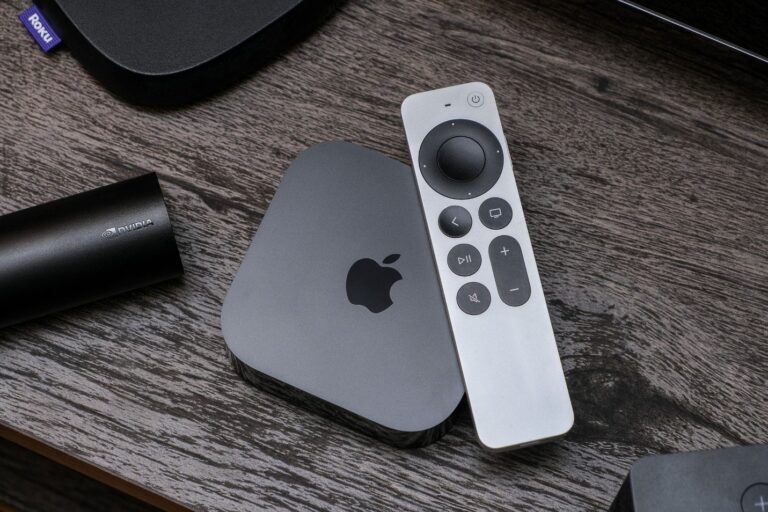
The Premium Hardware Solution (Apple TV 4K) Buying an Apple TV 4K is the most reliable way to add AirPlay functionality to any TV with an HDMI port. It acts as a dedicated receiver.
To cast photos, just connect the Apple TV to your television via HDMI. Once set up, your TV effectively becomes an AirPlay 2 device. Follow the steps in "Scenario A" above, selecting the "Apple TV" as your target.
The Third-Party Software Solution If you don't want to buy an Apple TV, you can use software to "trick" the system or use alternative protocols. To know more details, just direct to method 3.
Pros
- Wireless Freedom: No cables tethering you to the TV.
- High Quality: Supports high-resolution image transfer.
- Ecosystem Magic: Seamless integration with iOS.
Cons
- Network Dependent: Requires a strong, stable Wi-Fi connection.
- Cost: May require purchasing an Apple TV if your current TV is incompatible.
Method 2: The Stability Champion – Wired HDMI Connection
Best for: High-fidelity photo review, locations without Wi-Fi, and maximum security.
If you need zero latency or are concerned about wireless security risks, a physical wired connection is the superior choice. It creates a direct link between your phone and the display.
Hardware You Need
The adapter depends on your iPhone model:
- iPhone 14 and earlier: You need a Lightning Digital AV Adapter (MFi Certified recommended).
- iPhone 15 and later: You need a USB-C to HDMI Adapter.
Step-by-Step Guide:
- Step 1. Connect Adapter: Plug the Lightning or USB-C adapter into your iPhone's charging port.
- Step 2. Connect HDMI: Plug one end of a standard HDMI cable into the adapter and the other end into an available HDMI port on your TV.
- Step 3. Switch Input: Use your TV remote to switch the "Source" or "Input" to the corresponding HDMI port (e.g., HDMI 1).
- Step 4. Instant Mirroring: Your iPhone screen will immediately appear on the TV. Open your Photos app and rotate your phone to landscape mode for a full-screen view.
Pros
- 100% Stability: No buffering, no lag, no Wi-Fi dropouts.
- Security: Physical isolation means data cannot be intercepted by network snooping.
- No Wi-Fi Needed: Works perfectly in remote locations or hotels with complex Wi-Fi logins.
Cons
- Tethered: You must leave the phone connected to the cable near the TV.
- Aspect Ratio: You may see black bars on the sides if the photo aspect ratio doesn't match the TV perfectly.
Method 3: The Cross-Platform Alternative – Third-Party Casting Apps
Best for: Users with Chromecast devices or smart TVs that only support DLNA/Miracast.
If you don't have AirPlay and don't want a cable, apps like AirDroid Cast can bridge the gap.
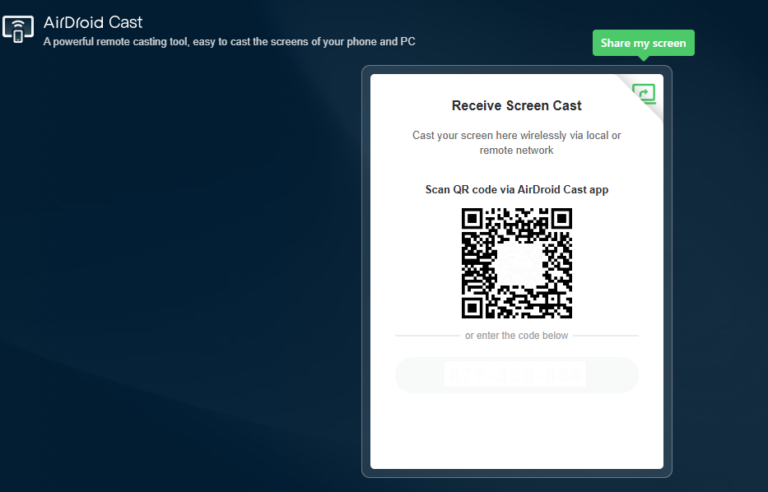
There are various mirroring apps available, but we recommend using AirDroid Cast as a representative app that is free to use and easy to operate. The operation is simple:
- Step 1. Download and Install AirDroid Cast on your iPhone.
- Step 2. Go to your TV's browser and enter airdroid.webcast.com.
- Step 3. Enter the cast code or scan the QR code. And then accept the request and you can cast.
- Step 4. Lastly, open the photos on your Phone and it will be mirrored on TV.
AirDroid Cast
- Local & Remote Screen Casting(Your Game or Whole Screen)
- Android,iOS,Windows,Mac,TV Screen Mirroring
- Wireless & USB Connection
- Total Control Android & iOS beyond Your Finger
- Mirror Multiple Screen to PC simultaneously
Critical Technical Considerations & Safety Tips
While knowing how to cast photos from iPhone to TV is important, understanding the hidden technical nuances ensures a smooth and private experience.
1. The "Screen Mirroring" Privacy Trap
Most users don't realize that Screen Mirroring replicates everything on your screen, not just photos.
- The Risk: If you receive a private text message or a bank notification while mirroring, it will pop up on the 65-inch TV for everyone to see.
- The Fix: Before you start casting, swipe down to open Control Center and activate "Do Not Disturb" or a custom "Presentation Focus Mode". This suppresses notifications while keeping your connection active.
2. Network Isolation Issues
If you are in a hotel, office, or dorm, you might find that even though you are connected to Wi-Fi, you cannot find your TV.
- The Cause: This is likely due to AP Isolation (Client Isolation), a security setting that prevents devices on the same network from talking to each other.
- The Solution: In these environments, wireless casting (AirPlay/Chromecast) will fail. You must use Method 2 (Wired HDMI Connection) or a travel router to create your own private subnet.
3. Resolution and Aspect Ratio
When using wired connections or mirroring, the TV simply copies the iPhone's screen ratio (19.5:9), which results in black bars on a standard 16:9 TV.
Note : To fill the screen, ensure you zoom in on the photo on your iPhone or use the TV's "Zoom/Wide" picture settings, though this may crop some content.
FAQ: Casting iPhone Photos to TV
Can I cast photos to a non-Apple smart TV?
Yes, use a third-party app like AirDroid Cast or a wired HDMI connection.
Will casting drain my iPhone battery?
Wireless casting uses Wi-Fi and may slightly increase battery usage. Wired connections have minimal impact.
How can I ensure my privacy while casting?
Enable Do Not Disturb or Focus Mode, secure your Wi-Fi network, or use a wired connection for sensitive content.
Can I display multiple photos as a slideshow?
Yes, all methods support slideshows. Wireless methods require stable Wi-Fi for smooth playback.
What if my TV does not support AirPlay?
Purchase an Apple TV or use third-party apps like AirDroid Cast for wireless casting.
Conclusion
Choosing how to cast photos from iPhone to TV depends on your priorities:
- AirPlay 2 is best for quick sharing within Apple’s ecosystem.
- Wired HDMI connections provide stability and maximum security.
- Third-party apps like AirDroid Cast offer cross-platform flexibility for non-AirPlay TVs.
Consider device compatibility, network stability, and privacy concerns before deciding. With the right approach, your photos will look stunning on the big screen, securely and smoothly.













Leave a Reply.