
- How Playing Brawl Stars on Chromebook Actually Works
- Pre-Installation Checklist for Brawl Stars
- Best Ways to Play Brawl Stars on Chromebook (Safety Ranked)
- Method 1: Google Play Store (Recommended)
- Method 2: Sideloading and Unblocked Sites
- Alternative Method: Screen Mirroring From Phone to Chromebook
- Conclusion
Can You Play Brawl Stars on a Chromebook?
Play Brawl Stars on Chromebook is a question many players ask when they want a bigger screen, better controls, or simply don’t want to drain their phone battery. The good news is that yes, you can play Brawl Stars on a Chromebook—but only under specific conditions.
Not all Chromebooks support Android games, and not every installation method is safe or stable. In this guide, you’ll learn how to play Brawl Stars on Chromebook safely, why compatibility issues happen, and which methods you should avoid to protect your device and account.
How Playing Brawl Stars on Chromebook Actually Works
Playing Brawl Stars on a Chromebook relies on Android Runtime for Chrome (ARC), a system that allows ChromeOS to run Android apps from the Google Play Store.
Unlike Android phones, Chromebooks:
- Lack mobile hardware like cellular radios, sensors, and rear cameras
- Use x86 or ARM laptop-class CPUs
- Run Android apps inside a sandboxed environment
Because of this, Google Play automatically filters apps based on what the developer declares as “required” hardware. If Brawl Stars requests a feature your Chromebook doesn’t have, the game may not appear in the Play Store at all.
👉 This is why many users think their Chromebook is “too old,” when in reality, it’s a compatibility filter issue, not device age.
Pre-Installation Checklist for Brawl Stars
1. Checking Your Chromebook’s Android Capability
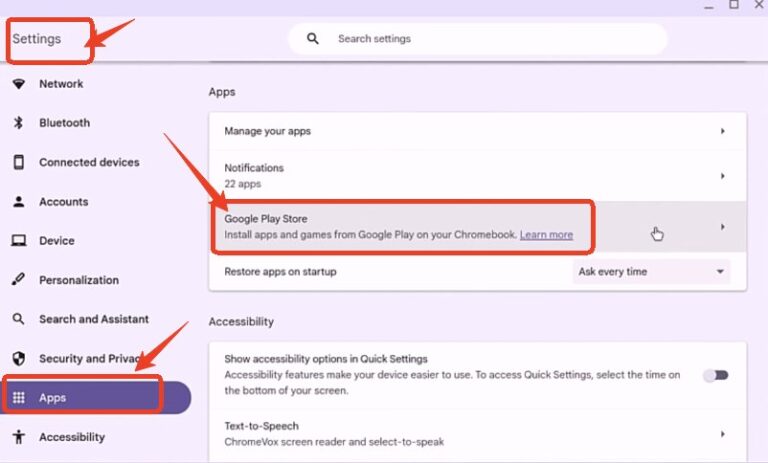
First, confirm your Chromebook supports Android apps. Navigate to Settings > Apps > Google Play Store. If you see the option to “Enable” or manage it, you’re good. If it’s missing entirely, your model likely doesn’t support Android apps. Key points:
- ChromeOS Flex: Devices running ChromeOS Flex do not support Android apps.
- Managed Devices: School or work Chromebooks often have the Play Store disabled by administrators.
Note: Google Play Store and Android apps are available on many Chrome OS devices since launching in 2016. To learn more about the available devices, check out this blog post.
2. Verifying Hardware and System Requirements
While the bare minimum might be low, for a smooth Brawl Stars experience, ensure your Chromebook:
- Runs a reasonably recent version of ChromeOS (which updates the underlying Android subsystem).
- Has at least 4GB of RAM (2GB is the absolute minimum but will likely struggle).
Uses a processor better than entry-level (e.g., Intel Core i3 or better, or a capable ARM chip) to avoid lag in intense 3v3 battles.
3. Securing Your Progress with Supercell ID
This is non-negotiable. Before switching devices, link your existing Brawl Stars account to a Supercell ID on your phone.
- Step 1. In-game, go to Settings > Supercell ID.
- Step 2. Register with your email and verify it.
- Step 3. On your Chromebook, after installing the game, choose “Log in with Supercell ID” and enter the same email. This ensures all your brawlers, trophies, and progress transfer safely and can be recovered anywhere.
Best Ways to Play Brawl Stars on Chromebook (Safety Ranked)
Method 1: Google Play Store (Recommended)

The only fully supported and secure method to play Brawl Stars on Chromebook is via the Google Play Store. This method utilizes the device’s built-in sandboxing security, ensuring your operating system remains protected from malware.
Why this is the best option:
- Google malware scanning and app verification
- ChromeOS sandbox protection
- Stable updates and compatibility checks
- Optional keyboard and mouse mapping via Game Dashboard
Step-by-Step Installation Guide
Follow this simple process to get started:
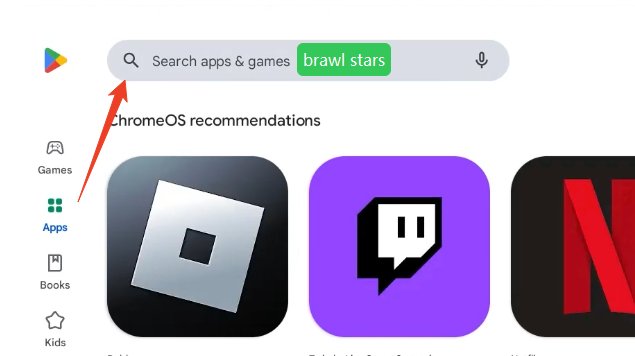
- Step 1. Open the Store: Click the Launcher icon and select the Google Play Store.
- Step 2. Search: Type "Brawl Stars" in the search bar.
- Step 3. Install: If the game appears, click the green Install button.
- Step 4. Launch: Once downloaded, click Open to start the game.
Playing Brawl Stars on Chromebook is different from mobile because you have a keyboard. Thankfully, modern Chromebooks feature a "Game Dashboard."
- When the game launches, look for the Game Dashboard icon (usually a controller symbol).
- You can map specific keys (like WASD for movement) to simulate touch inputs on the screen, giving you a competitive edge over mobile players.
If this method works on your device, you should not consider any alternatives.
Method 2: Risky Methods to Avoid: Sideloading and Unblocked Sites
You might find tutorials suggesting you play Brawl Stars on Chromebook by "sideloading" or using "unblocked" websites. We strongly advise against these methods due to severe security risks.
The Dangers of Sideloading (APK)
Sideloading Brawl Stars involves downloading an APK file from the web. To do this, you must switch your Chromebook to "Developer Mode."
- Data Loss: Enabling Developer Mode requires a "Power Wash," which deletes all local data.
- Security Breach: It disables the verified boot security feature, making your laptop vulnerable to viruses.
- Malware Risk: APKs from third-party sites often contain hidden malware. You bypass Google’s security screening, putting your passwords and data at risk.
Avoid "Unblocked" Browser Versions
Websites claiming to offer a browser-based version of the game are often phishing scams or loaded with adware. Using proxies or VPNs to bypass school restrictions to play Brawl Stars can also violate organizational policies and expose your traffic to monitoring.
Alternative Method: Screen Mirroring From Phone to Chromebook
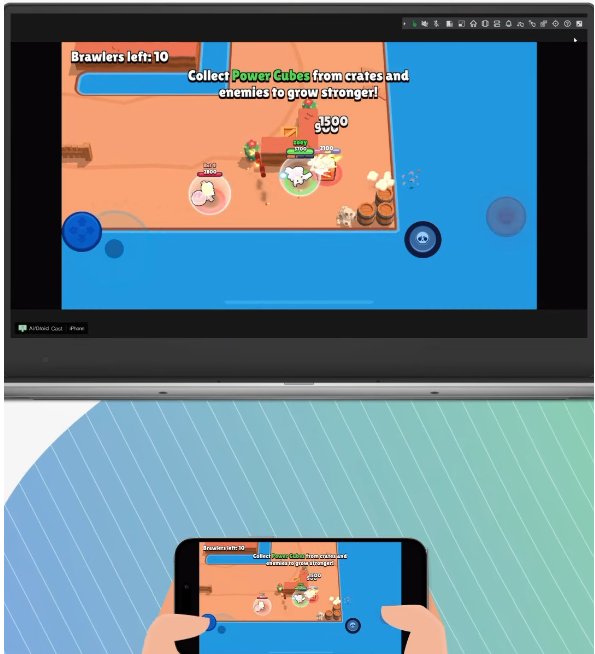
Playing Brawl Stars on a Chromebook is also possible without installing the game locally, by using screen mirroring software that streams your phone’s display to the Chromebook. Some advanced mirroring tools even allow keyboard and mouse control from the Chromebook back to the phone.
In this setup, the game still runs natively on your Android or iOS phone, while the Chromebook acts as a larger display and control hub.
How to Screen Mirror Brawl Stars from phone to Chromebook
Screen mirroring tools typically follow this workflow:
- Step 1. Install a screen mirroring app like AirDroid Cast on your phone.
- Step 2. Open the companion web app or Android app on your Chromebook.
- Step 3. Connect both devices via Wifi of USB.
- Step 4. Mirror the phone screen to the Chromebook.
- Step 5. Use keyboard mapping or mouse control (if supported).
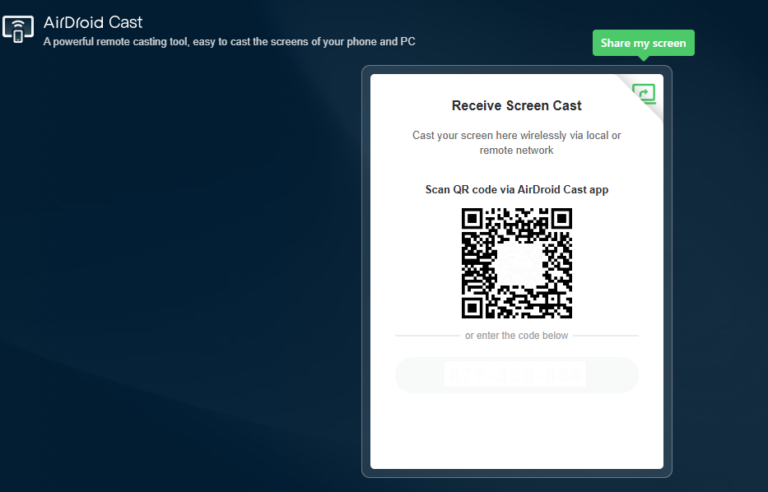
Because the game runs on the phone itself, Chromebook compatibility with Android apps is no longer required. Also, you can mirror your gameplay to big TV screen to share with your friends and families!
Advantages of Using Screen Mirroring on Chromebook
- Works even if your Chromebook does not support Google Play
- No need to install Brawl Stars on ChromeOS
- Game runs on officially supported mobile hardware
- Lower system risk compared to APK sideloading
- Easy account access using your existing phone setup
Key Limitations and Drawbacks
- Noticeable latency that impacts reaction time in fast-paced gameplay
- Inconsistent keyboard and mouse support depending on the mirroring tool
- Strong network dependency, with possible lag or disconnections
- High phone battery and heat usage since the game runs on the phone
Conclusion
Getting Brawl Stars to play on your Chromebook is absolutely achievable, with the official Google Play Store path being the clear winner for safety, simplicity, and performance. If your specific Chromebook isn’t compatible, try some safe alternatives like screen mirroring. Now that you’re equipped with the knowledge, log in, and may the best brawler win!







Leave a Reply.