[Full Guide] How to Turn on PC Remotely in 2026
To turn on your PC remotely, you need to enable a feature called Wake-on-LAN (WoL). Here are the essential steps:
- Enable Wake-on-LAN in BIOS/UEFI. Restart your computer and enter the BIOS/UEFI settings. Find and enable the "Wake-on-LAN" or "Power On by PCIE" option.
- Configure Network Adapter Settings. In Windows, go to Device Manager, find your network adapter, and under the "Power Management" tab, check "Allow this device to wake the computer."
- Note Your MAC Address and IP Address. You will need this information for the remote tool. You can find the MAC address by running ipconfig /all in the Command Prompt.
- Use a Wake-on-LAN Tool. Install an app on your phone (like Fing or Wake On Lan) or use software on another computer to send the wake-up signal.
- Send the "Magic Packet". Open your WoL tool, enter your PC's MAC address and IP address, and send the "Magic Packet" to turn on your computer.
So, your PC is powered off and you need to turn it on without being there. Maybe you're busy or just don't want to walk over. No problem! We’ll show you how to turn on your computer remotely.
1Turn on PC Remotely with a Smart Plug
A smart plug is a device that allows you to control and automate the power to any electrical device plugged into it. It turns any regular outlet into a smart outlet, allowing you to control the device remotely via a smartphone app or virtual assistant.
There are several popular smart plugs available on the market:
- TP-Link Kasa Smart Plug (HS103): Works with Alexa and Google Assistant, supports scheduling.
- Meross Smart Plug Mini: Compatible with HomeKit, Siri, Alexa, and Google Assistant, offers energy monitoring.
- Shelly Plus Plug US: Features power metering and overheating protection, supports various appliances.
- EZVIZ T30 Smart Plug: Offers remote control, scheduling, and voice control via Google Assistant and Alexa.
After plugging your PC into a smart plug, you might need to set up your computer so it can turn on remotely. It requires you to enable Wake-on-LAN (WOL) in your computer's BIOS and network settings. Here's a quick guide:
- 1. Restart your computer and enter the BIOS setup (usually by pressing a key like F2, Del, or Esc during startup).
- 2. Navigate to the Power Management settings and enable Wake-on-LAN or similar options.
- 3. Save changes and exit the BIOS setup.
- 4. Open Device Manager and locate your network adapter.
- 5. Right-click on the adapter and select Properties.
- 6. Go to the Power Management tab and ensure "Allow this device to wake the computer" is checked.
- 7. Go to the Advanced tab and set the “Wake on Magic Packet” option to enabled.
Next, you can insert the smart plug into a power outlet and plug your PC's power cable into the smart plug, then:
- 1. Download and open the app associated with your smart plug (e.g., Kasa app for TP-Link, AweSun app for AweSun plugs) on your mobile.
- 2. Open the app and follow the on-screen instructions to add your smart plug. You’ll need to connect it to your Wi-Fi network.
After that, whenever you need, simply open the app, select your smart plug, and tap the "On" button. Your PC will be turned on.
2Turn on PC Remotely with SwitchBot
SwitchBot is a small device that turns regular appliances into smart ones. It uses a motorized arm to press buttons for you.
For example, you can attach it to your PC's power button and control it remotely via the SwitchBot app. It’s easy to set up and makes it simple to turn your PC on or off from anywhere.
Before we start, a few things to keep in mind:
- Make sure your PC's BIOS is set up so it can turn on with the power button (and not rely on settings like "Wake on LAN" or "Power on by keyboard").
- Make sure your phone is paired with SwitchBot via Bluetooth. If you want to control it from anywhere, set up the SwitchBot Hub Mini to enable Wi-Fi control.
- 1. Attach the SwitchBot Bot to the power button of your PC using the provided tape. Make sure it's positioned so it can press the button when activated.
- 2. Download the SwitchBot app on your phone.
- 3. Open the app, pair your phone with the SwitchBot via Bluetooth, and follow the simple setup instructions.
Once everything is set up, try pressing the power button on your phone to see if it turns your PC on. If everything’s working, your PC should power up right away.
💡If you want, you can link SwitchBot to Alexa, Google Assistant, or Siri for voice control. Just say something like, “Alexa, turn on my PC,” and your SwitchBot will take care of it.
3Turn on PC Remotely via WOL
The best and built-in way to turn on PC remotely is by using "Wake on LAN (WoL).
WoL is the built-in networking standard protocol in a computer that can wake up a computer from the low-power state with a unique signal/message over the network (called a magic packet). When the remote computer receives the network signal/message, it can turn on instantly.
Before we head to the steps on how to turn on PC remotely, there are few prerequisites/conditions to check. Some of the main ones are as follows:
- Your remote computer network card should support the WoL feature.
- WoL only works if the PC is in the sleep/hibernation state or fully shut down (if the network card remains powered).
- WoL can only turn on a PC connected to the same network.
- You need to enable WoL in the BIOS.
- WoL may not work on the computer using the Fast Startup mode. You have to disable it to make WoL work.
As mentioned earlier, you have to first enable the Wake-on-LAN (WoL) feature on your PC and then use third-party software to send the network signal. All these steps are discussed in detail below:
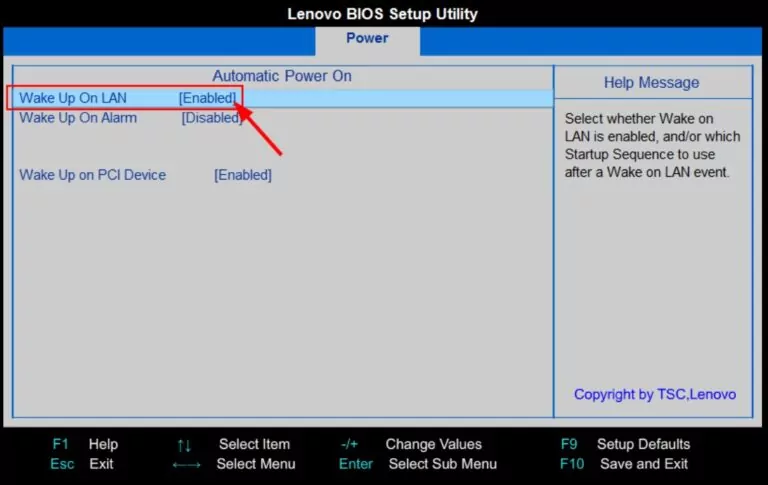
Step 1. Enable Wake-on-LAN from BIOS
The first step is to enable the WoL feature from the BIOS settings. For that, reboot your computer and press the key to open the BIOS settings, usually F2, F12, Del, or a similar key.
From the BIOS settings, look for the "Wake-on-LAN" option and enable it. It is usually located in the power option. It may also have a different name, as different manufacturers use different ways to build their firmware.
Step 2. Enable Wake-on-LAN from Windows Settings
You also have to enable WoL from within Windows settings, as follows:
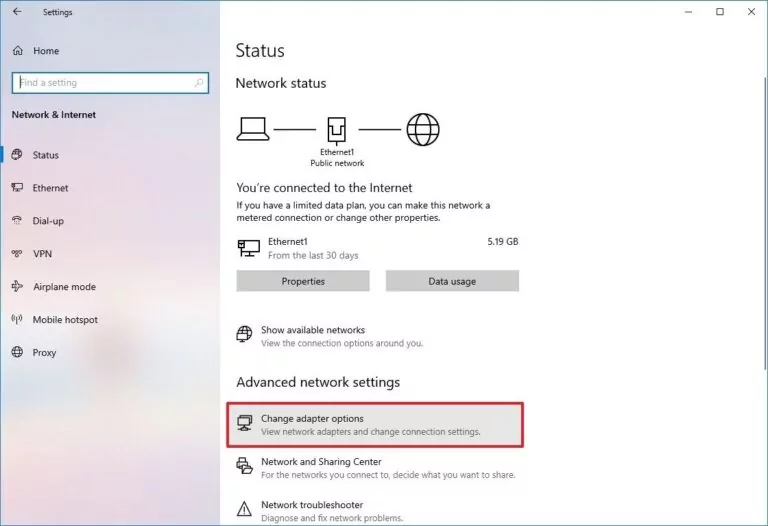
- 1.Open the Windows Settings app and click Network & Internet from the left sidebar.
- 2.Click Status.
- 3.Click Change adapter options under the Advanced network settings section.
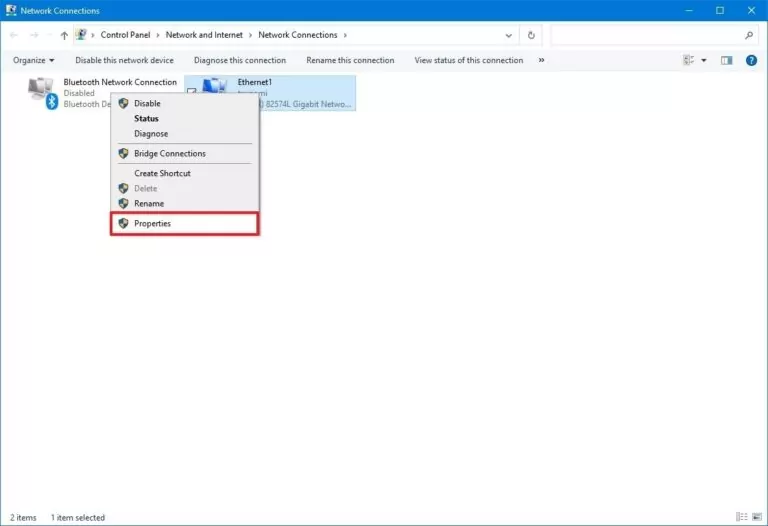
- 4.Right-click your network device, and tap Properties.
- 5.From the Networking tab, click Configure.
- 6.Enable Wake on Magic Packet under the Advanced tab.
- 7.Under the Power Management tab, tick all the three checkboxes. These options allow the device to wake the computer.
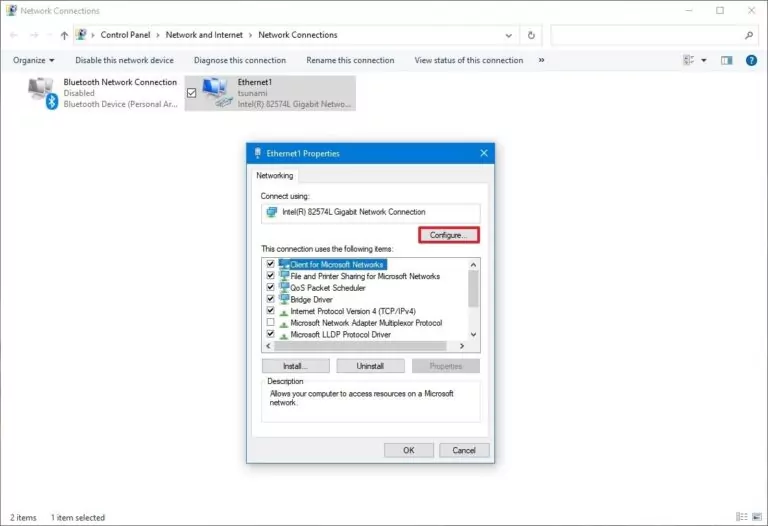
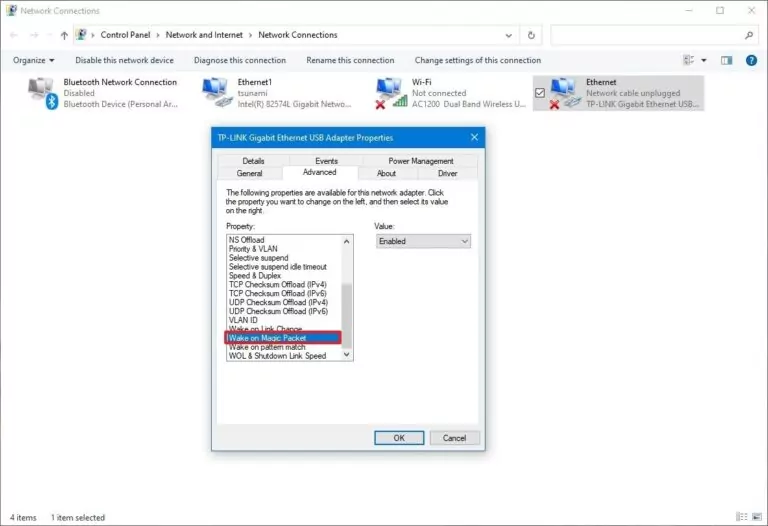
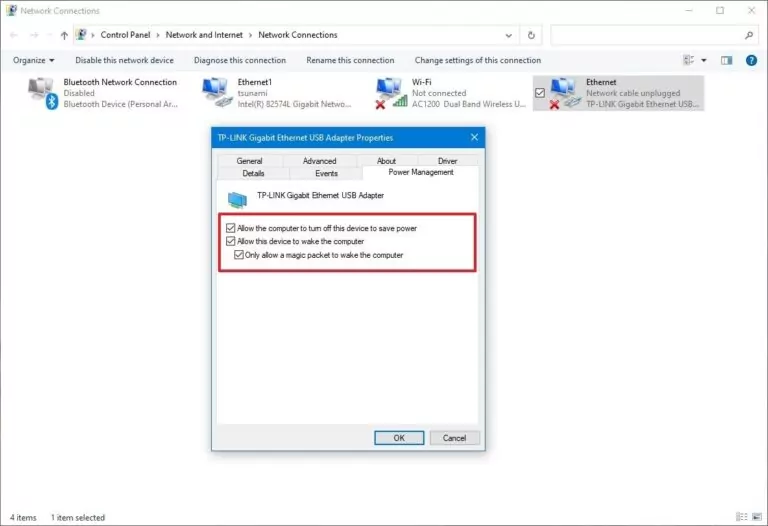
Once you have performed the above steps, you have successfully enabled WoL on your computer.
Step 3. Send a Wake-on-LAN Magic Packet
Now that Wake-on-LAN (WoL) is enabled, the next step is to send a network signal (also known as a magic packet) to wake up the computer remotely.
This can be done in several ways. Advanced users may choose to use PowerShell scripts or command-line tools. For most users, however, using a dedicated Wake-on-LAN utility is the simplest and most reliable option.
1. NirSoft WakeMeOnLan (Example of a Wake-on-LAN Utility)
NirSoft WakeMeOnLan is a lightweight Wake-on-LAN utility that provides a simple, click-based interface for sending magic packets within a local network.
- 1.Go to the NirSoft website and click the download link to download the WakeMeOnLan software.
- 2.Unzip the downloaded folder and open the WakeMeOnLan.exe file.
- 3.Click on the Play button from the top menu bar to list all the devices in the network.
- 4.Right-click next to the device you want to turn on and click Wake Up Selected Computers.
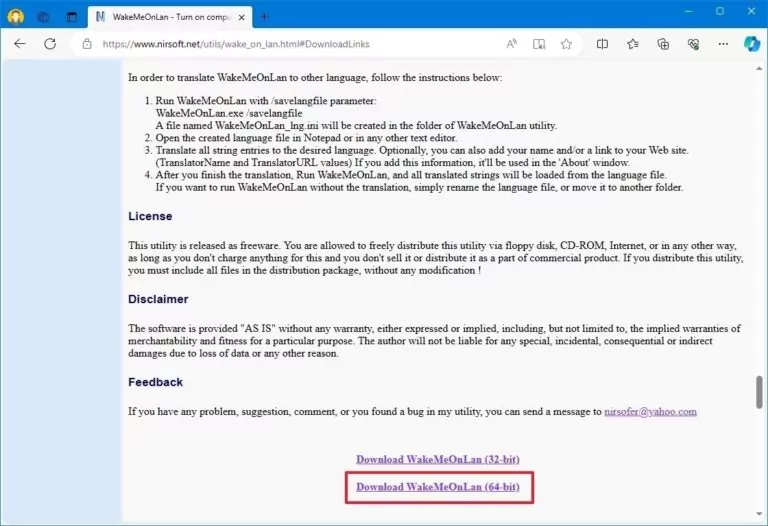
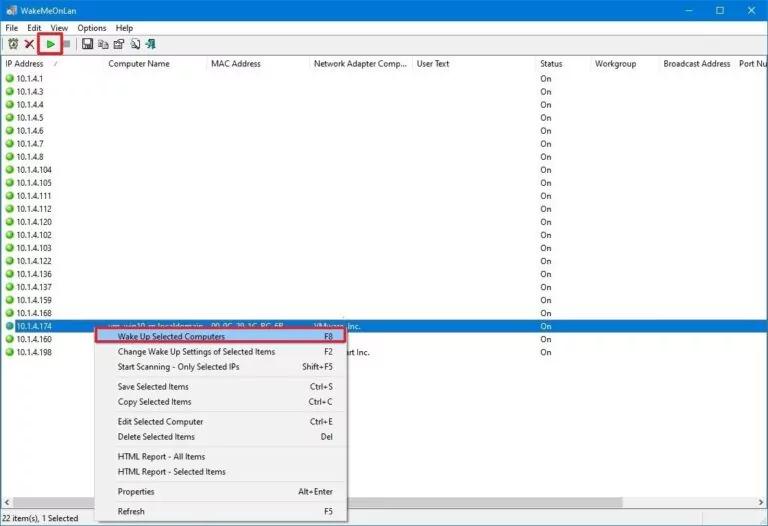
Once done, the tool will instantly send the network signal (magic packet). This way, you can easily use NirSoft WakeMeOnLan to turn on computer remotely without any complications.
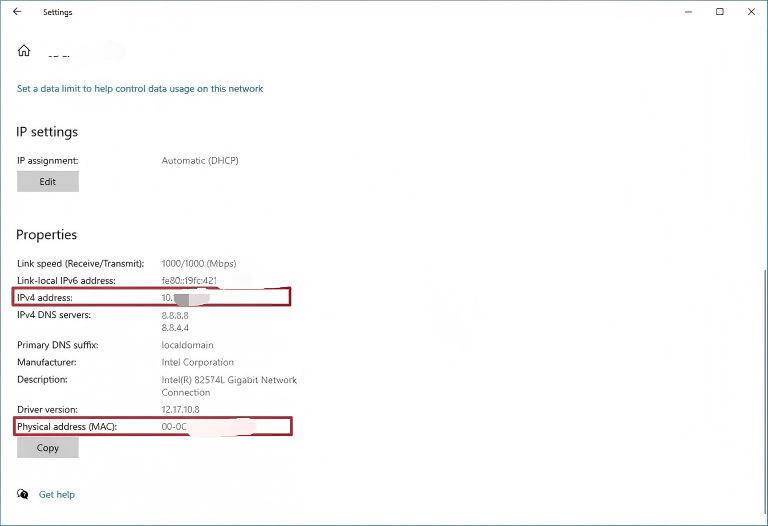
Bonus Tip: To determine the computer's IP and MAC address, go to Settings > Network & Internet > Status > Properties (under the "Network status" section).
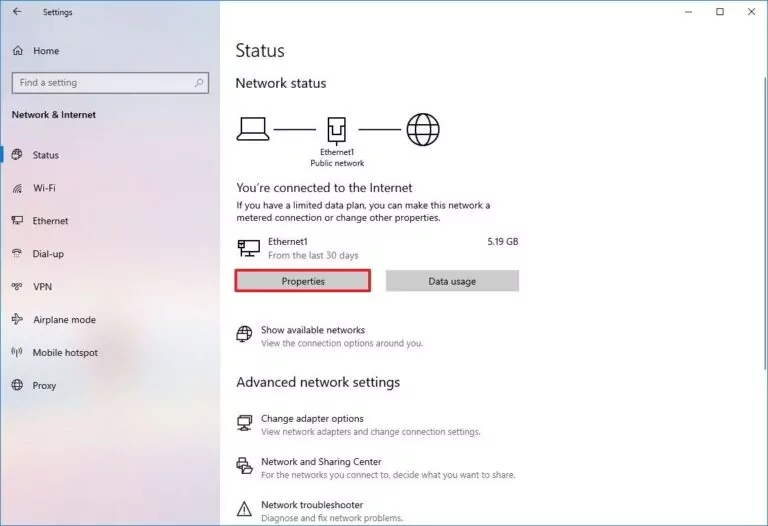
Look and copy the IP and Mac addresses.
4Access and Manage Your PC Remotely with AirDroid Remote Support
Wake-on-LAN makes it possible to power on a computer remotely. However, once the PC is awake, you still need a secure and reliable way to access and manage it without being physically present.
AirDroid Remote Support is a powerful remote access/support software solution for businesses. It allows users to remotely support, manage, and control desktop or mobile devices anytime, anywhere.
Talking specifically about turning PC remotely, AirDroid Remote Support offers an "unattended mode" functionality. This allows one to access a computer remotely without requiring authorization. This is best suited for situations where frequent access is required, such as IT support, remote work, server maintenance, etc.
To secure remote work, AirDroid Remote Support also offers a "Black mode". In this mode, the remote device is screened and shown as being under maintenance. This prevents passersby or end-users from knowing what is happening on the device. This is best for businesses that frequently provide remote support and need to protect their corporate privacy.
Here's how to use the unattended and black mode with AirDroid Remote Support:
- Step 1.Install the AirDroid Remote Support on the PC you want to turn on remotely and install AirDroid Business on the host computer.
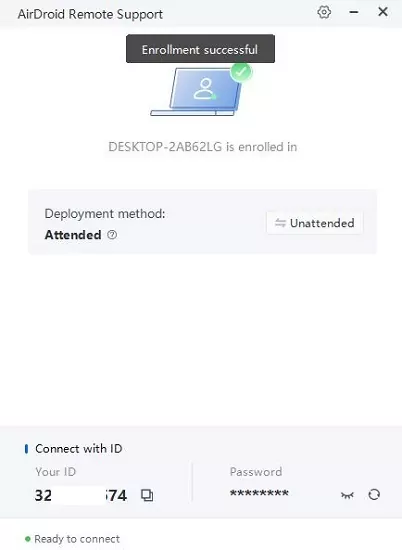
- Step 2.Launch the AirDroid Remote Support tool on the remote PC and enroll the device in your organization.
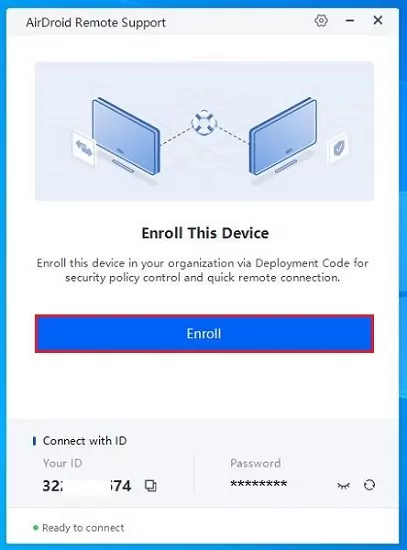

During the enrollment process, you will get the option to select attended or unattended mode. So, pick "Unattended" mode.
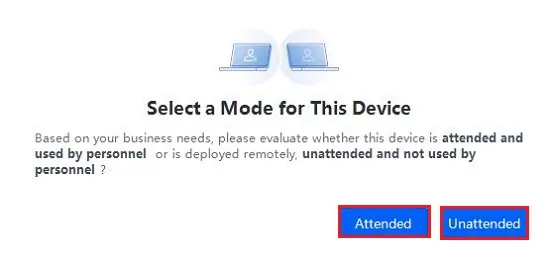

Once done, your remote device is set for unattended remote access.

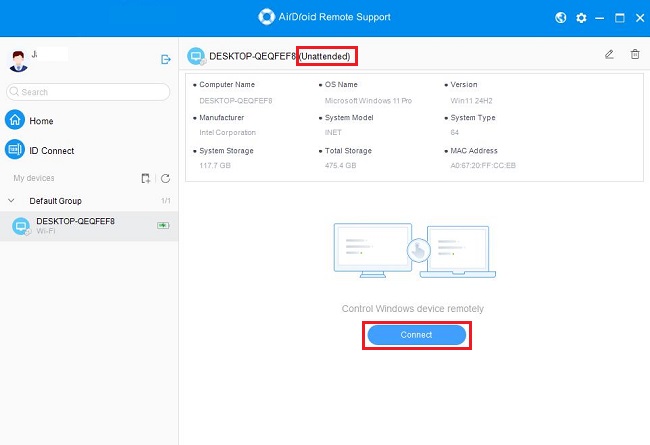
- Step 3.Launch the AirDroid Business tool on the host PC. Locate the "Unattended" device you want to remotely control and click "Connect". Once the connection is made, you will be able to access the device remotely.
- Step 4.To turn on black mode, click its button from the top left corner and click "OK" to enable black screen mode.
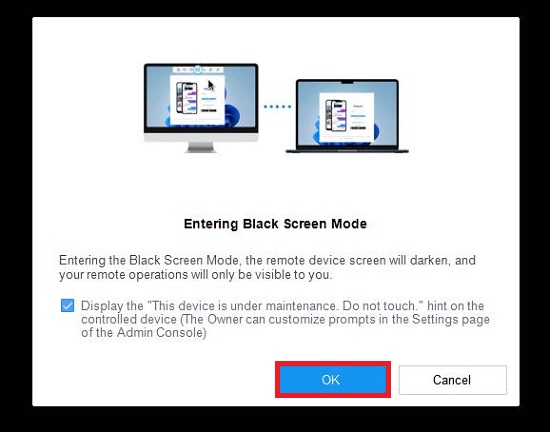
That's it! This way, the AirDroid Remote Support toolkit offers an advanced way to get unattended access to the remote PC and keep corporate privacy intact with black screen mode.
5Troubleshooting Wake-on-LAN Feature
Although it is a straightforward process to use the Wake-on-LAN feature, sometimes it may not go smoothly. So, some of the useful troubleshooting tips related to WoL are as follows:
- WoL should be supported at the firmware level. You cannot access the feature if the option doesn't show up in the motherboard's BIOS or the network adapter.
- For the USB to Ethernet adapter, WoL can only work if your computer is sleeping because it is likely that the power will likely cut off from the USB port if the computer is powered off.
- Disable "Fast Startup" to make the WoL feature work.
- When the PC is powered off, make sure the card lights are still blinking (if you are using an Ethernet connection). It is essential because the network adapter should be active so that the PC can be turned on remotely.
- If the remote device is a laptop, make sure it is connected to a power outlet.
Other than the lack of WoL feature at the firmware level, all the other issues related to the feature are easily fixable, as mentioned above.
Conclusion
In short, turning on your PC remotely is a great way to access it without keeping it on all the time. The tips we’ve shared help you save energy and make it easy to get to your files whenever you need them. With the right setup, remote access just fits naturally into your routine. And for more convenience, you can try AirDroid Remote Support. It's free to use! Get it right now.
FAQs about Turning on PC Remotely











Leave a Reply.