Rockchip Device Management for Unattended Terminals (IT Teams Guide)
It's Friday evening, the peak of the dinner rush. A Rockchip-powered self-ordering kiosk at one of your busiest locations goes black. Nobody's on-site. Your phone rings. Sound familiar?
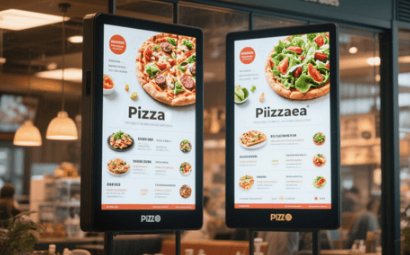
This is the reality of managing Rockchip commercial terminals at scale. Chips like the RK3568 and RK3288 have earned their place in self-ordering kiosks, digital signage, and retail POS systems. They're affordable, durable, and built for long-term deployment. But the IT challenge isn't the hardware. It's the fact that these devices are scattered across hundreds of locations, running customised ROMs, with no technician in sight.
We've spent years helping IT teams manage commercial Android deployments with AirDroid Business, especially where Rockchip-based hardware is common. In that time, we've seen the same problems come up over and over, and we've mapped out a repeatable system for solving them.
- How to deploy Rockchip devices at scale without touching each one individually
- How to lock down kiosk mode so nothing can break out of your business app
- How to push app updates safely across mixed-network environments
- How to catch device problems before your customers do
- How to troubleshoot and recover devices remotely without sending anyone on-site
In this guide, you'll find:
Let's get into it.
1What Makes Rockchip Devices So Difficult to Manage at Scale?
The chip isn't the problem. The deployment context is.
Rockchip terminals are almost always unattended. A self-ordering kiosk in a shopping mall doesn't have an IT person standing next to it. A digital menu board at a franchise restaurant isn't getting checked daily. When something goes wrong, you find out from an angry store manager, not from your monitoring dashboard.
Four problems come up constantly once you're managing more than a few dozen of these devices.
1. The cost of on-site troubleshooting is brutal. When a device freezes at a location three hours away, your travel costs can easily exceed the value of the hardware itself. That's before you factor in the business interruption. A dead kiosk during lunch service is real revenue lost.
2. Kiosk mode breaks easily by default. Standard app-based lock screens can be bypassed by system pop-ups, notification pull-downs, or accidental button combinations. When that happens, your terminal stops doing its job. Customers stare at a home screen. Staff don't know how to fix it. You get a call.
3. Updates fail unpredictably in mixed-network environments. If you're managing both RK3288 and RK3568 devices (and most operations are), you already know that the same APK can behave differently across hardware generations. Add inconsistent store Wi-Fi and throttled 4G connections to the mix, and a batch update becomes a gamble.
4. You're flying blind on device health. Without real-time visibility into battery temperature, storage, online status, and network data usage, your first sign of a problem is usually a complaint. By then, the device had already been offline for an hour.
2Why Rockchip Deployments Need a Dedicated MDM Solution
- What is Rockchip MDM?
- Rockchip MDM (Mobile Device Management) is a software solution that allows IT teams to remotely enrol, configure, monitor, and troubleshoot Rockchip-powered commercial terminals including self-ordering kiosks, digital signage, and retail POS systems without physical access to each device.
Rockchip devices aren't just phones running business apps. They're unattended infrastructure, and they need to be managed like it.
Manual device management doesn't scale. The moment you're managing more than 30 terminals, the time cost of individual configuration, manual updates, and on-site support becomes unsustainable. You need a system that lets you manage the entire fleet from one place, respond to problems remotely, and push changes without touching a single device in person.
The five sections below walk through each major part of the operational lifecycle.
3How Do You Deploy Rockchip Devices at Scale Without Manual Setup?
The goal is simple: a device comes out of the box, connects to a network, and arrives in a fully configured state. The correct app, the correct group, and the correct policy without anyone manually setting it up.
Choosing the Right Enrolment Method
AirDroid Business supports several enrolment approaches, and the right one depends on your operation size and logistics.
For smaller batches or one-off additions to an existing fleet, standard enrolment or a custom enterprise deployment package works well. The device registers, pulls down the configuration template, and becomes ready.
For large-scale rollouts (hundreds of devices shipping directly to store locations), zero-touch enrolment for GMS devices, or Knox Mobile Enrolment (KME) for Samsung devices, is a better fit. Devices arrive pre-configured before the box is even opened. Your store staff plugs it in and walks away.
For legacy devices already in the field, USB/ADB enrolment handles cases where you need to bring existing hardware under management without replacing it.
Templates Make "Register Once, Configure Everything" Possible
The real efficiency gain comes from enrolment templates. Before devices ship, you build a template that defines the group assignment, kiosk app, installed applications, and policy restrictions. When a device registers, it pulls the template automatically.
Think of it this way: a new RK3568 kiosk at a franchise location in Houston shouldn't require any local configuration. It registers, the Southwest Region: Kiosk template applies, and the business app launches in full-screen mode within minutes. Nobody needs to be there.
Once devices are enrolled, batch operations let you rename, regroup, and tag devices by IMEI, serial number, or Android ID, so your asset records stay clean without manual data entry.
Metrics to track:
- Average time from device power-on to operational status
- Configuration error rate on first enrolment (missing apps, wrong group, kiosk not active)
4How Do You Lock Down Kiosk Mode on Unattended Terminals?
If there's one place where commercial Android deployments fail most visibly, it's kiosk configuration. A misconfigured kiosk isn't just an annoyance. It's a business interruption every time it gets bypassed.
Single-App vs Multi-App Kiosks
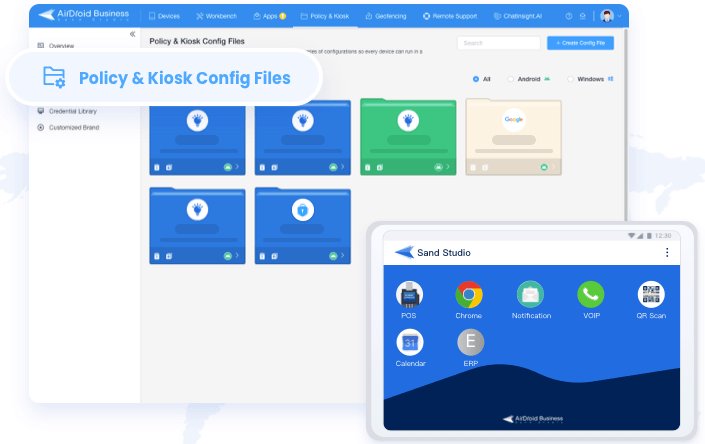
Single-app kiosk mode locks the device to one application. The screen stays on that app; the home button, back button, and notification shade are all disabled. This is the right choice for self-ordering kiosks, digital menu boards, and any terminal with a single dedicated function.
Multi-app kiosk mode allows a defined whitelist of apps. This is useful for retail guidance terminals where staff might need access to both a product catalogue and an inventory tool. The key is that only whitelisted apps are accessible. Everything else is invisible.
Choosing the wrong mode is one of the most common reasons kiosk deployments fail. If a device should only run one app and it's in multi-app mode, users will find the gaps. It happens more often than you'd think.
- Installation from unknown sources
- App uninstallation
- Developer mode and USB debugging
- Factory reset from the device itself
- USB file transfer
Tips:
- Two that get overlooked most often: navigation bar visibility and the notification shade.
- A pull-down notification on a kiosk screen can surface system alerts, Wi-Fi prompts, or update banners that knock your app into the background. Hiding the navigation bar and disabling the notification centre closes those gaps.
Metrics to track:
- Monthly count of "exited business app / accessed system settings" events
- Number of business interruptions attributed to kiosk bypass
5How Do You Push App Updates Safely Across Mixed-Network Environments?
A single failed update across 200 locations is a bad day. A failed update that affects devices inconsistently (some updated, some not, some stuck in a broken state) is a much worse week.
A Staged Rollout Process That Works
The process that consistently delivers high update success rates follows a simple progression.
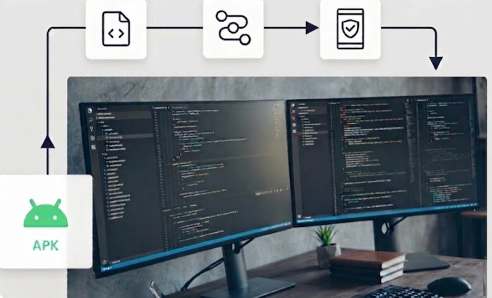
Start with a test group of 5 to 10 devices across different hardware generations and network conditions. Deploy the update, wait 24 to 48 hours, and check for crashes, UI issues, or network errors. Once the test group is clean, expand to 20 to 30% of the fleet, then 60%, then full rollout. Each stage gives you a checkpoint to catch problems before they affect everyone.
Staged rollouts can significantly reduce update failures and limit the blast radius when something goes wrong. For many IT teams, the fix isn't a new app. It's a better deployment process.
For unattended devices, standard push updates carry a risk: the device might be in active use, on a weak connection, or in a power-saving state when the update arrives. Forced installation removes the "user can dismiss or delay" variable. The update installs on the device's next maintenance window regardless.
Pair that with scheduled delivery targeting low-traffic hours (typically 2 to 4 AM local time), and you've removed most of the variables that cause update failures in commercial deployments.
Metrics to track:
- Update success rate by hardware generation
- Version coverage rate (percentage of fleet running the target version 48 hours after rollout)
- Number of update-related service interruptions
6How Do You Catch Device Problems Before Customers Report Them?
Nobody wants to hear about a problem from an angry store manager. You want to catch it before anyone notices. Here's how.
Moving from reactive to proactive operations is one of the biggest practical gains available to commercial terminal teams, and it's more achievable than most IT managers expect.
The Metrics Worth Monitoring for Commercial Terminals
Not every monitoring metric matters equally. For Rockchip commercial terminals, these four consistently predict problems before they become incidents.
1. Online/offline status. A device that's been offline for more than 15 minutes on a business day is almost always rebooting, disconnected, or crashed. An automatic alert at that threshold gives you a 15-minute head start on a problem your customer hasn't noticed yet.
2. Storage availability. Below 15% free storage, app updates start failing silently. Below 10%, some Android builds begin writing logs inconsistently, which makes remote diagnosis harder. Set alerts at 20% to give yourself time to act.
3. Battery temperature. A Rockchip device running consistently above 45°C is usually under abnormal load: a runaway process, a poorly optimised app, or a cooling issue. Catching this early prevents both hardware damage and service degradation.
4. Kiosk status and app running status. If the kiosk state becomes abnormal or the business app stops running, the terminal may no longer be serving customers. This signal should trigger an operational response immediately.
Automated Actions Reduce the Need for Human Response
AirDroid Business workflow automation can trigger actions based on any of those conditions. A device goes offline? Trigger an alert. Once it's back online, run automated actions like app relaunch or reboot. The business app exits the foreground? Automatic relaunch. Storage drops below threshold? Automatic cache clearing.
Metrics to track:
- Alert lead time (time between alert and first customer complaint about the same issue)
- MTBF trend by device model
- Percentage of incidents resolved by automated action without human intervention
7How Do You Troubleshoot and Recover a Device Without Sending Anyone On-site?
When a device is down, your goal is to restore service as fast as possible without dispatching a technician. Work through these steps in order, from lowest risk to highest.
- Step 1.Observe first. Use observation mode or the device screenshot wall to confirm the current screen state. About 20% of cases resolve here: the device is functioning normally, someone reported it incorrectly, or a simple re-launch will fix it.
- Step 2.Connect via remote control. Check the network status, application state, and whether any system dialogues are blocking the foreground app. You'd be surprised how often a stray dialogue is the entire problem.
- Step 3.Try low-risk actions. Bring the business app to the foreground. Clear the app cache. These actions don't interrupt service for more than a few seconds.
- Step 4.Restart the device. This causes a brief service interruption, but it resolves the majority of frozen or unresponsive states. Use it when steps 1 through 3 haven't worked.
- Step 5.Collect logs before going further. If the problem is recurring or hard to reproduce, pull logs remotely before taking further action. This prevents the cycle of restarting without understanding why the device failed in the first place.
- Step 6.Factory reset as a last resort only. A factory reset is irreversible and removes the device from your management list. Reserve it for hardware that's unresponsive to all other recovery methods, and make sure you've documented the device's enrolment state so re-registration is smooth.
One feature worth highlighting for Rockchip deployments in public venues is black screen maintenance mode. When you start a remote control session on a device in a shopping mall or airport, the screen goes black on the device side while you work. Bystanders see nothing. This isn't only a privacy consideration. It also prevents confused customers from interacting with the device mid-session, which can complicate the troubleshooting process considerably.
Metrics to track:
- MTTR (mean time to resolution) by incident type
- Percentage of incidents resolved remotely vs. requiring on-site dispatch
- Repeat incident rate (same issue recurring within 30 days on the same device)
Conclusion
Rockchip hardware is reliable. The RK3568 and RK3288 will run for years in commercial environments without hardware failures. But reliability at the device level doesn't automatically translate to reliability at the operation level, not when your devices are scattered across hundreds of locations with no one on-site to intervene.
The system in this guide covers everything that closes that gap: standardised enrolment, tight kiosk configuration, staged update rollouts, proactive monitoring, and tiered remote troubleshooting. It takes Rockchip deployments from "We find out when something breaks" to "We fix it before anyone notices".
AirDroid Business lets you deploy, lock down, and troubleshoot your Rockchip fleet remotely
If you're starting out, test AirDroid Business on a small group of 5 to 10 devices first. Validate that your enrolment template applies correctly, your kiosk policy holds, and your monitoring alerts fire as expected. Once that's confirmed, scaling to hundreds of devices follows the same playbook.


Leave a Reply.