iOS Kiosk Mode: How to Lock iOS Devices into Kiosk Mode
Many organizations use iPhones and iPads as dedicated business devices for tasks such as payments, check in, digital displays, and internal workflows. These devices must stay focused on a single purpose without allowing users to access other apps or system settings.
iOS kiosk mode makes this possible by locking devices to one app or a limited set of approved apps. This guide explains what iOS kiosk mode is, how it works, and how organizations lock down iOS devices into kiosk mode for reliable deployments.
Part 1 : What Is iOS Kiosk Mode
iOS kiosk mode is a device lockdown configuration that restricts an iPhone or iPad to a specific application or a defined set of approved apps. When kiosk mode iOS settings are applied, users cannot leave the allowed apps or access system settings.
Organizations use iOS kiosk mode to turn standard devices
into dedicated tools such as:
- POS terminals
- Self service kiosks
- Digital signage
- Check in stations
- Employee work devices
Apple does not provide a single kiosk mode switch. Instead, kiosk configurations are created using built in features or device management solutions.
Depending on the deployment size, administrators typically use either Guided Access or MDM iOS kiosk mode configurations.
Part 2 : Types of iOS Kiosk Mode
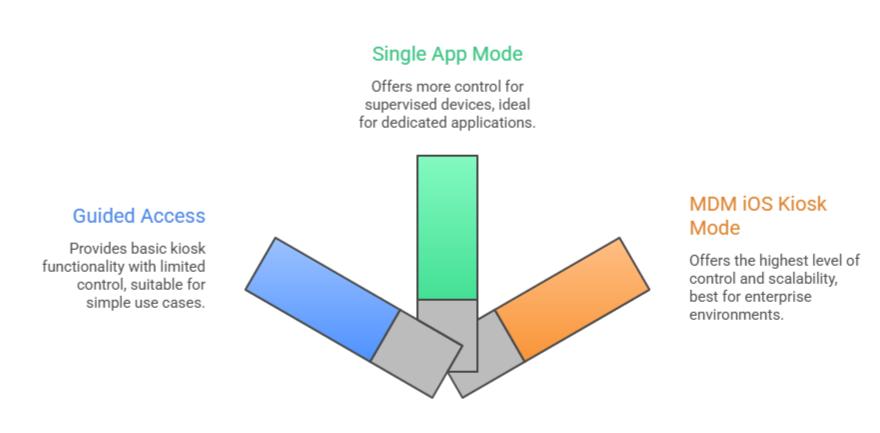
There are several ways to configure kiosk mode iOS devices. Each method provides a different level of control and scalability.
1 Guided Access
Guided Access is a built in iOS feature that locks a device to a single app and prevents users from switching to other apps or settings. It is the simplest way to enable basic iOS kiosk mode without using device management software.
All settings are configured directly on the device, so administrators need physical access whenever changes are required.
Typical Use Cases: This method is typically used for small or temporary deployments where only a few devices need to stay restricted to a single application, such as demonstration devices or short term kiosk setups.
Key Capabilities:
- Locking the device to a single app
- Disabling touch input in selected screen areas
- Restricting hardware buttons
- Preventing app switching
Limitations:
These controls help keep the device focused on a single task for limited use scenarios. Each device must be configured individually and remote management is not available. After a restart, the device does not automatically return to kiosk mode, which makes this approach less suitable for permanent deployments.
2 Single App Mode for Supervised Devices
Single App Mode is Apple's official approach to kiosk mode and restricts a supervised iOS device to one application. Once enabled, the assigned app stays in the foreground and users cannot exit it. Stronger device control is available compared with basic kiosk configurations, making this approach suitable for dedicated device environments.
Before configuration, devices must be placed in supervised mode through Apple Business Manager or Apple Configurator.
Typical Use Cases: This approach is commonly used for dedicated business devices that must remain locked to one application continuously, including payment terminals, self service kiosks, examination devices, and digital displays.
Key Capabilities:
- Automatic app launch after reboot
- Permanent single app lockdown
- Blocking access to system settings
- Disabling hardware buttons
- Preventing users from exiting the application
Limitations:
Supervision and initial preparation are required before deployment, which increases setup complexity. Managing multiple devices manually can also become inefficient without a device management solution.
3 MDM iOS Kiosk Mode
MDM based kiosk configurations provide the most scalable approach for organizations managing many devices. Policies can be created centrally and applied remotely across multiple locations.
Typical Use Cases: This approach is typically adopted by organizations that need to deploy and maintain kiosk mode for iOS devices at scale without manual device configuration.
Key Capabilities:
- Deploy kiosk configurations remotely
- Apply policies to device groups
- Install applications silently
- Troubleshoot devices remotely
- Monitor device status
Limitations:
Deployment requires a management platform and proper device enrollment before policies can be applied. Initial setup usually takes more planning than on device configurations.
Part 3 : How to Enable iOS Kiosk Mode
There are two main approaches to enable iOS kiosk mode depending on the number of devices and the level of control required.
Method 1: Enable Kiosk Mode with Guided Access
Guided Access is the fastest way to turn an iOS device into a kiosk device.
- 1. Open Settings
2. Go to Accessibility
3. Select Guided Access
4. Turn Guided Access on
5. Set a passcode
6. Open the target application
7. Triple click the side button or home button
8. Tap Start
The device will remain locked to the selected iOS kiosk mode app until the passcode is entered. This method is simple but requires manual setup on every device.
Method 2: Lock iOS Devices into Kiosk Mode with MDM
The steps below describe a general workflow for enabling iOS kiosk mode using a device management system. The exact menu names may vary depending on the MDM platform, but the overall process is usually the same.
Step 1: Prepare the devices
Before kiosk mode can be enabled, devices should be set to supervised mode. This is typically done through Apple Business Manager or Apple Configurator. Supervised devices allow administrators to apply kiosk restrictions and manage devices remotely.
Step 2: Enroll devices into MDM
Next, enroll the devices into your device management system so policies can be applied remotely.
Once enrolled, administrators can configure device settings and maintain kiosk devices without physical access.
Step 3: Create a kiosk configuration
Create a kiosk profile that defines which applications or web shortcuts are allowed on the device.
Typical kiosk settings include:
- Locking the device to one app or a group of apps
- Blocking access to system settings
- Disabling app switching
- Locking screen orientation
- Restricting hardware buttons
These settings ensure the device stays focused on its intended task.
Step 4: Apply the configuration
Apply the kiosk configuration to one or more devices. It is usually recommended to test the configuration on a small number of devices before rolling it out to the entire deployment.
Once applied, devices will automatically enter kiosk mode based on the assigned configuration.
Part 4 : Guided Access vs Single App Mode vs MDM Kiosk Mode
Different kiosk approaches offer different levels of control.
| Feature | Guided Access | Single App Mode | MDM Kiosk Mode |
|---|---|---|---|
| Setup method | Configured directly on device | Requires supervised devices | Configured remotely |
| Remote management | No | Limited | Yes |
| Multiple devices | Manual setup | Manual setup | Automated deployment |
| Auto launch after reboot | No | Yes | Yes |
| Multi-app support | No | Limited | Yes |
| Best for | Temporary setups | Dedicated devices | Business deployments |
Guided Access works well for simple use cases. Single App Mode provides stronger device control. MDM solutions provide the most scalable and manageable kiosk deployments.
FAQs About iOS Kiosk Mode
Q1: Can I use kiosk mode on a non-supervised device?
No. Professional "Single App Mode" requires Supervised Mode (via Apple Business Manager or Configurator). On personal, non-supervised devices, you can only use Guided Access, which is a basic, manual alternative that can be bypassed by a reboot.
Q2: How do I exit kiosk mode if I forgot the passcode?
It depends on the mode:
Guided Access: Perform a Force Restart (Vol Up, Vol Down, then hold Power). The mode will deactivate upon reboot.
MDM Kiosk Mode: You must send a "Clear Kiosk Mode" command from your MDM dashboard. If the device is offline, a full factory restore via DFU mode is required.
Q3: Does iOS Kiosk mode support web browser lockdown?
Yes. You can achieve this in two ways:
Web Clips: Lock the device to a specific URL shortcut that acts like an app.
Kiosk Browsers: Use MDMs to deploy a restricted browser that hides the address bar and auto-clears cache after each user session.





Leave a Reply.