[Reviews] 5 Best Free & Open Source Kiosk Software in 2026
Many individuals and small businesses seek free kiosk software to create interactive displays, provide a restricted device environment for specific tasks.
We tested numerous free kiosk software options available in the market. However, most require a paid subscription upon signup, and some are outdated. After thorough analysis and testing, we recommend the following software options tailored to different device models and business needs.
1 Best 5 Free Kiosk Software
1. Frontface Lockdown Tool
The Frontface lockdown tool is free kiosk software for Windows that enables businesses to secure PCs by restricting device access and disabling key combinations like CTRL + ALT + Delete, ideal for public kiosks and digital signage.
Main Features:
It offers streamlined configuration management by allowing self-created profiles with customized settings to be easily deployed across multiple PCs simultaneously.
You can customize various device functions, such as the screensaver for continuous visibility, the automatic Windows update to avoid disruptions, driver updates, cameras, the Windows on-screen keyboard, and the power button.
It is ideal for single-app lockdown mode on Windows 10 and 11 devices and can efficiently manage both attended and unattended devices.
Pros
- It is an open source kiosk software.
- It allows customization of device functions to enable or disable them as required.
- Frontface facilitates auto-startup and shutdown of Windows devices as required by business.
Cons
- It does not offer customer support.
- Basic IT tech skills are required to use this free Windows kiosk software.
- The basic requirement to run this software is to have .NET Framework 4.8 or higher.
2. Porteus Kiosk
Porteus Kiosk is a secure tool specifically tailored for public-facing web terminals. It offers user access only through browser access and restricts settings to prevent tampering, software installation, or data retention.
On booting, it automatically launches Firefox or Google Chrome with a predetermined homepage and ensures a clean session by clearing caches and history on each restart.
It is ideal for use in public environments like schools, libraries, and digital signage. Because Porteus is a lightweight, portable Linux distribution designed for speed and efficiency. It can run from a USB flash drive, CD, or hard drive, and is known for its quick boot times and low system requirements.
Main Features:
Web browser lockdown
Kiosk Wizard for smooth configuration
Ensure devices are consistently updated with automatic updates
Porteus Kiosk uses a rolling release model, providing regular updates with new features, security patches, and bug fixes. This keeps the system up-to-date with the latest improvements and enhancements without requiring major upgrades or reinstallations.
It allows web browser lockdown and is perfect for public terminals to ensure restricted web access for targeted communities.
Pros
- It provides the safe web browsing environment for businesses.
- Allowing configure home page auto-launch.
Cons
- Limited system support, as it only supports Linux-based systems.
3. WebConverger
WebConverger is an open-source, privacy-oriented web browsing solution designed for secure and restricted environments.
Its installation process is user-friendly, including downloading a .iso file and creating a bootable USB drive to boot and configure on multiple devices.
Its user interface is limited to web browsing or one web application, and it provides friendly support services to help users.
Main Features:
Web browser lockdown or single web application lockdown
Automatic update of web browser and system
Configuration tool to manage multiple devices simultaneously
In-built Firewall
It supports PC, Raspberry PI2, and Android systems. It is suitable for use on public terminals.
Pros
- It is an open-source web-based platform allowing browser lockdown
- Customization for passwords, background display, filtering options for whitelisting and blacklisting sites, wired and wireless support.
Cons
- This software has stopped updating. Hence, it may lack most of the security and advanced features needed to support efficient kiosk management.
4. App Pinning
App pinning is Android kiosk feature free to restrict a device to a single application. This feature is built-in and available on Android devices, which users can enable from the Settings app.
It is typically used by personal users while handing over the device to someone else. It allows pinning a single app on the screen to run unless it is unpinned, restricting others from accessing any other application or device feature and ensuring privacy.
Android devices utilized for personal use. It is useful for configuring single-app mode.
Pros
- No installation is required
- Fast and easy lockdown process
Cons
- It is easy to exit, resulting in reduced security.
5. OpenKiosk
OpenKiosk is a cross-platform kiosk software that based on Mozilla technology and can run on Linux, macOS, and Windows. It is built on the Mozilla Firefox web browser and is used to provide a secure, controlled device environment for public access computers.
Main Features:
Secure web browser lockdown
Device interface and layout customization
Block access to certain device features
Remote network configurations
OpenKiosk is ideal for configuring kiosks in public areas like schools, universities, and libraries because it provides a secure and customizable interface that limits access to specific applications and websites.
Pros
- It is an open-source web-based tool that is easy to set up.
- It provides a range of customization options.
- Cross-Platform support.
Cons
- OpenKiosk requires a Pentium 4 or newer processor, 512MB of RAM, and 200MB of hard disk space, which may restrict its use on older devices.
Apart from the software listed above, we also tested other kiosk software on the market that is considered free, such as NetKiosk, Zamok, and Intuiface. Details are as follows:
NetKiosk Imperi: Offers a trial version, but a license ($49 per device) must be purchased to use it on devices in public or commercial environments.
Zamok: 30-day free trial, pricing not specified.
Intuiface: 28-day free trial, Essential plan costs $1046.75 per year.
2 To Choose A Good Kiosk Software, Focus on the Key Criteria:
Choosing adequate criteria for the selection of kiosk software is very crucial. Here are some key elements to consider while choosing the kiosk software:
Is only single-app mode available?
With single-app mode, only one app is given access while locking all other applications. In multi-app kiosk mode, you can select multiple apps that allow to run. You should choose the appropriate mode according to your business needs, and confirm whether kiosk software supports both modes.
Device Limitations
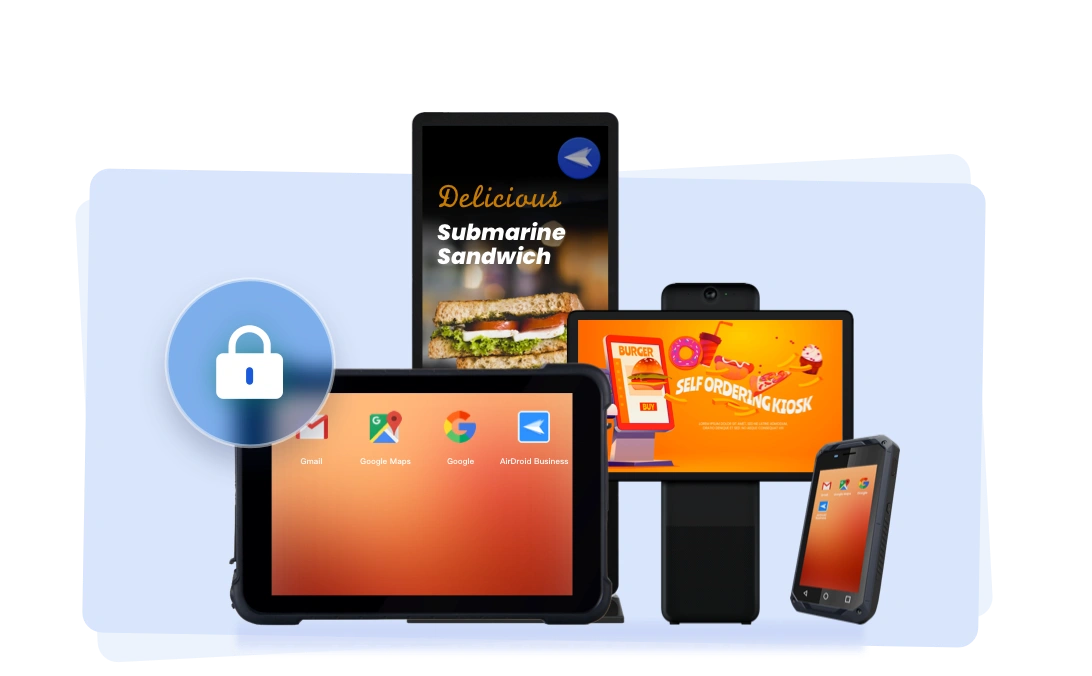
As a qualified kiosk software, it should allow for the customization of device functions, enabling or disabling them as needed. The more functions that can be controlled, the greater the management flexibility for the business.
Customization
Kiosk software must be flexible in adjusting the settings. There must be customization options so business can change the device's interface, logo, displayed content and theme according to the company's requirements.
Security
Security of the software should always be the top priority. It must have strong security policies to avoid interruptions and loss of data. Strong password authentication, data encryption, and device limitation settings.
Compatibility
While choosing kiosk software, please ensure its compatibility with operating systems. It should be able to interact with various devices to enable kiosk mode on them. Also ensure that the printers, scanners, and touchscreens are also compatible with the kiosk you are selecting.
Remote Support
Remote monitoring and troubleshooting are essential for unattended kiosk devices in public areas. Admins can conduct remote diagnostics to address issues, minimizing downtime.
3Final Words
Free software is often known to lack security features. Additionally, from above reviews, we can learn most free kiosk software supports only browser lockdown or single-app mode, which does not meet the needs of enterprises requiring more restrictions like multi-app mode.
The customizable settings in free software are also limited, making it challenging to configure kiosk devices flexibly.
For enterprises needing strict lockdown modes, flexible configuration options, and remote support, commercial kiosk software is recommended - AirDroid Business offers an affordable kiosk solution at just $2.75 per device per month.
Related Questions



Leave a Reply.