

How to Use VPN Settings Policy on AirDroid Business?
A VPN is like a secure tunnel for your internet activity. It can protect privacy, bypass restrictions, and ensure data security. However, if you use a VPN service that isn't trustworthy, you could run into problems. It might record your online activities, slow down your internet speed, show you too many ads, and more.
In this article, we will show how to customize VPN settings on AirDroid Business to ensure the internet security of your remote devices.
1Understanding VPN Settings Policy on AirDroid Business
VPN Settings Policy on AirDroid Business includes the “Always-on VPN" feature and “Lock down VPN” feature to ensure devices’ safety when using a VPN. If you select a VPN on the "Always-on VPN" feature, then this VPN will always be turned on when the users start the devices. And you can also enable the “Lock down VPN” feature to force your devices to only connect to the Internet through the selected VPN.
2How to Use VPN Settings Policy on AirDroid Business?
- Step 1Navigate to the Policy & Kiosk Config Files Section
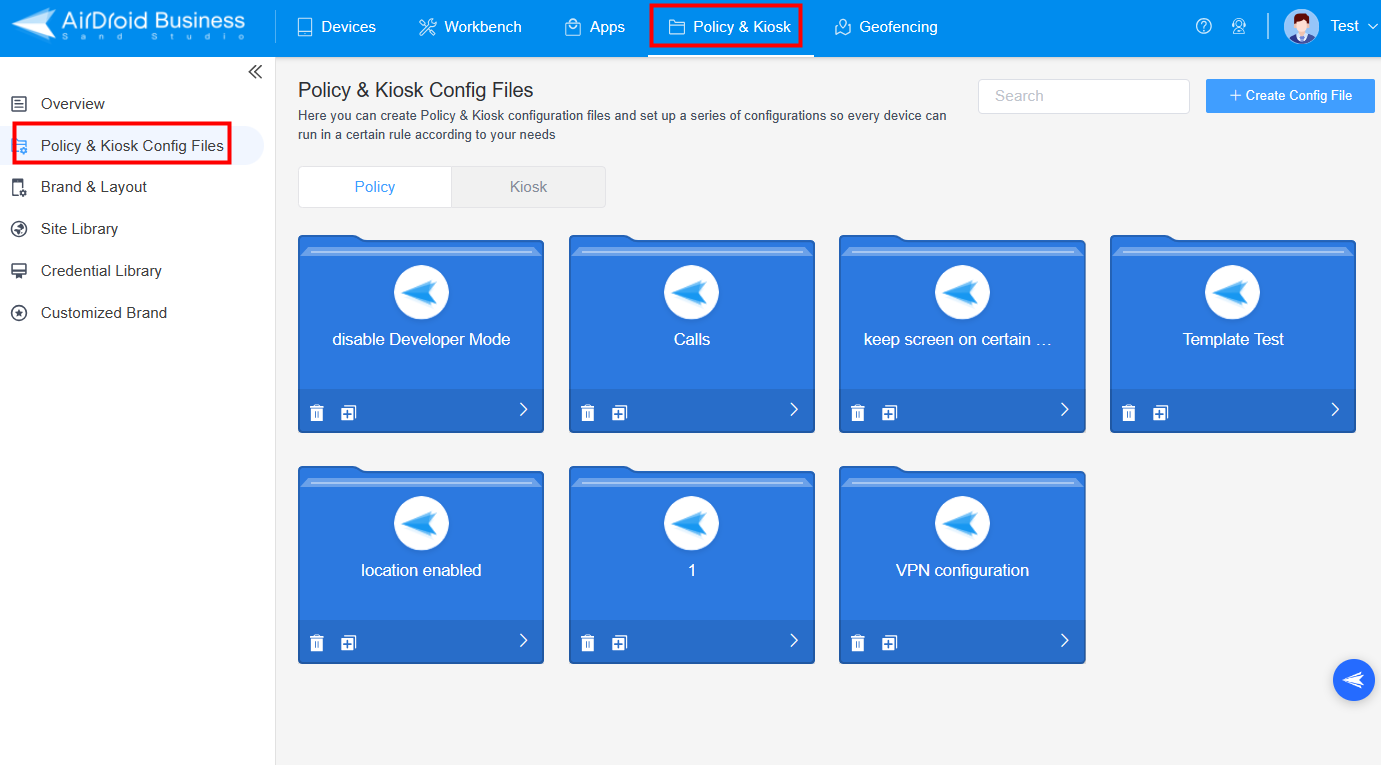
- Log in to the Web Console, and then click Policy & Kiosk Config Files in the Policy & Kiosk section.

- Step 2Create or Edit a Policy
- Way 1:Create a new policy
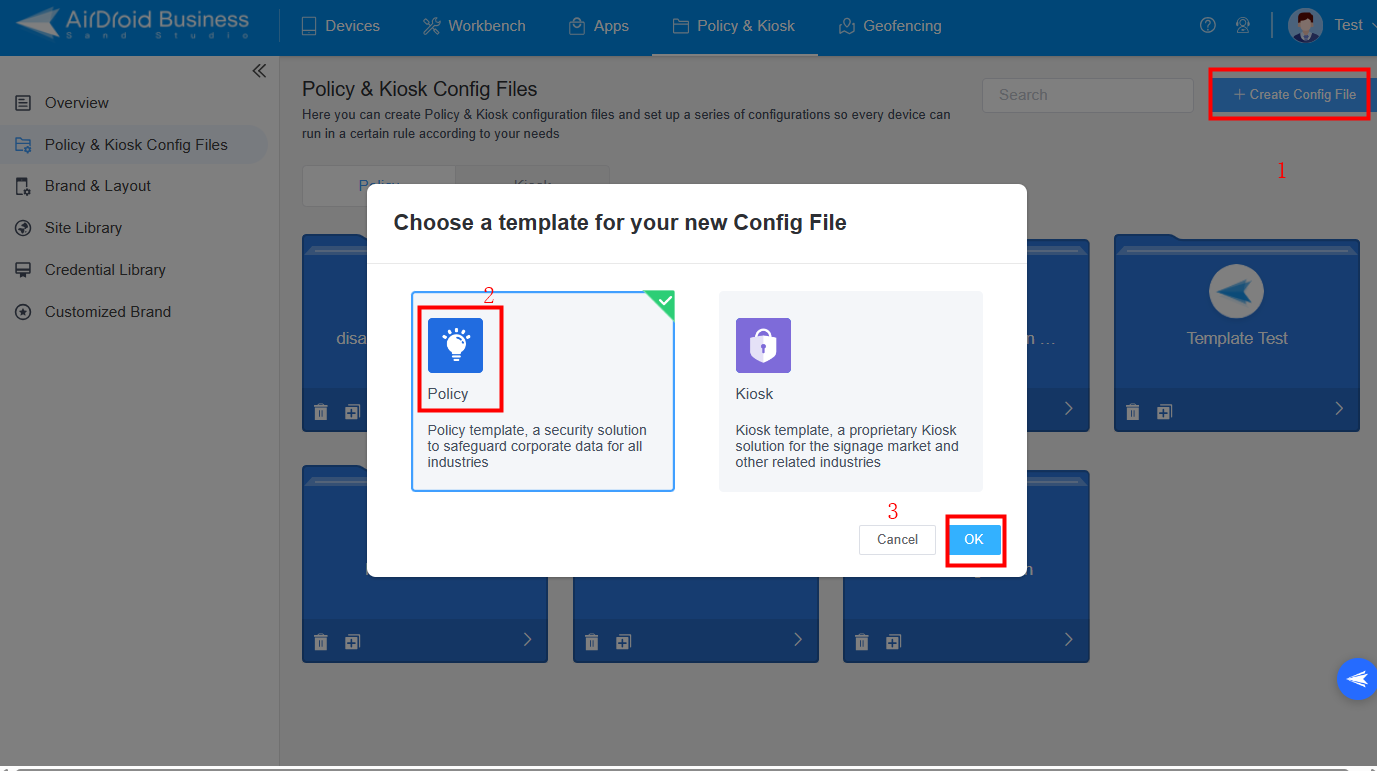
- You can create a new policy by clicking on "+Create Config File," then select "Policy" and click "OK" on the pop-up.

- Way 2: Edit an existing Policy
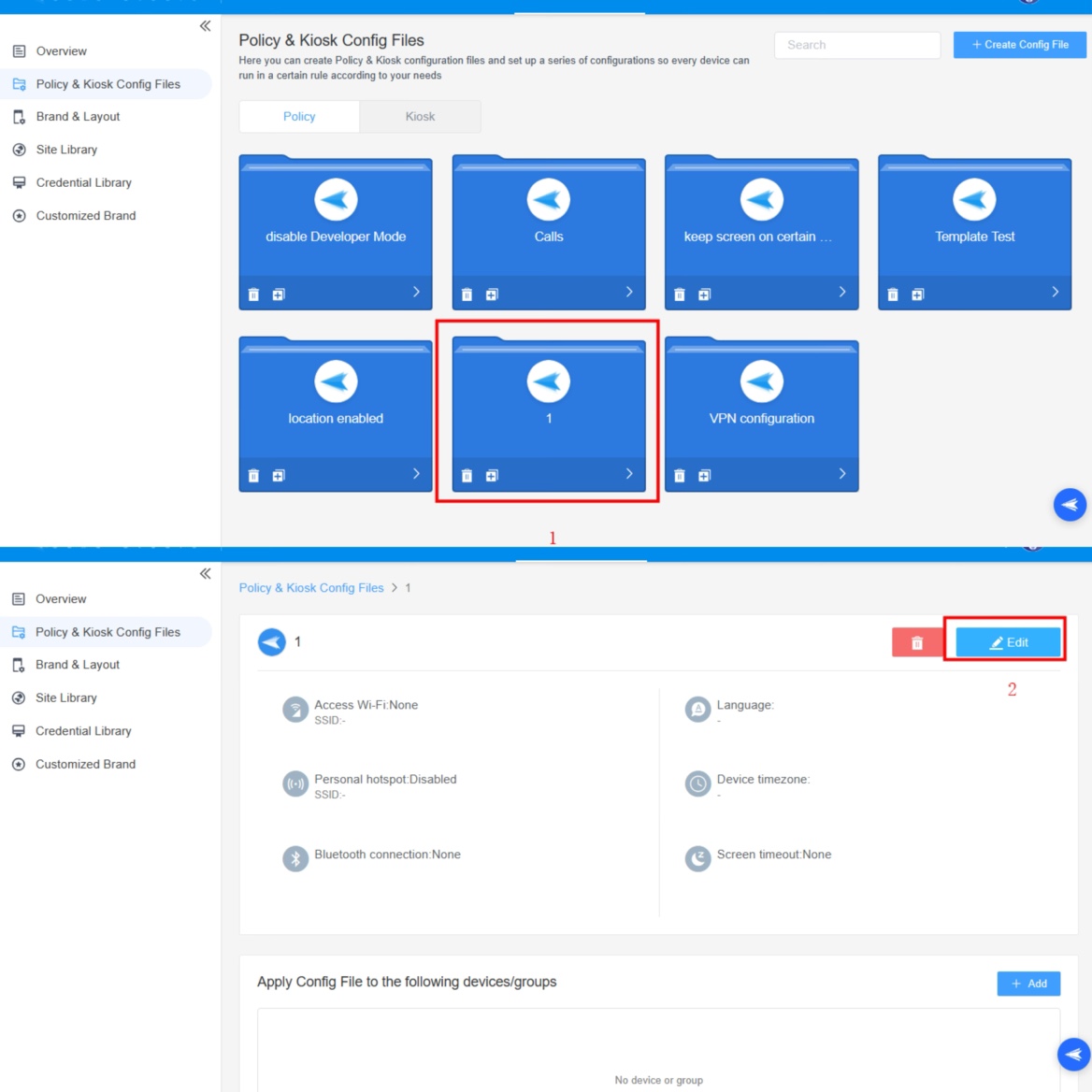
- You can also edit an existing policy to add VPN settings. To edit the policy, choose the existing policy in Policy & Kiosk Config Files and click it to edit.

- Step 3Locate "VPN Settings"
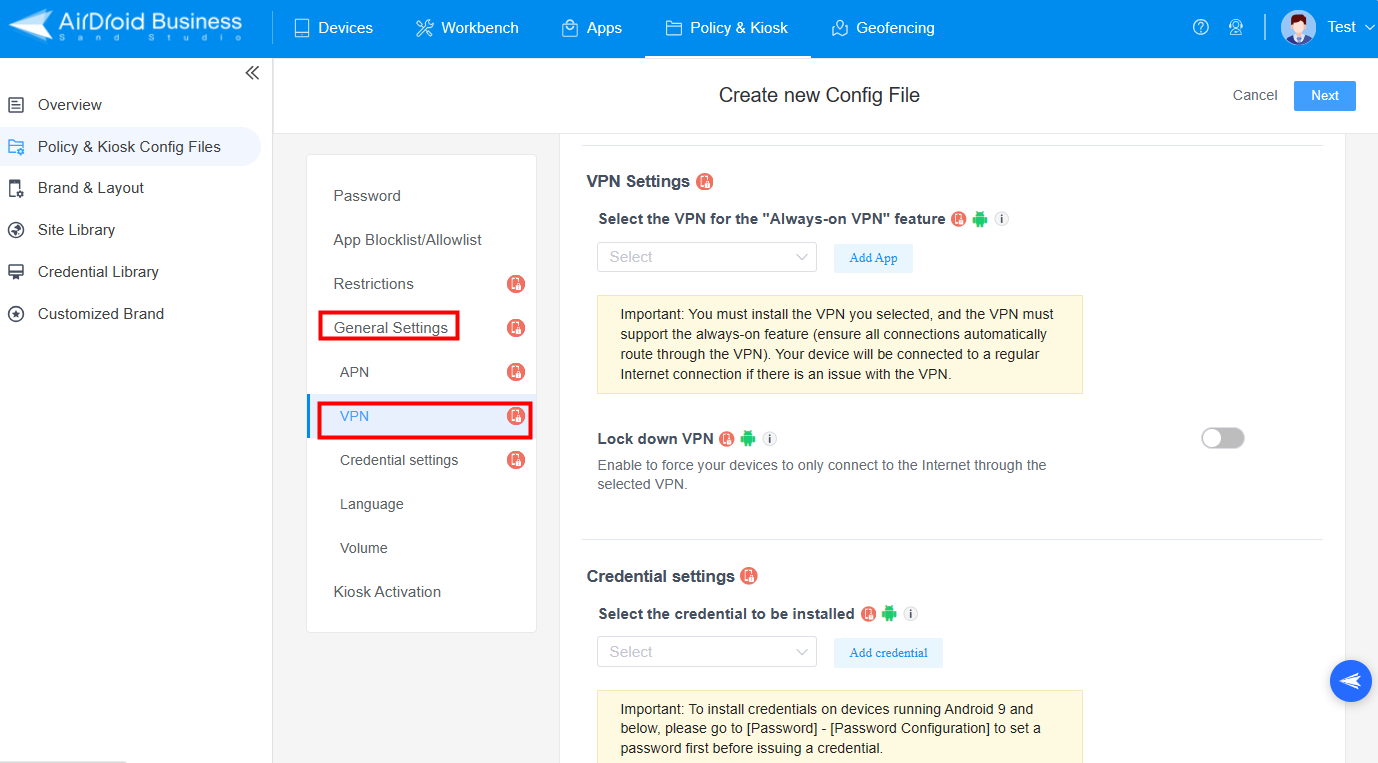
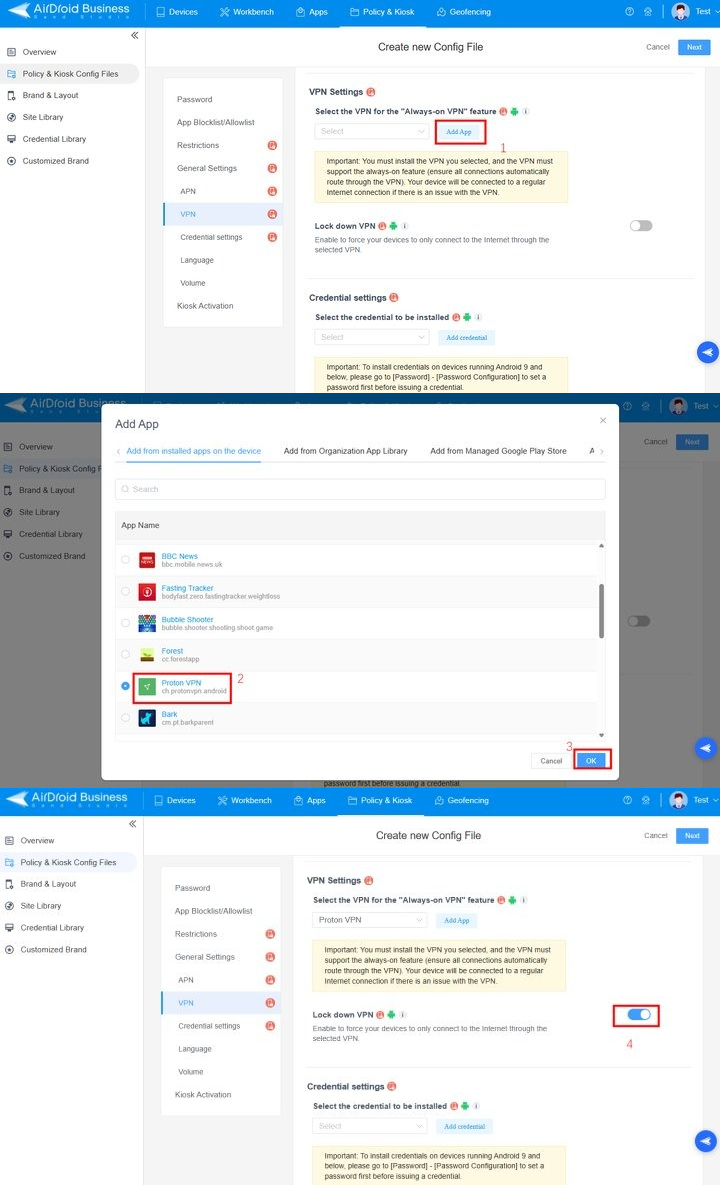
- After creating a Policy, you need to select the General Settings section and find out "VPN Settings."

- Step 4Select a VPN Application
- You can select a trusted VPN on the Always-on VPN feature, and then you can also enable the “Lock down VPN” feature to use a specific trusted VPN only on the devices.

- Step 5Save the Policy
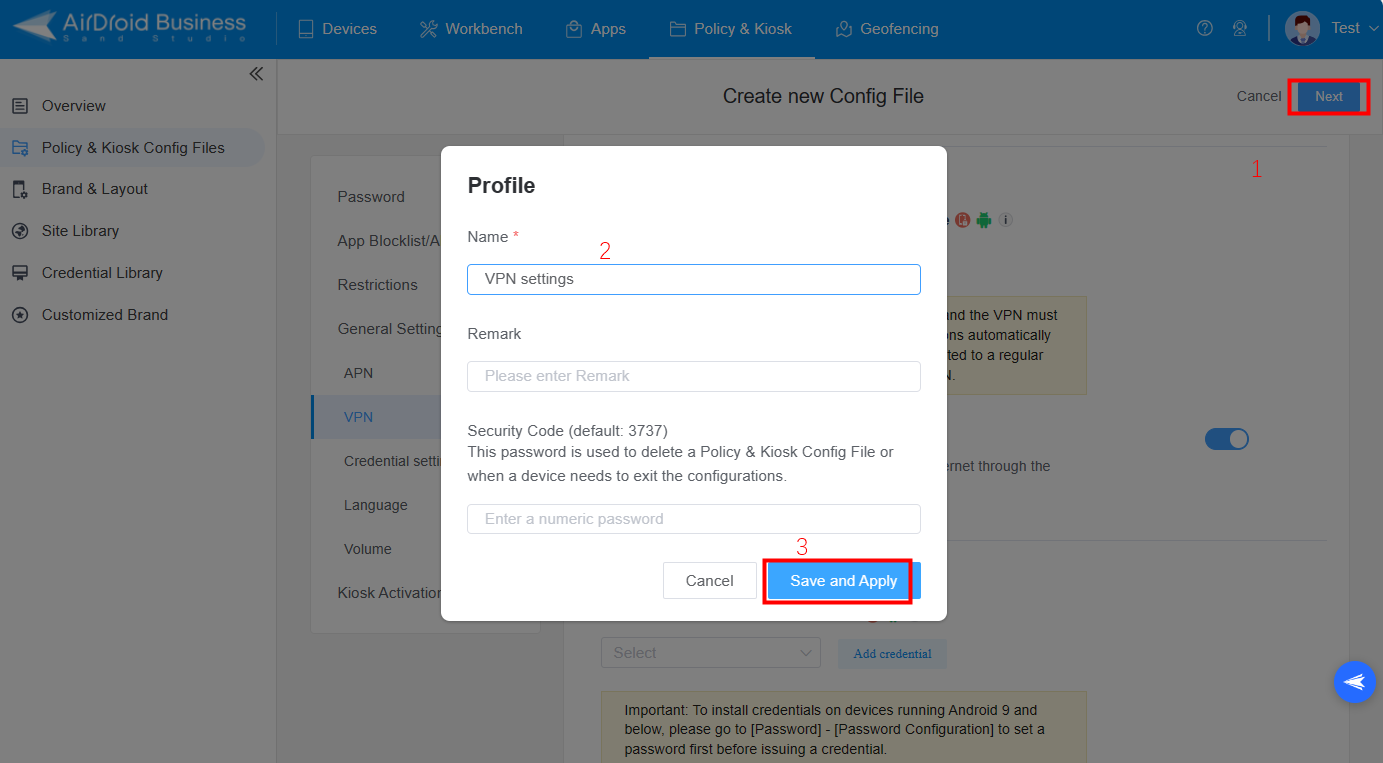
- Click "Next" on the top right corner and then fill in the profile name to save the policy.

- Step 6Apply the Policy
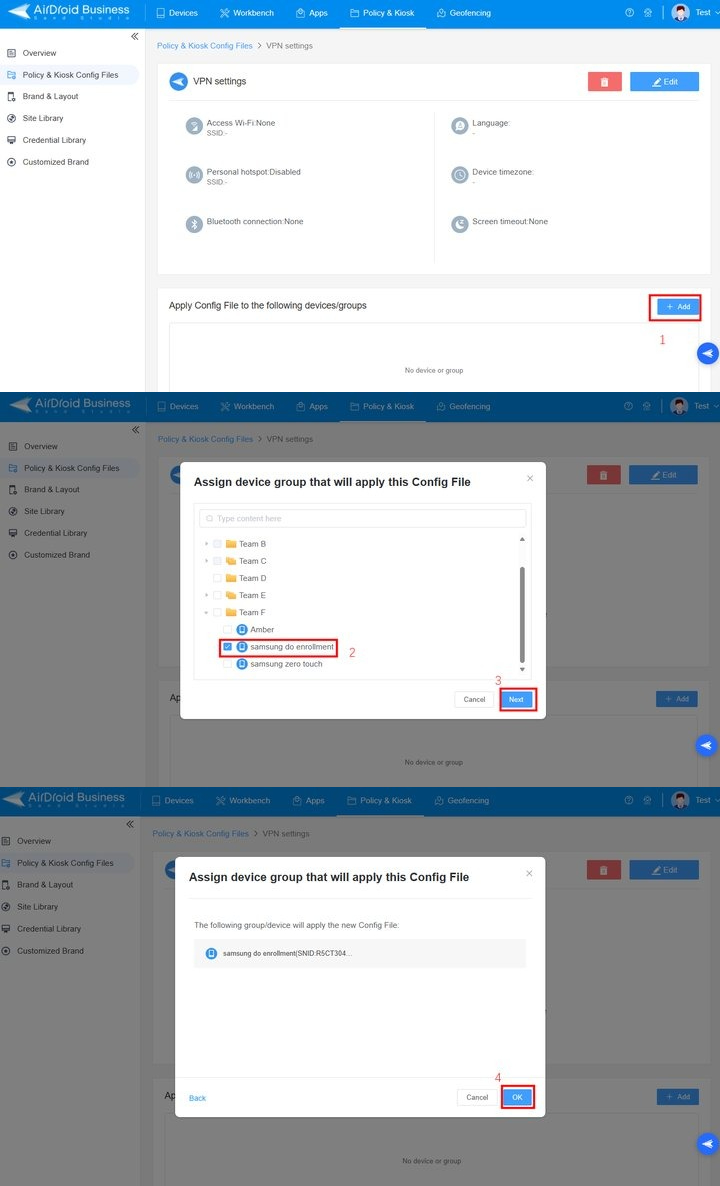
- In the VPN Settings policy you created, click Add to select the devices, and then tap Next and click OK to apply this policy to the devices.

By following these steps, you can now ensure the security of using VPNs and protect devices' privacy.


Still need help? Submit a request >>
Related Articles
- How to Use OEMConfig Policy to Restrict the Samsung Device
- How to implement App Blocklist/ App Allowlist on AirDroid Business?
- How can I control camera access using Camera and Lockscreen Camera Settings in AirDroid Business?
- How can I set up password rules with Android Password Policy in AirDroid Business?
- How do I manage Microphone Permissions in AirDroid Business?
You May Also Like
- How to use App Allowlist for Kiosk Mode in AirDroid Business?
- How to Set up Kiosk Website Allowlist on AirDroid Business?
- How to set up Kiosk Browser Settings on AirDroid Business?
- How do I Customize the Kiosk Brand within AirDroid Business?
- How to Modify My Brand and Layout in Kiosk Mode of AirDroid Business?