Integrating AirDroid Business with Freshservice: Automating Android Kiosk Troubleshooting
Android Kiosk devices deployed in retail stores, warehouses, hospitals, and self-service environments usually need to keep a designated app and locked interface running reliably for long periods. If a device exits Kiosk Mode or the foreground app stops responding, the app may become unavailable, disrupting transactions, on-site operations, and the customer experience.
Traditional MDM and UEM platforms can monitor devices and issue alerts, but device management and ITSM ticketing often operate separately. Administrators still have to investigate the device manually, switch to Freshservice to create a ticket, copy the relevant information, and arrange the next steps. This extends response times and increases device downtime and communication overhead.
Using an Android device exiting Kiosk Mode as an example, this article explains how to integrate AirDroid Business with Freshservice and use task automation workflows to connect exception monitoring, device investigation, ticket creation or updates, remote handling, human intervention, and recovery verification. Together, these steps create a complete response loop for device alerts and show how to automate Freshservice tickets without losing important device context.
- Part 1 : Why Integrate UEM with Freshservice?
- Part 2 : How Does Automated Android Kiosk Incident Handling Work?
- Part 3 : Build an Automated Android Kiosk Troubleshooting Workflow with AirDroid Business and Freshservice
- 3.1 Create an Event-Triggered Automation Task
- 3.2 Configure the Handling Plan
- 3.3 Use the Kiosk Exit Incident Response Template
- 3.4 Adjust the Template's Start Node
- 3.5 Replace the Investigation Report Email with Freshservice Nodes
- 3.6 Modify the Three Handling Branches
- 3.7 Modify the Recovery and Exception Result Nodes
- 3.8 Test and Publish the Workflow
- Part 4 : Frequently Asked Questions
- Part 5 : Conclusion
1Why Integrate UEM with Freshservice?
Building a complete device incident response process starts with closing the gap between UEM and ITSM. A traditional UEM platform can monitor devices, issue alerts, and perform remote actions, but administrators still need to open Freshservice, create a ticket, copy device details, and arrange follow-up work manually. This adds system switching and information handoffs, which can delay the response, leave out important context, or produce duplicate tickets.
Once UEM and Freshservice are integrated, a device exception can trigger a task automation workflow directly. The integration improves the process in four ways:
- Detect problems earlier. Device events trigger the process directly, so the team does not have to rely entirely on reports from on-site staff.
- Reduce missing information. The device ID, group, event time, screenshots, and investigation results can be stored with the ticket.
- Standardize incident handling. Similar exceptions follow the same investigation, decision, and verification steps, reducing differences caused by individual experience.
- Keep statuses in sync. Automated actions, human intervention, and recovery results are written back to the same ticket, making later audits and analysis easier.
Freshservice Alert Management can also receive and standardize monitoring notifications, reduce alert noise through rules, and create and route incidents. Here, the workflow begins with a specific device event in the UEM, adds device investigation, remote remediation, and recovery verification, and then brings the full process into Freshservice. This creates a device alert-to-Freshservice ticket path with the context needed for follow-up.
Build a Reliable Foundation for Kiosk Automation
Before automating incident response, make sure your devices, Kiosk configurations, and operating restrictions are ready for reliable day-to-day use.
2How Does Automated Android Kiosk Incident Handling Work?
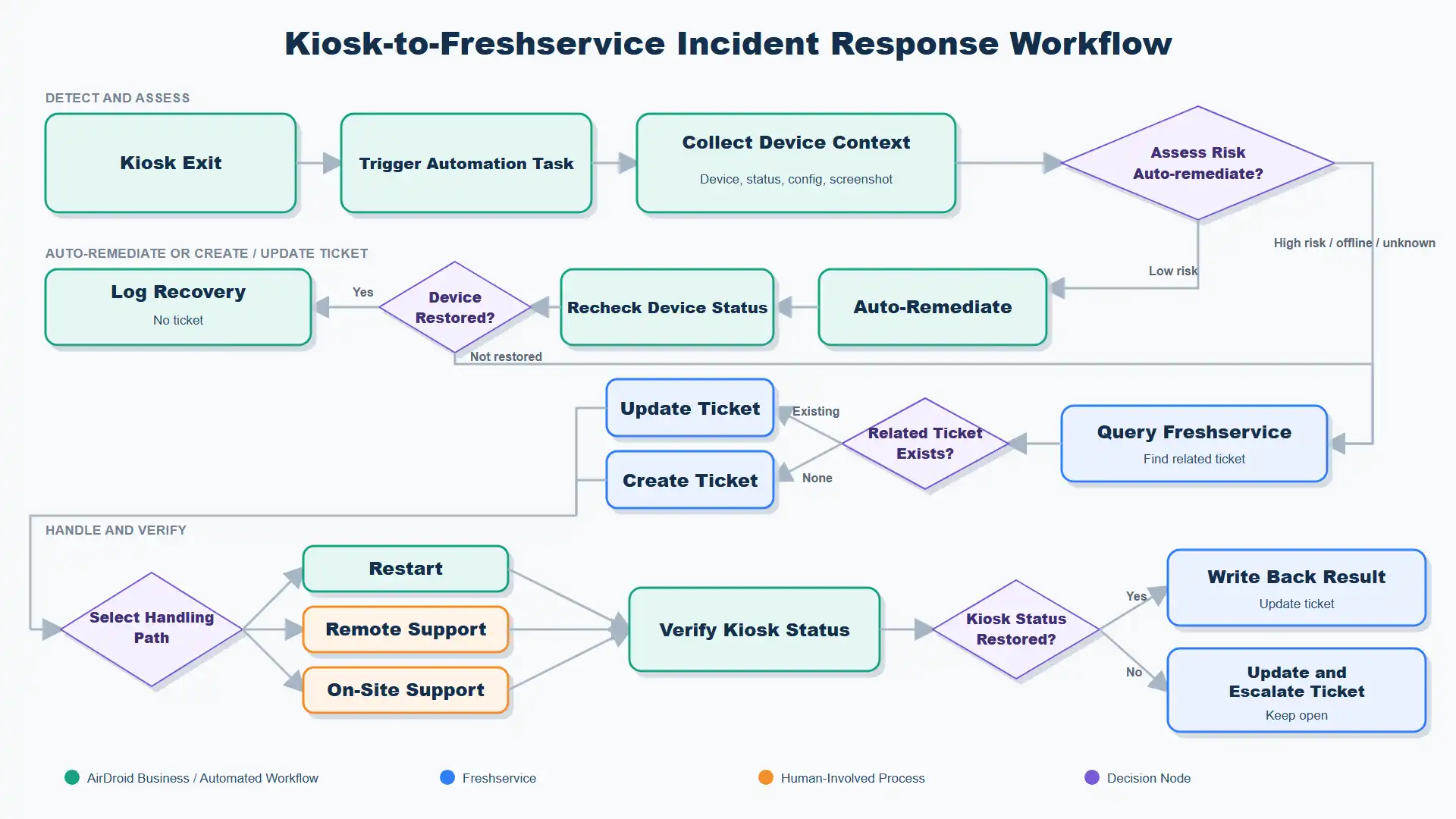
This Freshservice incident workflow has two layers: basic remediation and complex issue handling, as shown below:
3Build an Automated Android Kiosk Troubleshooting Workflow with AirDroid Business and Freshservice
Before you begin, confirm that the devices are enrolled in AirDroid Business, the target Kiosk configuration has been created and deployed, and the administrator has permission to view device status and perform the required device actions.
1Create an Event-Triggered Automation Task
Open the AirDroid Business Console, go to Task & Automation, and create an Event-triggered Task:
- Step 1: Select the Kiosk event and set the trigger status to Not in Kiosk.
- Step 2: Set monitoring hours based on device service hours to prevent maintenance work from generating false alerts.
- Step 3: Select one test device or a small device group.
- Step 4: Exclude devices that are being upgraded, maintained, decommissioned, or have not yet received the target Kiosk configuration.
- Step 5: If different stores use different support teams or handling rules, create separate tasks for them.

2Configure the Handling Plan
After creating the event-triggered task, choose the next steps in the Handling Plan. AirDroid Business provides three options:
- Device Action: Perform basic device operations such as restarting the device, switching configurations, or bringing an app to the foreground. The Auto-Remediate step in the workflow diagram can be completed directly through Device Action. It is essentially the same type of rule-based remediation used in traditional MDM and UEM platforms.
- Email Notification: Send the exception and handling results to an administrator or technician.
- Automation Workflow: Check the remediation result, collect device information, connect to Freshservice, and hand unresolved issues over for human intervention.
For this scenario, select both Device Action and Automation Workflow. When a device exits Kiosk Mode, Device Action uses Switch to Config File to reapply the target Kiosk configuration. This provides one clear, low-risk basic remediation attempt before the more complex workflow proceeds.
Because both Handling Plans are triggered at the same time, add a delay and a status recheck at the beginning of the Automation Workflow to give Device Action time to run. If the device has recovered, record the result and end the workflow. Continue with the investigation, Freshservice ticket, and human support process only when the device has not recovered, is offline, or requires human judgment.
3Use the Kiosk Exit Incident Response Template
In Automation Workflow, select the Kiosk Exit Incident Response template as the starting point for handling complex issues. This preconfigured workflow includes device information gathering, an administrator decision, Restart, Remote Support, On-Site Support, and recovery verification. It is designed for situations in which Device Action does not resolve the issue, the device is offline, or human judgment is required.
For this scenario, add a delay and a status recheck at the beginning of the template. If Device Action has already restored Kiosk Mode, record the result and end the workflow. If the device is still not restored, is offline, or requires human judgment, continue with the investigation and handling branches.
When connecting the template to Freshservice, keep the device investigation, handling, and recovery verification nodes. Replace the email notification and result logging nodes with ticket query, creation, and update operations.

4Adjust the Template's Start Node
The original template begins investigating the device as soon as a Kiosk exception is triggered. In this scenario, Device Action has already attempted to reapply the Kiosk configuration, so add two nodes at the start of the template:
- Step 1: Add a Delay node to give Device Action time to run.
- Step 2: Add device status query and decision nodes to check whether the device has re-entered Kiosk Mode.
If the device has recovered, record the automated remediation result and end the workflow without creating a ticket. If the device has not recovered, is offline, or its status is unknown, continue with the template's existing device investigation nodes. Collect the device ID, group, connection status, Kiosk configuration, and screenshot.
5Replace the Investigation Report Email with Freshservice Nodes
After configuring Freshservice credentials in InsightFlow, locate the Send Administrator Investigation Report email node in the template and replace it with the following nodes:
copy Copied!Get Many Tickets ↓ Check the number of matches ↙ ↓ ↘ 0 1 Multiple ↓ ↓ ↓ Create Update Stop creation and Ticket Ticket ask an admin to deduplicate
Get Many Tickets should search for related tickets using a stable device ID, the Kiosk Exit event type, and an unresolved status. Do not rely on the device display name alone, since a name change could cause the duplicate check to fail.
If there are no matches, use Create a Ticket to create a new ticket. If there is exactly one match, read and save its TicketId, then use Update a Ticket to update the existing record. If the query returns multiple matches, stop the automatic creation process and ask an administrator to resolve the duplicates.
According to the GoInsight Freshservice node documentation, creating a ticket requires Email, Subject, and Description. You can also configure fields such as Priority, Status, GroupId, Tags, and CustomFields.
Write the device investigation results and a link to the administrator handling form in Description. The administrator can open the form, select the next action, and allow the workflow to continue along the corresponding branch. Use the Pause & Resume Node to pause the workflow while it waits for the form response and resume it afterward.
6Modify the Three Handling Branches
Keep the template's administrator decision node and its three branches: Restart, Remote Support, and On-Site Support. In each branch, replace the email nodes used for notifications or result logging with Update a Ticket, and always use the TicketId saved in the previous step.
- Restart: Restart the device, wait for it to reconnect, and then write the command result and Kiosk status recheck to the ticket.
- Remote Support: Generate a temporary remote support entry point and write the link, or the reason it could not be generated, to the ticket.
- On-Site Support: Update the responsible team and device location, then add the on-site handling requirements and feedback form to the ticket.
When updating Description, merge the original investigation details with the new handling results so earlier records are not overwritten. When assignment is required, you can also update fields such as Group, Priority, or Status.
7Modify the Recovery and Exception Result Nodes
Keep the recovery check nodes in the template, and replace the final success, failure, and timeout emails:
- If the device comes back online and Kiosk Mode is restored, write the recovery evidence to the ticket and update its status to Resolved.
- If the device has not recovered, record its latest status, keep the ticket Open or Pending, and escalate its priority or responsible team.
- If the device is offline, the workflow times out, or a node fails, record the last successful step and the cause of the error so a technician can continue the investigation.
- If writing to Freshservice fails, retain the device investigation and handling results, and notify an administrator to synchronize them again.
A successful ticket update only confirms that Freshservice received the data. The incident should be considered resolved only after the device is back online, Kiosk Mode has been restored, and the target app is running normally.
8Test and Publish the Workflow
Before publishing, test at least the following paths:
- Device Action succeeds, and the workflow ends after the status recheck without creating a ticket.
- Device Action does not restore the device, and the workflow creates a new ticket.
- The same device already has an unresolved ticket, and the workflow updates that ticket.
- The query returns multiple related tickets, so the workflow stops creating tickets and moves to manual deduplication.
- After an administrator selects Restart, Remote Support, or On-Site Support, the handling result is written back to the same ticket.
- If the device does not recover, remains offline, or the workflow times out, the ticket stays unresolved.
- If a Freshservice query or write operation fails, the device information and handling results are retained.
After these tests pass, publish the workflow to a small device group first. During the pilot, monitor the automated recovery success rate, the number of duplicate tickets, the proportion of cases requiring human intervention, and device recovery time. Use those results to decide whether to expand the deployment.
4Frequently Asked Questions
Q1: Should Every Kiosk Alert Create a New Ticket?
A: No. Before creating a ticket, query Freshservice using the unique device ID, event type, and unresolved status. If a related ticket already exists, keep its existing content, merge the latest event results, and update the original ticket. This reduces duplicate notifications and assignments. If each event needs a separate activity note, configure the relevant Freshservice note capability as well.
Q2: Does a Successful Freshservice Ticket Update Mean the Device Has Recovered?
A: No. A successful ticket update only means that the ITSM system received the record. Confirm recovery by rechecking the device's online status, Kiosk status, and target app.
Q3: How Can You Prevent a Device Name Change from Breaking Duplicate Detection?
A: Do not use the device display name as the only duplicate detection criterion. Use a stable device ID and store it with the event type in a custom field or tag. The display name can appear in the ticket subject, but it should not serve as the unique identifier.
Q4: Can You Restart a Device or Start Remote Support While It Is Offline?
A: New remote commands usually cannot run immediately while the device is offline. The workflow should record the offline status, create or update the ticket, and notify the appropriate team. If the device reconnects later, the workflow can continue checking and handling it. Persistent offline status, power loss, network problems, or hardware issues will usually require on-site support.
Q5: Can a Freshservice Technician Trigger a Device Action Directly from a Ticket?
A: Yes, but only after an additional two-way return mechanism has been designed. The Get Many Tickets, Create a Ticket, and Update a Ticket operations described in this article primarily synchronize device events and handling results with Freshservice.
If a ticket field change needs to trigger an AirDroid Business action, configure polling, a callback, a webhook, or another access-controlled return channel.
5Conclusion
If your Kiosk devices are spread across multiple stores or service locations, a single unexpected exit can affect much more than one device. Checkout, self-service, or on-site services may be interrupted. The longer the issue goes undetected, the longer the business impact lasts and the more reactive the technical team becomes.
Connecting AirDroid Business with Freshservice gives IT teams a chance to detect and resolve some issues before users report them. Incidents that require human attention also enter the service process earlier, so technicians spend less time switching systems, reinvestigating devices, or entering missing details. This can shorten response and recovery times while reducing unnecessary tickets and on-site support.
For organizations managing large device fleets, the bigger benefit is a more predictable operations process. Similar issues can follow the same rules across locations, while managers can use the ticket to see the business impact, handling progress, and recovery outcome. As the device fleet grows, the IT team can maintain clear and consistent response standards.
Build a More Proactive Approach to Kiosk Operations
Use one device group to validate automated incident handling and Freshservice collaboration in your own environment before expanding the workflow.







Leave a Reply.