AirDroid Business Kiosk Mode Guide (Android & Windows)
Are you struggling to keep your company's Android tablets and Windows devices locked down for 24/7 operations?
We're AirDroid Business, a leading MDM provider with over years of experience helping companies secure their field devices. We've worked with retail chains, logistics companies, and healthcare providers to prevent unauthorized app installations, accidental exits from business apps, and costly IT support calls.
In this guide, you'll learn:
- Why kiosk mode prevents device misuse and reduces IT costs
- How to configure Android and Windows kiosk settings in AirDroid Business
- Real-world deployment strategies for retail, logistics, and public terminals
- Remote troubleshooting techniques after lockdown
Ready to lock down your devices the right way? Let's get started.
- Part 1 :Why Do You Need AirDroid Business Kiosk Mode?
- Part 2 :What Platforms Does AirDroid Business Support?
- Part 3 :What Can AirDroid Business’s Android Kiosk Mode Do?
- Part 4 :What Can AirDroid Business’s Windows Kiosk Mode Do?
- Part 5 :How Can You Troubleshoot Devices After Lockdown?
- Part 6 :What Should You Check Before Deploying Kiosk Mode?
1Why Do You Need AirDroid Business Kiosk Mode?
Shared devices without proper controls expose your company to security risks within days. Employees install unauthorized apps. Customers accidentally tap into system settings. And field devices in warehouses or delivery trucks go off-script, forcing you to send IT staff on-site just to get them back on track.
And the cost? It adds up fast. Think about it: every unplanned site visit, every interrupted workflow, every help desk call that starts with "the screen went black"—kiosk mode eliminates all of that.
With AirDroid Business Kiosk Mode, you can lock down devices so that they can only access the apps and websites your business needs. Instead of giving employees access to your entire system (which is risky), you're giving them exactly what they need to do their job.
The three main benefits are:
- 1. Dedicated-use devices: Your devices only run approved apps or websites. No random installs, no accidental system access, and no distractions.
- 2. Business continuity: For 24/7 operations, notifications, home button presses, and random app crashes can't pull the device away from its job.
- 3. Lower maintenance costs: Remote troubleshooting takes the place of costly on-site visits, which is useful for devices in stores, cars, or remote areas.
2What Platforms Does AirDroid Business Support?
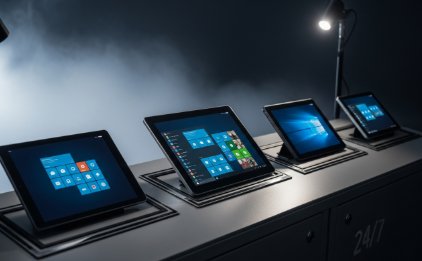
AirDroid Business lets you set up kiosks on both Android and Windows. Both platforms offer two main lockdown modes.
- 1. Single App Kiosk: The device locks to one app and stays there. Best for digital signs, unattended terminals, and any situation where the device needs to do only one thing.
- 2. Multi-App Kiosk: You can see and use a list of approved apps. All the other things are hidden. Best for people who work in the field or at a store and only need a few tools, not the whole thing.
3What Can AirDroid Business’s Android Kiosk Mode Do?
Most businesses choose Android for kiosk installations. It powers everything from tablets used in stores to scanners used in warehouses to PDAs mounted in cars.
1. Experience on the Front End
Here's what we've learned after deploying thousands of kiosks: most failures don't happen because of missing features. They happen because someone left a tiny gap in the lockdown. And users? They'll find that gap in about 30 seconds.
You can still see the navigation bars and access the notification centers, and you can swipe away apps. If you give people an inch, they'll find the way out quickly.
With AirDroid Business, you can lock the front-end experience the right way. You can turn on full-screen mode, hide the bottom navigation bar, and control who can see the notification center (which is off by default but can be turned on with certain shortcuts when needed). The "Always Run" setting keeps the target app always in the foreground when deploying only one app. The admin console is the only way out, which is exactly what you want for a terminal that doesn't need to be watched.
2. Customising the brand and the interface
Kiosk devices need to look like branded terminals, not like someone's personal tablet, when they are used in businesses, especially in franchises or MSPs. From a central console, AirDroid Business lets you apply custom logos, wallpapers, colour schemes, and status bar styles to all of the devices you manage.
3. Limitations at the System Level
In addition to the front-end experience, you need to keep users from getting to system settings that they could use to get around your kiosk setup. AirDroid Business lets you limit Bluetooth settings, Wi-Fi settings, mobile network settings, and hotspot access (for Android 8.0 and lower). You can also lock the screen orientation and turn off the Home and Recent keys on devices that support it.
Here are a few things you should know about each version:
- To use Home/Recent key control, you need Android 9.0 or higher and to register as the device owner.
- Android doesn't support Bluetooth restrictions. 13.0 and up devices can be enrolled through Android Enterprise or Zero-Touch.
- Wi-Fi configuration restrictions don't apply to Android 10.0+ devices that are enrolled through Android Enterprise or Zero-Touch.
4. Website and Kiosk Browser Whitelisting
A lot of business apps are web-based. Examples are self-checkout portals, queue management systems, internal dashboards, and digital work orders. AirDroid Business comes with a special Kiosk Browser that has website whitelisting built in.
In the browser, you can:
- Limit access to only approved URLs
- Set up automatic page refresh intervals (this is great for display boards that don't need to be watched)
- Control the size of the font, how much you can zoom in, whether the address bar is visible, how tabs work, and when to clear the cache.
- Turn off the system's back button and pull-to-refresh.
- Automatically give permissions like access to location or device files on a per-site basis (only use this for trusted internal sites).
If your business runs on a web portal, this feature lets you lock the device to that portal without affecting the user experience or the long-term stability of the device.
5. Rules for Passwords
You can set rules for device passwords, such as how long they must be, how complex they must be, how long they can last, and how many times they can fail. If you set a maximum number of failed attempts, going over that number can cause the device to automatically reset to factory settings. This helps keep things safe, but make sure your team knows it's there before you use it in the field.
4What Can AirDroid Business’s Windows Kiosk Mode Do?
AirDroid Business also lets you set up kiosks on Windows, which includes point-of-sale terminals, office workstations, and display/query PCs.
Kiosk with Multiple Apps (Windows 10 Only)
Windows' multi-app mode lets you choose which apps show up on the desktop. Everything else is hidden. You can also hide the Windows taskbar and control who can use File Explorer. You can choose from no access, Downloads folder only, allow removable devices, Downloads + removable devices, or all folders. This is helpful for retail workstations where USB drive risks are a big deal.
Kiosk for One App
Set the device to only work with one app. You can set the default website and choose whether the address bar, back and forward buttons are visible in Chrome, Edge or the Windows Kiosk Browser.
Windows: Allowing Certain Browsers and Websites
On Windows, you can only whitelist websites using Google Chrome, Microsoft Edge (version 77 and up), and the Windows Kiosk Browser. Microsoft Edge is the best choice if you need website shortcuts to open directly in kiosk mode. Chrome does not support opening website shortcuts in kiosk mode.
5How Can You Troubleshoot Devices After Lockdown?
AirDroid Business connects kiosk management to remote operations directly, so "locked down" doesn't mean "impossible to maintain."
We once had a retail client whose kiosk device went offline during Black Friday. Instead of sending a tech 2 hours across town, their IT admin used AirDroid's remote control to reboot the device and push the POS app back to the front—all in under 3 minutes. The store didn't lose a single sale.
You can do the following from the admin console:
- Use remote control devices to do maintenance, bring apps to the front, or exit kiosk mode temporarily without being there.
- Observe mode and remote camera access to check on the physical state of devices that aren't being used
- Automated alerts and workflows for things like a device going offline, a low battery, storage warnings, app crashes, or changes in kiosk status. These alerts can also automatically restart the device or push the app back to the front of the screen.
- Blackout maintenance mode for remote sessions that hides the screen from view (good for devices that are in public places)
Kiosk mode works best when it is part of a larger device management loop, not as a one-time setup that you forget about.
6What Should You Check Before Deploying Kiosk Mode?
- 1. Android or Windows? (Windows 10 is needed for a Windows multi-app kiosk)
- 2. Mode for one app or many apps?
- 3. Do you need access through the web? (Install the Kiosk Browser and make a list of websites that are allowed)
- 4. How do you enrol your devices? (Owner of the device, Android Enterprise, Zero-Touch, Samsung KME—this determines which features are available)Do you need your own brand?
- 5.Have you set up alerts and automatic workflows for events that happen when you're not online, when your battery dies, or when an app crashes?
Conclusion: Are you ready to get started?
Thanks for reading our guide on locking down Android and Windows devices with AirDroid Business Kiosk Mode.
To recap: Kiosk mode prevents unauthorized access, reduces IT support costs, and keeps your devices running 24/7 without constant supervision. Whether you're managing retail terminals, delivery fleet tablets, or public kiosks, proper lockdown configuration is essential.
But kiosk mode can be complex. If you're looking for a step-by-step technical guide on how to configure these settings, check out our comprehensive tutorial here.
If you need help setting it up for your specific environment, we're here to help. Contact us for a free consultation. Our team has helped retail chains, logistics companies, and healthcare providers deploy kiosk solutions that actually work.


Leave a Reply.