Gaming has evolved dramatically, and the way we play Xbox on Samsung TV has never been more versatile. Whether you own the powerful Xbox Series X, a Series S, or no console at all, your Samsung TV can be the gateway to an incredible gaming experience.
Understanding how to correctly set up your system is crucial. It’s not just about plugging in a cable anymore; it’s about choosing the right path for your specific needs—be it 4K/120Hz performance, or the convenience of cloud gaming. In this guide, we will explore these 2 distinct methods to maximize your Xbox experience on your Samsung Smart TV.
Method 1: The Hardcore Route (HDMI Connection)
For those who want to play Xbox on Samsung TV with the absolute best performance, a direct HDMI connection is the best way to go. This method is designed for Xbox Series X/S owners who demand zero compromise: 4K resolution, 120Hz refresh rates, and the lowest possible input lag (sub-20ms).
Basic Requirements
1. Hardware Essentials: Cables and Ports
Achieving a true next-gen experience starts with your physical hardware.
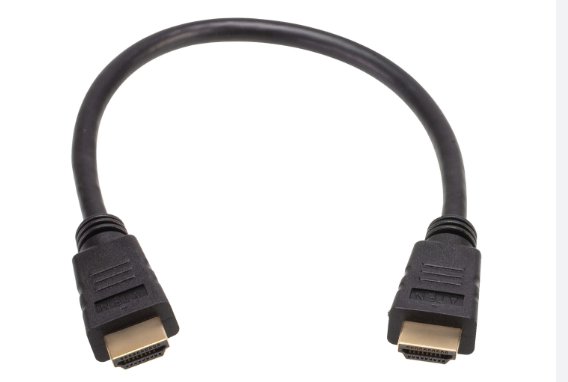
- The Cable Matters: You must use an Ultra High Speed HDMI 2.1 certified cable. Using an older HDMI 2.0 cable will bottle-neck your bandwidth, preventing 4K at 120Hz even if your TV supports it.
- Identifying the Right Port: Not all HDMI ports on your Samsung TV are created equal. On many high-end models like the Neo QLED series, only specific ports (often HDMI 4) support the full 120Hz signal. Always check for the "game controller" icon or the "120Hz" label on the back of your TV.
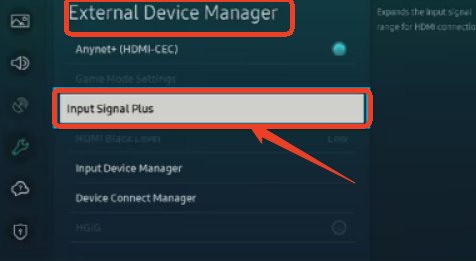
2. Critical TV Settings: The "Input Signal Plus"
Connecting the cable is only half the battle. To truly play Xbox on Samsung TV in HDR, you must unlock the port's bandwidth.
- Step 1. Navigate to: Settings -- Connection -- External Device Manager -- Input Signal Plus (or "HDMI UHD Color" on older models).
- Step 2. Action: You must manually enable this toggle for the specific HDMI port your Xbox is connected to. Without this, your Xbox may fail the "handshake," locking you into low resolutions or causing HDCP errors with streaming apps.
3. Activating Game Mode & VRR
Once the signal is cleared, you need to optimize the processing.
- Game Mode: This bypasses standard image processing to minimize latency. Ensure it is set to "On" or "Auto."
- VRR & ALLM: Variable Refresh Rate (VRR) and Auto Low Latency Mode (ALLM) ensure your TV's refresh rate syncs with the console to eliminate screen tearing. These usually kick in automatically once Input Signal Plus and Game Mode are active.
AirDroid Cast
- Local & Remote Screen Casting(Your Game or Whole Screen)
- Android,iOS,Windows,Mac,TV Screen Mirroring
- Wireless & USB Connection
- Total Control Android & iOS beyond Your Finger
- Mirror Multiple Screen
How to Play Xbox on Samsung TV with HDMI
Follow the steps below to connect and set up your Xbox and Samsung TV.
- Step 1. Plug the Xbox power cable into the console, then connect it to a power outlet.
- Step 2. Connect the HDMI cable to the Xbox’s HDMI OUT port, and plug the other end into any HDMI IN port on your Samsung TV.
- For the best 4K 120Hz performance, use HDMI IN 4 (Game icon) if available.
Note : 4K 120Hz support varies by TV model.
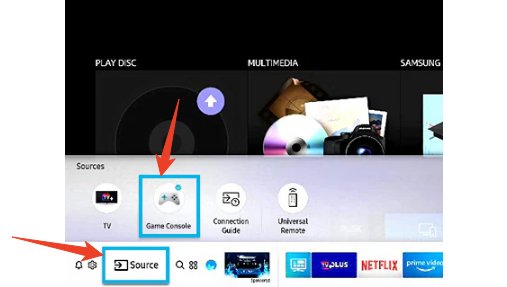
- Step 3. Turn on both the TV and the Xbox, press Home on your Samsung remote, and select Xbox / Game Console from the Source menu.
Method 2: The Console-Free Route (Samsung Gaming Hub)
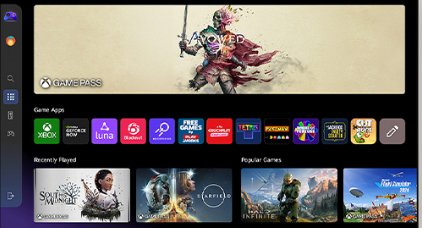
Did you know you can play Xbox on Samsung TV without actually owning the plastic box? For users prioritizing convenience and minimalism, Xbox Cloud Gaming via the Samsung Gaming Hub is a game-changer.
Prerequisites for Cloud Gaming
To access this feature, you need a specific setup:
- TV Compatibility: This feature is primarily available on 2022 and newer Samsung Smart TVs, Monitors, and Projectors that support the Samsung Gaming Hub.
- Subscription: An active Xbox Game Pass Ultimate subscription is required to stream games (though some free-to-play titles like Fortnite may be available without it).
- Controller: You will need a Bluetooth-enabled controller. This can be an Xbox controller, a PlayStation DualSense, or other compatible generic controllers.
Managing Network Expectations
When you stream games, your experience depends entirely on your internet stability.
- Bandwidth & Latency: Microsoft recommends a 5GHz Wi-Fi connection or, ideally, a wired Ethernet connection.
- The "Feel": If your network latency stays under 20ms, the game feels snappy. If it spikes above 30ms, you may notice input lag or dynamic resolution drops (where the picture becomes blurry to keep the game running).
How to Use Xbox Cloud Gaming on Samsung TV
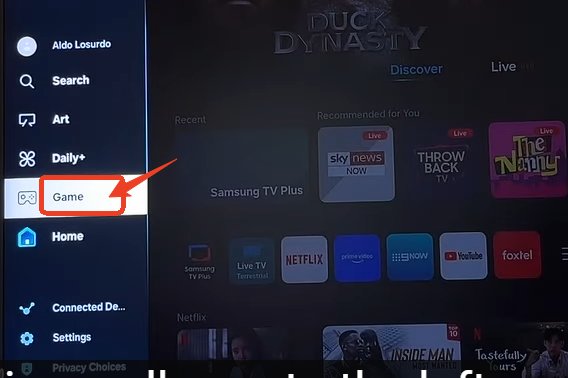
- Step 1. Scroll left to find the Gaming section, then scroll down and select Xbox.
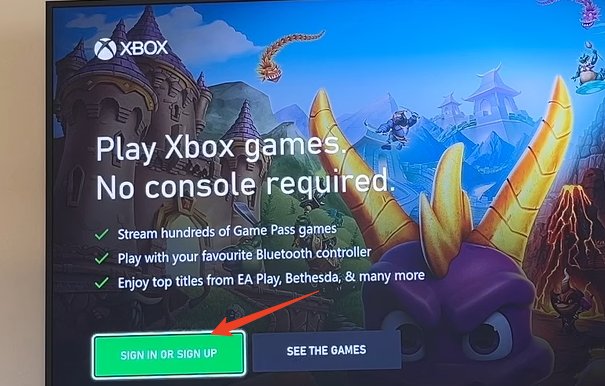
- Step 2. Sign in or sign up for an Xbox account.
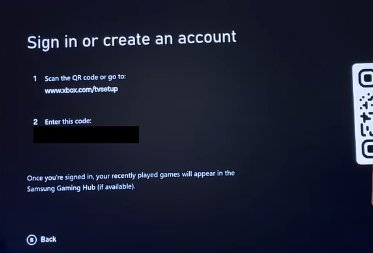
- Step 3. Follow the on-screen instructions to log into your account.
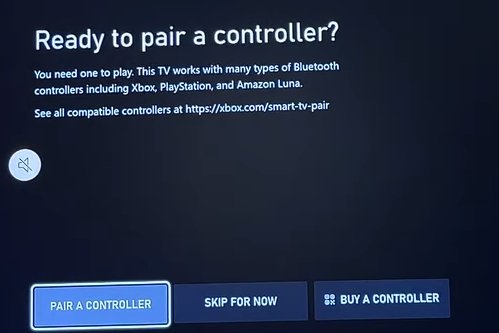
- Step 4. Once the Xbox launches on your TV, it will prompt you to pair a controller. Follow the on-screen instructions to pair it.
- Step 5. Return to the gaming hub and choose an Xbox game to play.
If you find any problems, you can watch this YouTube tutorial to solve.
FAQ: Frequently Asked Questions
Can I play Xbox on Samsung TV without a console?
Yes! If you have a 2022 or newer Samsung Smart TV, you can use the Samsung Gaming Hub. You will need an Xbox Game Pass Ultimate subscription and a compatible Bluetooth controller to stream games directly from the cloud.
What TVs are Compatible with Samsung Gaming Hub?
Samsung Gaming Hub is supported on all 4K and 8K Samsung Smart TV models from 2022, 2023, 2024, and 2025. Samsung Gaming Hub UI is not available in the Republic of Ireland, however selected Gaming Apps, including Xbox, are available through the app store.
Which controllers are compatible with Samsung Gaming Hub?
The Samsung Gaming Hub is very versatile. It supports official Xbox Wireless Controllers (Series X/S, One), PlayStation DualSense and DualShock 4 controllers, and even some Amazon Luna and generic Bluetooth controllers.
Why is my screen flickering or going black when I switch to 120Hz?
This is usually a bandwidth issue. First, ensure you are using an Ultra High Speed HDMI 2.1 cable. Second, verify you are plugged into the correct HDMI port (often marked with a game icon). Finally, ensure "Input Signal Plus" is turned on for that port in the TV's External Device Manager settings.
Is Xbox Cloud Gaming on Samsung TV free?
The app itself is free to download, and you can play free-to-play games like Fortnite without a subscription. However, to access the full library of hundreds of games, you need a paid Xbox Game Pass Ultimate membership.
Conclusion
Whether you are chasing the 120Hz dream with an HDMI 2.1 cable, streamlining your life with the Samsung Gaming Hub, the ability to play Xbox on Samsung TV is more accessible than ever.
Ready to get started? I recommend starting by checking your TV's specific model number to confirm which ports support HDMI 2.1, or verifying if your 2022+ model has the Gaming Hub app installed. Happy gaming!









Leave a Reply.