Imagine playing Elden Ring or managing your empire in Civilization VI right from your bed or at a coffee shop. It’s not a dream—today, you can run Steam games on your phone. Achieving smooth, high-fidelity gameplay takes more than just an app; it requires the right tools and setup.
In this guide, we’ll explore Steam Link, powerful third-party solution- Winlator to turn your smartphone into a portable PC console.
1. The Official Route: the Steam Link App
For most users, the journey to play steam games on phone begins with Valve’s official solution: the Steam Link App. It offers the highest level of official support and is designed to extend your desktop experience to Android or iOS devices seamlessly.
Setting Up Your Portable Console
Getting started is relatively straightforward, but following the correct order is crucial for a glitch-free experience:
Prepare the Host: Power on your gaming PC, launch the Steam client, and ensure you are logged in. Also, ensure you open the Remote Play.
Network Check: Ensure your mobile device and PC are on the same local network for the initial pairing.
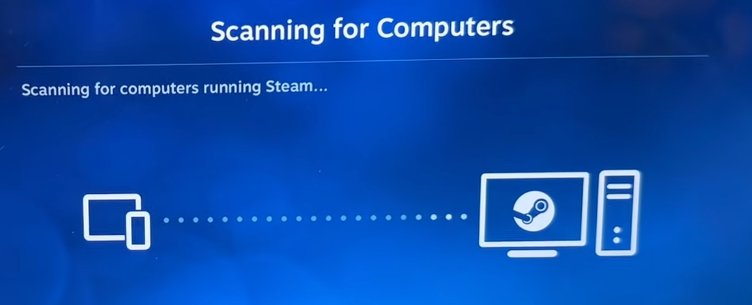
Pairing: Download the Steam Link App on your mobile device. It will automatically scan for running Steam clients on your LAN. Click to pair.
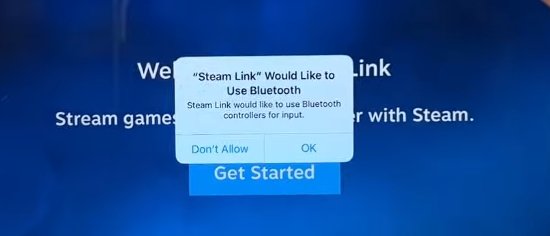
Controller Connection: While touch controls exist, Valve strongly recommends pairing a Bluetooth controller (like an Xbox or PS5 controller) to match the native design of PC games.
The Golden Rule: Network Architecture
To play steam games on phone without frustrating lag, your network setup is more important than your phone's specs. The source of most performance issues isn't the software; it's the connection.
Mandatory Wired PC Connection: Your host PC must be connected to your router via Ethernet cable. If your PC uses Wi-Fi to send data while your phone uses Wi-Fi to receive it, the signals interfere with each other, causing massive latency spikes.
5GHz Wi-Fi for Mobile: Connect your phone to the 5GHz band of your router. The 2.4GHz band is too slow and congested for real-time video streaming.
How to Use Steam Link to Play Steam Games
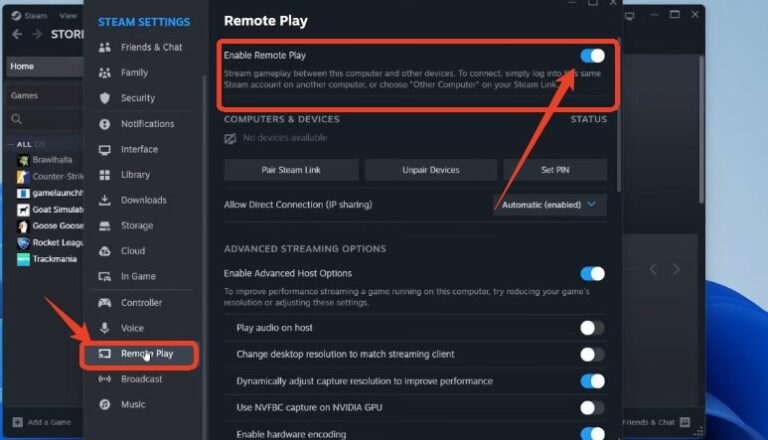
Step 1. Enable Remote Play on Your PC: To start, make sure Steam’s Remote Play feature is activated.
Open Steam on your PC, click Steam in the top-left corner, then select Settings. Go to Remote Play and enable Enable Remote Play.
Step 2. Install Steam Link on Your Phone: Next, get the official Steam Link app on your device.
Open the App Store (iPhone) or Google Play Store (Android), search for Steam Link, download and launch it, and allow any requested permissions.
Step 3. Pair Your Phone with Your PC: Once installed, connect the app to your Steam client.
Open the app and tap Get Started. It will scan for your PC automatically—tap your PC to pair. If it doesn’t appear, select Other Computer and enter the PIN shown on your phone into Steam on your PC.
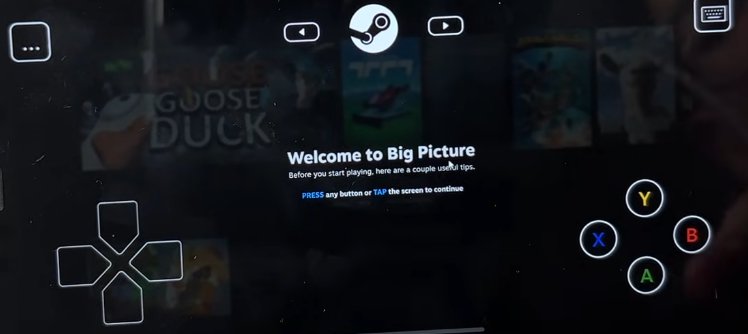
Step 4. Start Streaming Your Games: Tap Start Playing to launch Steam’s Big Picture Mode on your phone.
Pick any game from your library, tap Stream, and start playing with on-screen controls right on your phone.
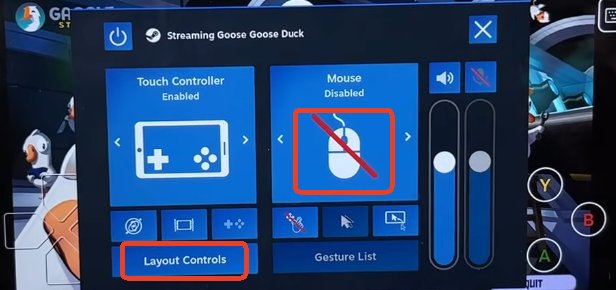
Step 5. Optional: Enable Mouse Mode: Some games may require mouse control.
Tap the three dots in the top-right corner, turn on Mouse Mode, then close the menu to continue playing.
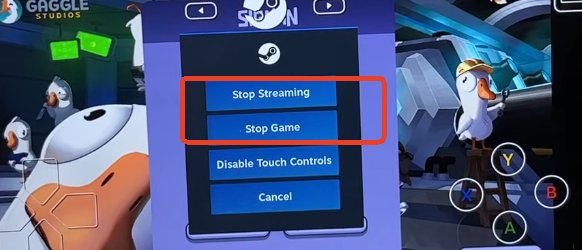
Step 6. Stop Streaming: When finished, exit safely.
Tap the three dots again, select the Power icon, and choose Stop Game or Stop Streaming to return to the Steam Link home screen.
AirDroid Cast
Local & Remote Screen Casting(Your Game or Whole Screen)
If you’ve ever tried playing Steam games on your phone, you probably know the biggest limitation: the official solution requires another PC to stream your games. This means you must keep your computer powered on, connected, and nearby — which isn’t always convenient when you just want to play on the go.
That’s where Winlator becomes a game-changer. Instead of relying on a second device, Winlator lets your phone emulate a Windows environment and run the actual Steam Windows client directly on Android. You can launch, install, and play compatible Steam games using only your mobile device. The setup process isn’t as simple as using Steam Link, but once configured, it gives you a level of independence and flexibility that official solutions simply can’t offer.
Pros
True Steam for Windows: Full library, cloud saves, mods, PC-like settings.
Controller Support (CMOD): Auto-mapped Xbox, PS, 8BitDo, handheld; up to 4 controllers.
Flexible Storage: Install on internal or SD card (smaller games recommended).
Good Performance: Indie, retro, and lightweight 3D games run well; minor tweaks for Unity games.
Cons
Not All Games Playable: AAA titles usually unplayable.
Setup Crashes: Installation, downloads, or first launch may freeze; restart fixes it.
SD Card Issues: Installs may hang mid-download; restarting resolves most cases.
Driver Tweaks Needed: Some Unity games require correct Turnip driver to avoid black screens or loading problems.
How to use Winlator to play Steam games
Step 1.
Download Winlator (or CMOD)
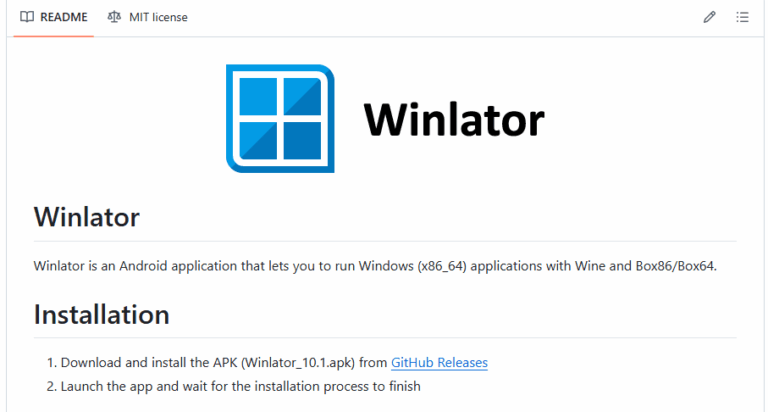
Open Chrome, go to Winlator’s GitHub, and download the latest APK. Install it and allow file access so you can run Steam and your games.
Step 2.
Create a Windows Container
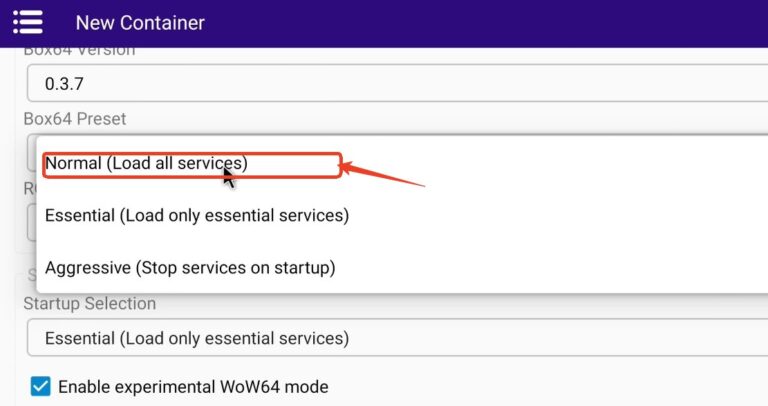
Open Winlator, tap the plus (+) to create a container, and set Startup Selection to “Normal” in Advanced settings. Optionally, add an SD card under Drives for extra storage.
Step 3.
Install Gecko and Mono
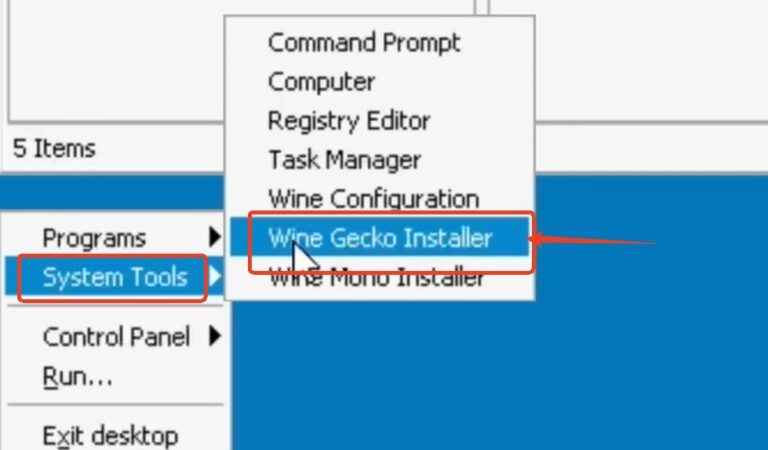
Inside the container, go to Start → System Tools and install Wine Gecko and Wine Mono. These are essential for many games and apps.
Step 4.
Download Steam for Windows
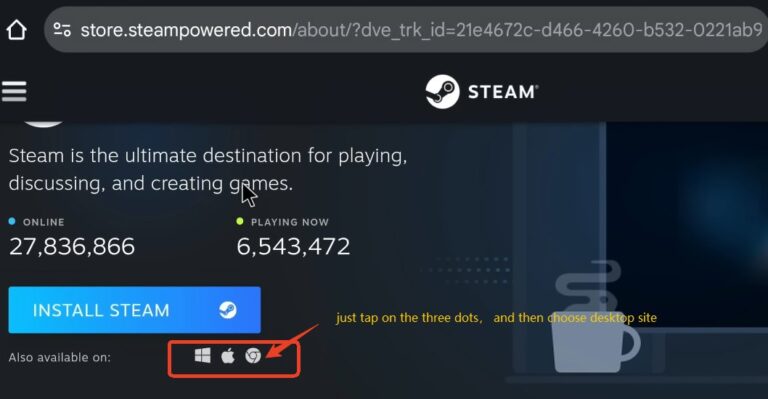
In Chrome, enable Desktop site, then download the SteamSetup.exe file instead of the mobile app.
Step 5.
Install Steam
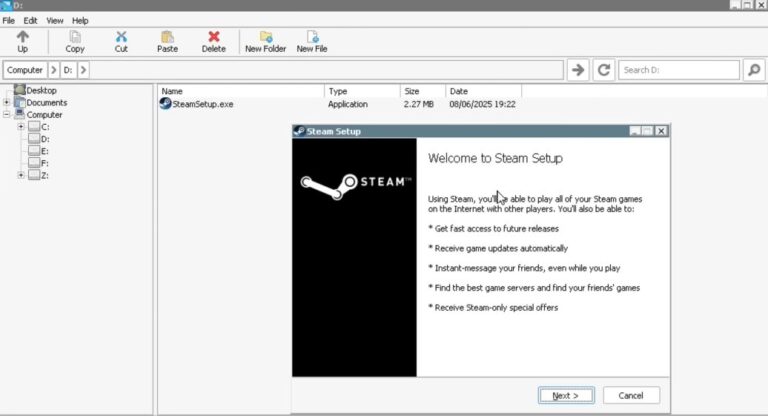
Run SteamSetup.exe in Winlator, and log in using the Steam app QR code for better security.
Step 6.
Install and Launch Games
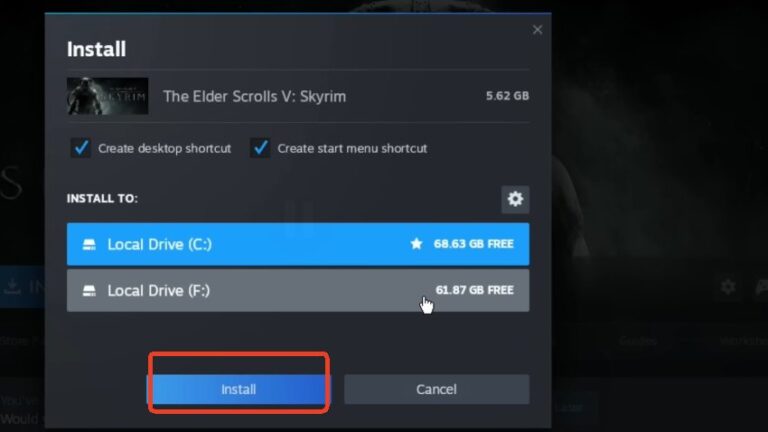
Select a game, choose internal or SD storage, and install. Some games may need a container restart before running properly.
Step 7.
(Optional) Install Turnip Drivers
For Snapdragon devices, Turnip drivers improve FPS, fix graphics, and stabilize gameplay. Download from GitHub, then go to Winlator menu → Adreno Tools → Install drivers, and assign them to Steam or individual games.
The whole setup process is a little bit complex, you can watch this YouTube Tutorial to find more help.
Conclusion
Learning how to play steam games on phone opens up a new world of gaming flexibility. Whether you choose the ease of Steam Link, or the Winlator, the key lies in your setup. Remember the golden rules: use a wired connection for your PC, use 5GHz Wi-Fi for your phone, and don't be afraid to tweak your network settings.
Elsa has worked on a number of iOS & Android solutions, she can always find her way around almost any application. She is an accomplished, skilled and versatile writer with more than 7 years of technical article writing experience.








Leave a Reply.