The 8-bit charm of Retro Bowl, developed by New Star Games, has taken the mobile gaming world by storm. But for many hardcore fans, a 6-inch phone screen just doesn't do justice to a game-winning drive in the final seconds of the fourth quarter.
Whether you are looking for pixel-perfect precision or a more immersive coaching experience, learning how to play Retro Bowl on PC is the ultimate game-changer.
Method 1: The Official Native Experience (Windows & Mac)
For users seeking the most stable and "official" experience, native containers provided by Google and Apple are the premier choice. These methods offer the best security and the most reliable cloud-saving features.
1.1 Windows: Google Play Games for PC (Beta)
Google has officially bridged the gap between Android and Windows. This isn't just an emulator; it is a specialized environment optimized by Google engineers. It offers an official way to play Android games on Windows 10 and 11. This method provides the best integration with your existing Google account.
Detailed System Requirements: Before beginning, ensure your hardware meets these specific thresholds:
- OS: Windows 10 (v2004) or later.
- Storage: 10GB available SSD space.
- Memory: 8GB RAM.
- Processor: 4-core CPU.
Step-by-Step Setup:
- Step 1. Enable BIOS Virtualization: Restart your PC and enter the BIOS (usually by tapping F2, F10, or Del). Look for "Hardware Virtualization" or "Intel VT-x/AMD-V" and set it to Enabled.
- Step 2. Enable Windows Features: Search for "Turn Windows features on or off" in your taskbar and check the box for Virtual Machine Platform. Restart your computer.
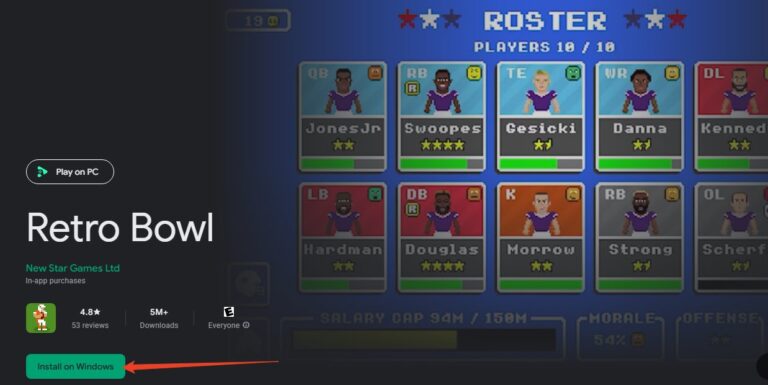
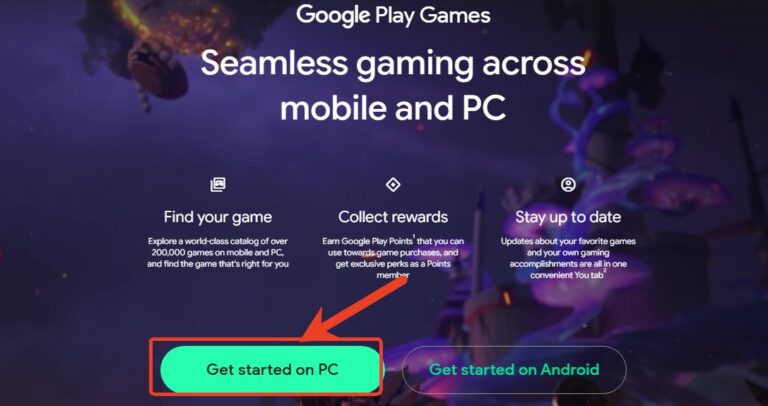
- Step 3. Install the Client: Download the installer from Google Play Games official site.
- Step 4. Download Retro Bowl: Log in with your Google account, search for "Retro Bowl," and hit install. Your progress will automatically sync if you’ve used the same account on your phone!
Note : Google Play Games on PC is available in more than 140 regions. If you cannot find it, maybe you need to check your region support.
1.2 Mac: Apple Arcade
If you are on macOS, specifically with an Apple Silicon (M1/M2/M3) chip, you can enjoy a premium version of the game.
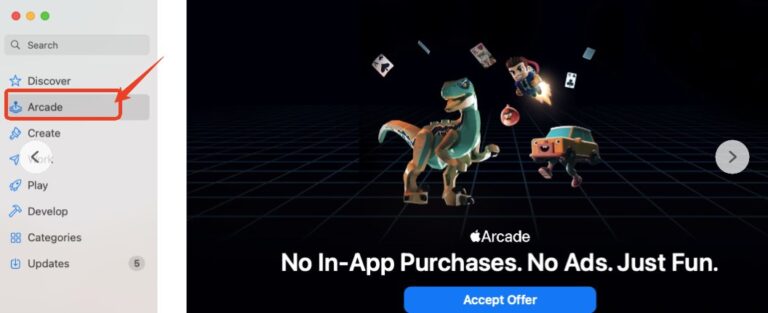
- Step 1. Open the Mac App Store and navigate to the Arcade tab.
- Step 2. Search for NFL Retro Bowl ’25.
- Step 3. Click "Get" to download. Since this is an Arcade title, it includes all premium features and lacks ads.
- Step 4. Ensure Game Center is active in your System Settings to keep your saves synced between your iPhone, iPad, and Mac.
- Mirror Retro Bowl on PC/TV to Share with Your Firends & Families
- Easy & Quick Screen Mirroring
- Multi-Platform Casting
- Free for Using
Method 2: Authorized Browser Portals
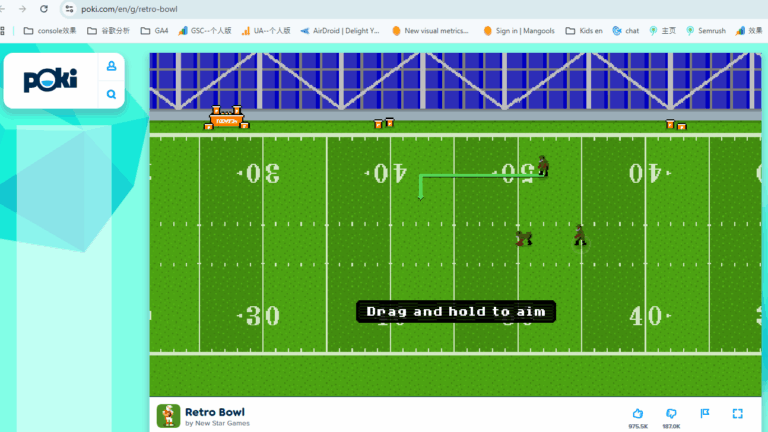
If you don't want to install software, the browser is your best friend. Developers recommend sticking to authorized sites like Poki or Kongregate to ensure you are playing a secure, updated version.
- Step 1. Navigate: Go to poki.com or kongregate.com and search for “Retro Bowl.”
- Step 2. Master the Controls:
- Passing (Aim/Throw): Left-click and drag backward (away from target) to aim; release to throw. Click, hold, and drag backwards (like a slingshot) to aim and power your throw. Release to pass.
- Run: Use the W and S keys to move your ball carrier up and down the field.
- Special Moves: Press A or D to Dive. Click and hold to charge a Trucking move for breaking tackles.
- Trucking (Stiff Arm): Long-press the left mouse button while running to charge through defenders.
- Step 3. Optimize: Switch to full-screen mode in your browser for the best Retro Bowl big screen gameplay.
Pro Tip: Always use Full-Screen Mode in your browser to avoid accidental clicks outside the game window during intense plays.
Method 3: Using Emulators for Power Users (BlueStacks)
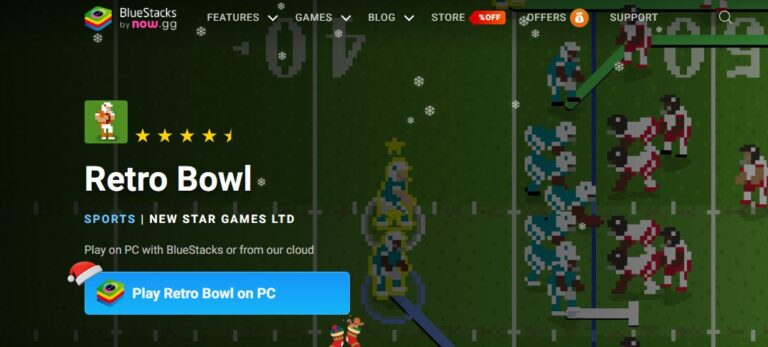
For those who want to use Macros or run multiple instances of the game to test different coaching strategies, an emulator like BlueStacks is the way to go.
- Step 1. Download BlueStacks from their official site and install it.
- Step 2. Log into the Google Play Store within the emulator.
- Step 3. Install Retro Bowl.
- Step 4. Keymapping: Use the "Controls Editor" (Ctrl + Shift + A) to map the on-screen swipe actions to your WASD keys. This allows you to play the game almost like a traditional console sports title.
AirDroid Cast
Easy to Play Retro Bowl from your PC/Phone to TV
100,000+ people have signed up.
Hidden Pitfalls & Recommendations
When you transition to Retro Bowl PC, there are a few technical "catches" you should be aware of:
The Syncing Gap
While Google Play Games and Apple Arcade sync well within their own ecosystems, cross-platform syncing is limited. You cannot easily move a save file from an Android phone to a Mac, or from an iPhone to the Poki browser version. Choose your main platform wisely!
Hardware Sensitivity
Despite the 8-bit graphics, running Retro Bowl through an emulator or Google Play Games requires Hardware Virtualization. If this isn't enabled in your BIOS, you will experience significant lag or even the dreaded "Blue Screen of Death" (BSOD). Always ensure you are running the game on an SSD rather than an old HDD to prevent stuttering.
Control Adaptation
The "slingshot" passing mechanic feels very different with a mouse than a thumb. It takes about 3-5 games to recalibrate your muscle memory. Don't get discouraged if your first few passes are interceptions!
Expert Recommendations for the Best Experience
- Restore Your Purchase: If you bought the "Unlimited" version on mobile and it doesn't show up on PC, use the "Restore Purchase" button in the settings menu.
- Stay Official: Avoid "PC Cracked Versions" or "No-Install Exes" from random websites. These are often shells for malware or crypto-miners. Stick to Poki, the App Store, or Google Play.
- Use a Wired Mouse: For the lowest latency during those crucial 2-minute drills, a wired mouse is superior to a Bluetooth one.
Frequently Asked Questions (FAQ)
Is Retro Bowl free on PC?
Yes! The browser versions (Poki/Kongregate) are free. The Google Play Games version is also free, though it contains the same in-app purchases as the mobile version.
Can I use a controller to play Retro Bowl on PC?
Officially, the game focuses on mouse/keyboard. However, if you use an emulator like BlueStacks, you can manually map your controller buttons to the screen's touch points.
Why is my game lagging on my laptop?
This is usually due to "Power Saving Mode" or a lack of Virtualization. Plug in your laptop and ensure your BIOS has virtualization enabled.
How do I save my progress on the browser version?
Browser versions usually save data to your browser's cache (cookies). If you clear your browsing history, you might lose your save. It is safer to use the Google Play Games or Apple Arcade versions for long-term save security.
Conclusion
Playing Retro Bowl on PC is the ultimate way to experience this modern classic. From the tactical advantage of a larger screen to the precision of keyboard controls, it’s an upgrade that every "Head Coach" should try. Whether you choose the instant access of a browser or the robust performance of Google Play Games, your journey to the Retro Bowl trophy just got a whole lot clearer.
Ready to start your dynasty? Head over to Poki for a quick match, or set up Google Play Games for a full-season grind!








Leave a Reply.