Elsa Updated on Dec 31, 2025 608 views

Playing Lords Mobile on PC or Mac has become increasingly popular among strategy game fans. While the game was originally designed for mobile devices, many players now prefer a desktop setup for better control, higher performance stability, and long-term gameplay comfort.
lords mobile

Whether you manage multiple accounts, participate in large-scale guild wars, or simply want a bigger screen and smoother experience, running Lords Mobile on a PC or Mac can significantly change how you play. In this guide, we’ll explore all safe and practical ways to play Lords Mobile on Windows and macOS, compare their pros and cons, and highlight important security considerations you should never ignore.

Overview: All Ways to Play Lords Mobile on PC or Mac

  • Official Lords Mobile PC Client (Windows only)
  • Google Play Games on PC (Beta)
  • Android Emulators (BlueStacks, LDPlayer, Nox, MuMu)
  • Native Mac support via Apple Silicon (M1/M2/M3)

Each option serves a different type of player. Let’s break them down one by one.
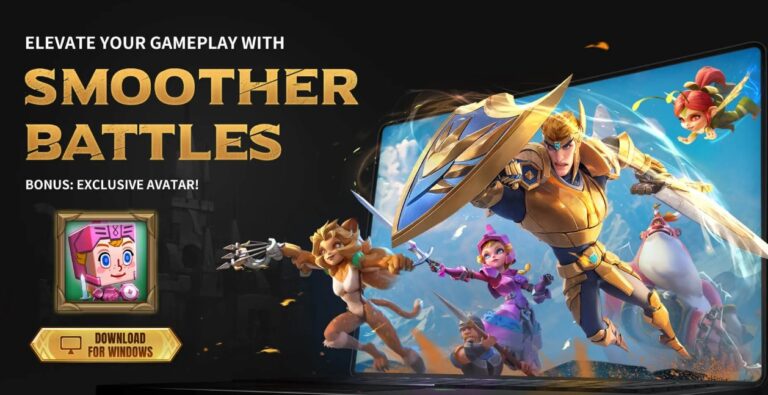
Method 1: The Official IGG PC Client

Lords Mobile PC client

If your priority is pure performance and seamless integration, the official PC version is your strongest ally. Developed directly by IGG, this version is built on the Unity engine, specifically optimized for x86 architecture.

Why Choose the Official Client? The Lords Mobile PC version eliminates the "middleman." Unlike emulators that translate Android instructions to Windows, this client runs natively. This results in significantly lower CPU usage and smoother frame rates, even during massive Kingdom vs. Kingdom (KvK) battles.

  • Exclusive Bonuses: IGG often incentivizes PC usage. Players can receive a 10% bonus on diamonds and exclusive level-up packs just for logging in via the PC client.
  • Visual Fidelity: It supports higher resolutions natively, making your turf look sharper than ever.

⚠️ Important Considerations for the Official Client:
  • Limited Features: It currently lacks native multi-instance support. If you run a "Hyper Farm" setup, this might feel restrictive.
  • Map Zoom: The zoom logic is still tied to mobile architecture, so it may feel limited compared to what a mouse wheel should do.
  • Payment Gateway: Purchases go through IGG’s payment platforms, which might differ from your Google Play setup.

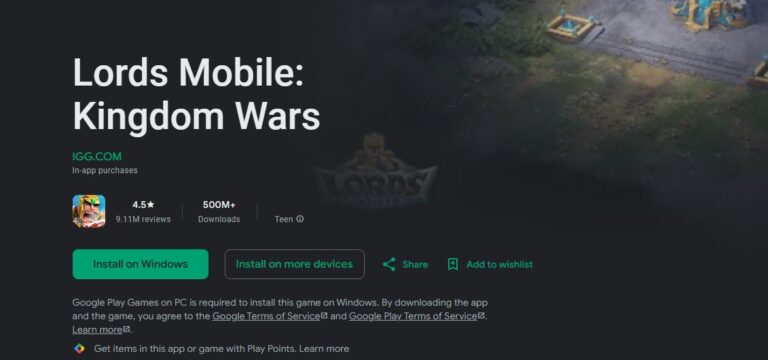
Method 2: Google Play Games on PC

lords mobile on google play games

For players who are deeply integrated into the Google ecosystem, Google Play Games on PC (Beta) offers a verified, secure bridge between mobile and desktop.

The Official Android Experience on Windows Google uses its own Hypervisor technology to run Android games on Windows. This ensures that when you play Lords Mobile on PC via this method, you are in a certified environment free from the bloatware sometimes found in third-party tools.

System Requirements & Technical Notes:

Key Features

  • OS: Windows 10 (v2004) or later.
  • Hardware: Requires an SSD with at least 10GB of space and, crucially, Hardware Virtualization must be enabled in your BIOS.
  • Rewards: You continue to earn "Google Play Points" for purchases, which can be redeemed for in-game packs.

⚠️ Important Considerations: This method is resource-intensive. It requires a dedicated GPU (like an NVIDIA MX450 or better) for optimal performance. Additionally, enabling Hyper-V for Google Play Games can sometimes conflict with other virtualization software (like VMWare or older emulators).


Share Your Lords Mobile Gameplay with Friends & Family on Big TV Screen

Share your gameplay on a big TV screen is great and enjoyable. AirDroid Cast can help you cast the game screen from PC/phone to TV, and you can watch together. Take a Look!
Try It Free

Method 3: Third-Party Emulators (Best for Power Users)

lords mobile on emulator

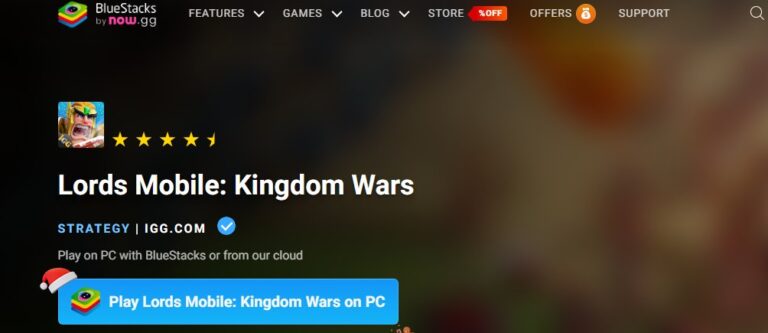
If you are a serious guild leader or a "Hyper Farmer," third-party emulators like BlueStacks, NoxPlayer, or LDPlayer are the industry standard. These platforms simulate a complete Android tablet on your computer.

Unlocking the Power of Multi-Instance The killer feature here is the "Instance Manager." This allows you to open multiple windows of Lords Mobile on PC simultaneously.

  • Strategic Farming: You can control your main account in one window while managing 3-4 farm accounts in others.
  • Defense Strategy: Set up your farm accounts to "watch" the map borders. If they get scouted or attacked, you get an early warning for your main account.
  • Performance & Optimization: Modern emulators like BlueStacks 5 have optimized RAM usage, consuming about 40% less memory than previous versions. However, they are still demanding.
  • CPU Impact: Resource usage scales linearly. Running 4 instances will use roughly 4x the CPU power.
  • Heat Management: On Intel-based laptops, heavy multi-boxing can trigger thermal throttling. Ensure your cooling is adequate.

⚠️ Important Considerations: Always download emulators from their official websites to avoid malware. Also, ensure "VT-x" (Virtualization Technology) is enabled in your BIOS; otherwise, the emulator will run painfully slow.
How to Play Lords Mobile on Mac

lords mobile on app store

Mac users face a unique scenario due to the split between Intel chips and Apple Silicon (M1/M2/M3).

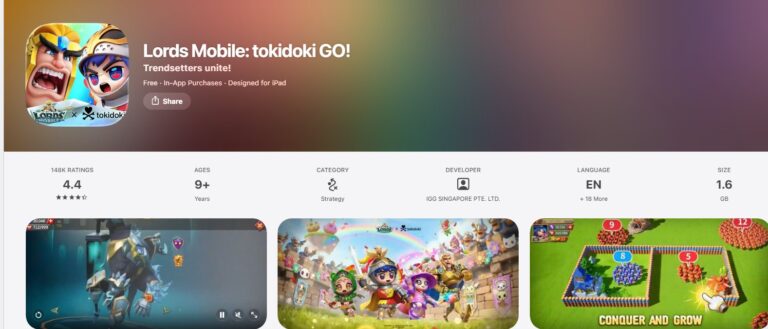
For Apple Silicon (M1/M2/M3) Users: You have the easiest path. Because Apple’s newer chips share the same architecture as iPhones and iPads, you can simply open the Mac App Store, search for Lords Mobile, and install the iPad version directly.

Pros

  • Runs natively with zero emulation overhead. Extreme battery efficiency.

Cons

  • Interface is touch-optimized, so mouse gestures might feel slightly "floaty."

For Intel Mac Users: You cannot run the iOS app natively. You must use an Android emulator compatible with macOS (like specific versions of BlueStacks or MuMu Player) or use the Cloud Gaming method mentioned above.

Crucial Safety Guide: Account Binding & Ban Avoidance

Transitioning to a Lords Mobile PC setup requires careful account management. Losing years of progress due to a binding error or a ban is a player's worst nightmare.

1. The "Guest Account" Trap Never play on a desktop environment as a "Guest." If you uninstall the emulator or the client, your data is wiped instantly.

  • Action: Link your mobile account to IGG ID or Facebook before logging in on PC.
  • iOS to PC: If you started on iPhone (Game Center), you must link your account to Facebook on your phone first. The PC versions generally do not support Game Center login.

2. The "Macro" Ban Risk IGG has a strict policy against automation. While emulators are legal, using their built-in "Macro Recorders" (scripts that automatically click to gather resources) is a violation.

  • Detection: IGG’s servers track click frequency and pixel coordinates. If you click the exact same pixel every 5 seconds for an hour, you will be flagged as a bot.
  • Consequences: Penalties range from "Account Isolation" (permanent banishment to a prison map) to total account deletion. Play manually to stay safe.
pic cast pop 01

AirDroid Cast

  • Local & Remote Screen Casting(Your Game or Whole Screen)
  • Android,iOS,Windows,Mac,TV Screen Mirroring
  • Wireless & USB Connection
  • Total Control Android & iOS beyond Your Finger
  • Mirror Multiple Screen to PC Simultaneously

Frequently Asked Questions (FAQ)

Can I play Lords Mobile on PC with my existing iOS account?
Yes, but not directly via Apple ID. You must open Lords Mobile on your iPhone, go to Settings > Account, and link it to a Facebook account or set up an IGG ID. Then, use that Facebook/IGG login on your PC.
Is playing on an emulator a bannable offense?
No, playing on an emulator is allowed. However, using scripts, bots, or macros within the emulator to automate gameplay is strictly prohibited and will result in a ban.
Which requires better hardware: The Official Client or an Emulator?
The Emulator requires significantly better hardware (more RAM and CPU) because it is simulating an entire Android operating system. The Official Client is much lighter and runs well on older PCs.
How do I fix the "Device not compatible" error on Google Play Games PC?
This usually means your PC does not meet the minimum requirements (e.g., missing SSD) or, more commonly, that Hyper-V or Virtualization is disabled in your computer's BIOS settings.
Click a star to vote
609 views
Elsa
Elsa
Elsa has worked on a number of iOS & Android solutions, she can always find her way around almost any application. She is an accomplished, skilled and versatile writer with more than 7 years of technical article writing experience.
Discussion

Leave a Reply.

Your email address will not be published. Required fields are marked*

Airdroid cast logo
AirDroid Cast
Enjoy More on a Big Screen
Download


